
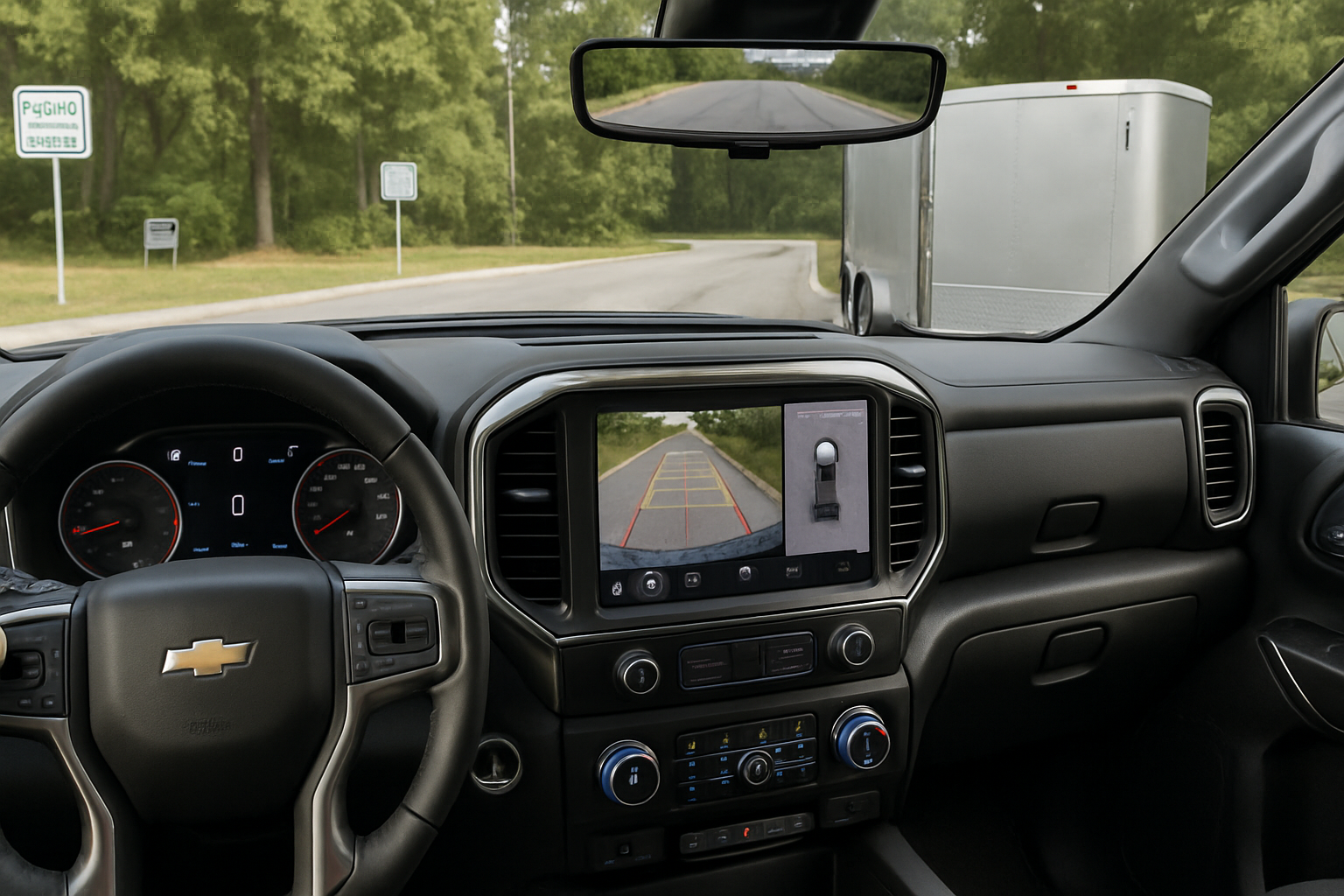
When you’re pulling a trailer with your Chevy Silverado, having the right technology can make the difference between a smooth haul and a stressful experience. The Silverado’s advanced trailering app and camera system takes the guesswork out of everything from hitching up to monitoring your cargo on the road.
Understanding the Silverado’s Trailering Technology Package
Chevrolet’s trailering system combines smartphone integration with advanced camera technology to create a comprehensive towing solution. The system includes up to 15 different camera views, intelligent trailer profiles, hitch guidance assistance, and even trailer tire pressure monitoring.
The myChevrolet mobile app serves as your command center for trailer management. You’ll use this app to create trailer profiles, run pre-departure checklists, and access various monitoring features while you’re on the road.
Getting Started with the myChevrolet App
First, download the myChevrolet app from your phone’s app store and create an account linked to your truck’s VIN. Once you’ve paired your phone with your Silverado’s infotainment system, the app will sync with your vehicle’s trailering features.
The app interface divides trailering functions into several main categories: Trailer Profiles, Pre-Departure Checklist, Camera Views, and Monitoring Systems. Each section provides specific tools to help you tow more safely and confidently.
Setting Up Your OnStar Connection
Many of the advanced features require an active OnStar subscription with a connected data plan. This connection enables remote monitoring, smartphone alerts, and real-time trailer diagnostics. Check your OnStar status in the truck’s infotainment system under Settings > Vehicle > OnStar.
Creating and Managing Trailer Profiles
Trailer profiles store all the essential information about each trailer you tow. This includes dimensions, weight, tire pressure specifications, and electrical connection details. Creating accurate profiles helps your Silverado optimize its performance for each specific trailer.
To create a new profile, open the myChevrolet app and select “Trailering” from the main menu. Tap “Add Trailer” and enter your trailer’s specifications including length, width, height, and gross vehicle weight rating (GVWR).
You can store multiple trailer profiles in the system. This feature proves especially useful if you regularly tow different trailers like a boat, travel trailer, and utility trailer. The system will adjust camera angles and monitoring parameters based on which profile you select.
Entering Trailer Specifications
When entering trailer dimensions, measure from the hitch ball to the rear of the trailer for length. Include any accessories like bike racks or spare tire carriers that extend beyond the trailer body. Width measurements should include mirrors or other protruding elements.
Weight specifications require your trailer’s empty weight, tongue weight, and maximum loaded weight. You’ll find these numbers on your trailer’s compliance sticker, usually located on the tongue or frame near the hitch.
Using the Pre-Departure Checklist
The pre-departure checklist walks you through essential safety checks before you hit the road. This digital checklist covers everything from hitch pin insertion to electrical connections and brake controller settings.
Access the checklist through the myChevrolet app or directly on your truck’s infotainment screen. The system will display items specific to your selected trailer profile, customizing the checklist based on your trailer’s features and requirements.
Items on the checklist include verifying proper hitch ball size, checking safety chains, confirming electrical connections work properly, and ensuring your brake controller is set to the correct gain level. You can check off items as you complete them, and the system will remember your progress.
Customizing Your Checklist
You can add custom items to the standard checklist to match your specific towing setup. Common additions include checking tie-down straps, verifying cargo placement, or confirming your trailer’s breakaway switch is properly connected.
Mastering the 15-Camera View System
The Silverado’s camera system provides up to 15 different viewing angles to help you see around, behind, and even through your trailer. The cameras integrate seamlessly with your trailer profile to optimize viewing angles for your specific setup.
Standard views include rear vision, side blind spot monitoring, and overhead guidance views. When properly configured, you’ll also get transparent trailer view, which digitally “sees through” your trailer to show the road behind it.
Rear Vision and Blind Spot Cameras
The rear camera activates automatically when you shift into reverse, but you can also access it manually through the infotainment system. Side cameras mounted in your mirrors help monitor blind spots created by wide trailers.
These side cameras become especially valuable when changing lanes or navigating tight spaces. The system can automatically switch between camera views based on your turn signals and driving situation.
Transparent Trailer View Technology
Transparent trailer view uses advanced image processing to create the illusion of seeing through your trailer. The system combines images from multiple cameras to show you what’s directly behind your trailer, even when the trailer blocks your normal rear view.
This feature requires a compatible trailer with properly mounted auxiliary cameras. The cameras connect through your trailer’s electrical system and communicate with your truck’s display system.
Overhead and Hitch Guidance Views
Overhead camera views provide a bird’s-eye perspective of your truck and trailer, making it easier to navigate tight spaces or position your rig precisely. These views prove especially helpful in campgrounds or loading areas.
The hitch guidance system overlays directional indicators on your camera display, showing you exactly which way to turn your steering wheel to position your trailer where you want it.
Hitch Guidance and Alignment Features
The Hitch Guidance feature simplifies the often-frustrating process of backing up to connect your trailer. The system uses your rear camera combined with on-screen guidance to help you align your hitch ball with the trailer coupler.
When you shift into reverse with Hitch Guidance active, colored guidelines appear on your infotainment screen. These lines show your truck’s projected path and help you steer toward the target alignment point.
The system works best when your trailer is positioned on level ground with good visibility of the hitch components. Clean your rear camera lens regularly to ensure the guidance lines remain accurate and visible.
Setting Up Hitch Guidance
Access Hitch Guidance through your truck’s camera settings menu. You’ll need to calibrate the system by identifying your hitch ball location on the camera display. The system stores this calibration with your truck’s settings.
For trailers with different hitch heights, you may need to recalibrate the system. The guidance lines adjust automatically based on your selected trailer profile and stored hitch specifications.
Trailer Tire Pressure Monitoring System
The trailer tire pressure monitoring system (TPMS) extends your truck’s tire monitoring to include your trailer’s tires. This system alerts you to low pressure situations before they become dangerous blowouts or handling problems.
Trailer TPMS requires compatible sensors installed on each trailer tire. These sensors communicate wirelessly with your truck’s monitoring system and display real-time pressure readings on your dashboard and smartphone app.
You’ll receive alerts both in your truck and on your phone if any trailer tire drops below safe pressure levels. The system also tracks temperature readings, which can indicate overloading or bearing problems.
Installing TPMS Sensors
TPMS sensors can be installed inside your trailer tires during mounting or added externally to existing valve stems. Internal sensors provide more accurate readings and better protection from theft or damage.
Each sensor needs to be programmed to communicate with your specific truck. This process typically requires a TPMS programming tool or a visit to a tire shop with the proper equipment.
Automatic Mirror Extension Feature
Your Silverado’s side mirrors automatically extend when you select a trailer profile, giving you better visibility around wide trailers. The mirrors remember the proper extension distance for each trailer profile you create.
The mirrors extend automatically when you turn on your truck with a trailer profile active. They’ll also extend manually when you connect your trailer’s electrical harness, assuming you have this feature enabled in your truck’s settings.
You can adjust the extension distance for each trailer profile through the mirror settings menu. The system stores these settings and applies them automatically when you select that specific trailer profile.
Manual Mirror Control
Even with automatic extension enabled, you can manually adjust your mirrors using the mirror control buttons on your door panel. These manual adjustments override the automatic settings temporarily.
To save new mirror positions to your trailer profile, adjust the mirrors manually, then access the trailer profile settings and select “Update Mirror Position” for your active profile.
Real-Time Monitoring and Alerts
While towing, your Silverado continuously monitors various trailer systems and sends alerts to both your dashboard and smartphone. These alerts cover tire pressure, electrical connections, and unusual trailer movement.
The myChevrolet app provides remote monitoring capabilities, allowing you to check your trailer’s status even when you’re away from your truck. This proves valuable during rest stops or overnight stays.
Alert types include low tire pressure warnings, electrical connection faults, excessive trailer sway, and maintenance reminders. Each alert includes specific information about the problem and suggested actions.
Troubleshooting Common Issues
Camera systems can experience problems with dirty lenses, poor electrical connections, or software glitches. Clean all camera lenses regularly and check electrical connections at your trailer plug.
If your transparent trailer view isn’t working properly, verify that your auxiliary trailer cameras are properly connected and positioned. These cameras require precise alignment to create the seamless “see-through” effect.
TPMS sensors may lose communication due to low battery, interference, or programming issues. If you’re getting false alerts or missing readings, have your sensors checked by a qualified technician.
Software Updates
Keep your truck’s infotainment system updated with the latest software releases. These updates often include improvements to camera processing, app connectivity, and monitoring accuracy.
Update your myChevrolet app regularly through your phone’s app store. App updates frequently add new features and improve reliability of remote monitoring functions.
Maximizing System Performance
Take time to properly set up each trailer profile with accurate specifications. Incorrect trailer dimensions or weight information can affect camera angles, monitoring thresholds, and guidance accuracy.
Practice using the camera system in a safe, open area before attempting challenging maneuvers. Understanding how each camera view works will help you use them effectively when you really need them.
Maintain your equipment properly by cleaning cameras, checking electrical connections, and replacing TPMS sensor batteries as needed. Well-maintained systems provide more reliable performance when you’re on the road.
Frequently Asked Questions
Do I need a subscription service to use these features?
Basic camera functions and hitch guidance work without any subscription. However, remote monitoring, smartphone alerts, and some advanced features require an active OnStar plan with data connectivity.
Can I use the system with any trailer?
The basic trailering features work with any trailer that has standard electrical connections. Advanced features like transparent trailer view require compatible auxiliary cameras mounted on your specific trailer.
How often should I update my trailer profiles?
Update your trailer profiles whenever you make modifications that change dimensions, weight, or tire specifications. Seasonal changes like adding or removing equipment may also require profile updates.
What happens if my phone loses connection while towing?
All essential camera and monitoring functions continue to work through your truck’s built-in systems. You’ll lose remote monitoring capabilities and smartphone alerts, but safety systems remain fully operational.
This article contains affiliate links. If you purchase through these links, we may earn a small commission at no extra cost to you.

Leave a Reply