
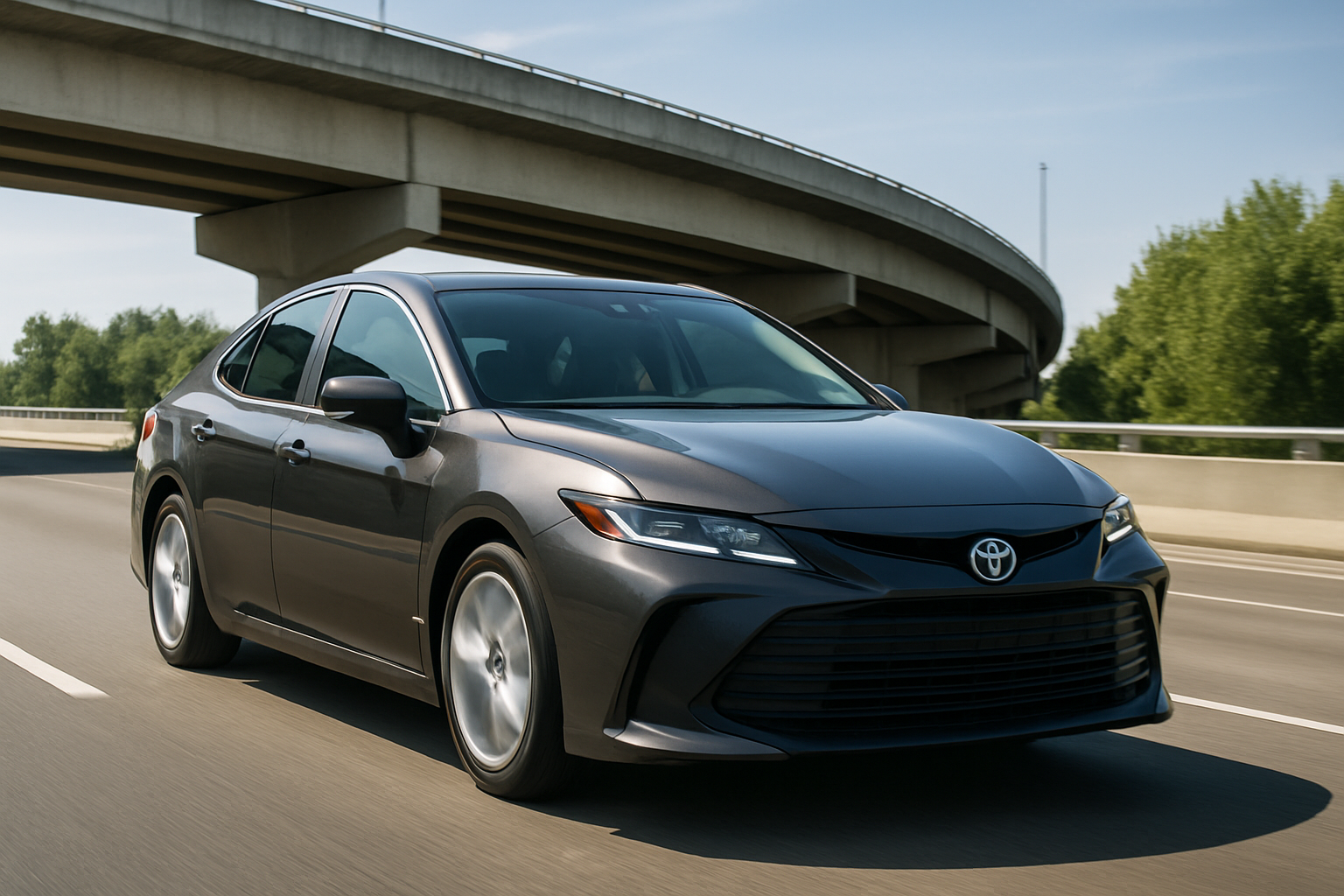
Toyota Safety Sense 3.0 comes standard on modern Camrys, bringing advanced driver assistance features that can prevent accidents and reduce fatigue on long drives. Learning how to use and customize these features properly makes them far more effective for your specific driving habits.
Many drivers never explore the customization options, leaving factory settings that might not match their preferences. Taking a few minutes to understand each feature and adjust the sensitivity levels transforms these systems from occasional annoyances into genuinely helpful driving aids.
Understanding Toyota Safety Sense 3.0 Core Features
Toyota Safety Sense 3.0 includes five main features that work together to enhance safety. The Pre-Collision System (PCS) monitors for potential frontal collisions with vehicles, pedestrians, and cyclists. Lane Departure Alert (LDA) warns when you drift out of your lane without signaling.
Dynamic Radar Cruise Control (DRCC) maintains your set speed and following distance automatically. Lane Tracing Assist (LTA) provides gentle steering inputs to keep you centered in your lane. Road Sign Assist (RSA) recognizes traffic signs and displays them on your dashboard.
Each system uses cameras, radar, or both to monitor your surroundings. The forward-facing camera sits behind your rearview mirror, while the radar sensor is mounted in the front grille area.
Pre-Collision System Setup and Customization
The Pre-Collision System represents the most critical safety feature in the Toyota Safety Sense 3.0 suite. Access the settings through your infotainment screen by selecting Menu, then Settings, then Driver Assist.
You can adjust the collision warning timing to Early, Standard, or Late. Early provides maximum warning time but may alert more frequently in heavy traffic. Standard works well for most drivers, while Late reduces false alerts but gives less reaction time.
The system also offers sensitivity adjustments for pedestrian and cyclist detection. High sensitivity catches more potential hazards but might trigger unnecessary warnings. Low sensitivity reduces false alarms but could miss some legitimate threats.
You can disable automatic emergency braking while keeping the warning alerts active. This option helps drivers who want awareness without system intervention. However, keeping both warning and braking active provides maximum protection.
Configuring Lane Departure Alert
Lane Departure Alert settings appear in the same Driver Assist menu. You can choose between Alert Only mode or Alert with Steering Assist. Alert Only provides audio and visual warnings when you drift without signaling.
Alert with Steering Assist adds gentle steering corrections to guide you back into your lane. The steering assistance works subtly and won’t fight your inputs if you intentionally change lanes.
Sensitivity settings include High, Standard, and Low options. High sensitivity triggers alerts earlier when approaching lane lines. Low sensitivity requires more significant lane departure before activating warnings.
You can also adjust the warning method between buzzer, display, or both. The buzzer provides immediate audio feedback, while display warnings appear on your instrument cluster. Most drivers benefit from using both warning types.
Dynamic Radar Cruise Control Operation
Activating Dynamic Radar Cruise Control requires pressing the cruise control on/off switch on your steering wheel. The DRCC indicator will illuminate in your instrument cluster when the system is ready.
Set your desired speed by accelerating to the target velocity and pressing the Set button. The system maintains this speed while automatically adjusting for slower traffic ahead. You can increase or decrease the set speed using the Resume/Accelerate and Coast/Decelerate buttons.
Following distance adjustment happens through the vehicle distance button on your steering wheel. Four distance settings are available, from close following in heavy traffic to extended following for highway cruising. The display shows your current setting with car symbols indicating the selected gap.
The system can bring your vehicle to a complete stop in traffic and resume automatically when traffic moves. If the stop lasts more than three seconds, tap the Resume button or press the accelerator to continue following the lead vehicle.
Lane Tracing Assist Configuration
Lane Tracing Assist works in conjunction with Dynamic Radar Cruise Control to provide semi-autonomous driving capability. The system activates automatically when both DRCC and LTA are enabled and clear lane markings are detected.
Access LTA settings through the Driver Assist menu to adjust steering assistance levels. The sensitivity options determine how actively the system corrects your steering. Higher settings provide more noticeable assistance, while lower settings offer gentler guidance.
You can disable LTA while keeping DRCC active if you prefer manual steering control. This configuration maintains adaptive cruise control benefits without automated steering inputs.
The system requires periodic steering wheel input to confirm driver attention. Light pressure or small movements satisfy this requirement. If you don’t provide input after several warnings, LTA temporarily disables until you actively steer.
Road Sign Assist Settings
Road Sign Assist recognizes speed limit signs, stop signs, yield signs, and other traffic control devices. The system displays recognized signs on your instrument cluster and head-up display if equipped.
You can customize which sign types appear on your display through the RSA settings menu. Speed limit signs typically remain enabled since they integrate with your cruise control system. Other sign displays can be toggled based on your preferences.
The system also provides overspeed warnings when you exceed detected speed limits. You can adjust the warning threshold or disable overspeed alerts entirely. Some drivers find these warnings helpful in unfamiliar areas, while others prefer relying on their own speed awareness.
Sign recognition accuracy depends on clear visibility and standard sign designs. The system may miss signs obscured by weather, damage, or non-standard formatting.
Accessing the Settings Menu
All Toyota Safety Sense 3.0 settings live within your infotainment system’s menu structure. Start by pressing the Menu button on your touchscreen or center console controls. Select Settings from the main menu options.
Choose Driver Assist or Vehicle Settings depending on your specific Camry model year. The exact menu names vary slightly between model years, but the settings remain in similar locations.
Individual feature controls appear as separate menu items within the Driver Assist section. Each feature includes an on/off toggle plus sensitivity or timing adjustments where applicable.
Changes save automatically when you adjust settings. You don’t need to press a separate save button or confirm changes. Exiting the menu preserves your selected preferences until you change them again.
Turning Features On and Off
Every Toyota Safety Sense 3.0 feature can be completely disabled if desired. The main toggle switches appear at the top of each feature’s settings page. Sliding the toggle to the off position disables all aspects of that particular system.
Some features offer partial disable options. For example, you can turn off Pre-Collision automatic braking while keeping the warning alerts active. This approach provides awareness benefits without system intervention.
Lane Departure Alert can be set to warning only or completely disabled. The warning-only mode eliminates steering assistance while maintaining drift notifications.
Disabling features turns off their dashboard indicators and eliminates all related warnings or interventions. The systems remain ready to reactivate when you turn them back on through the settings menu.
Understanding System Limitations
Toyota Safety Sense 3.0 systems have specific operating conditions and limitations. Pre-Collision System works best in clear weather with good visibility. Heavy rain, snow, or fog can reduce system effectiveness.
Lane departure and tracing systems require clearly visible lane markings. Faded lines, construction zones, or unmarked roads may cause these features to disengage temporarily.
Dynamic Radar Cruise Control operates at speeds above 30 mph on most models. The full stop-and-go functionality works at all speeds but requires clear detection of the lead vehicle.
Road Sign Assist depends on standard sign designs and clear visibility. Damaged, obscured, or non-standard signs may not register with the system.
Optimal Settings for Different Driving Conditions
Highway driving benefits from higher sensitivity settings across most systems. Lane Tracing Assist works exceptionally well on well-marked interstates with clear lane divisions. Set following distance to longer gaps for comfortable highway cruising.
City driving often requires different sensitivity levels. Lower Pre-Collision sensitivity reduces false alerts in heavy traffic with frequent close approaches. Lane Departure Alert sensitivity might need reduction in areas with frequent construction or poor lane markings.
Rural driving presents unique challenges with varying road conditions. Road Sign Assist becomes more valuable in unfamiliar areas, while lane systems may struggle with older road markings.
Weather conditions should influence your settings choices. Reduce sensitivity levels in rain or snow when systems might trigger unnecessarily due to reduced traction or visibility.
Troubleshooting Common Issues
If systems frequently disable themselves, check for obstructions around the front camera and radar sensor. Snow, ice, dirt, or debris can block sensor inputs and cause temporary shutdowns.
Excessive false alerts usually indicate sensitivity settings that are too high for your driving conditions. Reduce sensitivity levels gradually until alert frequency becomes manageable.
Lane systems that don’t engage often indicate poor lane marking visibility. These systems automatically disable when they can’t detect clear lane boundaries.
Cruise control issues might stem from radar sensor obstructions or extreme weather conditions. Clean the front grille area around the radar sensor if adaptive cruise control stops working properly.
Maintenance and Care
Keep your windshield clean around the camera area behind the rearview mirror. Dirt, bugs, or water spots in this area can impair system function. Use glass cleaner and avoid harsh chemicals that might damage camera lenses.
The radar sensor in your front grille needs regular cleaning as well. Wash off road salt, mud, and debris during routine car washes. Avoid high-pressure water directly on the sensor area.
Windshield replacement requires camera recalibration at a qualified Toyota service center. The camera mounting and aim must be precisely set for proper system operation.
Software updates occasionally improve system performance or add new features. Check with your Toyota dealer during regular maintenance visits for available updates.
Frequently Asked Questions
Can I permanently disable Toyota Safety Sense features?
Yes, you can turn off individual features through the settings menu. However, the settings reset to default (enabled) each time you start the vehicle. This design ensures safety systems remain active unless you consciously choose to disable them for each drive.
Do these systems work in all weather conditions?
Toyota Safety Sense 3.0 systems have reduced effectiveness in severe weather. Heavy rain, snow, or fog can impair camera and radar sensors. The systems will alert you when weather conditions prevent proper operation and may temporarily disable until conditions improve.
Will using Toyota Safety Sense affect my fuel economy?
Dynamic Radar Cruise Control can actually improve fuel economy by maintaining consistent speeds and following distances. The other safety systems have minimal impact on fuel consumption since they only activate when needed.
What happens if I ignore system warnings?
Ignoring Lane Tracing Assist prompts for steering input will cause the system to disable temporarily. Pre-Collision System warnings that go unheeded may result in automatic emergency braking if a collision appears imminent. The systems are designed to escalate interventions when drivers don’t respond to initial warnings.
This article contains affiliate links. If you purchase through these links, we may earn a small commission at no extra cost to you.

Leave a Reply