
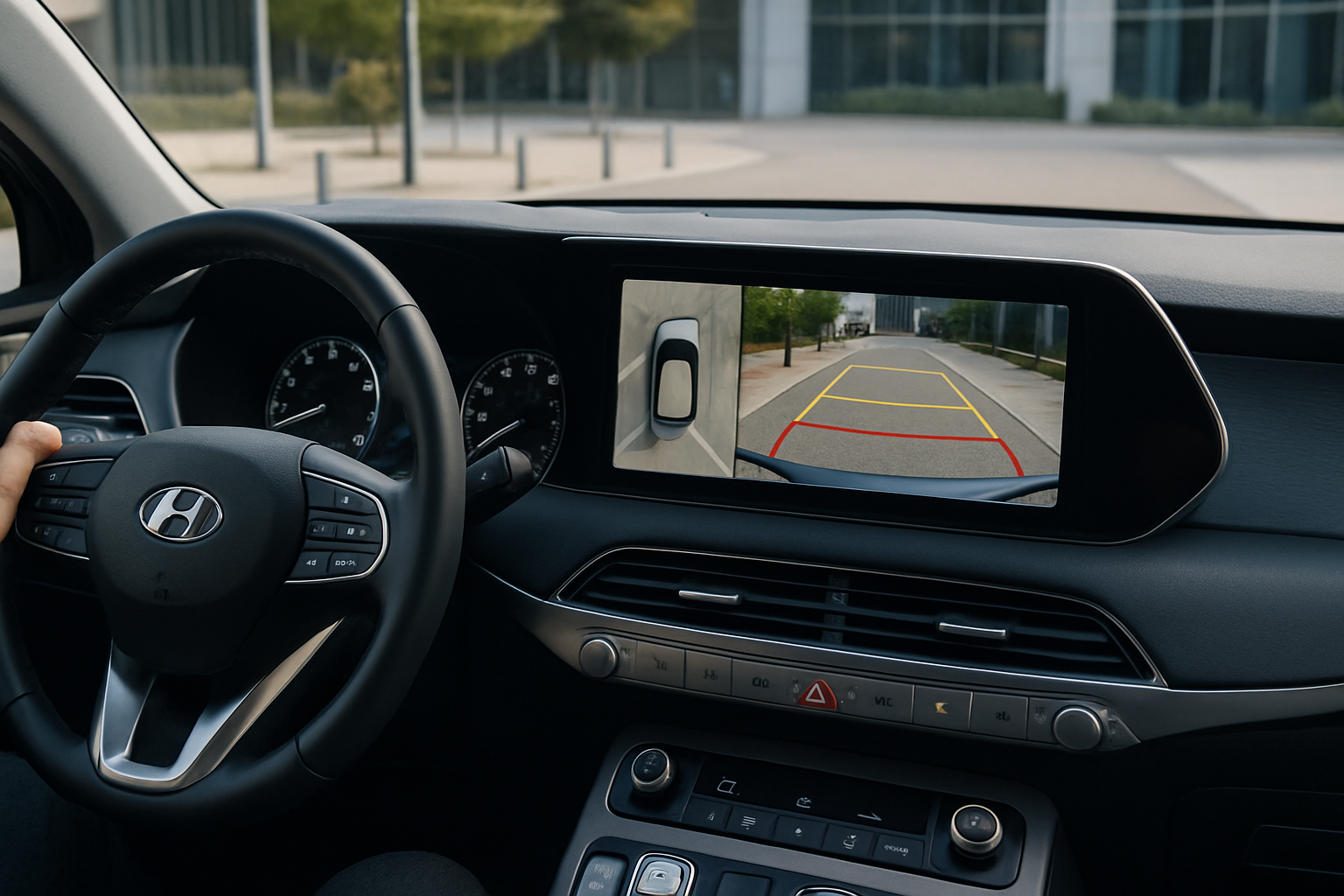
The Hyundai Palisade comes equipped with an advanced surround view camera system that gives you a complete 360-degree view around your vehicle. This technology makes parking, backing up, and navigating tight spaces significantly easier and safer.
Whether you’re squeezing into a crowded parking lot or backing out of your driveway, the Palisade’s camera system provides multiple viewing angles to help you see what’s happening around your SUV. The system includes several different viewing modes, customizable guidelines, and even integrates with your turn signals for enhanced visibility.
Understanding the Palisade’s Surround View Camera System
The Hyundai Palisade uses four cameras mounted around the vehicle to create a comprehensive view of your surroundings. These cameras are positioned at the front grille, rear tailgate, and both side mirrors to capture every angle around your vehicle.
The system automatically activates when you shift into reverse, but you can also manually turn it on using the camera button on your center console. This flexibility allows you to use the cameras whenever you need extra visibility, not just when backing up.
The 12.3-inch touchscreen display shows the camera feeds with helpful guidelines and reference lines to assist with parking and maneuvering. You can switch between different views and even rotate the 3D view to get the exact perspective you need.
Activating Different Camera Views
The Palisade offers several different camera viewing modes, each designed for specific situations. You can switch between these views using the touchscreen controls while the camera system is active.
Standard Rear View
This is the basic rearview camera that activates automatically when you shift into reverse. You’ll see what’s directly behind your vehicle with distance guidelines to help judge spacing. The view includes both static and dynamic guidelines that adjust based on your steering wheel position.
Wide Rear View
The wide view provides a broader perspective behind your vehicle, which is particularly helpful when backing out of parking spaces where you need to see approaching traffic. Tap the wide view icon on the display to switch to this mode while in reverse.
Top-Down Surround View
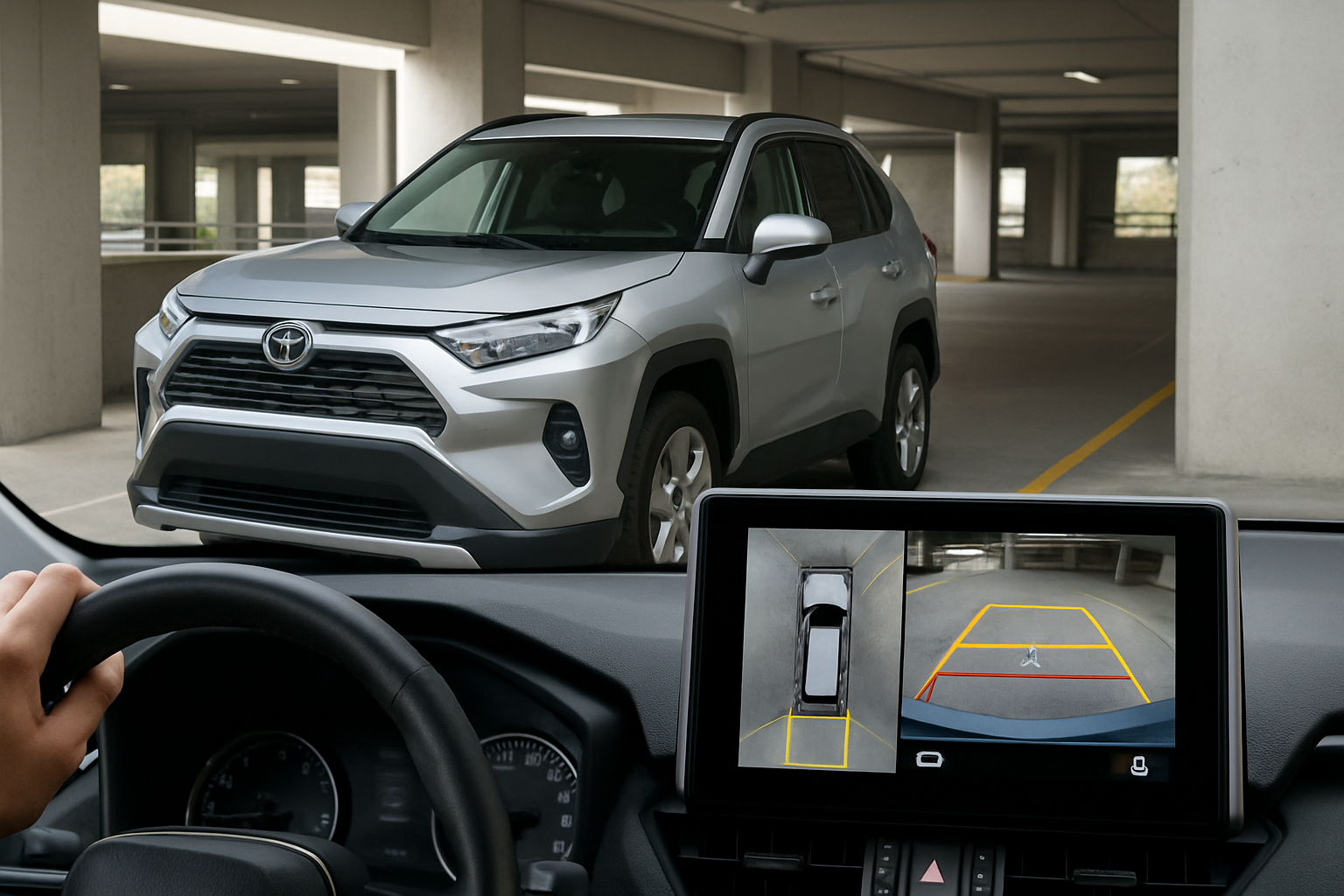
This bird’s eye view shows your Palisade from above, surrounded by a complete 360-degree view of the area around your vehicle. The system digitally stitches together feeds from all four cameras to create this overhead perspective. This view is incredibly useful for parallel parking or navigating tight spaces.
Front View
You can manually activate the front view camera when you need to see what’s in front of your vehicle, especially useful when pulling up to parking barriers or navigating steep driveways. Access this by pressing the camera button and selecting the front view option.
Using the 3D Surround View and Rotation Feature
One of the most impressive features of the Palisade’s camera system is the 3D surround view mode. This creates a three-dimensional representation of your vehicle and its surroundings that you can rotate and adjust for the perfect viewing angle.
To access 3D mode, tap the 3D icon on your display while the camera system is active. You’ll see a virtual representation of your Palisade surrounded by the actual camera feeds from around your vehicle.
Use your finger to swipe and drag on the touchscreen to rotate the view. You can spin the perspective 360 degrees around your vehicle or tilt it up and down to get the exact angle you need. This is particularly helpful when parking in tight spots where you need to see specific areas around your SUV.
The 3D view also allows you to zoom in and out by pinching on the screen, giving you either a closer look at nearby obstacles or a wider view of the overall situation. The system maintains real-time video feeds, so you can watch for movement while adjusting your perspective.
Customizing Guidelines and Reference Lines
The Palisade’s camera system includes several types of guidelines that you can customize based on your preferences and needs. These visual aids help you judge distances and align your vehicle properly.
Distance Guidelines
The default distance guidelines show colored lines indicating how far objects are from your vehicle. Red lines typically indicate areas very close to your bumper, yellow shows moderate distance, and green represents safe distances. You can adjust the sensitivity of these guidelines or turn them off completely through the camera settings menu.
Parking Guidelines
When parallel parking or backing into tight spaces, the parking guidelines show you the projected path your vehicle will follow based on your current steering wheel position. These dynamic lines move as you turn the wheel, helping you visualize where your Palisade will end up.
Width Guidelines
These guidelines show the width of your vehicle extended forward or backward, helping you determine if you’ll fit through narrow spaces or between other vehicles. This feature is especially useful in parking garages or tight driveways.
To customize your guidelines, access the camera settings through the vehicle’s main settings menu. You can adjust the transparency, color, and type of guidelines displayed. Some drivers prefer minimal guidelines for a clearer view, while others want maximum visual assistance.
Blind-View Monitor Integration
The Palisade includes a clever integration between the surround view cameras and the gauge cluster display. When you activate your turn signals, the Blind-View Monitor automatically displays camera feeds in your gauge cluster to show your blind spots.
When you signal left, the left side camera feed appears in your gauge cluster, showing the area alongside your vehicle that’s typically hidden by the A-pillar and side mirror. The same happens with right turn signals, displaying the right side camera view.
This system activates automatically whenever you use your turn signals at speeds below about 20 mph, making it incredibly useful for parking lot maneuvering and low-speed lane changes. The camera feed appears in real-time, allowing you to see pedestrians, other vehicles, or obstacles that might not be visible in your mirrors.
You can adjust the settings for this feature through the vehicle’s safety settings menu. Options include changing when the system activates, adjusting the display duration, and modifying the image brightness for different lighting conditions.
Tips for Getting the Most from Your Camera System
Keep your cameras clean for the best image quality. The four cameras are exposed to road spray, dirt, and weather, so regular cleaning will ensure clear views. Use a soft cloth and gentle cleaning solution to wipe the camera lenses.
Take time to familiarize yourself with the different views and controls while parked in a safe area. Understanding how to quickly switch between views will make the system much more useful in real-world situations.
Remember that cameras have limitations in extreme weather conditions. Heavy rain, snow, or bright sunlight can affect image quality. Always use the cameras as an aid to your normal driving awareness, not as a replacement for checking mirrors and looking around your vehicle.
The system works best when you understand the slight delay between real-time action and what appears on screen. While minimal, there is a brief processing delay, so don’t rely solely on the camera feeds for split-second decisions.
Troubleshooting Common Issues
If your camera system isn’t working properly, first check that all camera lenses are clean and unobstructed. Snow, ice, or debris covering the cameras will prevent proper operation.
Camera systems can sometimes lag or freeze, especially in very cold weather. If this happens, turning your vehicle off and back on usually resolves the issue. The cameras need a moment to initialize when you first start the vehicle.
If guidelines appear misaligned or don’t match your vehicle’s actual path, you may need to have the system recalibrated at your Hyundai dealer. This typically happens after minor accidents or if someone has worked on your vehicle’s suspension or alignment.
Advanced Features and Settings
The Palisade’s camera system includes several advanced settings that many owners don’t discover right away. You can adjust the image brightness, contrast, and color saturation to optimize the display for different lighting conditions.
The system also remembers your preferred view modes and guidelines settings. Once you customize everything to your liking, the Palisade will maintain those preferences each time you use the cameras.
Some model years include predictive guidelines that show where your vehicle will go based not just on steering wheel position, but also on your current speed and trajectory. This advanced feature helps with more complex parking maneuvers.
Frequently Asked Questions
Can I use the front camera while driving forward?
Yes, you can manually activate the front camera using the camera button on your center console. This is useful for seeing over hills, approaching parking barriers, or navigating tight spaces. The system typically limits this feature to lower speeds for safety reasons.
Why do my camera guidelines seem off?
Camera guidelines can appear misaligned if your tire pressure is significantly different from when the system was calibrated, or if you’ve changed tire sizes. Heavy loads in your vehicle can also affect how the guidelines align with reality. Visit your dealer for recalibration if the issue persists.
How do I clean the camera lenses safely?
Use a soft, damp cloth with mild soap solution to gently clean each camera lens. Avoid harsh chemicals or abrasive materials that could scratch the lens. The cameras are weather-sealed, so gentle cleaning won’t damage them. Clean them regularly, especially after driving in muddy or dusty conditions.
Can I disable the automatic camera activation?
You can adjust when the cameras automatically activate through your vehicle’s settings menu. While you typically can’t completely disable the reverse camera due to federal safety requirements, you can modify other automatic activation triggers and adjust how long the cameras stay active.
Leave a Reply