
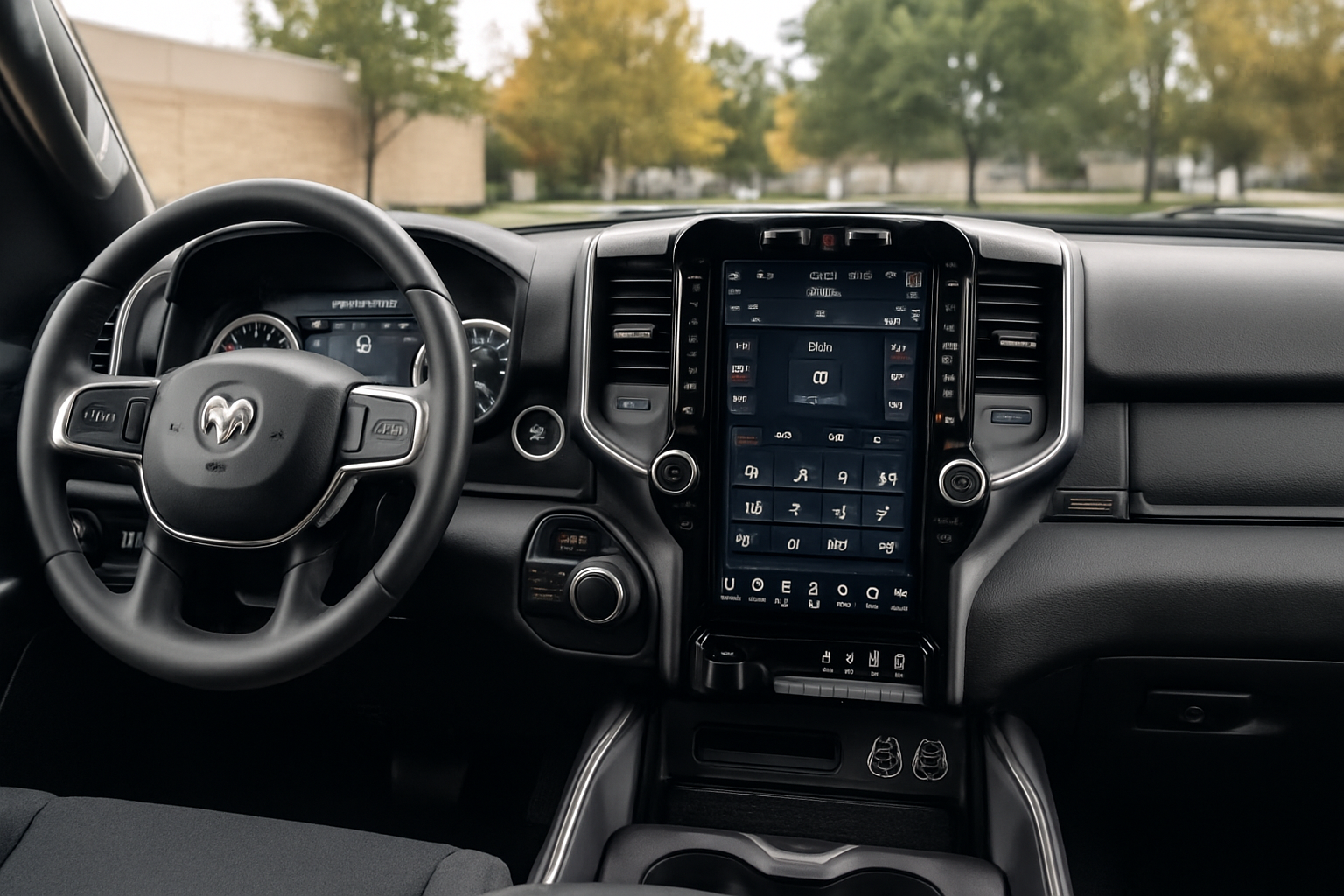
Ram’s 12-inch Uconnect 5 touchscreen transforms how you interact with your truck, putting entertainment, navigation, and vehicle controls at your fingertips. This massive display offers split-screen functionality, wireless smartphone integration, and intuitive app-based navigation that makes operating your Ram feel more like using a tablet than a traditional vehicle interface.
Understanding how to maximize this system’s capabilities will make every drive more enjoyable and efficient. From customizing your home screen to mastering voice commands, there’s plenty to explore.
Getting Started with Your 12-Inch Uconnect 5 Display
Your Ram’s Uconnect 5 system boots up automatically when you start the vehicle, displaying a customizable home screen with app tiles. The interface responds to touch gestures similar to your smartphone, including swiping, tapping, and pinch-to-zoom functionality.
The main screen divides into several key areas. Your primary apps occupy the center tile area, while quick-access buttons for climate, audio, and phone functions remain consistently available along the bottom edge. A notification bar across the top shows time, temperature, and system alerts.
You can customize the home screen by pressing and holding any app tile, then dragging it to a new position. This allows you to prioritize frequently used functions like navigation or media for easier access while driving.
Mastering Split Screen Functionality
The split screen feature lets you run two apps simultaneously, maximizing the large display’s real estate. To activate split screen mode, open your first app, then swipe down from the top of the screen and select the split screen icon.
Choose your second app from the available options. Common combinations include navigation with media player, or phone with climate controls. You can adjust the split by dragging the divider line between apps to give more screen space to your priority application.
Some apps work better in split screen mode than others. Navigation and media apps are optimized for this view, while settings menus typically work better in full screen mode. The system remembers your preferred split screen combinations and suggests them when you activate the feature.
Setting Up Wireless CarPlay and Android Auto
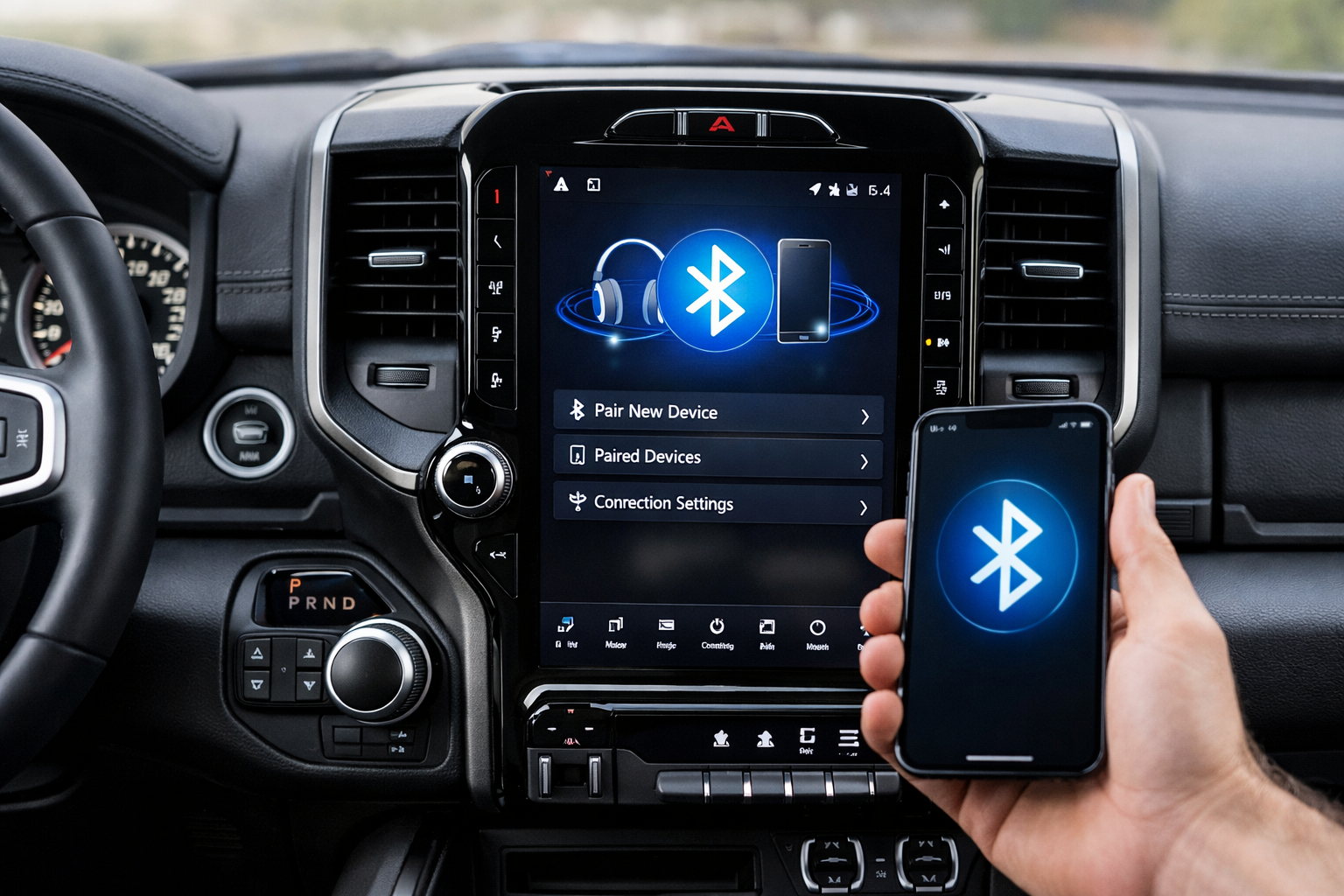
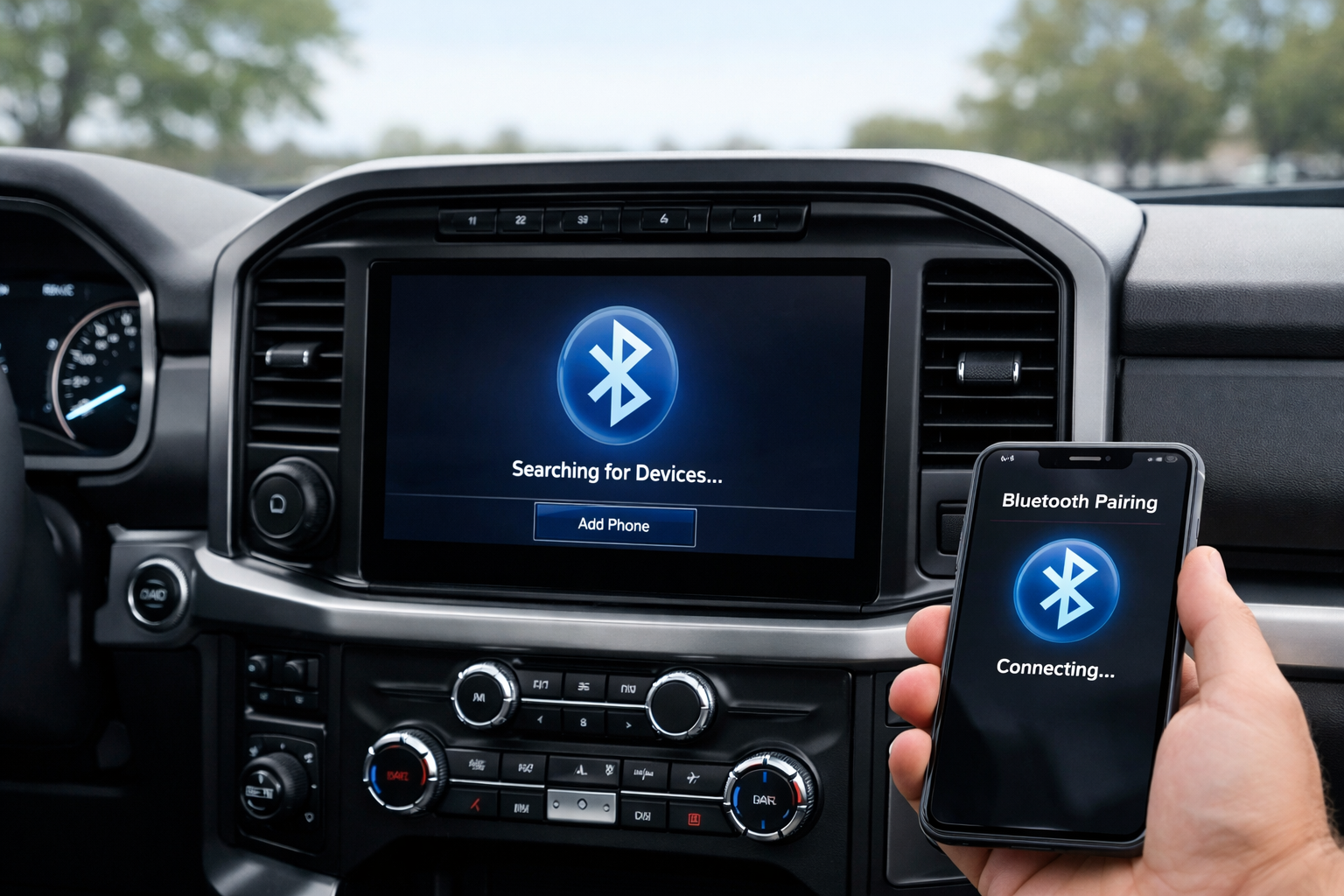
Ram’s Uconnect 5 supports both wireless Apple CarPlay and Android Auto, eliminating the need for charging cables. Initial setup requires a USB connection to establish the pairing, but subsequent connections happen automatically when you enter the vehicle.
For iPhone users, connect your device via USB cable and follow the on-screen prompts to enable CarPlay. Once paired, disconnect the cable and ensure both Bluetooth and Wi-Fi are enabled on your phone. Your iPhone will connect wirelessly within 10-15 seconds of starting the truck.
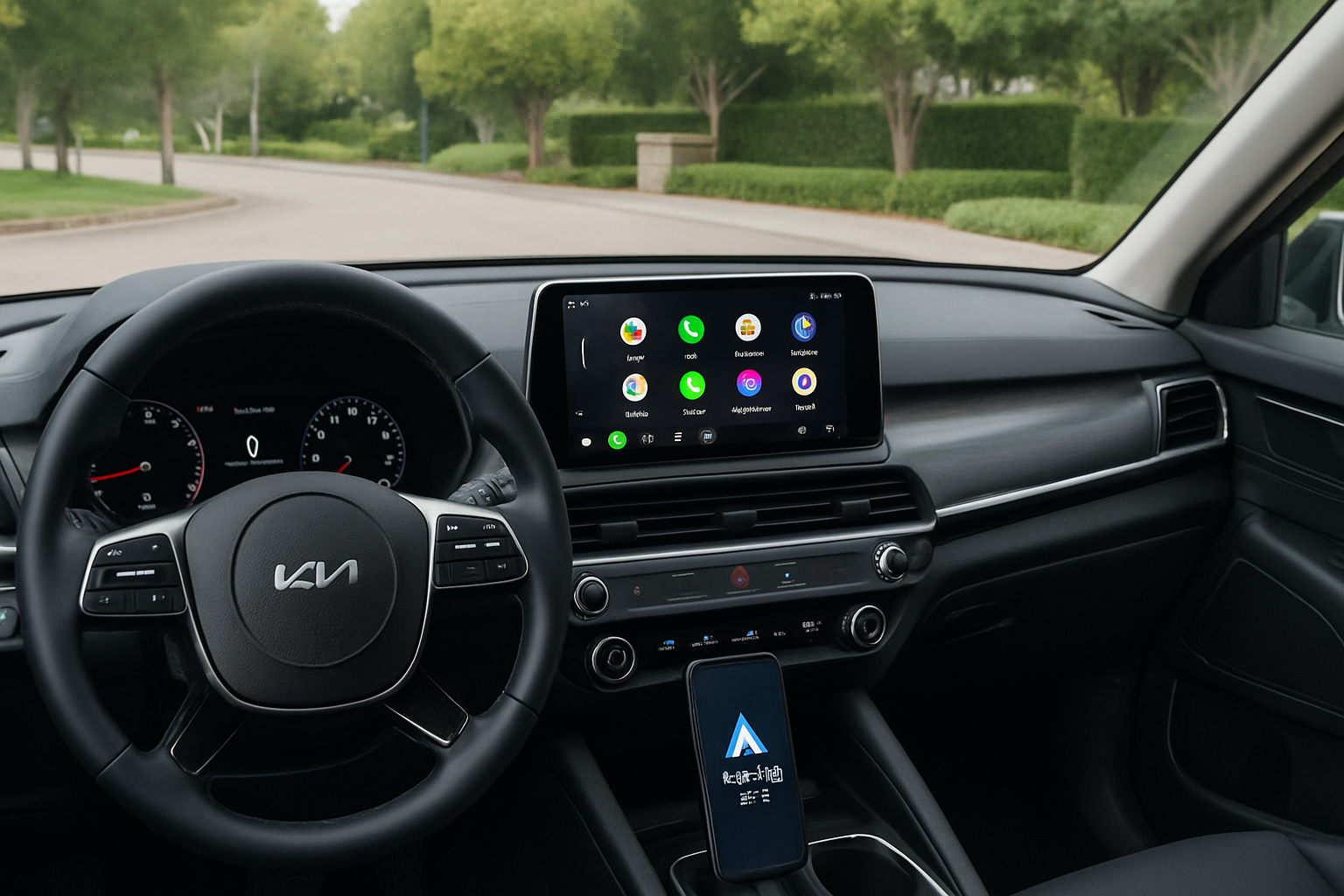
Android Auto setup follows a similar process. Install the Android Auto app if you haven’t already, connect via USB for initial pairing, then enjoy wireless connectivity for future drives. Some older Android phones may require keeping the Android Auto app open in the background for reliable wireless connection.
If wireless connection becomes unreliable, try forgetting the device in both your phone’s Bluetooth settings and the Uconnect system, then repeat the pairing process. This resolves most connectivity issues.
Navigating Climate Controls on the Touchscreen
Ram moved most climate functions to the touchscreen interface, though physical controls remain for basic temperature adjustment. The climate tile on your home screen provides quick access to common functions like fan speed, temperature zones, and defrost settings.
Dual-zone climate models display separate driver and passenger temperature controls. You can link the zones for synchronized control or adjust them independently. The seat heating and cooling controls also appear in this menu on equipped vehicles.
Auto climate mode works well for most conditions, but manual control gives you precise adjustment. The system remembers your preferences and can associate different climate settings with individual key fobs through the memory function.
Remote start users can precondition the cabin through the Uconnect smartphone app, ensuring comfortable temperatures before you enter the vehicle.
Using Voice Commands Effectively
The voice command system responds to natural language inputs, making it easier to control functions while keeping your hands on the wheel. Press the voice button on your steering wheel and speak commands like “Set temperature to 72 degrees” or “Navigate to Home Depot.”
Media commands work particularly well. Try phrases like “Play classic rock,” “Skip this song,” or “Call John Smith.” The system recognizes contacts from your connected phone and can differentiate between multiple contacts with similar names.
Voice texting allows you to send messages without touching the screen. Say “Send a text message,” specify the recipient, then dictate your message. The system will read it back for confirmation before sending.
For best results, speak clearly and pause briefly after pressing the voice button. Background noise can interfere with recognition, so consider adjusting fan speed or closing windows in noisy environments.
Customizing Your App Layout and Preferences
Beyond rearranging app tiles, you can customize which apps appear on your home screen through the settings menu. Navigate to Display Settings and select “Home Screen Configuration” to add, remove, or reorganize available apps.
The favorites bar at the bottom of the screen holds your most-used functions. You can customize these shortcuts by pressing and holding any icon, then selecting “Add to Favorites” or “Remove from Favorites” as desired.
Profile settings allow multiple drivers to save individual preferences for seat position, mirror settings, radio presets, and home screen layout. Each key fob can store a unique profile that activates automatically when that key is used.
Display brightness adjusts automatically based on ambient light conditions, but you can set manual brightness levels through the display settings menu. Night mode reduces blue light and dims the interface for easier nighttime viewing.
Managing Over-the-Air Updates
Your Uconnect 5 system receives over-the-air updates that add new features and improve performance. These updates download automatically when connected to Wi-Fi, typically when the vehicle is parked and turned off.
You can check for updates manually through Settings > Software Update. The system will show available updates and estimated installation time. Most updates install during your next extended parking period to avoid interrupting your drive.
Critical safety updates may install more quickly, while feature updates can take 30 minutes or more. The system will notify you when updates are available and when installation is complete.
If you prefer manual control over updates, you can disable automatic downloads in the software settings menu. However, keeping updates enabled ensures you receive the latest features and security improvements.
Troubleshooting Common Issues
Screen freezing or slow response usually resolves with a system reset. Hold the volume and tuner knobs simultaneously for 10-15 seconds until the screen goes black and restarts. This soft reset doesn’t affect your saved settings or preferences.
Bluetooth connectivity issues often stem from too many paired devices. The system stores multiple device pairings but can only connect to one phone at a time. Delete unused pairings to improve connection reliability.
If CarPlay or Android Auto stops working, check your phone’s software version and update if necessary. Older phone software may not be compatible with newer Uconnect updates.
GPS navigation accuracy improves over time as the system learns your driving patterns. If navigation seems inaccurate initially, continue using it for several days to allow the system to calibrate.
Advanced Features and Hidden Functions
The Uconnect 5 system includes several advanced features that aren’t immediately obvious. Vehicle health reports provide detailed information about maintenance schedules, tire pressure, and engine diagnostics through the vehicle information menu.
Parental controls allow you to set speed alerts, curfew notifications, and geographic boundaries when lending your vehicle to teen drivers. These features require the Uconnect smartphone app and an active data plan.
The system can display multiple camera angles simultaneously on equipped vehicles, including front, rear, and surround view cameras during low-speed maneuvering. You can manually activate cameras through the app menu even when not in reverse.
Trailer-specific functions appear when a trailer is connected, including trailer tire pressure monitoring, brake controller adjustment, and specialized towing camera views.
Frequently Asked Questions
Can I use the touchscreen while driving?
Uconnect 5 allows access to most functions while driving, but some features like address entry require the vehicle to be in park for safety reasons. Voice commands provide the safest way to control the system while driving.
Does wireless CarPlay drain my phone’s battery faster?
Wireless connectivity does use more battery than wired connections, but the difference is minimal during typical drive times. For longer trips, consider using the wireless charging pad or USB ports to maintain battery levels.
What happens if I don’t have a data connection?
Basic Uconnect functions work without data connectivity, including radio, climate control, and stored media. Connected features like weather, traffic updates, and remote services require an active data plan through your cellular provider or Ram’s connected services.
Can I add apps that aren’t pre-installed?
The Uconnect 5 system doesn’t support third-party app installation like smartphones. However, over-the-air updates periodically add new built-in apps and features. CarPlay and Android Auto provide access to compatible apps from your smartphone.
Leave a Reply