
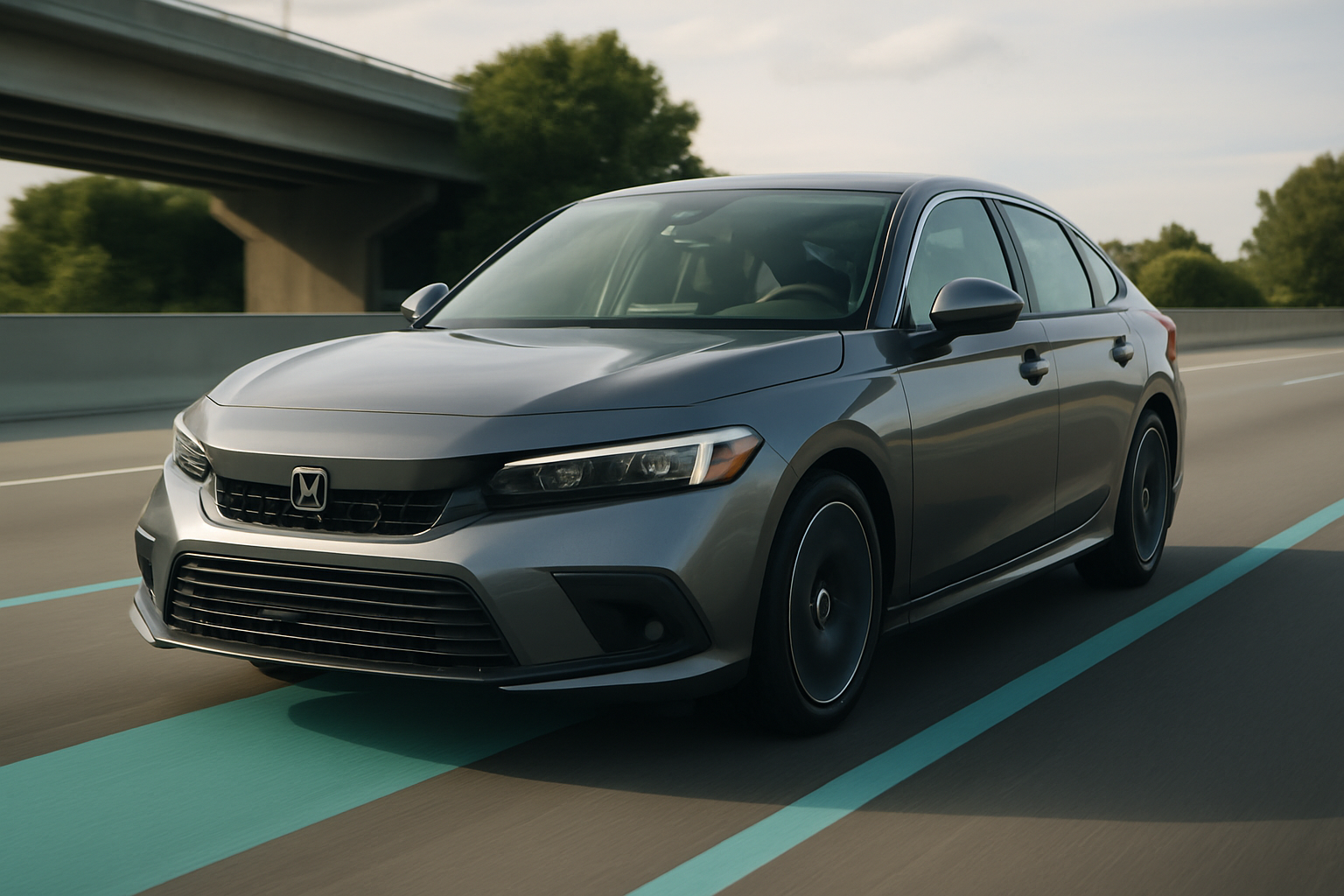
Honda’s advanced safety technology suite has become a standard feature across most modern Civic models, offering drivers multiple layers of protection and convenience. These systems work together to help prevent accidents, reduce driver fatigue, and make your daily commute safer and more comfortable.
Learning how to properly use and adjust these features from your steering wheel controls will help you get the most out of your Civic’s technology while keeping the systems tailored to your driving preferences.
Understanding Honda Sensing Components in Your Civic
Honda Sensing includes five core safety and convenience features that work using cameras and radar sensors mounted around your vehicle. The forward-facing camera sits behind your rearview mirror, while radar units are integrated into the front and rear bumpers.
Each system can be customized through your steering wheel controls, allowing you to adjust sensitivity levels, following distances, and activation thresholds. Most settings are accessed through the multi-information display using the buttons on the right side of your steering wheel.
Collision Mitigation Braking System (CMBS)
The collision mitigation system monitors traffic ahead and can apply emergency braking if it detects an imminent frontal collision. You’ll find the CMBS button on your steering wheel’s right-side control cluster, typically marked with a car and barrier icon.
To adjust CMBS settings, press the CMBS button once to cycle through the options: Normal, Distant, and Off. Normal provides standard warning timing, while Distant gives you earlier alerts if you prefer more advance notice. The system will display your current setting on the dashboard.
Keep in mind that turning CMBS completely off disables both the warnings and automatic emergency braking. Most drivers find the Normal setting works well for everyday driving, while Distant can be helpful in heavy traffic or when you’re still getting used to the system.
The system resets to your last used setting each time you start the car, so you won’t need to readjust it every drive unless you want to change the sensitivity level.
Road Departure Mitigation System (RDM)
Road departure mitigation helps keep you in your lane by detecting when you’re about to leave the roadway without signaling. The system can provide steering corrections and braking to guide you back into your lane.
You’ll access RDM controls through the steering wheel’s menu system rather than a dedicated button. Press the Menu button on the right side of your steering wheel, then navigate to the Driver Assist menu using the directional pad.
Within the RDM settings, you can choose between three modes: Normal, Relaxed, and Off. Normal provides standard intervention timing, while Relaxed reduces the sensitivity if you find the system too aggressive. The Relaxed setting works well on winding roads where the system might otherwise activate unnecessarily.
RDM works best on clearly marked roads and highways. The system may not function properly on construction zones, unmarked roads, or in heavy rain or snow when lane markings are difficult to see.
Adaptive Cruise Control (ACC)
Adaptive cruise control maintains your set speed while automatically adjusting to match the speed of slower traffic ahead. The ACC controls are integrated into your regular cruise control buttons on the steering wheel.
To activate ACC, press the Main button on your steering wheel’s left side, then press Set/Decel when you reach your desired speed. You’ll see the ACC indicator appear on your dashboard along with a vehicle icon showing the following distance.
The most important adjustment is your following distance. Press the Distance button (marked with car icons at different spacing) to cycle through four settings: Very Short, Short, Medium, and Long. Each press changes the gap between you and the car ahead.
Medium distance works well for most highway driving, while Long provides extra space in heavy traffic or poor weather. Short and Very Short are useful in dense traffic where other drivers might cut into larger gaps, but use these settings carefully.
You can adjust your set speed using the Res/Accel and Set/Decel buttons in 1 mph increments. Hold either button down to change speed in 5 mph jumps. The system will maintain speeds between 25-90 mph when following another vehicle, or above 25 mph in free-flowing traffic.
Lane Keeping Assist System (LKAS)
Lane keeping assist provides gentle steering corrections to help center your vehicle in the lane. This system works differently from road departure mitigation by actively helping you stay centered rather than just preventing lane departures.
Press and hold the LKAS button on your steering wheel’s right side for about two seconds to activate the system. You’ll see a green steering wheel icon on your dashboard when LKAS is active and functioning properly.
The system requires clear lane markings on both sides to operate. When only one lane marking is visible, LKAS will temporarily deactivate until both markings are detected again. You’ll notice the green icon turns gray when the system isn’t actively providing assistance.
LKAS works best when you keep your hands on the steering wheel and remain actively engaged in driving. The system will remind you to keep your hands on the wheel if it doesn’t detect steering input for several seconds.
If you find the steering corrections too subtle or too aggressive, some Civic models allow you to adjust the LKAS sensitivity through the infotainment system’s vehicle settings menu.
Traffic Sign Recognition System (TSR)
The traffic sign recognition system uses the forward camera to detect speed limit signs and other traffic signs, displaying them on your dashboard or head-up display if equipped.
TSR doesn’t have dedicated steering wheel controls but can be configured through the vehicle settings menu. Access this through your infotainment screen by selecting Settings, then Vehicle, then Driver Assist Settings.
You can choose which types of signs the system displays and whether you want audio alerts when speed limits change. The system typically shows speed limit signs, stop signs, do not enter signs, and yield signs.
Keep in mind that TSR is informational only and won’t automatically adjust your cruise control speed based on detected signs. You’ll need to manually adjust your ACC speed when speed limits change.
The system works best in good weather with clean, clearly visible signs. Construction zones with temporary signs or areas with multiple conflicting signs may confuse the system temporarily.
Customizing Multiple Systems Together
Many drivers prefer to adjust several Honda Sensing features at once to match their driving style. Conservative drivers often choose Distant CMBS, Long ACC following distance, and keep RDM on Normal for maximum safety assistance.
More experienced drivers who want minimal intervention might select Normal CMBS, Medium ACC distance, and Relaxed RDM to reduce false alerts while maintaining core safety functions.
You can create your preferred setup by adjusting each system and then saving these settings. Most Honda Sensing systems remember your preferences between drives, though some settings may reset after extended periods with the battery disconnected.
Troubleshooting Common Issues
If Honda Sensing features aren’t working properly, the most common cause is a dirty or obstructed camera or sensor. The forward camera behind your rearview mirror is particularly sensitive to windshield obstructions.
Clean your windshield regularly, especially the area directly behind the rearview mirror. Remove any stickers, toll tags, or hanging items that might block the camera’s view. Heavy rain, snow, or fog can also temporarily disable some features.
Check that your tire pressures are properly maintained, as significant differences in tire pressure can affect some Honda Sensing calculations. Make sure you’re using the correct tire size specified for your Civic model.
When to Turn Systems Off
While Honda Sensing features are designed to help in most driving situations, there are times when you might want to temporarily disable certain functions. Track driving, off-road use, or driving with a spare tire are situations where some features should be turned off.
Winter driving with snow tires or chains might require adjusting RDM to Relaxed or Off, since different tire characteristics can affect the system’s calculations. Always re-enable your preferred settings once you return to normal driving conditions.
Car washes, particularly automatic ones, may trigger false alerts from CMBS. You can temporarily turn this system off before entering a car wash to avoid unnecessary warnings.
Frequently Asked Questions
Do Honda Sensing settings reset when I turn off the car?
Most Honda Sensing settings remain as you left them between drives. CMBS, LKAS, and RDM typically remember your preferred settings. However, ACC following distance may reset to the default Medium setting on some model years, so you might need to readjust this each time you use cruise control.
Can I completely disable all Honda Sensing features?
You can turn off individual Honda Sensing features, but some safety systems like CMBS will automatically reactivate to a default setting after each ignition cycle for safety reasons. Lane keeping assist and road departure mitigation can be turned off and will stay off until you manually reactivate them.
Why do the systems sometimes stop working temporarily?
Honda Sensing features automatically disable when sensors are blocked or can’t function properly. Common causes include dirty cameras, snow covering sensors, heavy rain, extreme temperatures, or driving on roads without clear lane markings. The systems typically resume normal operation once conditions improve.
Will using Honda Sensing features affect my fuel economy?
Adaptive cruise control can actually improve fuel economy on highways by maintaining steady speeds and smooth acceleration patterns. Other Honda Sensing features use minimal power and don’t significantly impact fuel consumption. The overall effect on fuel economy is generally neutral or slightly positive during highway driving.


Leave a Reply