
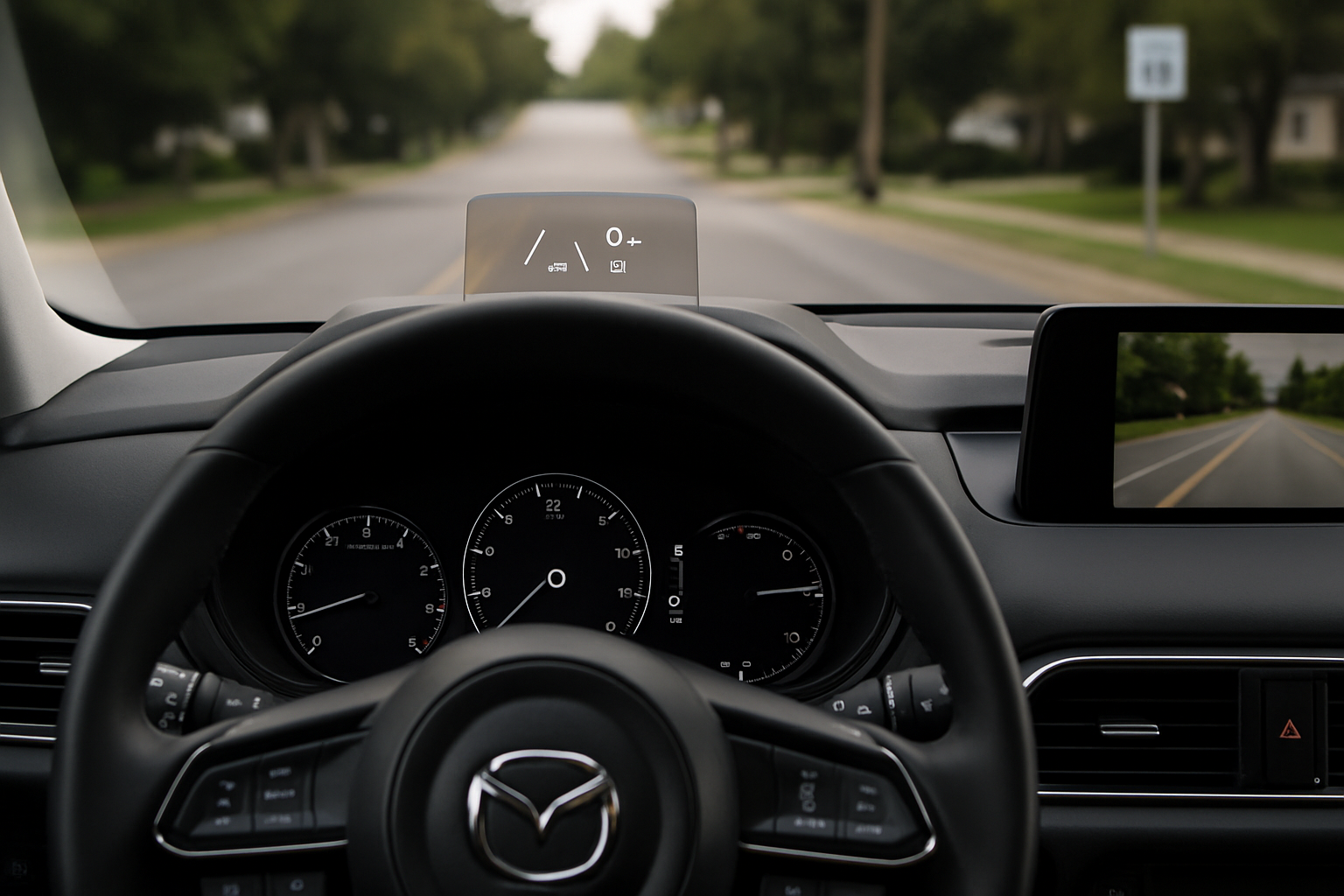
The Head-Up Display (HUD) on your Mazda CX-5 or CX-50 projects crucial driving information directly onto your windshield, keeping your eyes on the road where they belong. This feature, called Active Driving Display by Mazda, can display everything from your current speed to navigation directions and safety alerts.
Learning how to properly set up and use this system will make your daily driving safer and more convenient. You’ll also want to understand how windshield replacement affects the display, since the projection surface plays a critical role in how well you can see the information.
What is Mazda’s Active Driving Display?
Mazda’s Active Driving Display projects a virtual image that appears to float about 7 feet in front of your windshield. Unlike some systems that require a special film on the glass, Mazda’s HUD works by projecting onto the windshield itself.
The system uses a small projector housed in the dashboard that beams information upward. Your windshield’s angle and coating reflect this image back to your eyes, creating the floating display effect.
This technology keeps critical information in your line of sight while driving. Instead of glancing down at your instrument cluster or infotainment screen, you can see speed, navigation arrows, and safety warnings without taking your eyes off the road ahead.
How to Turn On the Head-Up Display
Your CX-5 or CX-50’s Active Driving Display might not be activated by default. You’ll need to enable it through the infotainment system first.
Start by pressing the Home button on your center console, then navigate to Settings. Look for the Display tab in the settings menu. You’ll find the Active Driving Display option listed there.
Toggle the Active Driving Display to “On” and you should immediately see the projection appear on your windshield. If you don’t see anything right away, you might need to adjust the height and brightness settings to make it visible from your seating position.
Adjusting Height and Brightness
Getting the display positioned correctly is crucial for both visibility and safety. The height and brightness controls are typically located on the left side of your steering wheel, integrated into the dashboard panel.
Height Adjustment
Look for a small switch or button cluster labeled with up and down arrows. This control moves the entire display image vertically on your windshield.
Adjust your seat and mirrors to your normal driving position first. Then use the height control to position the display so you can see it clearly without moving your head up or down. The sweet spot is usually where the display appears just below your normal sight line when looking straight ahead.
You’ll have multiple height positions available, typically ranging from very low (almost touching the dashboard in your view) to quite high (near the top third of your windshield).
Brightness Control
The brightness adjustment is usually part of the same control cluster as the height adjustment. You can cycle through several brightness levels to match different driving conditions.
During bright daylight, you’ll want maximum brightness so the display doesn’t wash out. At night or in tunnels, lower brightness prevents the display from being distracting or interfering with your night vision.
Many CX-5 and CX-50 models automatically adjust brightness based on ambient light conditions, but you can override this with manual adjustment when needed.
What Information Does the Display Show?
Your Active Driving Display can show several types of information simultaneously, though you can customize what appears through the settings menu.
Speed Information
The most basic display shows your current vehicle speed in large, easy-to-read numbers. This is particularly useful in areas where you need to monitor your speed closely, like school zones or construction areas.
Some models also display the posted speed limit when this information is available through the navigation system or traffic sign recognition cameras.
Navigation Guidance
When you have an active navigation route, the display shows turn-by-turn directions as simple arrows and distance information. You’ll see a clear arrow indicating whether to turn left, right, or continue straight, along with the distance to the next turn.
The navigation display works with both the built-in Mazda navigation system and smartphone apps like Apple CarPlay or Android Auto, depending on your model year and infotainment system.
Safety Alerts and Warnings
The display integrates with your vehicle’s safety systems to show important warnings and alerts. This includes information from the blind spot monitoring system, lane departure warnings, and forward collision alerts.
Traffic sign recognition data also appears here when available. If your CX-5 or CX-50 has cameras that can read road signs, you’ll see speed limit signs and other relevant traffic information displayed.
Some models show cruise control status, including adaptive cruise control following distance and set speed information.
Customizing Your Display Settings
You have several options for personalizing what information appears on your Active Driving Display. Access these settings through your infotainment system’s main menu.
In the Display settings, you’ll find options to turn individual information types on or off. If you don’t want to see navigation information, for example, you can disable just that element while keeping speed and safety alerts visible.
You can also adjust how long certain alerts remain visible and whether the system shows additional information like audio source or phone call status.
Troubleshooting Common Display Issues
If your display appears dim or unclear, first check your brightness setting and seating position. The image quality depends heavily on viewing angle and ambient lighting conditions.
Clean your windshield regularly, both inside and out. Dust, fingerprints, or film on the glass can make the projected image appear fuzzy or distorted. Use a microfiber cloth and appropriate glass cleaner for best results.
If the display appears to flicker or cut out intermittently, this could indicate an issue with the projector unit itself. This typically requires dealer service to diagnose and repair.
Windshield Replacement Considerations
Your windshield plays a crucial role in how well the Active Driving Display functions. The glass has specific optical properties that help create the clear, focused image you see.
When you need windshield replacement, make sure your glass installer understands that your vehicle has a head-up display system. Not all replacement windshields have the correct coating or optical properties needed for optimal HUD performance.
OEM windshields from Mazda will have the proper specifications, but aftermarket options vary widely in quality and compatibility. Some aftermarket windshields work fine, while others may cause the display to appear blurry, distorted, or create double images.
After windshield replacement, you may need to recalibrate the display height and brightness settings. The new glass might reflect the image slightly differently than your original windshield, requiring adjustment to maintain optimal viewing.
If you notice display quality issues after windshield replacement, contact both your glass installer and Mazda dealer. The problem could be related to incorrect windshield specifications or calibration issues that require professional attention.
Maximizing Your HUD Experience
Keep your windshield clean and use quality glass cleaner that won’t leave residue. Film or streaks on the glass directly impact display clarity and can make the projected information difficult to read.
Adjust your seat position before fine-tuning the display height. Changes to your seating position will affect how well you can see the projected information, so establish your normal driving position first.
Take advantage of the automatic brightness adjustment when available, but don’t hesitate to override it manually when conditions require it. Very bright sunny days or unusual lighting situations might need manual adjustment for optimal visibility.
Remember that polarized sunglasses can sometimes interfere with HUD visibility. If you notice the display becomes dim or invisible while wearing certain sunglasses, you may need to adjust the brightness or consider different eyewear for driving.
Frequently Asked Questions
Can I use the HUD if I’m tall or short?
The height adjustment range accommodates most driver heights, but very tall or short drivers might find the optimal viewing position challenging. Adjust your seat height along with the HUD height to find the best combination. If you can’t achieve a comfortable viewing position, the system can be turned off entirely.
Does the head-up display work with all windshield tints?
Windshield tinting can interfere with HUD visibility, especially darker tints or films with metallic content. If you’re planning to tint your windshield, discuss your head-up display with the tinting shop first. They may need to leave the HUD projection area untinted or use specific film types that don’t interfere with the display.
Will the display drain my battery when the car is off?
The Active Driving Display only operates when your ignition is on and automatically shuts off when you turn off the vehicle. It draws minimal power during operation and won’t affect your battery when the car is parked.
Can I adjust what navigation information appears?
Yes, you can customize which navigation elements display through your infotainment system settings. You can choose to show or hide turn arrows, distance information, street names, and other navigation details based on your preferences.

Leave a Reply