
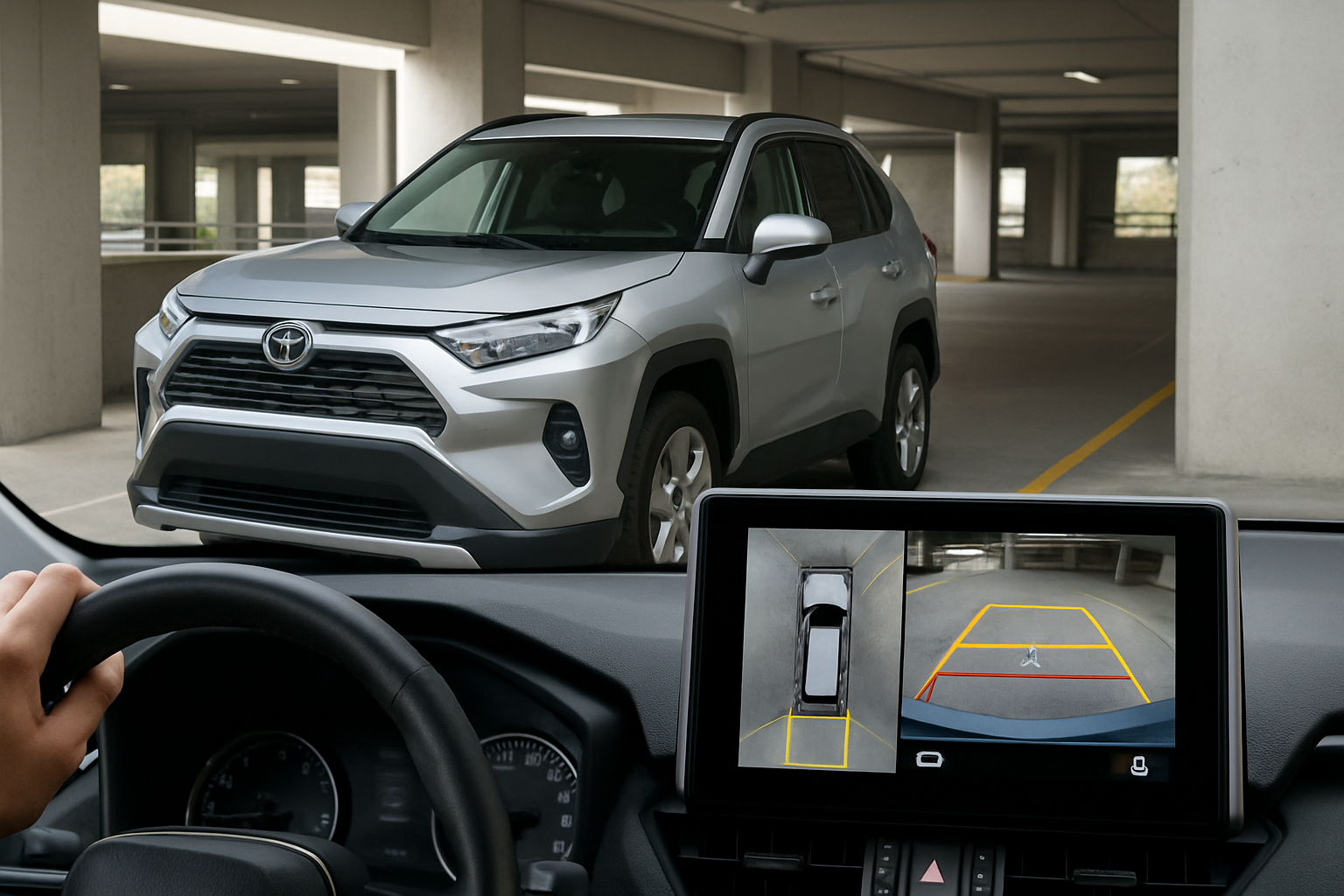
Modern RAV4 models come equipped with an advanced 360-degree camera system that transforms parking and low-speed maneuvering from guesswork into precision. This comprehensive guide walks you through every feature and setting, helping you make the most of this valuable safety technology.
Understanding Your RAV4’s 360-Degree Camera System
Toyota’s 360-degree camera system, officially called the Bird’s Eye View Camera, uses four strategically placed cameras to create a virtual overhead view of your RAV4. You’ll find cameras mounted in the front grille, both side mirrors, and the rear tailgate handle.
The system processes feeds from all four cameras simultaneously, stitching them together to create what looks like a satellite view of your vehicle and its immediate surroundings. This bird’s eye perspective makes it incredibly easy to spot obstacles, curbs, and tight spaces that would otherwise remain hidden.
Beyond the standard bird’s eye view, your RAV4 offers multiple viewing angles including front and rear split views, dedicated curb view, and individual camera feeds. Each view serves specific driving situations, from parallel parking to navigating narrow driveways.
Activating the Camera System
Your RAV4’s 360-degree camera system activates automatically in several scenarios. When you shift into reverse, the system immediately displays the bird’s eye view along with rear camera guidelines. This happens every time without requiring any input from you.
The system also activates when you’re driving forward at speeds below 12 mph and turn the steering wheel significantly. This automatic activation helps when navigating tight spaces, parking lots, or narrow streets where you need enhanced visibility.
You can manually activate the system anytime by pressing the camera button on your center console. The button features a camera icon and remains easily accessible while driving. Manual activation works when you’re in drive, reverse, or park, giving you complete control over when you need the enhanced view.
Navigating the Bird’s Eye View
The bird’s eye view represents the cornerstone feature of your RAV4’s camera system. This overhead perspective displays your vehicle as a graphic overlay surrounded by the actual camera footage, creating an intuitive understanding of your position relative to nearby objects.
You’ll notice colored guidelines that indicate your vehicle’s projected path based on current steering wheel position. These dynamic lines update in real-time as you turn the wheel, showing exactly where your RAV4 will go. The system uses different colors to indicate distance, with closer objects appearing in red and farther objects in yellow or green.
The bird’s eye view proves most valuable in tight parking situations. You can see all four corners of your vehicle simultaneously, making it simple to center between parking space lines or avoid nearby vehicles. The overhead perspective eliminates blind spots that traditional mirrors can’t cover.
Using Front and Rear Split Views
Split view mode divides your screen to show two camera angles simultaneously. You’ll typically see the bird’s eye view on one side with either the front or rear camera feed on the other. This combination provides both the spatial awareness of the overhead view and the detailed perspective of individual cameras.
Front split view activates automatically when you’re moving forward at low speeds. This view helps when approaching parking spaces, navigating through drive-thrus, or maneuvering around obstacles. The front camera shows details like curb height, parking blocks, and small objects that might not be clearly visible in the bird’s eye view.
Rear split view engages when backing up, combining the overhead perspective with traditional backup camera functionality. You’ll see parking guidelines from the rear camera while maintaining awareness of your vehicle’s overall position. This dual perspective makes backing into tight spaces much more manageable.
Mastering Curb View Mode
Curb view uses the passenger side mirror camera to show the area immediately next to your RAV4. This view proves invaluable when parallel parking or trying to position your vehicle close to a curb without scraping your wheels.
You can access curb view by cycling through the camera system’s different modes using the touchscreen controls. The passenger side camera provides a clear view of the curb, parking space lines, and any obstacles along the side of your vehicle.
Many RAV4 owners find curb view particularly useful in urban environments where precise positioning matters. You can see exactly how close you are to the curb, helping you maximize parking space usage while protecting your wheels and tires from damage.
Customizing Your Camera Settings
Your RAV4’s infotainment system includes several customization options for the camera system. Access these settings through the main menu by selecting “Settings” and then “Camera” or “Vehicle Settings” depending on your model year.
You can adjust the guidelines that appear on screen, including their color and opacity. Some drivers prefer more prominent guidelines for better visibility, while others find them distracting and prefer subtle indicators. The system allows you to find the perfect balance for your preferences.
The automatic activation sensitivity can also be modified. If you find the cameras turning on too frequently during normal driving, you can adjust the speed threshold or steering angle required for activation. This customization helps reduce unnecessary distractions while maintaining safety benefits.
Display brightness and contrast settings help optimize visibility in different lighting conditions. You might prefer higher contrast during bright sunny days and softer settings during evening driving. These adjustments ensure the camera feed remains clear and useful regardless of ambient lighting.
When the System Activates Automatically
Understanding when your RAV4’s camera system turns on automatically helps you anticipate and use the technology effectively. The system always activates when shifting into reverse, regardless of speed or steering position.
During forward driving, automatic activation occurs when you’re traveling under 12 mph and make significant steering inputs. This typically happens when parking, navigating tight turns, or maneuvering in crowded areas where enhanced visibility provides the most benefit.
The system also activates when you engage certain drive modes or parking assist features. If your RAV4 includes automated parking assistance, the camera system works in conjunction with these features to provide visual feedback during the parking process.
Automatic deactivation occurs when you exceed the speed threshold or drive straight for several seconds. The system recognizes when enhanced visibility is no longer necessary and switches back to normal display modes to avoid distraction during regular driving.
Troubleshooting Common Issues
Camera lens cleanliness significantly impacts image quality and system performance. The cameras sit in exposed positions where they collect dirt, water spots, and debris. Regular cleaning with a soft cloth and mild soap solution keeps the lenses clear and the system functioning properly.
Weather conditions can temporarily affect camera performance. Heavy rain, snow, or fog might reduce visibility or cause the system to display warning messages. These conditions don’t indicate system failure but rather normal limitations of camera-based technology.
If individual cameras show black screens or error messages, check for physical obstructions or damage around the camera housing. Small objects, ice buildup, or physical damage to the camera housing can prevent proper operation.
System calibration might become necessary after certain maintenance procedures or if you notice alignment issues with the bird’s eye view. Your Toyota dealer can perform recalibration procedures that ensure all four cameras work together properly.
Maximizing Safety and Effectiveness
The 360-degree camera system enhances but doesn’t replace safe driving practices. Always use your mirrors, check blind spots, and remain aware of your surroundings even when using camera assistance. The system provides additional information but shouldn’t become your sole source of spatial awareness.
Practice using different camera modes in safe environments before relying on them in challenging situations. Spend time in empty parking lots getting familiar with how the views relate to actual vehicle position and movement.
Remember that cameras have limitations in certain lighting conditions and weather. Very bright sunlight, deep shadows, or nighttime conditions can reduce camera effectiveness. Adjust your driving accordingly and don’t rely solely on camera feeds when visibility is compromised.
The system works best when combined with parking sensors and other safety technologies in your RAV4. Use audio cues from proximity sensors along with visual information from cameras to get complete awareness of your surroundings.
Frequently Asked Questions
Can I keep the camera system on while driving normally?
You can manually activate the camera system anytime using the camera button, but it automatically deactivates above 12 mph during forward driving. This prevents distraction during highway or city driving where the camera views aren’t necessary for safety.
Why does my camera view look distorted around the edges?
The wide-angle lenses used in the camera system create slight distortion, especially at the edges of each camera’s field of view. This distortion is normal and allows each camera to capture a broader area. The bird’s eye view processing compensates for most distortion effects.
How do I clean the camera lenses?
Use a soft, clean cloth with mild soap and water to gently clean each camera lens. Avoid harsh chemicals or abrasive materials that could scratch the lens surface. Clean cameras regularly, especially after driving in dusty or muddy conditions.
Will aftermarket accessories affect the camera system?
Roof racks, bike carriers, or other accessories that extend beyond your RAV4’s normal profile will appear in the camera views and might affect the bird’s eye view appearance. The system will still function normally, but you’ll see these accessories in the camera feeds.

Leave a Reply