
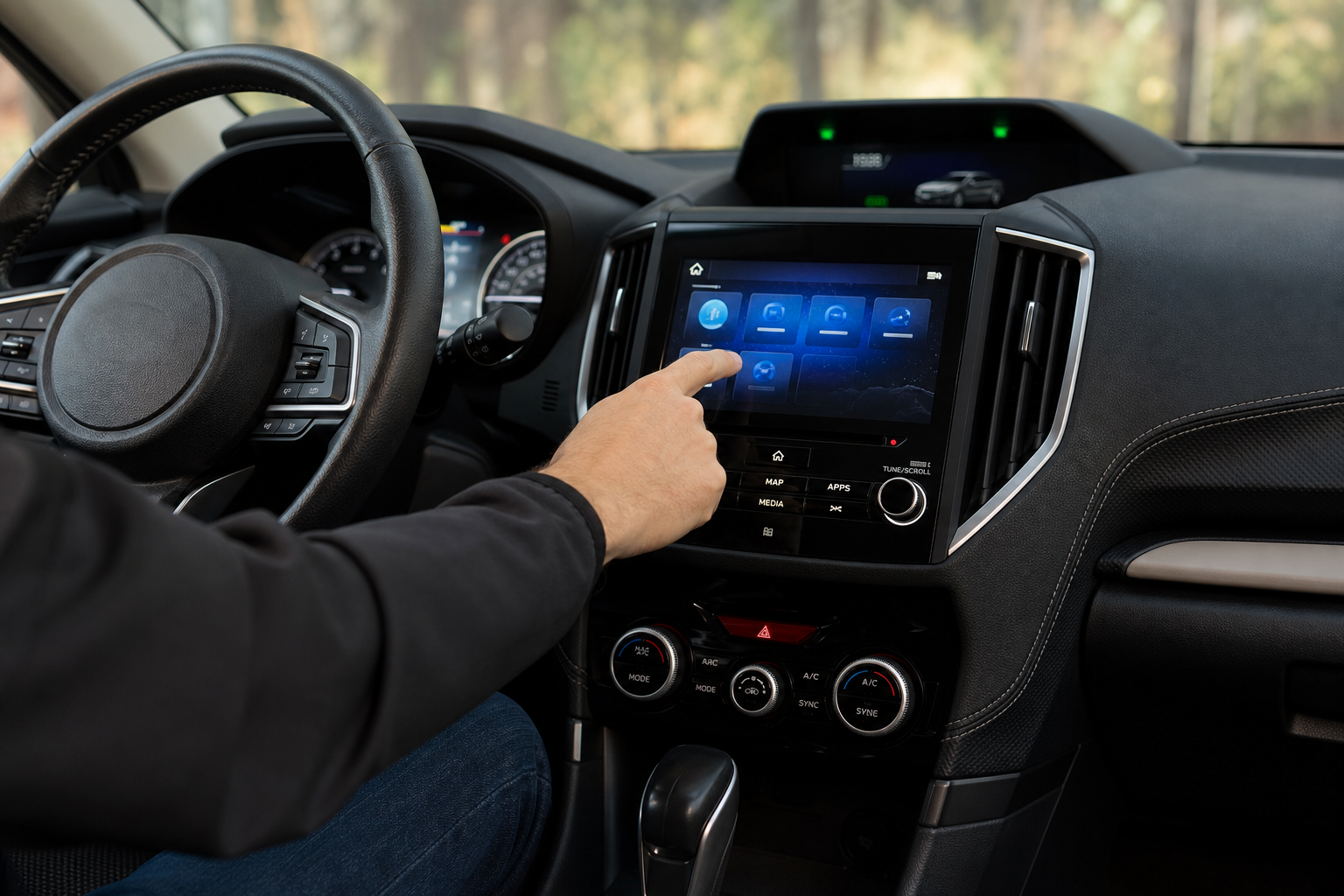
If you own a Subaru Forester with EyeSight and you’ve noticed a small camera lens sitting near your rearview mirror, that’s DriverFocus watching you. It’s a well-intentioned safety feature, but plenty of owners find it distracting in its own right, especially when it chimes at you for glancing at the radio or wearing sunglasses on a bright afternoon. This guide breaks down exactly what DriverFocus monitors, where the settings actually live, and what you can and can’t change about how it behaves.
What DriverFocus Actually Does
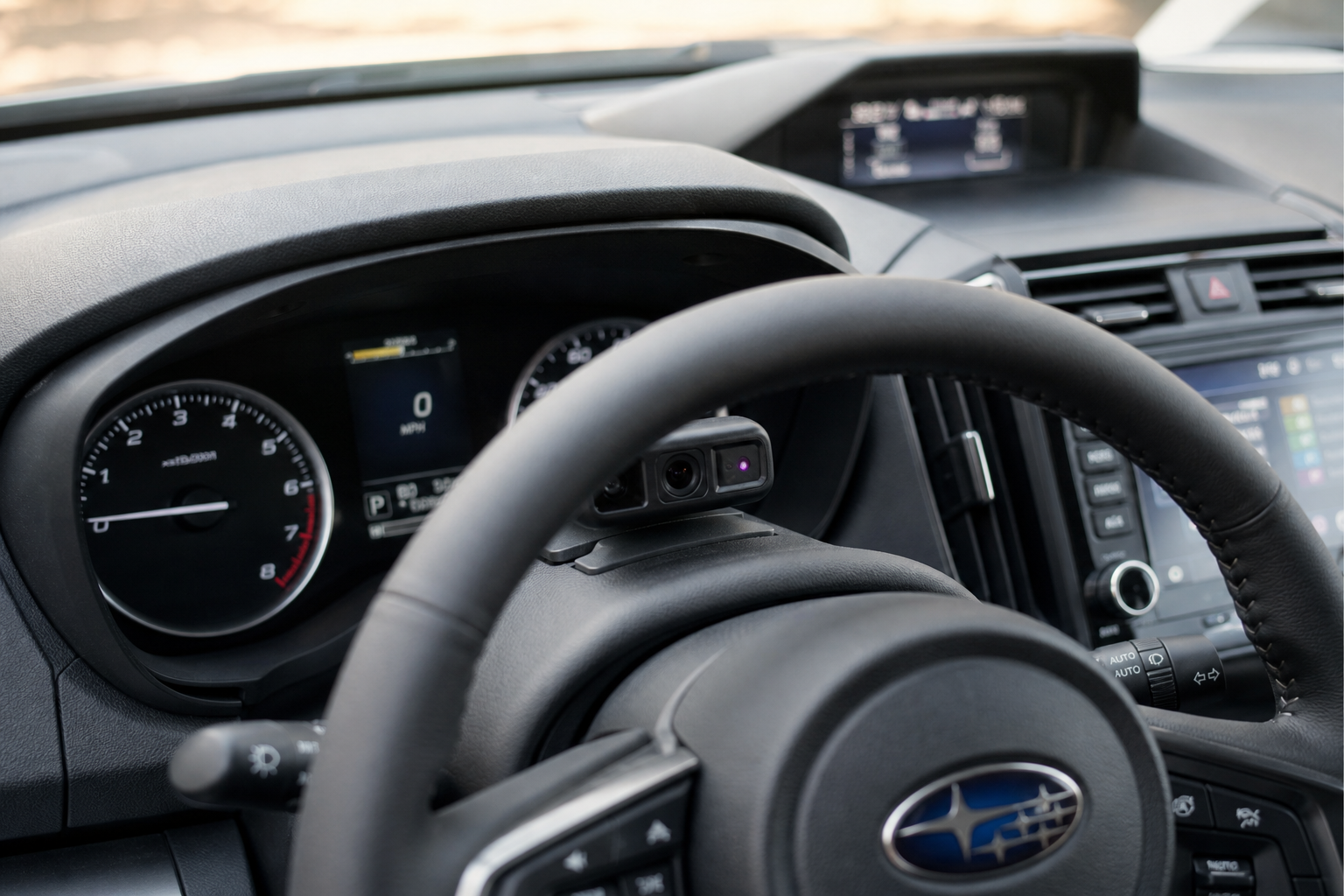
DriverFocus is a camera-based monitoring system that Subaru introduced alongside its EyeSight driver assist suite, first appearing on the Forester starting with the 2019 model year. The camera sits on top of the instrument cluster, angled at your face, and it uses facial recognition to track your eye movement, head position, and blink rate.
The system is designed to catch two separate problems: distraction and drowsiness. If it detects that you’ve been looking away from the road for too long, it treats that as a distraction event. If your blink patterns or head movements suggest you’re getting tired, it treats that as a drowsiness event. Each triggers a different alert, and both can fire independently during the same drive.
It’s similar in concept to camera-based systems on other vehicles, like the driver monitoring built into Toyota’s pre-collision system with pedestrian detection on the Corolla, though Subaru’s version leans more heavily on facial tracking than radar or forward cameras alone.
The Warning Owners Commonly Call “DriverFocus”
Most Forester owners don’t refer to specific alert names. They just call the whole experience “the DriverFocus warning” because that’s the label that shows up on the multi-function display when something triggers. Depending on your model year and software version, you’ll typically see one of a few messages: a distraction alert paired with a chime, a drowsiness alert suggesting you take a break, or a message indicating the camera can’t recognize your face, which often pops up if you’re wearing sunglasses, a hat with a low brim, or driving in unusual lighting.
The exact wording has changed slightly across model years as Subaru has updated its software, so don’t be surprised if your owner’s manual describes it a bit differently than what a friend’s Forester shows. If you’re troubleshooting a specific message, checking your factory owner’s manual for your exact model year is the most reliable way to confirm what Subaru currently calls it.
Where the Settings Actually Live
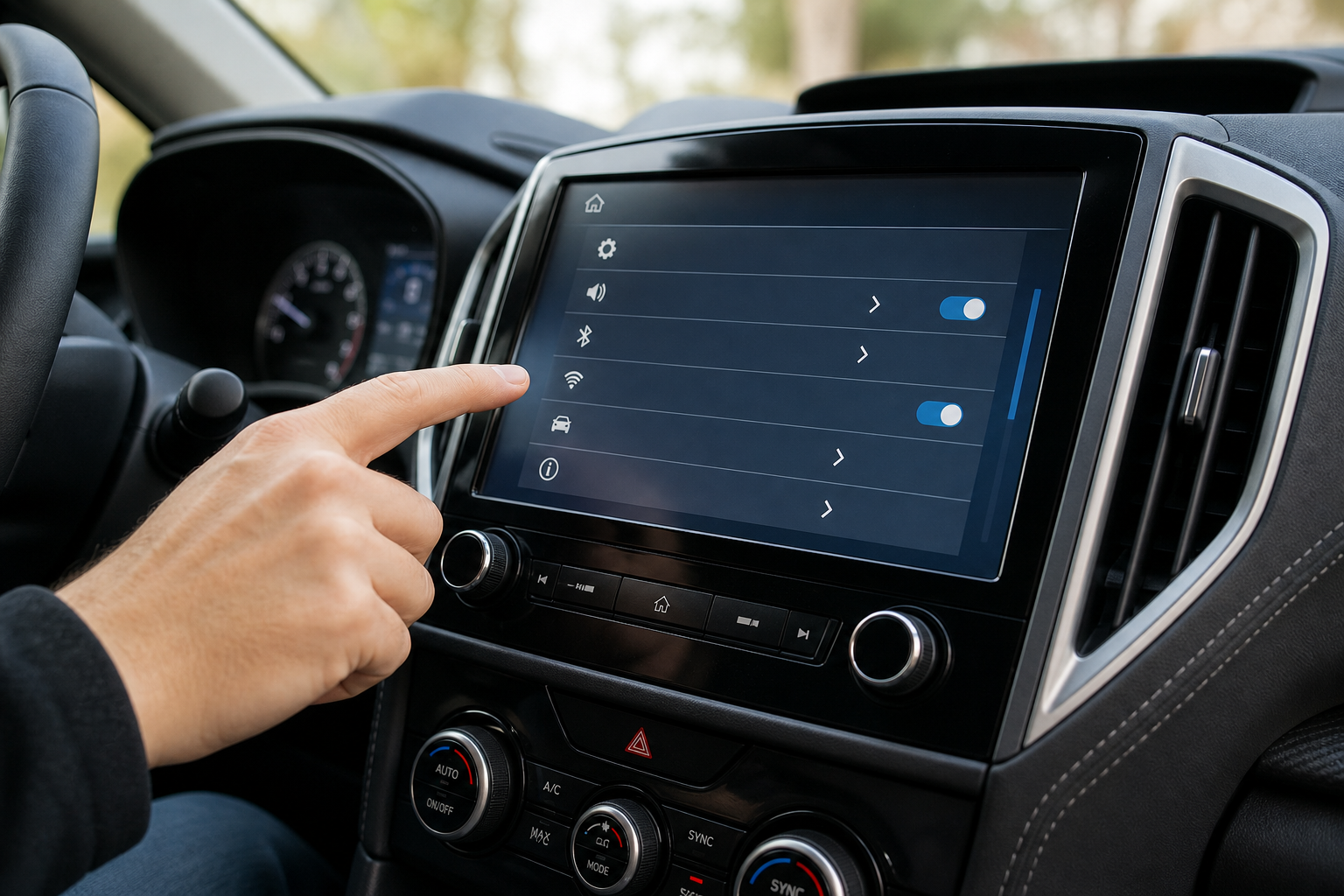
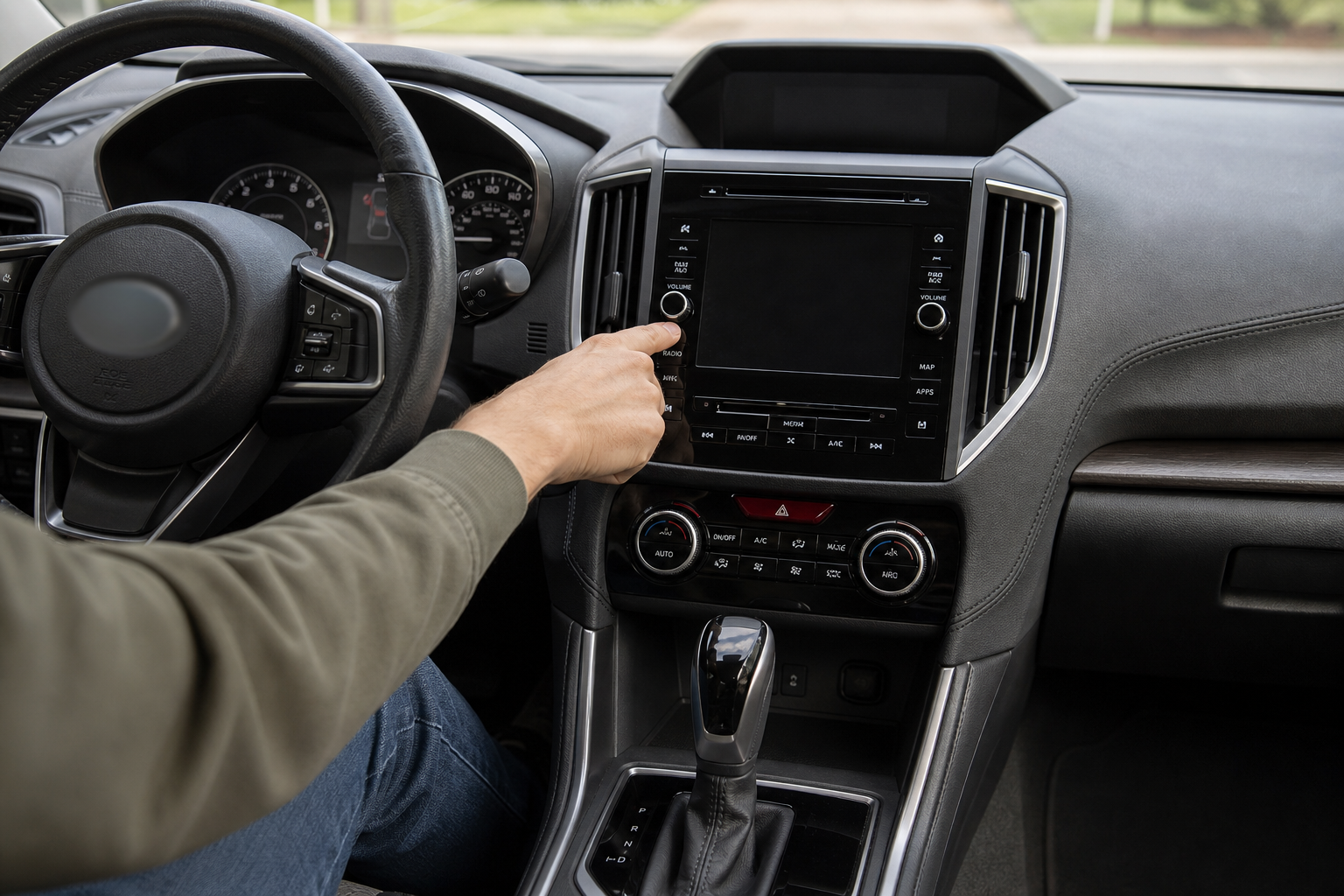
DriverFocus settings are buried in the vehicle settings menu, not the main infotainment screen where you’d expect to find climate or audio options. On most Forester model years with DriverFocus, you’ll get there through the small multi-function display controls on the steering wheel, or through the Starlink touchscreen under a menu labeled something like “Driving Assist” or “EyeSight/DriverFocus Settings.”
Inside that menu, you’ll typically find a face registration option, where the system stores a facial profile for each driver, along with separate sensitivity controls for distraction alerts and drowsiness alerts. These are usually listed as options like Off, Standard, and Early (or similarly worded tiers), letting you adjust how aggressively the system reacts.
Because Subaru has tweaked this menu structure across model years, the Forester’s setup may not match what you’ll find in owner threads discussing the Outback or Ascent. If you’re comparing notes with an Outback owner, keep in mind that features like the intersection turning assist on the Outback live in a similar but not identical menu structure.
What You Can Actually Turn Off
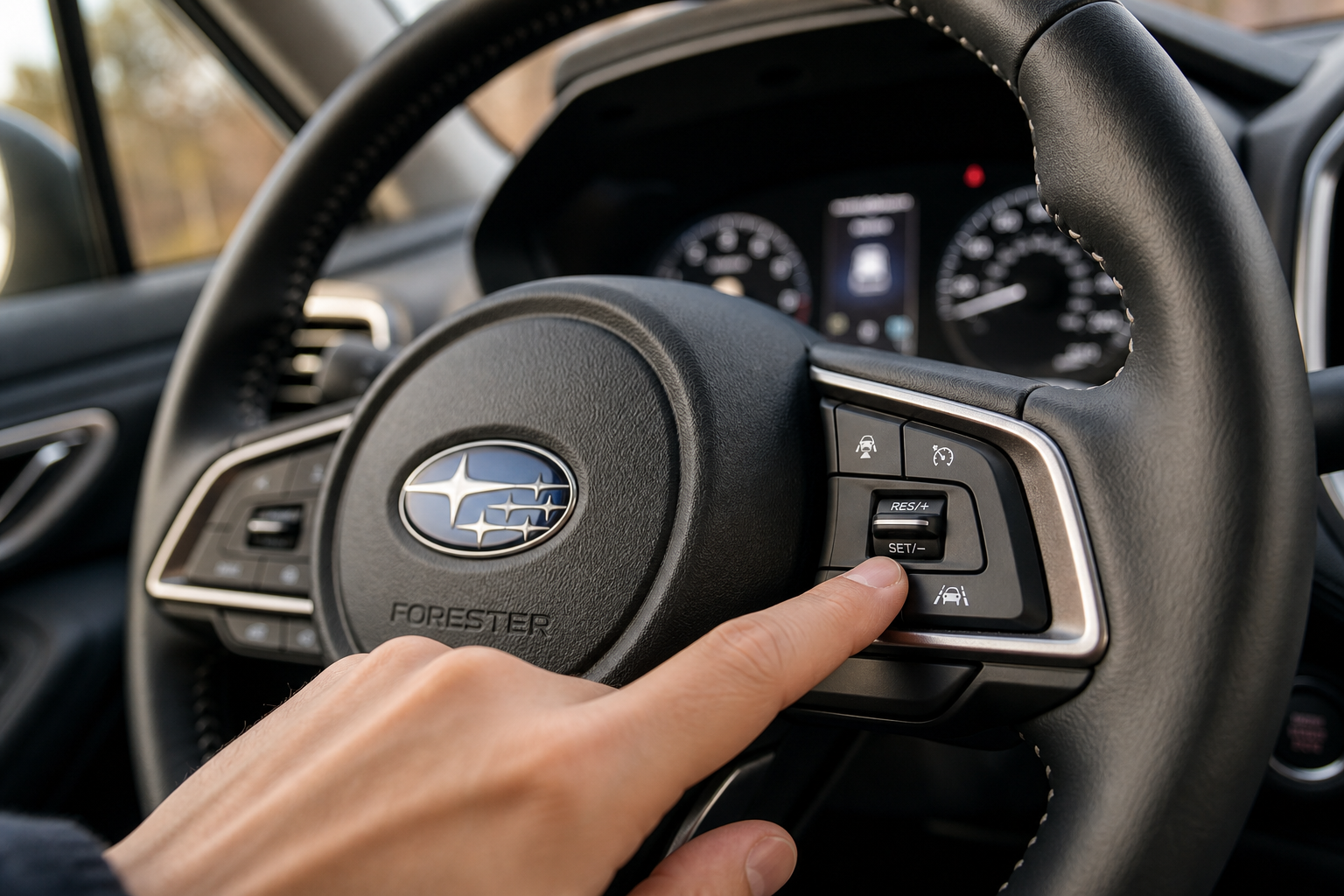
This is where owners get tripped up, because there’s a real difference between muting an alert for one drive, adjusting how sensitive it is, and permanently shutting the system off for good.
Temporary Muting
Some model years let you silence the audible chime for the current drive cycle through a quick menu toggle or a button combination on the steering wheel. This mute typically resets the next time you start the car, meaning the alert comes right back on your next drive. It’s the least permanent option, but it’s also the easiest to access if you just need quiet for one trip.
Sensitivity Adjustments
Lowering the sensitivity from Standard to a less aggressive setting reduces how often the system flags you, without eliminating the monitoring itself. This is generally the most practical middle ground for owners who find the alerts trigger too often, especially the distraction warning, which some drivers say fires even during quick glances at mirrors or gauges.
A True Persistent Off Setting
Subaru has not published a clear, permanent off switch for DriverFocus across all Forester model years, and functionality here does vary by trim and software version. Some owners report that certain alert types can be set to Off in the menu and that this setting sticks between drives, while the underlying camera and face recognition system remain active for other functions like driver profile switching.
Because this varies by model year and even by software update, don’t assume your Forester behaves the same way as one from a different year. If a fully persistent shutdown matters to you, check your specific owner’s manual or ask a Subaru service advisor to confirm what your exact configuration allows before assuming it’s disabled for good.
Reducing False Alerts Without Changing Settings
Before you dive into menus at all, it’s worth ruling out simple fixes. A dirty camera lens, a phone mount blocking the sensor, or driving with your seat reclined too far back can all cause the system to lose track of your face and trigger warnings that have nothing to do with actual distraction or fatigue.
Try these first:
- Wipe the camera lens near the mirror with a microfiber cloth, since dust and fingerprints interfere with tracking.
- Sit with your head roughly centered in the seating position, since extreme recline angles confuse the facial recognition.
- Avoid mirrored or very dark sunglasses if you’re getting frequent “can’t detect face” messages, since polarized lenses can block the infrared tracking.
- Re-register your facial profile in the settings menu if alerts seem inconsistent, especially after a haircut, new glasses, or a different driver using the same profile slot.
These adjustments often solve the annoyance without touching a single setting, and they don’t compromise any of the safety monitoring the system is designed to do.
Frequently Asked Questions
Does DriverFocus come standard on every Forester trim?
No. DriverFocus is typically bundled with higher trims that include the full EyeSight package, and availability has shifted across model years. If you’re shopping used, confirm with the build sheet or window sticker rather than assuming based on the model year alone.
Will turning down the sensitivity affect my safety ratings or warranty?
Adjusting sensitivity through Subaru’s own menu settings doesn’t void your warranty, since it’s a factory-supported feature. It has no bearing on crash-test ratings, which are based on the vehicle’s structure and standard safety equipment, not on how you’ve configured a driver monitoring alert.
Why does the system keep alerting me even when I’m not distracted?
Camera obstruction is the most common cause, whether from sunglasses, a dirty lens, or unusual lighting like direct sun glare. Seating position matters too. If you’ve ruled those out and still get frequent false alerts, a dealership can check for a software update, since Subaru has released calibration fixes for DriverFocus in past service bulletins.


Leave a Reply