
Why RAV4 Owners Keep Asking About This
If you’ve spent any time driving a newer RAV4 and suddenly had a chime go off along with a “Driver Monitor” message on your dash, you’re not alone. It usually happens at the worst possible time, like when you glance down to change the radio station or when you’re wearing sunglasses on a bright day. The alert feels intrusive, and a lot of owners immediately start searching for a way to shut it off completely.
Before you go digging through menus trying to kill this feature entirely, it helps to understand what it’s actually doing and why Toyota built it into the RAV4 in the first place. Some of what people want to change can be adjusted. Some of it can only be muted temporarily. And depending on your model year, a full permanent shutoff may not exist at all.
What the Driver Monitor Camera Actually Does
The Driver Monitor system on the RAV4 is tied directly to Toyota’s Lane Tracing Assist (LTA), which is part of Toyota Safety Sense 2.5+ and the newer Toyota Safety Sense 3.0 found on later model years. LTA is the feature that keeps the RAV4 centered in its lane on the highway with light steering input.
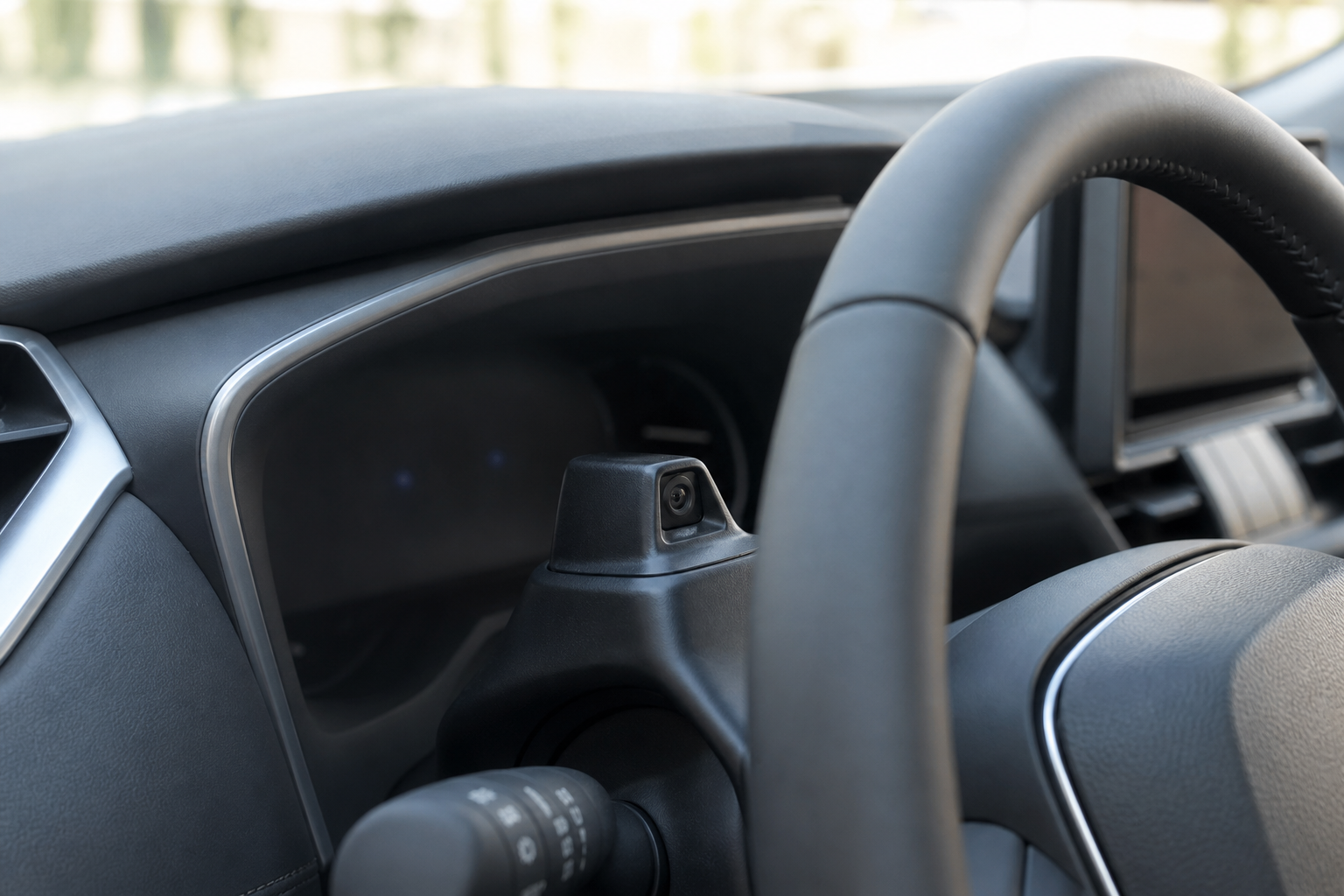
Because LTA takes some of the steering work off your hands, Toyota added a small infrared camera near the top of the steering column, usually mounted on or near the gauge cluster housing, that watches your face. It’s checking where your eyes are pointed and whether your head is turned away from the road for too long.
If the camera decides you’re not paying attention while LTA is active, you’ll get a visual warning on the multi-information display along with a chime. Some owners describe the warning as simply showing the word “Driver Monitor” on the dash, while others see an icon of an eye or a face outline. The exact wording and icon can vary depending on your model year and trim.
This system only actively watches you when Lane Tracing Assist is turned on and engaged. It is not constantly monitoring you during every single drive, which is a detail a lot of owners miss.
Where the Camera and Its Settings Live
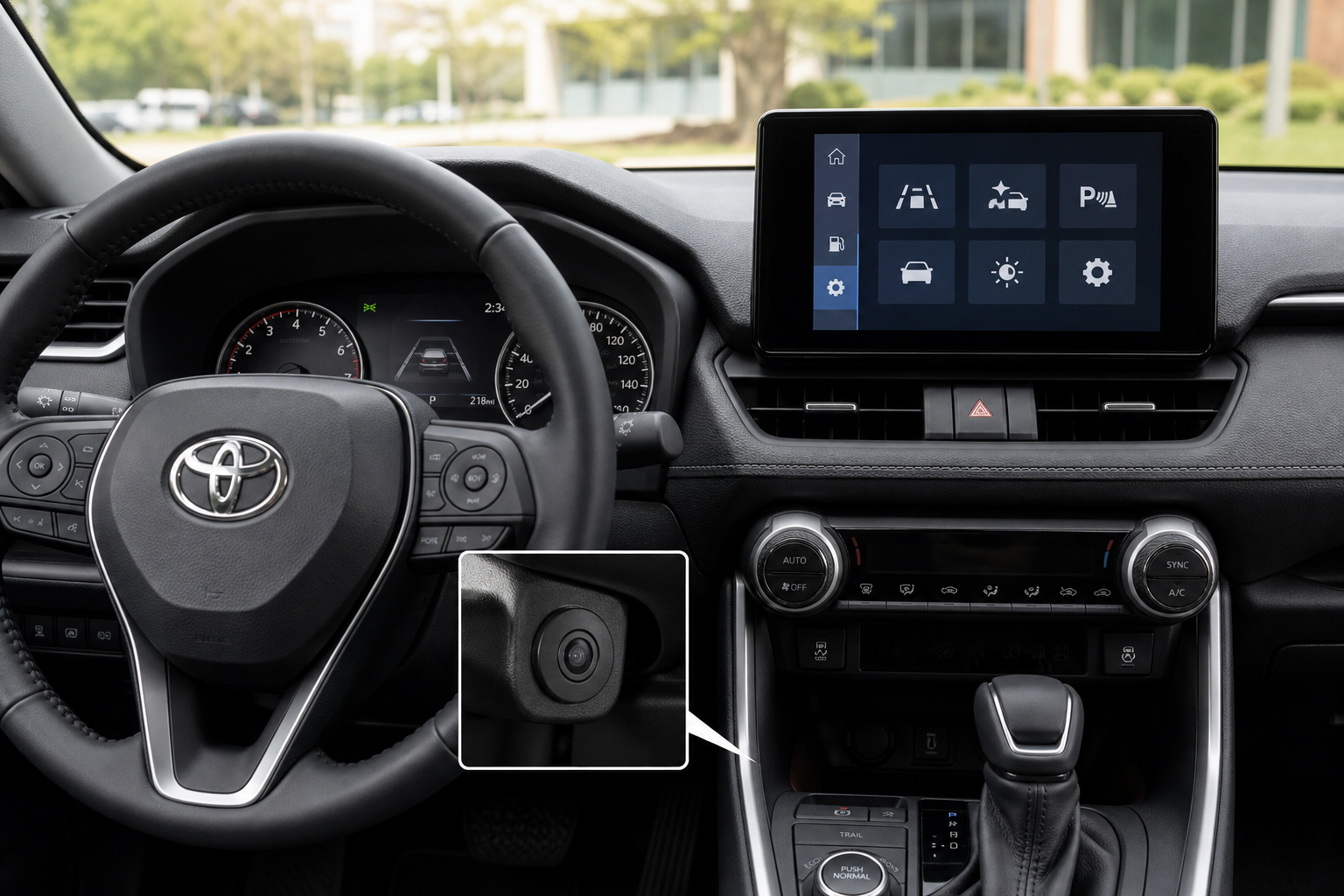
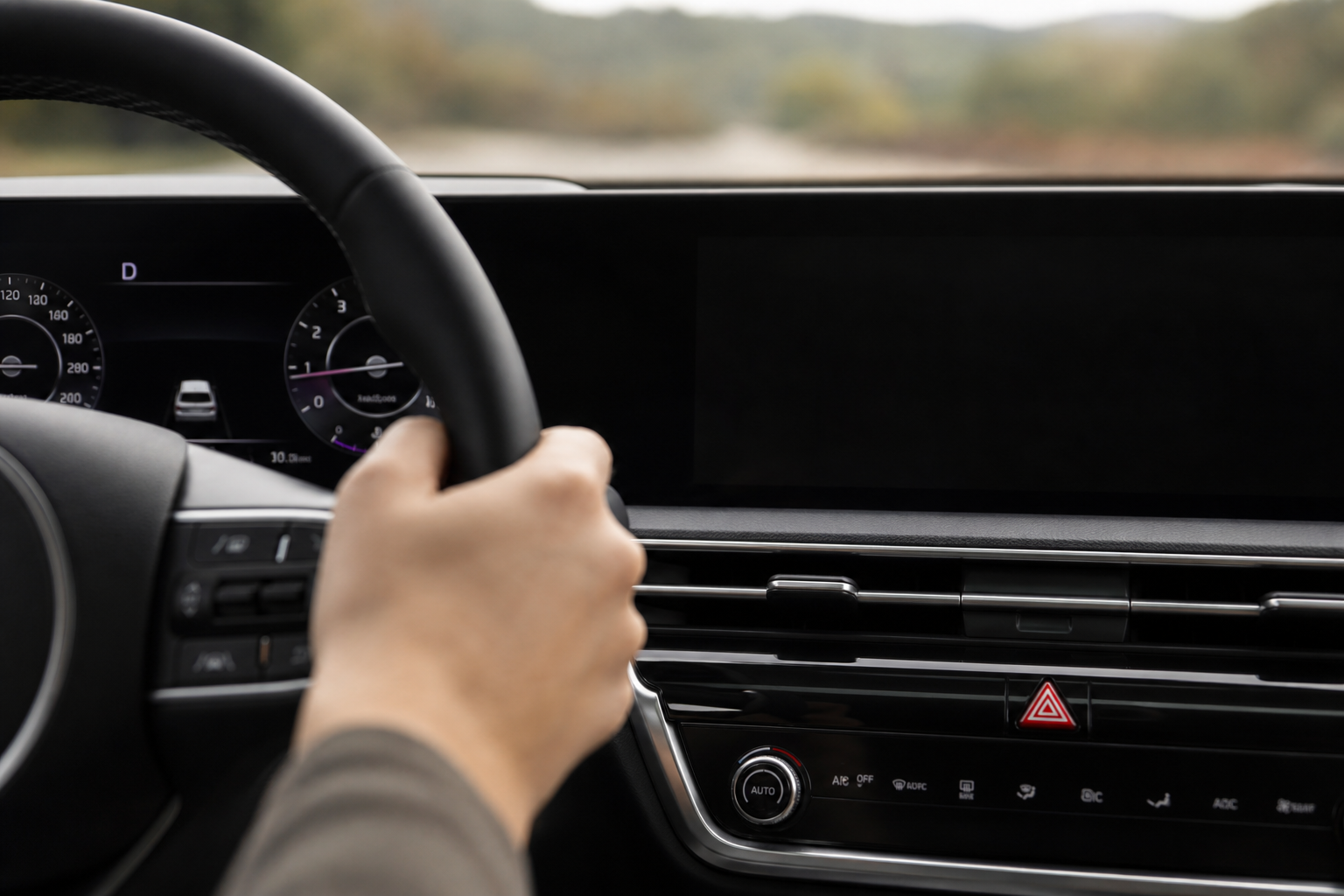
The camera itself is easy to spot once you know where to look. On most RAV4 model years it’s a small black lens sitting just above the steering wheel, integrated into the top of the gauge cluster or the small housing right behind the wheel. You may notice it more when adjusting your steering wheel height, since raising the wheel too high can partially block the camera’s view of your face.
The settings that control how the system behaves are found in different places depending on your RAV4’s model year. On 2019 through 2022 RAV4 models, adjustments live in the multi-information display settings, accessed with the steering wheel arrow buttons and the “Setup” or “Vehicle Settings” menu.
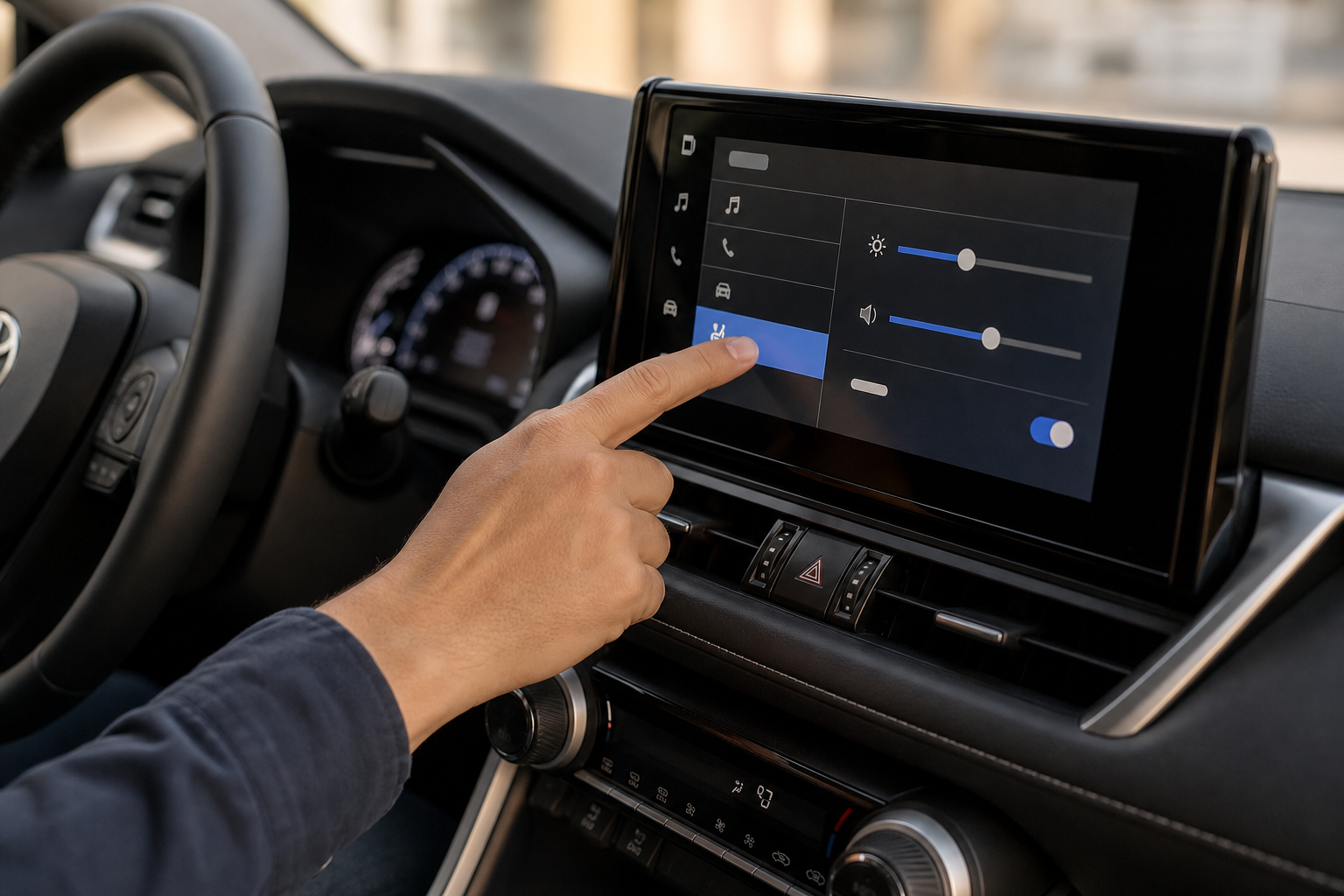
On 2023 and newer RAV4 models that use Toyota’s redesigned Audio Multimedia touchscreen system, the relevant controls move to the touchscreen itself under “Vehicle Settings” then “Driving Assist” or a similarly labeled driver assistance menu. Toyota has changed this layout more than once across recent model years, so the exact menu name in your RAV4 may not match another owner’s description exactly. Your owner’s manual for your specific model year is the most reliable source for the exact path, since Toyota doesn’t keep this menu structure identical across generations.
What You Can Actually Turn Off
Muting the Warning for the Current Drive
The easiest and most reliable option is a temporary mute. Most RAV4 model years let you dismiss or silence the Driver Monitor alert for the remainder of your current drive cycle, either through a prompt that appears on the display when the warning triggers, or through a quick toggle in the driving assist menu. Once you turn the vehicle off and back on, though, the system resets and the monitor becomes active again the next time you use Lane Tracing Assist.
Adjusting Sensitivity
Some model years give you a sensitivity setting for the driver monitoring function, letting you choose between a more relaxed or more strict interpretation of where your eyes are pointed. This won’t get rid of the warnings entirely, but it can meaningfully cut down on false alerts if you find the system too aggressive. This is the setting most owners should try first before assuming they need to disable anything.
The Truth About “Permanently” Turning It Off
This is where you need to be careful with what you read online. A lot of forum posts and videos claim there’s a hidden way to permanently disable the Driver Monitor camera on the RAV4. In reality, Toyota ties this camera’s monitoring function directly to Lane Tracing Assist, and on most model years the monitoring resumes automatically the next time you start the vehicle and LTA engages.
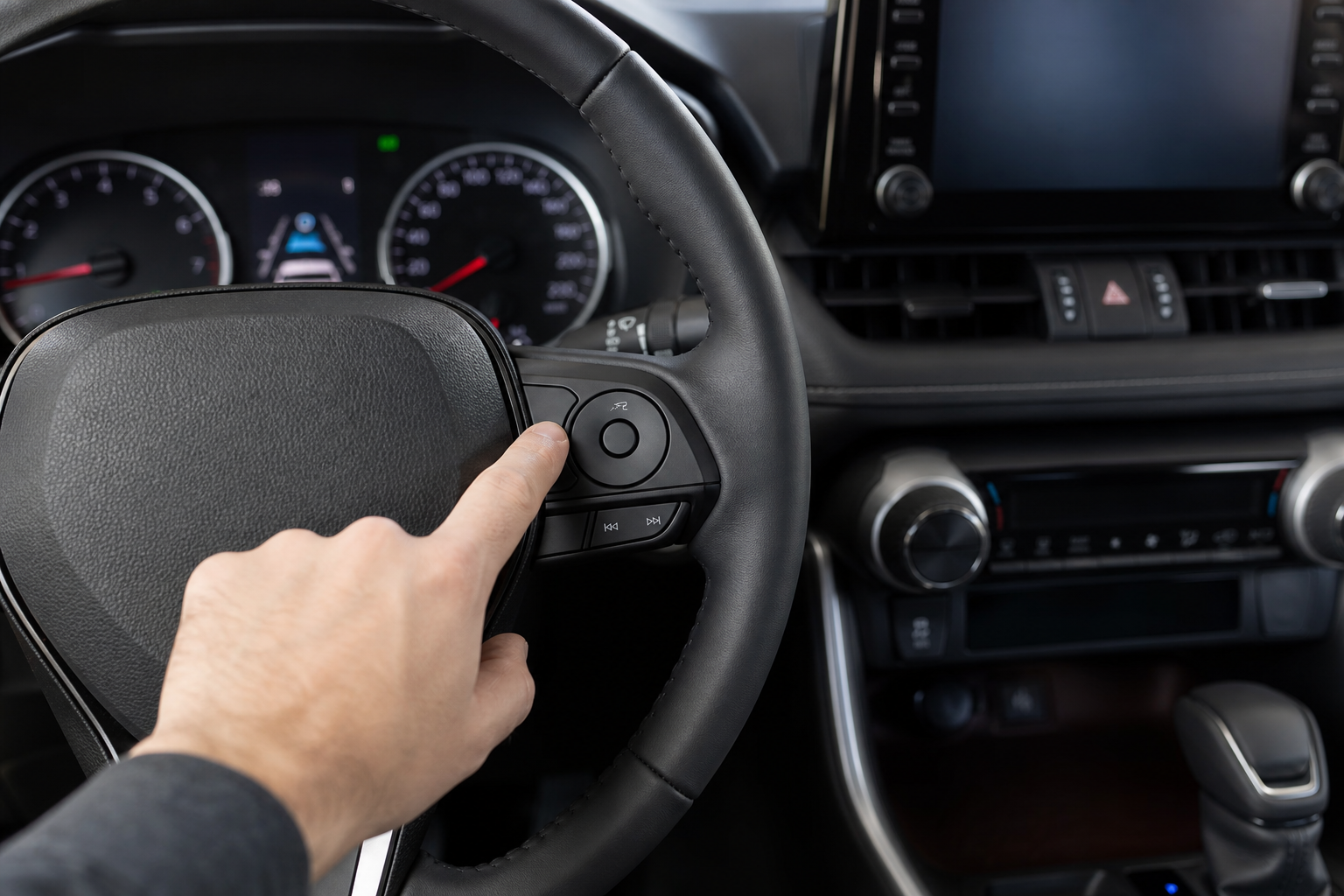
The only way to avoid the driver monitoring alerts entirely, on the model years currently verified, is to leave Lane Tracing Assist switched off using the LTA button on the steering wheel. Since the camera only actively evaluates your attention while LTA is running, turning off LTA itself removes the trigger for the warning. That’s a functional workaround, but it’s not the same as disabling the camera or the monitoring system as a standalone feature, and Toyota has not published a documented “off forever” toggle for the monitor itself across all RAV4 trims and years.
If you’re hoping for a true set-it-once-and-forget-it permanent disable, don’t count on finding one buried in a menu unless your specific model year’s manual explicitly says otherwise. Check your owner’s manual before assuming any setting sticks between drives.
Why the System Triggers False Alerts
A big reason owners get frustrated with Driver Monitor is that it misreads normal behavior as inattention. A few common culprits show up again and again in owner complaints.
- Sunglasses: Dark or polarized lenses can interfere with the infrared camera’s ability to track your eyes accurately.
- Hats with brims: A low-brim hat or visor position can block enough of your face that the camera loses track of where you’re looking.
- Steering wheel position: Raising the wheel too high can partially obscure the camera’s view.
- Poor lighting: Direct sun glare or extreme low light can occasionally confuse the sensor.
- A dirty lens: Dust or fingerprints on the small camera housing can degrade its tracking accuracy over time.
If you’re getting frequent false alerts, try wiping down the camera housing with a soft microfiber cloth and adjusting your steering wheel to a slightly lower position before assuming the system itself is broken.
Should You Actually Disable It?
It’s worth thinking about what you’re giving up before you mute this feature every single drive. Driver Monitor exists because Lane Tracing Assist reduces how much active steering input you’re providing, and Toyota built the camera in as a check against complacency. Similar logic is behind other Toyota safety systems, like the pre-collision system with pedestrian detection on the Corolla, which are designed to catch the moments when a driver’s attention drifts.
If you drive a RAV4 Hybrid and regularly use LTA on long highway stretches, you’re exactly the kind of driver this system was built to watch. Pairing it with something like the Predictive Efficient Drive feature on Toyota hybrids can make long trips smoother and more efficient, but it also means you’ll be leaning on driver assistance features more often, which is exactly when this kind of monitoring matters most.
For most owners, adjusting the sensitivity setting is a better move than trying to shut the whole system off. You get fewer nuisance alerts without losing the safety net entirely.
Navigating the RAV4’s Settings Menu Generally
If you’re new to digging through Toyota’s vehicle settings menus, the process is similar across a few different systems in the lineup. Owners setting up features like the HomeLink garage door opener on the Camry go through a comparable menu structure, so getting familiar with how Toyota organizes these settings on one model can make it easier to find what you need on the RAV4 too.
It’s also worth remembering that Toyota’s driver assistance systems aren’t isolated features. Trailer-equipped Toyota owners dealing with the Trailer Sway Control system on the Tundra will recognize the same pattern: safety systems that work in the background and only show themselves when specific conditions trigger them.
FAQ
Does the Driver Monitor camera record video or store footage?
Toyota’s documentation for these systems describes the camera as processing eye and head position in real time to generate alerts, not as a recording device that saves footage for later review. If you’re looking for actual recording capability in a vehicle, that’s a different category of feature entirely, closer to something like the Sentry Mode and dashcam system on a Tesla.
Why does the warning say “Driver Monitor” instead of describing what I did wrong?
Toyota’s on-screen alerts are intentionally brief since they’re designed to catch your attention quickly rather than explain the specific trigger. The short text or icon is meant to prompt you to refocus on the road immediately, not to give you a detailed diagnostic.
Can I disable Driver Monitor without turning off Lane Tracing Assist?
On the model years currently verified, no. The monitoring function is tied to LTA being active, so turning LTA off through the steering wheel button is the only confirmed way to stop the monitoring trigger from engaging.
Does wearing prescription glasses affect the system?
Regular clear prescription glasses generally don’t cause problems, but heavily tinted transition lenses or polarized sunglasses can occasionally interfere with the camera’s tracking, similar to the sunglasses issue mentioned earlier in this article.


Leave a Reply