

Why Your Tucson Keeps Telling You to Take a Break
If you drive a Hyundai Tucson and you’ve ever gotten a chime along with a coffee cup icon and the words “Consider Taking a Break,” you already know how it feels. You’re paying attention, you haven’t been driving that long, and your car is still nagging you like it knows something you don’t. That warning is part of Hyundai’s Driver Attention Warning system, and it’s more common than most owners realize.
This guide walks through exactly how the system works on the Tucson, where the actual settings live in the infotainment menu, and what you can and can’t turn off. Model years matter here, so we’ll flag where things change between the older third-generation Tucson and the newer NX4 generation that launched for 2022.
What Driver Attention Warning Actually Monitors
Driver Attention Warning, often shortened to DAW in Hyundai’s own documentation, is part of the Hyundai SmartSense suite of driver assistance features. It’s designed to catch signs of fatigue or inattention before they turn into a real problem on the road.
On most Tucson trims, the system watches your steering inputs. It’s building a pattern of how you normally correct the wheel, and when it starts seeing erratic or delayed corrections that look like drowsy driving, it flags it. Some Tucson trims also factor in how long you’ve been driving without a break, time of day, and road type.
Newer Tucson models with the available Highway Driving Assist II or Driver Attention Warning Plus package add a driver-facing camera mounted near the steering column. That camera looks for signs like closed eyes, head nodding, or looking away from the road for extended periods. It’s a more direct way of catching drowsiness than steering pattern analysis alone, but it’s not standard equipment across every trim, so check your window sticker or owner’s manual to see which version your Tucson actually has.
The “Consider Taking a Break” Warning Explained
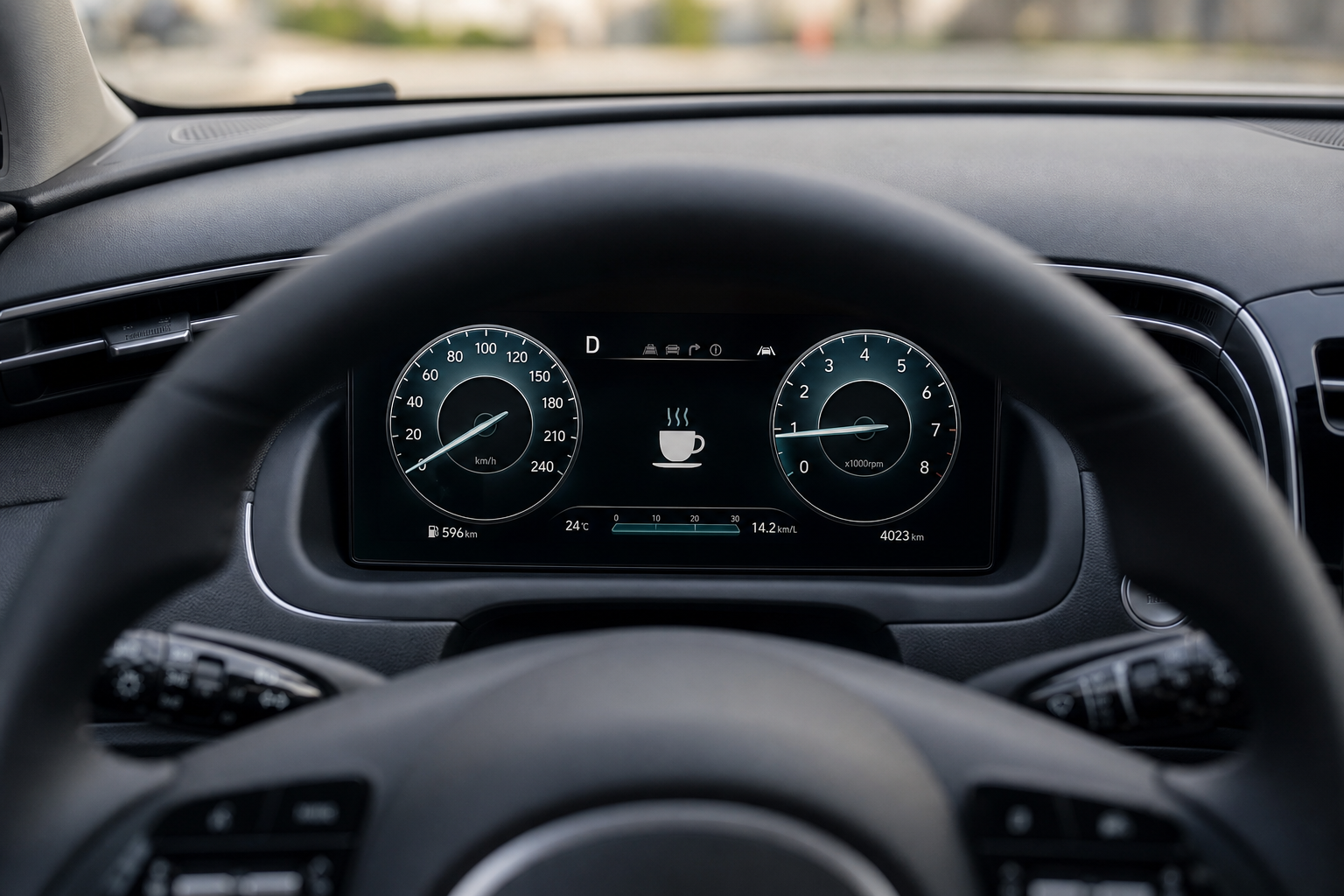
When the system decides you might be fatigued, you’ll see a message on the driver information cluster that says something like “Consider Taking a Break” or “Take a Break,” usually paired with a coffee cup icon and an audible chime. On models with the camera-based system, you might also get a more immediate alert if it detects your eyes closing or your head dropping.
None of this locks you out of driving or takes control of the vehicle. It’s purely informational. But the chime can be jarring, especially if it goes off repeatedly on a long highway drive when you genuinely feel fine, and that’s exactly why so many Tucson owners go looking for a way to turn it down or off.
Where to Find the Setting in the Tucson’s Menu

The menu path is buried a few layers deep, which is why a lot of owners never find it on their own. On the vast majority of Tucson model years, here’s how to get there:
- Press the Settings icon (gear symbol) on the touchscreen.
- Select Vehicle or Vehicle Settings, depending on your model year.
- Choose Driver Assistance or Driver Assist.
- Look for Driver Attention Warning in the list.
From there, the exact options presented depend on the model year and trim, which is the part most articles gloss over.
2022 to 2025 Tucson (NX4 Generation)
On the redesigned Tucson, the Driver Attention Warning menu typically gives you a toggle switch for the feature itself, along with a separate sensitivity setting on many trims that lets you choose between Normal and High. Lowering it to Normal reduces how aggressively the system flags your driving, which cuts down on false alerts without needing to shut the whole feature off.
2016 to 2021 Tucson (Third Generation)
Earlier Tucsons with Driver Attention Warning as part of an available SmartSense package have a simpler menu with less granularity. You’ll generally find just an on/off toggle for the warning itself, without the sensitivity slider that newer models offer. If your Tucson doesn’t show a Driver Assistance submenu at all, your trim likely didn’t come with this feature from the factory.
Temporary Mute vs. Sensitivity Adjustment vs. Turning It Off
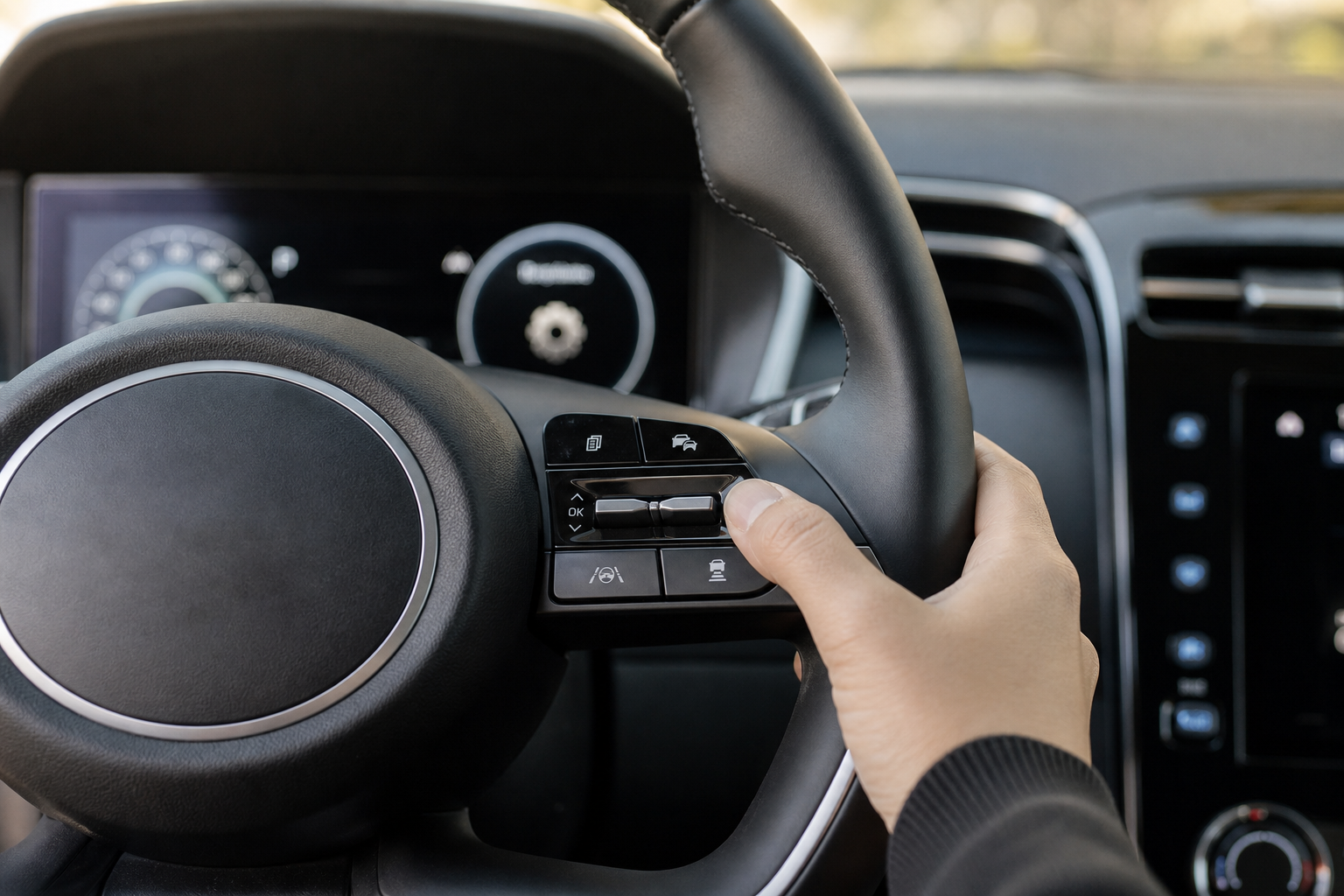
This is where things get confusing, because Hyundai gives you three genuinely different ways to deal with the warning, and they are not the same thing.
Temporary Mute
Some Tucson trims let you dismiss or silence an active alert using the steering wheel controls or an on-screen prompt when the chime sounds. This only clears that specific alert. It does not change any setting, and the system will flag you again later in the same drive if it picks up the same pattern.
Sensitivity Adjustment
Dropping the sensitivity from High to Normal in the Driver Assistance menu makes the system less trigger-happy. It’s the best middle-ground option if you find the alerts too frequent but still want the feature active in the background. This setting is saved and stays applied across drives until you change it again.
Turning the Feature Off
Toggling Driver Attention Warning to off in the Vehicle Settings menu does disable the alerts on most Tucson model years, and on many of these vehicles, the setting does persist after you shut the car off and restart it. However, Hyundai has adjusted how these systems behave across model years and regions due to evolving safety regulations, and some newer software versions may reset certain driver monitoring features back to on with each new ignition cycle as a safety default.
Because of that, don’t assume your specific Tucson will keep the feature off permanently just because you flipped the toggle once. Check the setting after your next start-up to confirm it held, and treat this as something to verify on your own vehicle rather than something we can promise applies to every Tucson on the road.
If the toggle doesn’t stay off after a restart on your particular Tucson, that’s a sign your software build treats this as a per-drive setting rather than a permanent one, and there isn’t a workaround for that beyond what the menu already offers.
Why Hyundai Doesn’t Let You Kill It Completely on Every Model
Automakers are under increasing pressure from safety regulators, especially in Europe, to keep driver monitoring systems active by default. That pressure has pushed Hyundai and plenty of other brands toward menu designs where certain safety alerts reset with each drive cycle rather than staying off forever once you’ve disabled them.
Hyundai isn’t alone here. If you’ve read our guide on the Rear Seat Reminder and Rear Occupant Alert on Hyundai vehicles, you’ll notice a similar pattern: some of these safety features have limited or no full shutoff option because Hyundai treats them as important enough to keep visible in some form.
Your best bet is to actually test your own Tucson rather than relying on generic advice. Turn the feature off, park the car, restart it, and check the menu again a day later. That tells you definitively whether your model year and software build honor a persistent off setting or reset it automatically.
Practical Tips If the Alerts Keep Bothering You
If you’re getting frequent “Consider Taking a Break” warnings even on short trips, there are a few things worth trying before you assume the system is broken or overly sensitive.
- Check your seating position and grip. Loose, one-handed steering can look like fatigue to the system’s pattern detection.
- Drop the sensitivity to Normal if your trim offers that option, rather than turning the whole feature off.
- Take an actual short break on longer drives. It sounds obvious, but the system is often more accurate than drivers want to admit.
- Update your infotainment software through a dealer visit if you’re on an older build. Hyundai has refined the algorithm’s accuracy over several updates.
While you’re in the settings menu poking around, it’s also a good time to make sure your myHyundai Bluelink app is properly linked to your Tucson, since some driver assistance preferences and alerts can sync or show up through the app as well.
Frequently Asked Questions
Does turning off Driver Attention Warning affect other Hyundai SmartSense features?
No. Driver Attention Warning is its own independent setting. Turning it off doesn’t disable Forward Collision-Avoidance Assist, Lane Keeping Assist, or Blind-Spot Collision Warning. Each of those has its own separate toggle in the Driver Assistance menu.
Why does my Tucson show a “Take a Break” message even on short trips?
This usually means the steering pattern detection flagged something that looked like drowsy driving, even if you feel fully alert. Loose steering inputs, one-handed driving, or a lot of small corrections on a winding road can trigger it more than actual fatigue would.
Is there a difference between Driver Attention Warning and Driver Attention Warning Plus?
Yes. The base version relies on steering pattern analysis alone. The Plus version, available on select higher trims and newer model years, adds a driver-facing camera that can detect closed eyes or head position directly, which makes it more accurate but also gives it more data to trigger alerts from.
Will disabling the warning cause a check engine or safety system fault?
No. Driver Attention Warning is a driver assistance feature, not a core safety or emissions system, so turning it off through the menu won’t trigger a warning light or fault code. If you do see an unrelated warning light, it’s worth checking your Tucson’s TPMS system and other unrelated indicators separately, since those operate independently from SmartSense features.
Leave a Reply