

If you’ve ever been cruising down the highway in your Ford Explorer and suddenly heard a chime followed by a coffee cup icon and a message reading something like “Driver Alert, Rest Suggested,” you know how startling it can be. Some owners assume something is wrong with the car. It’s actually a fatigue monitoring feature, and it’s one of the more misunderstood systems in Ford’s lineup.
This article breaks down what the Driver Alert System actually monitors, where the setting lives on your Explorer’s touchscreen, and what you can realistically turn off versus what just gets muted temporarily.
What the Driver Alert System Actually Monitors
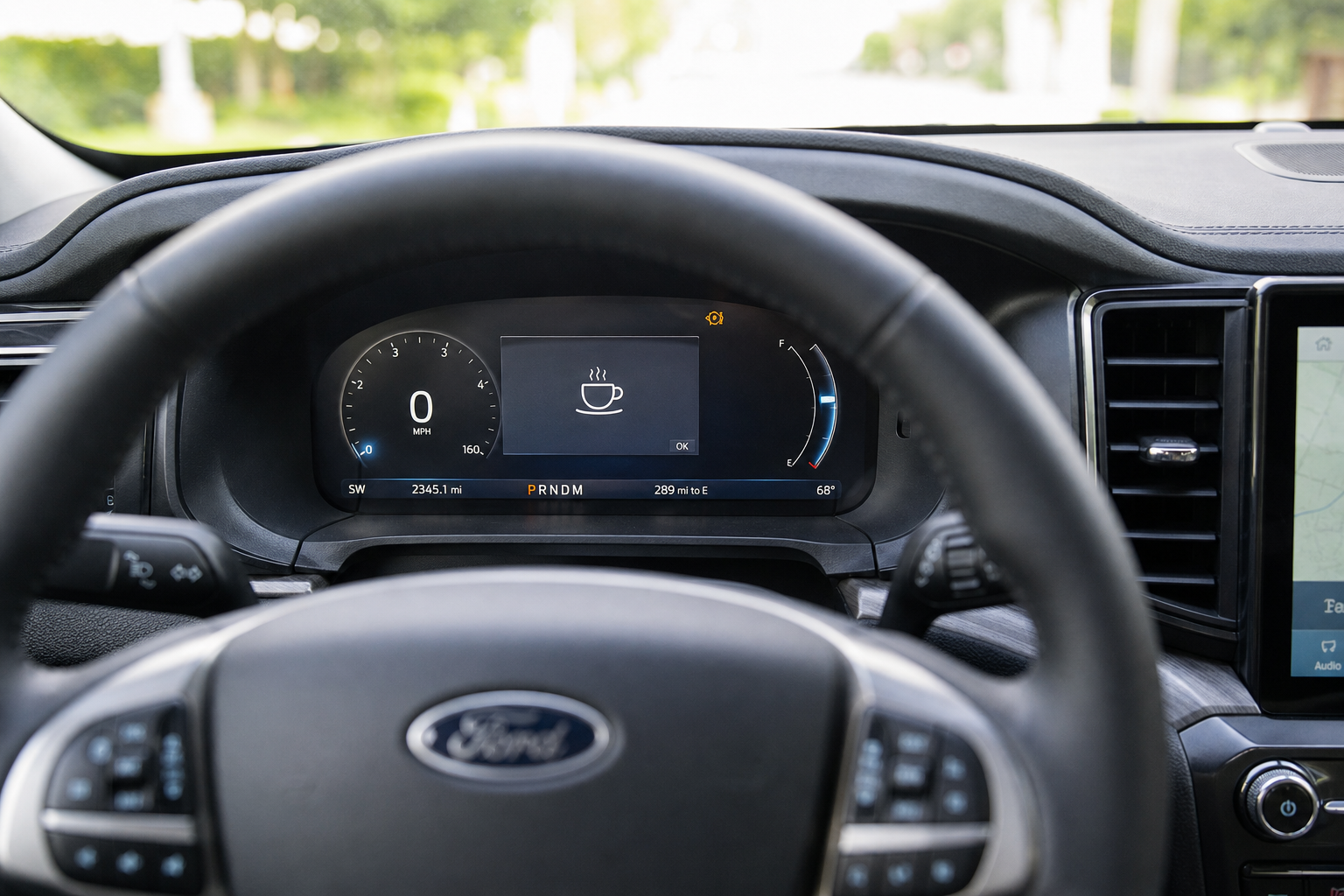
Driver Alert isn’t a camera watching your eyes like some newer luxury systems. On the Explorer, it’s a software-based feature that tracks steering inputs, how long you’ve been driving, and driving patterns that typically show up when a driver starts getting drowsy, things like small steering corrections or drifting within the lane.
When the system decides your inputs look like fatigue, it displays a coffee cup icon in the instrument cluster along with text asking if you’d like to take a break. It’s paired with an audible chime so you notice it even if you’re not looking at the cluster.
This is separate from features like Intersection Assist and evasive steering, which react to obstacles rather than your driving behavior. If you want a deeper look at how those systems work on the Explorer, our guide on Intersection Assist and Evasive Steering features covers that in detail.
Where the Setting Lives on the Touchscreen
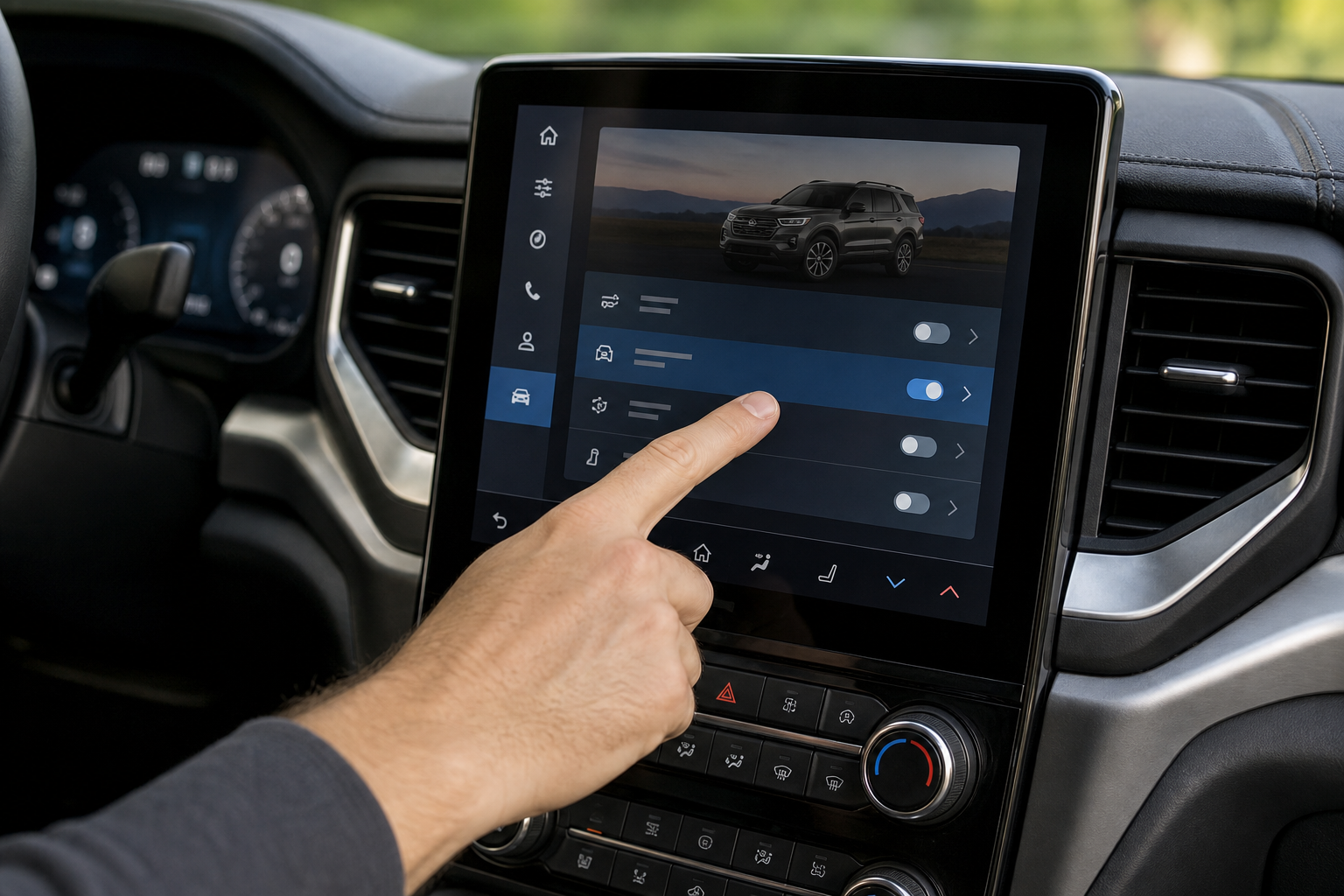
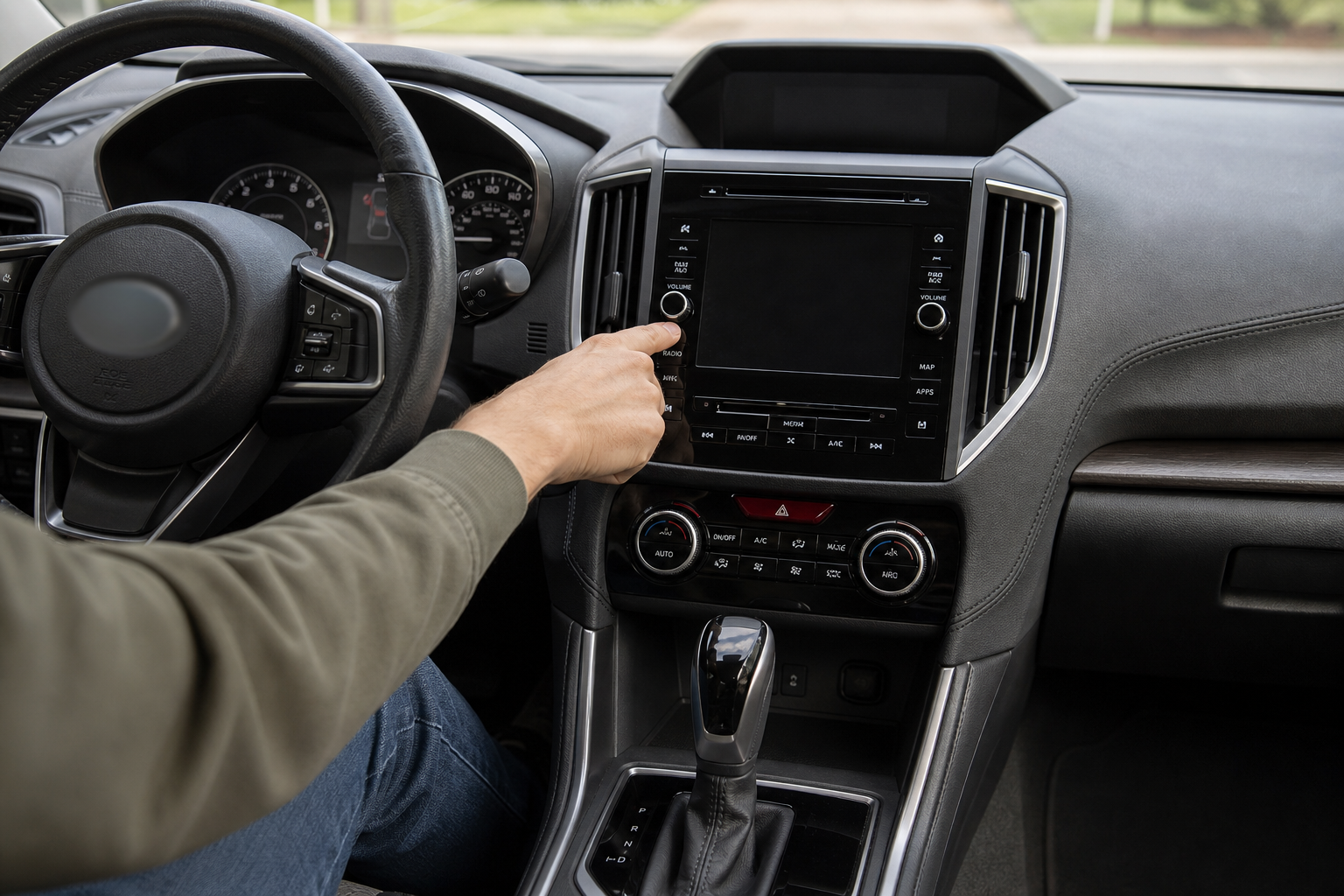
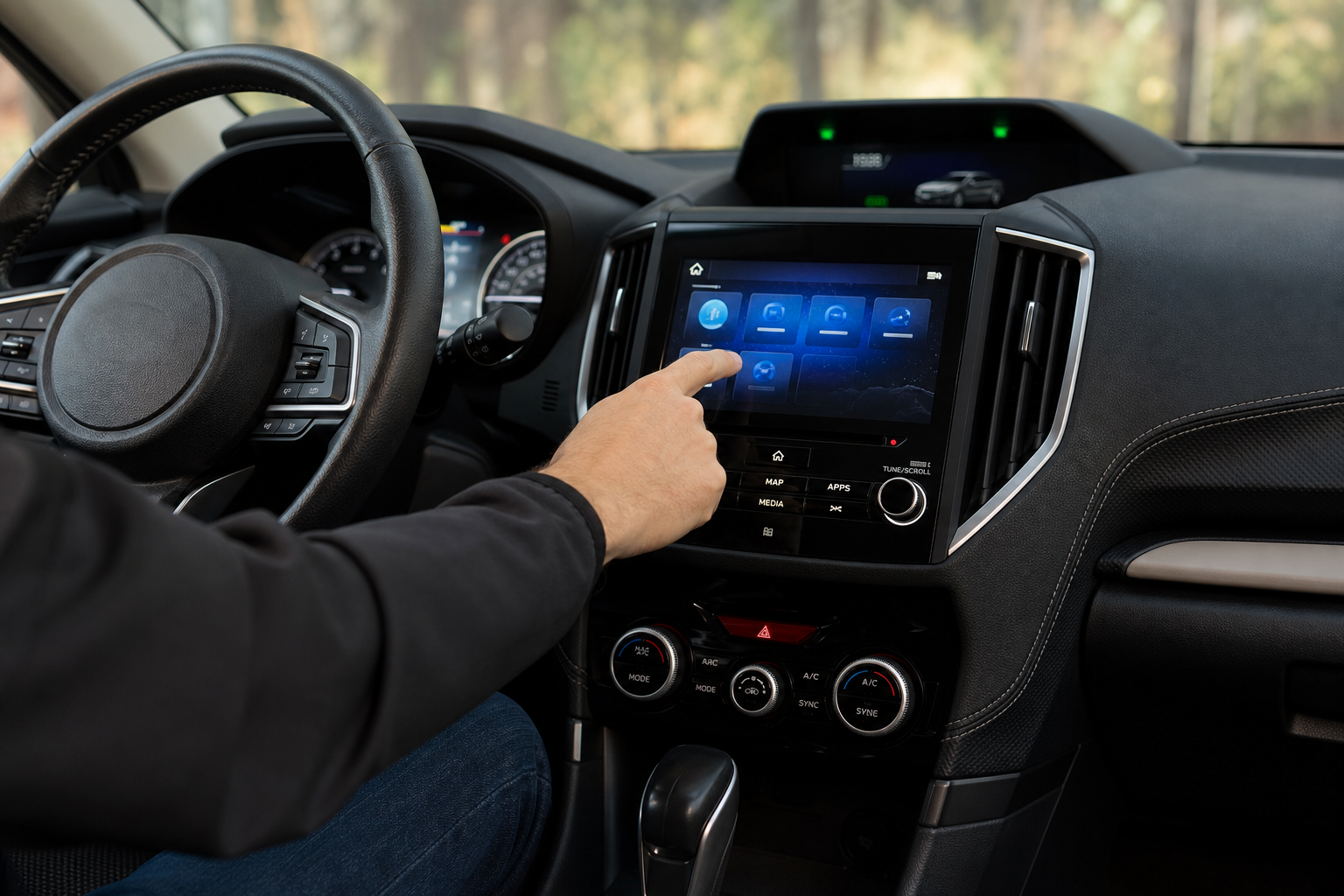
On Explorers running SYNC 4 (2020 and newer, with the 10.1 or 12.1 inch touchscreen), you’ll find the toggle under the gear icon for Settings, then Driver Assist, then Driver Alert System. It’s usually listed alongside things like Lane-Keeping System and Pre-Collision Assist.
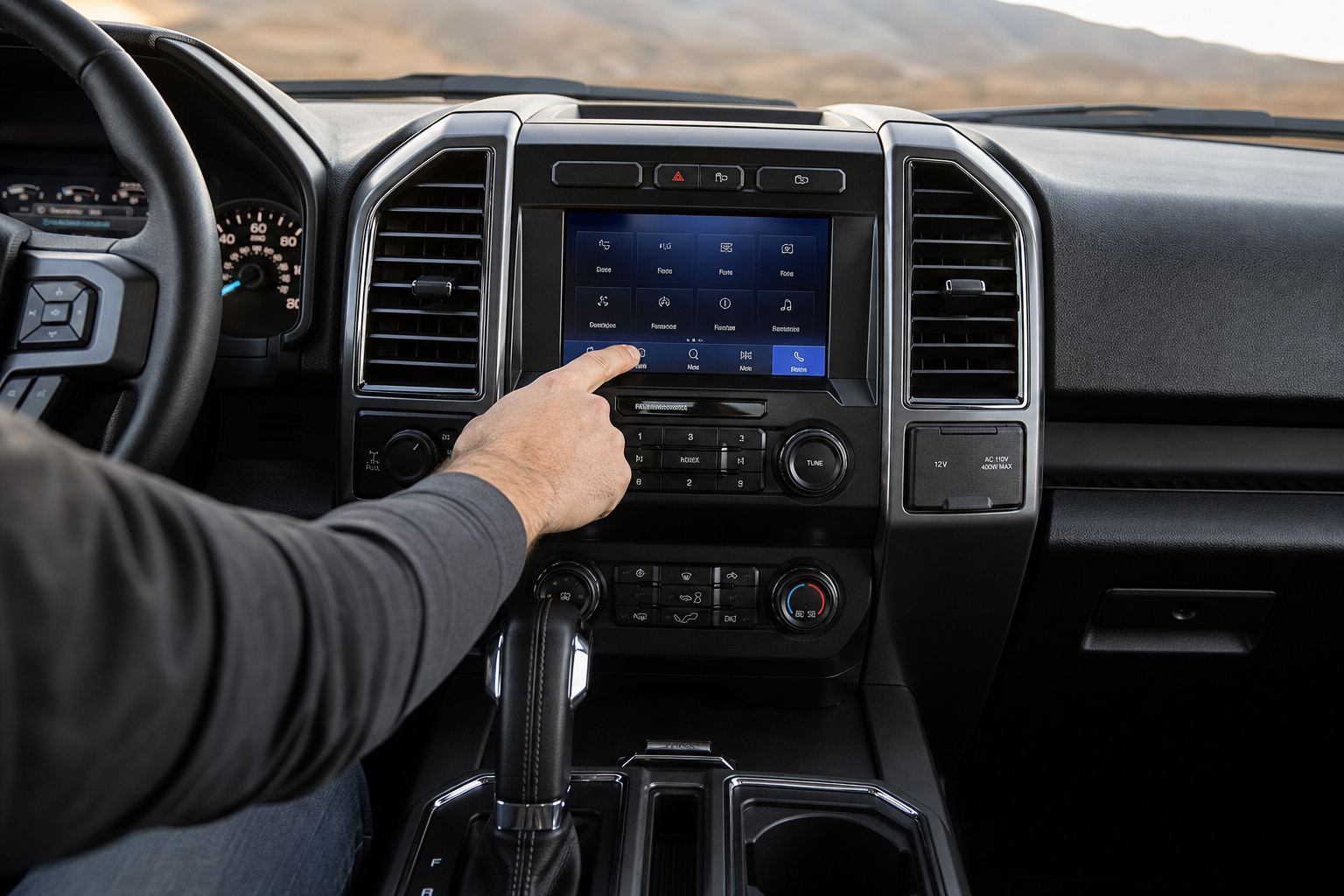
On older Explorers running SYNC 3 (roughly 2013 through 2019), the menu structure is similar but the layout and exact wording can differ slightly. Look for a “Driver Assist Features” section within Settings, then scroll to find Driver Alert.
Because Ford updates its software and menu naming between model years and even mid-cycle refreshes, the exact label you see might read “Driver Alert System,” “Rest Suggested Alerts,” or something close to that depending on your build date. Your owner’s manual for your specific model year is the most reliable source for the exact wording, since Ford doesn’t always use identical terminology across trims.
Temporary Mute vs. a True Off Setting

This is where a lot of confusion happens, so it’s worth separating the three things you can actually do.
Dismissing the Alert (Temporary)
When the coffee cup message pops up, you can press OK on the steering wheel controls or tap the message to clear it. This only silences that specific alert. It does not disable the system, and it will trigger again later in the same drive, or on your next trip, if your driving pattern trips the same conditions.
Adjusting Sensitivity (Partial Control)
Some Explorer trims give you a sensitivity option, typically Low, Medium, or High, instead of a flat on/off switch. Lowering sensitivity means the system needs more pronounced signs of fatigue before it alerts you. This is a good middle ground if you find the feature helpful but a little trigger-happy on long, straight interstate stretches.
Turning It Off in Settings (Persistent)
Flipping the Driver Alert System toggle to off in the settings menu stops future coffee cup warnings from appearing, and this setting generally stays off after you shut the vehicle down and start it again, rather than resetting every trip. If your Explorer uses Ford’s driver profile feature, this preference is typically saved to your individual profile as well.
That said, Ford has adjusted how driver assist settings behave across software updates and model years, so don’t assume your specific Explorer works identically to a friend’s. Check the setting after your next drive cycle to confirm it actually held, and consult your owner’s manual to see if your model year documents this as a persistent setting or something that can reset under certain conditions, like after a software update or battery disconnect.
Should You Actually Turn It Off?
There are legitimate reasons drivers turn this down or off. If you drive a lot of rural two-lane roads with constant small steering corrections, the system can flag normal driving as fatigue more often than feels useful. Some owners also find the chime distracting during long, uneventful highway stretches.
On the other hand, fatigue is a real factor in a huge number of highway crashes, and the system exists because Ford’s engineers built it around actual crash data. If you’re genuinely doing long road trips, adjusting the sensitivity down a notch is usually a better call than switching it off entirely. You get fewer nuisance alerts without losing the feature completely.
It’s also worth noting that turning off Driver Alert does not touch your other safety systems. Automatic Emergency Braking, Lane-Keeping Assist, and Intersection Assist all have their own separate toggles and operate independently of the fatigue monitoring feature.
A Quick Word on Ford’s Broader Driver Assist Lineup
Ford has been steadily expanding its driver assist and safety tech across the lineup, not just on the Explorer. If you’re curious how the brand is investing in newer technology more broadly, our coverage of Ford’s plans for its upcoming competitively priced Fathom electric truck gives some context on where the company is headed.
Other automakers handle similar fatigue and attention alerts differently. Toyota, for example, pairs its Pre-Collision System with pedestrian detection on the Corolla rather than a pure fatigue monitor, while Hyundai’s Rear Seat Reminder and Rear Occupant Alert tackles a completely different kind of driver alert altogether. Comparing these approaches can help you understand why Ford’s system focuses so heavily on steering behavior rather than cameras or seat sensors.
Frequently Asked Questions
Can you permanently disable Driver Alert on the Ford Explorer?
You can turn the toggle off in the settings menu, and on most recent model years this setting stays off across drive cycles rather than resetting each time. Whether it’s truly permanent depends on your exact model year and software version, so double check after a software update or battery disconnect to make sure it hasn’t reverted.
Does turning off Driver Alert affect Automatic Emergency Braking or Lane-Keeping Assist?
No. Driver Alert is a separate feature from collision avoidance and lane keeping systems. Turning it off only stops the fatigue related coffee cup warnings and doesn’t change how your other driver assist features behave.
Why does my Explorer show a coffee cup icon on the dash?
The coffee cup icon appears when the Driver Alert System detects steering patterns and drive time that suggest fatigue. It’s paired with a chime and a suggestion to take a break, and it’s designed to nudge you rather than take any control of the vehicle.
Leave a Reply