
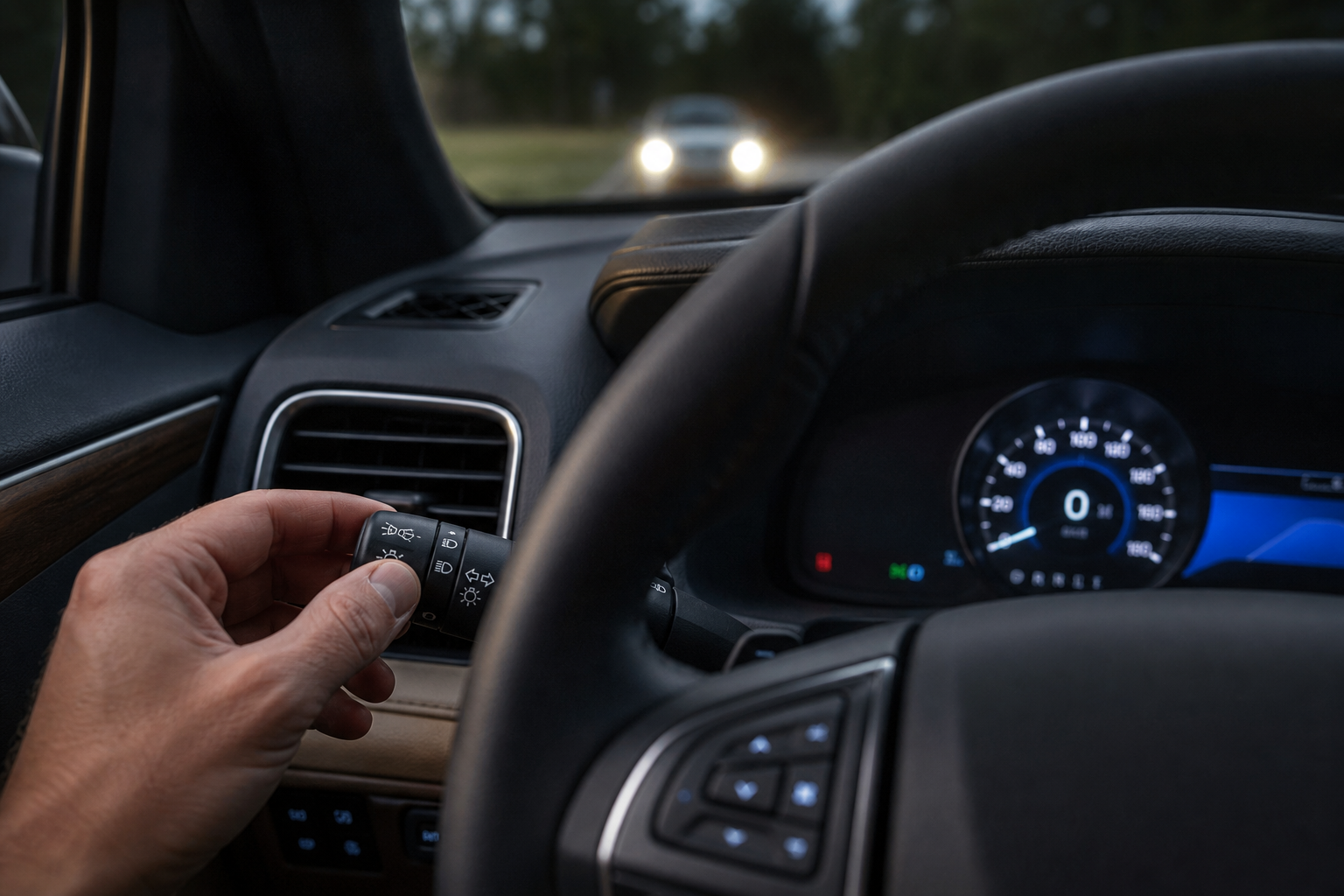
If your Ford Explorer keeps flashing its brights at empty roads, dimming when a car pulls up beside you at a red light, or just doing its own thing when you’d rather control it yourself, you’re not stuck with it. The automatic high-beam system on the Explorer is a genuinely useful feature for a lot of drivers, but it’s not for everyone, and Ford makes it easy to shut off without losing your regular manual high-beam function. Here’s exactly where to find the switch and what changes once you flip it.
Auto High-Beam Assist vs. Automatic Headlights: Know the Difference
A lot of Explorer owners mix these two systems up, and it’s an easy mistake to make since both show up under similar names in the owner’s manual.
Automatic headlights simply turn your low-beam headlights on and off based on ambient light. That’s the feature that kicks your lights on when you drive into a parking garage or when the sun goes down. It has nothing to do with high beams.
Auto High-Beam Assist is a completely separate system that uses a forward-facing camera mounted near the rearview mirror to detect oncoming headlights or the taillights of cars ahead. When it doesn’t see other vehicles, it switches your high beams on automatically. When it does, it switches back to low beams. This is the feature you’re actually trying to turn off if the high beams keep triggering or shutting off at moments you don’t want.
You can leave your automatic headlights on and still disable just the high-beam assist portion. They’re controlled independently.
How to Turn Off Automatic High Beams on the Ford Explorer
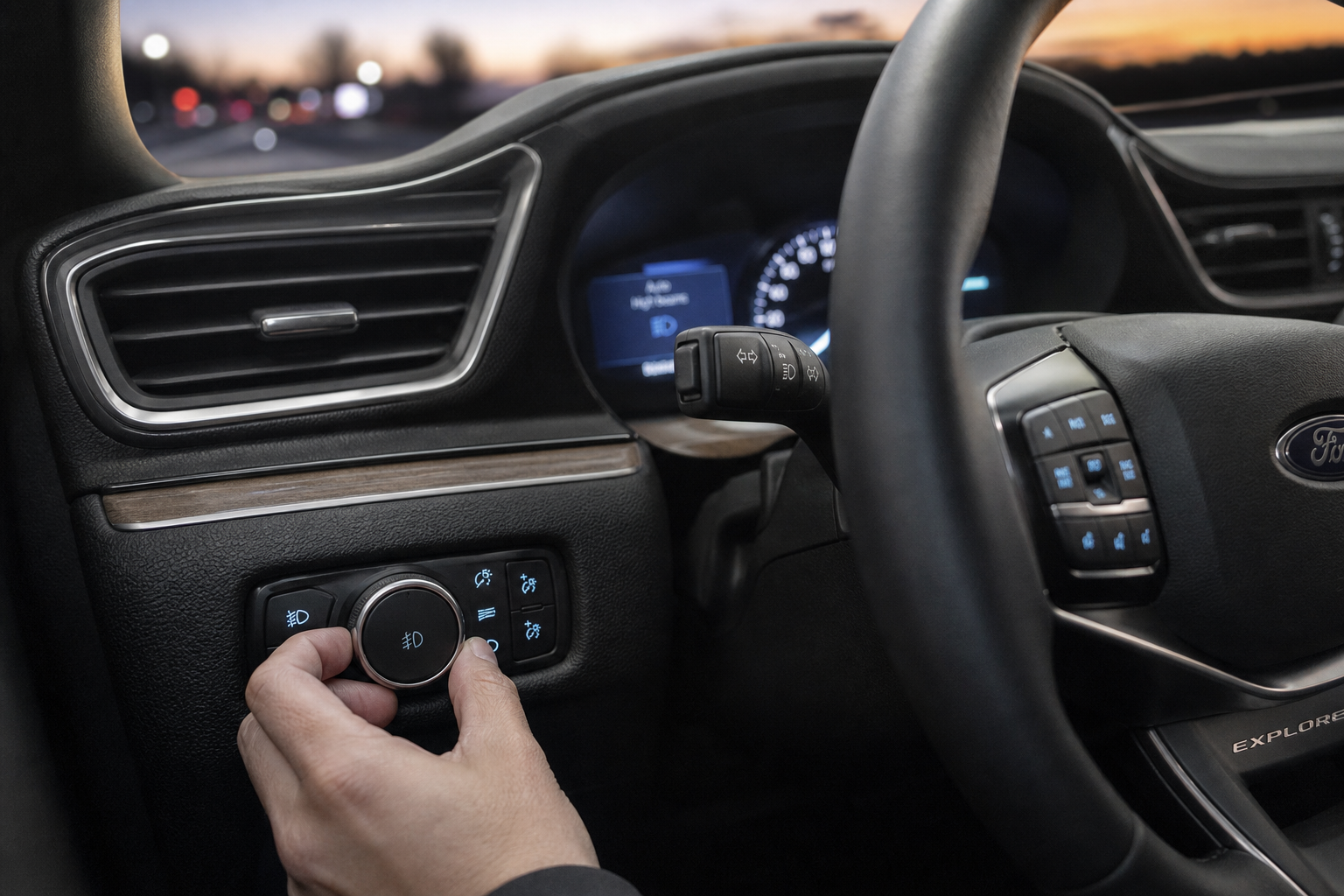
The exact process depends slightly on your model year, but the core idea is the same across the lineup: you’re either using the headlight stalk switch or a settings menu on the touchscreen.
Using the Turn Signal Stalk
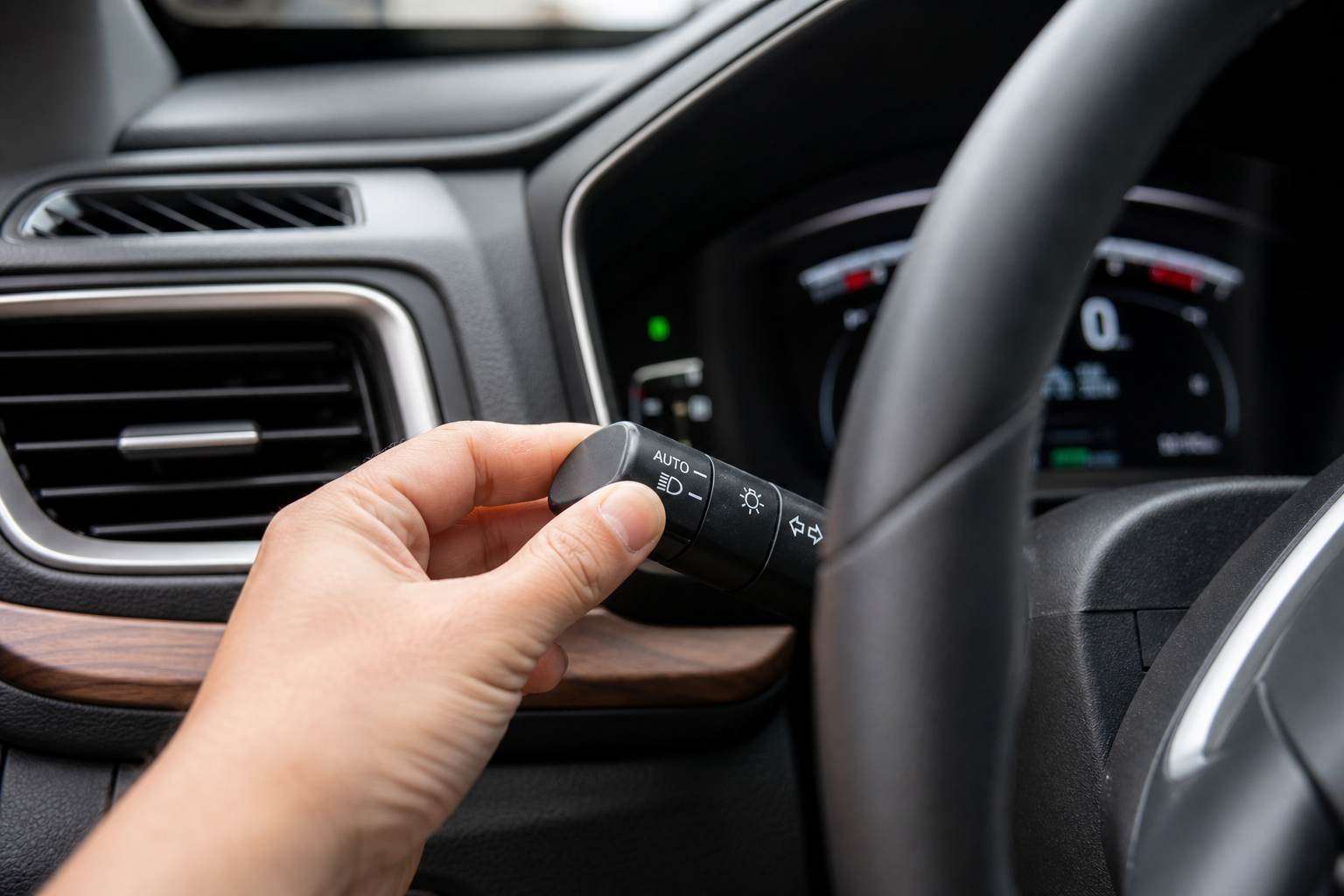
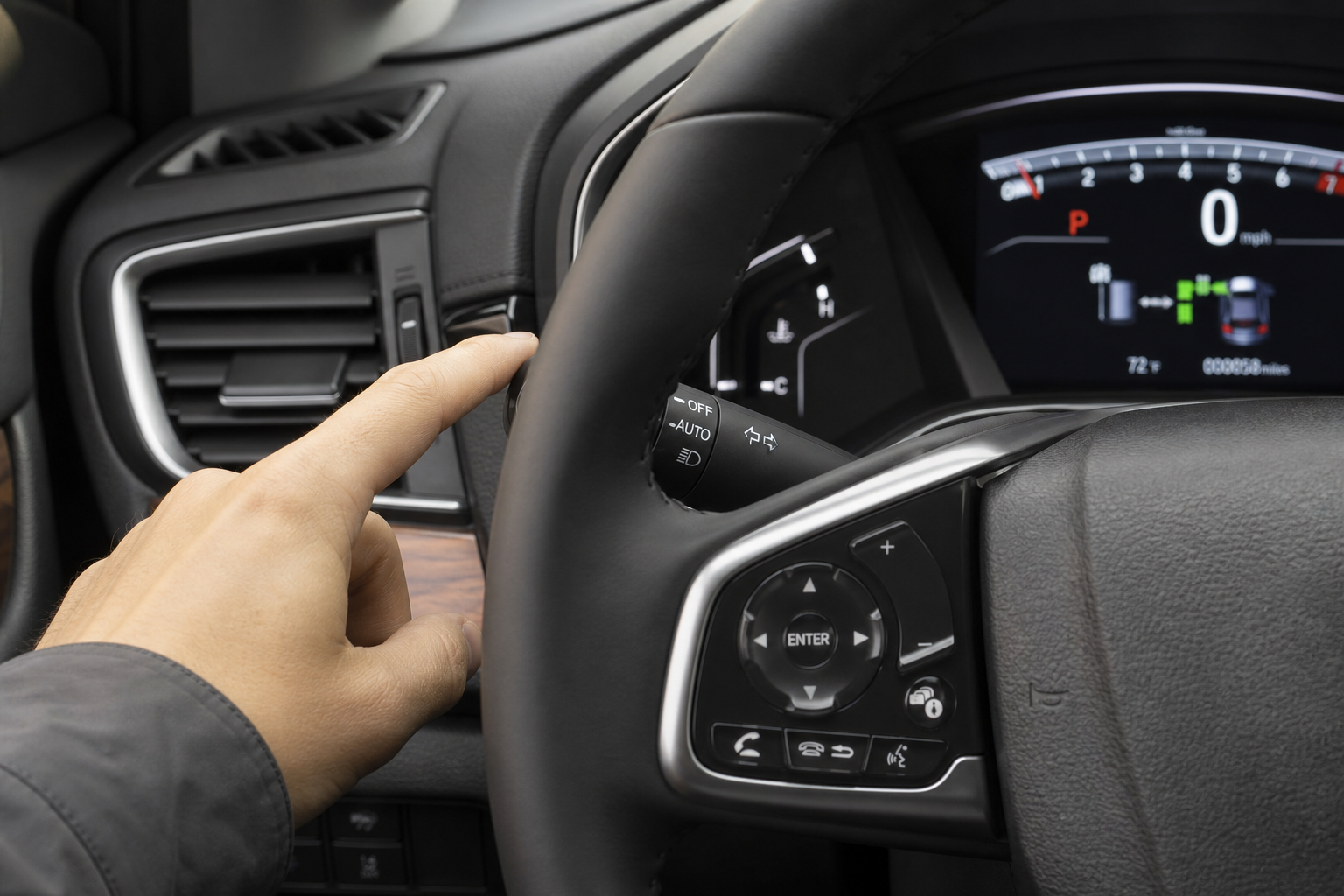
On most Explorer model years, the auto high-beam system is toggled through the multifunction stalk on the left side of the steering column, the same stalk you use for turn signals and manual high-beam flashes.
- Turn the headlight knob or rotary dial to the “Auto” position, since Auto High-Beam only functions when your headlights are set to automatic mode.
- Push the stalk forward past the detent used for a manual high-beam flash. On Explorers equipped with the feature, this engages Auto High-Beam and you’ll see an indicator icon on the instrument cluster, usually a blue “A” inside a headlight symbol.
- Pull the stalk toward you slightly, or push it forward again depending on your model year, to cancel Auto High-Beam. The indicator light will disappear, and you’re back to standard manual control where pushing the stalk forward gives you a straight high-beam flash instead of engaging the automatic system.
If you’re not sure which direction cancels it on your specific Explorer, just watch the dash indicator. If the blue “A” icon is lit, auto mode is active. If it’s off, you have full manual control.
Using the SYNC Settings Menu
On newer Explorers, particularly 2020 and later models running SYNC 3 or SYNC 4, you also have the option to disable Auto High-Beam permanently through the settings menu instead of relying on the stalk each time you start the car.
- Press the “Settings” icon on your touchscreen.
- Select “Vehicle” and then look for “Lighting” or “Headlamps.”
- Find the toggle labeled “Auto High-Beam” or “Automatic High-Beam Control” and switch it off.
Turning it off here means the system stays disabled even after you restart the vehicle, rather than defaulting back to active every time you turn the key. This is the better option if you’ve decided you just don’t like the feature at all, rather than wanting to toggle it on and off situationally.
Model-Year Differences Worth Knowing
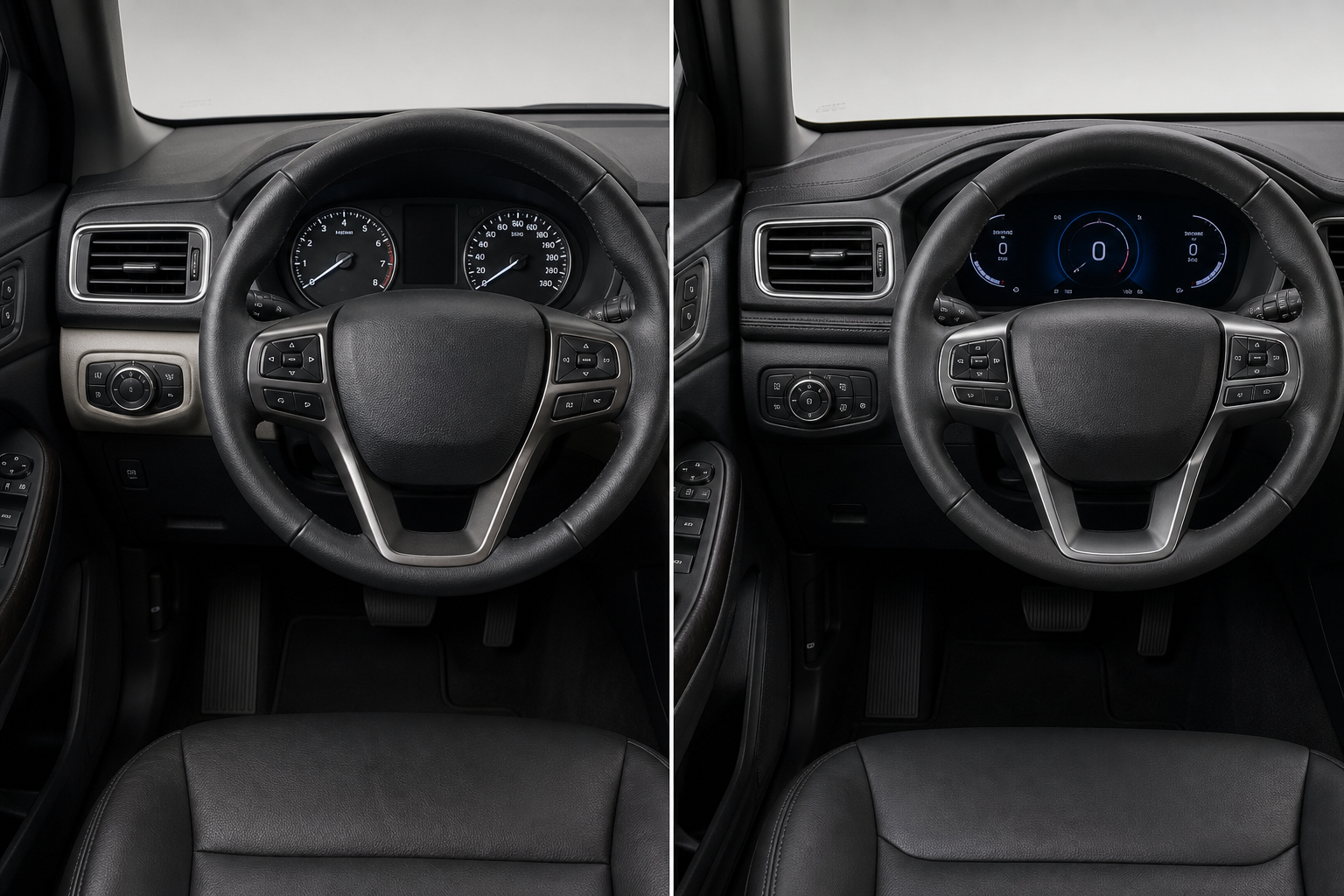
The current sixth-generation Explorer, which launched for the 2020 model year, comes standard with Auto High-Beam on most trims above the base level, and it’s bundled into the Co-Pilot360 suite of driver-assist features. If your Explorer also has adaptive features like intersection assist, you’re likely dealing with the newer generation setup. It’s worth checking out how those systems work together in our guide on using Intersection Assist and Evasive Steering on the Ford Explorer, since both rely on the same forward camera hardware behind the mirror.
On fifth-generation Explorers (2011 to 2019), Auto High-Beam wasn’t available on every trim, and where it was offered, the stalk-based toggle was the only way to control it. There’s no touchscreen menu option on these older models, so if you own a 2015 or 2017 Explorer, the stalk is your only route.
Ford also revised the sensitivity of the camera system a few times across production years. Some 2020 and 2021 owners reported the system dimming too aggressively for oncoming traffic that was still fairly far away, and Ford addressed this somewhat in later software updates. If your Explorer feels overly cautious with the high beams, it’s worth checking whether a dealer software update is available before deciding to disable the feature entirely.
What the Indicator Lights Actually Mean
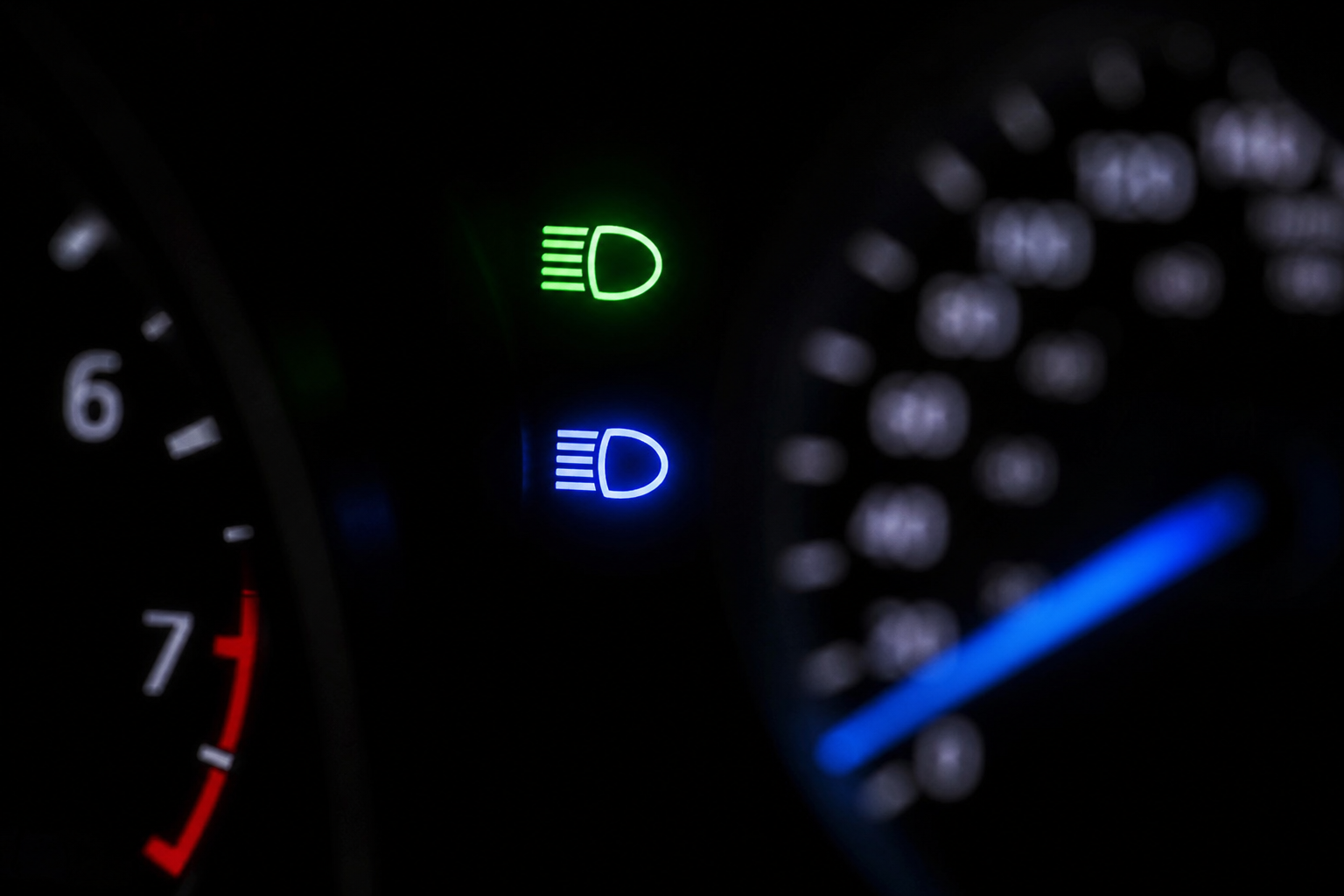
Your instrument cluster gives you two separate signals related to this system, and it helps to know them apart.
A solid blue high-beam icon (the classic headlight symbol with horizontal lines) means your high beams are currently on, whether you turned them on manually or the auto system did it for you.
A blue “A” badge next to or inside that icon specifically means Auto High-Beam is the active mode, meaning the car is deciding when to switch between high and low beams on its own. If you only see the plain high-beam icon without the “A,” you’re in full manual control, and the beams will stay on until you push the stalk again or an oncoming car forces you to dim them yourself.
Why You Might Want to Turn It Off
Some drivers find the camera system too slow to react on winding roads, dimming a beat later than they would manually. Others drive frequently in fog or heavy rain, where the camera can struggle to distinguish oncoming headlights from reflected light, causing the high beams to cycle on and off more than they should.
If you drive mostly in a well-lit urban area with a lot of stop-and-go traffic, Auto High-Beam usually isn’t doing much work for you anyway, and turning it off just simplifies things. Rural or highway drivers tend to get the most benefit from keeping it on.
FAQ
Does turning off Auto High-Beam affect my regular headlights?
No. Disabling Auto High-Beam only removes the automatic switching between high and low beams. Your regular headlights, whether set to manual or automatic mode, continue working exactly as before.
Can I still flash my high beams manually after disabling the system?
Yes. Once Auto High-Beam is off, pushing the stalk forward gives you a standard manual high-beam flash or full engagement, just like in any car without the automatic feature. You lose nothing in terms of manual control.
Why did my Auto High-Beam stop working even though I didn’t turn it off?
The camera behind the rearview mirror needs a clear, unobstructed view of the road. A dirty windshield, a cracked windshield near the sensor, or heavy fog can temporarily disable the feature until conditions clear. If it’s been out for more than a day or two with a clean windshield, it’s worth having the sensor checked, similar to how other camera-based driver-assist features can throw errors if their view gets blocked or misaligned.

Leave a Reply