
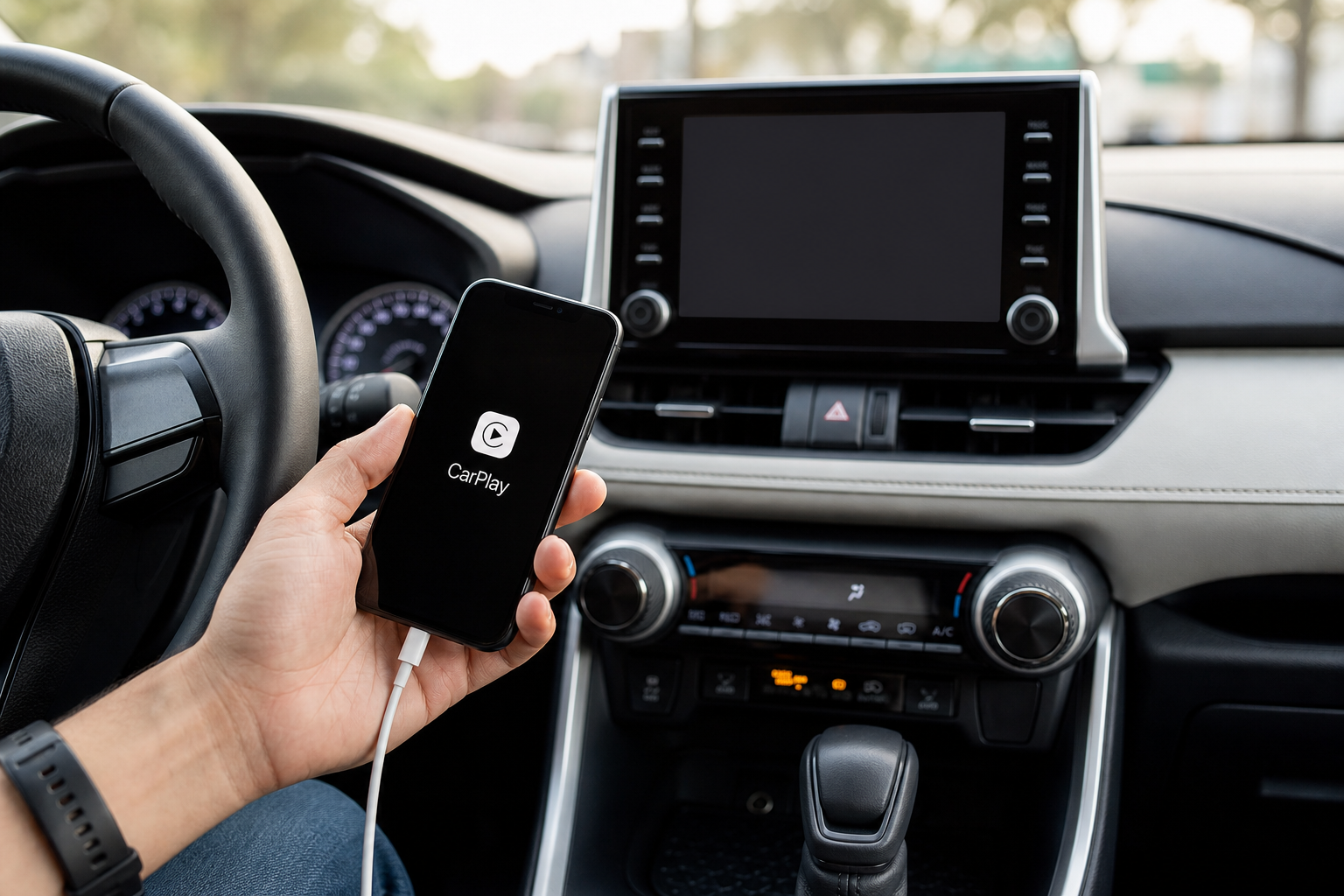
Nothing kills the vibe on a road trip like your playlist cutting out mid-song because CarPlay decided to bail on you. If your Toyota RAV4 keeps dropping Apple CarPlay every few minutes, you’re dealing with one of the most common infotainment complaints on this vehicle, and it usually comes down to a handful of specific culprits rather than some mysterious software gremlin.
The good part is that most of these fixes take five minutes or less. Before you start swapping cables or digging through settings, watch this quick walkthrough to see the disconnect issue in action and get a feel for where to start.
Wired CarPlay: Start With the Cable and USB Port
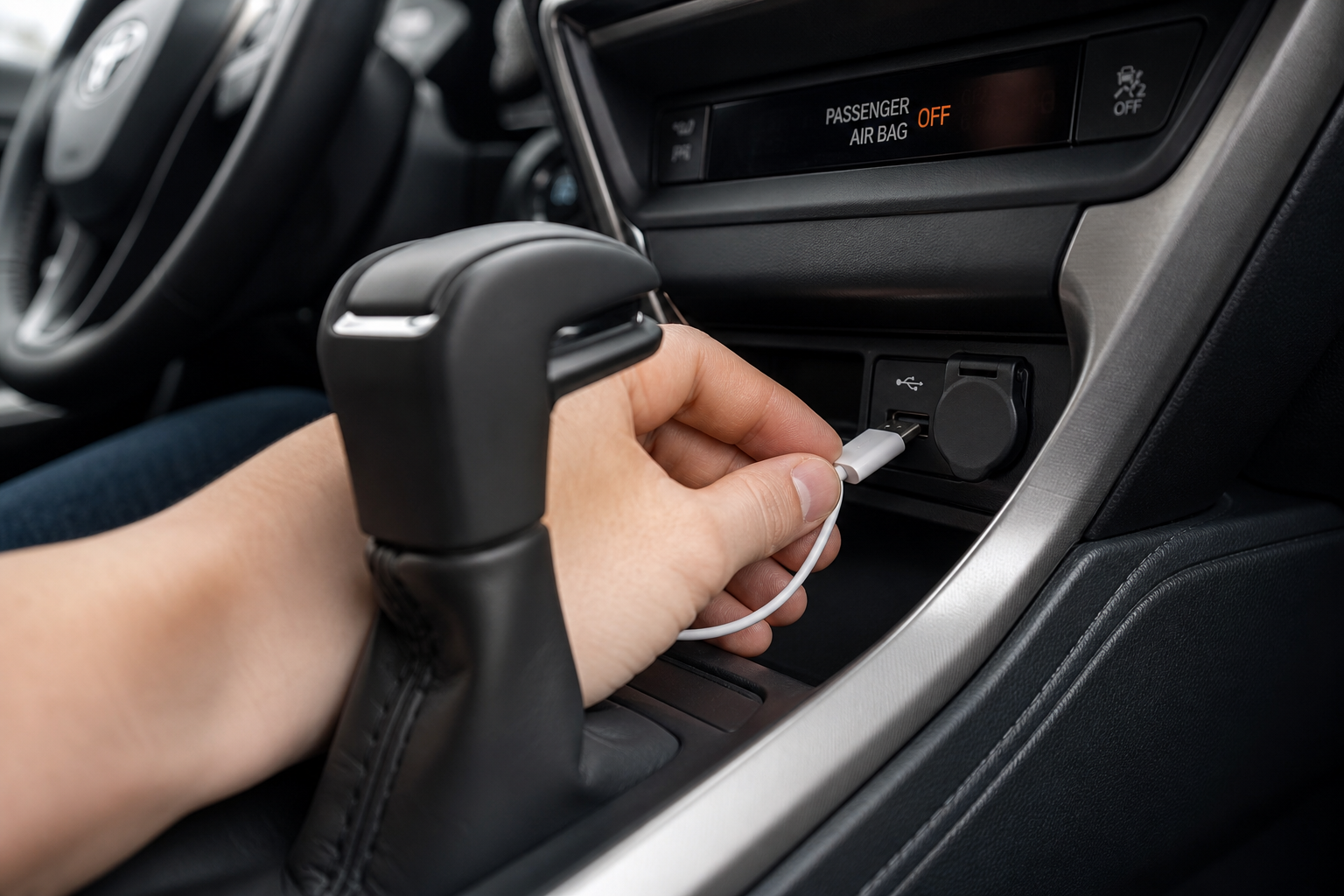
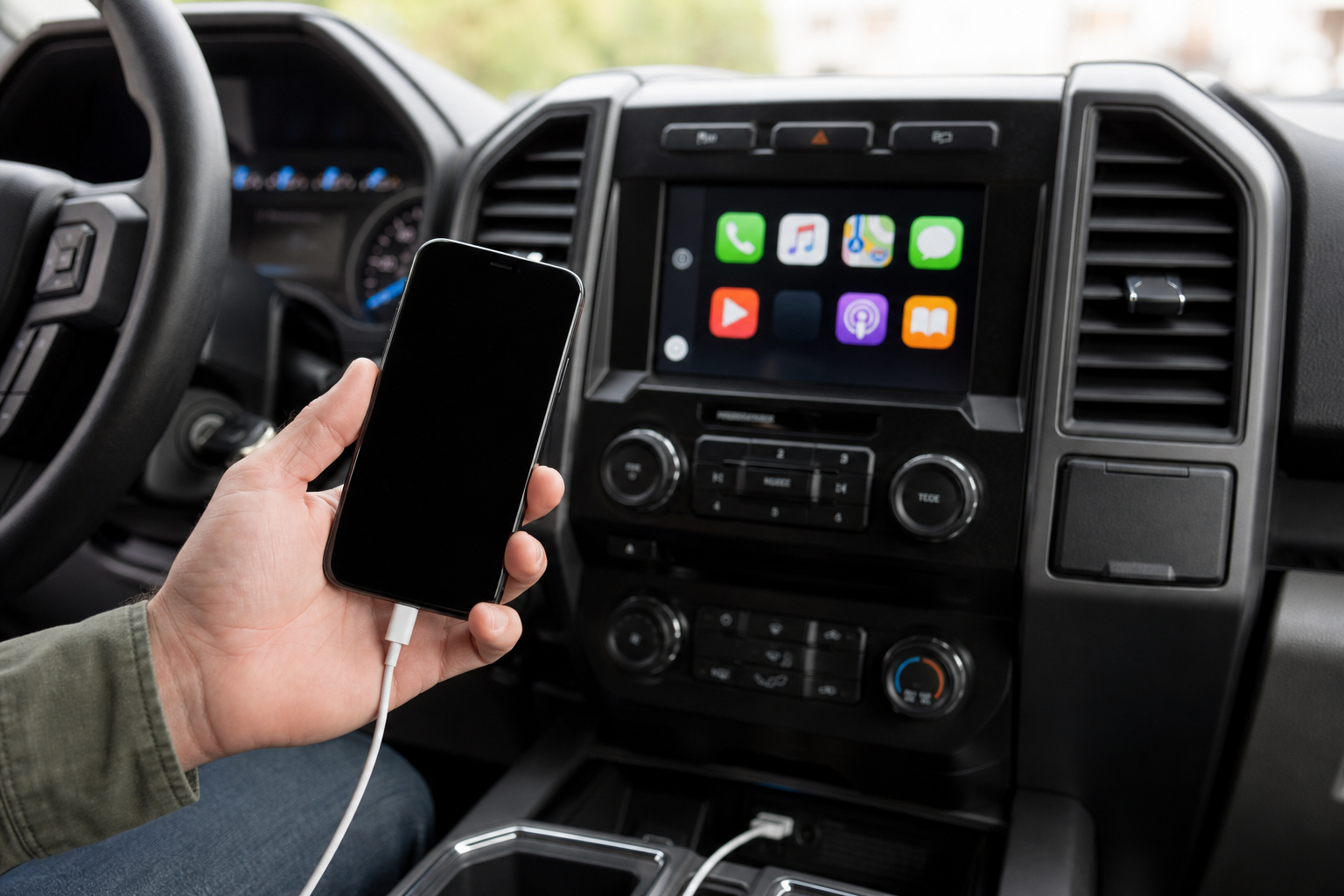
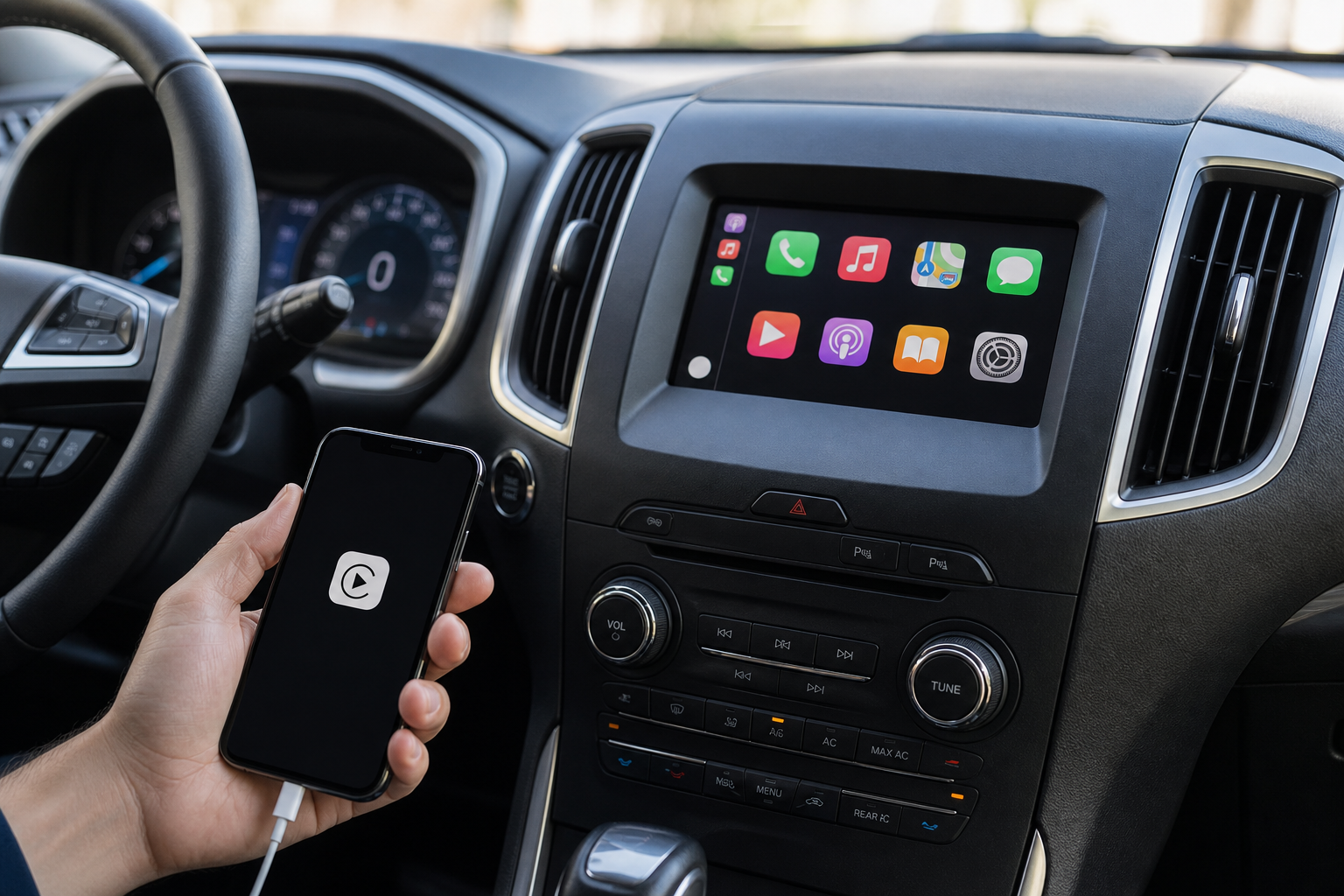
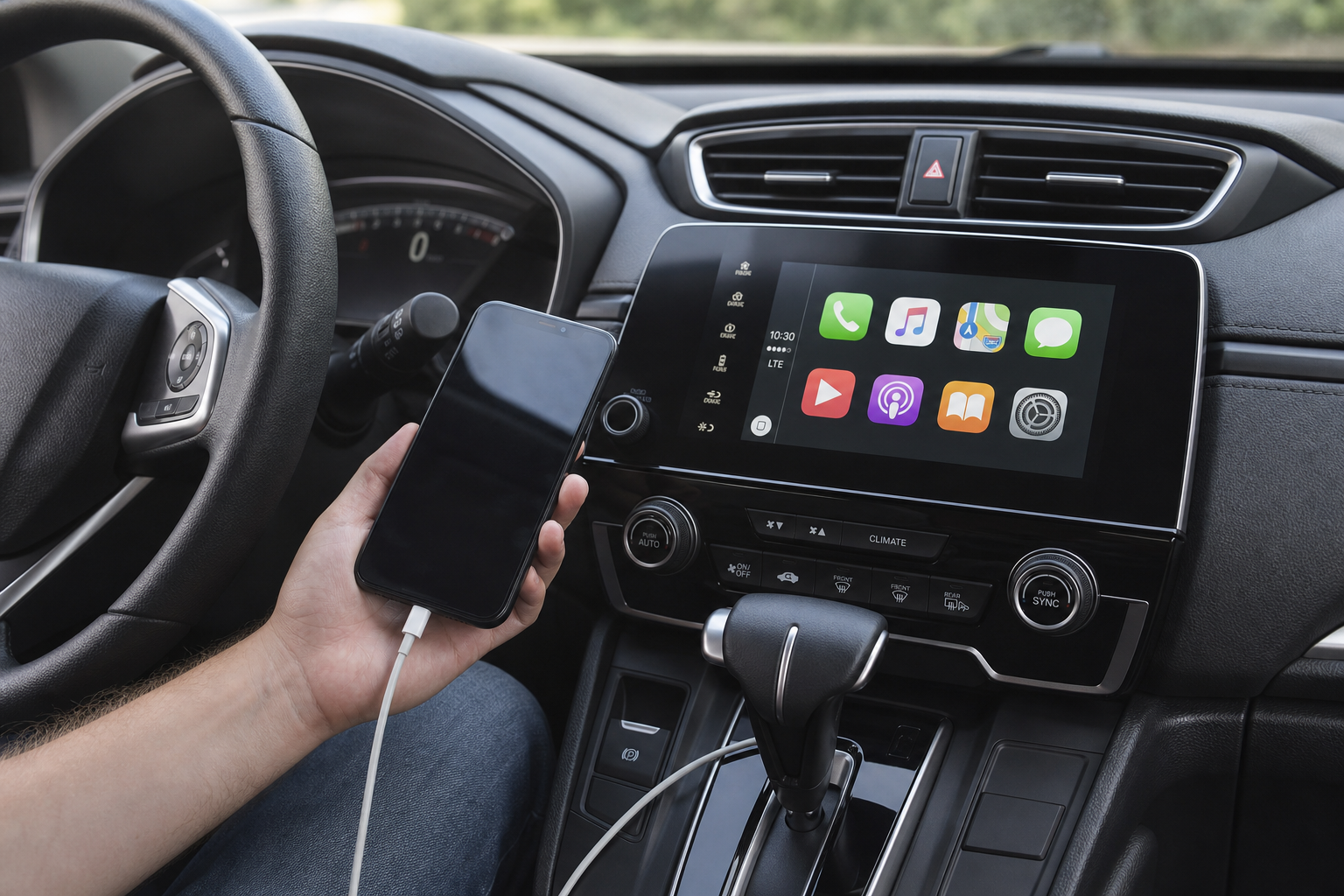
If you’re plugging in with a Lightning cable, the RAV4’s disconnect issue is almost always a hardware problem, not a software one. Toyota’s multimedia system is picky about both the cable and the exact port you use.
Here’s what most people don’t realize: not every USB port in the RAV4 supports data transfer. Some ports on 2019 and newer models are charge-only, meaning they’ll power your phone but won’t carry the CarPlay signal at all, or they’ll connect briefly and then drop out. Check your owner’s manual for the small CarPlay icon printed next to the correct port, usually the one closest to the infotainment screen in the center console.
- Try a different USB port in the vehicle before assuming the cable is bad.
- Avoid cheap, uncertified Lightning cables. MFi-certified cables handle the data load far more reliably.
- Inspect the cable for fraying or a loose connector, especially near the plug end.
- Keep the cable away from other electronics or tightly bundled wiring that can cause interference.
If you’ve been using the same cable for over a year, just replace it. A worn Lightning cable is the single most common reason for intermittent CarPlay drops in the RAV4.
Anker MFi Certified Lightning Cable
A durable, certified cable that handles the constant data demands of CarPlay far better than off-brand cords.
If you’d rather ditch the cable entirely, you’ll want to check whether your specific RAV4 trim and model year actually supports wireless CarPlay before shopping for a workaround. Not every RAV4 does.
Wireless CarPlay: Bluetooth, Wi-Fi, and Pairing Resets
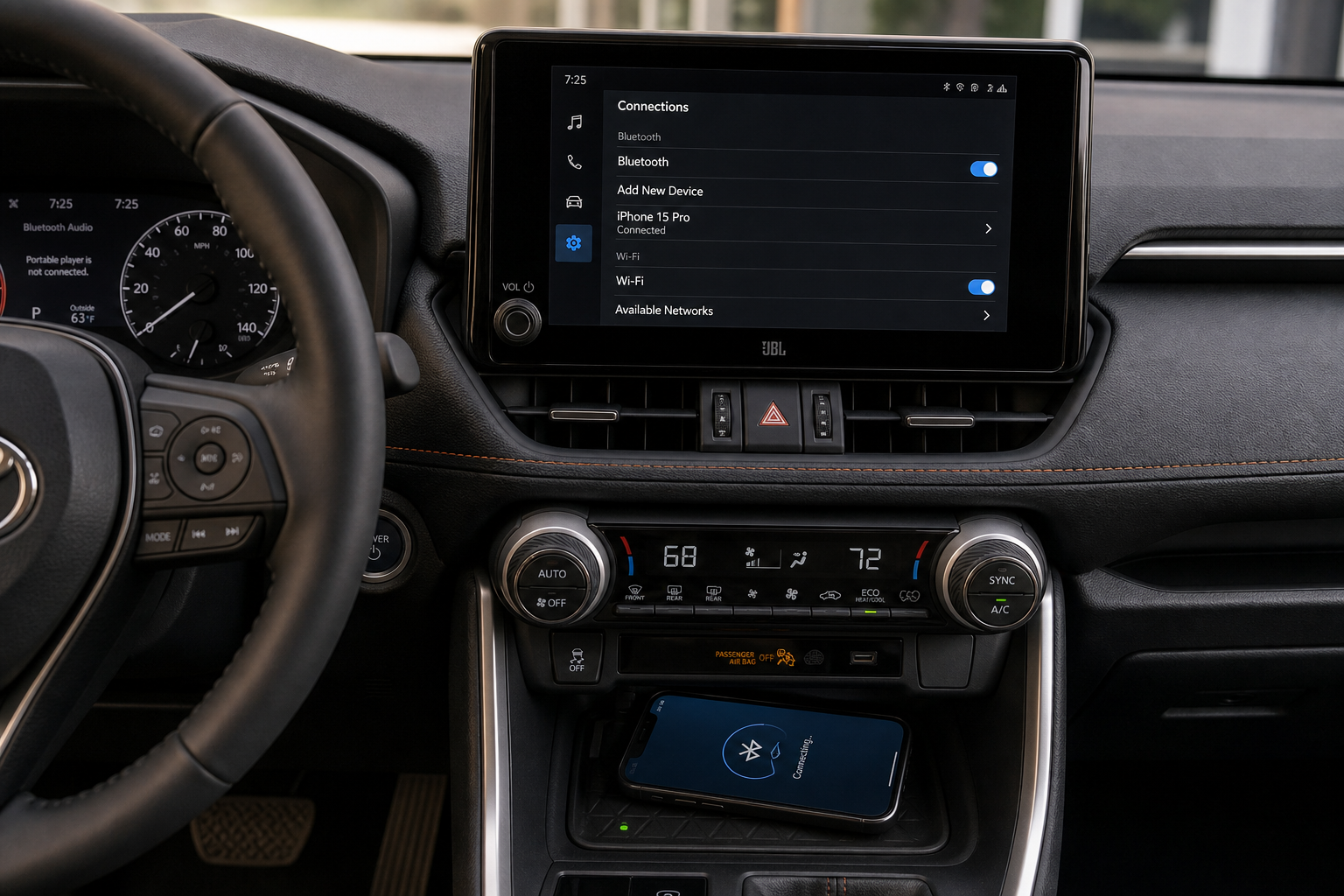
Toyota added wireless CarPlay support starting with the 2021 RAV4 refresh on certain trims, and it’s standard on most 2022 and newer models. If you’re on a 2019 or 2020 model, wireless CarPlay isn’t available from the factory at all, and you’ll need a wired connection or an aftermarket adapter.
Wireless CarPlay relies on Bluetooth for the initial handshake and then a Wi-Fi Direct connection for the actual audio and screen mirroring. When either of those connections gets flaky, especially in an area with a lot of competing Wi-Fi signals like a parking garage or dense neighborhood, the session can drop.
- Forget the RAV4 in your phone’s Bluetooth settings, then delete the vehicle profile from your phone’s CarPlay list under Settings > General > CarPlay.
- Turn off Bluetooth and Wi-Fi on your phone, wait 15 seconds, then turn both back on before re-pairing.
- Re-add the RAV4 as a new device rather than trying to reconnect to the old saved profile.
- Keep your phone within a few feet of the dash. Wireless CarPlay in the RAV4 has a shorter effective range than people expect.
If you’ve tried resetting the pairing twice and it still drops, a wireless CarPlay adapter designed specifically for Toyota’s system can sometimes stabilize the connection better than the factory setup, particularly on early wireless-capable models.
CarlinKit Wireless CarPlay Adapter
A popular fix for RAV4 owners dealing with unstable factory wireless CarPlay connections.
Reboot the Infotainment System and Check for Updates
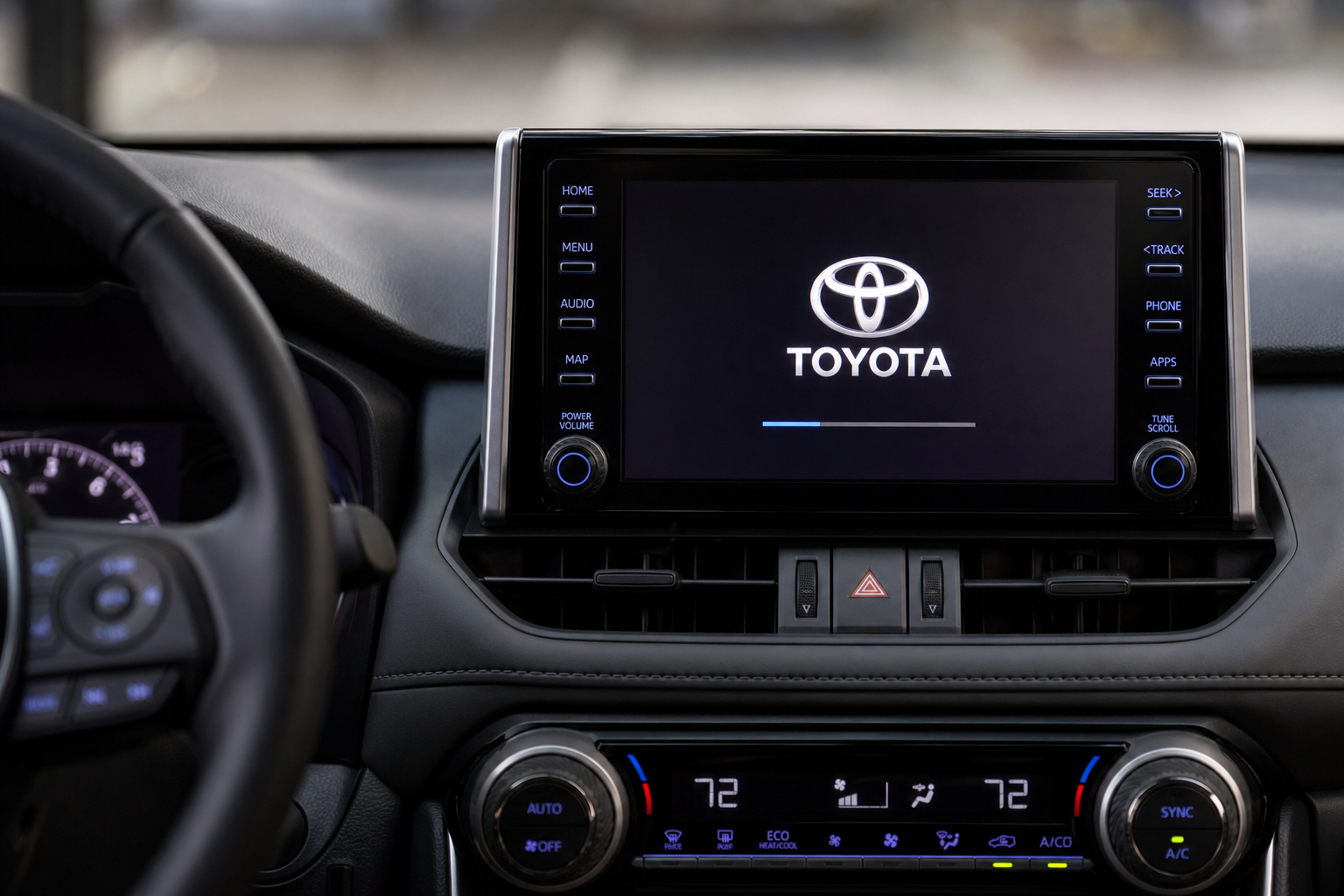
If cables and pairing resets don’t solve it, the RAV4’s infotainment unit itself might need a hard reset. On most 2019 and newer RAV4 models, you can reboot the touchscreen by pressing and holding the power/volume knob for about 10 to 15 seconds until the screen goes black and restarts. This clears out any temporary glitch without erasing your saved settings.
Also check for two separate updates: your phone’s iOS version and the RAV4’s own infotainment software. Toyota periodically pushes firmware updates that fix CarPlay bugs, and you can check for these under Settings > System Information on the touchscreen, or through the Toyota app if your model supports over-the-air updates. On the phone side, CarPlay compatibility issues are common right after a new iOS release, so if you updated your iPhone recently and disconnects started right after, that’s not a coincidence.
If your RAV4 is due for other routine maintenance while you’re troubleshooting the infotainment system, it’s also a good time to check things like tire pressure sensors, since a lot of owners tackle multiple small fixes in one sitting. If you’re a Camry or Highlander owner too, the process for resetting the TPMS light on a Toyota Camry follows similar logic to other Toyota models.
Does deleting and re-adding the vehicle really fix it?
Yes, and it’s one of the most effective fixes for both wired and wireless CarPlay drops. Deleting the RAV4 from your phone’s paired device list clears out corrupted connection data that a simple reconnect won’t fix. Go to Settings > General > CarPlay on your iPhone, tap the RAV4, select “Forget This Car,” then plug in or re-pair from scratch.
Why does CarPlay disconnect only when I get a phone call or use navigation?
This usually points to a bandwidth or interference issue rather than a hardware fault. Incoming calls and turn-by-turn navigation both demand more from the Bluetooth and Wi-Fi connection simultaneously, and if your signal is already marginal, that extra load is what causes the drop. Try moving your phone closer to the dash, closing background apps that use location services, and confirming your iOS software is fully updated.
This article contains affiliate links. We may earn a small commission at no extra cost to you.

Leave a Reply