

You’re halfway through a phone call or a podcast episode and suddenly your Highlander’s screen kicks back to the home menu, your music cuts out, and Apple CarPlay just vanishes. A few seconds later it might reconnect, or it might not. Either way, it’s annoying, and it’s a lot more common than Toyota owners would like.
The good news is that this problem almost always traces back to a handful of known causes: a bad cable, a USB port that doesn’t actually carry data, a stale Bluetooth or Wi-Fi pairing, or an infotainment system that just needs a reboot. Below is a step-by-step troubleshooting path for both wired and wireless CarPlay setups in the Highlander.
Wired CarPlay Fixes: Cables, Ports, and Phone Restarts

Most Highlander CarPlay dropouts come down to the physical connection. It sounds obvious, but it’s the number one culprit, especially in Highlanders built before the 2023 redesign.
Check which USB port you’re actually using
Not every USB port in the Highlander supports data transfer. Some are charge-only, especially the ports in the second and third row or in the center console bin on older trims. If you’re plugging into the wrong port, CarPlay may connect briefly, then drop as soon as the connection has to sustain any real data load. Check your owner’s manual for the port icon (it’s usually marked with a small phone or “data” symbol) and always plug your primary CarPlay cable into the front port closest to the infotainment screen.
Swap the cable before you blame anything else
Apple’s Lightning cables are notoriously fragile inside the connector, and a cable that charges your phone fine can still fail at data transfer. If your cable is a generic or off-brand one, that’s very likely your problem. Stick with an MFi-certified cable, and keep a spare in the glovebox since these things wear out from daily plugging and unplugging.
Anker MFi Certified Lightning Cable
A durable, certified cable that handles the constant plug-in wear of daily CarPlay use without losing data connectivity.
If a cable swap doesn’t fix it, restart your iPhone completely (not just close the app). iOS sometimes holds onto a broken CarPlay session in the background, and a fresh boot clears it out. Do this before you touch any vehicle settings, since it takes thirty seconds and rules out half the potential causes.
Wireless CarPlay Fixes: Bluetooth, Wi-Fi, and Vehicle Pairing

Wireless CarPlay became available on the Highlander starting with the 2021 model year on higher trims (Limited, Platinum) and expanded further with the 2023 redesign. If you’re on a base or LE trim from that era, double-check that your Highlander actually supports wireless CarPlay before you assume something’s broken. Some earlier XLE trims only got wired support.
Reset the Bluetooth and Wi-Fi pairing
Wireless CarPlay relies on Bluetooth to establish the connection and Wi-Fi to handle the actual data stream. If either handshake gets corrupted, you’ll get intermittent drops instead of a clean connection or a clean failure. Go into your Highlander’s settings, delete the paired Bluetooth device entirely, then go to your iPhone’s Bluetooth settings and forget the vehicle there too. Re-pair from scratch rather than just reconnecting, since a partial reconnect often carries over the same corrupted profile that caused the problem.
Delete and re-add the vehicle profile
If resetting Bluetooth alone doesn’t help, go a step further and delete the entire vehicle profile from your iPhone’s CarPlay settings (Settings > General > CarPlay > tap your Highlander > Forget This Car). Then set it up as if it’s the first time. This clears out any cached wireless configuration that a simple Bluetooth forget doesn’t touch.
Keep your phone within reasonable range of the dash while re-pairing wireless CarPlay, and close out other Bluetooth accessories temporarily (some people run a phone mount, a wireless charger, and a fitness tracker all fighting for the same radio band). If you’re relying on a wireless CarPlay adapter dongle instead of native wireless support, make sure it’s seated firmly and check for a firmware update through its companion app.
Carlinkit Wireless CarPlay Adapter
A reliable way to add wireless CarPlay functionality to Highlander trims that only came with wired support from the factory.
Infotainment Reboot and Software Updates
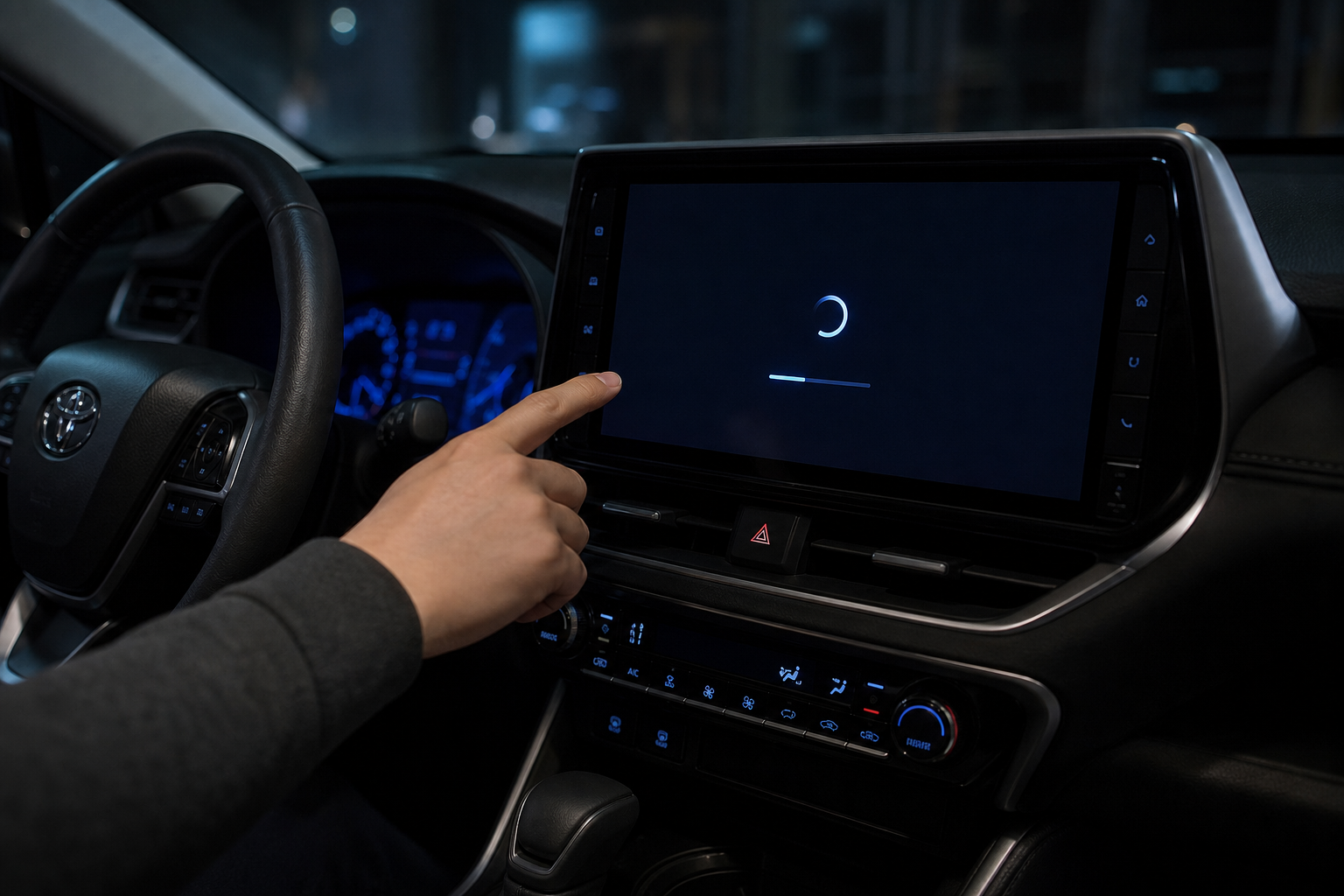
If cables, ports, and pairing all check out, the infotainment head unit itself may just need a reboot. On most Highlander model years, you can force this by holding down the power button (the same knob you use for volume) for about ten seconds until the screen goes black and restarts. This clears temporary glitches without erasing any of your paired devices or settings.
Beyond that, check for a system software update. Toyota pushes updates through the Toyota app or over Wi-Fi on Audio Multimedia equipped Highlanders, and older software versions have known CarPlay stability bugs that Toyota has quietly patched over time. It’s also worth checking your iPhone’s iOS version. Apple has occasionally released iOS updates that broke CarPlay compatibility with certain vehicle software builds, so keeping both sides current matters more than people realize.
If your Highlander is a hybrid model, it’s also worth reviewing how the infotainment system interacts with the vehicle’s power modes, since some of that behavior overlaps with features covered in our guide to Predictive Efficient Drive on Toyota Hybrid models.
FAQ
Why does CarPlay keep disconnecting only when my phone is charging?
This usually points to a cable or port issue rather than a software problem. Some aftermarket charging cables prioritize power delivery over data stability, and a charge-only USB port will let your phone charge just fine while failing to maintain a CarPlay data connection. Swap in an MFi-certified cable and use the port closest to the touchscreen.
Does every Toyota Highlander support wireless Apple CarPlay?
No. Wireless CarPlay showed up on higher trims starting around the 2021 model year and became more widely available with the redesigned 2023 Highlander. If you’re on an older or lower trim, you’ll need a wired connection or a wireless CarPlay adapter dongle to get the same functionality.

Leave a Reply