
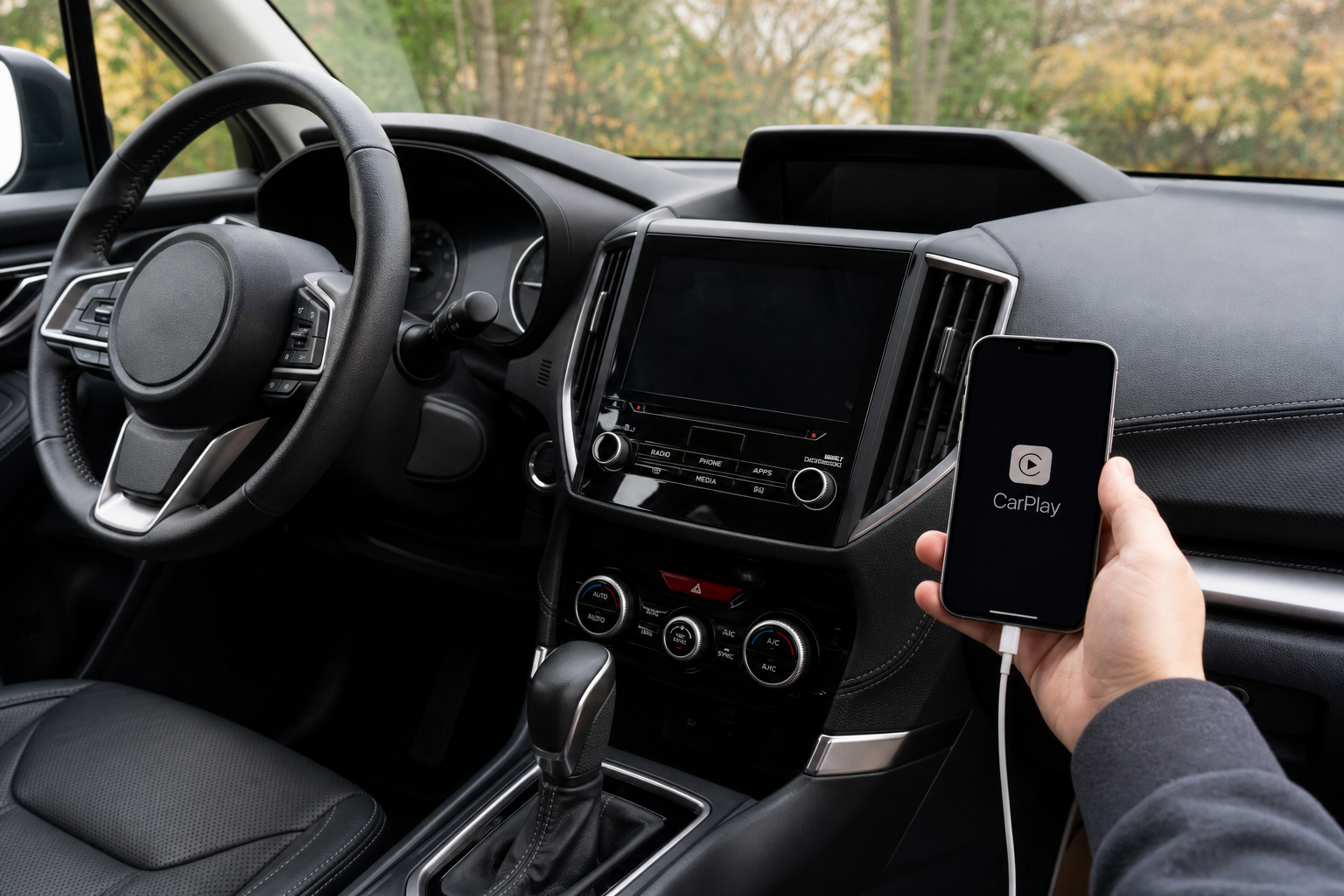
You’re halfway through a playlist or mid-directions when your Forester’s screen suddenly kicks Apple CarPlay back to the home screen, or your phone shows “Not Connected” out of nowhere. It’s one of the more common complaints Forester owners bring up, especially on 2019 through 2023 models running Subaru’s Starlink infotainment system. The good part is that most of these disconnects trace back to a small handful of causes, and you can usually fix them yourself without a trip to the dealer.
This guide walks through the most common reasons CarPlay drops on the Forester, with separate fixes for wired and wireless setups, plus a few Subaru-specific reset steps that aren’t always obvious.
Start Here: Wired vs. Wireless CarPlay on the Forester
Not every Forester supports wireless CarPlay, so it’s worth confirming what your model year actually has before you chase the wrong fix. Wireless CarPlay became available on the Forester starting with the 2022 refresh, paired with the larger 11.6-inch vertical touchscreen. Earlier Foresters, including most 2019 to 2021 models with the standard 6.5 or 8-inch display, only support wired CarPlay through USB.
If you’re not sure which system you have, check under Settings on your infotainment screen for a CarPlay option that mentions “wireless” or shows a Wi-Fi icon next to it. If it’s not there, your Forester needs the cable every time, and that changes which troubleshooting steps actually apply to you.
Wired CarPlay Disconnecting: Cable and USB Port Issues
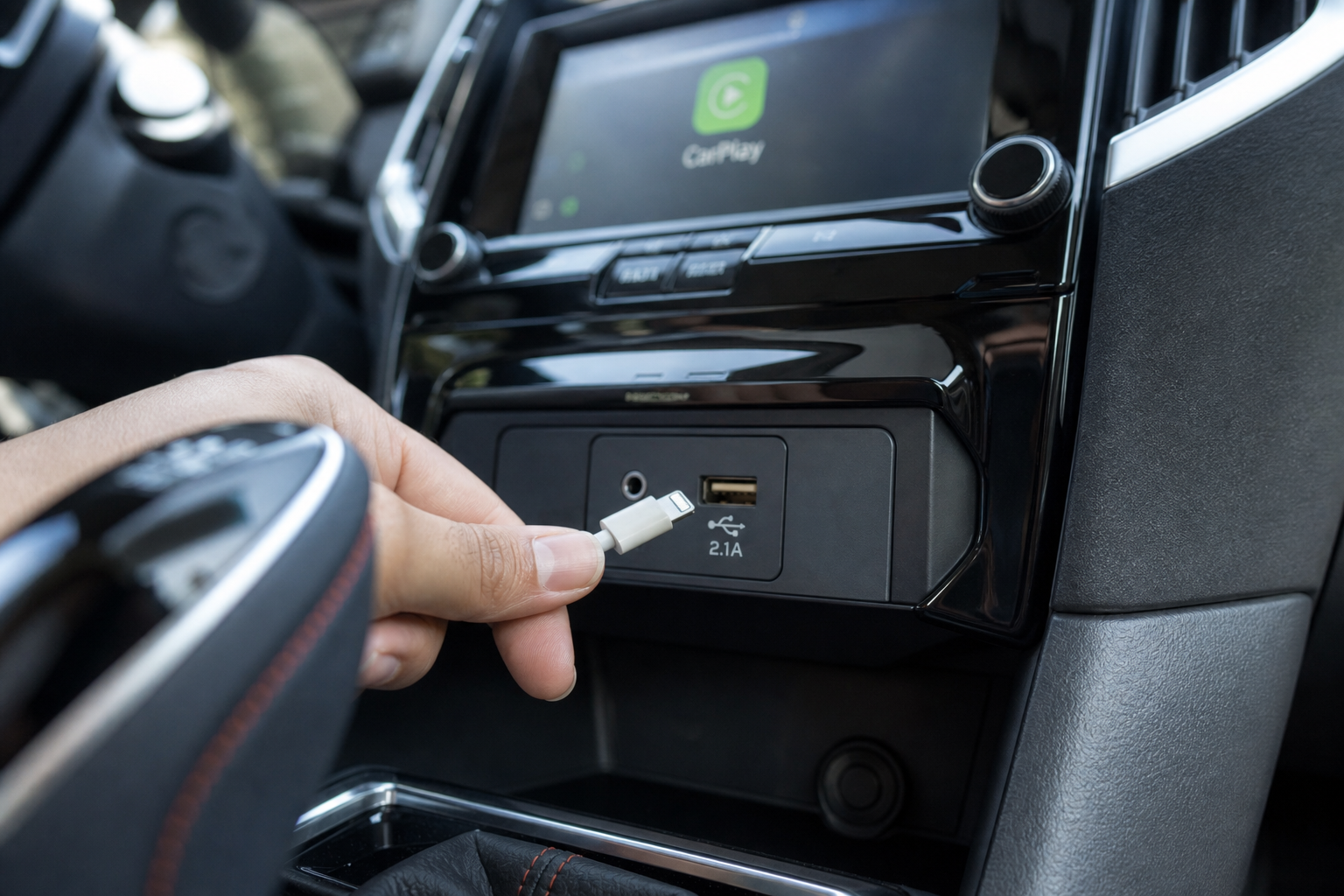
Wired connections drop for one of three reasons almost every time: a bad cable, a worn-out port, or a port that doesn’t actually support data.
Check Which USB Port Supports Data
This trips up a lot of Forester owners. Many trims have two USB ports up front, but only one is a data port capable of running CarPlay. The other is charge-only. If you’ve been plugging into the wrong port, your phone will charge fine but CarPlay won’t launch or will disconnect randomly as the system tries and fails to recognize it. Look for a small “data” label near the port, or just test both and note which one actually loads CarPlay.
Swap the Cable First
A worn or cheap Lightning cable is probably the single most common cause of CarPlay dropouts. Cables that only support charging, not data transfer, will connect briefly and then cut out. If your cable is more than a year or two old, or it’s a random one from a drawer, replace it before doing anything else.
Apple MFi Certified Lightning Cable
An MFi-certified cable ensures full data transfer for CarPlay, unlike cheap charge-only cables that cause random disconnects.
Stick with MFi-certified cables specifically. Non-certified cables can pass power just fine but choke on the data throughput CarPlay needs, especially over longer runs. If you’re routing the cable to a console or armrest, a shorter, higher-quality cable will usually outperform a longer generic one.
Inspect and Clean the Port
Lint and debris build up in USB ports over time, especially in center consoles where crumbs and pocket lint collect. Use a flashlight to check the port, and clear it out with a can of compressed air rather than anything metal that could bend the pins.
Wireless CarPlay Disconnecting: Bluetooth and Wi-Fi Fixes
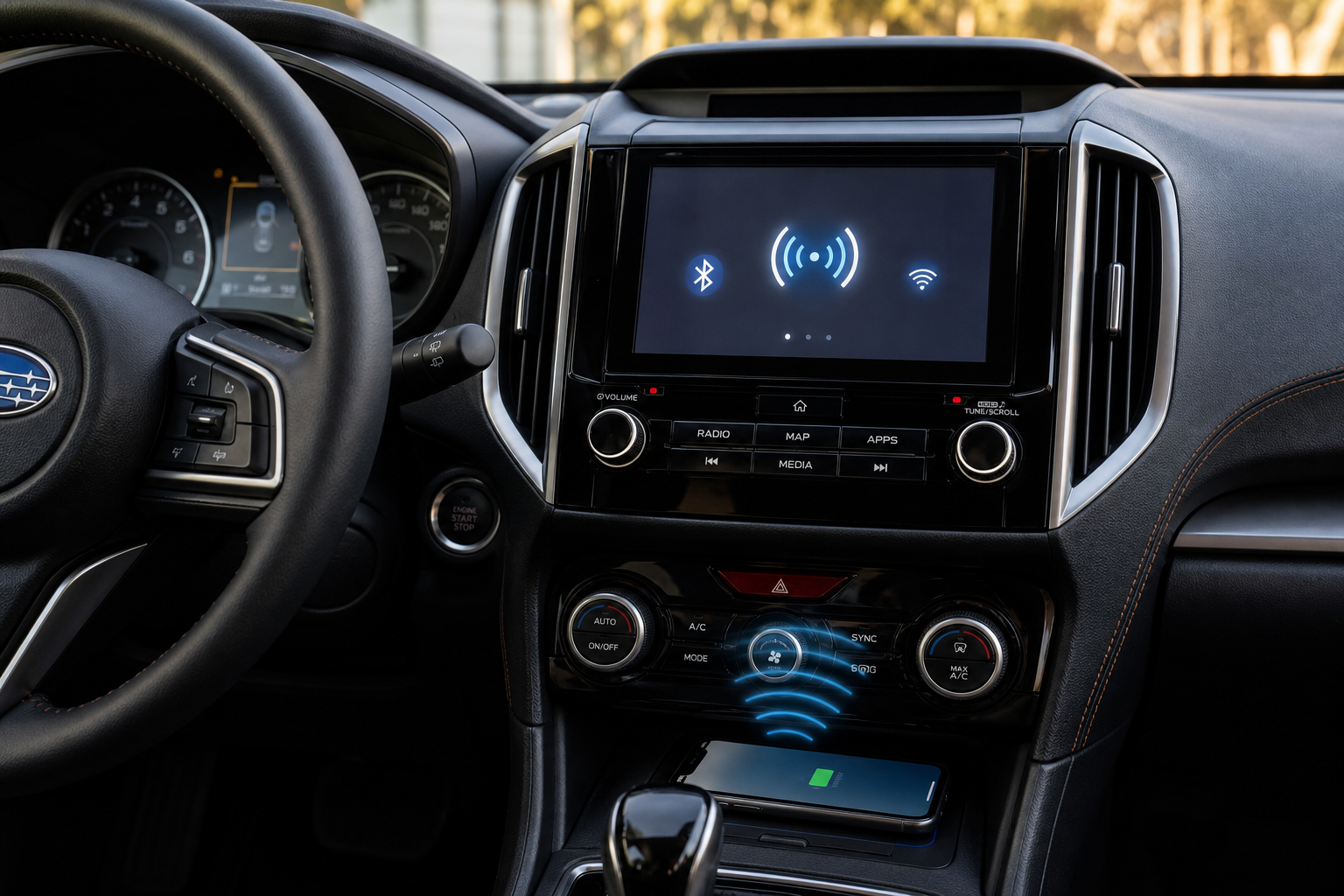
Wireless CarPlay on the Forester relies on Bluetooth to initiate the connection and Wi-Fi Direct to actually stream audio and video. When either handshake gets flaky, you’ll see the same symptoms: CarPlay connects, then drops a few minutes later, or it never connects at all despite showing your phone in the list.
Reset the Bluetooth Pairing
Go into your Forester’s Bluetooth settings and delete your phone from the paired devices list. Then go to your iPhone’s Settings, tap Bluetooth, and forget the Forester as well. Restart both the phone and the infotainment system (more on that below), then pair them again from scratch. This clears out any corrupted pairing data that builds up over repeated connections.
Check Wi-Fi Interference
Wireless CarPlay uses Wi-Fi Direct on the same frequency bands as your home network and other nearby devices. If you’re parked near other vehicles running wireless CarPlay or Android Auto, or you’ve got a phone hotspot running in the cabin, that can interfere with the connection. Turning off your personal Wi-Fi hotspot while driving often resolves random dropouts that seem to happen for no reason.
Delete and Re-Add the Vehicle Profile
On your iPhone, go to Settings, then General, then CarPlay, and remove the Forester from your list of connected vehicles entirely. Restart your phone, then reconnect to the vehicle as if it were the first time. This forces iOS to rebuild the connection profile instead of relying on cached settings that may have gotten corrupted.
Restarting Your Phone and the Infotainment System
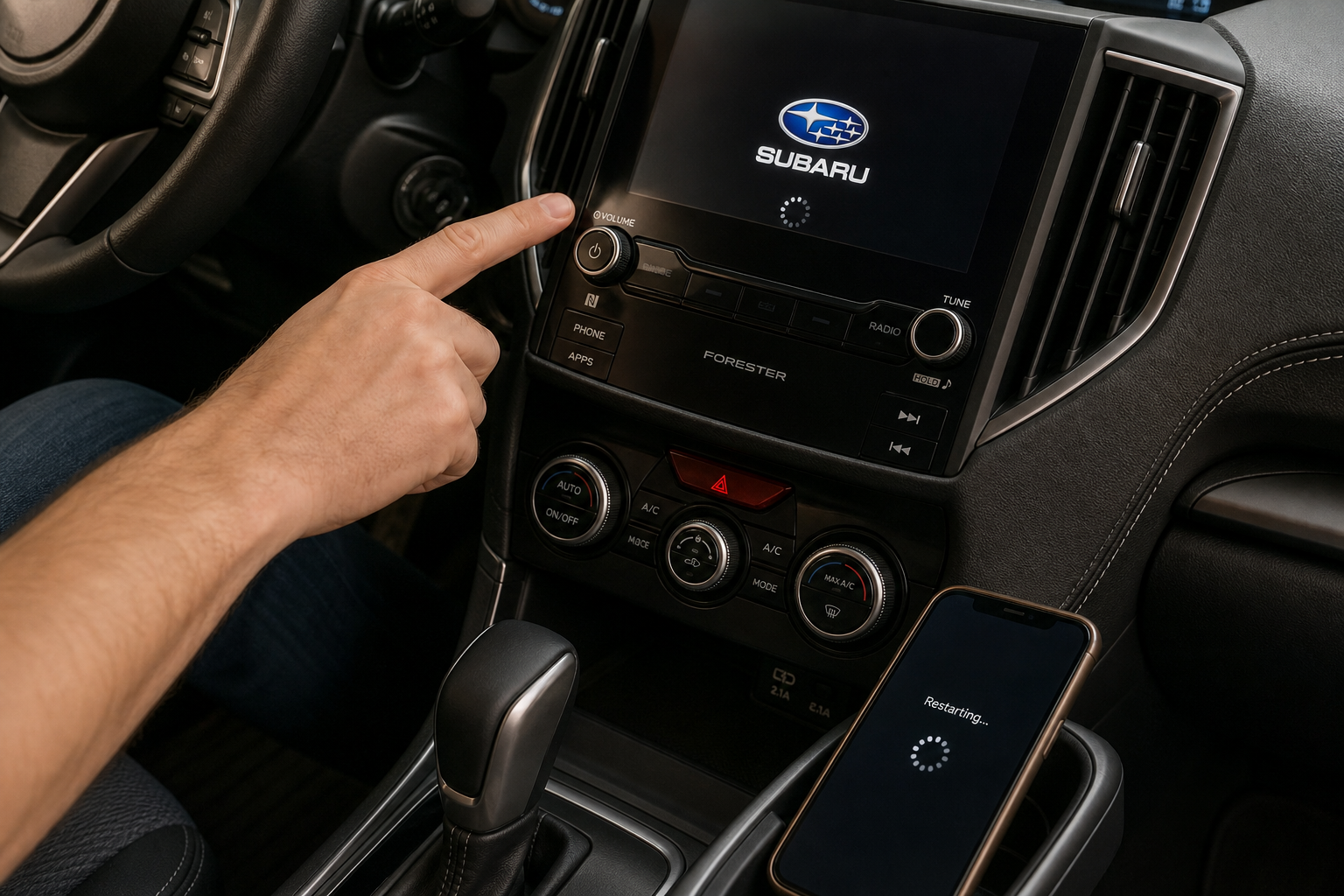
It sounds too simple to matter, but a full restart of both devices fixes more CarPlay issues than any other single step.
Restart Your iPhone
A soft reset clears out background app conflicts and refreshes the Bluetooth and Wi-Fi radios. Power your iPhone off completely, wait about 15 seconds, then turn it back on before reconnecting to the Forester.
Reboot the Starlink Infotainment System
Subaru’s Starlink system can be rebooted without touching the battery. Hold down the power/volume knob on the touchscreen for about 10 seconds until the screen goes black and restarts. On some model years, you can also press and hold both the volume knob and the “Home” button simultaneously to force a reboot if the screen is frozen entirely.
If the screen stays black or unresponsive after that, pull the fuse for the infotainment unit for a minute, or disconnect the negative battery terminal for about 5 minutes as a last resort. That’s a more involved fix, so treat it as a final step rather than your first move.
Software and Compatibility Checks
Update iOS
Apple regularly patches CarPlay bugs in iOS updates, and running an outdated version is a common cause of intermittent disconnects. Go to Settings, General, Software Update, and install anything pending. Apple has specifically addressed CarPlay Bluetooth stability issues in several point releases over the past few years.
Update Your Forester’s Software
Subaru periodically pushes Starlink software updates that fix connectivity bugs, including known CarPlay dropout issues on certain 2022 and 2023 model years. Check under Settings, then System, then Software Update on your infotainment screen, or ask your dealer to check for pending updates during your next service visit. Some updates require a USB drive loaded from Subaru’s website rather than an over-the-air push, so don’t assume your system is current just because it hasn’t prompted you.
When to Consider a Backup Solution
If your Forester only supports wired CarPlay and you’re tired of digging for the cable every time, a wireless CarPlay adapter can bridge the gap. These plug into your existing USB port and convert the wired connection to wireless on the fly, without needing Subaru’s built-in wireless feature at all.
CarLinkit Wireless CarPlay Adapter
A reliable way to add wireless CarPlay functionality to Forester models that only support the wired version.
These adapters aren’t a fix for a Forester that already has wireless CarPlay and keeps disconnecting. In that case, they can actually introduce a second point of failure. They’re best suited for older Foresters stuck with wired-only systems where the cable itself is the annoyance you’re trying to solve.
If you’re dealing with other electrical quirks in the car, like accessories draining power overnight, it’s worth reading up on why a car battery dies overnight even when the alternator is good, since infotainment systems can sometimes be part of that puzzle.
Frequently Asked Questions
Does every Subaru Forester model year support wireless CarPlay?
No. Wireless CarPlay is only available starting with the 2022 model year refresh that introduced the larger 11.6-inch touchscreen. Foresters from 2019 through 2021 require a wired USB connection for CarPlay, regardless of trim level.
Why does CarPlay disconnect only when I plug my phone into a specific USB port?
Some Forester trims have a charge-only USB port alongside a data-capable one. If you’re using the charge-only port, your phone will power up but CarPlay won’t launch reliably, or it will connect briefly and drop. Check your owner’s manual or test both ports to confirm which one handles data.
Will a factory reset of the infotainment system fix CarPlay problems?
It often helps, but it should be a later step rather than your first move. Try reseating the cable, restarting your phone, and rebooting the system with the volume knob first. If those don’t work, a full factory reset through the Starlink settings menu will clear out corrupted pairing data, though you’ll need to re-enter any saved preferences afterward.

Leave a Reply