
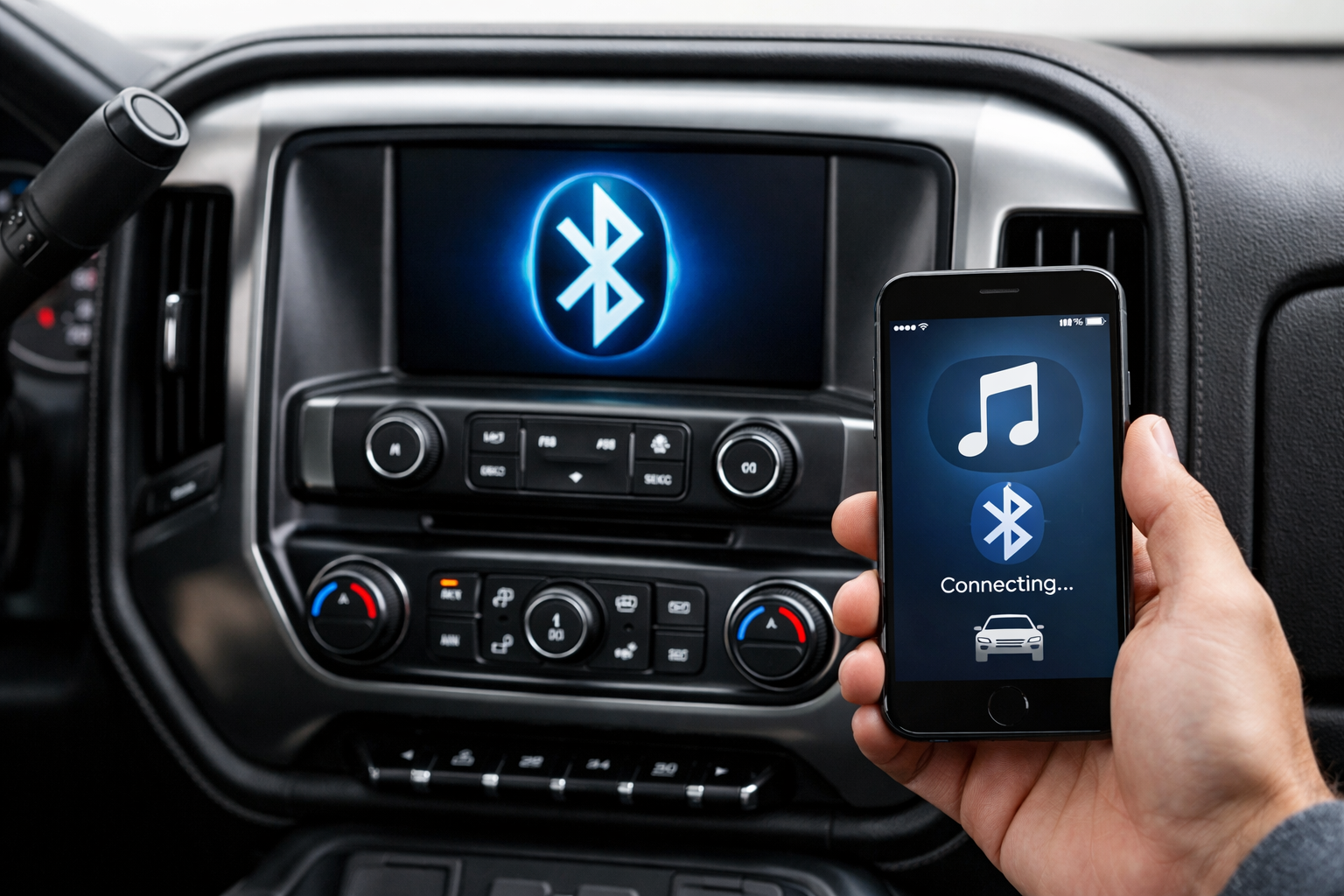
Chevy’s infotainment system handles Bluetooth pairing through the MyLink touchscreen on K2 Silverados (2014-2018) and the updated system on T1 models (2019+). The most common Silverado Bluetooth issue is the phone pairing for calls but not streaming music, which is caused by the separate phone and audio Bluetooth profiles that need to be enabled independently.
Here’s how to pair, troubleshoot, and get full audio streaming working on both generations.
T1 Silverado (2019+)
On the touchscreen, tap Settings > System > Phones > Pair New Phone. Your phone should see “MY CHEVROLET” or a similar name in its Bluetooth available devices list.
Select it, confirm the 6-digit pairing code on both screens, and grant contact and message permissions when prompted. The system supports separate phone and audio Bluetooth profiles, and both should enable automatically on the T1 system.
If music doesn’t stream after pairing, check the device options to verify both profiles are active. This is the same type of connectivity problem that affects other vehicle systems, similar to Apple CarPlay connection issues on Toyota RAV4s.
The T1 Silverado supports two simultaneous Bluetooth connections: one phone for calls and a second device for audio streaming. This is useful for passengers who want to play music from their phone while the driver’s phone handles calls and navigation. Configure this in Phones > [Select Phone] > Device Options and assign each phone’s role.
K2 Silverado (2014-2018): MyLink
Press Phone on the MyLink screen, then Pair Device. The truck broadcasts its Bluetooth name. Find it on your phone’s Bluetooth settings and pair. Confirm the code on both screens.
After pairing, you may need to manually enable the audio streaming profile. Navigate to Phones > [Your Phone] > Device Options and make sure “Audio Player” or “Media Audio” is checked in addition to the phone call profile.
The K2 MyLink system typically supports one active Bluetooth connection at a time, though multiple phones can be stored in the paired device list. The system connects to the last-used phone automatically when the truck starts.
Enabling Audio Streaming: The Most Common Fix
On both generations, the phone call and audio streaming profiles are separate Bluetooth services. The phone can be connected for calls (HFP, Hands-Free Profile) without the audio streaming profile (A2DP, Advanced Audio Distribution Profile) being active.
This means you can make calls through the truck’s speakers but music plays through the phone’s tiny speaker instead.
To fix this on the Silverado side, go to Phones > [Your Phone] > Device Options and enable “Audio Player,” “Media Audio,” or “Music” (the label varies by software version). On your phone, go to Bluetooth settings, tap the gear or info icon next to the Silverado’s name, and enable “Media Audio” if it’s toggled off.
Both sides of the connection need to have the audio profile enabled for streaming to work.
Troubleshooting “Device Not Found”
If the Silverado can’t find your phone during pairing, verify that your phone’s Bluetooth is turned on and set to “discoverable” or “visible to other devices.” Some phones, especially Android, hide from new Bluetooth connections by default and need to be manually set to discoverable mode.
Also try restarting both the phone and the Silverado’s infotainment system (turn the truck off, wait 30 seconds, restart).
If the truck still can’t find the phone, clear all previously paired devices from both the truck and the phone. On the Silverado, go to Phones > Paired Devices and delete all entries. On your phone, remove any old “MY CHEVROLET” or “CHEVROLET” entries from the Bluetooth list.
Then attempt pairing from scratch with both devices starting from a clean slate.
For K2 Silverados with the basic non-touchscreen audio system, a Bluetooth adapter adds audio streaming through the AUX or USB input when the built-in system doesn’t support it.

Bluetooth Car Adapter
Adds Bluetooth audio streaming to base Silverado trims without media Bluetooth
Factory Reset
If Bluetooth problems persist after re-pairing and profile adjustments, a factory reset of the infotainment system can resolve deep-seated software issues. On the T1: Settings > System > Return to Factory Settings. On the K2 MyLink: Settings > Return to Factory Settings.
This erases all paired devices, radio presets, and personalized settings, giving you a completely clean start. Re-pair all phones after the reset.
Frequently Asked Questions
Can I connect two phones at once on the Silverado?
The T1 system (2019+) supports two simultaneous connections: one for calls and one for audio. The K2 MyLink (2014-2018) typically connects one device at a time, though multiple phones can be stored in the paired device list for quick switching.
Why does Bluetooth audio quality sound compressed?
Bluetooth audio uses compression codecs (typically SBC or AAC) that can reduce quality compared to a wired USB connection. For higher-quality audio, especially if you have a premium Bose sound system, connect your phone via USB. USB connections support higher bitrate audio and also charge your phone simultaneously.
How do I factory reset the infotainment?
On T1: Settings > System > Return to Factory Settings. On K2 MyLink: Settings > Return to Factory Settings. This erases everything and returns the system to its out-of-the-box state. It’s the nuclear option for persistent Bluetooth issues that don’t respond to re-pairing or profile adjustments.
Will factory resetting my Silverado’s infotainment affect other truck functions?
The infotainment reset only affects the touchscreen system, including paired phones, radio presets, and audio settings. It won’t impact mechanical functions, engine performance, or any systems outside of the media center. You’ll just need to re-pair your devices and reset your radio stations after the reset.

Leave a Reply