
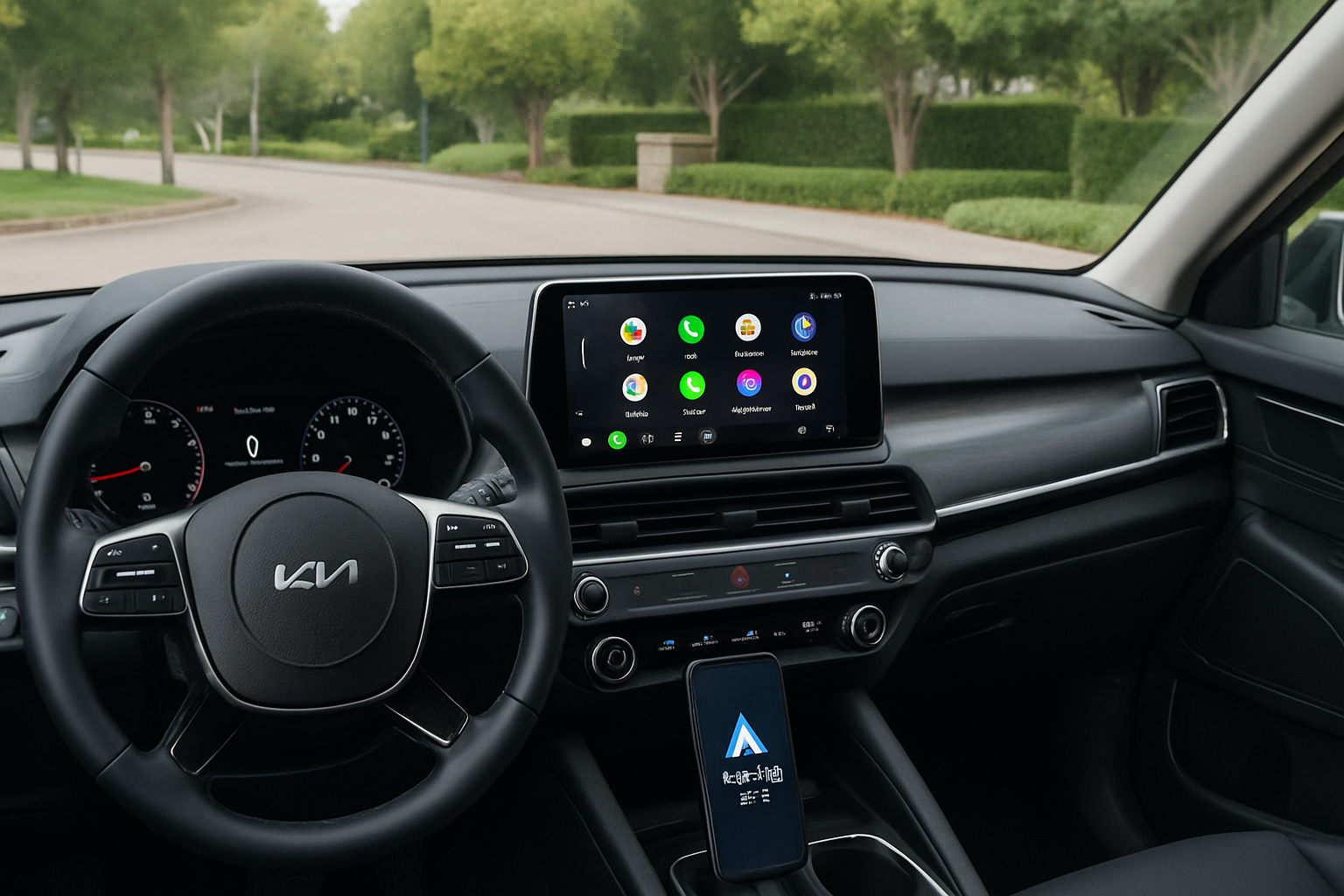
The Kia Telluride’s wireless Android Auto feature transforms your driving experience by seamlessly integrating your phone with the vehicle’s infotainment system. While many drivers love the convenience of going wireless, the setup process can be tricky if you don’t know the exact steps.
Understanding Wireless Android Auto in the Kia Telluride
Kia introduced wireless Android Auto capability in the 2021 model year Telluride as part of their enhanced infotainment system. This feature eliminates the need to physically connect your phone via USB cable every time you get in your vehicle.
Your Telluride needs to have the 12.3-inch touchscreen infotainment system to support wireless Android Auto. Earlier model years or base trims with smaller screens require a wired connection through the USB port.
The wireless connection uses both Bluetooth and Wi-Fi signals from your vehicle to maintain a stable connection with your Android device. Your phone connects via Bluetooth first, then establishes a Wi-Fi Direct connection for data transfer.
Prerequisites for Wireless Android Auto
Before starting the setup process, you’ll need to verify a few requirements. Your Android phone must be running Android 11 or newer with the latest version of the Android Auto app installed.
Make sure your Telluride’s infotainment system has the most recent software update. You can check this by going to Settings > General > System Information on your vehicle’s touchscreen. Kia regularly releases updates that improve connectivity and fix bugs.
Your phone’s Bluetooth and Wi-Fi must both be enabled during the initial pairing process. Keep your phone’s screen unlocked during setup to prevent any connection timeouts.
Initial Pairing Process Step by Step
Start with your Telluride parked and the engine running. Navigate to the Settings menu on your 12.3-inch touchscreen by tapping the gear icon at the bottom of the screen.
Select “Device Connections” from the settings menu, then choose “Android Auto” from the available options. You’ll see both wired and wireless connection options displayed.
Tap “Wireless” to begin the pairing process. Your Telluride will start broadcasting a temporary Wi-Fi network that your phone can detect. The system will display a network name that typically starts with “AndroidAuto” followed by numbers and letters.
On your Android phone, open your Wi-Fi settings and look for the network name displayed on your Telluride’s screen. Connect to this network when prompted. Your phone might warn you that this network has no internet access, but connect anyway.
Once connected, your phone’s Android Auto app should launch automatically. If it doesn’t, open the Android Auto app manually and follow the on-screen prompts to complete the pairing process.
The system will ask for various permissions including location access, microphone access, and contact access. Grant these permissions for full functionality of features like navigation, voice commands, and hands-free calling.
Switching Between Kia Connect and Android Auto
Your Telluride offers both Kia’s native infotainment system (Kia Connect) and Android Auto simultaneously. You can switch between them without disconnecting your phone.
The home button at the bottom center of your touchscreen takes you back to Kia Connect’s main interface. From there, you can access built-in features like SiriusXM radio, vehicle settings, and climate controls.
To return to Android Auto, tap the Android Auto icon that appears in your quick access menu at the bottom of the screen. This icon looks like a simplified smartphone outline and remains visible when Android Auto is connected.
You can also use voice commands to switch between systems. Press the voice command button on your steering wheel (located on the left side) and say “Launch Android Auto” or “Go to home screen” depending on which direction you want to switch.
Understanding the Dual Screen Layout
The Telluride’s dual-screen setup includes the main 12.3-inch touchscreen and a separate 7-inch display in the instrument cluster. Android Auto primarily uses the main touchscreen but provides some information to the cluster display.
Navigation directions from Google Maps or other Android Auto navigation apps appear in both locations. The instrument cluster shows turn-by-turn directions, distance to next turn, and estimated arrival time without requiring you to look away from the road.
Music information also displays on both screens. The cluster shows song titles, artist names, and album artwork while audio controls remain on the main touchscreen.
Phone call information appears prominently on both displays when you’re using Android Auto for hands-free calling. The cluster shows caller ID while the main screen provides call controls and contact information.
Google Maps vs Built-in Navigation
Your Telluride comes with built-in navigation through Kia Connect, but many drivers prefer Google Maps through Android Auto. Each system has distinct advantages depending on your needs.
Google Maps provides real-time traffic updates, road closure information, and business hours that are constantly updated through your phone’s data connection. The system learns your driving patterns and suggests faster routes based on current conditions.
Kia’s built-in navigation works without using your phone’s data allowance and integrates more deeply with vehicle systems. It can display fuel-efficient routes and shows charging station locations if you’re interested in hybrid driving techniques.
Google Maps offers voice search that works better than the built-in system for finding specific businesses or addresses. You can say “Navigate to Home Depot” and it will find the closest location automatically.
The built-in navigation provides a larger map display since it’s designed specifically for the Telluride’s screen proportions. Google Maps sometimes has interface elements that feel cramped on the automotive display.
Troubleshooting Connection Issues
If your wireless Android Auto connection fails or becomes unstable, start by forgetting the connection on both devices. Go to your phone’s Bluetooth settings and forget any Kia-related connections.
Clear the Android Auto app’s cache and data on your phone. You can do this through Settings > Apps > Android Auto > Storage > Clear Cache and Clear Data. You’ll need to set up the connection again after clearing this data.
Check your phone’s Wi-Fi settings for any saved networks that start with “AndroidAuto” and forget those connections as well. Old network profiles can interfere with new pairing attempts.
Restart both your phone and your Telluride’s infotainment system. For the vehicle, you can restart the system by holding the power and home buttons simultaneously for about 10 seconds until the screen goes black and reboots.
Distance can affect connection stability. Keep your phone within the cabin area rather than in a pocket on the far side of your body. The wireless connection works best when your phone is in a cup holder or center console area.
Optimizing Performance and Battery Life
Wireless Android Auto uses more battery power than a wired connection since your phone maintains both Bluetooth and Wi-Fi connections continuously. Consider using a wireless charging pad if your Telluride has this feature.
Close unnecessary apps on your phone before starting your drive. Background apps can slow down Android Auto’s performance and cause lag when switching between navigation and music.
Keep your Android Auto app updated to the latest version. Google frequently releases updates that improve connection stability and add new features. Enable automatic updates in the Google Play Store to ensure you don’t miss important improvements.
Position your phone to avoid overheating during longer drives. Direct sunlight or placement near heating vents can cause your phone to throttle performance or disconnect from Android Auto to protect the battery.
Advanced Features and Customization
Android Auto on your Telluride supports multiple user profiles if different people regularly drive the vehicle. Each person’s phone will remember their individual settings for navigation preferences, music services, and contact access.
You can customize which apps appear on your Android Auto home screen through the Android Auto app on your phone. Go to Settings > Customize Launcher to choose which navigation, music, and messaging apps appear first.
Voice commands work through Android Auto using Google Assistant. You can ask for navigation, send text messages, make phone calls, and control music playback without taking your hands off the steering wheel.
The system remembers your frequently used destinations and suggests them when you tap the navigation icon. This feature learns from your driving patterns and can suggest leaving for appointments based on current traffic conditions.
Common Questions About Wireless Android Auto
Does wireless Android Auto work with all Android phones?
Wireless Android Auto requires Android 11 or newer and only works with phones that support Wi-Fi Direct. Most phones from major manufacturers released after 2020 support these features, but older devices may need to use the wired connection.
Can I use wireless Android Auto while someone else uses Bluetooth for music?
Android Auto takes priority over other Bluetooth connections when active. If you want to play music from a different phone, you’ll need to disconnect Android Auto first or switch to the built-in infotainment system.
Why does wireless Android Auto sometimes disconnect randomly?
Random disconnections often happen due to phone overheating, low battery, or interference from other electronic devices. Make sure your phone stays cool and charged, and try moving other electronic devices away from the center console area.
Will using wireless Android Auto affect my data usage?
Yes, wireless Android Auto uses your phone’s cellular data for navigation, music streaming, and other online features. Navigation apps like Google Maps typically use 5-10 MB per hour, while music streaming can use 50-100 MB per hour depending on quality settings.
Leave a Reply