
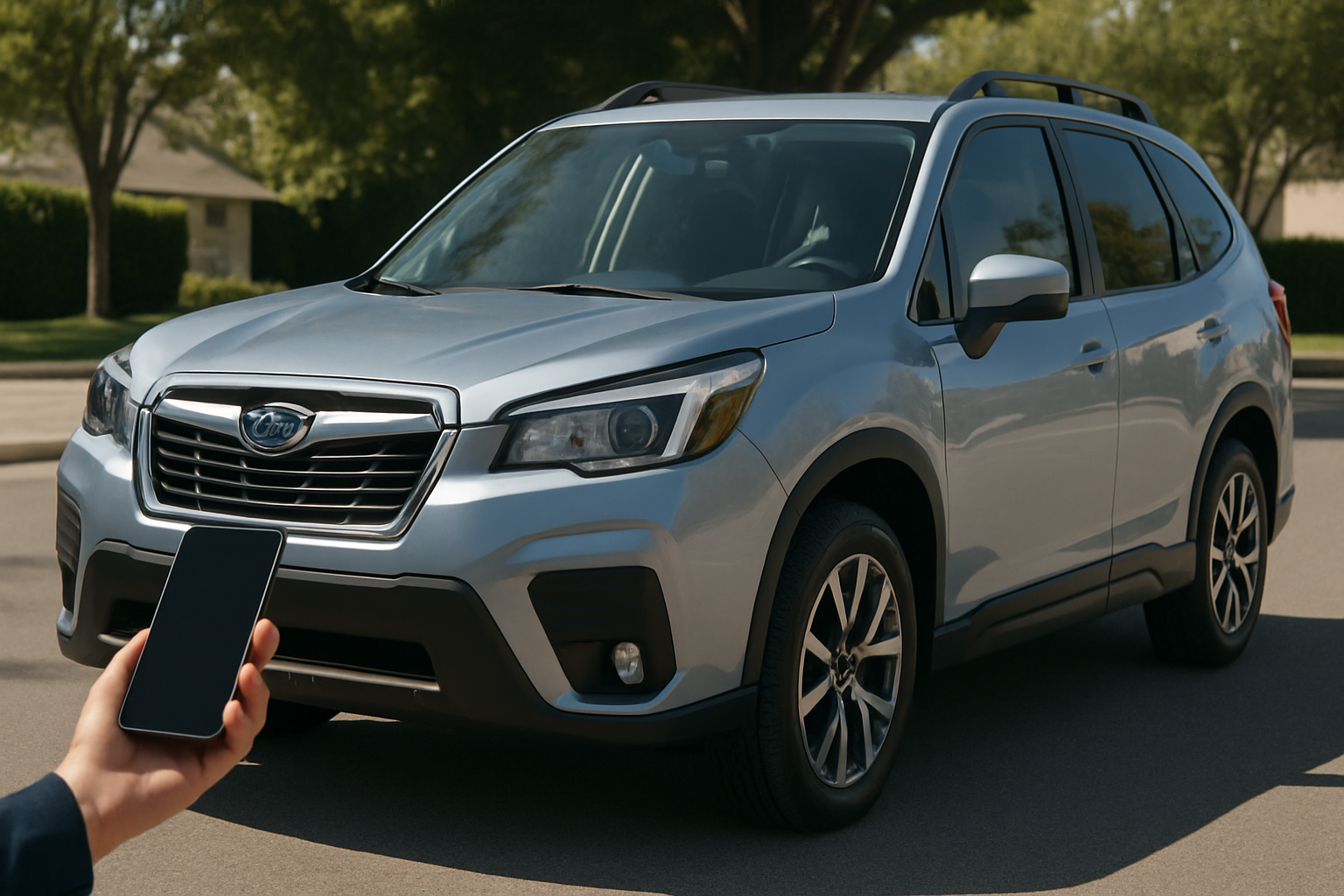
Subaru’s Starlink connected car system offers impressive safety features and convenience tools that can significantly enhance your driving experience. Getting everything set up correctly ensures you’ll have access to emergency services, vehicle diagnostics, and remote control capabilities right from your smartphone.
This guide walks you through the complete setup process for both the Starlink app and Safety Plus features, covering everything from initial account creation to activating advanced safety services.
Understanding Subaru Starlink and Safety Plus
Starlink is Subaru’s telematics platform that connects your vehicle to the internet through a built-in cellular connection. The system comes in different tiers, with Safety Plus being the entry-level package that includes essential emergency and security features.
Safety Plus provides automatic collision notification, an SOS emergency button, stolen vehicle recovery, and basic vehicle health monitoring. Higher tiers add features like remote start, door lock control, and more detailed maintenance tracking.
Most new Subaru vehicles come with a complimentary Safety Plus subscription that lasts three years. After that period, you’ll need to pay for continued service if you want to keep using these connected features.
What You’ll Need Before Starting
Before diving into the setup process, gather these essential items. You’ll need your smartphone with a reliable internet connection, your vehicle’s VIN (found on the dashboard near the windshield or driver’s side door jamb), and your vehicle registration or insurance documents.
Make sure your Subaru is parked in an area with good cellular reception. The initial setup requires the vehicle’s built-in modem to communicate with Subaru’s servers, which won’t work properly in underground garages or areas with poor signal strength.
You’ll also want to have your preferred email address and phone number ready, as these will be tied to your Starlink account for notifications and emergency services.
Installing the MySubaru App
Download the official MySubaru app from the Apple App Store or Google Play Store. Avoid third-party apps that claim to work with Starlink, as these often don’t provide full functionality and may compromise your account security.
Once installed, open the app and select “Create Account” rather than signing in. You’ll need to create a new MySubaru account even if you’ve used Subaru’s website before, as the connected services require a separate account setup process.
Enter your email address, create a strong password, and provide your basic contact information. The app will send a verification email, so check your inbox and click the confirmation link before proceeding.
Adding Your Vehicle to the Account
After verifying your email, the app will prompt you to add your vehicle. Select “Add Vehicle” and then choose “I have a vehicle with Starlink” from the options presented.
Enter your 17-character VIN carefully. Double-check each character, as incorrect VIN entry is the most common cause of setup failures. The app will verify the VIN against Subaru’s database and confirm your vehicle’s eligibility for Starlink services.
You’ll need to provide proof of ownership by uploading a photo of your vehicle registration or insurance card. The app accepts most common image formats, but make sure the document is clearly readable with all text visible.
Activating Starlink in Your Vehicle
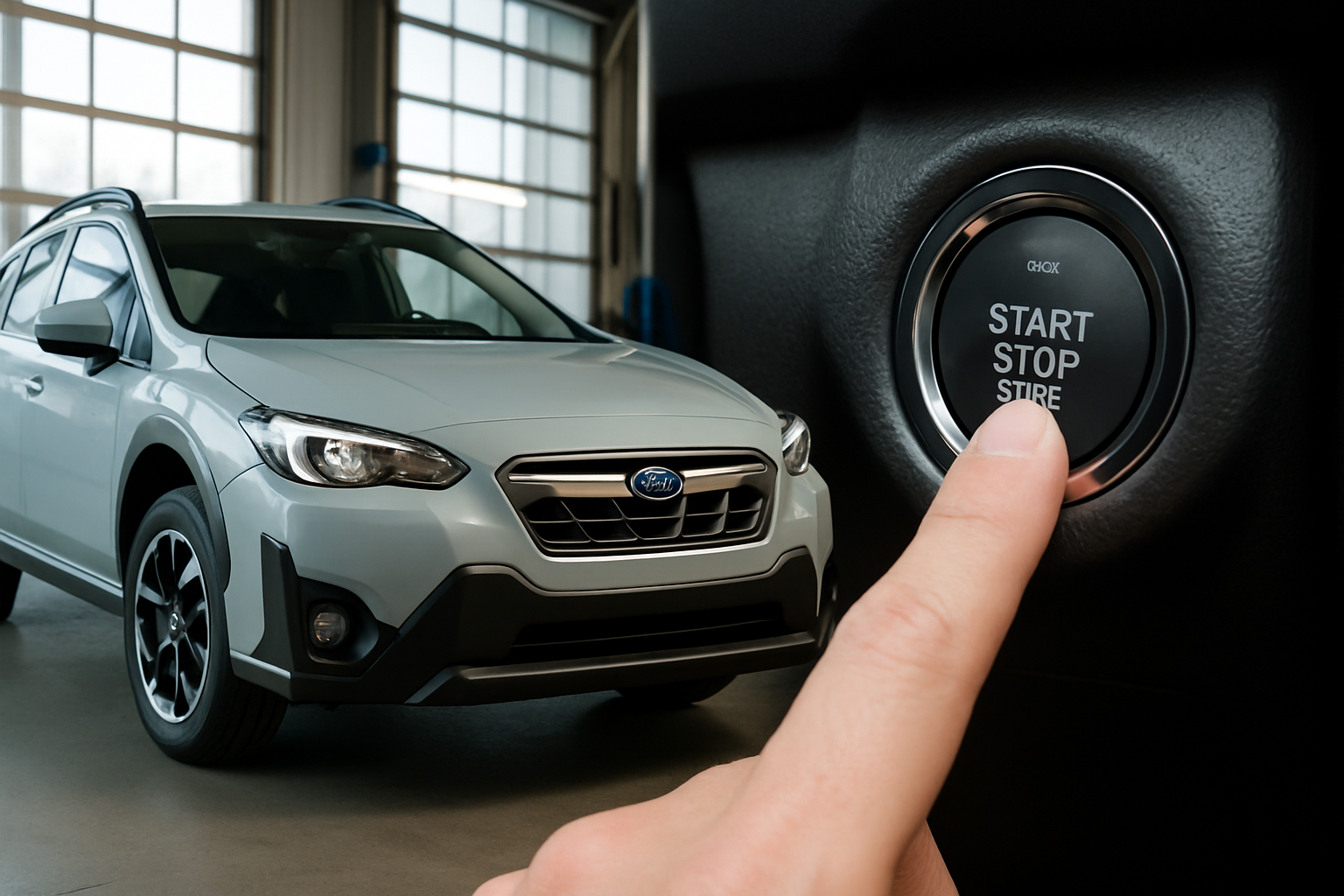
With the app configured, you’ll need to activate the Starlink system from inside your vehicle. Start the engine and ensure all doors are closed. The activation process requires the vehicle’s systems to be fully powered up.
Look for the Starlink button on your rearview mirror. This button typically has an SOS or emergency icon next to it. Press and hold this button for about two seconds until you hear a tone or see a light indicator.
A Starlink representative will connect to your vehicle through the built-in speakers. They’ll verify your identity using the information you provided in the app setup and confirm that your vehicle’s systems are communicating properly with their servers.
Completing the Voice Setup Process
The Starlink representative will guide you through several verification steps. They’ll confirm your contact information, explain the terms of service, and test the two-way communication system to ensure everything works correctly.
This process typically takes 5-10 minutes. The representative will also explain how to use the emergency SOS button and provide important information about how the automatic collision notification system works.
Once activation is complete, you’ll receive a confirmation message in the MySubaru app. This can take up to 24 hours to appear, so don’t worry if you don’t see it immediately.
Configuring Safety Plus Features
After successful activation, you can customize your Safety Plus features through the MySubaru app. Open the app and select your vehicle to access the settings menu.
The automatic collision notification system works automatically, but you should review the emergency contact settings. Add up to three emergency contacts who will be notified if your vehicle detects a severe collision and you don’t respond to the system’s prompts.
Configure your notification preferences for vehicle health reports and maintenance reminders. You can choose to receive these alerts via push notification, email, or both. Many owners find email notifications more reliable since they don’t depend on having the app actively running.
Testing the SOS Emergency Button
Test the SOS button to ensure it connects properly. Press and hold the button while parked in a safe location. When the Starlink operator answers, simply tell them you’re testing the system. They’ll verify your location and confirm that everything is working correctly.
This test call is important because it verifies that your vehicle’s GPS system is communicating properly with the emergency services network. If there are any issues, the operator can troubleshoot them while you’re in a non-emergency situation.
Document when you performed this test. Subaru recommends testing the emergency system every few months to ensure continued functionality.
Setting Up Remote Features (If Available)
If your Starlink subscription includes remote features like remote start or door lock control, you’ll find these options in the app after activation. These features typically require a separate setup process within the app.
For remote start functionality, you’ll need to configure security settings including a PIN number. This PIN prevents unauthorized users from starting your vehicle even if they gain access to your phone or app account.
Remote door lock and unlock features require you to confirm your identity through the app each time you use them. This security measure prevents accidental activation and protects against unauthorized access.
Understanding Vehicle Health Reports
Your Starlink-equipped Subaru automatically monitors various vehicle systems and generates monthly health reports. These reports include information about your engine, transmission, brakes, and other critical components.
Access these reports through the MySubaru app by selecting “Vehicle Health” from the main menu. The reports use simple graphics to show the status of different systems, with green indicating normal operation and yellow or red showing potential issues.
The system also tracks maintenance items like oil changes, tire rotations, and scheduled services. You can set custom reminders for maintenance tasks that aren’t automatically monitored by the vehicle’s built-in systems.
Interpreting Diagnostic Information
When the system detects a potential issue, you’ll receive a detailed notification explaining what was found and whether immediate attention is required. These notifications include diagnostic trouble codes that you can share with your service technician.
Keep in mind that vehicle health reports represent a snapshot of your vehicle’s condition at the time the report was generated. They don’t replace regular maintenance or professional inspections, but they do provide valuable early warning of potential problems.
If you receive an urgent vehicle health alert, contact your Subaru dealer promptly. These alerts typically indicate safety-related issues that require immediate attention.
Troubleshooting Common Setup Issues
If your vehicle won’t connect during the initial setup, check your location for adequate cellular coverage. Move to an open area away from buildings or underground structures and try the activation process again.
Incorrect VIN entry causes many setup failures. Verify each character of your VIN against your vehicle registration. Pay special attention to letters that might be confused with numbers, like ‘O’ and ‘0’ or ‘I’ and ‘1’.
App connection issues often resolve by closing and reopening the MySubaru app. If problems persist, delete and reinstall the app, then start the setup process from the beginning with your existing account information.
When to Contact Subaru Support
Contact Subaru’s Starlink support team if you can’t complete the activation process after multiple attempts. They can check your vehicle’s eligibility, verify that your subscription is active, and troubleshoot technical issues remotely.
The support team can also help if your vehicle’s Starlink system stops working after successful setup. They have tools to reset your connection and can verify that your vehicle’s built-in modem is functioning properly.
Keep your account information handy when calling support. They’ll need your VIN, the phone number associated with your account, and details about any error messages you’ve received.
Managing Your Starlink Subscription
Monitor your subscription status through the MySubaru app. The app displays your current service level and shows when your complimentary period expires. You’ll receive notifications as your renewal date approaches.
If you decide not to renew your Starlink subscription, most safety features will stop working when the service expires. However, your vehicle’s built-in systems like airbags and collision avoidance will continue operating normally.
You can upgrade or downgrade your Starlink service level at any time through the app or by contacting customer service. Changes typically take effect within 24 hours of processing.
Frequently Asked Questions
How long does the initial setup process take?
Complete Starlink setup typically takes 30-45 minutes from start to finish. This includes downloading the app, creating your account, activating the vehicle’s system, and configuring your preferred settings. The actual vehicle activation call with a Starlink representative usually takes 5-10 minutes.
Will Starlink work if my vehicle is parked in a garage?
Starlink requires cellular coverage to function, so underground or enclosed parking areas may limit connectivity. Most above-ground garages provide adequate signal strength, but basement parking or structures with heavy concrete construction can interfere with the system. Emergency features will still attempt to connect, but response times may be longer in areas with poor coverage.
Can multiple family members access the same Starlink account?
The primary account holder can share limited access with family members through the MySubaru app. However, full administrative access including emergency contact changes and subscription management requires the primary account login. Each family member should download the app and be added as an authorized user through the account settings.
What happens to my Starlink service if I sell my vehicle?
Starlink subscriptions are tied to specific vehicles, not owners. When you sell your Subaru, you should remove it from your MySubaru account and inform the new owner about any remaining subscription time. The new owner will need to create their own account and transfer the service to access Starlink features.


Leave a Reply