
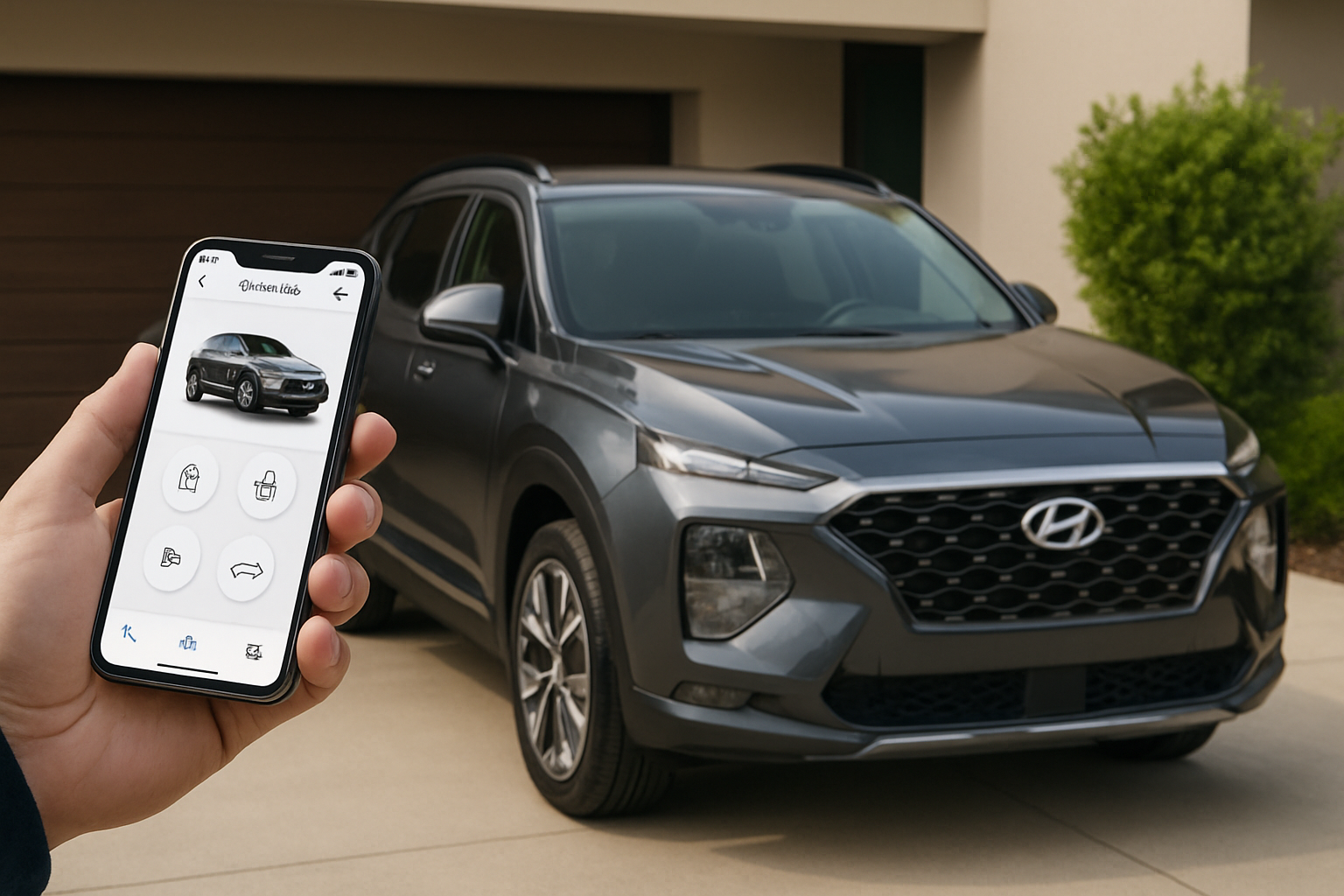
Your Hyundai comes with some impressive technology, and the myHyundai app (formerly called Bluelink) puts a surprising amount of control right in your pocket. Being able to start your car from inside your house on a cold morning or check if you locked your doors from anywhere can make daily life much more convenient.
Most modern Hyundai vehicles come equipped with Bluelink connectivity, which communicates with Hyundai’s servers through a built-in cellular connection. You can access these features through the myHyundai smartphone app or the web portal.
What You Can Do with the myHyundai App
The myHyundai app gives you remote access to several key vehicle functions. Remote start with climate control lets you warm up or cool down your car before you get in, which is particularly useful during extreme weather.
You can lock and unlock your doors remotely, which comes in handy if you forget to lock up or need to let someone into your vehicle when you’re not around. The find my car feature uses GPS to show your vehicle’s location on a map and can even flash the lights or honk the horn to help you locate it in a crowded parking lot.
The app includes several alert features that help you keep tabs on your vehicle. Valet alert notifies you if your car is driven outside a designated area, while speed alert lets you know if someone exceeds a speed limit you’ve set. Curfew alert tells you if your vehicle is being used outside designated hours.
You’ll also receive monthly vehicle reports that include information about your driving habits, fuel efficiency, and vehicle health status. These reports can help you stay on top of maintenance and monitor how your Hyundai is performing.
Getting Started with App Setup
Before you can use any remote features, you’ll need to download the myHyundai app from the App Store or Google Play Store. Make sure you’re getting the official app from Hyundai Motor America, as there are some outdated versions still floating around.
You’ll need your vehicle identification number (VIN), which you can find on your dashboard near the windshield on the driver’s side, on your door jamb sticker, or in your vehicle registration documents. You’ll also need the phone number associated with your Hyundai account if you created one when purchasing your vehicle.
Creating Your Account and Vehicle Registration
Open the myHyundai app and select “Create Account” if you’re a new user. Enter your email address, create a password, and fill in your personal information. The app will ask for your name, phone number, and address.
Next, you’ll need to add your vehicle to the account. Tap “Add Vehicle” and enter your VIN. The app will automatically pull up your vehicle’s information, including the model, year, and available features. Verify that everything looks correct before proceeding.
You’ll need to verify your identity as the vehicle owner. The app may ask you to take a photo of your driver’s license and vehicle registration. This security step prevents unauthorized access to your vehicle’s remote features.
Activating Bluelink Services
Most new Hyundai vehicles come with a complimentary Bluelink subscription, typically for the first year or three years depending on your model and trim level. If your complimentary period has expired, you’ll need to purchase a subscription to use remote features.
The app will guide you through the activation process once your account is verified. You’ll receive a confirmation email and text message when your services are active. This process usually takes a few minutes, but can sometimes take up to 24 hours.
Your vehicle needs to be in an area with cellular coverage for the activation to complete. If you’re in a garage or area with poor signal, try moving to an open area or driving around for a few minutes.
Setting Up Remote Start and Climate Control
Remote start is probably the most popular feature, especially during summer and winter months. In the app, tap the “Remote Start” button, which usually looks like a circular arrow or ignition key icon.
Before your first use, configure your climate preferences. You can set the temperature, fan speed, and choose which climate zones to control if your vehicle has dual-zone climate control. The system will also turn on heated or ventilated seats if you have them and they’re enabled in your settings.
Your vehicle will run for 10 minutes after a remote start command, then automatically shut off for safety reasons. You can extend this by sending another remote start command, or by getting in the vehicle and pressing the brake pedal with your key fob nearby.
Using Door Lock and Unlock Features
The lock and unlock functions work similarly to your key fob, but from anywhere with cell service. In the app, you’ll see lock and unlock buttons, usually represented by padlock icons.
When you send a lock or unlock command, the app will confirm the action and show you the current status of your doors. Your vehicle’s lights will flash to confirm the command was received, just like when using your key fob.
Keep in mind that these commands can take 10-30 seconds to execute, depending on your cellular connection and the vehicle’s signal strength. Don’t repeatedly tap the buttons if it doesn’t work immediately.
Locating Your Vehicle
The “Find My Car” feature shows your vehicle’s last known location on a map within the app. This location updates whenever your vehicle is turned off, so it should be fairly accurate.
If you’re close to your vehicle but still can’t spot it, you can use the “Flash Lights” or “Horn” options to make it easier to identify. The lights will flash several times, and the horn will chirp to help you locate your Hyundai in a crowded area.
This feature is particularly useful in large parking lots, parking garages, or when someone else has parked your vehicle and you can’t remember exactly where it is.
Configuring Alert Settings
The alert features require some initial setup to work properly. For valet alert, you’ll set a boundary on the map around areas where your vehicle should stay. If your car leaves this area, you’ll receive a push notification and email.
Speed alerts let you set a maximum speed limit. When your vehicle exceeds this speed, you’ll get notified immediately. This feature is popular with parents monitoring teen drivers or business owners tracking fleet vehicles.
Curfew alerts work by setting specific hours when your vehicle should not be driven. You can set different schedules for different days of the week. If your car is started outside these approved hours, you’ll receive an alert.
Understanding Monthly Vehicle Reports
Your monthly vehicle report arrives via email and provides a comprehensive overview of your driving patterns and vehicle health. The report includes total miles driven, average fuel economy, and trip information.
You’ll also see maintenance reminders based on your vehicle’s mileage and time since last service. The report can alert you to potential issues like low tire pressure, engine problems, or other diagnostic trouble codes.
These reports help you track your driving habits over time and can be useful for business expense tracking if you use your Hyundai for work purposes.
Troubleshooting Common Issues
If remote commands aren’t working, first check that your vehicle is in an area with good cellular coverage. Underground parking garages, remote areas, and buildings with thick walls can interfere with the connection.
Make sure your vehicle’s battery is in good condition. If your 12-volt battery is weak or failing, it may not have enough power to operate the Bluelink system properly. Cold weather can also affect battery performance and system responsiveness.
Sometimes the app needs to be refreshed or restarted. Close the app completely and reopen it, or log out and log back in if commands aren’t working. You can also try turning your vehicle on and off to reset the connection.
If you’re still having trouble, check Hyundai’s service status page or contact customer support. Occasionally, the Bluelink servers experience outages or maintenance periods that temporarily disable remote features.
Subscription and Service Information
After your complimentary period ends, you’ll need to purchase a subscription to continue using remote features. Hyundai typically offers monthly and annual subscription options at different price points.
Basic plans usually include remote start, lock/unlock, and vehicle locator features. Premium plans add the alert features, monthly reports, and additional diagnostic information. Check the current pricing and features in your app or on Hyundai’s website.
Your subscription will automatically renew unless you cancel it through the app or by calling customer service. You can manage your subscription settings in the app under account preferences.
Frequently Asked Questions
How far away can I be to use remote features?
There’s no distance limit as long as both you and your vehicle have cellular service. You can start your car from across the country if needed. However, commands may take longer to execute if either connection is slow.
Will using remote start affect my fuel economy?
Remote starting does use fuel, especially if you’re running the climate control system. However, the impact on overall fuel economy is usually minimal since most people use it for short periods before driving.
Can I use the app if my phone doesn’t have data service?
No, you need an active internet connection on your phone to send commands through the app. The commands are sent through Hyundai’s servers, not directly to your vehicle. WiFi or cellular data is required.
What happens if I sell my vehicle?
You should remove the vehicle from your myHyundai account before selling it. The new owner will need to create their own account and verify ownership to use Bluelink features. Any remaining subscription time doesn’t transfer to the new owner.

Leave a Reply