
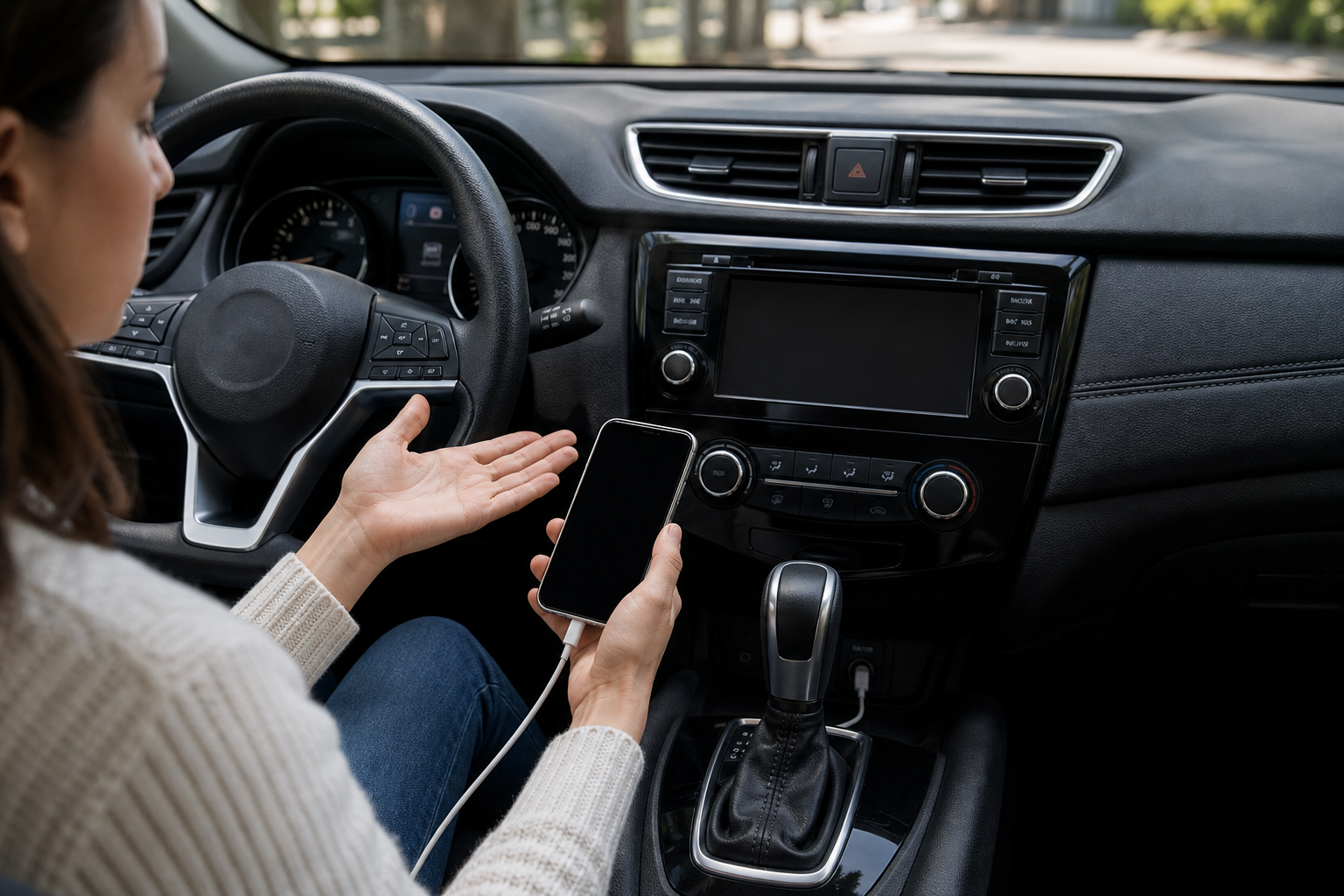
You’re halfway through a phone call or your favorite playlist cuts out, and suddenly the screen kicks you back to the Nissan home display. A few seconds later, CarPlay reconnects, only to drop again ten minutes down the road. It’s one of the most common complaints Rogue owners bring up, and the cause usually isn’t a mystery once you know where to look.
This guide walks through the most common reasons Apple CarPlay disconnects on the Nissan Rogue, split out by wired and wireless setups, plus the specific reset steps that actually fix it instead of just masking it for a few miles.
First, Figure Out Which Rogue You Have
Wireless CarPlay availability on the Rogue depends heavily on model year and trim. The 2021-2024 Rogue (T33 generation) offers wireless CarPlay standard or available on most trims with the 9-inch or 12.3-inch touchscreen, while the 2017-2020 Rogue (T32 generation) only supports wired CarPlay through a USB cable. If you’re not sure which one you’re dealing with, check your infotainment settings menu under “Apple CarPlay” or “Connections.” If there’s no wireless toggle option at all, your Rogue simply doesn’t support it and a cable is your only path.
This distinction matters because wired and wireless CarPlay fail for different reasons. A bad USB cable won’t cause a wireless dropout, and a Wi-Fi interference issue won’t cause a wired connection to fail. Diagnosing the wrong category wastes a lot of time.
Wired CarPlay Disconnects: Start With the Cable and Port

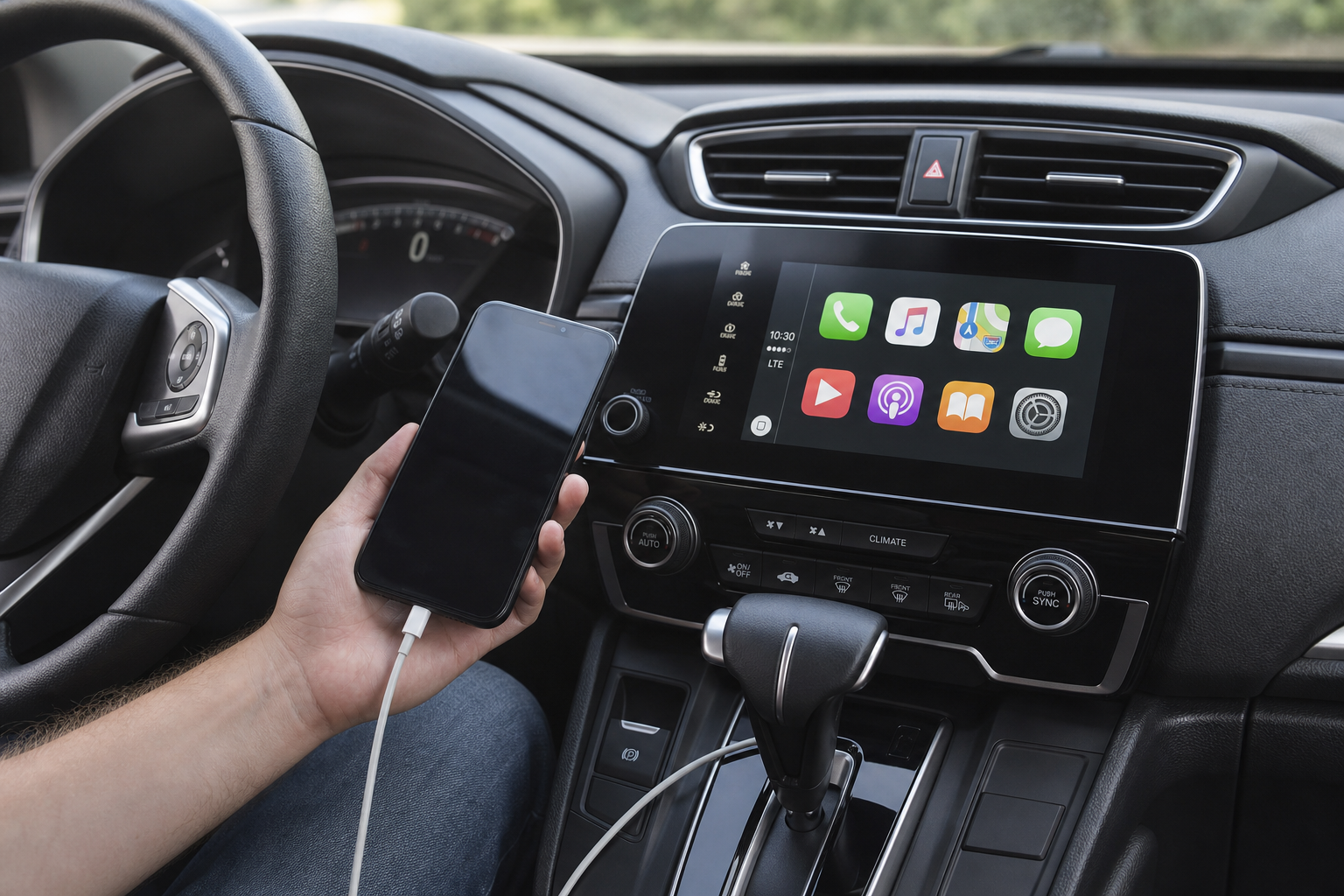
The single most common cause of wired CarPlay dropping on any Nissan is a cable that charges but doesn’t reliably pass data. Cheap or worn cables are notorious for this, and they’ll often work fine for a few minutes before the connection hiccups.
- Use the cable that came with your iPhone, or a certified Lightning/USB-C cable rated for data transfer, not just charging.
- Inspect the cable for fraying near the connector, which is the most common failure point.
- Try a different USB port. Many Rogues have multiple front USB ports, but not all of them support data. Check your owner’s manual to confirm which port is labeled for CarPlay/media (it’s often marked differently from a charge-only port).
- Clean out the USB port itself. Lint and debris in the console cubby can prevent a full connection even with a good cable.
If you’re due for a replacement cable anyway, it’s worth grabbing a couple of MFi certified Lightning cables so you always have a backup in the car. A short, braided cable also tends to survive the daily stress of being pulled in and out of the console far longer than a cheap coiled one.
Anker Powerline III USB-C to Lightning Cable
A durable, MFi-certified cable built to handle constant plugging and unplugging without losing the data connection CarPlay needs.
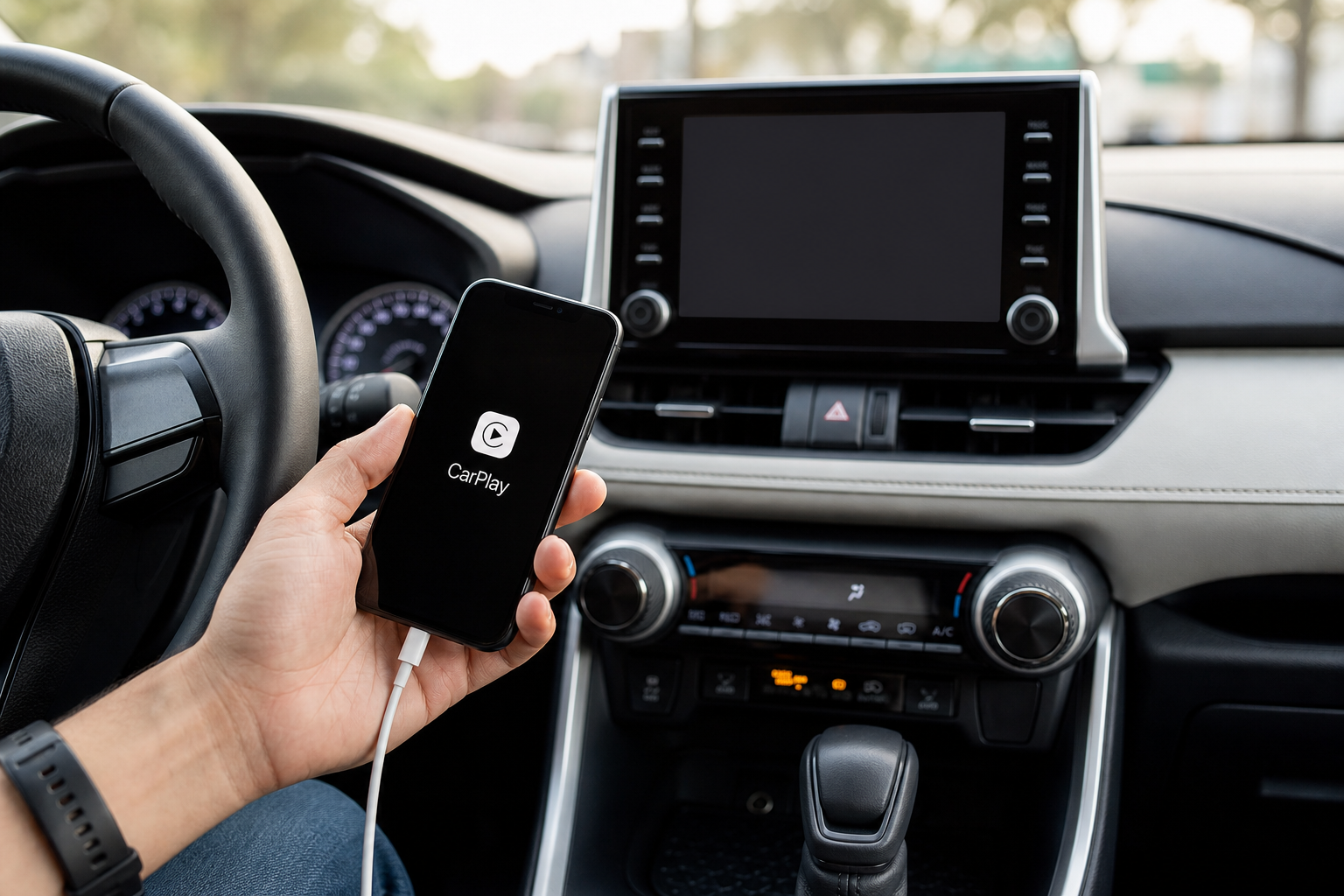
If a fresh cable and a confirmed data port don’t fix it, restart your iPhone. This clears out background processes that sometimes interfere with the CarPlay handshake, and it’s a five-second test before you move on to deeper fixes.
Wireless CarPlay Disconnects: Bluetooth and Wi-Fi Pairing Issues
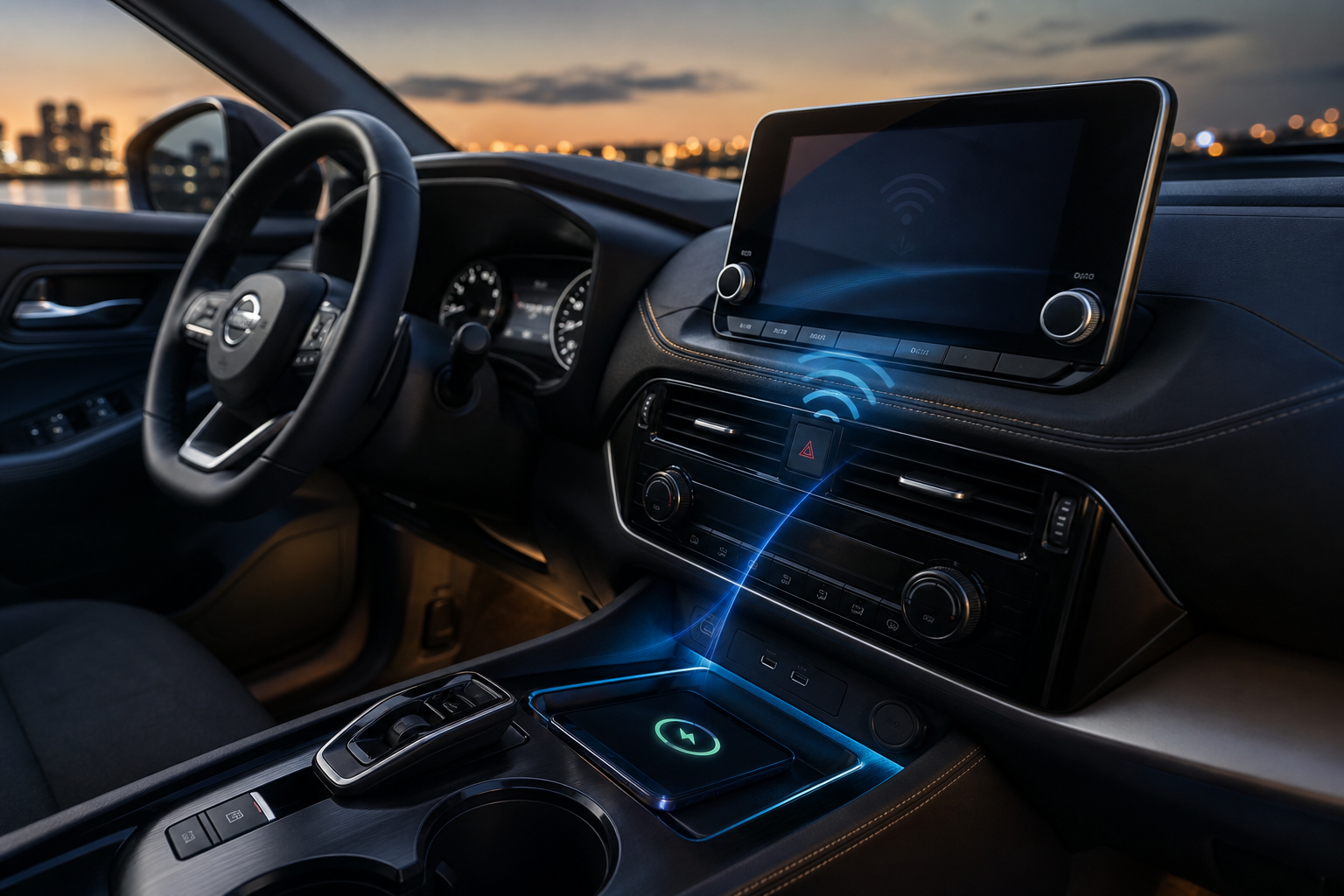
Wireless CarPlay on the Rogue actually relies on two connections working together: Bluetooth handles the initial handshake and audio, while Wi-Fi Direct handles the screen mirroring and data. If either one is flaky, you’ll get dropouts, lag, or a connection that just quits mid-drive.
Start by forgetting the connection entirely and re-pairing from scratch:
- On your iPhone, go to Settings > General > CarPlay, select your Rogue, and tap “Forget This Car.”
- On your Rogue’s infotainment screen, delete the paired device under Settings > Bluetooth or Settings > Apple CarPlay.
- Turn off Bluetooth and Wi-Fi on your iPhone, wait about 15 seconds, then turn them back on.
- Start the vehicle and re-pair from scratch, allowing all permission prompts (contacts, notifications, location) rather than dismissing them.
Deleting the vehicle profile and re-adding it fixes a surprising number of stubborn disconnects because it clears out corrupted pairing data that a simple reconnect doesn’t touch. It’s a bit tedious, but it’s the closest thing to a factory-fresh CarPlay setup you can get without a dealer visit.
Phone placement matters more than most people realize with wireless CarPlay. Wi-Fi Direct has limited range and doesn’t love obstructions, so a phone buried in a console bin or wrapped in a thick metal case can weaken the signal enough to cause intermittent drops. Keep the phone in a cupholder or a simple mount within a foot or two of the dash.
iOttie Easy One Touch Wireless Charging Mount
Keeps your phone in clear line of sight to the infotainment system, which helps maintain a stable wireless CarPlay signal.
Reboot the Infotainment System

Nissan’s NissanConnect system (badged differently depending on year, but functionally similar across the Rogue lineup) can develop its own software hiccups that have nothing to do with your phone. A soft reset clears temporary glitches without erasing your saved settings.
- Press and hold the physical power button on the touchscreen (usually doubles as the volume knob) for 10-15 seconds until the screen goes black and restarts.
- If your Rogue doesn’t have a dedicated power button reset, turn the vehicle off, remove the key or press the start button twice without touching the brake, and let it sit for a full minute before restarting.
- As a last resort, disconnect the 12V battery for a few minutes to force a full infotainment reboot. This also resets other electronics, so only use this if the soft reset doesn’t help.
If you’ve noticed other electrical quirks alongside the CarPlay issues, like a battery that seems weaker than it should be after sitting overnight, it’s worth ruling out a parasitic drain issue separately. Our guide on a car battery dying overnight when the alternator is good covers how to check for that.
Check for Software Updates on Both Sides
iOS compatibility issues pop up more than Apple likes to admit. Older Rogue infotainment software sometimes doesn’t play nicely with the newest iOS releases until Nissan pushes a compatibility patch, and running an outdated iOS version can cause the same problem in reverse.
On your iPhone, go to Settings > General > Software Update and install anything pending. On the Rogue side, check Settings > System Information or Software Update within the infotainment menu, or ask your Nissan dealer to check for a NissanConnect update during your next service visit since some updates require a USB flash drive or dealer tool rather than an over-the-air push.
It’s also worth checking Nissan’s official CarPlay compatibility page for your specific model year before assuming a hardware fault. Some early Rogue Sport and base-trim Rogue units never received wireless CarPlay support regardless of software updates, since the limitation is with the Wi-Fi module hardware itself, not the software.
When It’s Time for an Aftermarket Fix
If you’ve gone through every reset and your Rogue simply doesn’t support wireless CarPlay, or the built-in wireless module is unreliable, a wireless CarPlay adapter can bridge the gap. These small dongles plug into your existing wired USB port and convert the connection to wireless, letting you leave your phone in your pocket while still using the factory screen.
CarlinKit Wireless CarPlay Adapter
A popular plug-and-play option that adds wireless CarPlay functionality to Rogues that only support the wired version.
These adapters aren’t flawless and can introduce their own occasional lag, but they’re a solid workaround if your Rogue’s built-in system is the one causing the disconnects rather than your cable or phone. You can browse current Nissan CarPlay cables and wireless adapters to compare options before you decide which route makes sense for your setup.
FAQ
Does every Nissan Rogue support wireless Apple CarPlay?
No. Wireless CarPlay became available starting with the 2021 redesign on most SV and SL trims, but the 2017-2020 Rogue only supports wired CarPlay through USB. Check your infotainment settings menu to confirm before assuming your unit is broken.
Why does CarPlay disconnect only when I’m charging my phone with a different accessory?
This usually points to a bad or charge-only USB port. Some Rogue trims have a front USB-A port that only handles power delivery and a separate USB port designed for data and CarPlay. Using the wrong one will let your phone charge but cause repeated CarPlay dropouts.
Will a software update from Nissan fix wireless CarPlay dropouts for good?
It often helps, especially if the disconnects started after an iOS update, but it’s not guaranteed to be a permanent fix if the root cause is phone placement, a weak Wi-Fi Direct signal, or hardware limitations on older infotainment units. Combine the software update with the pairing reset steps above for the best results.


Leave a Reply