
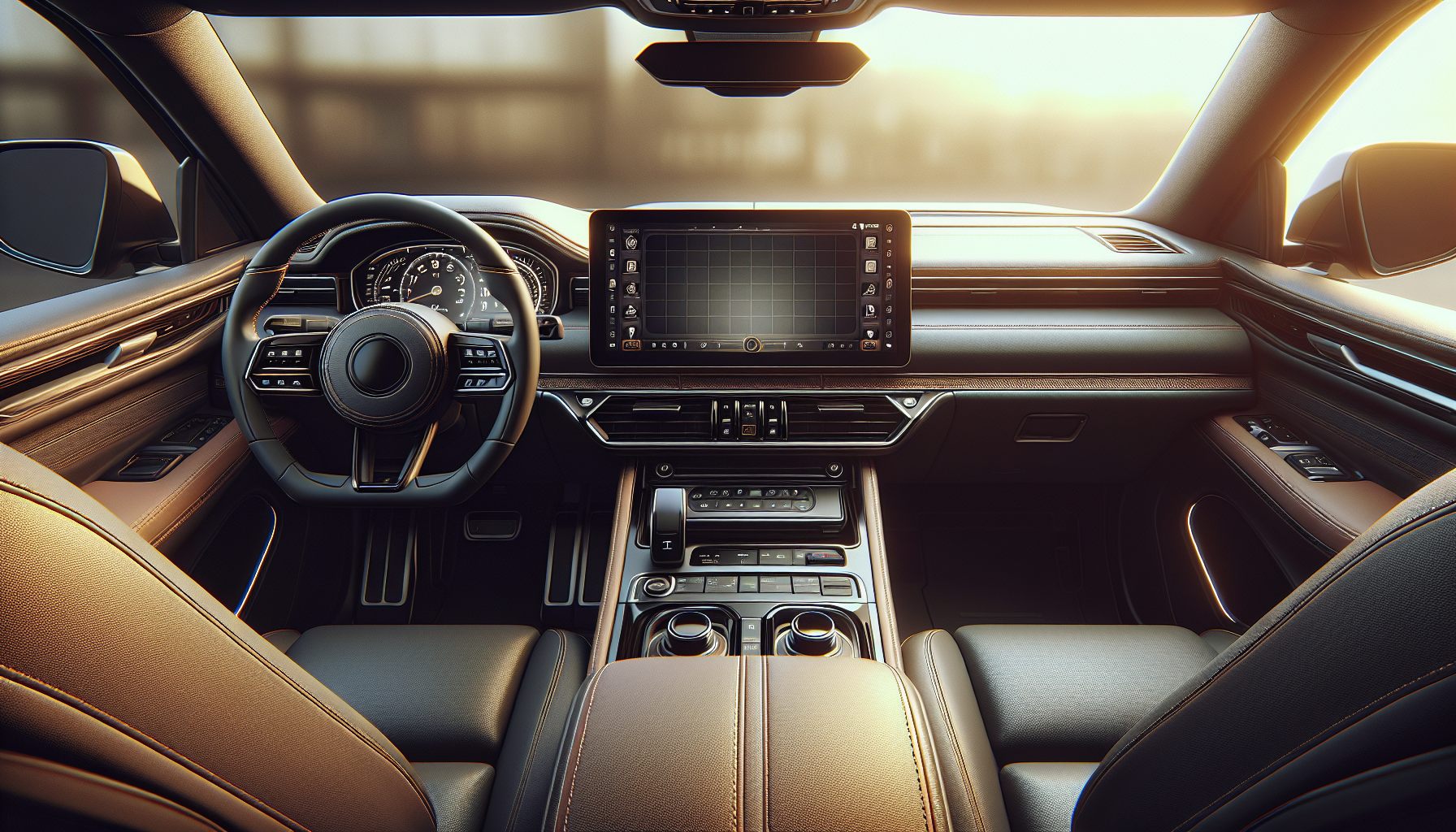
You’re cruising down the highway with your family, music playing, navigation guiding you to your destination, when suddenly your Kia Telluride’s infotainment screen goes completely black. No warning. No error message. Just darkness. Then maybe it flickers back to life a few minutes later like nothing happened.
This isn’t just annoying when you’re relying on GPS or trying to adjust climate controls. It’s genuinely concerning because modern infotainment systems control so much of your vehicle’s functionality. The good thing is this problem is more common than you’d think, and there are several fixes you can try before heading to the dealer.
Common Causes
The Telluride’s infotainment system is essentially a computer, and like any computer, it can freeze, crash, or develop glitches. Here’s what typically causes the screen blackout issue:
Software Glitches and Bugs
Kia has released multiple software updates to address infotainment issues across their lineup. Sometimes the system just gets hung up on a corrupted file or conflicting process. I’ve seen this happen after phone connections fail to disconnect properly or when switching between Android Auto and Apple CarPlay repeatedly.
Overheating
Your infotainment unit generates heat, and if ventilation behind the screen isn’t adequate, it can trigger thermal protection that shuts the display down. This happens more often in summer months or if you park in direct sunlight for extended periods.
Loose or Corroded Connections
The wiring harness behind the screen can work loose over bumpy roads. Even a slightly loose connection can cause intermittent blackouts. Corrosion on connectors is less common but definitely possible, especially if you’ve had any water leaks in the cabin.
Failing Hardware Components
The display itself or the main board can fail. This is less common on newer Tellurides, but as vehicles age, capacitors on the circuit board can degrade. If your Telluride is still under warranty, hardware failure is covered.
Electrical System Issues
Low battery voltage or alternator problems can cause the infotainment system to behave erratically. If your battery is weak, the screen might black out when you start the engine or turn on power-hungry accessories.
How to Diagnose the Problem
Before you start pulling panels or booking a service appointment, let’s narrow down what’s causing your blackout issue.
Step 1: Check for Patterns
Pay attention to when the screen goes black. Does it happen only when it’s hot outside? After using a specific app? When you hit bumps? Right after starting the car? Patterns tell you a lot about whether this is a software issue, overheating, or loose connection.
Step 2: Test Different Functions
When the screen goes black, can you still hear audio? Do steering wheel controls work? Can you still use voice commands? If everything else works except the display, you’re likely dealing with a screen hardware issue rather than a complete system crash.
Step 3: Check for Software Updates
Go to your infotainment settings and look for system information. Write down your current software version. Then check Kia’s website or call your dealer to see if there are newer updates available. Kia has pushed out several updates specifically addressing random screen blackouts.
Step 4: Monitor Battery Voltage
If you have an OBD2 scanner or multimeter, check your battery voltage. With the engine off, you should see around 12.6 volts. With the engine running, it should be 13.7-14.7 volts. Anything lower might indicate electrical issues that could affect the infotainment system.
Step 5: Test in Safe Mode
Disconnect all phones and devices. Don’t use Android Auto or Apple CarPlay for a few days. If the problem stops, you know the issue is related to device connectivity rather than the head unit itself.
How to Fix It
Let’s start with the easiest fixes and work our way up to more involved solutions.
Perform a Soft Reset
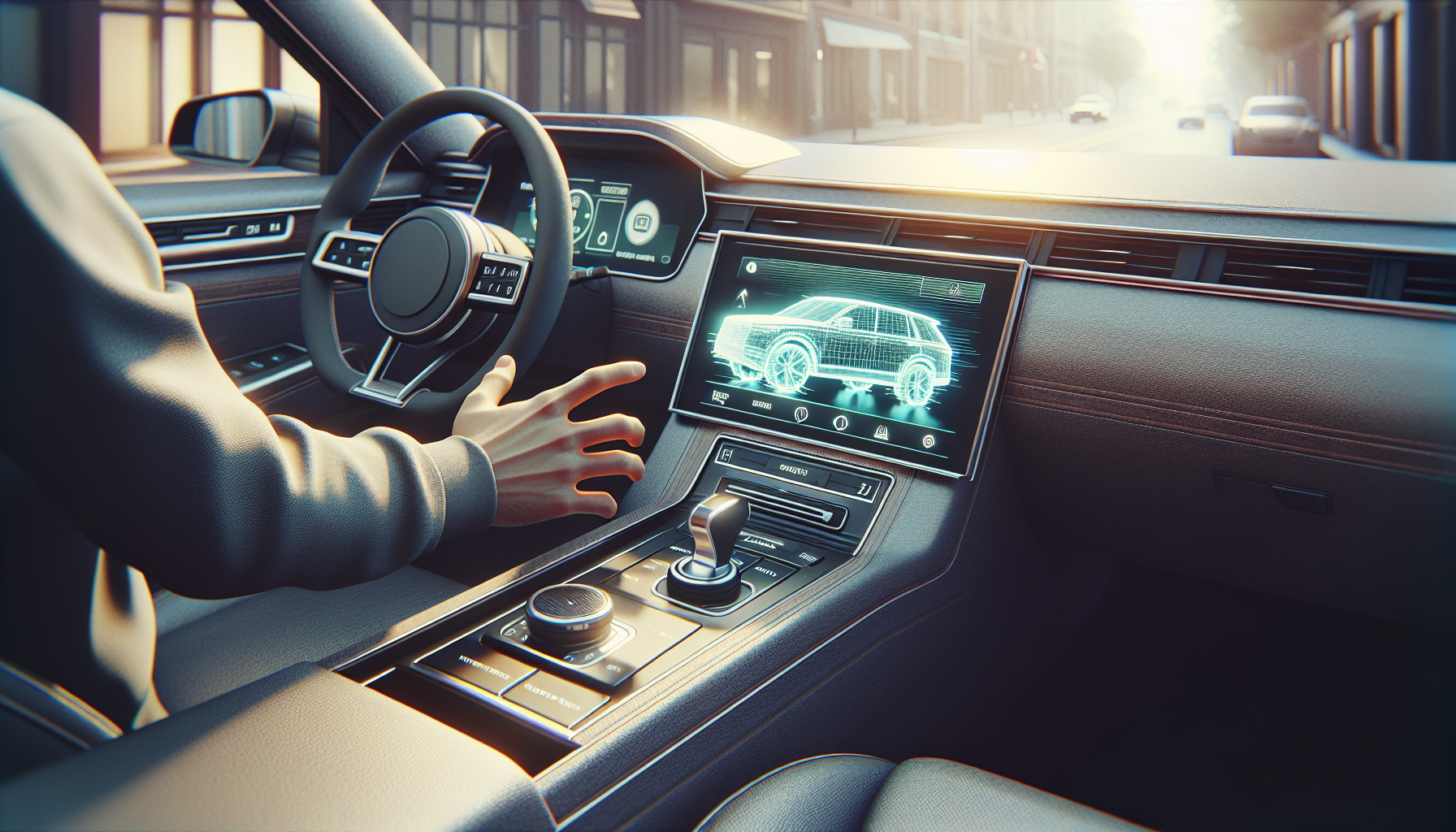
This is your first move. Press and hold the power button on your infotainment system for about 10-15 seconds until the screen turns off completely. Wait 30 seconds, then turn it back on. This clears temporary glitches without erasing any of your settings or paired devices.
This video demonstrates the reset process for Kia infotainment systems:
Perform a Hard Reset
If the soft reset doesn’t work, try a hard reset. With the vehicle off, disconnect the negative battery terminal. Wait at least 10 minutes to let all capacitors discharge. Reconnect the battery and start the car. This forces a complete reboot of all electronic systems. You’ll need to reset your radio presets and clock, but it often clears deeper software issues.
Update Your Software
Contact your Kia dealer or check if your Telluride supports over-the-air updates. Kia released update version 1.00.060 and later versions specifically to address random screen blackouts and system freezes. The update takes about 30-45 minutes and should be free if you’re within the warranty period.
Check and Reseat Connections
If you’re comfortable removing interior panels, you can check the connections behind the screen. Remove the trim panel around the infotainment screen (usually held by clips). Locate the wiring harnesses connected to the back of the unit. Unplug each connector, inspect for corrosion or damage, then firmly reconnect. Sometimes just reseating these connections solves intermittent issues.
Improve Ventilation
If overheating is your problem, make sure the vents behind and around the infotainment unit aren’t blocked. Some owners have reported that aftermarket dash accessories or items stored in the dash compartment can restrict airflow. Use a windshield sunshade when parking to reduce cabin temperatures.
Replace the Screen Fuse
Check your owner’s manual for the fuse box diagram. Look for the fuse labeled “AVN” or “Infotainment.” Pull it out and inspect it. If it’s blown, replace it with the same amperage. If the new fuse blows immediately, there’s a short circuit that needs professional diagnosis.
When to See a Mechanic
Some situations require professional help. Don’t waste time trying DIY fixes if:
- Your Telluride is still under warranty. The infotainment system is covered for 5 years/60,000 miles. Let Kia handle it for free.
- The screen stays black permanently after trying all resets. This indicates hardware failure that requires replacement.
- You see physical damage to the screen like cracks, dead pixels, or discoloration.
- The problem started immediately after another repair or modification. Something might have been disconnected or damaged during that work.
- Multiple electrical systems are acting up simultaneously. This suggests a deeper electrical problem with your vehicle’s power distribution.
- You’re not comfortable removing interior panels or working with electrical connections.
A good independent shop with experience in modern vehicle electronics can diagnose this just as well as the dealer, often at a lower labor rate. But if you’re under warranty, stick with the dealer to keep your coverage intact.
Estimated Repair Costs
| Repair Type | Cost Range | Notes |
|---|---|---|
| Software update at dealer | $0-150 | Free under warranty; may charge diagnostic fee if out of warranty |
| Connector cleaning/reseating | $100-200 | Labor charge if done at a shop |
| Screen replacement (aftermarket) | $400-800 | Parts and labor; aftermarket units |
| Screen replacement (OEM) | $1,200-2,000 | Genuine Kia parts through dealer |
| Main board repair | $300-600 | Specialized electronics repair shops |
| Complete head unit replacement | $1,500-2,500 | Last resort for total failure |
Keep your repair receipts if you’re out of warranty. If the problem becomes widespread, Kia might issue a service campaign or extended warranty coverage.
Prevention Tips
You can’t prevent every electronic glitch, but these habits will reduce the frequency of screen blackouts:
Park in shade whenever possible. Excessive heat is a major contributor to infotainment problems. If you can’t avoid sun exposure, use a windshield sunshade.
Disconnect your phone properly. Before shutting off your car, disconnect Bluetooth, Android Auto, or Apple CarPlay through the screen rather than just walking away. Abrupt disconnections can leave processes running that eventually crash the system.
Keep your phone’s software updated. Outdated phones trying to connect with newer car software can cause compatibility issues that freeze the system.
Avoid using multiple USB devices simultaneously. If you’re charging phones, running CarPlay, and powering a dashcam all at once, you might be overloading the USB hub.
Schedule software updates annually. Even if you’re not experiencing problems, keeping your infotainment software current prevents known bugs from developing into bigger issues.
Don’t ignore warning signs. If your screen occasionally flickers or takes longer to boot up, address it before it escalates to complete blackouts.
Final Thoughts
A blacking-out infotainment screen in your Telluride is frustrating, but it’s rarely a sign of catastrophic failure. Most cases resolve with a simple reset or software update. The Telluride is still a relatively new model, and Kia continues to refine the software as issues emerge.
Start with the soft reset. If that doesn’t work, try the hard reset by disconnecting the battery. Check if you’re eligible for a software update through your dealer. Those three steps solve about 80% of random screen blackout issues.
If you’re still under warranty and the problem persists, document every occurrence with dates and circumstances, then take it to your dealer. They may need to replicate the problem, so the more information you provide, the faster they can diagnose and fix it. Some owners have had their entire head unit replaced under warranty when software updates didn’t resolve the issue.
Don’t live with a malfunctioning screen. Your Telluride’s infotainment system is too integral to vehicle operation to ignore. Whether you fix it yourself or let the professionals handle it, getting this resolved will make your driving experience significantly better.
Leave a Reply