

Few things are more annoying than being mid-navigation on the highway and watching Apple CarPlay vanish from your Hyundai Tucson’s screen. One second you’ve got turn-by-turn directions and your podcast playing, the next you’re staring at a blank “connect device” prompt while trying to remember where your exit is. The good part is that this problem almost always comes down to a handful of known culprits, and most of them take five minutes to fix.
This guide walks through the causes specific to the Tucson’s infotainment system, separates wired fixes from wireless fixes, and gives you a clear order of operations so you’re not just guessing. It applies to the 2016-2021 Tucson (NX4 predecessor) and the redesigned 2022-2025 Tucson, though the wireless steps only matter if your trim actually supports wireless CarPlay.
Does Your Tucson Even Have Wireless CarPlay?
Before you spend time troubleshooting wireless dropouts, confirm your Tucson actually supports wireless CarPlay. The 2016-2021 Tucson only offers wired CarPlay through the USB port, full stop. There’s no wireless option on those model years no matter what settings you dig through.
The redesigned 2022-2025 Tucson introduced wireless CarPlay, but it’s tied to trim level and screen size. Models with the 8-inch touchscreen typically require a wired connection, while the 10.25-inch display available on SEL Convenience trim and above usually includes wireless CarPlay support. Check your window sticker or owner’s manual if you’re not sure, because trying to pair wirelessly on a wired-only system just wastes time.
Fixing Wired CarPlay Disconnects
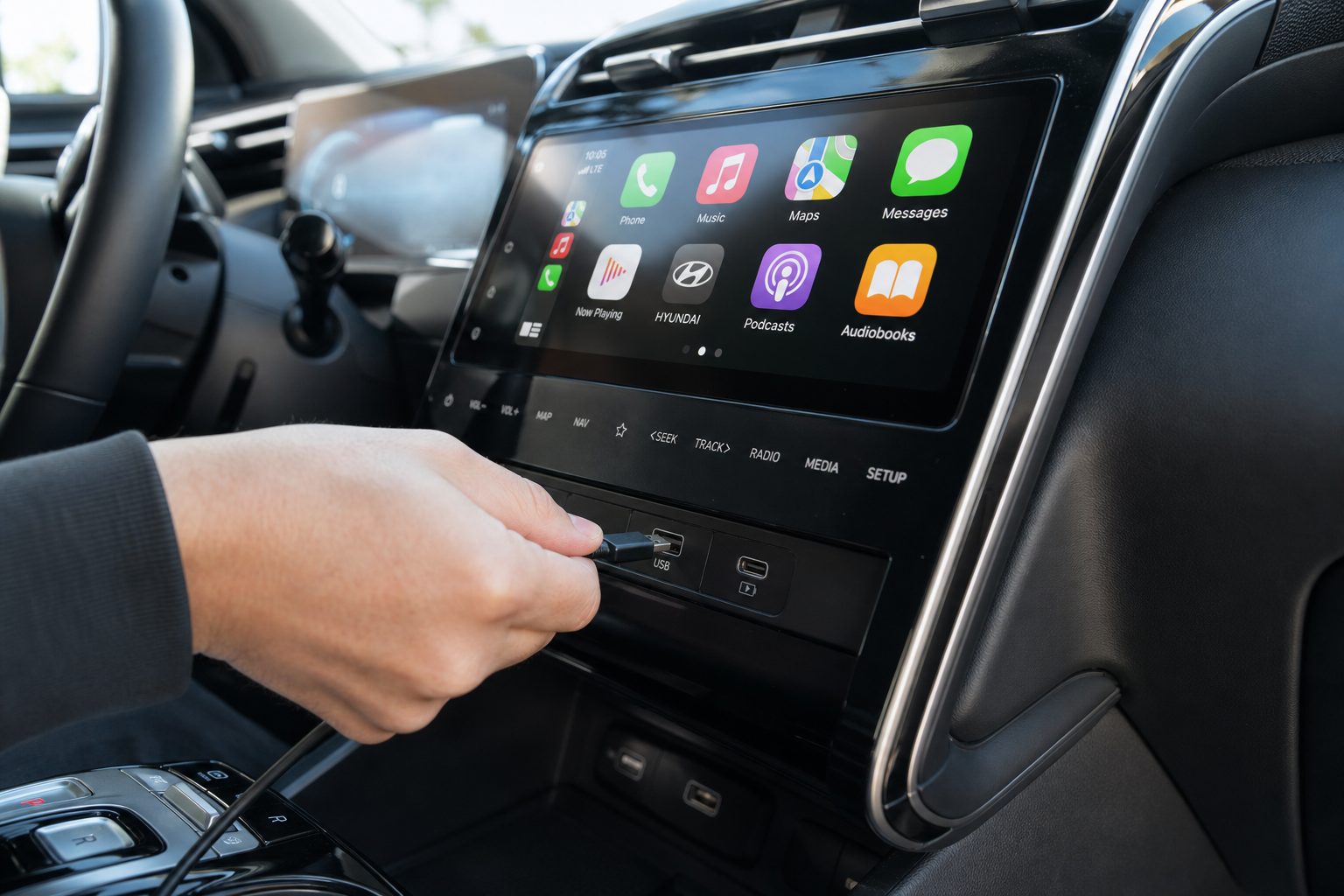
Wired connections drop for one of three reasons almost every time: a failing cable, the wrong USB port, or a phone that needs a reset. Work through these in order.
Check the Cable First
Apple’s Lightning cables (or USB-C on the iPhone 15 and later) wear out faster than people expect, especially the data pins inside the connector. A cable that still charges your phone fine can still fail to hold a CarPlay data connection. Swap in a different certified cable before you touch any settings.
Skip generic cables that only advertise charging speed. You want one explicitly rated for data sync, not just power delivery.
Anker Lightning to USB Cable MFi Certified
MFi certification means it’s built for reliable data transfer, not just charging, which is exactly what stable CarPlay needs.
Use the Right USB Port
This trips up more Tucson owners than anything else. Hyundai includes multiple USB ports in the center console and center armrest, but not all of them support data. Some are charge-only, meant for rear-seat passengers topping off a phone, and CarPlay simply won’t initiate through them no matter how good your cable is.
On most Tucson trims, the front USB port closest to the shifter or lower dash is the data-capable port. Ports located deeper in the center console bin or in the second row are almost always charge-only. If you’ve been plugging into the “wrong” port this whole time, that alone explains random disconnects, not a full failure to connect, since charge-only ports sometimes maintain a trickle connection before dropping CarPlay mid-drive.
Restart the Phone
iOS holds onto background processes that occasionally choke the CarPlay handoff. A full restart, not just closing apps, clears out whatever’s causing the hiccup. Do this before you assume it’s a hardware problem.
Fixing Wireless CarPlay Disconnects
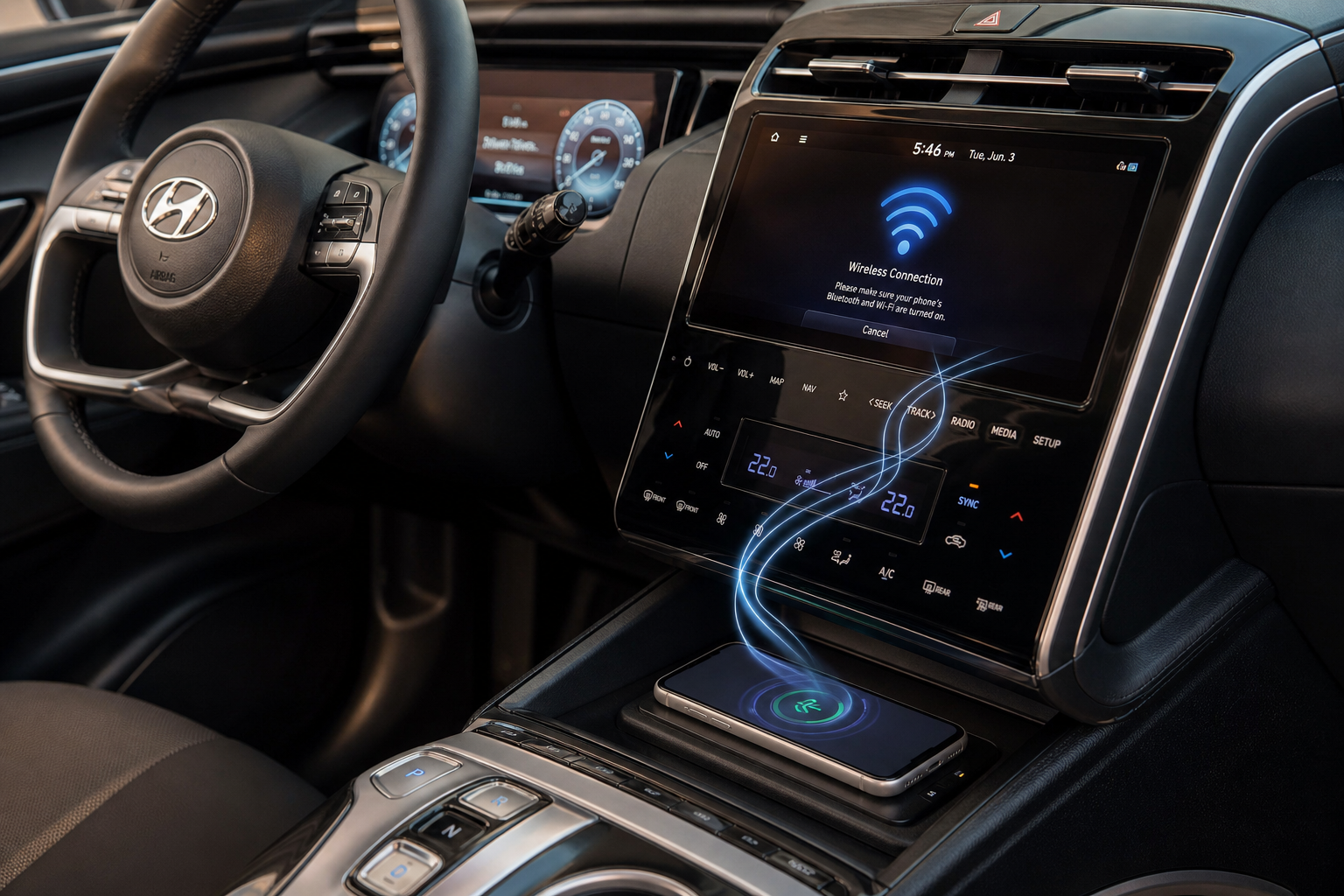
Wireless CarPlay on the newer Tucson relies on both Bluetooth and Wi-Fi Direct working together. Bluetooth handles the initial handshake and audio, while Wi-Fi carries the actual screen mirroring. If either connection is flaky, you’ll get dropouts, lag, or a CarPlay session that connects and then disappears thirty seconds later.
Reset the Bluetooth Pairing
Go into your Tucson’s connectivity settings, delete your phone from the paired devices list, then forget the car in your iPhone’s Bluetooth settings too. Pair from scratch. A stale Bluetooth profile is one of the most common reasons wireless CarPlay connects inconsistently after a software update on either side.
Check Your Phone’s Wi-Fi Settings
Wireless CarPlay uses a direct Wi-Fi connection between your phone and the car, separate from your home or cellular Wi-Fi. Make sure Wi-Fi is turned on on your phone (it doesn’t need to be connected to a network, just enabled) and that Airplane Mode isn’t quietly killing it. Also disable any VPN apps temporarily, since some VPN configurations interfere with the local Wi-Fi Direct handshake CarPlay relies on.
Delete and Re-Add the Vehicle
If pairing resets don’t help, go a step further and fully remove your Tucson from your iPhone’s list of known CarPlay vehicles under Settings, General, CarPlay. Restart the phone, then set up the connection as if it were the first time. This clears out corrupted pairing data that a simple Bluetooth forget-and-repair sometimes leaves behind.
If you’re managing multiple paired devices or family drivers, keeping the Bluelink app updated alongside your phone settings helps too. Our guide on setting up the myHyundai (Bluelink) app for remote access covers account and connectivity basics that occasionally overlap with CarPlay pairing issues.
Reboot the Infotainment System
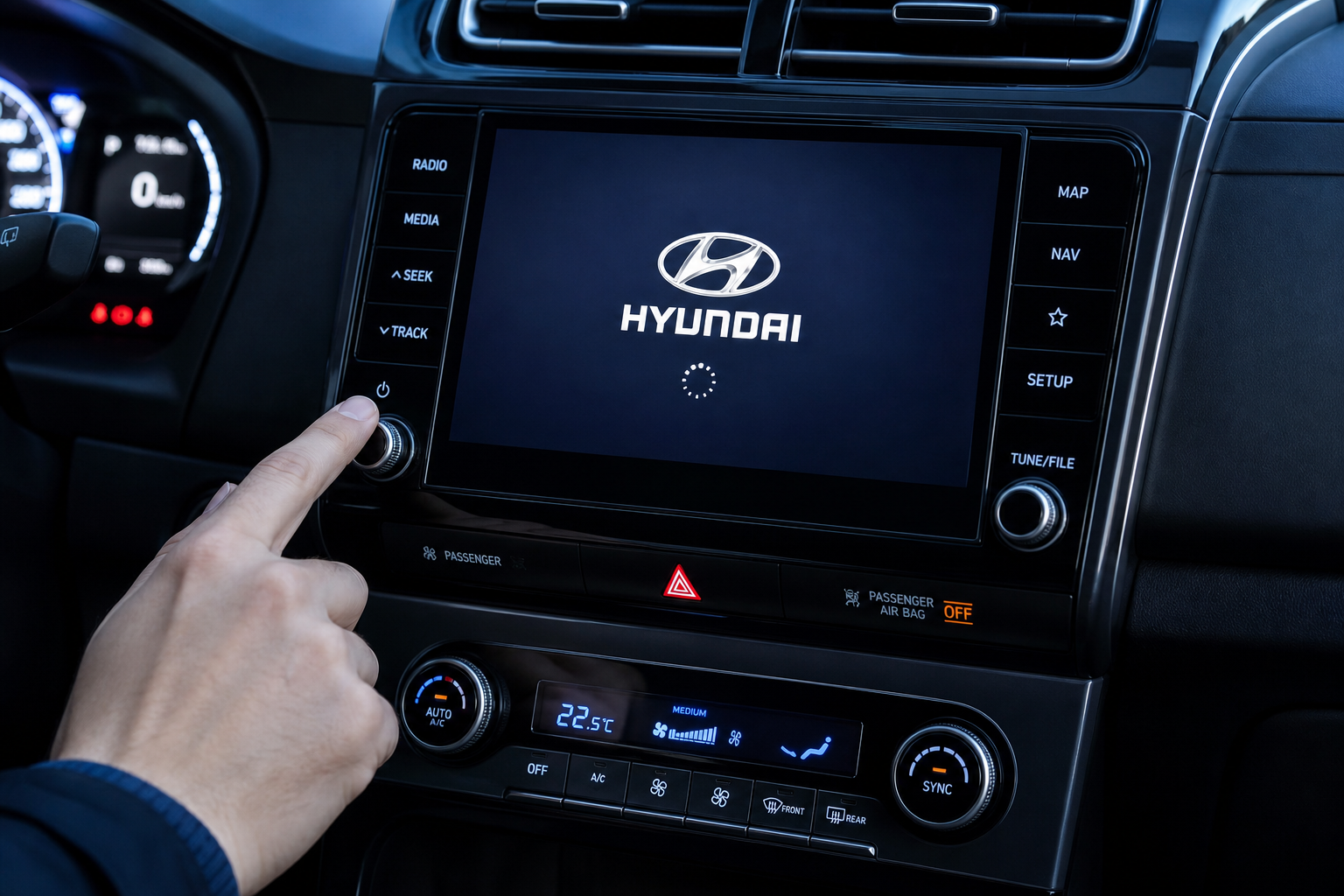
Sometimes the problem isn’t your phone or the cable, it’s the head unit itself getting stuck in a bad state. A soft reboot clears temporary glitches without wiping any of your saved settings.
- Turn off the vehicle completely and remove the key or fob from range.
- Wait a full two minutes. This matters more than people think, since the system needs time to fully discharge and reset.
- Start the vehicle again and test CarPlay before you touch anything else.
If that doesn’t help, look for a hidden reset button on the touchscreen bezel on some Tucson trims, or hold down the power and volume knob together for about ten seconds, which forces a hard reset on many Hyundai infotainment units. Check your specific model year’s manual since the exact combination varies between the 2019-2021 and 2022+ systems.
Software Updates and iOS Compatibility
Hyundai pushes infotainment updates that specifically address CarPlay stability, and these are easy to miss if you’re not checking. Go into your Tucson’s settings menu and look for a system update option, or check with your dealer, since some updates require a USB download from Hyundai’s owner site rather than an over-the-air push.
On the phone side, outdated iOS versions occasionally lose compatibility with older infotainment software, and brand-new iOS versions sometimes ship with CarPlay bugs that Apple patches within a few weeks. If you updated your iPhone right before the disconnects started, that timing isn’t a coincidence. Check Apple’s release notes or just wait a week or two for the next point update before assuming it’s your car’s fault.
For drivers who want a backup option that sidesteps cable wear entirely, a wireless CarPlay adapter can convert a wired-only Tucson into a wireless-capable one, or add redundancy to a system that already has wireless but keeps dropping.
CarlinKit Wireless CarPlay Adapter
Plugs into your existing wired USB port and converts it to wireless CarPlay, useful if your Tucson trim only supports wired connections.
If you’re troubleshooting cable issues in general, it also helps to have a reliable charging setup in the cabin so you’re not relying on a worn-out factory cable for both power and data. Our breakdown of wireless car chargers is worth a look if you want to reduce how often you’re plugging and unplugging a cable in the first place.
Frequently Asked Questions
Why does my Tucson’s CarPlay work fine at home but disconnect during long drives?
This usually points to a cable or port issue rather than a software problem, since heat buildup and cable flexing during longer drives can cause an already marginal connection to fail. It can also be a wireless Wi-Fi interference issue if you’re driving through areas with a lot of competing signals. Try a wired connection with a fresh cable on your next long trip to isolate the cause.
Can a bad USB port in my Tucson be repaired, or do I need a new head unit?
Most USB port issues are just dirt, lint, or corrosion inside the port rather than actual hardware failure. Try a can of compressed air on the port before assuming you need a dealer visit. If the port still won’t hold a data connection after cleaning and testing multiple cables, that’s when it’s worth having a technician check it, though full head unit replacement is rarely necessary.
Does resetting CarPlay affect my Tucson’s other saved settings like seat memory or Bluetooth phone pairing for calls?
No. Deleting and re-adding your device for CarPlay only affects the CarPlay pairing profile, not seat memory, climate presets, or other Bluetooth connections like a separate phone pairing for hands-free calling. Those live in different parts of the system and won’t be touched by anything covered in this guide.

Leave a Reply