

You’re halfway through your commute, Apple Music is playing, and suddenly your Honda Pilot’s screen kicks you back to the home screen with no CarPlay in sight. A few seconds later it reconnects, only to drop again a mile down the road. If this sounds like your daily routine, you’re dealing with one of the most common complaints Pilot owners bring up, and thankfully, most causes come down to a short list of fixable issues.
Before you start swapping parts or calling the dealer, work through the troubleshooting steps below. They’re organized by wired and wireless setups since the fixes aren’t identical for both.
Wired CarPlay Disconnects: Check the Cable and Port First
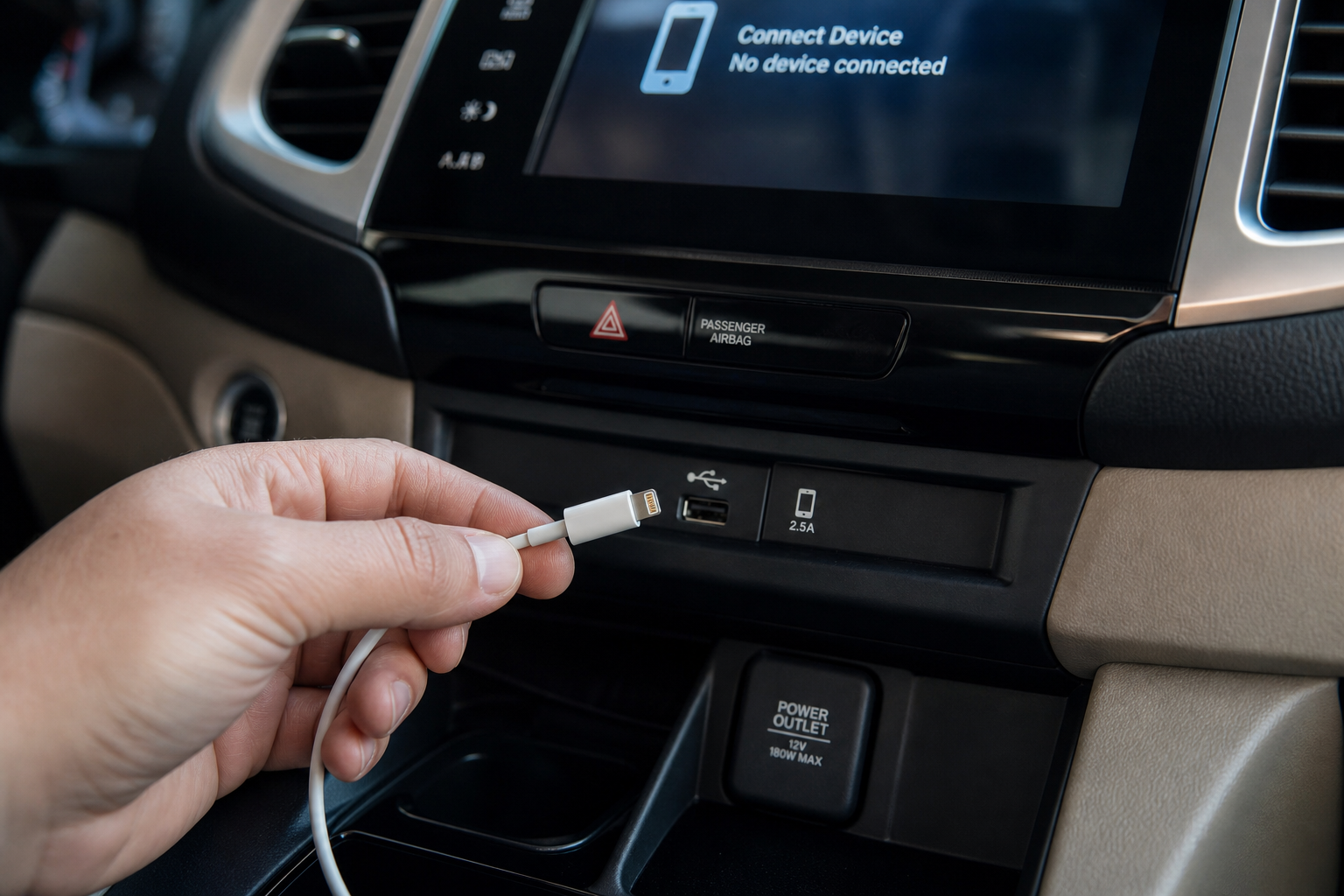
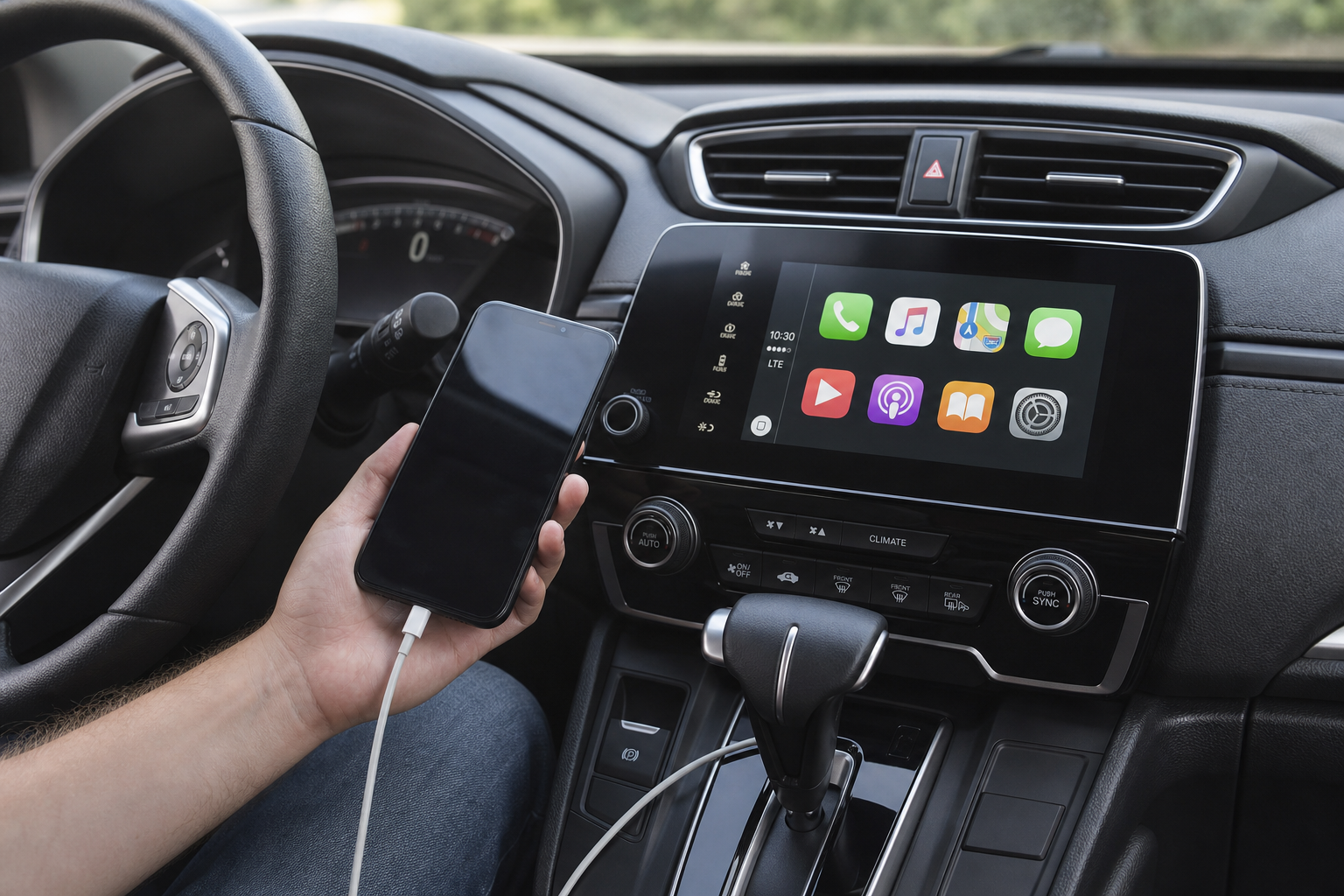
Most disconnection complaints on the Pilot trace back to the USB cable or port, not the infotainment system itself. Honda equips the Pilot with multiple USB ports, but not all of them handle data. Some are charge-only, which means CarPlay simply won’t stay connected even if the phone appears to charge fine.
- Check your owner’s manual diagram to confirm which port is labeled for data/CarPlay use. On most Pilot trims, it’s the port closest to the infotainment screen, usually marked with a small icon.
- Swap the cable. Cheap or worn cables are the number one cause of intermittent CarPlay drops. A frayed or loose-fitting connector can disconnect with the slightest vibration.
- Avoid charge-only cables. Some third-party cables are built for power delivery only and lack the data lines CarPlay needs.
If you’re not sure your current cable is the problem, it’s worth replacing it with a known-good MFi-certified option rather than guessing.
Anker MFi Certified Lightning Cable
A reliable, Apple-certified cable that reduces the “charge-only port” and data-dropout issues common with cheaper cables.
Also inspect the USB port itself for lint, debris, or a loose internal connector. If you’re constantly plugging and unplugging, that port sees a lot of wear, and a can of compressed air can clear out buildup that’s causing a bad connection.
Wireless CarPlay Dropping: Bluetooth and Wi-Fi Are the Usual Suspects

Not every Honda Pilot supports wireless CarPlay. It became available starting with the redesigned 2023 Pilot on higher trims, so if you’re driving an older model year, wireless simply isn’t an option regardless of what fixes you try. Confirm your trim and model year support it before assuming something is broken.
If your Pilot does support wireless CarPlay, disconnects are almost always a Bluetooth or Wi-Fi handshake problem, since wireless CarPlay uses Bluetooth to establish the connection and Wi-Fi Direct to stream audio and video.
- Forget and re-pair Bluetooth. Go into your phone’s Bluetooth settings, forget the Pilot’s system, then delete the paired device from the infotainment screen too. Re-pair from scratch.
- Check Wi-Fi settings on your phone. Wireless CarPlay needs Wi-Fi turned on, even though you’re not connecting to a network. If Wi-Fi is off, the connection can’t stay stable.
- Delete and re-add the vehicle profile under CarPlay settings on your iPhone (Settings > General > CarPlay). This clears out corrupted pairing data that causes repeated drops.
- Keep your phone within range. Wireless CarPlay is more sensitive to distance and interference than wired. Phones left in a center console with metal trim or a thick case sometimes lose signal strength.
If you frequently deal with dead battery issues from wireless CarPlay’s higher power draw, it’s a good idea to pair it with a fast wireless charging pad so your phone doesn’t run low mid-drive.
Anker Wireless Car Charger Mount
Keeps your phone charged during wireless CarPlay sessions, which pull more battery than wired connections.
For more on wireless charging options in general, our guide on wireless car chargers covers what to look for beyond just the Honda-specific setup.
Software Fixes: Reboots, Updates, and iOS Compatibility
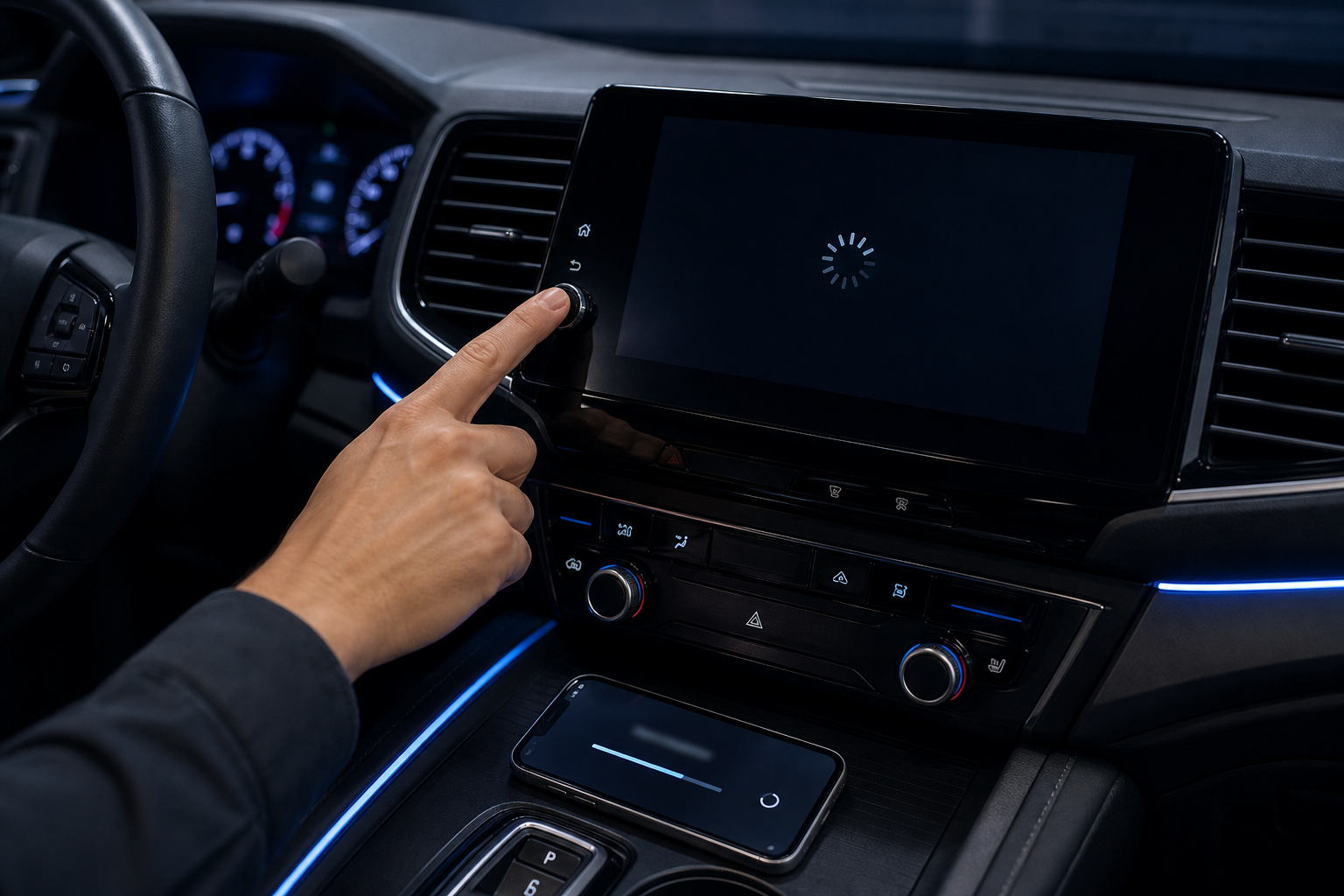
If cables and pairing aren’t the issue, the problem is likely software on one end or the other.
Restart your iPhone. This clears background processes that sometimes interfere with CarPlay’s connection handshake, and it fixes more disconnect issues than people expect.
Reboot the infotainment system. On most Pilot model years, press and hold the power/volume knob for about 10 seconds until the screen goes black and restarts. This resets the head unit without needing a full battery disconnect.
Update your iOS version. Apple regularly patches CarPlay bugs, and running an outdated iOS version alongside newer infotainment software can cause conflicts. Check Settings > General > Software Update on your phone.
Check for Honda infotainment updates. Honda pushes firmware updates that address known CarPlay bugs, sometimes tied to specific model years. You can check for updates through the vehicle’s settings menu or ask your dealer to check during a service visit, since some updates require a USB drive or dealer tool to install.
If none of these steps resolve the issue, a factory reset of the infotainment system (found in Settings > System > Reset) is the next step, though it will erase saved preferences and paired devices, so treat it as a last resort.
Frequently Asked Questions
Does every Honda Pilot support wireless CarPlay?
No. Wireless CarPlay was introduced on the redesigned 2023 Pilot and is limited to certain trims with the larger touchscreen. If you own a 2022 or earlier Pilot, you’ll need a wired connection, since there’s no software update that adds wireless capability to older hardware.
Why does CarPlay only disconnect when I hit bumps or rough roads?
This points almost directly to a loose USB connection rather than a software issue. Vibration from rough roads is enough to break contact on a worn cable or a port with a loose internal connector, so try a new cable first and check that the connector clicks in securely before assuming it’s a deeper electrical problem.
Leave a Reply