
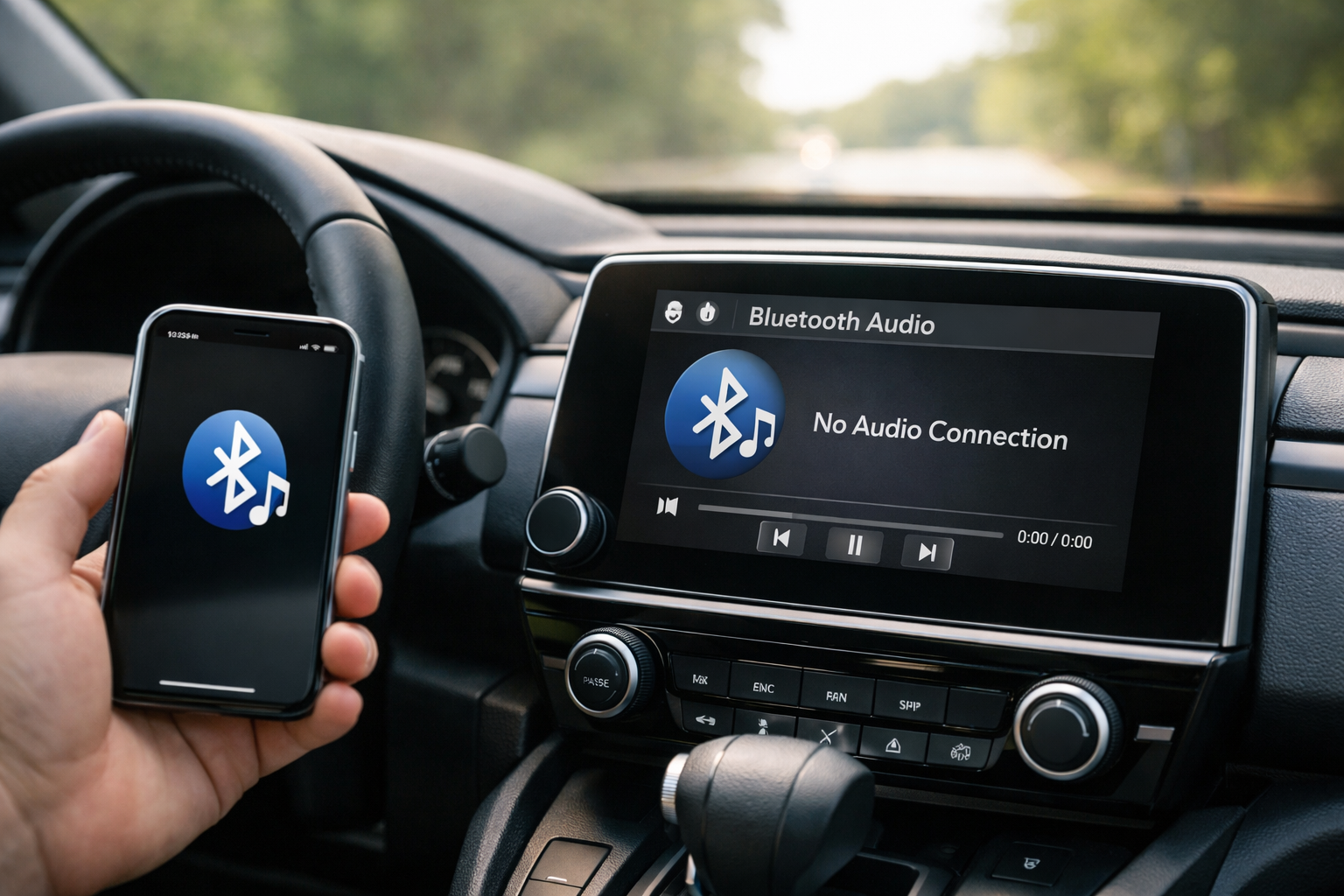
The Honda CR-V’s Bluetooth system has improved significantly across generations, but a persistent quirk remains across all of them: the system often pairs for phone calls but doesn’t automatically enable audio streaming. This means you can make and receive calls through the car’s speakers, but music continues to play from the phone’s built-in speaker.
Understanding the separate phone and media profiles, and how to enable both, solves the most common CR-V Bluetooth frustration.
6th Gen CR-V (2023+)
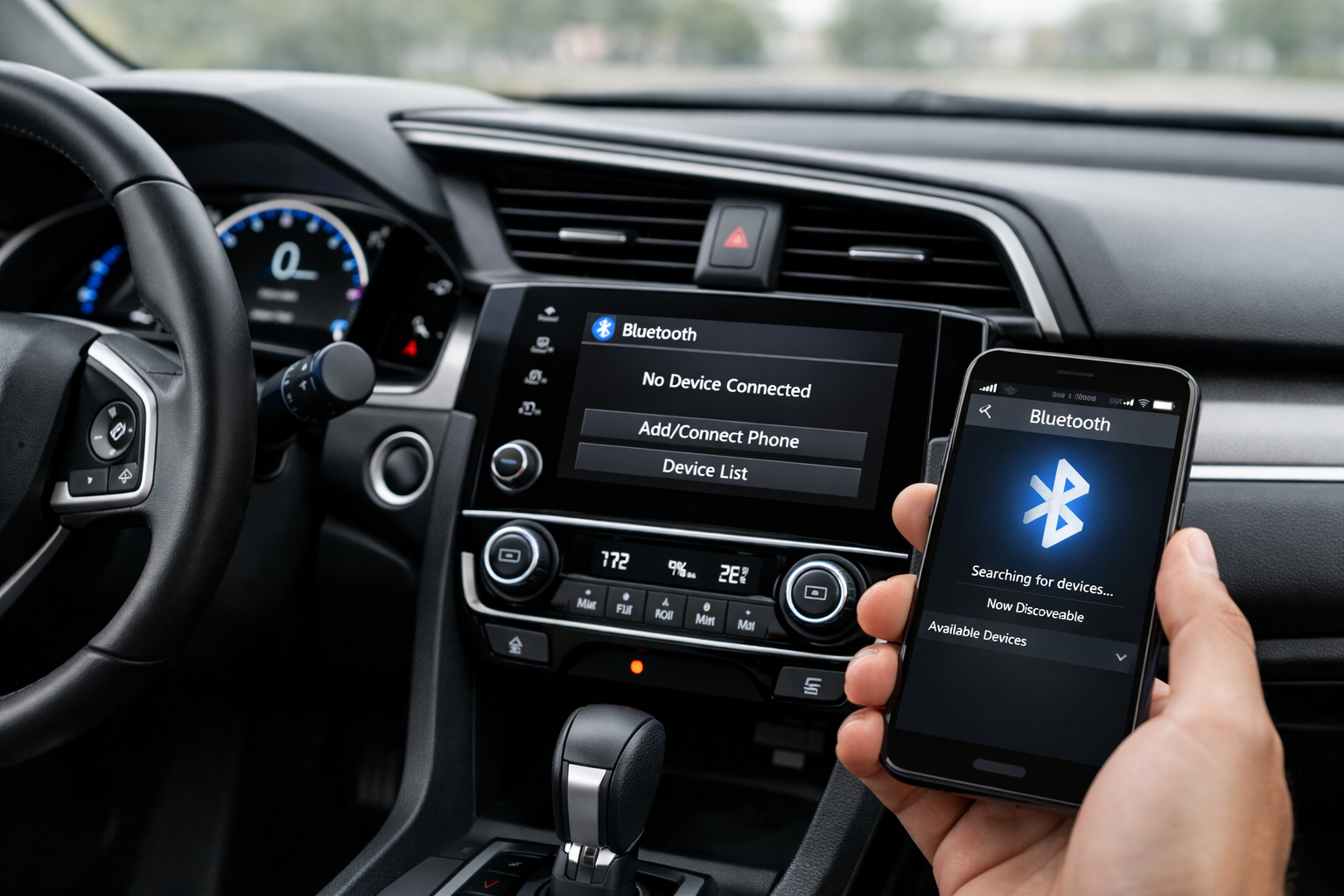
On the touchscreen, tap Settings > Connections > Bluetooth > Pair New Device. Your phone should appear in the discovered devices list within a few seconds.
Select it, confirm the 6-digit pairing code on both the phone and the car screen, and grant permissions for contacts and messages. Both call and media audio profiles should enable automatically on this generation, which is a welcome improvement over the 5th gen’s more manual process.
Apple CarPlay is available via USB on all 2023+ CR-V trims. Wireless CarPlay is standard on the 2024+ models. Android Auto follows the same wired/wireless availability pattern.
5th Gen CR-V (2017-2022)
On the touchscreen, navigate to Settings (gear icon) > Phone > Bluetooth Device List > Add Bluetooth Device. The CR-V broadcasts its Bluetooth name. Pair from your phone and confirm the code on both screens.
After pairing, this is the critical step that many owners miss: go to Device Options for your phone and verify that both “Phone” and “Audio” checkboxes are enabled. The 5th gen CR-V doesn’t always enable the audio profile automatically, which is the root cause of the “paired but no music” complaint.
4th Gen CR-V (2012-2016): HandsFreeLink
Press the Phone button on the steering wheel. Follow the voice prompts or navigate through the small display to Phone Setup > Pair Phone.
The system generates a PIN that you enter on your phone to complete pairing. HandsFreeLink on the 4th gen CR-V has limited audio streaming support depending on the trim level. Base models may only support phone calls via Bluetooth, with music requiring a wired connection through the AUX input or USB port.
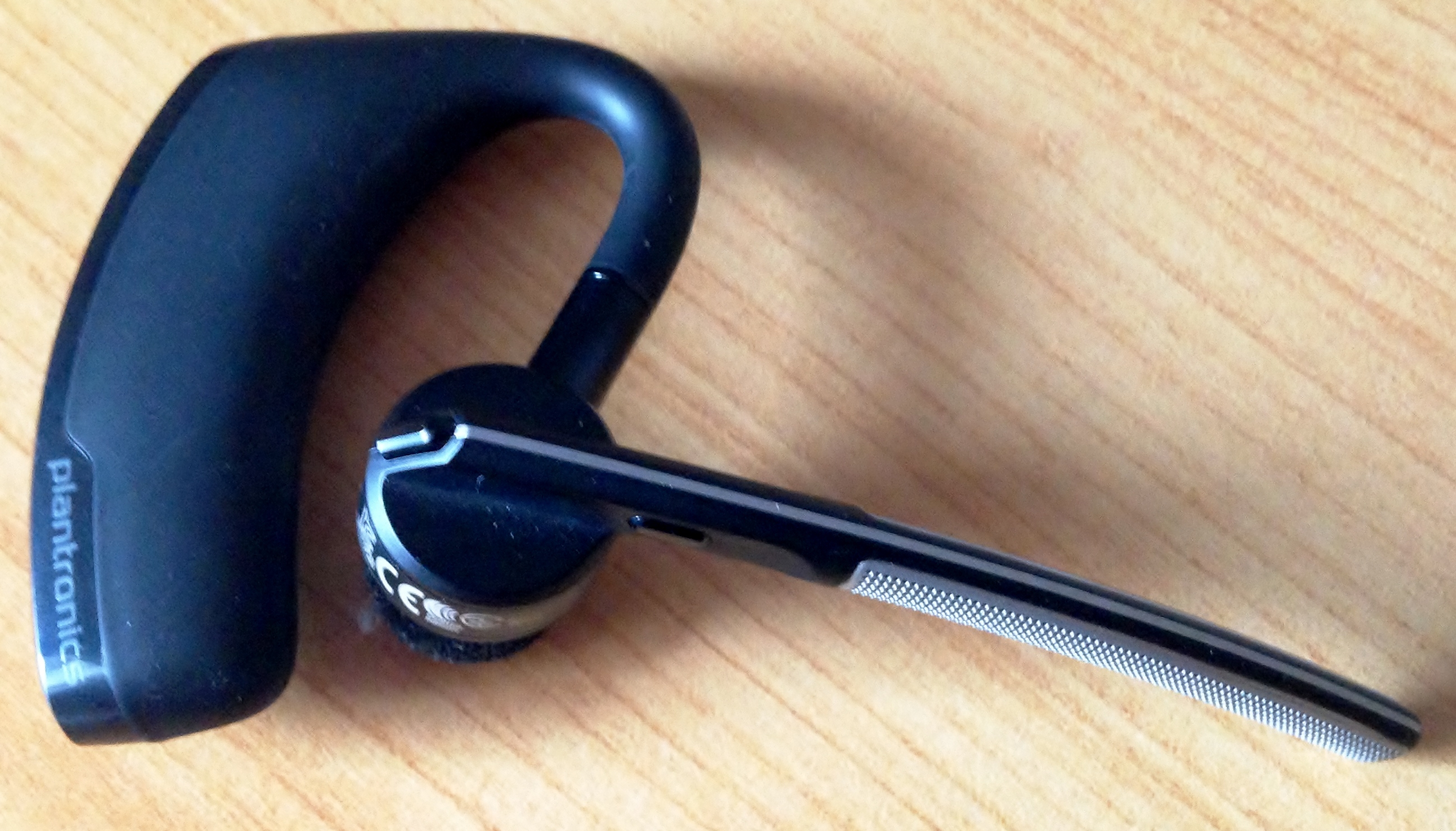
For 4th gen trims without Bluetooth audio streaming, a Bluetooth AUX adapter is the simplest upgrade. It plugs into the AUX jack and pairs with your phone for wireless music streaming, adding the functionality that the base system lacks.

Bluetooth AUX Adapter
Add wireless audio to older CR-V trims without media Bluetooth support
The “Paired But No Audio” Fix in Detail
This issue affects CR-V owners across all generations and is Honda’s most common Bluetooth complaint. The root cause is that Bluetooth actually uses separate services (called profiles) for phone calls (HFP) and audio streaming (A2DP).
These profiles can be enabled or disabled independently on both the car and the phone. When pairing completes, sometimes only the phone call profile activates while the audio streaming profile stays disabled.
Fixing it requires checking both sides. On your phone, go to Bluetooth settings, find the CR-V in your paired devices, tap the gear or info icon, and verify “Media Audio” is toggled ON. On the CR-V, go to the Bluetooth device settings, select your phone, and make sure the “Audio” or “Media” profile is checked.
If both show as enabled but audio still streams through the phone’s speaker, delete the pairing on both devices (forget the CR-V on your phone, delete the phone from the CR-V’s list) and re-pair from scratch. This nuclear option clears corrupted connection data that can prevent the audio profile from working even when it shows as enabled in the settings.
Managing Paired Devices
The 6th gen CR-V stores up to 8 paired devices. The 5th gen stores 6. The 4th gen HandsFreeLink stores 5 or 6 depending on the trim.
When the limit is reached, you can’t add a new phone until you remove an old one. Navigate to the Bluetooth device list, select the unused device, and choose “Delete” or “Remove.”
Only one phone can be actively connected for calls at a time on the 4th and 5th gen. The 6th gen supports two simultaneous connections, allowing one phone for calls and another for music.
If you’re shopping for a vehicle with a growing family, you might want to read our comparison of the Toyota RAV4 vs Honda CR-V for a growing family to see how connectivity features stack up between these popular SUVs.
Frequently Asked Questions
How do I delete old paired phones from my CR-V?
Navigate to Settings > Phone > Bluetooth Device List (5th gen) or Settings > Connections > Bluetooth (6th gen). Select the device to remove and choose “Delete.”
This frees a slot for new phones and can help resolve connection conflicts with devices that are no longer used.
Can I set up CarPlay on the CR-V?
Apple CarPlay is available on 2017+ CR-Vs via USB connection. Wireless CarPlay is standard on 2024+ models. Android Auto follows the same availability pattern.
CarPlay requires a USB connection on most 5th gen trims and works wirelessly on 6th gen models with the appropriate software version. If you’re having CarPlay issues with a different vehicle, our guide on fixing Toyota RAV4 Apple CarPlay not connecting covers similar troubleshooting steps.
Why does Bluetooth disconnect when I start the car?
Some phones take several seconds to establish the Bluetooth connection after the car starts. If the CR-V consistently fails to auto-reconnect, delete the pairing on both devices and re-pair fresh.
Ensure both your phone’s OS and the CR-V’s infotainment software are up to date, as both receive Bluetooth compatibility improvements through updates.
Does the Honda CR-V or Toyota RAV4 have better Bluetooth connectivity?
Both vehicles have similar Bluetooth capabilities in their current generations, with dual-profile support for phone and media audio. The 6th gen CR-V (2023+) and the current RAV4 both support wireless CarPlay and Android Auto on higher trims.
For a detailed comparison of these two popular SUVs beyond just connectivity features, check out our full RAV4 vs CR-V comparison.

Leave a Reply