
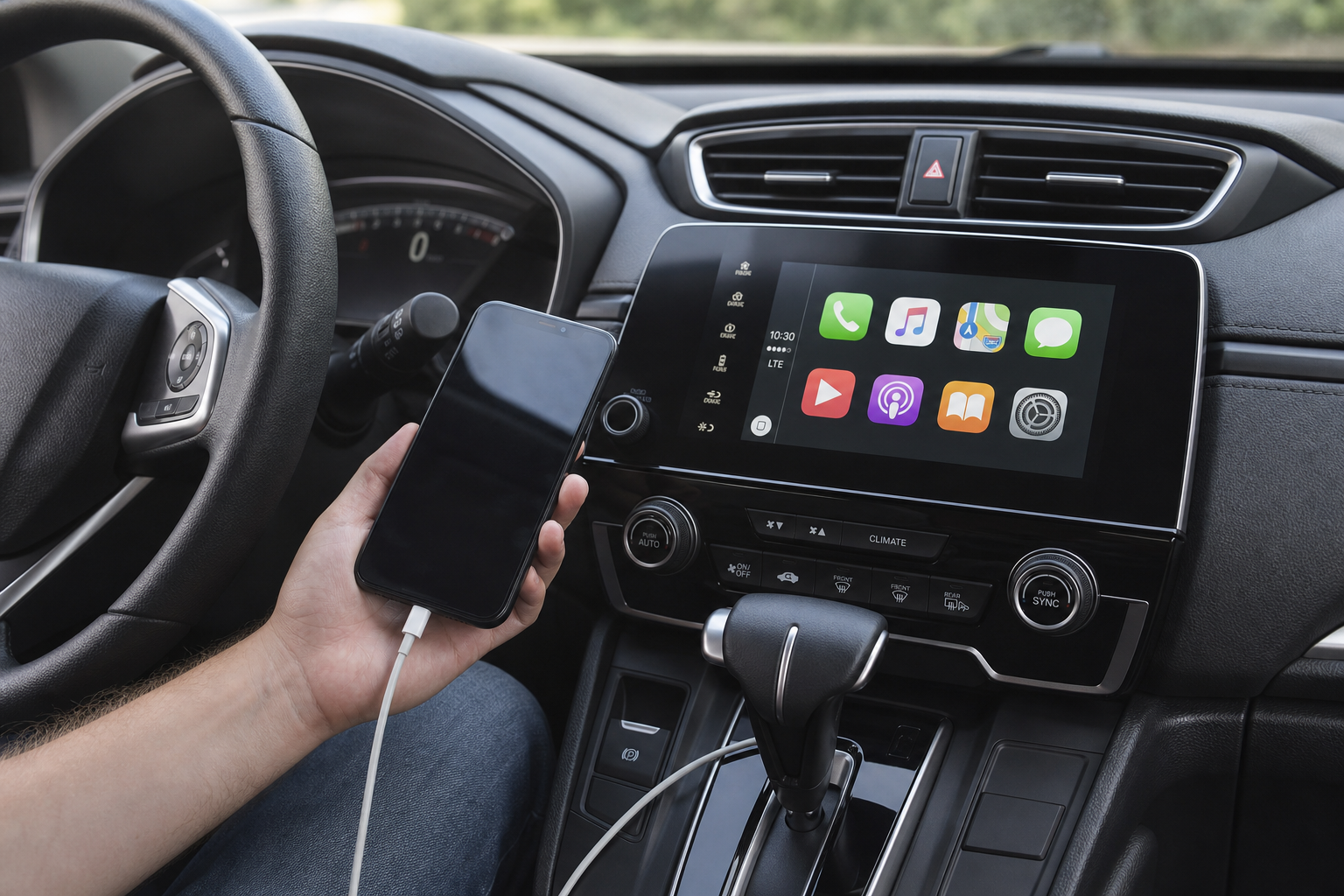
You’re halfway through a phone call or a podcast episode and suddenly your dashboard flashes back to the regular Honda menu screen. Apple CarPlay dropped again. If this happens on your CR-V more than once a week, you’re dealing with a real, fixable issue, not just bad luck. Honda’s infotainment system has some quirks specific to the CR-V, and knowing which fix applies to your setup (wired or wireless) will save you a lot of frustration.
This guide walks through every common cause of CarPlay disconnects on the CR-V, from bad cables to software glitches, and gives you the exact steps to fix each one. We’ll also cover which model years actually support wireless CarPlay, since a lot of owners waste time troubleshooting a feature their trim doesn’t even have.
Why Honda CR-V CarPlay Disconnects Happen in the First Place
Most disconnects trace back to one of four things: a flaky physical connection, a Bluetooth or Wi-Fi handshake that’s gotten corrupted, an iPhone software quirk, or outdated infotainment firmware in the CR-V itself. The tricky part is that wired and wireless CarPlay fail for different reasons, so the fix that works for your buddy’s wired setup might do nothing for your wireless connection.
Before you assume something’s broken, it helps to know exactly which generation of CR-V you’re driving. The 2017 through 2022 CR-V (fifth generation) supports wired CarPlay across most trims, but wireless CarPlay wasn’t standard until later in that run and depended on the infotainment version installed. The 2023 and newer CR-V (sixth generation) added wireless CarPlay more broadly, especially on EX-L and Touring trims with the larger touchscreen. If you’re not sure which you have, check your owner’s manual or Honda’s official trim specs before spending money on adapters you don’t need.
Fixing Wired Apple CarPlay Disconnects
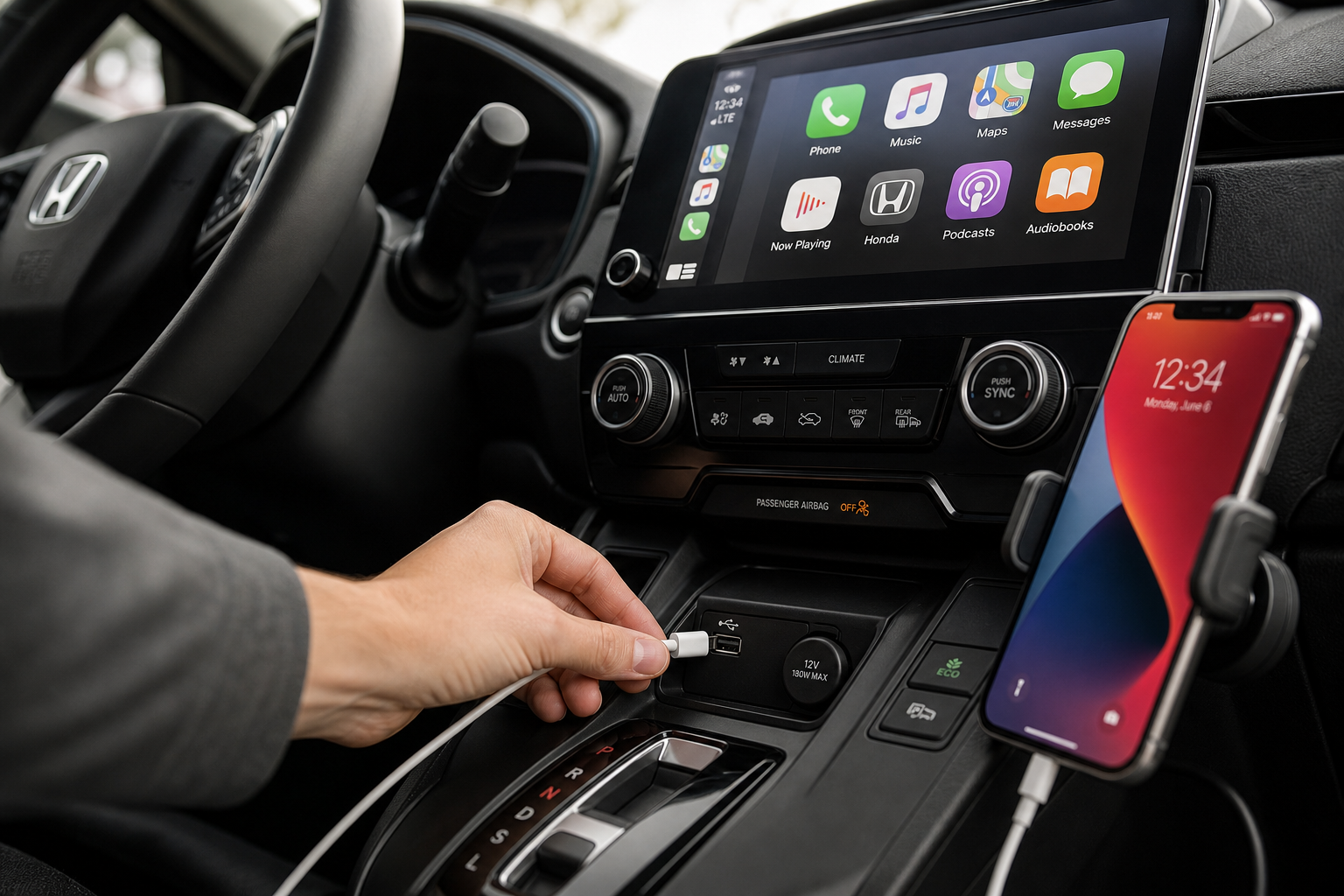
Wired connections drop out for boring but very fixable reasons. Start here before you touch any settings.
Check the Cable and USB Port First
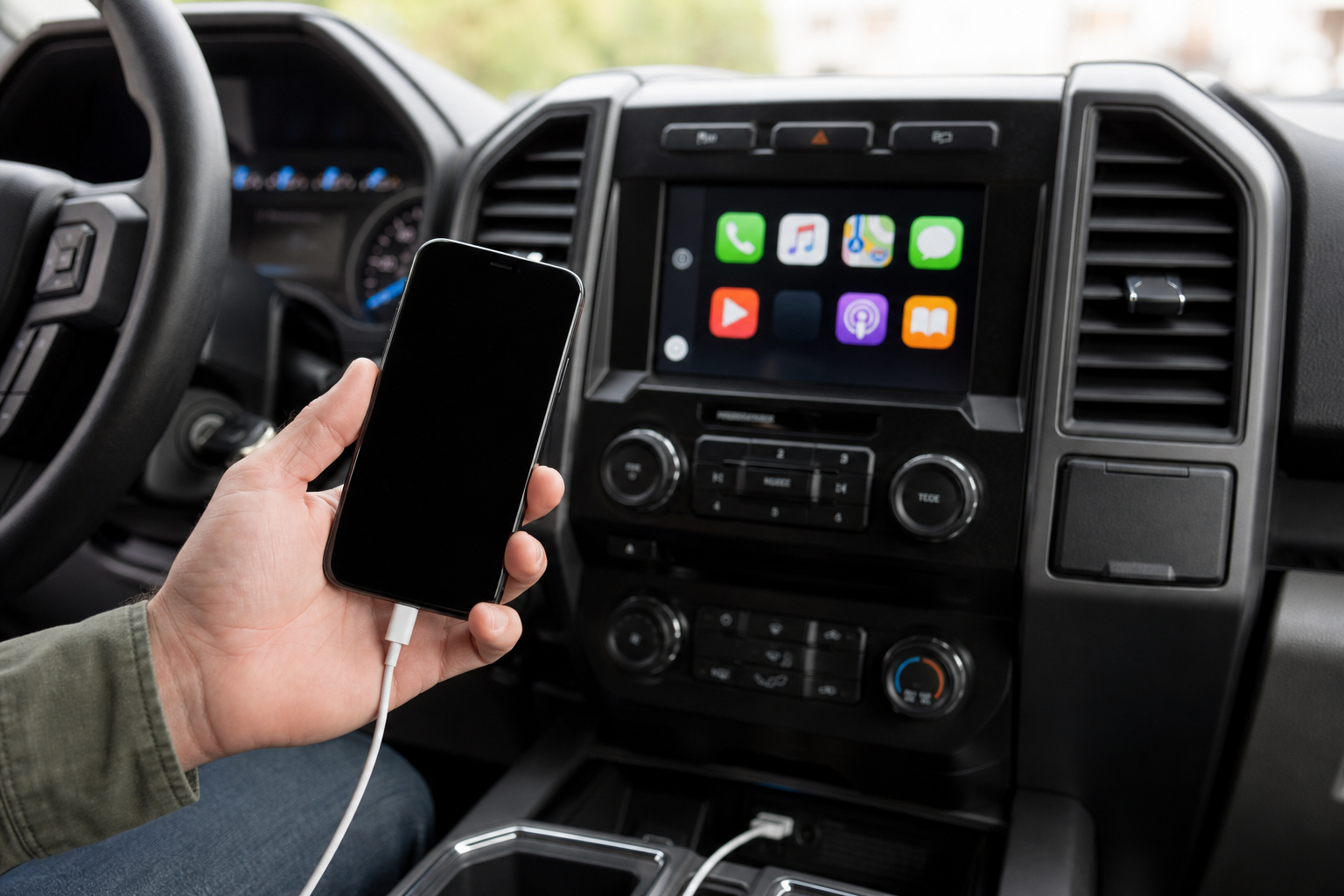
This is the number one cause of wired CarPlay dropping, hands down. Not every USB port in your CR-V passes data. Many Honda models have one USB port dedicated to charging only, while the other supports the data transfer CarPlay needs. Check your owner’s manual for which port is labeled for data, and if you’ve been plugging into the wrong one, that alone explains your disconnects.
The cable matters just as much. Cheap or worn Lightning cables lose their data pins over time even if they still charge your phone fine. Swap in a certified Apple Lightning cable or a well-reviewed replacement and see if the problem disappears immediately. A lot of CR-V owners find a fresh CarPlay-compatible USB cable solves the issue completely, with zero further troubleshooting needed.
Anker Powerline II Lightning Cable
Reinforced connectors and braided cabling hold up far better than stock Apple cables under daily plug-in wear.
Also inspect the port itself for lint or debris. USB ports collect pocket lint and dust over years of use, and a partially blocked port can cause intermittent data loss even with a perfect cable.
Restart Your iPhone
It sounds too simple, but a full phone restart clears out background processes that can interfere with the CarPlay handshake. Don’t just close the CarPlay app or lock the screen, actually power the phone off and back on. Do this after unplugging from the CR-V, then plug back in once the phone has fully booted.
Fixing Wireless Apple CarPlay Disconnects
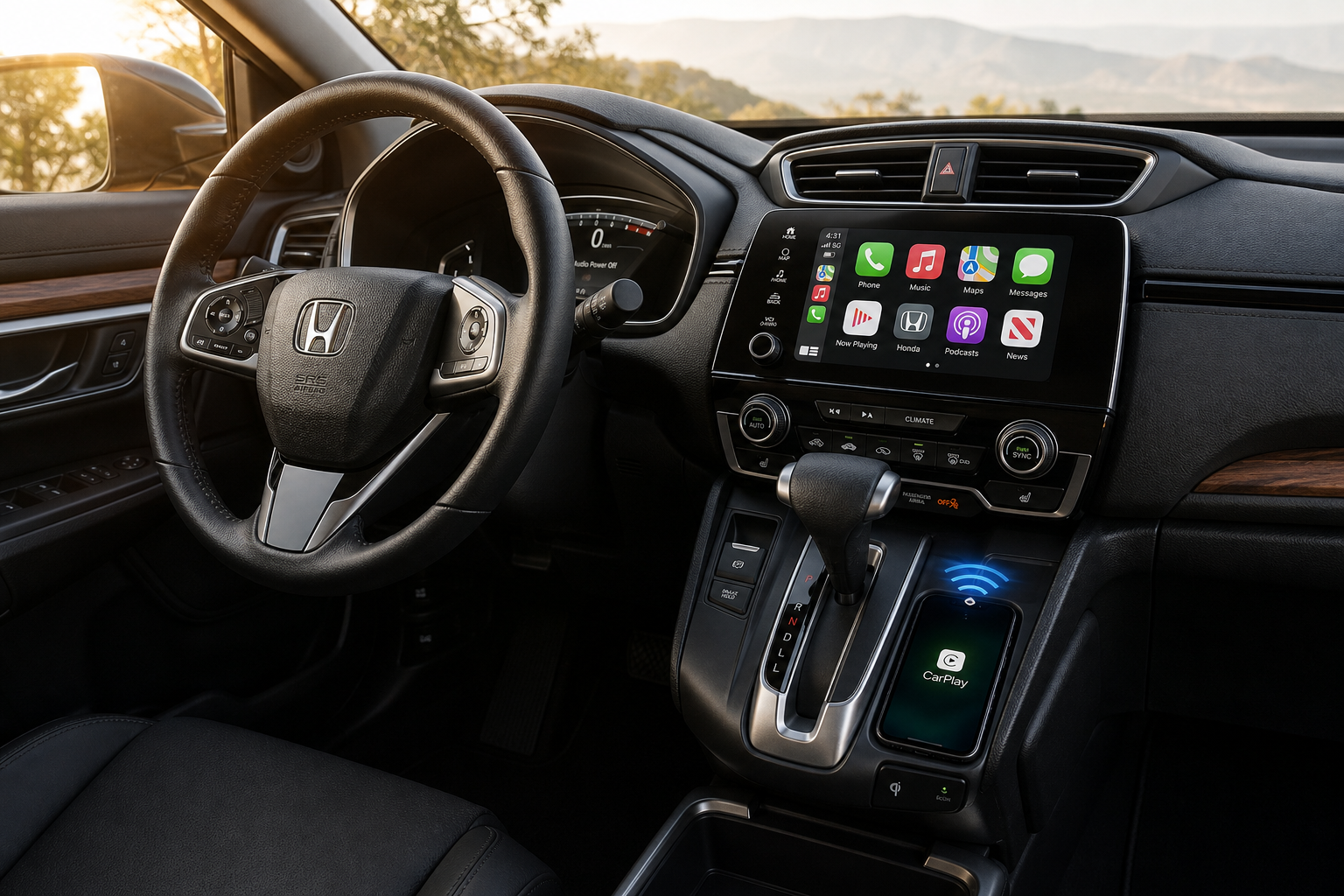
Wireless CarPlay depends on both Bluetooth and Wi-Fi working together, which gives you twice as many points of failure compared to a cable. The good part is that the fixes are just as clear-cut.
Reset the Bluetooth and Wi-Fi Pairing
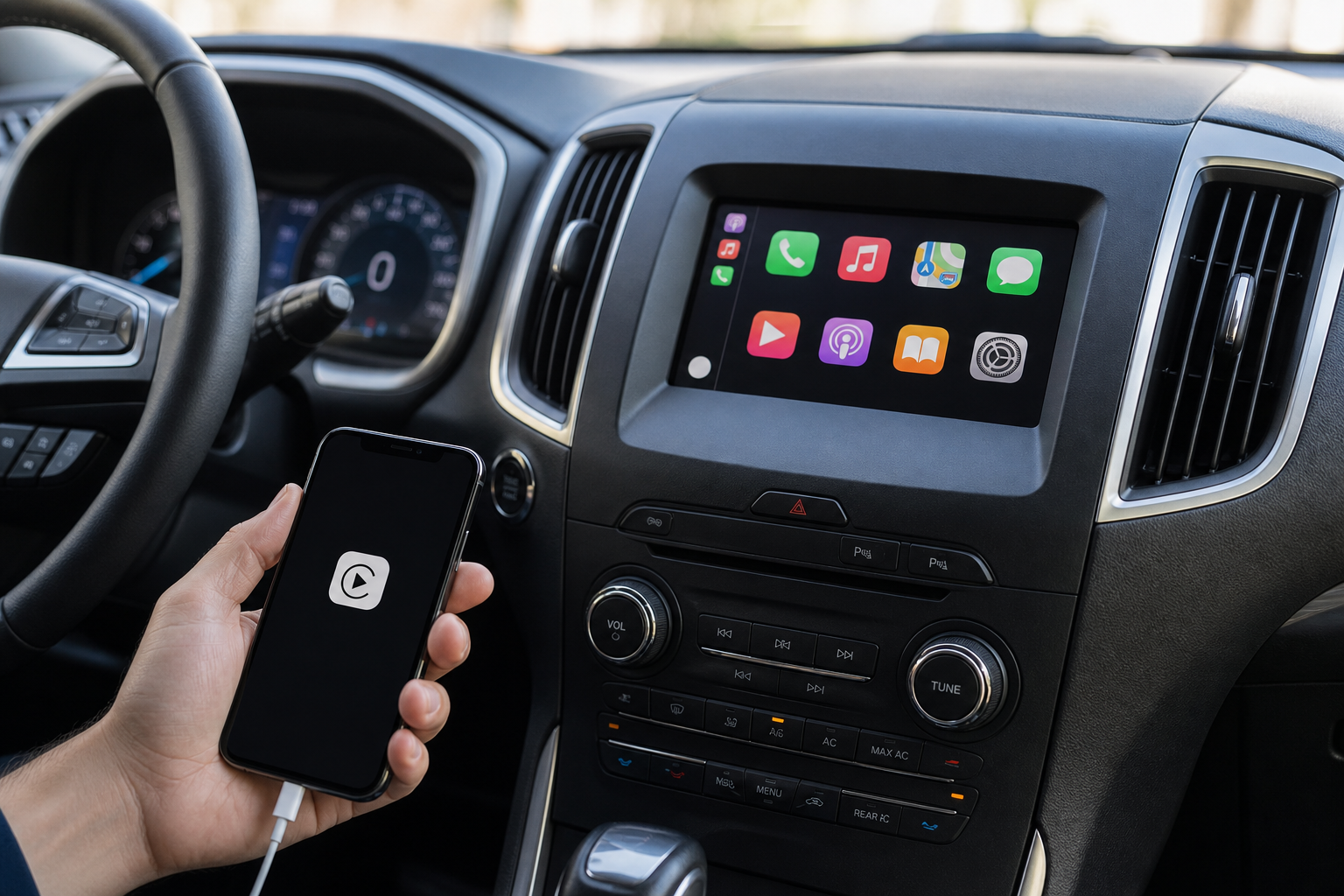
Wireless CarPlay uses Bluetooth to initiate the connection and then hands off to a direct Wi-Fi link for the actual screen mirroring. If either handshake gets corrupted, you’ll get random drops even with full signal strength. On your iPhone, go to Settings, Bluetooth, tap the info icon next to your CR-V’s name, and select Forget This Device. Do the same under Settings, Wi-Fi for any saved network related to your Honda.
Then head into your CR-V’s infotainment settings and delete the paired phone from there too. Reconnect from scratch by putting your phone in pairing mode and letting the CR-V rediscover it. This clears out any stale connection data that’s been causing the silent drops.
Delete and Re-Add the Vehicle Profile
If resetting Bluetooth alone doesn’t help, go a step further and remove the entire vehicle profile from your phone, not just the Bluetooth pairing. This forces iOS to treat the CR-V as a brand new device on the next connection, which resolves a surprising number of persistent wireless dropout cases that a simple re-pair doesn’t fix.
Consider a Wireless CarPlay Adapter
If your CR-V only supports wired CarPlay but you want the wireless experience anyway, a dedicated adapter that plugs into your existing USB port can convert the connection to wireless. These are especially popular among owners of the 2017 to 2021 CR-V who don’t have factory wireless support.
CarlinKit Wireless CarPlay Adapter
A budget-friendly way to add wireless CarPlay functionality to CR-V models that only came with wired support from the factory.
Just know that third-party adapters add their own layer of potential connection issues, since now you’re relying on the adapter’s own Wi-Fi radio instead of Honda’s factory hardware. If you’re already fighting disconnects, going wired with a quality cable is usually the more dependable route.
Rebooting the Infotainment System
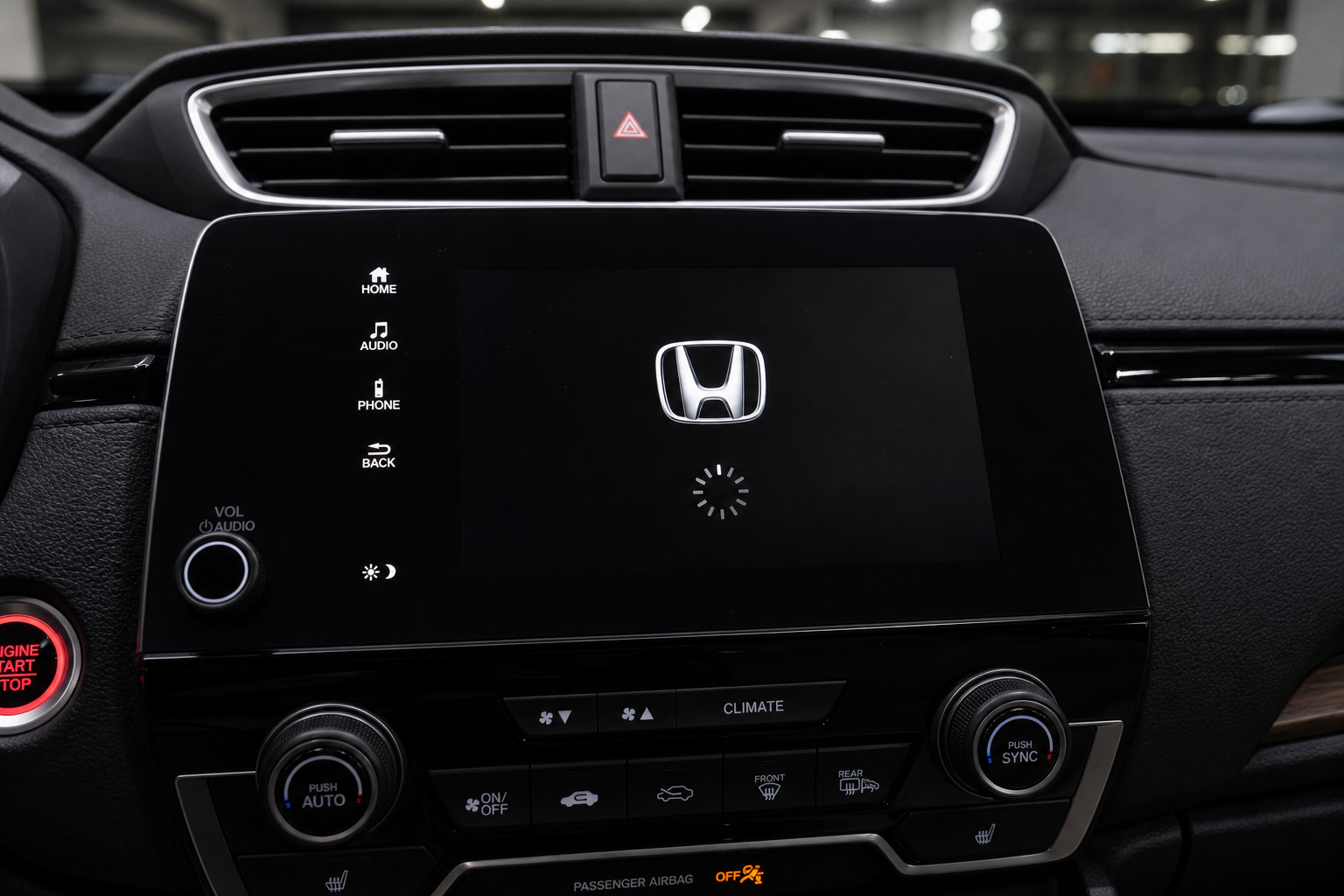
Sometimes the problem isn’t your phone or the cable at all, it’s the CR-V’s head unit locking up. A soft reboot clears the memory and resolves a lot of one-off glitches without erasing any of your settings.
On most CR-V models, you can force a restart by holding down the power button on the infotainment screen for about 10 seconds, or by pressing and holding the volume and back buttons simultaneously depending on your model year’s button layout. If that doesn’t respond, turn the vehicle off completely, wait a minute, and start it again. This is a similar concept to how resetting other onboard systems clears stuck warnings, the same way you’d approach a stubborn TPMS light on a Honda CR-V TPMS reset.
Check for Software Updates
Honda periodically releases infotainment updates that specifically address CarPlay stability. If you haven’t updated your system in over a year, this is worth checking before you try anything more involved. Go to the Settings menu on your touchscreen, then look for System Update or Software Update, and connect to Wi-Fi if prompted since most updates won’t download over cellular.
You can also check with your Honda dealer, since some updates require a USB download from Honda’s owner site or a dealership visit for larger firmware pushes. It’s a quick ask next time you’re in for an oil change, and dealerships often push these updates for free.
iOS Compatibility Issues
Apple updates iOS frequently, and every so often a new version introduces a CarPlay bug before Apple patches it in the following point release. If your disconnects started right after updating your iPhone, that timing is a strong clue.
Check Apple’s support pages for known CarPlay issues tied to your specific iOS version, and don’t be afraid to hold off on updating further until you see other CR-V owners confirm a fix works. In the meantime, toggling CarPlay off and back on under Settings, General, CarPlay can sometimes work around the bug until Apple issues a patch.
Model-Specific Reset Procedures
The fifth-generation CR-V (2017-2022) and sixth-generation CR-V (2023-present) use different infotainment platforms, so their reset button combinations aren’t identical. On the fifth-gen models with the 7-inch touchscreen, a factory data reset lives under Settings, System, Reset, and this wipes all paired devices, so only use it as a last resort after trying everything above.
The redesigned sixth-gen system uses Google-built infotainment on higher trims, which handles CarPlay slightly differently and tends to be more stable overall based on owner feedback. If you’re shopping for a used CR-V and CarPlay reliability matters to you, that’s a real point in favor of the newer generation.
Whatever generation you drive, keeping your phone’s charging habits sensible matters too. A phone that’s constantly low on battery and drawing heavy power through the same cable running CarPlay can cause voltage drops that interrupt the connection. If you’re dealing with broader electrical quirks in your CR-V, it’s also worth ruling out anything affecting your car battery dying overnight even when the alternator is good, since a weak charging system can indirectly affect infotainment stability too.
FAQ
Does the Honda CR-V support wireless Apple CarPlay?
It depends on the model year. Wireless CarPlay became available on certain 2022 CR-V trims and is more widely offered on the redesigned 2023 and newer models, particularly EX-L and Touring trims. Earlier CR-Vs from 2017 to 2021 typically require a wired connection unless you add a third-party wireless adapter.
Why does my CarPlay keep disconnecting only when I’m charging my phone?
This usually points to a USB port that’s not passing data properly, or a cable that’s degraded and only carrying enough current to charge but not enough bandwidth for CarPlay’s data stream. Try a different port in your CR-V and swap the cable before assuming anything else is wrong.
Will updating my iPhone fix CarPlay disconnects?
Sometimes, but not always. If your issue started after an iOS update, waiting for Apple’s next patch or checking known bug reports online is smarter than updating further without confirmation. If your iPhone is running an older iOS version, though, updating can resolve compatibility issues with newer Honda infotainment software.
Can a bad USB cable really cause random CarPlay dropouts?
Yes, and it’s one of the most common causes. Lightning cables wear out internally well before they stop charging your phone, since the data pins degrade faster than the power pins. If you’re getting intermittent drops rather than a total failure to connect, a cable swap should be your first troubleshooting step.
Leave a Reply