
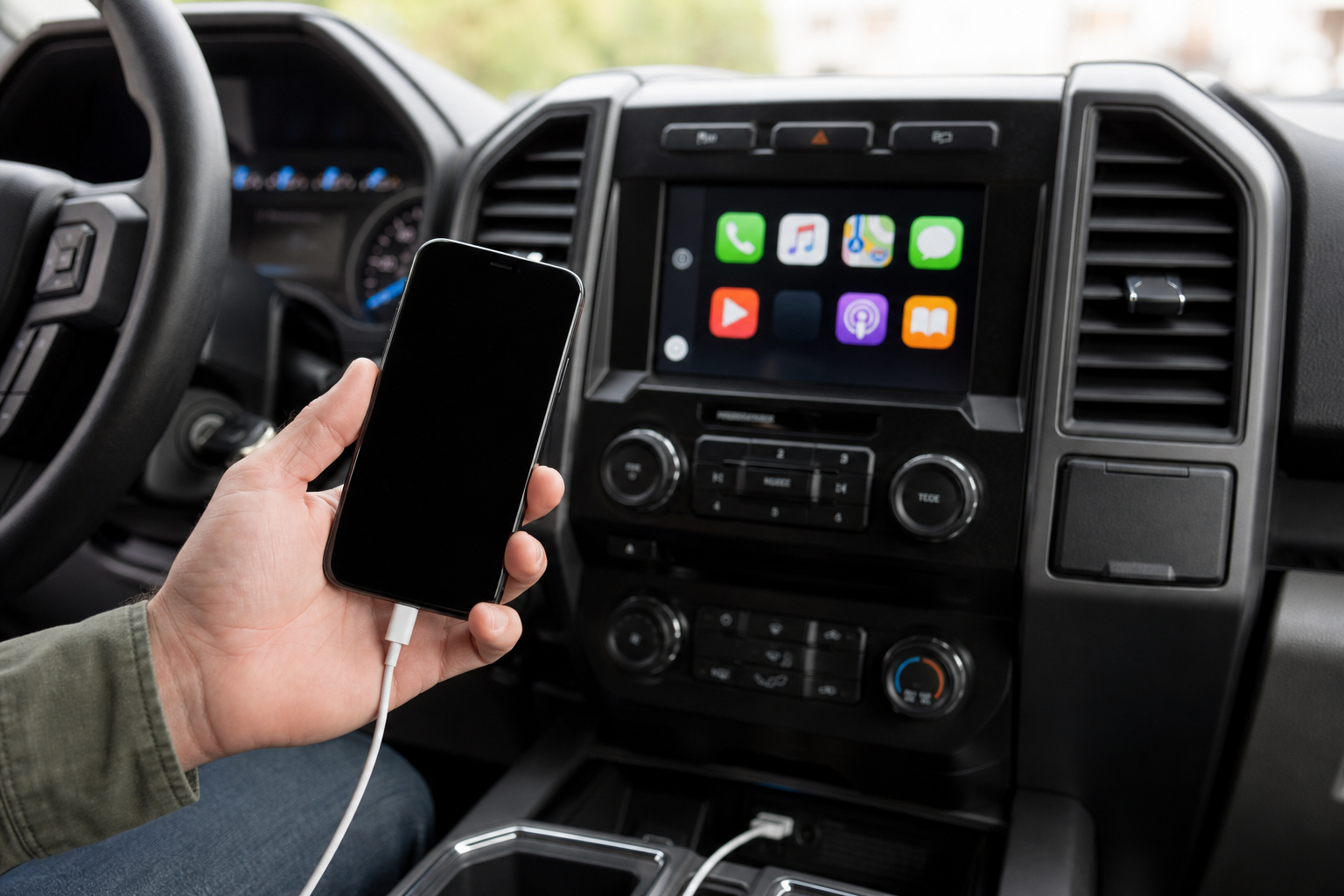
You’re driving down the highway with your podcast playing through CarPlay, and suddenly the screen kicks back to the F-150’s native home screen. A minute later it reconnects, only to drop again a few miles down the road. It’s one of the most common complaints F-150 owners bring up about the SYNC system, and it usually comes down to a handful of specific culprits rather than some mysterious software gremlin.
The good part is that most of these fixes take five minutes and no tools. Before you assume your truck’s infotainment unit is failing, work through the causes below in order. Wired and wireless CarPlay have different failure points, so we’ve split the troubleshooting to match.
Wired CarPlay: Cable and USB Port Problems
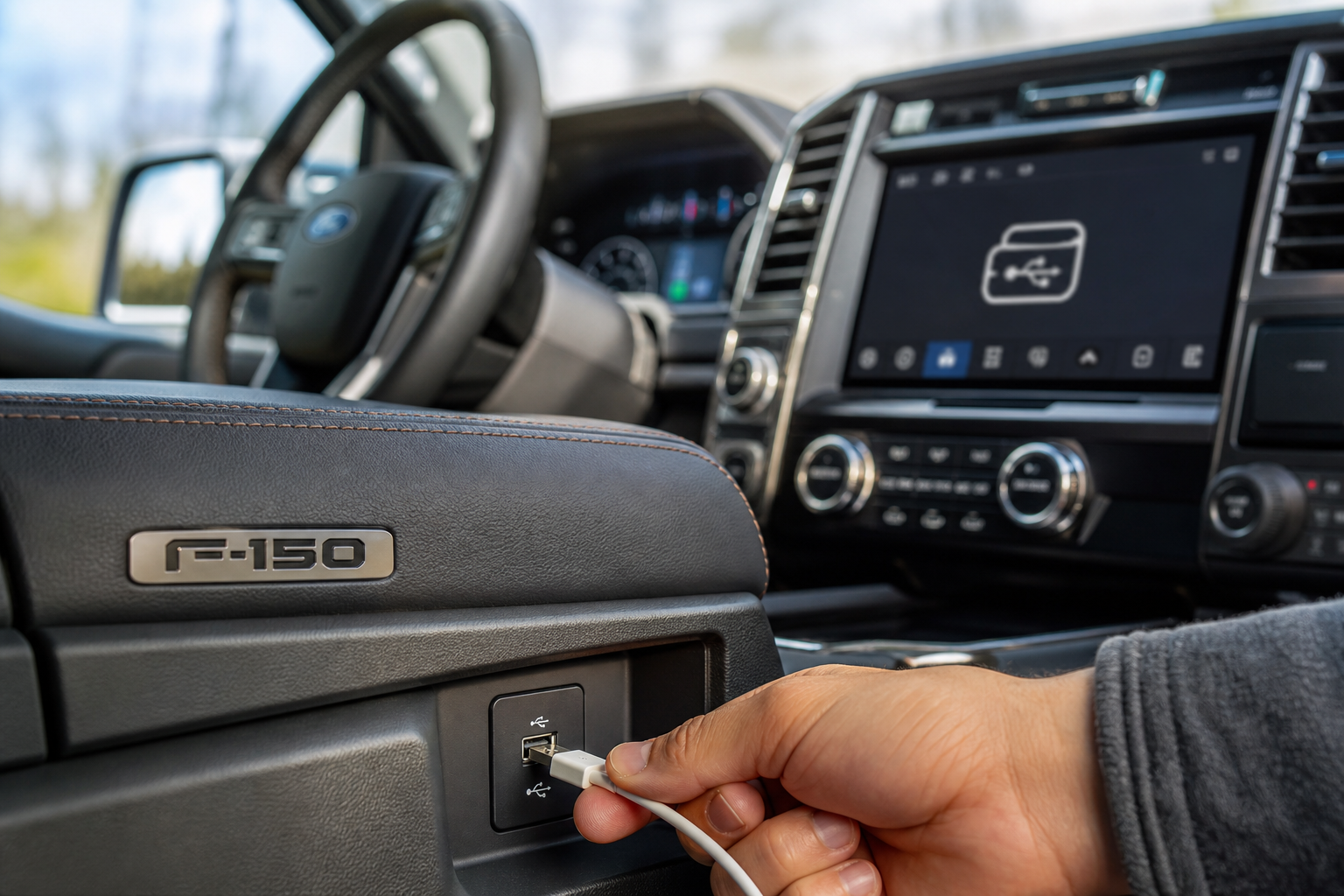
Wired CarPlay disconnects are almost always a physical connection issue, not a software one. The F-150’s front console has multiple USB ports, but not all of them handle data the same way.
- Check which port is data-capable. On most 2015 through 2023 F-150s, the USB port closest to the media hub bin (usually labeled with a small icon) is the one built for CarPlay. The other ports nearby are often charge-only or slower USB-A ports that won’t reliably hold a CarPlay session.
- Swap your cable. Cheap or worn Lightning cables are the number one cause of intermittent CarPlay drops. If your cable is fraying, was bundled with a random charger, or is longer than about three feet, replace it with a certified Apple MFi cable.
- Avoid extension cables and multi-port hubs. These introduce voltage drops and data interruptions that show up as random disconnects, especially over bumps or vibration.
If you’re not sure which cable to trust, it’s worth grabbing a known-good one instead of troubleshooting a cheap cord for weeks.
Apple MFi Certified Lightning Cable
A certified cable eliminates the most common cause of wired CarPlay drops in one shot.
While you’re checking cables, it’s a good time to inspect your truck’s electrical health overall. A weak connection at the USB port can sometimes point to bigger issues, similar to how a car battery dying overnight even with a good alternator often traces back to a small wiring or parasitic draw problem rather than the obvious component.
Wireless CarPlay: Bluetooth, Wi-Fi, and Phone Settings
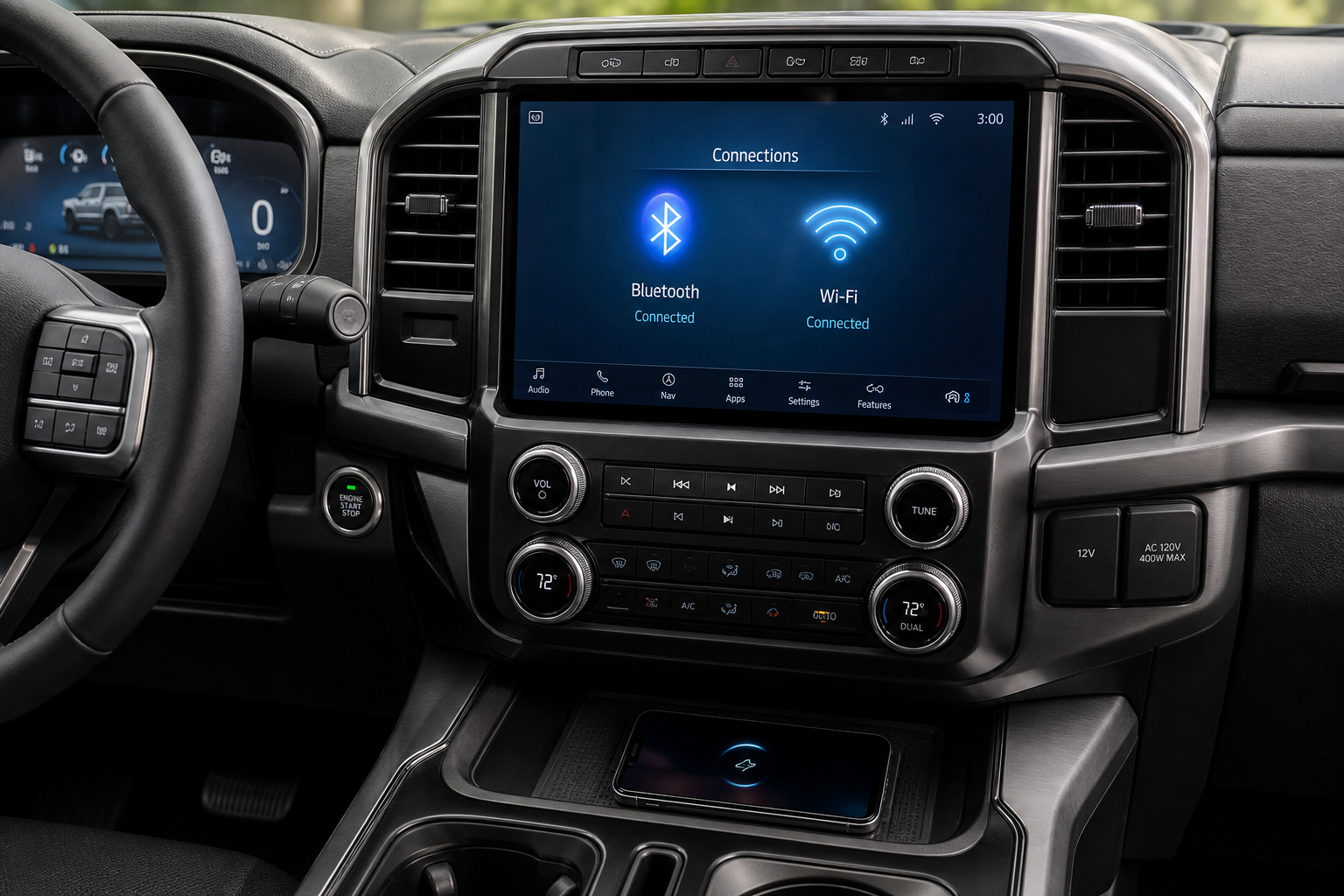
Wireless CarPlay became available on the F-150 starting with the 2020 model year on SYNC 3, and it’s standard on SYNC 4 in the 2021-and-later trucks. If you’re on an older SYNC 3 unit without a software update, wireless CarPlay may not be supported at all, so confirm your truck actually has the feature before chasing a phantom fix.
Wireless CarPlay relies on both Bluetooth and Wi-Fi Direct working together. If either connection is flaky, the session drops.
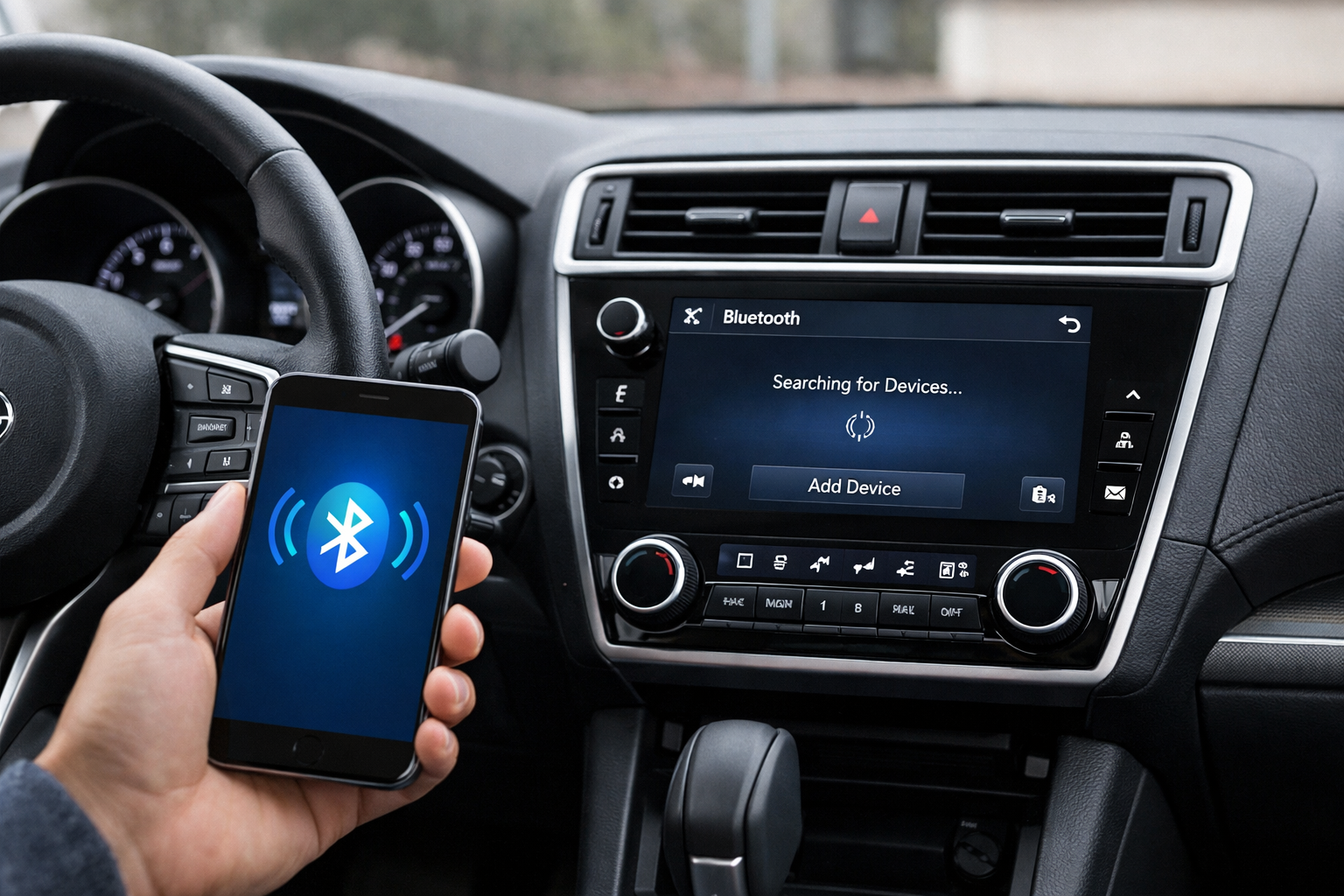
- Forget and re-pair Bluetooth. Go into your iPhone’s Bluetooth settings, forget the F-150, then delete the phone from the truck’s paired devices list under Settings > Phone. Re-pair from scratch.
- Turn Wi-Fi on your phone off and back on. Wireless CarPlay uses a private Wi-Fi Direct connection separate from your home or work network. A stuck Wi-Fi radio on the phone is a frequent cause of drops.
- Keep your phone within range. Wireless CarPlay has a shorter effective range than Bluetooth audio alone. Keep your phone in a cupholder or mount near the console rather than in a bag in the back seat.
- Disable unnecessary Bluetooth accessories. Smartwatches, fitness trackers, and other Bluetooth devices competing for the same radio can cause interference and dropped handshakes.
If wireless keeps failing no matter what you try, a wired connection is more reliable by nature since it doesn’t depend on radio signal strength. Some owners also add a wireless CarPlay adapter to older trucks that only support wired connections.
CarLinKit Wireless CarPlay Adapter
A solid option for adding wireless functionality to F-150s that only came with wired CarPlay from the factory.
Resetting the System and Checking Software
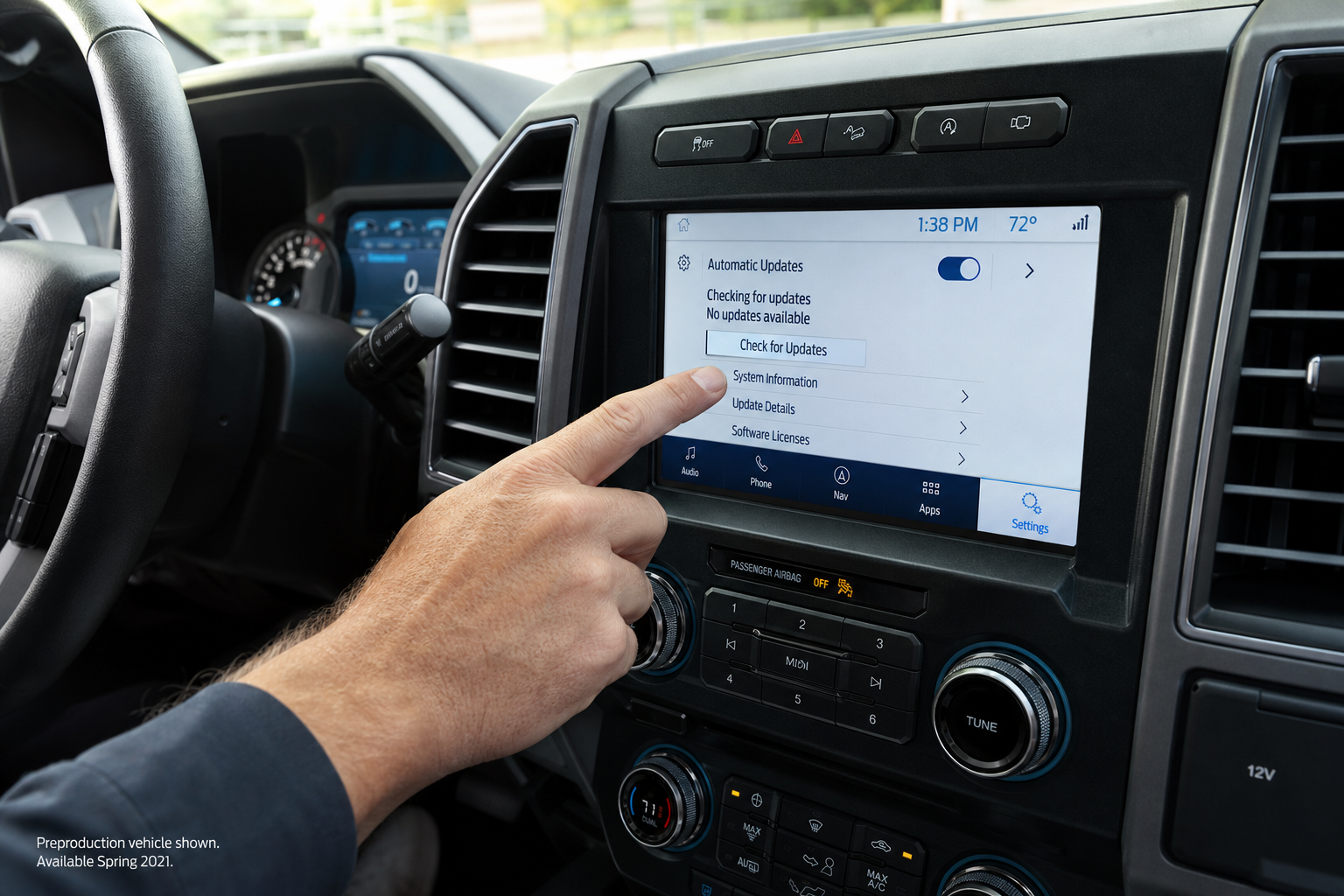
If cables and pairing aren’t the issue, the SYNC unit itself may need a reset or an update.
- Reboot the infotainment screen. Hold down the power/volume knob for about 10 seconds until the screen goes black and restarts. This clears temporary glitches without erasing your paired devices.
- Delete the vehicle from your iPhone and start over. On your phone, go to Settings > General > CarPlay, select your F-150, and remove it. Reconnect via cable or Bluetooth to rebuild the pairing from scratch.
- Update SYNC software. Ford has released several SYNC 3 and SYNC 4 updates specifically addressing CarPlay stability. Check under Settings > General > Software Update in the truck, or visit Ford’s owner site to download an update via USB.
- Update iOS. Older iOS versions have known compatibility issues with certain SYNC software builds. Keeping both your phone and your truck’s system current avoids a lot of these mismatches.
- Master reset as a last resort. Under Settings > General > Reset, you can restore all infotainment settings to factory defaults. This wipes paired phones and saved presets, so treat it as a final step rather than a first one.
If you’re already digging into your truck’s electronics settings, it’s worth double checking that your tire monitoring system is behaving correctly too, especially after any recent service work. The process is covered in our Ford F-150 TPMS relearn procedure guide.
Frequently Asked Questions
Does every Ford F-150 model year support wireless CarPlay?
No. Wireless CarPlay was introduced on SYNC 3 units starting with the 2020 model year and requires a specific software update to function. Trucks with SYNC 4, standard on 2021 and newer F-150s, support wireless CarPlay out of the box. If you have a 2019 or earlier truck, you’re limited to wired CarPlay unless you add a third-party adapter.
Why does CarPlay only disconnect when I hit bumps or rough roads?
This almost always points to a loose or worn USB connection rather than a software problem. A cable that’s slightly frayed or a port with worn contacts will hold a connection on smooth pavement but drop the moment there’s vibration. Try a new certified cable and make sure it’s fully seated in the data-capable port before assuming it’s a bigger issue.

Leave a Reply