
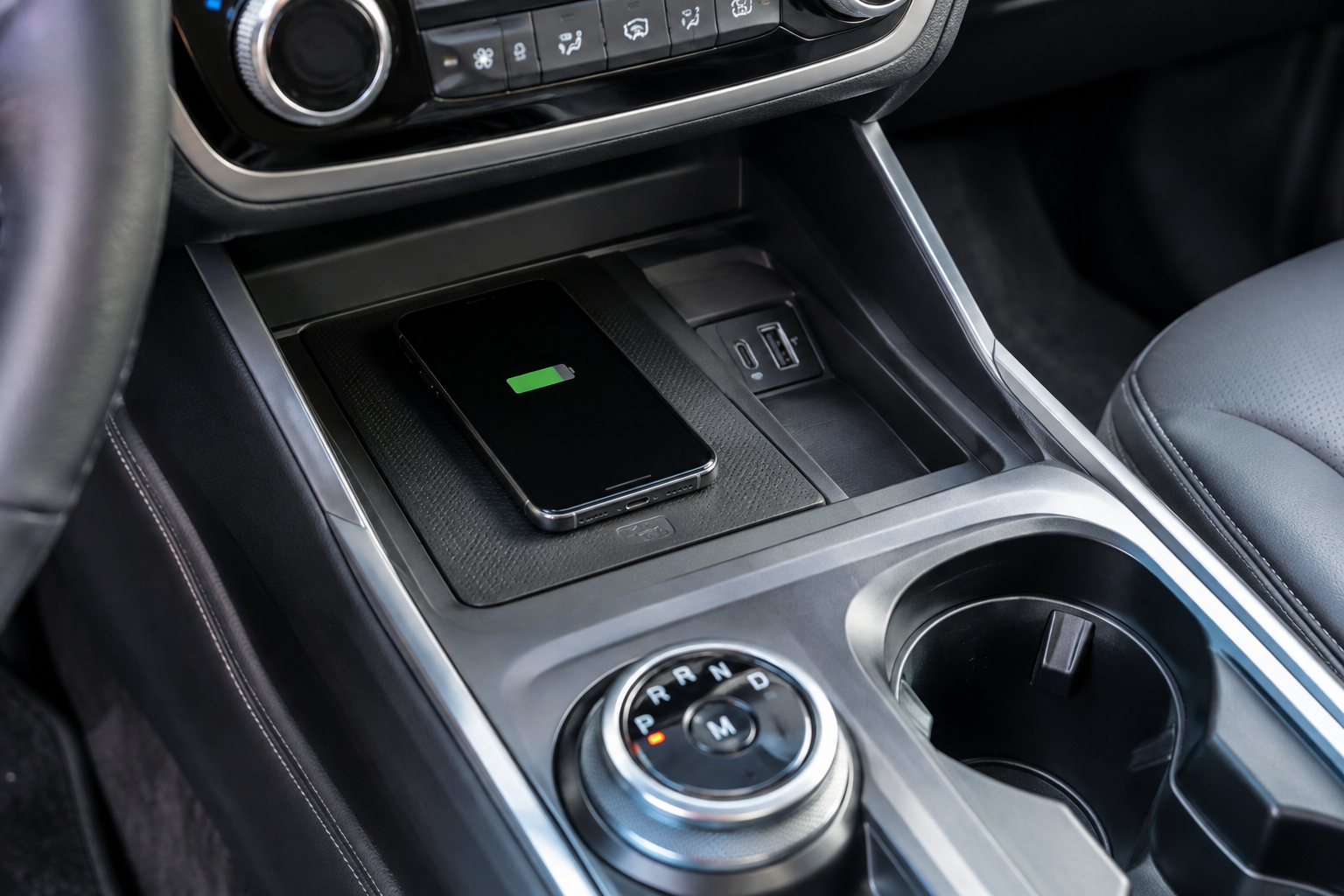
You toss your phone on the wireless charging pad, pull out of the driveway, and twenty minutes later you glance down to see the battery has dropped instead of climbed. Or maybe the pad chirps and disconnects every time you hit a bump. A wireless charging pad that won’t cooperate is one of the more annoying small failures in a modern Explorer, especially since it’s usually not actually broken. It’s almost always a placement, case, or power issue that takes five minutes to sort out.
Before you assume the hardware has failed, it helps to understand how Ford built this feature and what tends to trip it up. Let’s go through the checklist in the order that actually fixes the problem fastest.
Confirm Your Explorer Actually Has Factory Wireless Charging
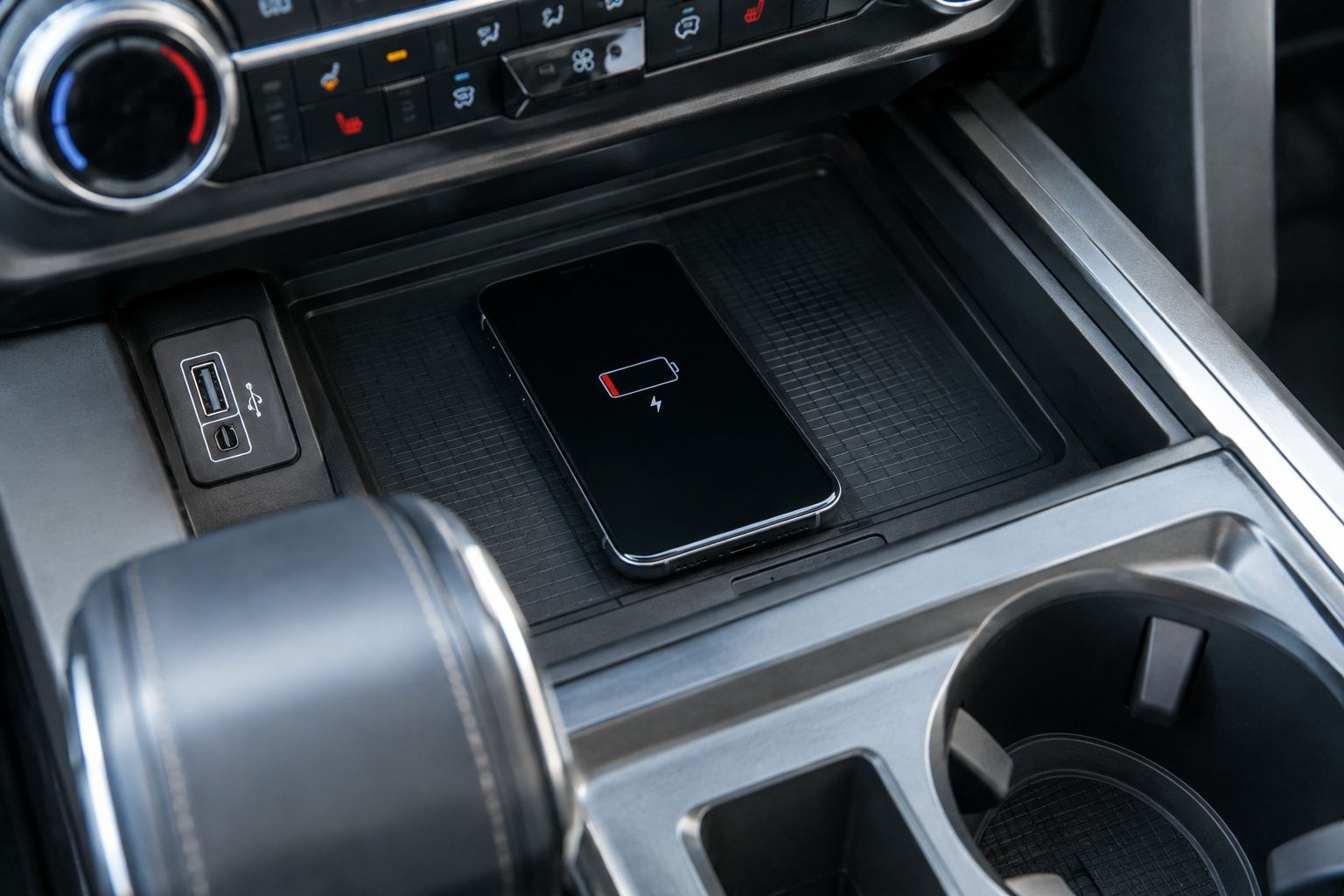
Wireless charging showed up as an available option on the Ford Explorer starting with the sixth generation (2020 and newer), and it’s usually bundled with higher trims like the XLT with the Convenience Package, Limited, ST, and Platinum. Base trims in some model years skip it entirely. If you’re not sure your Explorer has it, look for a rubber-lined tray or a small textured pad in front of the cupholders, usually below the climate controls or tucked into the center console.
It’s also worth checking your specific model year, since Ford has shuffled where the pad sits and how it’s covered across the generation. Some years use a sliding door or cover over the pad, and if that cover isn’t fully open or is warped, it can block charging even though the phone looks like it’s sitting in the right spot.
Check Phone Compatibility and Charging Standard
The Explorer’s factory pad uses the Qi wireless charging standard, which covers the vast majority of iPhones (iPhone 8 and later) and most Android flagships from Samsung, Google, and others. If your phone doesn’t support Qi charging natively, no amount of repositioning will help. Some budget Android phones and older models simply don’t have the coil inside to receive a wireless charge at all.
It’s also worth knowing that the factory pad in most Explorer trims is not a high-wattage fast charger. It’s designed for steady, moderate charging, typically in the 5 to 10 watt range depending on the phone and year. If you’re expecting the same speed you get from a wall charger or a dedicated fast-charging pad at home, you’re going to be disappointed even when everything is working perfectly.
Case Thickness and Material Matter More Than You Think
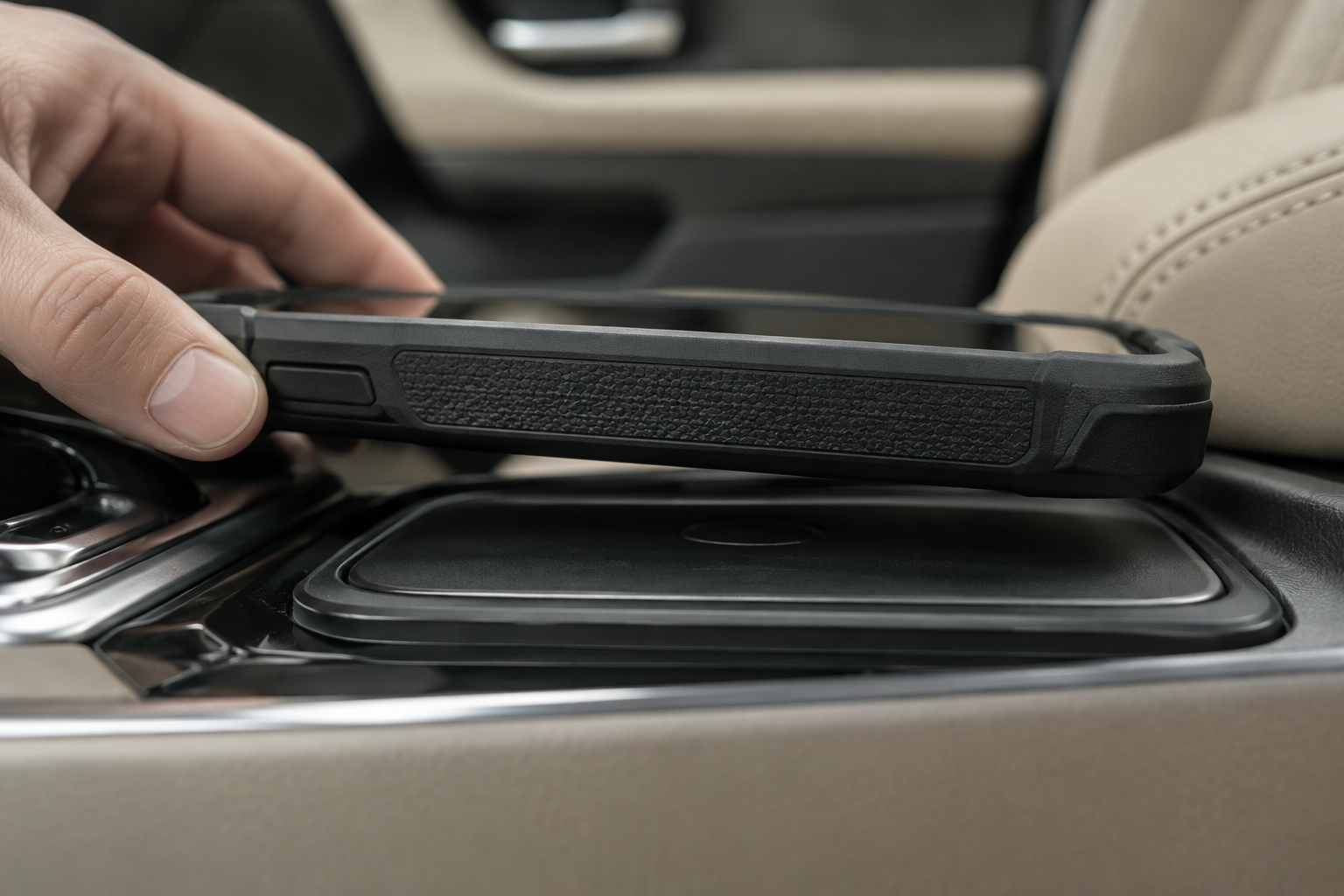
This is the single most common cause of “won’t charge” or “charges but disconnects” complaints. Qi charging relies on a magnetic coil transferring power across a short distance, and thick cases, especially battery cases, wallet cases, or rugged cases with a kickstand, can push your phone just far enough away from the coil to break the connection.
As a rule of thumb, cases thicker than about 3mm start causing problems, and anything with a built-in battery or a metal plate for a car mount is almost guaranteed to interfere. Try removing the case entirely and placing the phone on the pad. If it charges fine without the case, you’ve found your answer.
- Battery cases and power bank cases: almost always block charging
- Wallet cases with cards or cash stored on the back: cards can shift and add distance, and some cards contain metal strips that interfere
- Cases with metal rings, kickstands, or plates: these are a major source of interference
- Cases advertised as “MagSafe compatible” with metal reinforcement rings: can sometimes confuse the coil alignment
Metal Objects, Magnets, and PopSockets
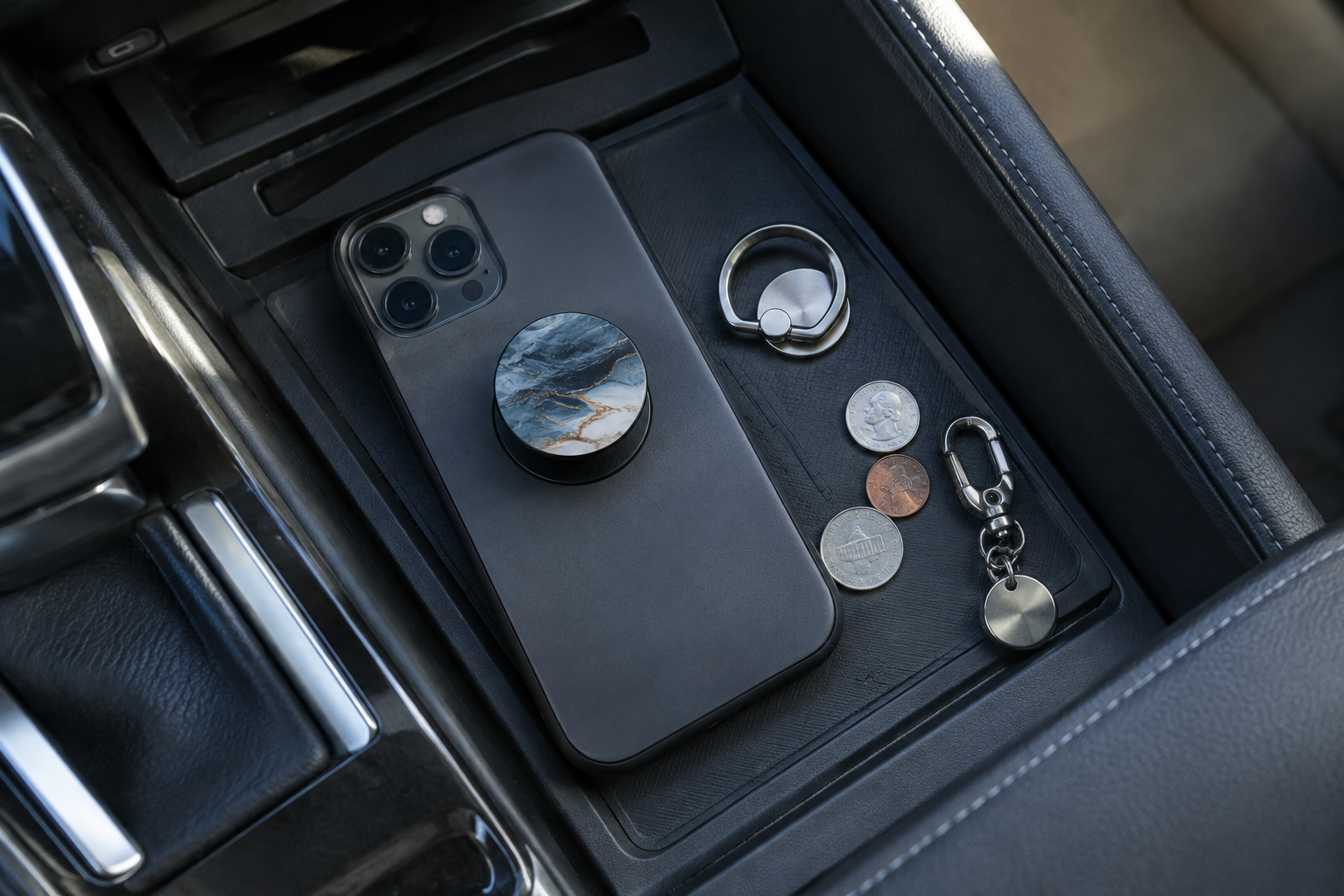
Any metal between your phone and the charging pad will disrupt the magnetic field, sometimes enough to stop charging and sometimes enough to generate heat instead of power. This includes coins, keys, or a metal PopSocket left in the tray, a phone ring holder, or even certain metallic paint or stickers on the back of a case.
Magnetic phone mounts and magnetic wallets are a particularly common offender. If you’ve got a metal plate glued to the back of your phone for a magnetic dash mount, that plate needs to come off before you set the phone on the Qi pad, or you’ll get inconsistent charging at best and a warm phone with no progress at worst.
Phone Placement and Alignment
The Qi coil inside the Explorer’s charging tray is a small, fixed target, not a broad charging surface like some aftermarket pads. If your phone is sitting off-center, angled, or slid too far forward or back, it may only get partial contact or none at all.
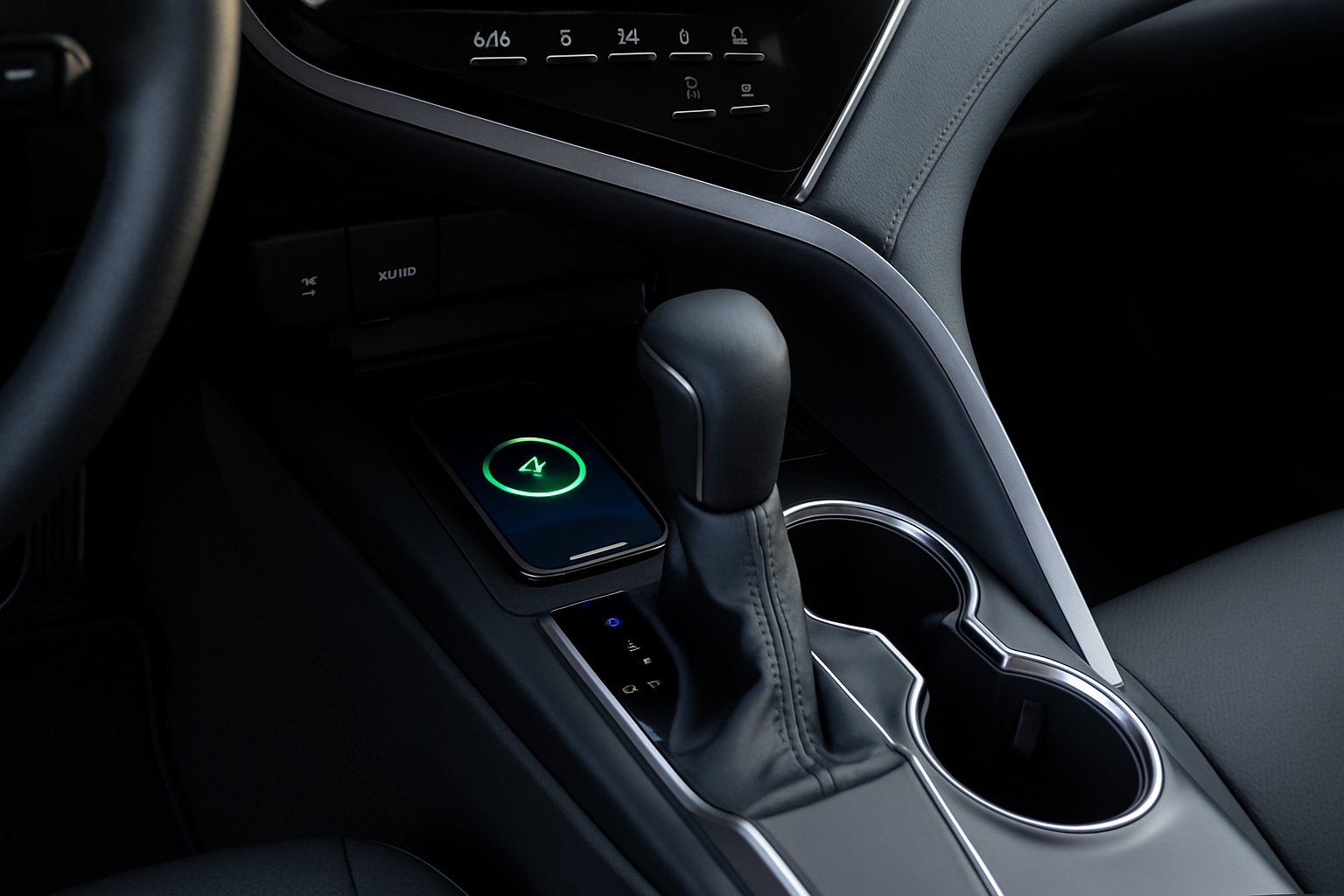
Look for the charging indicator, usually a small icon or light near the tray, or a notification on the touchscreen when the phone starts charging. If you don’t see that confirmation, nudge the phone slightly in each direction until it lights up. On most Explorer trims, centering the phone with the camera lens toward the back of the tray gives the most reliable connection.
Road vibration and hard cornering can also shift the phone just enough to lose contact, which is why some drivers report charging that starts fine and then cuts out ten minutes into a drive. If this keeps happening, a slim silicone grip pad on the charging tray can help hold the phone in place without adding enough thickness to block the coil.
Overheating and Automatic Charging Shutoff
Wireless charging generates more heat than a wired connection, and phones are programmed to slow down or stop charging entirely if they get too warm. In summer months, an Explorer’s interior can easily climb past 120 degrees Fahrenheit while parked, and a phone that starts hot will often refuse to charge at all until it cools down.
This isn’t a defect in the pad. It’s your phone protecting its battery. If you notice charging only works once the cabin has cooled off from the air conditioning, that’s a strong sign heat is the culprit rather than a hardware problem. Leaving a phone case on that traps heat against the device while it’s on the pad makes this worse, which ties back to the case issue above.
Debris, Liquid, and a Dirty Charging Tray
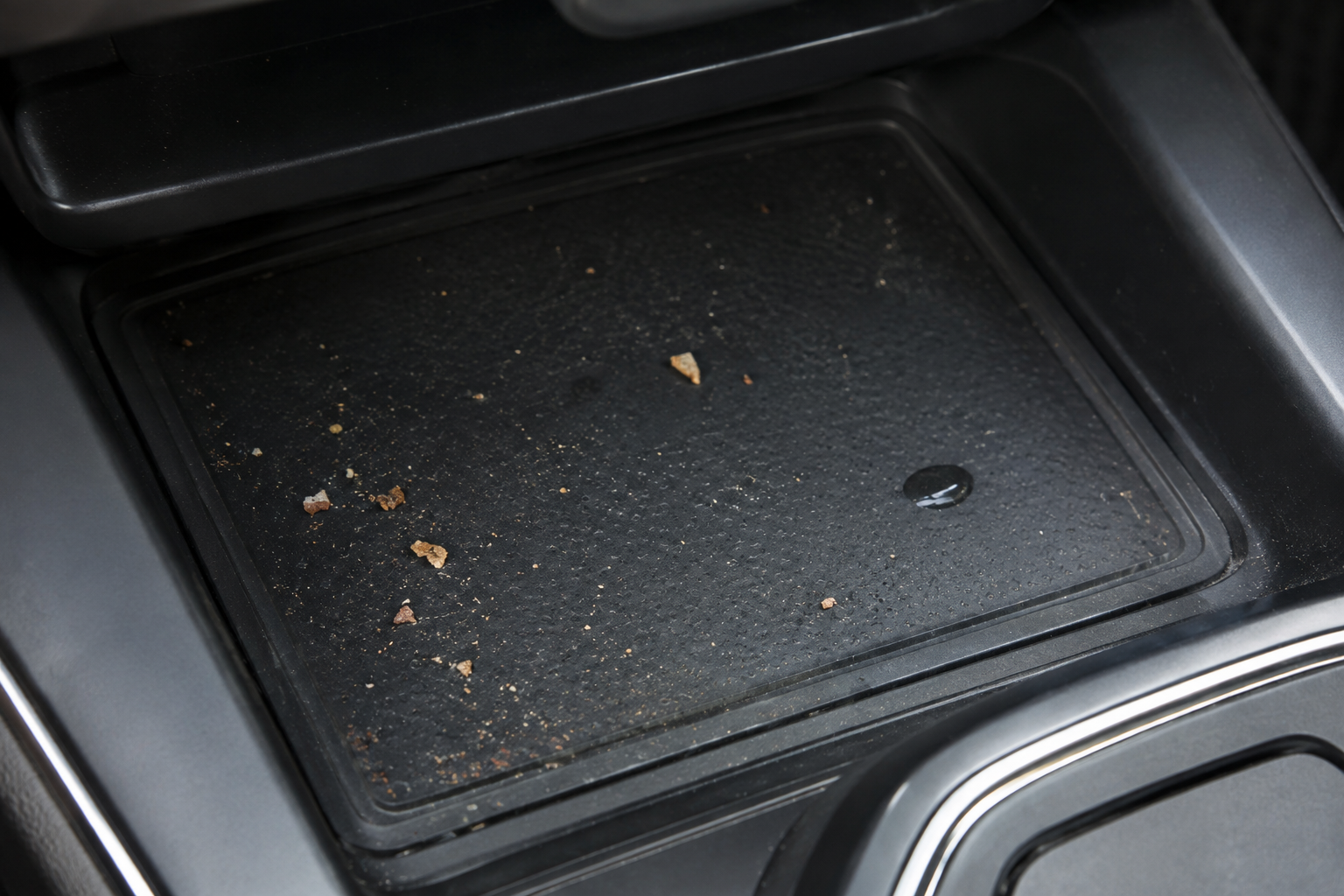
Crumbs, sand, and spilled coffee find their way into every tray in a vehicle eventually, and the wireless charging pad is no exception. Debris between the phone and the pad surface can create a small gap that’s enough to interrupt the connection, and any moisture in the tray is a real concern since it can cause the pad to shut down as a safety measure.
Wipe the tray out with a dry microfiber cloth and check that the surface isn’t sticky or gritty. If you regularly set drinks or snacks near the console, it’s worth getting in the habit of a quick wipe-down every week or two, especially since this tray sits right at cupholder level.
Vehicle Power State and Software Quirks
Some Explorer owners notice the pad works fine with the vehicle running but cuts out shortly after the engine turns off, even with the doors closed and accessory power still on. This is expected behavior in a lot of configurations, since the wireless charger is tied to specific power states to avoid draining the 12-volt battery when the SUV is parked for long periods.
If your Explorer has this behavior, charging while driving or with the engine running should still work normally. If it doesn’t, a battery or module reset can sometimes clear up a stuck electrical gremlin. This is similar in spirit to other electronics quirks in the Explorer lineup. If you’ve dealt with the driver monitoring system acting up, you may have already run into how Ford’s driver alert system can behave oddly until settings are reset, and the same kind of software hiccup can affect the wireless charging module.
A dead or weakened 12-volt battery can also starve the wireless charging system of stable voltage, causing the repeated connect and disconnect cycle some owners describe. If your Explorer has been slow to start or you’ve noticed other electrical accessories acting flaky, get the battery and charging system tested before you spend more time chasing the phone pad issue specifically.
When to Consider an Aftermarket Charger Instead
If you’ve gone through every step above, including trying a different phone or removing every case and accessory, and the factory pad still won’t charge reliably, it may genuinely have a hardware fault. Dealers can test and replace the wireless charging module, though it’s rarely a high-priority repair since it’s not tied to safety or drivability.
In the meantime, or if you’d simply rather have a faster, more consistent charge, a dedicated aftermarket charger is a reasonable fallback. A magnetic mount charger that clips to your vents or console gives you both a secure mount and a charging connection that doesn’t depend on precise placement.
MagSafe Car Charger
A magnetic mount charger holds the phone securely and charges faster than most factory Qi pads, especially useful if your Explorer’s pad has ongoing issues.
If you’d rather skip wireless charging altogether, a simple wired USB-C car charging cable plugged into the Explorer’s center console port will always outperform any wireless pad for raw charging speed, and it eliminates every variable covered in this article. It’s not as tidy, but it’s the most reliable option when you need a full charge before a long drive.
For drivers who want both a mount and a charger without relying on the factory tray at all, a wireless car phone mount charger that attaches to the dash or vent is worth a look. These tend to have stronger coils and better alignment tolerance than the factory Qi pad, which means fewer dropouts on rough roads.
Frequently Asked Questions
Why does my phone charge slowly on the Ford Explorer wireless pad even with the case off?
The factory pad is built for steady, moderate charging rather than fast charging, typically topping out around 7.5 to 10 watts depending on your phone and model year. Even with an ideal setup, it will charge slower than a wall adapter or a wired connection.
Why does my phone keep disconnecting and reconnecting on the charging pad?
This usually points to slight misalignment from road vibration, a case that’s too thick, or a metal accessory interfering with the coil. Check placement first, then remove the case, and confirm there’s no metal ring or magnetic mount plate on the back of the phone.
Can I use a wireless charging pad and Apple CarPlay or Android Auto at the same time?
Yes, but if you’re using a wired connection for CarPlay or Android Auto, you don’t need the wireless pad at the same time since the USB cable is already charging the phone. Using both isn’t harmful, it’s just redundant.
Does the wireless charging pad work when the Explorer is turned off?
In most configurations, no. The pad is tied to specific power states designed to protect the 12-volt battery, so charging typically stops shortly after the engine is off even if accessory power is still active.
Final Thoughts
Most wireless charging complaints in the Ford Explorer come down to something simple: a case that’s too thick, a metal accessory sitting in the way, a phone that’s slightly off-center, or a cabin that’s too hot for the phone to accept a charge. Work through those checks before assuming the pad itself is broken, since a hardware failure is actually the least likely explanation.
If you’ve ruled everything out and the pad still isn’t cooperating, a magnetic mount charger or a simple wired cable will get you back to a charged phone without waiting on a dealer visit. And if you’re troubleshooting other electronics quirks in your Explorer, it’s worth checking out our guide on how lane assist settings behave on the Explorer, since a lot of these small annoyances trace back to the same kind of settings reset.
Leave a Reply