
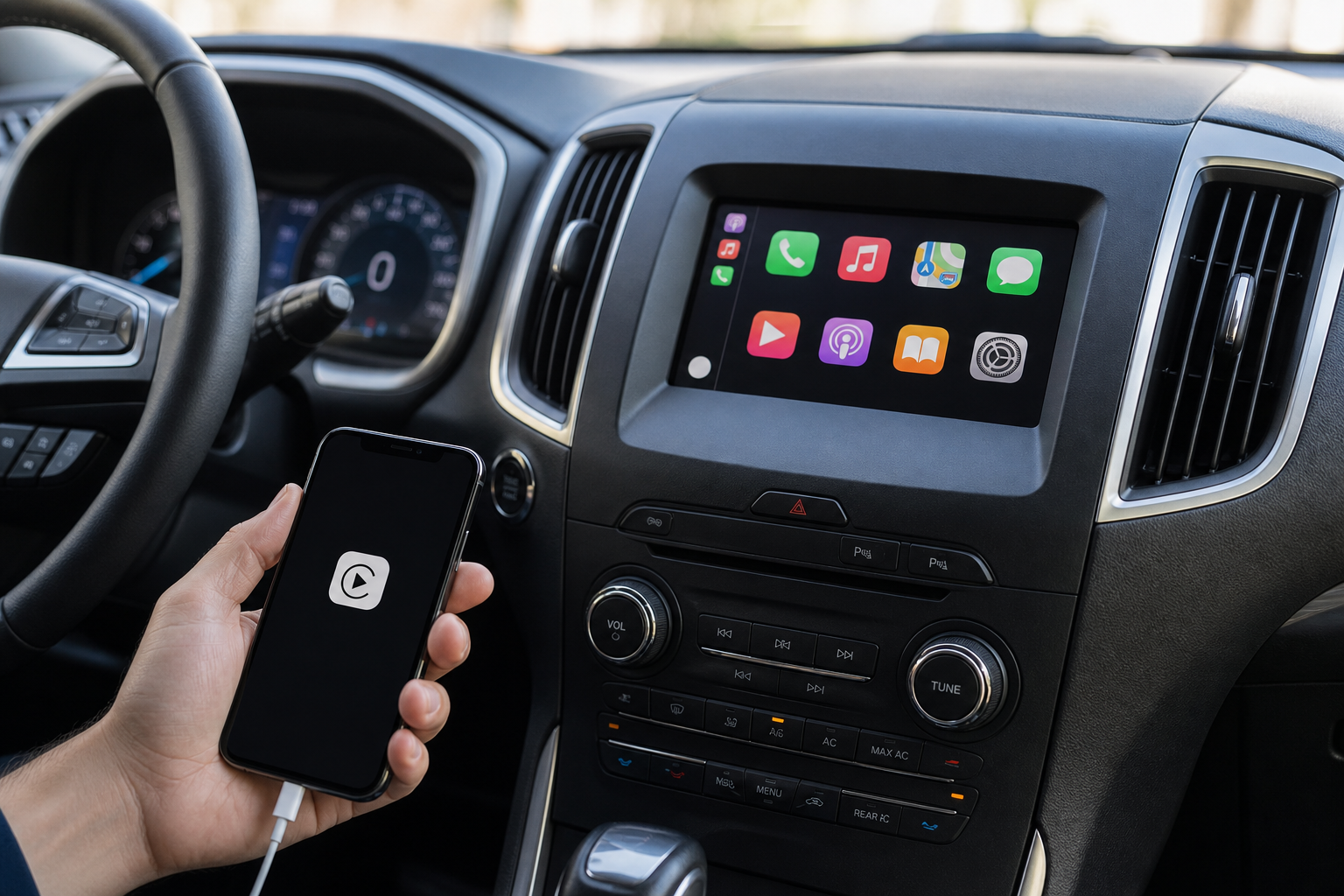
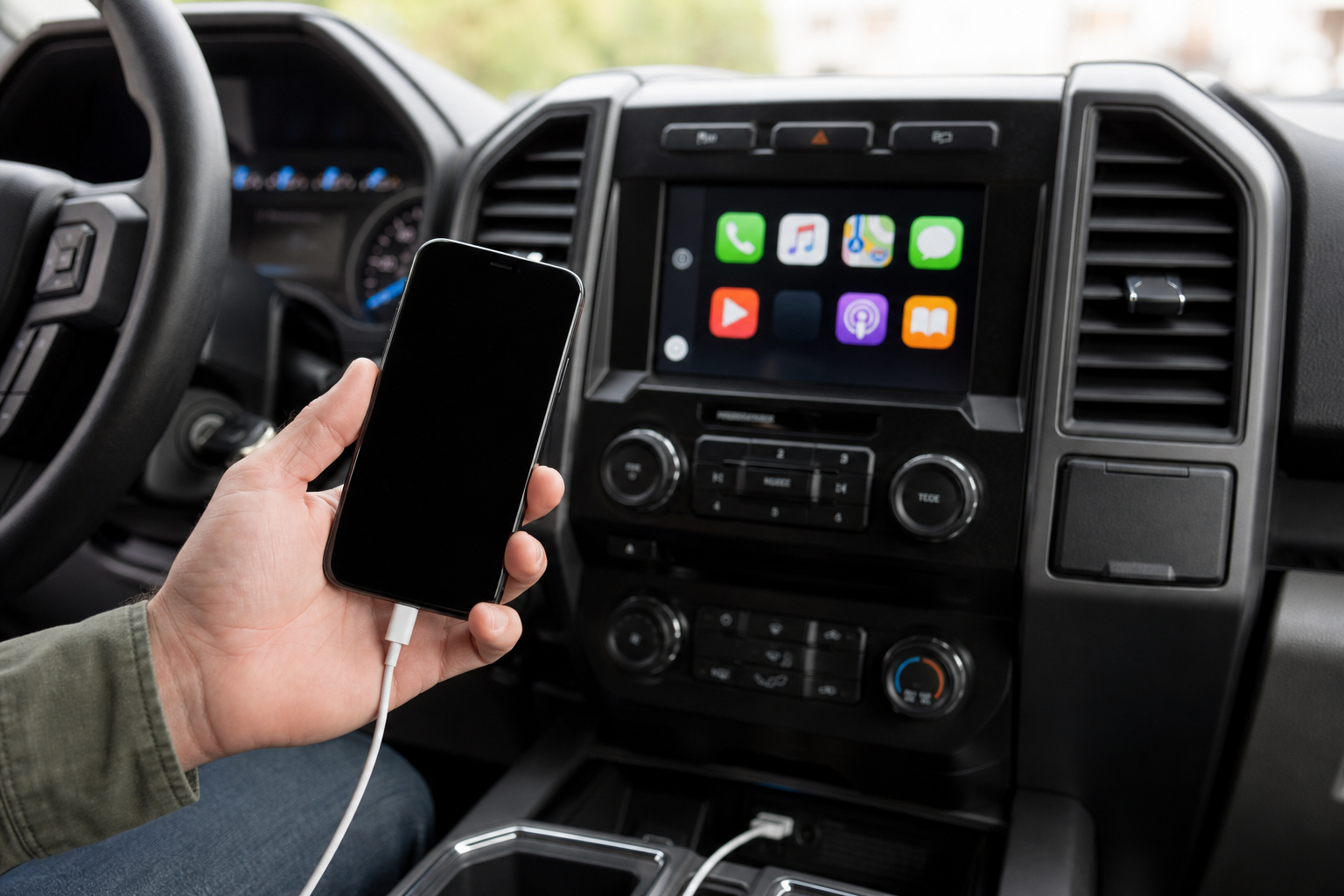
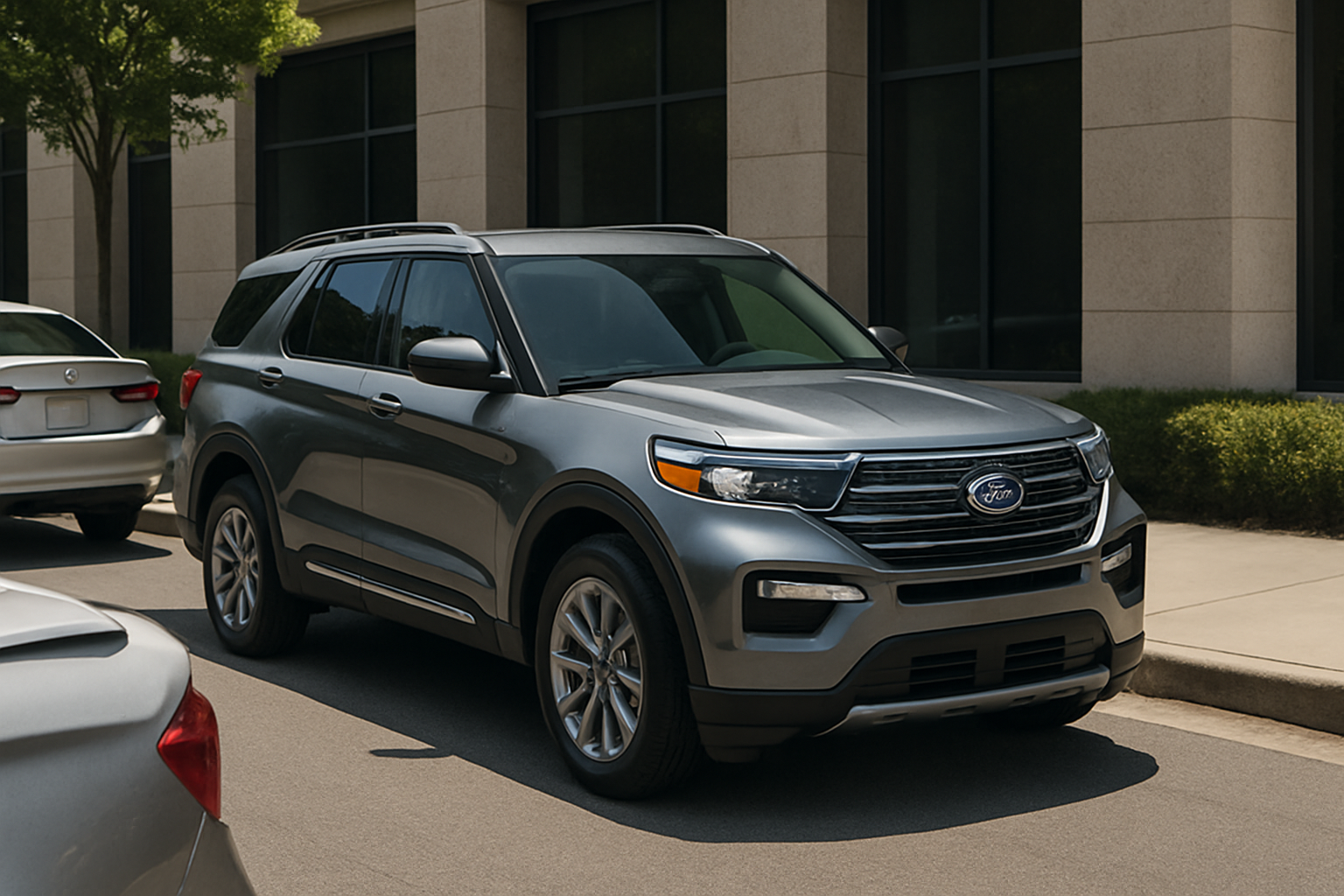
Nothing kills a good playlist faster than watching that Apple CarPlay screen flicker, drop your podcast, and dump you back to the factory Ford SYNC home screen mid-drive. If your Explorer’s CarPlay connection keeps cutting out, you’re not imagining it and you’re definitely not the only one dealing with it. This is one of the most common complaints on Explorer owner forums, and the fix usually comes down to a handful of repeatable culprits: a bad cable, a USB port that’s charging-only, a stale Bluetooth pairing, or software that just needs a refresh.
Wired CarPlay: Cable and USB Port Problems
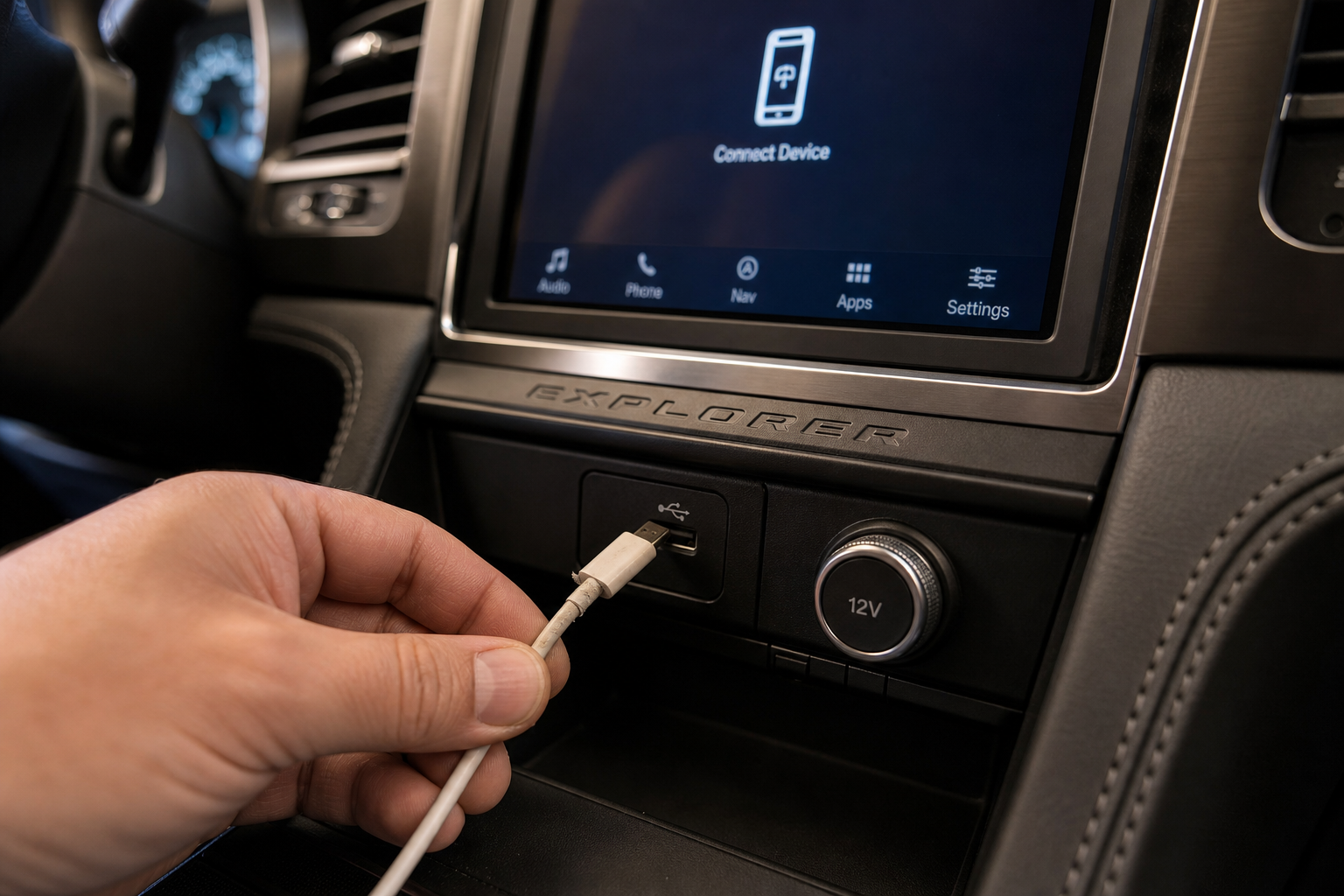
Wired CarPlay drops are almost always a physical connection issue before they’re a software issue. Start here before you touch any settings.
- Not every USB port supports data. Later Explorer models have both USB-A and USB-C ports up front, but some of those ports are charge-only and won’t carry a CarPlay connection at all. Check your owner’s manual for the port icon (a smartphone symbol usually marks the data-capable port) and plug into that one specifically.
- Try a different cable. Cheap or worn cables are the number one cause of intermittent CarPlay drops. If your cable is frayed, off-brand, or has been run over by a seat rail a few too many times, swap it out.
- Restart your iPhone. A soft reset clears out background processes that can interfere with the CarPlay handshake, and it takes thirty seconds.
If you’re due for a new cable anyway, spend a little more on one that’s actually built for daily in-car use. A MFi-certified Lightning cable is designed to handle the constant plug/unplug cycle and data transfer that CarPlay demands, unlike the bargain cables that are really just for charging.
Anker MFi Certified Lightning Cable
A durable, data-rated cable that avoids the intermittent dropouts common with cheap CarPlay cables
Wireless CarPlay: Bluetooth, Wi-Fi, and Pairing Fixes
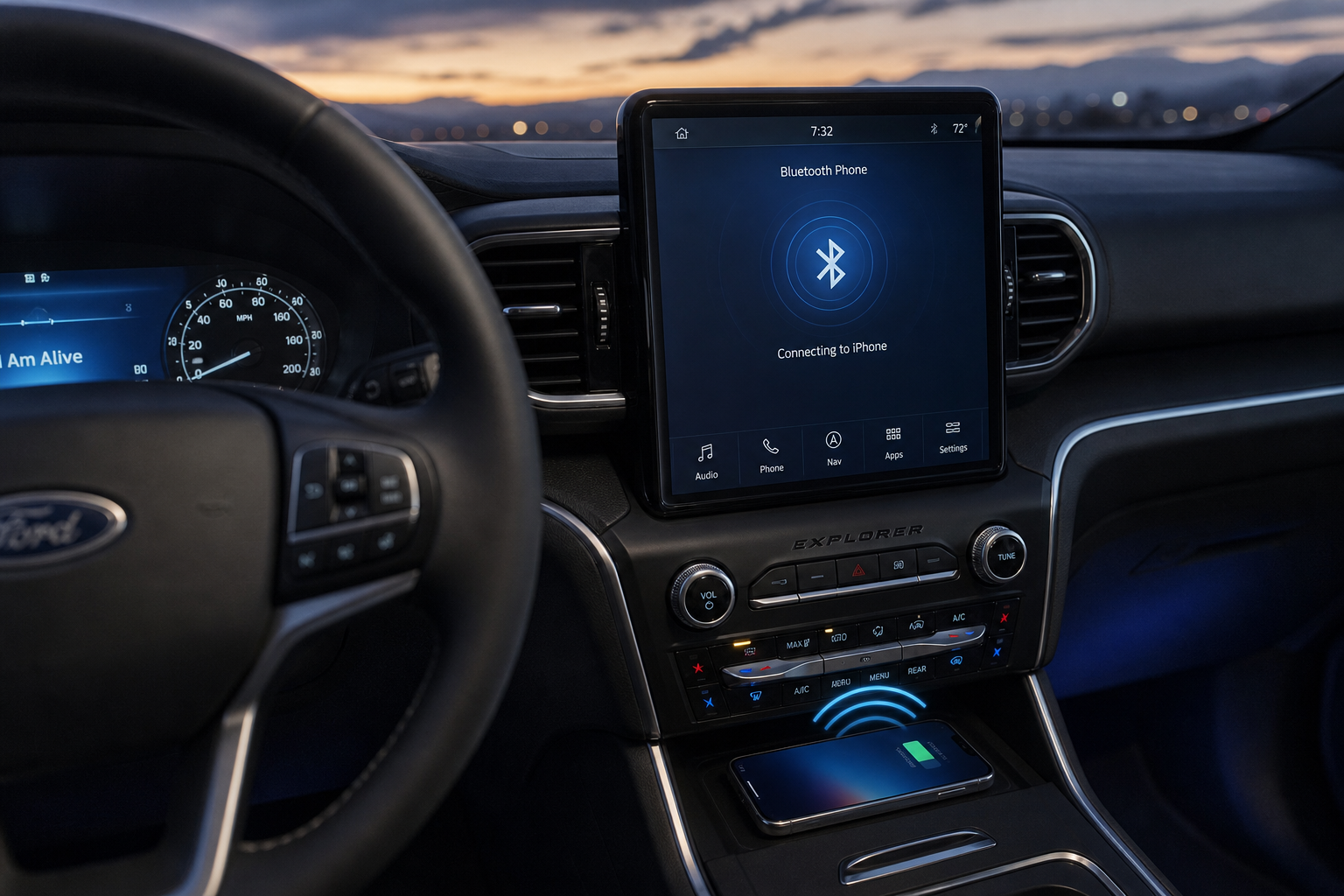
Not every Explorer model year supports wireless CarPlay. Wireless connectivity became available starting with the redesigned 2020+ Explorer running the SYNC 3 or SYNC 4 infotainment system, so if you’re driving a 2019 or older Explorer, plugging in with a cable is your only option regardless of what troubleshooting you try. Confirm your trim and software version in the settings menu before assuming wireless should be working.
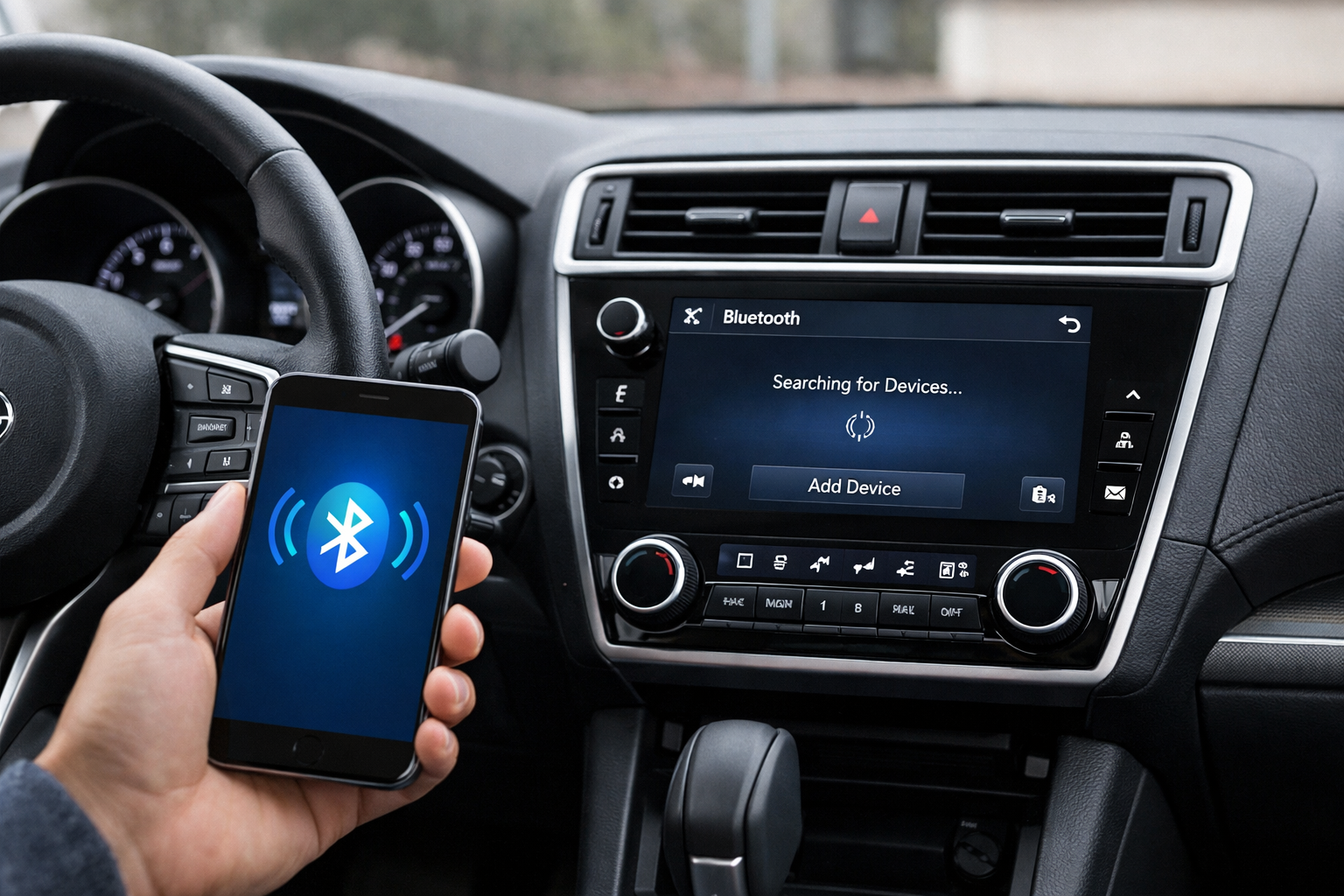
For models that do support it, wireless CarPlay relies on Bluetooth for the initial handshake and Wi-Fi Direct for the actual data connection, which means you’ve got two systems that both need to stay stable.
- Forget and re-pair Bluetooth. Go into your Explorer’s Bluetooth device list, delete your iPhone entirely, then go to your phone’s Bluetooth settings and forget the SYNC system too. Re-pair from scratch.
- Toggle Wi-Fi on your phone. Wireless CarPlay needs your iPhone’s Wi-Fi turned on (you don’t connect to a specific network, but Wi-Fi itself needs to be enabled) so double check it hasn’t been switched off.
- Delete and re-add the vehicle in CarPlay settings. On your iPhone, go to Settings, then General, then CarPlay, and remove the Explorer from the list of known vehicles. Reconnect it as if it were brand new.
If you’re frequently juggling both a wireless CarPlay connection and a wireless charging pad in the center console, know that some aftermarket charging pads can create RF interference that disrupts the Wi-Fi Direct signal. Our guide on wireless car chargers covers which pads play nicely with in-cabin wireless systems and which ones cause more trouble than they’re worth.
Infotainment Reboots, Software Updates, and iOS Compatibility
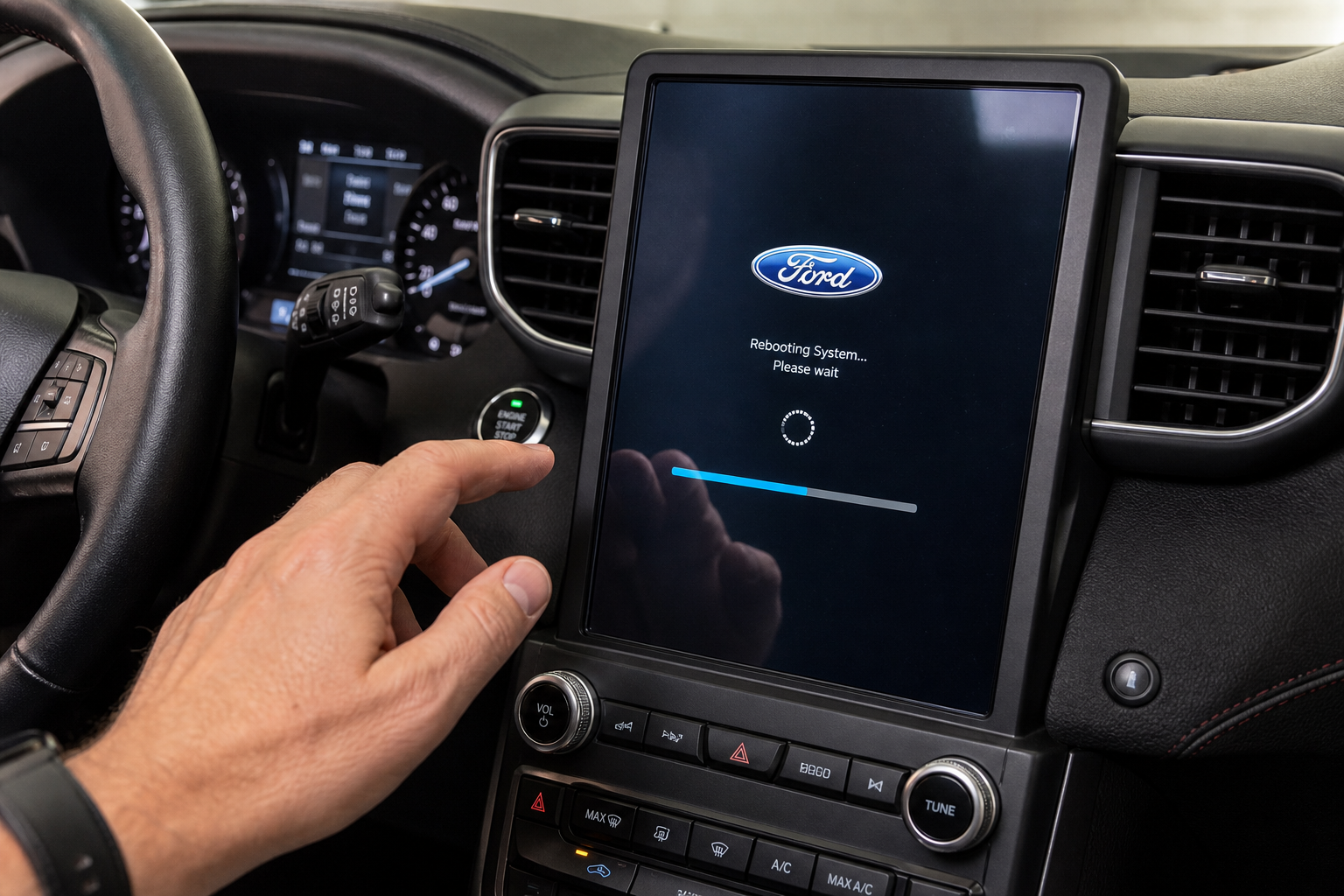
If cable swaps and re-pairing don’t stick, the problem is likely on the software side, either on the SYNC system or your phone.
- Reboot the infotainment system. Hold down the power button (the volume knob on many Explorer trims) for 10 to 15 seconds until the screen goes black and restarts. This clears a hung CarPlay session without needing a full battery disconnect.
- Check for a SYNC update. Ford pushes SYNC 3 and SYNC 4 updates that specifically address CarPlay stability. Check under Settings, then General, then Updates on the touchscreen, or visit Ford’s owner site to download an update via USB.
- Confirm iOS compatibility. Apple occasionally introduces bugs in new iOS releases that affect CarPlay stability across multiple car brands, not just Ford. If your disconnects started right after an iOS update, check Apple’s support forums, since a follow-up patch is often already in the works.
Electrical gremlins can also masquerade as software problems. If your Explorer’s infotainment screen has been rebooting on its own or acting sluggish in general, it’s worth ruling out a weak battery connection, similar to what we cover in our piece on a car battery dying overnight despite a good alternator. A voltage dip during startup can cause the same kind of intermittent resets you’re seeing with CarPlay.
Once your CarPlay connection is stable, it’s a good time to get more comfortable with the rest of your Explorer’s driver assist tech. Our guide to the Intersection Assist and Evasive Steering features on the Ford Explorer walks through some of the safety systems that share the same touchscreen menus.
If you’ve ruled out cables, ports, pairing, and software and you’re still getting dropped connections, a dedicated wireless CarPlay adapter can sometimes bridge the gap on models where the built-in wireless implementation is buggy.
CarlinKit Wireless CarPlay Adapter
Converts a wired CarPlay port into a stable wireless connection, useful when the factory wireless implementation keeps dropping
Frequently Asked Questions
Does every Ford Explorer model year support wireless CarPlay?
No. Wireless CarPlay is only available on Explorer models running SYNC 3 (2020-2021) with the wireless-capable module or SYNC 4 (2020+ Limited, Platinum, and later trims). Earlier Explorers and base trims on newer model years may only support wired CarPlay, so check your specific trim’s spec sheet before troubleshooting a wireless connection that was never built in.
Why does my CarPlay disconnect only when I’m charging my phone?
This almost always points to a charge-only USB port or a cable that can carry power but not data reliably. Some Explorer trims have a rear USB port or a second front port that’s meant strictly for charging accessories, not for phone connectivity. Move to the port marked for data (usually the one closest to the infotainment screen) and test with a known-good cable before assuming it’s a deeper electrical issue.
This article contains affiliate links. We may earn a small commission at no extra cost to you.
Leave a Reply