
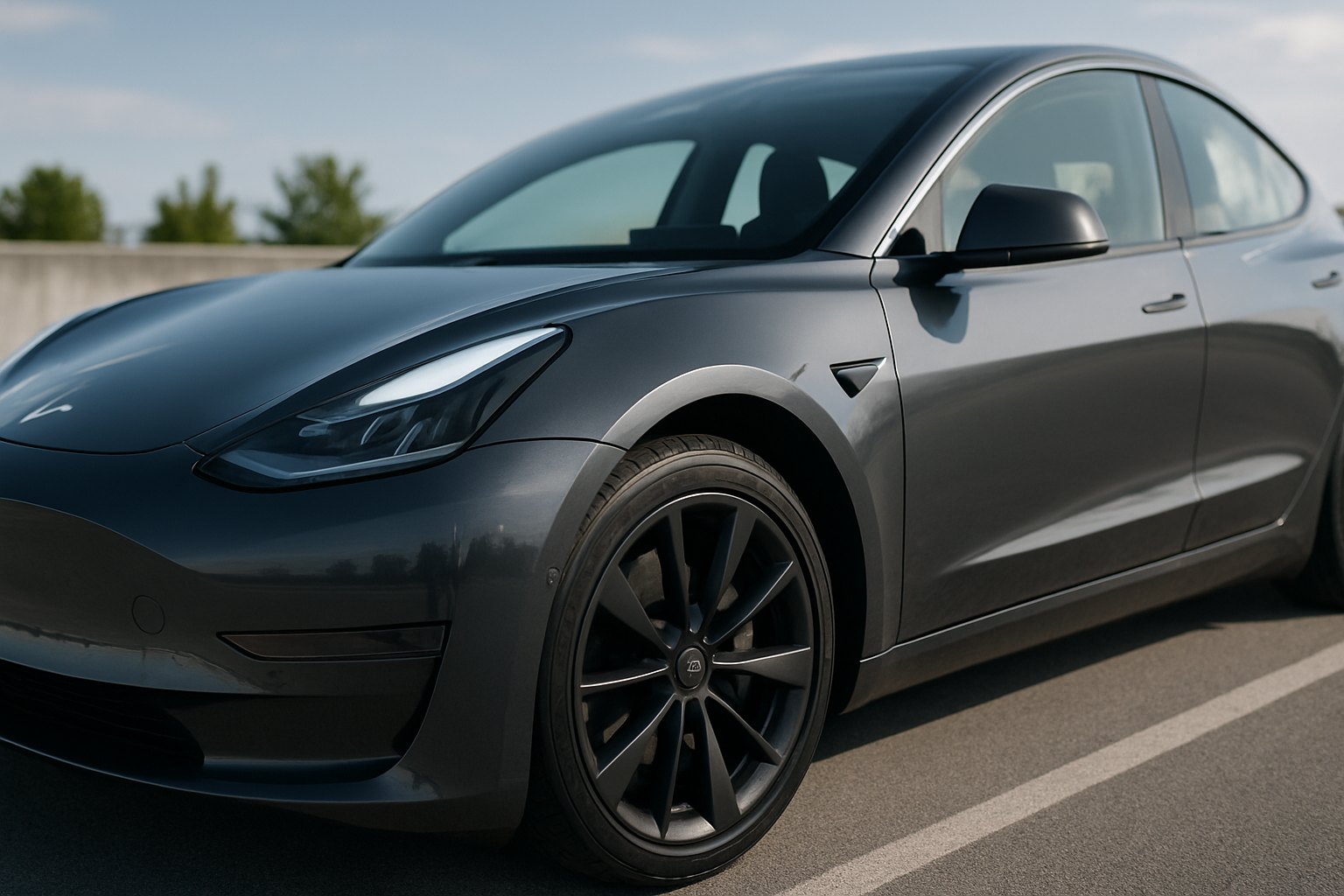
Tesla’s Sentry Mode and dashcam features transform your electric vehicle into a security powerhouse and safety monitor. These built-in systems record everything happening around your parked car and capture footage while you drive, giving you valuable evidence if something goes wrong.
Both features require some initial setup to work properly, but once configured, they’ll protect your investment and document your journeys automatically. You’ll need a compatible USB drive and a few minutes to get everything running smoothly.
Understanding Tesla’s Security and Recording Features
Sentry Mode acts like a 24/7 security guard for your Tesla. When activated, it uses the car’s external cameras to monitor the surrounding area while parked. If someone approaches your vehicle or touches it, the system records the incident and saves the footage to your USB drive.
The dashcam feature works differently. It continuously records while you’re driving, capturing footage from the front, rear, and side cameras. This creates a rolling buffer of recent driving footage that you can save manually or automatically during detected incidents.
Both systems rely on Tesla’s advanced camera array and onboard computing power. Your Model 3, Model Y, Model S, or Model X comes equipped with multiple high-resolution cameras that provide comprehensive coverage around the entire vehicle.
Setting Up Your USB Drive for Recording
Before enabling either feature, you’ll need a properly formatted USB drive. Tesla recommends using a high-quality USB 3.0 drive with at least 64GB of storage capacity for optimal performance.
Connect your USB drive to a computer and format it as FAT32 (exFAT also works on newer Tesla software versions). Create a folder called “TeslaCam” in the root directory of the drive. This folder is where all your recordings will be stored.
Insert the prepared USB drive into one of your Tesla’s front USB ports. The touchscreen will display a dashcam icon with a red dot once the system recognizes the drive and begins recording. You might see a brief setup message the first time you connect the drive.
Choose a reputable USB drive brand for reliability. SanDisk, Samsung, and Kingston make drives specifically designed for continuous recording applications. Cheap or counterfeit drives often fail after a few months of constant writing.
USB Drive Capacity and Management
A 64GB drive typically stores about 1 hour of footage before the system starts overwriting older files. If you want longer retention, consider a 128GB or 256GB drive. Remember that Sentry Mode creates much more footage than regular dashcam recording.
Tesla automatically manages the storage by deleting the oldest files when space runs low. However, saved clips (marked for preservation) won’t be automatically deleted, so check your drive periodically to prevent it from filling up completely.
How to Enable Sentry Mode
Access Sentry Mode through your Tesla’s touchscreen menu. Tap Controls, then Safety, and you’ll find the Sentry Mode toggle switch. When enabled, the feature automatically activates whenever you park and leave your vehicle.
You can also enable Sentry Mode remotely using the Tesla mobile app. Open the app, select your vehicle, and tap the Sentry Mode icon. This remote activation is helpful if you forgot to turn it on before leaving your car.
The system has three alert levels. “Standby” mode monitors the area around your car without recording. “Alert” triggers when someone approaches, turning on the cameras and displaying a warning message on the screen. “Alarm” activates during more serious events, recording footage and potentially sounding the car’s alarm.
When Sentry Mode detects an incident, it saves one-minute clips from all available cameras. These clips are stored in a separate “SentryClips” folder on your USB drive, making them easy to locate later.
Customizing Sentry Mode Settings
Tesla provides several customization options for Sentry Mode behavior. You can disable the alarm sound while keeping the recording features active, which is useful in quiet residential areas or parking garages where noise might disturb others.
The “Exclude Home” feature automatically disables Sentry Mode when parked at your home location. This saves battery power and prevents unnecessary recordings of family members or neighbors walking by your driveway.
Activating Dashcam Recording
Dashcam recording starts automatically when you insert a formatted USB drive and begin driving. The system continuously records footage from the front camera, plus additional angles if your Tesla is equipped with side and rear cameras.
The dashcam icon appears in the top-right corner of your touchscreen when active. A red dot indicates normal recording, while a red circle with a white center shows that an incident has been detected and saved automatically.
To manually save the current footage, tap the dashcam icon or press and hold the right steering wheel button. This preserves the last 10 minutes of footage in a “SavedClips” folder, protecting it from automatic deletion.
Tesla’s system can detect sudden impacts or hard braking events and automatically save those moments. This automatic saving feature helps ensure you don’t lose important footage during stressful situations when you might forget to save manually.
Accessing and Reviewing Your Footage
Remove the USB drive from your Tesla and connect it to a computer to review recorded footage. The TeslaCam folder contains three subfolders: “RecentClips” for normal dashcam footage, “SavedClips” for manually preserved recordings, and “SentryClips” for security incidents.
Each clip is saved as an MP4 file with timestamps in the filename. Multi-camera footage creates separate files for each angle, all synchronized to the same time period. Standard video players like VLC can open these files without special software.
Tesla also offers in-car footage viewing through the touchscreen. Access this feature through Controls > Service > Camera Calibration > View Footage. This option works well for quick checks but provides limited functionality compared to viewing on a computer.
Consider using specialized dashcam software for easier footage management. Programs like TeslaUSB or TeslaCam Viewer can automatically organize clips, merge multiple camera angles, and provide better playback controls.
Essential USB Drives and Accessories
Quality USB drives make a significant difference in system reliability and performance. Tesla-compatible USB drives and accessories designed specifically for continuous recording applications offer better durability than standard drives.
Look for drives rated for “high endurance” or “surveillance” applications. These products use memory cells designed to handle constant writing without premature failure. Some manufacturers offer Tesla-specific formatting and setup instructions.
Managing Battery Drain from Sentry Mode
Sentry Mode consumes battery power while your Tesla is parked, typically draining 1-3 miles of range per hour depending on activity levels and environmental factors. Cold weather increases this consumption significantly.
The system automatically disables when your battery reaches 20% charge to preserve enough power for driving. You can adjust this threshold through the touchscreen settings if needed, but keeping some reserve power is wise for unexpected situations.
Use the mobile app to monitor your vehicle’s battery level and Sentry Mode status remotely. This helps you decide when to disable the feature during extended parking periods or when your charge is running low.
Parking in high-traffic areas triggers more recordings and increases battery drain. Consider disabling Sentry Mode in busy parking lots or during long airport trips to conserve power for your return journey.
Optimizing Power Consumption
Several strategies can reduce Sentry Mode’s battery impact. Disabling the alarm sound reduces power usage slightly while maintaining recording functionality. Using the “Exclude Home” feature prevents unnecessary activation in your driveway.
Schedule Sentry Mode activation based on your routine. Enable it manually when parking in unfamiliar areas or higher-risk locations, but consider leaving it off during routine stops at trusted locations.
Excluding Home Location from Sentry Mode
The “Exclude Home” feature prevents Sentry Mode from activating when parked at your primary residence. This saves battery power and avoids filling your USB drive with footage of routine household activities.
Enable this feature through Controls > Safety > Sentry Mode > Exclude Home. Your Tesla uses GPS coordinates to determine when you’re at home, typically within about a 500-foot radius of your set home location.
You can still manually activate Sentry Mode at home if needed through the touchscreen or mobile app. This flexibility is useful if you’re hosting a party, expecting deliveries, or have other security concerns around your property.
The system learns your home location from your navigation settings. Make sure your home address is correctly set in the navigation system for the exclusion feature to work properly.
Troubleshooting Common Issues
USB drive compatibility problems are the most frequent issue with Tesla’s recording features. If the dashcam icon doesn’t appear or shows an X, try reformatting your drive or testing a different USB port.
Extreme temperatures can affect USB drive performance and reliability. Very hot or cold conditions may cause recording interruptions or file corruption. High-quality drives with wider operating temperature ranges perform better in challenging conditions.
Keep your Tesla’s software updated for the latest Sentry Mode and dashcam improvements. Tesla regularly releases updates that enhance recording quality, fix bugs, and add new features to these systems.
If footage appears choppy or corrupted, the USB drive may be failing or too slow for continuous recording. Replace it with a faster, higher-quality drive designed for surveillance applications.
Frequently Asked Questions
How much storage space do I need for Tesla recording features?
A 64GB USB drive stores approximately one hour of footage before older files are overwritten. For longer retention, especially with active Sentry Mode use, consider 128GB or larger drives. Sentry Mode creates significantly more footage than regular dashcam recording.
Can I use Sentry Mode and dashcam without draining my battery completely?
Yes, Tesla automatically disables Sentry Mode when your battery reaches 20% charge. You can adjust this threshold or manually disable the feature to conserve power during extended parking periods. Monitor battery levels through the mobile app.
What video quality can I expect from Tesla cameras?
Tesla cameras record in 1080p resolution at 36 frames per second for most camera angles. Newer vehicles may offer higher resolution options. Video quality is generally excellent for identifying license plates, faces, and incident details in good lighting conditions.
Will using these features void my Tesla warranty?
No, Sentry Mode and dashcam recording are built-in Tesla features covered under warranty. Using compatible USB drives and following Tesla’s setup instructions won’t affect your vehicle’s warranty coverage.

Leave a Reply