
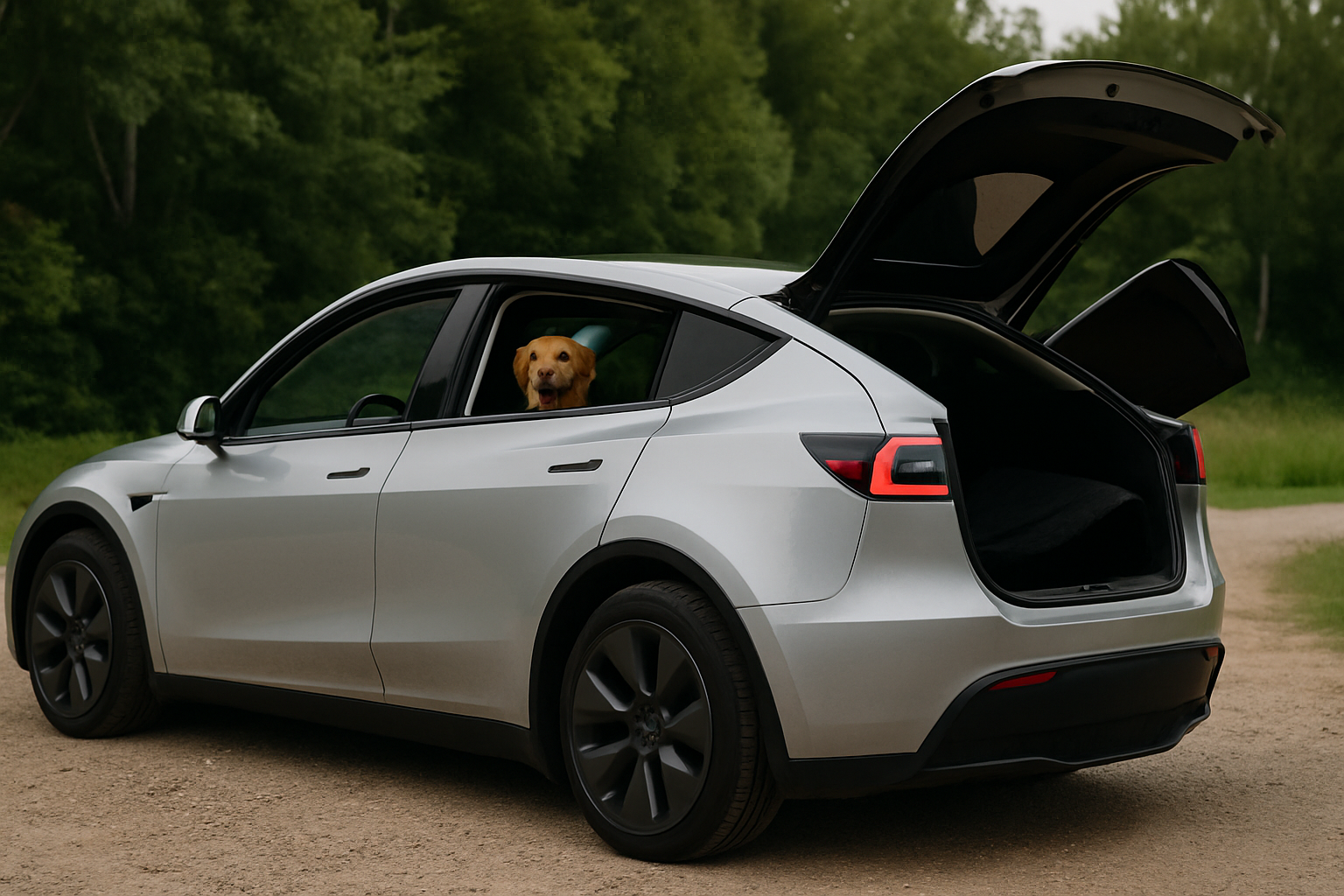
Tesla’s Dog Mode and Camp Mode are two ingenious features that transform your Model 3 or Model Y into a safe haven for pets or a comfortable basecamp for outdoor adventures. These climate control modes let you leave your vehicle unattended while maintaining the perfect environment inside.
Both features work across all Model 3 and Model Y variants from 2018 onwards, though the interface has been refined through software updates over the years. Let’s walk through how to use these features effectively and what you need to know about their impact on your battery.
What Dog Mode Does for Your Tesla
Dog Mode keeps your Tesla’s climate control system running when you leave the vehicle with passengers inside, typically pets. The feature displays a large message on the touchscreen telling passersby that your pet is safe and the temperature is being monitored.
The display shows the current cabin temperature in large, easy-to-read numbers. This prevents well-meaning strangers from breaking your windows or calling animal control when they see a dog in your car. The system also sends notifications to your phone if the temperature gets too hot or cold, or if the battery drops to 20%.
Your Tesla will automatically disable Dog Mode if the battery level falls below 20%. This prevents you from getting stranded with a dead battery, though it does mean your pet could be left in an uncomfortable environment if you’re away too long.
How Camp Mode Works
Camp Mode takes climate control further by keeping not just the air conditioning or heating running, but also maintaining power to USB ports, the touchscreen, and other accessories. This makes it perfect for car camping or extended stays in your vehicle.
Unlike Dog Mode, Camp Mode doesn’t display a warning message on the screen. Instead, it keeps all the entertainment systems active so you can watch Netflix, play games, or use other apps while parked. The seats remain adjustable, and you can even use the heated seats if your Model 3 or Y has them.
Camp Mode will run until your battery hits 20%, just like Dog Mode. However, since it’s powering more systems, it drains the battery faster than Dog Mode alone.
Setting Up Dog Mode Step by Step
Activating Dog Mode on your Model 3 or Model Y takes just a few taps on the touchscreen. Before you start, make sure you’re parked and the vehicle is in Park.
Tap the fan icon at the bottom of the touchscreen to open the climate control menu. You’ll see the current temperature settings and fan speed controls. Look for the “Keep Climate On” option, which should appear as a dog paw icon with text underneath.
Tap “Dog Mode” from the climate menu. The screen will switch to the Dog Mode display, showing a large thermometer with the current cabin temperature. You can adjust the target temperature using the temperature controls before you leave.
The system will ask you to confirm that you want to leave climate control on. Tap “Yes” to activate Dog Mode. Your Tesla will now maintain the temperature you’ve set until you return or the battery drops to 20%.
Activating Camp Mode
Camp Mode follows a similar setup process but offers additional options for power management. Start by tapping the fan icon to access climate controls, just like with Dog Mode.
Instead of selecting Dog Mode, tap “Camp Mode” from the Keep Climate On options. You’ll notice the interface looks different from Dog Mode, with access to the full touchscreen functionality rather than just the temperature display.
Camp Mode automatically keeps climate control active while maintaining power to all vehicle systems. You can adjust the temperature, play music, browse the internet, or use any of Tesla’s entertainment apps. The mode will continue running until you manually turn it off or the battery reaches 20%.
You can also enable Camp Mode through the Tesla mobile app if you’re already outside the vehicle. Open the app, select your Model 3 or Y, and tap the climate icon. From there, you can activate Camp Mode remotely.
Setting Temperature Limits and Preferences
Both Dog Mode and Camp Mode let you set specific temperature ranges to keep your pets or yourself comfortable. The temperature controls work the same way they do during normal driving.
For Dog Mode, most pet experts recommend keeping the cabin between 68-72°F for dogs. You can set this by adjusting the temperature before activating Dog Mode. The system will maintain this temperature automatically, running the heat or air conditioning as needed.
In Camp Mode, you have full control over all climate settings. This includes not just temperature, but also fan speed, air distribution, and even heated seats if you want extra comfort while sleeping in the car. The system remembers your last settings, so your preferred camp setup will be ready next time.
Both modes also work with Tesla’s overheat protection feature, which will activate cooling if the cabin temperature exceeds 105°F, even if you haven’t specifically enabled Dog Mode or Camp Mode.
Understanding Battery Drain Rates
Dog Mode typically uses about 1-3 miles of range per hour, depending on outside temperature and how hard the climate system needs to work. In mild weather, you might see closer to 1 mile per hour. In extreme heat or cold, consumption can reach 3-4 miles per hour.
Camp Mode consumes more power because it keeps the entire vehicle awake. Expect to use 3-5 miles of range per hour with Camp Mode active. This includes power for the touchscreen, USB ports, and any entertainment systems you’re running.
Your actual consumption will vary based on several factors. Outside temperature makes the biggest difference, since the climate system works harder in extreme conditions. Running the heated seats, playing loud music, or using multiple USB ports will also increase power draw.
A fully charged Model 3 or Model Y can typically run Dog Mode for 2-3 days in moderate weather. Camp Mode will last 1-2 days depending on how many systems you’re using. Always check your battery level before leaving the vehicle for extended periods.
Mobile App Monitoring and Notifications
The Tesla mobile app becomes your lifeline when using Dog Mode or Camp Mode. The app will send push notifications if something goes wrong, like the temperature getting too hot or cold, or the battery dropping too low.
You can check the current cabin temperature and battery level anytime through the app. Tap on your vehicle, then look at the climate section to see the current status. The app also shows how long the mode has been running and estimated remaining time based on current battery level.
If you need to adjust the temperature remotely, the app lets you do this without returning to the car. This comes in handy if you get a notification that it’s getting too warm or cold inside. You can also turn off Dog Mode or Camp Mode remotely if you need to conserve battery.
The app will send increasingly urgent notifications as your battery drops. You’ll get alerts at 50%, 30%, and 20% battery level. When it hits 20%, the system will automatically shut down to preserve enough power to drive.
Safety Considerations and Best Practices
Never rely solely on Dog Mode for your pet’s safety. While the system is reliable, technology can fail. Always consider the outside temperature, your pet’s heat tolerance, and how long you’ll be away before using Dog Mode.
Check your battery level before activating either mode. Starting with less than 50% charge limits your options and could leave you with insufficient range to get home. Plan your departure time based on your battery level and expected power consumption.
Keep your Tesla connected to WiFi or ensure you have good cellular coverage for the mobile app notifications to work properly. Without connectivity, you won’t receive alerts if something goes wrong.
For Camp Mode, remember that the vehicle will be unlocked while the mode is active. Only use Camp Mode in safe locations where you’re comfortable with this security consideration. You can still lock the vehicle manually, but Camp Mode disables automatic locking.
Troubleshooting Common Issues
If Dog Mode or Camp Mode won’t activate, check that your vehicle is in Park and the parking brake is engaged. The system won’t start if Tesla detects that the car might roll or drive away.
Sometimes the climate control menu doesn’t show the Dog Mode or Camp Mode options. Try restarting the touchscreen by holding both steering wheel scroll buttons for 10 seconds. This refreshes the interface and usually brings back missing options.
Battery drain that seems excessive might indicate an issue with your climate system. Dog Mode using more than 5 miles of range per hour in moderate weather could signal a problem. Schedule a service appointment if consumption seems abnormally high.
Mobile app notifications not working usually means a connectivity issue. Make sure your Tesla has cellular or WiFi connection, and check that notifications are enabled in your phone’s settings for the Tesla app.
Frequently Asked Questions
Can I use Dog Mode or Camp Mode while charging?
Yes, both modes work while plugged in and charging. This eliminates battery drain concerns and lets you use the features indefinitely. The charging system will provide power for climate control while still charging the battery.
Will Dog Mode or Camp Mode void my warranty?
No, these are official Tesla features designed to be used regularly. Using Dog Mode or Camp Mode won’t affect your vehicle warranty. However, leaving climate control running for days at a time might cause additional wear on the system.
What happens if I lose cellular connection while using these modes?
The modes will continue running normally, but you won’t receive mobile app notifications. The vehicle will still shut down automatically at 20% battery, but you won’t get advance warning. Try to maintain WiFi or cellular connectivity when possible.
Can I set different temperature limits for Dog Mode?
You can set any temperature within the normal climate control range, typically 58-84°F. However, you can’t set specific high and low limits that trigger alerts. The system maintains your set temperature and notifies you if it can’t maintain that temperature due to extreme conditions or low battery.

Leave a Reply