
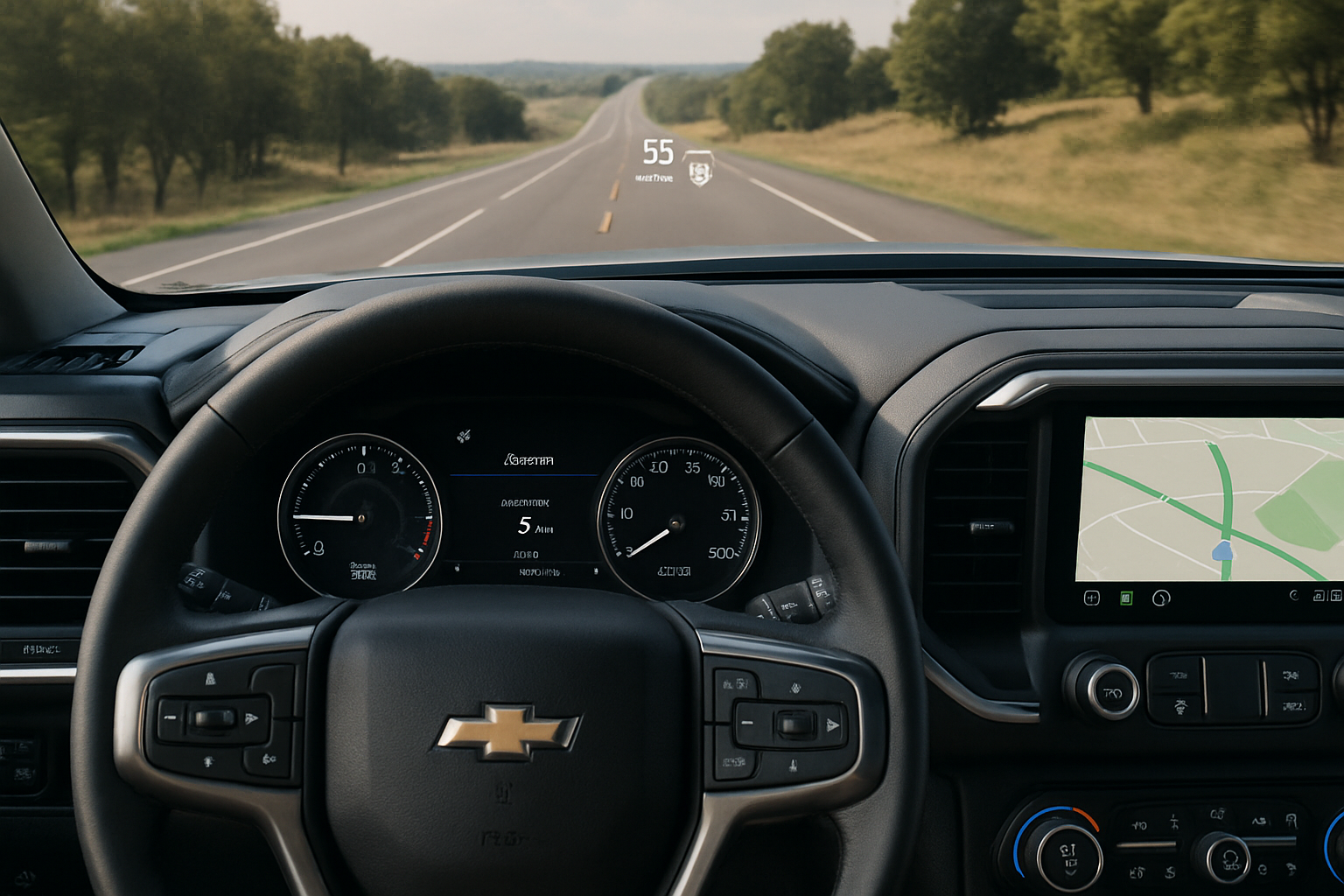
The heads-up display (HUD) on modern Chevy Silverado trucks puts critical driving information right in your line of sight, projected onto the windshield where you can see it without looking down at the dashboard. This technology helps you stay focused on the road while keeping track of your speed, navigation directions, and important safety alerts.
What Information Does the Silverado HUD Display
Your Silverado’s heads-up display shows several types of information depending on your truck’s configuration and what systems you’re currently using. The most common elements include your current speed in large, easy-to-read digits that appear to float on the windshield about six feet in front of you.
When you’re using the navigation system, directional arrows appear on the HUD to guide you through turns and lane changes. These arrows are particularly helpful because they let you follow directions without glancing down at the infotainment screen or your phone.
Audio information also appears on the display, showing the current radio station, song title, or phone call details when you’re connected via Bluetooth. Safety alerts from various driver assistance systems will also pop up on the HUD, including collision warnings, lane departure alerts, and blind spot notifications.
If your Silverado is equipped with Super Cruise, the semi-autonomous driving feature, the HUD becomes even more valuable. It displays Super Cruise status information, including when the system is active, when you need to pay attention to the road, and when conditions aren’t suitable for hands-free driving.
How to Turn the HUD On and Off
You’ll find the heads-up display controls in your infotainment system’s settings menu. Touch the settings icon on your touchscreen, then look for “Display” or “Vehicle” settings depending on your model year.
Inside the display menu, you’ll see an option labeled “Head-Up Display” or simply “HUD.” Toggle this on to activate the system. The display will immediately project onto your windshield, and you should see a basic speed readout to confirm it’s working.
Some Silverado models also include a dedicated HUD button on the dashboard, typically located near the light controls or on the left side of the steering wheel. This button features a small windshield icon with curved lines representing the projected display.
Adjusting HUD Position and Height
Getting the heads-up display positioned correctly is crucial for both visibility and safety. The image should appear to float naturally in your field of vision without requiring you to refocus your eyes significantly.
You can adjust the HUD’s vertical position through the infotainment system settings. In the Head-Up Display menu, look for “Position” or “Height” controls. Use the plus and minus buttons or slider to move the display up or down until it sits comfortably in your line of sight.
The ideal position places the HUD information slightly below the horizon line when you’re looking straight ahead. You shouldn’t have to move your eyes up or down noticeably to read the display. Every driver is different, so take time to find the position that feels most natural for your height and seating position.
Remember to readjust the HUD whenever you change your seat position significantly or when different drivers use the vehicle. Many Silverados with memory seats will also remember your HUD settings as part of your driver profile.
Brightness and Visibility Settings
The HUD automatically adjusts its brightness based on ambient lighting conditions, but you can also make manual adjustments to suit your preferences. Bright sunlight, nighttime driving, and varying weather conditions all affect how well you can see the projected information.
Access the brightness controls through the same HUD settings menu where you adjusted the position. You’ll typically see a brightness slider or plus/minus buttons that let you increase or decrease the display intensity.
During daytime driving, you might need to increase the brightness to see the display clearly against bright sky backgrounds. At night, you’ll probably want to dim the HUD to prevent it from being too distracting or washing out your night vision.
The automatic brightness adjustment works well in most situations, but don’t hesitate to override it when conditions require manual adjustment. Polarized sunglasses can sometimes make the HUD harder to see, so you might need extra brightness when wearing them.
Customizing What Information Appears
You have control over which elements display on your HUD, allowing you to personalize the information based on your driving habits and preferences. The customization options are found in the detailed HUD settings menu.
Speed display is typically always active, but you can often choose between showing just your current speed or including the speed limit information when available. Navigation arrows can be toggled on or off independently, which is useful if you prefer using other navigation methods.
Audio information display is another customizable element. You can choose to show song titles and artist information, or turn off audio displays entirely if you find them distracting. Phone call information and caller ID can also be managed separately.
Safety alert displays are generally recommended to keep active, but some drivers prefer to minimize the information shown on the HUD. You can typically adjust which alerts appear on the windshield versus only showing them on the dashboard or infotainment screen.
Super Cruise Integration Features
Silverados equipped with Super Cruise use the HUD extensively to communicate system status and driver requirements. Understanding these displays is important for safely using the semi-autonomous driving feature.
When Super Cruise is available but not active, you’ll see a steering wheel icon on the HUD that’s grayed out. This indicates the system is ready but waiting for you to activate it using the steering wheel button.
Active Super Cruise displays a blue steering wheel icon along with lane markings that show the system is actively steering the vehicle. You’ll also see indicators when Super Cruise is maintaining following distance behind another vehicle.
Driver attention alerts are crucial Super Cruise HUD displays. When the system detects you’re not paying attention to the road, the HUD will show warnings progressing from gentle reminders to more urgent alerts. These might include text messages like “Keep Eyes on Road” or flashing indicators.
Troubleshooting Common HUD Issues
If your heads-up display isn’t working properly, there are several things to check before heading to the dealer. First, make sure the system is actually turned on in the settings menu, as it can sometimes get accidentally disabled.
Windshield cleanliness affects HUD visibility significantly. The display projects onto a specific area of the windshield, and dirt, water spots, or film in that area can make the image appear blurry or distorted. Clean the windshield thoroughly, paying special attention to the area directly in front of the driver.
Extremely bright sunlight or certain weather conditions can wash out the HUD display even at maximum brightness. This is normal behavior, and the display should return to normal visibility when conditions improve.
If the HUD appears doubled, blurry, or positioned incorrectly even after adjusting the settings, you might need to have the system recalibrated. This typically requires dealer service, as the projector unit may need physical adjustment.
HUD Display During Different Driving Modes
Your Silverado’s heads-up display adapts to different driving modes and conditions, changing what information it prioritizes based on your current situation. Understanding these changes helps you make the most of the system.
In normal driving mode, the HUD focuses on speed, basic navigation, and safety alerts. When you select tow/haul mode, additional information about transmission behavior and engine status may appear to help you monitor your truck’s performance while hauling heavy loads.
Off-road driving modes often modify the HUD to show relevant information like compass heading, pitch and roll angles on some models, and terrain management system status. These displays help you navigate challenging terrain while keeping your eyes focused ahead.
Sport mode or performance-oriented drive modes might emphasize different information on the HUD, potentially showing tachometer information or highlighting performance-related alerts and data.
Maintaining Your HUD System
The heads-up display system requires minimal maintenance, but a few simple practices will keep it working optimally. Keep the windshield clean, especially in the projection area, and avoid using harsh chemicals that might damage the special coatings.
When replacing your windshield, make sure the service provider uses OEM glass or approved aftermarket glass designed for HUD-equipped vehicles. Generic windshield glass may not have the proper coatings for clear HUD projection.
Avoid placing objects on the dashboard directly below the HUD projector, as these can interfere with the system’s operation or cause reflections that distort the display.
Frequently Asked Questions
Can I see the HUD while wearing polarized sunglasses?
Polarized sunglasses can reduce HUD visibility because they filter light in ways that can interfere with the projected display. If you frequently wear polarized glasses, you may need to increase the HUD brightness or consider non-polarized sunglasses for better visibility.
Does the HUD work in all weather conditions?
The HUD works in most weather conditions, but extreme brightness, heavy rain on the windshield, or fog can affect visibility. The system automatically adjusts for most conditions, but you might need to make manual brightness adjustments in challenging situations.
Will aftermarket windshield tinting affect my HUD?
Windshield tinting can interfere with HUD visibility, especially if the tint is applied over the projection area. If you’re considering tinting, discuss HUD compatibility with your installer and consider leaving the HUD projection area untinted.
Can I retrofit a HUD to my Silverado if it didn’t come with one?
Retrofitting a factory HUD system is extremely complex and expensive, requiring specialized windshield glass, dashboard modifications, and extensive wiring changes. Aftermarket HUD units are available but won’t integrate with your truck’s systems like a factory unit would.
Leave a Reply