
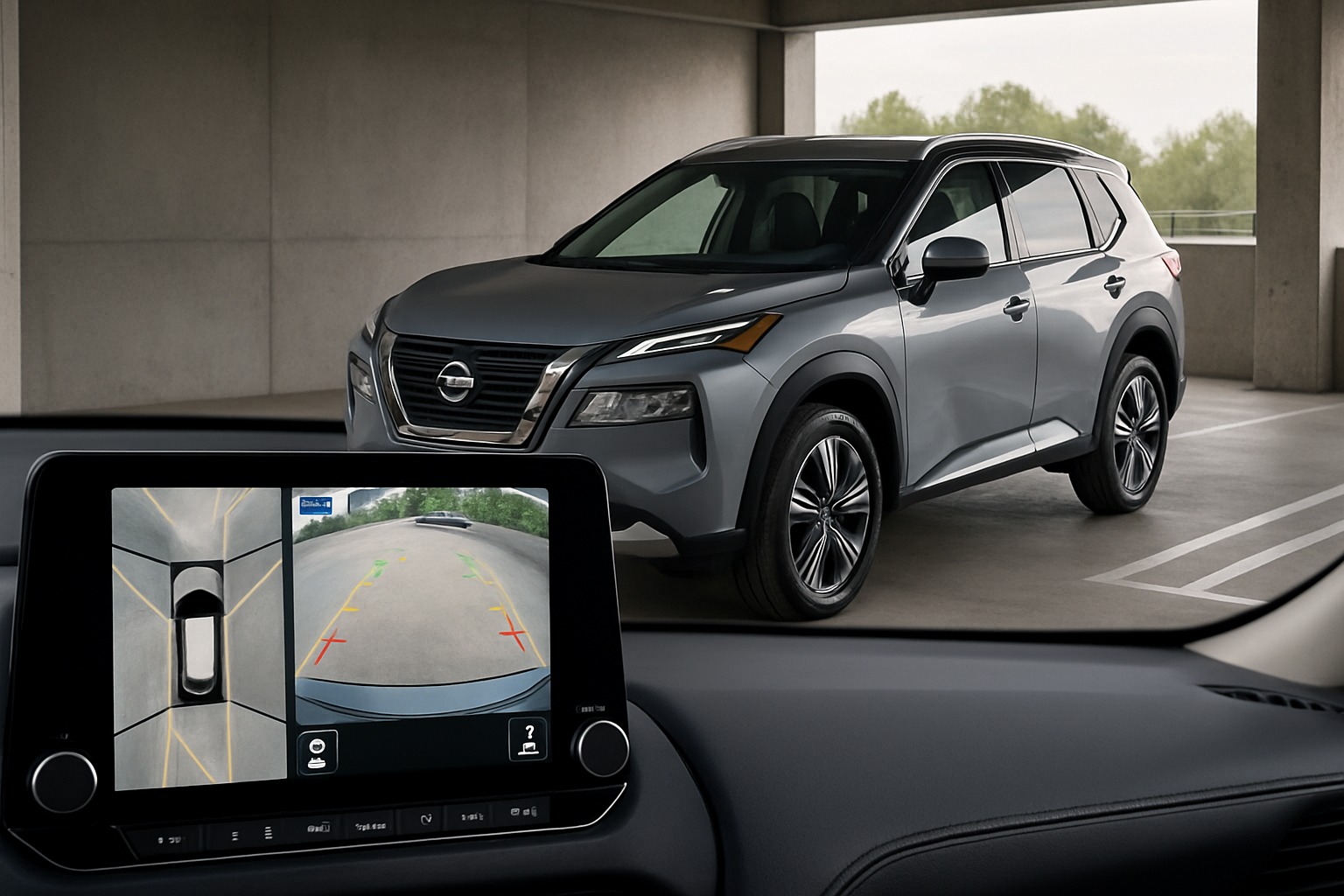
The Nissan Rogue’s Around View Monitor system transforms parking and maneuvering from guesswork into precision. This bird’s-eye view technology eliminates blind spots and gives you complete visibility around your vehicle, making tight parking spots and crowded areas much more manageable.
Understanding Your Rogue’s Around View Monitor System
Nissan’s Intelligent Around View Monitor uses four strategically placed cameras to create a 360-degree composite view of your surroundings. The front camera sits in the grille, rear camera mounts above the license plate, and side cameras hide in the door mirrors. These work together to stitch a seamless overhead view that displays on your infotainment screen.
The system goes beyond basic parking assistance. Moving Object Detection alerts you to pedestrians, shopping carts, or other vehicles approaching your Rogue. Split-screen functionality lets you see multiple angles simultaneously. On 2025 and newer models, the Invisible Hood view actually shows you what’s directly underneath your front bumper.
When integrated with ProPILOT Assist, the Around View Monitor becomes part of a comprehensive driving assistance package. The cameras help inform the automated parking features and provide visual confirmation of what the sensors detect.
Activating the Around View Monitor
You’ll find the Around View Monitor button on your center console, typically near the gear selector. The button features a square icon with arrows pointing outward from each corner. Press this button once to activate the system.
The monitor automatically engages when you shift into Reverse, but manual activation lets you use it in Drive or Park. This proves especially helpful when navigating tight spaces or checking your surroundings before pulling into traffic.
Your infotainment screen will display the overhead composite view within seconds of activation. The system needs a moment to process the camera feeds and create the seamless bird’s-eye perspective.
Navigating the Different View Options
Front View Mode
Front view shows what’s directly ahead of your Rogue, extending several feet beyond your front bumper. This view helps when pulling into parking spaces, approaching curbs, or navigating through narrow passages. The camera angle captures low obstacles that might not be visible from the driver’s seat.
Use front view when parallel parking to see exactly how close you’re getting to the car ahead. The system displays distance guidelines to help judge spacing accurately.
Rear View Integration
While you have a dedicated backup camera, the Around View Monitor enhances rear visibility by showing the complete area behind your vehicle. Unlike the standard backup camera’s limited field of view, this mode captures everything from side to side.
The rear view automatically activates when you shift into Reverse, but you can manually select it anytime. This helps when backing out of driveways with limited visibility or maneuvering in crowded parking lots.
Side View Cameras
Side views display what’s happening along the passenger and driver sides of your Rogue. These prove invaluable when parallel parking or squeezing between tight obstacles. The cameras mount in your door mirrors, providing angles impossible to see from inside the vehicle.
Toggle between left and right side views using the touchscreen controls. You can also enable split-screen mode to see both sides simultaneously.
Bird’s Eye Composite View
The signature overhead view creates a virtual perspective from above your Rogue. This computer-generated image combines all four camera feeds into one seamless picture. Your vehicle appears as a digital outline in the center, surrounded by real-time footage of your actual surroundings.
The bird’s-eye view updates in real-time as you move. Objects and obstacles appear exactly where they exist relative to your vehicle’s position.
Understanding the Moving Object Detection Feature
Moving Object Detection continuously monitors all four camera feeds for approaching people, vehicles, or objects. When the system detects movement, it highlights the area with colored indicators and sounds an audible alert.
The sensitivity adjusts automatically based on your driving situation. In parking lots, it watches for pedestrians walking between cars. On streets, it focuses on vehicles or cyclists that might enter your path.
You can adjust the alert sensitivity through the vehicle settings menu. Higher sensitivity catches smaller movements but may trigger more false alarms. Lower sensitivity reduces false alerts but might miss subtle movements.
Using Split-Screen Views Effectively
Split-screen mode divides your display to show two different camera angles simultaneously. This feature shines during complex parking maneuvers where you need to monitor multiple areas at once.
Common split-screen combinations include front and rear views for parallel parking, or left and right side views for navigating between obstacles. Access split-screen options through the touchscreen interface after activating the Around View Monitor.
The screen layout adapts based on your selected combination. Each view maintains clear detail despite sharing screen space. Touch either side of the split screen to make that view full-screen temporarily.
Invisible Hood View (2025+ Models)
The newest Rogue models feature Invisible Hood technology that virtually removes your hood from the display. This creates an unobstructed view of what’s directly in front of your vehicle, including areas normally hidden by the hood.
Invisible Hood view activates automatically in certain situations or manually through the display controls. The technology uses advanced image processing to seamlessly blend camera feeds and eliminate the visual obstruction.
This feature particularly helps when approaching steep inclines, navigating over curbs, or positioning your vehicle precisely against loading docks or garage walls.
ProPILOT Integration Benefits
When your Rogue includes ProPILOT Assist, the Around View Monitor cameras provide visual confirmation of what the automated systems detect. This integration creates a more comprehensive understanding of your surroundings.
During automated parking sequences, the monitor displays real-time footage of the maneuver in progress. You can watch as ProPILOT guides your vehicle into the space while maintaining awareness of nearby obstacles.
The visual feedback builds confidence in the automated systems. You can see exactly what the sensors detect and verify that the system responds appropriately to changing conditions.
Practical Tips for Optimal Use
Camera Maintenance
Keep all four cameras clean for the best image quality. The front camera sits low in the grille where road spray and debris accumulate quickly. Check it regularly and clean with a soft cloth and mild soap solution.
Door mirror cameras need attention after car washes or rain storms. Water spots can create distortion in the side views. The rear camera collects dust and road grime, especially during dry conditions.
Never use abrasive cleaners or rough cloths on the camera lenses. These delicate components scratch easily, creating permanent image distortion.
Lighting Considerations
The Around View Monitor performs best in good lighting conditions. Dawn, dusk, and nighttime use may show reduced image quality or clarity. The system compensates with enhanced processing, but some detail loss occurs in low light.
Bright sunlight can create glare or washout in certain camera angles. Position your vehicle to minimize direct sun exposure to the cameras when possible.
Understanding System Limitations
The cameras have specific coverage areas with small gaps between their fields of view. Very small objects or those positioned in transition zones might not display clearly in the composite view.
Extremely close objects may appear distorted due to the wide-angle lenses required for comprehensive coverage. Use the individual camera views for precise close-range maneuvering.
The system processes images in real-time, which can create slight delays during rapid movements. Make smooth, deliberate movements when relying on the monitor for guidance.
Troubleshooting Common Issues
If the Around View Monitor displays a “camera unavailable” message, check for obstructions covering the affected camera. Snow, ice, or debris commonly blocks the lenses.
Image quality problems usually stem from dirty cameras or extreme weather conditions. Clean the lenses and allow time for fog or condensation to clear.
System activation delays can occur if the vehicle’s computer is processing other functions simultaneously. Wait a moment and try activating the monitor again.
Maximizing Safety and Convenience
Use the Around View Monitor as a supplement to, not replacement for, direct visual observation. Always check mirrors and physically look around your vehicle before moving.
Familiarize yourself with the system’s button locations and screen controls while parked. This knowledge helps you operate the monitor confidently when you need it most.
Practice using different view modes in safe environments like empty parking lots. Understanding how each mode displays information prepares you for real-world situations.
Frequently Asked Questions
Does the Around View Monitor work while driving?
Yes, you can activate the monitor while driving at low speeds, typically under 10 mph. The system automatically deactivates at higher speeds for safety reasons. This allows use in parking lots and stop-and-go traffic but prevents distraction during normal driving.
Can I adjust the camera angles or zoom levels?
The camera positions are fixed, but you can zoom in on specific areas using touchscreen controls. Some models offer slight adjustments to the display perspective, but the physical camera angles remain constant. Zoom functionality works best with individual camera views rather than the composite overhead view.
Will snow or rain affect the camera performance?
Weather can impact image quality, especially when snow or ice covers the camera lenses. The system includes heating elements to prevent frost buildup, but heavy snow may require manual cleaning. Rain typically doesn’t block the cameras but can create water spots that affect clarity.
How do I know if my Rogue has all the latest Around View Monitor features?
Check your vehicle’s build date and option codes to determine which features are included. Invisible Hood view only appears on 2025 and newer models. Moving Object Detection and split-screen capabilities became standard on most trim levels after 2020. Your owner’s manual contains specific feature information for your model year.
This article contains affiliate links. If you purchase through these links, we may earn a small commission at no extra cost to you.
Leave a Reply