
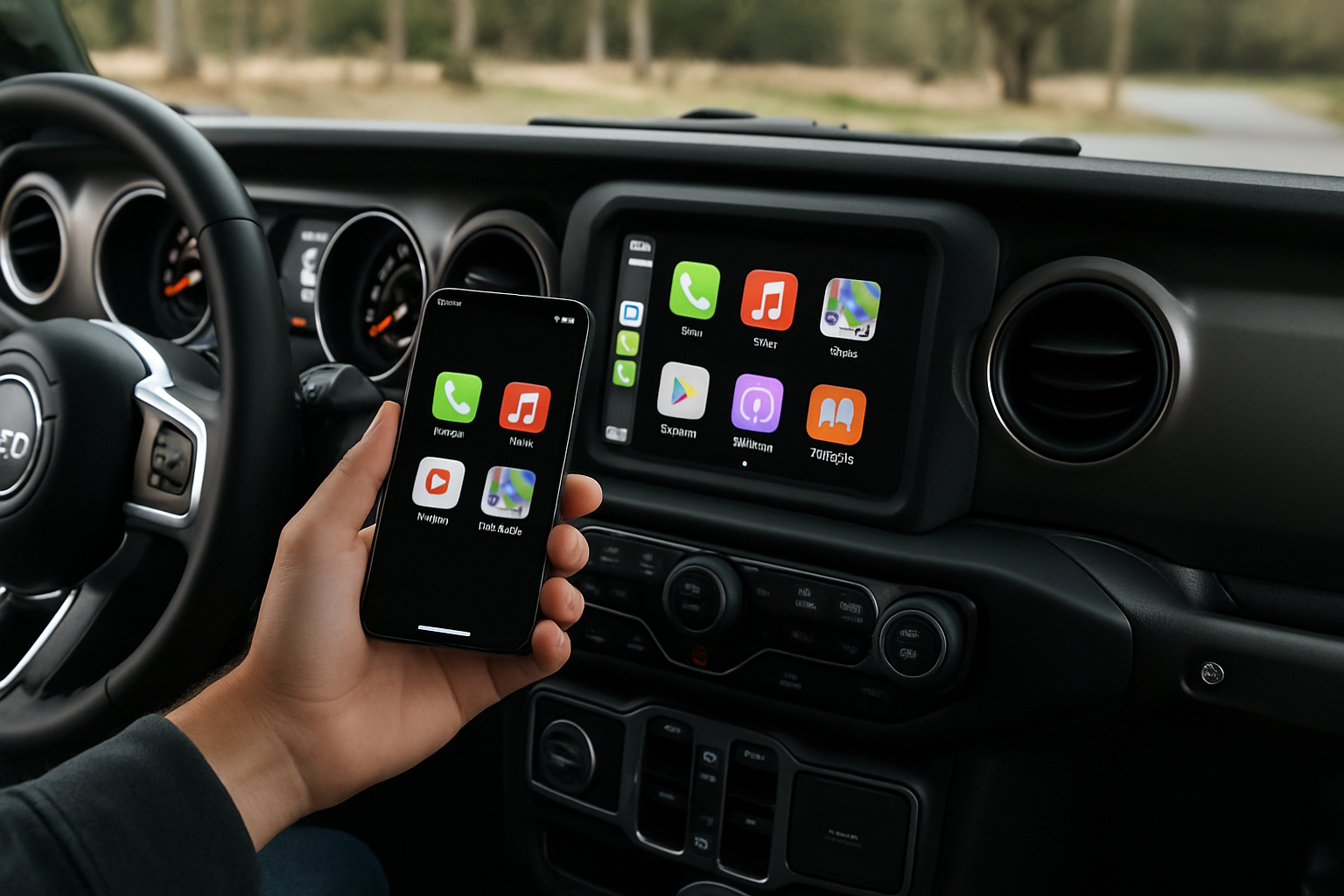
Modern Jeep Wranglers come equipped with advanced Uconnect infotainment systems that support wireless phone mirroring, making it easier than ever to access your smartphone apps while driving. The wireless connectivity eliminates the need for cables while providing full access to CarPlay and Android Auto features.
Understanding how to properly set up and use these wireless features will enhance your driving experience and keep you connected on every adventure.
Understanding Wireless Phone Mirroring in Jeep Wranglers
Wireless phone mirroring allows your iPhone or Android device to connect to your Jeep’s Uconnect system without any physical cables. This technology uses Wi-Fi and Bluetooth connections to transmit your phone’s interface directly to the vehicle’s touchscreen display.
The feature works with Uconnect 4C NAV and Uconnect 5 systems found in 2018 and newer Jeep Wranglers. Your vehicle must have the wireless connectivity hardware package, which wasn’t standard on all trim levels initially.
Wireless CarPlay requires an iPhone 5 or newer running iOS 9 or later, while wireless Android Auto needs Android 11 or higher on compatible devices. Most smartphones from the past few years will work without issues.
Initial Setup for Wireless CarPlay
Before setting up wireless CarPlay, you’ll need to establish the initial connection using a USB cable. Connect your iPhone to one of the USB ports in your Wrangler using a Lightning cable.
Your Uconnect system will prompt you to enable CarPlay. Accept the connection and follow any additional prompts on both your phone and the vehicle display. This wired connection creates the initial pairing profile your Jeep will remember.
Once the wired connection is established and working properly, disconnect the USB cable. Your iPhone should automatically appear as an available wireless connection in your Uconnect settings menu.
Enabling Wireless Mode
Navigate to the Settings menu on your Uconnect display and select “Mobile Apps.” Look for the CarPlay settings option and find the wireless connectivity toggle. Enable this option to allow your Jeep to broadcast a Wi-Fi network for your phone to connect to.
Your iPhone will detect the available wireless CarPlay connection automatically when you enter the vehicle. The initial wireless connection might take 30-60 seconds to establish, but subsequent connections typically happen within 10-15 seconds.
Setting Up Wireless Android Auto
Android Auto wireless setup follows a similar process but requires a few additional steps. Start by connecting your Android phone via USB cable and ensuring Android Auto launches properly on the Uconnect display.
Open the Android Auto app on your phone and access the settings menu. Look for the wireless connection option and enable it. Your phone will need to be connected to the vehicle’s Wi-Fi network, which appears in your phone’s Wi-Fi settings as your vehicle’s name.
Disconnect the USB cable once you’ve enabled wireless mode on both devices. Your Android phone should automatically connect to wireless Android Auto when you start your Jeep, provided Bluetooth and Wi-Fi are enabled on your device.
Troubleshooting Android Auto Connection Issues
Android Auto wireless connections can be more finicky than CarPlay. If your phone doesn’t connect automatically, try forgetting the vehicle’s Wi-Fi network on your phone and re-establishing the connection.
Make sure your phone’s location services are enabled, as Android Auto requires this for wireless functionality. Also verify that your phone isn’t connected to other Wi-Fi networks that might interfere with the vehicle connection.
Managing Multiple Connected Phones
Your Uconnect system can store pairing information for multiple phones, but only one device can use wireless mirroring at a time. The system typically connects to the last phone that was actively used or the first compatible device it detects.
To switch between phones, access the Mobile Apps menu in your Uconnect settings. You’ll see a list of paired devices and can select which one should connect for wireless mirroring. This is particularly useful for families sharing a vehicle.
If you want to prioritize a specific phone, disconnect other devices’ wireless connections or turn off their Wi-Fi/Bluetooth temporarily. The system will connect to the available device automatically.
Removing Old Phone Pairings
Over time, you might accumulate multiple device pairings that you no longer need. Access the Uconnect settings menu and navigate to the device management section. Here you can delete old phone pairings and clear up storage space.
Removing unused pairings can also improve connection reliability by eliminating potential conflicts between multiple remembered devices.
Wireless vs USB Connection Quality
Wireless phone mirroring offers convenience, but there are some trade-offs compared to wired connections. USB connections typically provide faster response times and more reliable data transmission, especially for demanding applications.
Wireless connections can experience occasional lag or stuttering, particularly when using navigation apps with complex graphics. The difference is usually minimal for basic functions like music playback and simple apps.
Battery usage is higher with wireless connections since your phone maintains active Wi-Fi and Bluetooth connections. Consider using the wireless charging pad if your Wrangler is equipped with one, or keep a charging cable handy for longer trips.
Audio Quality Considerations
Audio quality between wireless and wired connections is generally comparable for most users. However, audiophiles might notice slight compression artifacts with wireless streaming, especially at higher volume levels.
The wireless connection uses compressed audio transmission to maintain stable connectivity. For the best audio experience during long road trips, consider switching to a USB connection when audio quality is your top priority.
Uconnect 5 Navigation Features
The Uconnect 5 system found in 2021 and newer Wranglers offers enhanced wireless connectivity features and improved integration with phone navigation apps. The system provides split-screen capabilities, allowing you to view navigation and audio controls simultaneously.
Wireless Android Auto and CarPlay work seamlessly with the Uconnect 5’s larger 8.4-inch or 12-inch touchscreen displays. The higher resolution screens provide clearer map details and better visibility for navigation instructions.
Voice commands work reliably over wireless connections, allowing you to control navigation, make calls, and send messages without taking your hands off the wheel. The wireless connection maintains full functionality with Siri and Google Assistant.
Enhanced Integration Features
Uconnect 5 systems can display phone navigation alongside native vehicle information like fuel range and tire pressure monitoring. This integration provides a more comprehensive driving experience without switching between different screens.
The system also supports drag-and-drop functionality for certain apps, making it easier to organize your most-used applications on the home screen.
Optimizing Wireless Connection Performance
Several factors can affect wireless connection quality in your Jeep Wrangler. Physical obstacles between your phone and the Uconnect system can weaken the signal, so avoid placing your phone in locations where metal components might interfere.
Keep your phone’s operating system and the Android Auto or CarPlay apps updated to the latest versions. Manufacturers regularly release updates that improve wireless connectivity and fix known bugs.
If you experience frequent disconnections, try resetting the network settings on your phone and re-pairing it with your Jeep’s system. This process clears any corrupted connection data that might cause reliability issues.
Environmental Factors
Extreme temperatures can affect wireless connection stability. Very hot or cold conditions might cause temporary connectivity issues as the electronic components adjust to temperature changes.
Urban environments with heavy Wi-Fi traffic can sometimes interfere with the connection. If you notice problems in specific locations, the issue is likely related to local signal interference rather than your vehicle’s system.
Common Connection Problems and Solutions
Phone not connecting automatically is the most frequent issue users encounter. First, verify that both Bluetooth and Wi-Fi are enabled on your phone and that airplane mode is turned off.
Check that your phone isn’t connected to another Wi-Fi network that might take priority over the vehicle’s connection. Disconnect from home or office networks before starting your Jeep.
If the connection fails repeatedly, delete the vehicle’s Wi-Fi network from your phone’s saved networks and restart the pairing process from the beginning.
System Reset Procedures
When connection problems persist, try performing a soft reset of your Uconnect system. Hold down the volume and tuner knobs simultaneously for 10-15 seconds until the system reboots.
For more serious issues, you might need to perform a factory reset of the Uconnect system, though this will erase all saved settings and pairings. Access this option through the system settings menu under “Factory Reset.”
Maximizing Battery Life During Wireless Use
Wireless phone mirroring can drain your phone’s battery faster than normal use. The constant Wi-Fi and Bluetooth connections, combined with screen mirroring, require significant power.
Consider adjusting your phone’s screen brightness and closing unnecessary background apps before connecting to wireless CarPlay or Android Auto. These simple steps can extend your phone’s battery life during longer drives.
If your Wrangler has a wireless charging pad, position your phone properly to ensure consistent charging. The charging pad works best when your phone is centered and lying flat without a thick case.
Security and Privacy Considerations
Wireless phone mirroring creates a direct connection between your personal device and your vehicle’s systems. While this connection is generally secure, be aware of what information you’re sharing.
Your Uconnect system may store some data from your phone, including recent destinations and contact information. Review your privacy settings in both CarPlay/Android Auto and your Uconnect system regularly.
When selling or trading your Jeep, perform a complete factory reset of the Uconnect system to ensure your personal information is completely removed from the vehicle’s memory.
Frequently Asked Questions
Can I use wireless mirroring while my phone is charging via USB?
Yes, you can charge your phone via USB while maintaining a wireless data connection. This setup gives you the convenience of wireless connectivity while keeping your phone charged. Simply connect your phone to a USB port for power only after establishing the wireless connection.
Why does wireless connection take longer than plugging in a cable?
Wireless connections require your phone and the Uconnect system to establish both Wi-Fi and Bluetooth connections, then authenticate and sync data. This process typically takes 15-30 seconds, while USB connections are nearly instantaneous. The slight delay is normal and improves as the system learns your device.
Will wireless mirroring work if my phone case is very thick?
Thick cases generally don’t affect wireless CarPlay or Android Auto connectivity since these features use Wi-Fi and Bluetooth rather than physical connections. However, very thick cases with metal components might interfere with wireless charging if your Wrangler has that feature.
Can passengers connect their phones for wireless mirroring while I’m driving?
Only one phone can use wireless mirroring at a time. If a passenger wants to connect their device, you’ll need to disconnect your phone’s wireless connection first. The system will then be available for the passenger’s device to connect, though this process should only be done when safely parked.
This article contains affiliate links. If you purchase through these links, we may earn a small commission at no extra cost to you.

Leave a Reply