
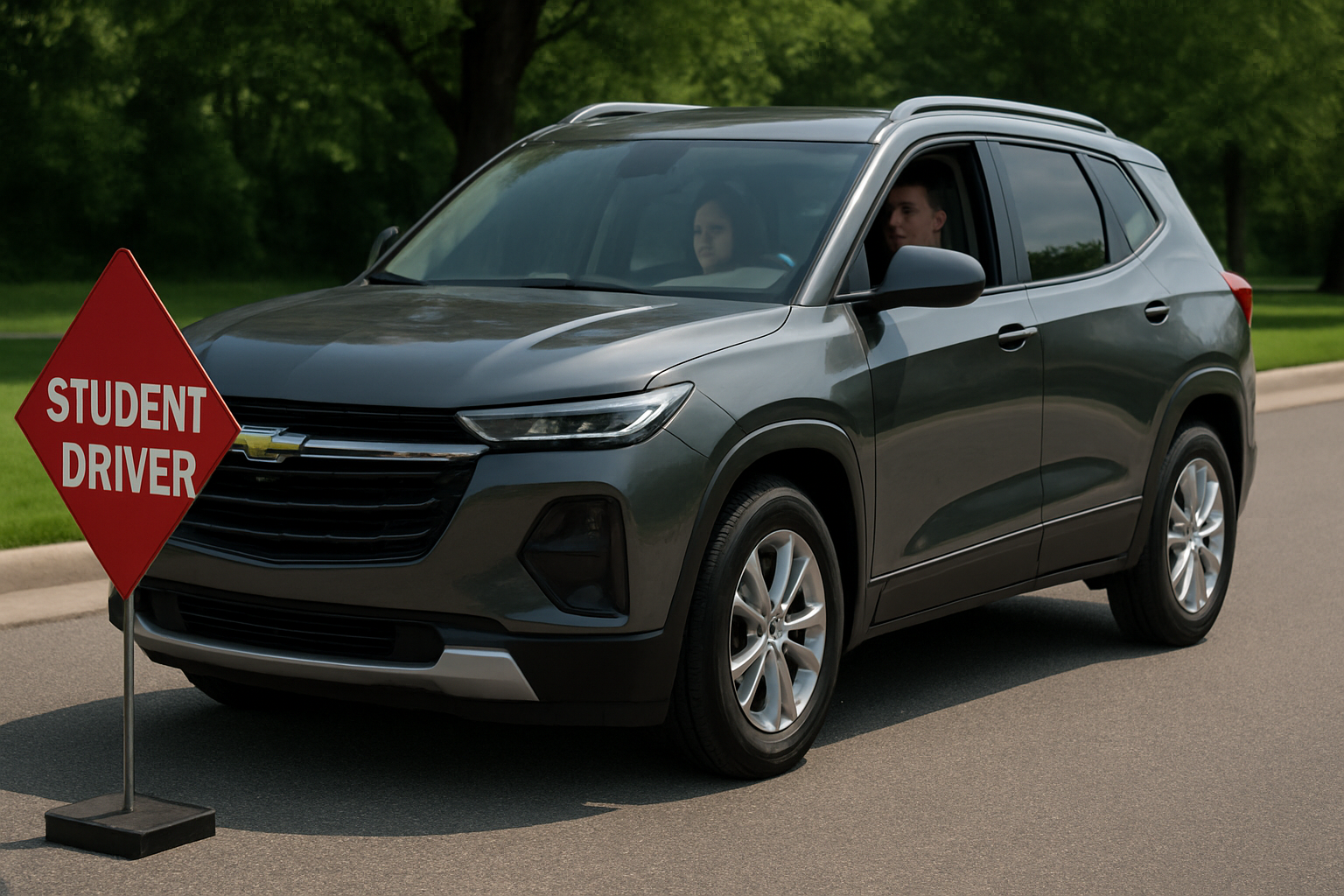
Teaching a teenager to drive brings excitement and worry in equal measure. Chevrolet’s Teen Driver feature helps parents monitor and guide their teen’s driving habits while building safer behaviors behind the wheel.
This comprehensive system lets you set speed warnings, limit audio volume, track driving distances, and even enable Do Not Disturb mode. You’ll assign a specific key fob to your teen and protect the settings with a PIN code.
What Is Chevrolet’s Teen Driver Feature
Teen Driver is a built-in system available on most Chevrolet vehicles from 2016 onward. The feature transforms your regular key fob into a monitoring and safety tool specifically designed for inexperienced drivers.
When your teen uses their assigned key fob, the system automatically activates predetermined safety settings. These include speed alerts, audio limitations, and enhanced safety feature activation. The system also tracks driving data for later review.
The feature works entirely through your vehicle’s infotainment system. You don’t need any additional hardware or smartphone apps to get started.
Setting Up Teen Driver: Initial Configuration
Before your teen can use their designated key, you’ll need to establish the system using your vehicle’s touchscreen display. Start by ensuring you have at least two programmable key fobs available.
Access the Teen Driver menu through your infotainment system’s Settings menu. Look for “Teen Driver” in the vehicle settings section. Some models place this under “Safety” or “Driver Assistance” menus.
The system will prompt you to create a four-digit PIN. Choose numbers your teen won’t easily guess, but make sure you’ll remember them. You’ll need this PIN every time you want to modify Teen Driver settings.
Creating Your Security PIN
Your PIN protects all Teen Driver settings from unauthorized changes. Enter four digits using the touchscreen number pad, then confirm by entering them again.
Write down your PIN and store it somewhere secure. If you forget this number, you’ll need to visit a Chevrolet dealer to reset the system. The dealer will require proof of ownership and proper identification.
Avoid using obvious combinations like birth years, anniversaries, or simple patterns like 1234. Your teen might figure these out and change settings when you’re not around.
Assigning a Key Fob to Your Teen
After setting your PIN, you’ll assign one of your vehicle’s key fobs specifically to your teenage driver. This key will automatically trigger Teen Driver mode whenever it’s used to start the vehicle.
The system will display “Select Teen Key” on your screen. Press and hold the lock and unlock buttons on the key fob you want to designate for your teen. Hold both buttons simultaneously for about three seconds.
Your vehicle will confirm the key assignment with a message on the display. The chosen key fob is now permanently linked to Teen Driver mode until you remove it from the system.
Label the teen key clearly or use a distinctive keychain to avoid confusion. Parents often accidentally grab the teen key, which can be frustrating when speed warnings start chiming during normal driving.
Configuring Speed Warnings and Limits
Speed warnings help remind your teen to maintain safe driving speeds. You can set custom warning speeds between 40 and 75 mph, depending on your comfort level and local driving conditions.
Navigate to the Teen Driver settings and select “Speed Warning.” Use the touchscreen to adjust the warning speed in 5 mph increments. When your teen exceeds this speed, the system will chime and display a warning message.
Consider setting the warning about 5-10 mph below typical speed limits in your area. This gives your teen a buffer before they actually exceed legal limits. For new drivers, start with lower settings and gradually increase them as skills improve.
The speed warning doesn’t physically limit your vehicle’s performance. Your teen can still exceed the warning speed, but they’ll receive constant audio and visual reminders to slow down.
Setting Audio Volume Limits
Loud music can distract new drivers and mask important sounds like sirens or honking horns. The Teen Driver system lets you cap the maximum audio volume to ensure your teen can hear their surroundings.
Access the “Audio Volume Limit” setting in your Teen Driver menu. The system typically allows you to set the maximum volume anywhere from level 1 to 20, depending on your vehicle’s audio system.
Most parents find that setting the limit around 12-15 provides enough volume for normal listening without becoming dangerously loud. Your teen can still adjust the volume normally, but they won’t be able to exceed your predetermined maximum.
This setting affects all audio sources including radio, Bluetooth, USB devices, and satellite radio. The limitation remains active throughout the entire driving session.
Enabling Do Not Disturb Mode
Do Not Disturb mode blocks incoming calls and text message notifications when the vehicle is in motion. This feature reduces the temptation for teens to interact with their phones while driving.
Find the “Do Not Disturb” option in your Teen Driver settings and toggle it to “On.” When activated, the system will suppress most phone notifications as soon as the vehicle starts moving.
The feature works with phones connected through Bluetooth or Android Auto/Apple CarPlay. Emergency calls can still come through, but regular calls and texts will be blocked until the vehicle stops.
Some teens initially resist this feature, but many parents consider it one of the most valuable safety tools in the Teen Driver system. It eliminates a major source of distraction during those crucial early driving months.
Understanding the Driving Report
Every time your teen drives, the system records valuable data about their driving session. This information helps you identify areas where additional coaching might be helpful.
The driving report tracks maximum speed reached, distance driven, and instances where safety systems activated. You’ll also see records of speed warning violations and any times your teen exceeded the preset speed limit.
Access these reports through the Teen Driver menu by selecting “View Report.” The system stores data from multiple driving sessions, allowing you to track improvement over time.
Use this information for constructive conversations rather than punishment. Focus on positive trends and discuss any concerning patterns in a supportive way that encourages better habits.
Additional Safety Features Activated
When Teen Driver mode is active, several safety systems automatically enable regardless of their normal settings. These include features like Forward Collision Alert, Lane Keep Assist, and parking assistance systems where available.
The traction control system also locks into its most conservative setting, preventing your teen from disabling it during their drive. Stability control systems similarly remain fully active throughout the driving session.
Your teen cannot manually disable these enhanced safety features while using their designated key fob. This ensures maximum protection even if they’re tempted to turn off safety systems.
Modifying Settings Over Time
As your teen gains experience and demonstrates responsible driving habits, you can adjust Teen Driver settings to provide more freedom. All changes require your four-digit PIN for security.
Consider gradually increasing speed warning thresholds or relaxing audio volume limits as your confidence in their abilities grows. The driving reports provide objective data to guide these decisions.
You might start with very conservative settings for the first few months, then progressively adjust them based on your teen’s performance. This graduated approach helps build trust while maintaining safety.
Removing a Teen Key
When your teen no longer needs the monitoring features, you can remove their key from the Teen Driver system. This process requires your PIN and can be reversed if needed later.
Navigate to Teen Driver settings and select “Remove Teen Key.” Enter your PIN when prompted, then follow the on-screen instructions to unlink the key fob from the system.
The previously designated key will function normally after removal, with no special restrictions or monitoring. All stored driving data for that key will be cleared from the system.
Troubleshooting Common Issues
Sometimes the Teen Driver system doesn’t recognize the designated key properly. Try removing the key from the system and reassigning it following the original setup process.
If speed warnings seem inaccurate, check that your vehicle’s GPS system has a clear signal. The Teen Driver feature relies on GPS data for accurate speed monitoring.
Audio volume limits that don’t seem to work properly might indicate a software issue. Try turning the vehicle off completely, waiting a few minutes, then restarting to reset the system.
Frequently Asked Questions
Can my teen override the Teen Driver settings?
All Teen Driver settings are protected by your four-digit PIN. Your teen cannot modify speed warnings, audio limits, or other restrictions without knowing this code. However, they can still exceed speed warnings, just with constant reminders to slow down.
Does Teen Driver mode affect vehicle performance?
The system doesn’t limit engine power or acceleration. Your vehicle will perform normally, but with enhanced safety monitoring and automatic activation of protective systems. Speed warnings are alerts, not physical limitations.
What happens if I forget my PIN?
You’ll need to visit a Chevrolet dealership to reset your Teen Driver PIN. Bring proof of ownership and valid identification. The dealer can clear the system and allow you to set up new settings with a fresh PIN.
Can I use Teen Driver mode with more than one teen?
The system allows only one designated teen key at a time. If you have multiple teenage drivers, they’ll need to share the same key and settings, or you can reassign the teen key between different drivers as needed.
This article contains affiliate links. If you purchase through these links, we may earn a small commission at no extra cost to you.

Leave a Reply