
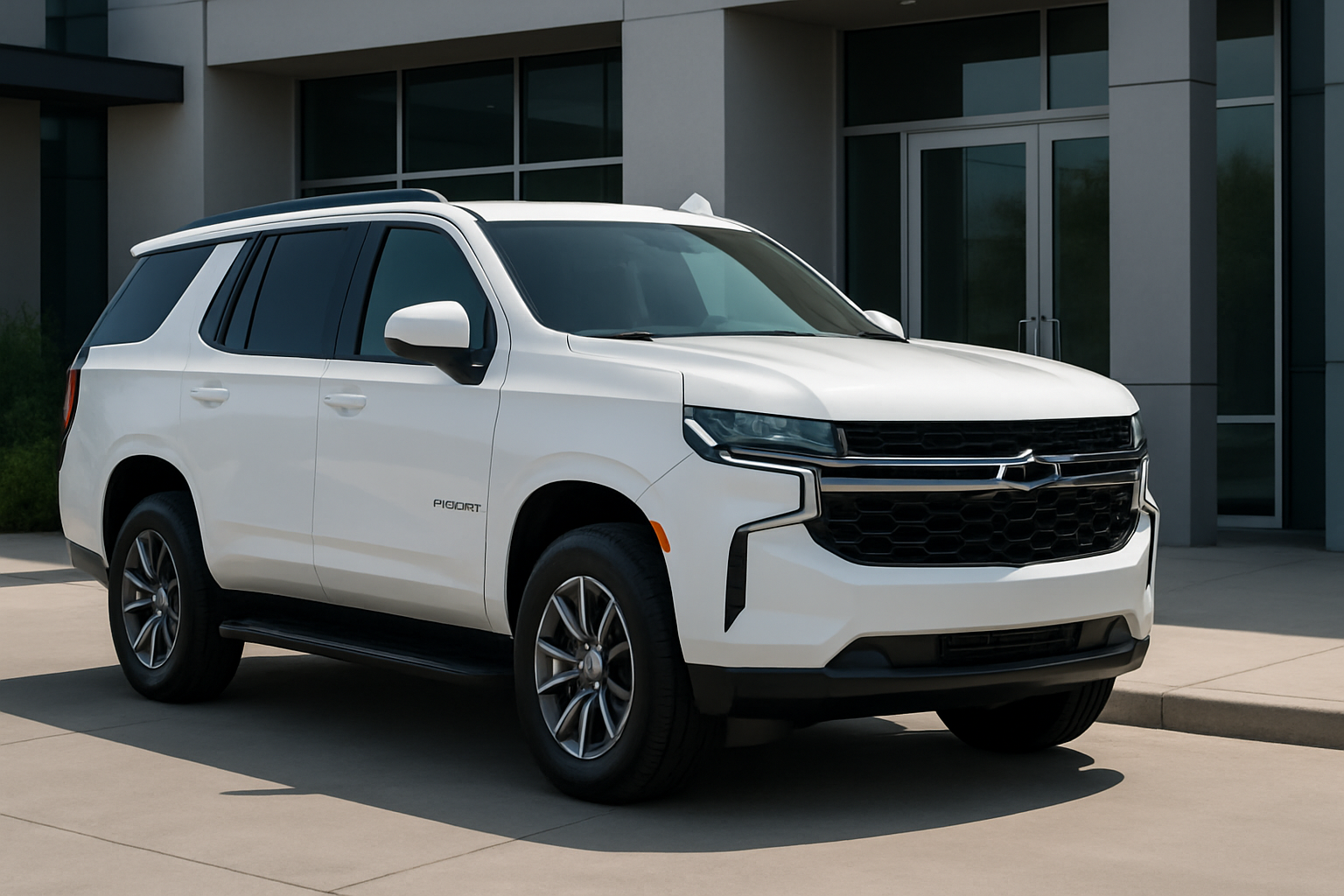
Your Chevy Tahoe or Suburban can remember exactly how you like your driving position, climate settings, and entertainment preferences. Driver profiles make sharing your vehicle with family members much more convenient by automatically adjusting everything to your personal setup when you get in.
Modern Tahoe and Suburban models come equipped with a sophisticated driver profile system that connects to your key fob and stores multiple personalized settings. Once configured, your vehicle will recognize which key fob is being used and adjust your seat, mirrors, radio presets, climate control, and heads-up display settings automatically.
Understanding the Driver Profile System
The driver profile feature in your Tahoe or Suburban works by linking specific settings to individual key fobs. When you unlock the vehicle or start the engine, the system reads which key fob you’re using and recalls all the saved preferences associated with that particular fob.
Your vehicle can store settings for up to eight different drivers. Each profile saves seat position (including lumbar support and side bolsters on equipped models), outside mirror angles, steering wheel position, radio presets and volume levels, climate control preferences, heads-up display settings, and even your preferred drive mode selections.
The system also includes Teen Driver mode, which adds additional safety features and restrictions when enabled. This mode requires a four-digit PIN to access and modify settings, giving parents control over various vehicle functions when teens are driving.
Setting Up Your First Driver Profile
Start by adjusting your seat, mirrors, steering wheel, and other preferences to your ideal driving position before programming the system. You’ll find the driver profile controls on your infotainment screen under the Settings menu.
Access the Settings menu by touching the gear icon on your touchscreen, then select “Vehicle Settings” followed by “Comfort and Convenience.” Look for “Memory Settings” or “Driver Profiles” depending on your model year.
Select “Set Driver 1” or choose an empty profile slot. The system will prompt you to confirm that all your current settings are adjusted correctly. Once you verify everything is positioned properly, press “Save” to store these settings to your current key fob.
Your profile is now linked to the key fob you used to start the vehicle. Each time you use that specific key fob, the system will automatically recall your saved preferences within a few seconds of starting the engine.
Adding Multiple Driver Profiles
Adding profiles for other family members follows the same basic process, but you’ll need their key fob present during setup. Have the second driver adjust the seat, mirrors, steering wheel, and other settings to their preferences first.
Use the second driver’s key fob to start the vehicle, then navigate back to the Memory Settings menu. Select “Set Driver 2” or another empty profile slot. The system will save the current physical settings and link them to the key fob that’s currently being used.
Repeat this process for each additional driver, making sure to use their specific key fob during the setup process. Each driver should physically adjust all settings before saving their profile to ensure accuracy.
You can also manually assign profiles to different key fobs if needed. Select “Key Fob Learning” in the Memory Settings menu, choose the profile you want to assign, then press and hold the lock and unlock buttons on the desired key fob simultaneously until the system confirms the pairing.
Customizing Individual Profile Settings
Beyond the basic seat and mirror positions, you can customize what each profile remembers. Navigate to the Memory Settings menu and select “Personalization” to choose which features get saved with each driver profile.
Climate control preferences include your preferred temperature, fan speed, air distribution settings, and whether you typically use auto mode. The system can also remember if you prefer heated or cooled seats and steering wheel settings for equipped vehicles.
Radio and infotainment settings cover your favorite stations, preferred audio sources, volume levels, and sound system adjustments like bass and treble. Some drivers prefer different volume levels, so this feature prevents you from getting blasted with loud music when switching drivers.
Heads-up display preferences include brightness levels, which information you want displayed, and the vertical position of the projected information. If your vehicle has configurable gauge cluster displays, those preferences can also be saved to each profile.
Setting Up Teen Driver Mode
Teen Driver mode adds safety features and restrictions that many parents find valuable. This system requires a separate setup process and uses a four-digit PIN that you create to access and modify settings.
Access Teen Driver mode through the Settings menu, then select “Teen Driver.” You’ll need to create a four-digit PIN that’s required to make any changes to Teen Driver settings. Choose something memorable but not easily guessed by your teenager.
Teen Driver mode can limit maximum speed, restrict audio volume, provide enhanced collision warnings, and require seat belt use before the radio will operate. You can also enable or disable traction control override and set up automatic emergency braking sensitivity.
The system generates a report card that shows maximum speeds reached, distance driven, and how often safety systems activated during Teen Driver mode sessions. This information helps parents monitor driving habits and discuss safety topics with new drivers.
Managing and Editing Existing Profiles
You can modify existing driver profiles without creating new ones from scratch. Select the profile you want to change, make your physical adjustments to seats and mirrors, then choose “Update” to save the new settings to that same profile.
Deleting profiles you no longer need frees up space for new drivers. Select the profile you want to remove, then choose “Delete” from the menu options. This action cannot be undone, so make sure you really want to remove that profile permanently.
Profile names can be customized to make identification easier. Instead of “Driver 1” and “Driver 2,” you can assign actual names like “Dad,” “Mom,” or “Sarah.” This feature makes it clearer which profile belongs to which family member.
You can also temporarily disable automatic profile activation if needed. Select “Memory Recall” in the settings menu and turn off automatic activation. Your profiles remain saved, but the system won’t automatically adjust settings when different key fobs are detected.
Troubleshooting Common Profile Issues
If your profiles aren’t activating automatically, check that the correct key fob is properly linked to each profile. The system needs a few seconds after starting the engine to recognize the key fob and begin adjusting settings.
Seat motors moving slowly or stopping mid-adjustment often indicate low battery voltage or worn seat motor components. If profiles seem to activate but seats don’t move properly, have your dealer check the seat motor operation and electrical connections.
Profile settings that don’t save correctly usually result from trying to save settings while the vehicle is moving or when electrical systems are busy with other operations. Always save profiles when parked with the engine running and all adjustments complete.
Key fob range can affect profile activation in some situations. If you’re sharing key fobs or have multiple fobs nearby, the system might detect the wrong fob and activate an incorrect profile. Keep unused fobs at least 10 feet away during normal operation.
Advanced Tips for Better Profile Performance
Memory seat fuses control the profile system operation. If profiles suddenly stop working entirely, check fuse 15 in the instrument panel fuse box and fuse 3 in the rear compartment fuse box. These are typically 10-amp mini fuses that can blow due to electrical surges.
Battery disconnection erases all saved profiles, so write down your preferred seat position numbers before any electrical work. Most seats have position indicators that show numeric values for fore/aft position, height, and tilt angles.
Cold weather can slow profile activation since seat motors work harder when lubricants are thick. Allow extra time for seat and mirror adjustments to complete during winter months, and avoid interrupting the movement sequence.
Profile activation works best when only one key fob is present in the vehicle. Multiple fobs can cause confusion, especially if they’re assigned to different profiles. Establish a routine where each driver keeps their personal fob and leaves others at home or in the house.
Frequently Asked Questions
Can I use driver profiles if I only have one key fob?
You can create and manually select different profiles using a single key fob, but automatic activation requires separate fobs for each driver. Manual selection works through the infotainment screen, but you’ll need to remember to switch profiles each time a different person drives.
Do driver profiles affect fuel economy settings?
Driver profiles can save your preferred drive mode selection, which does affect fuel economy. If one driver prefers Eco mode while another uses Sport mode, the system will automatically select the appropriate mode based on the detected key fob.
What happens to profiles if my key fob battery dies?
Profile settings remain saved in the vehicle’s memory even with a dead key fob battery. However, automatic profile activation won’t work until you replace the fob battery. You can still manually select profiles through the infotainment screen.
Can I copy profile settings to a new key fob?
You can assign existing profiles to different key fobs using the Key Fob Learning function in the Memory Settings menu. This feature is helpful if you get a replacement fob or want to reassign profiles to different family members.
This article contains affiliate links. If you purchase through these links, we may earn a small commission at no extra cost to you.

Leave a Reply