
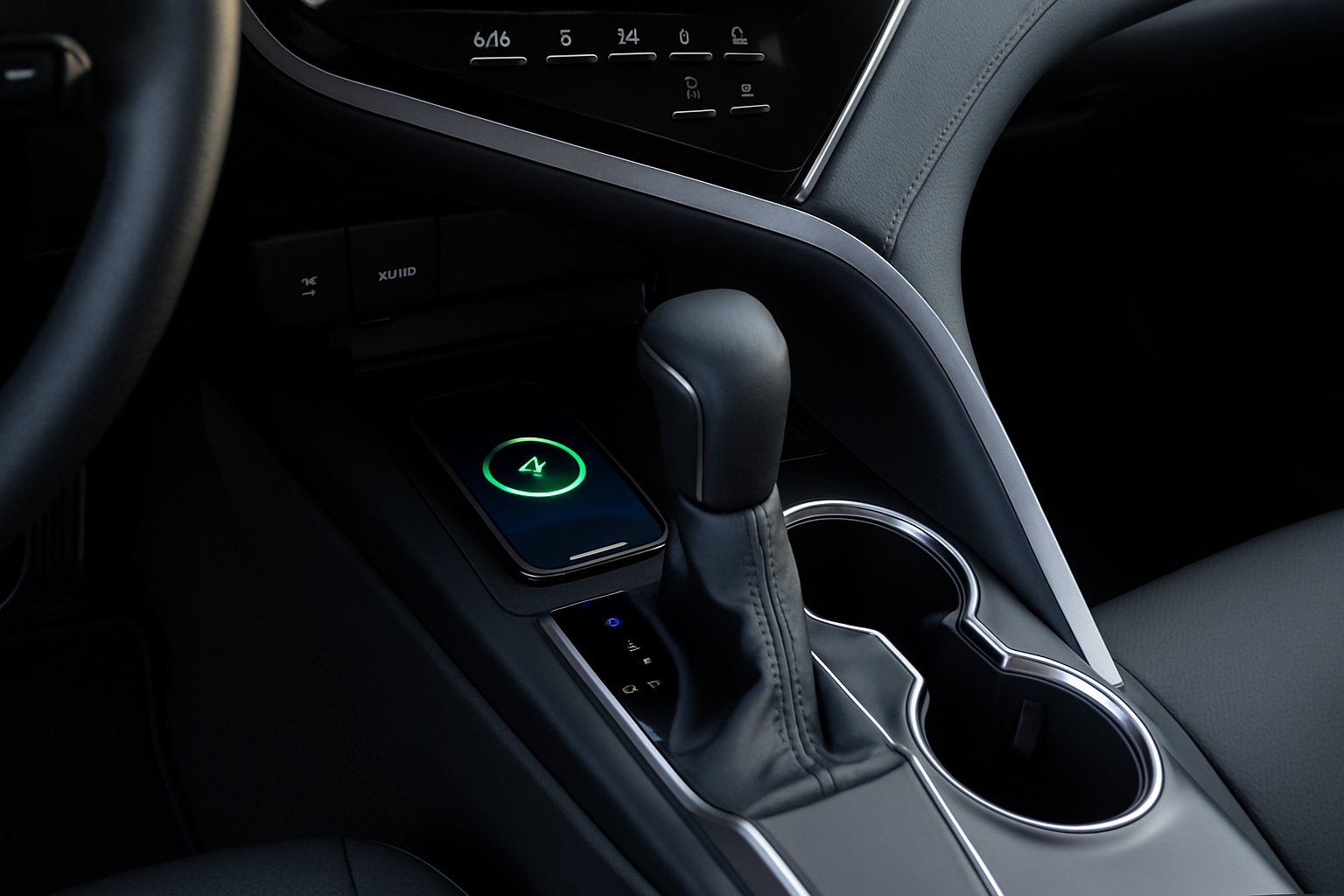
Your Toyota Camry’s wireless charging pad offers a convenient way to keep your phone powered without dealing with cables. Many drivers discover this feature by accident and wonder how to use it properly for the best results.
The wireless charging pad became available in select Toyota Camry trim levels starting with the 2018 model year refresh. You’ll find this feature in XLE, XSE, and Limited trims, while base L and LE models typically don’t include it.
Understanding Your Camry’s Wireless Charging System
Toyota integrated the wireless charging pad into the center console area, just below the climate controls and infotainment screen. The charging pad uses Qi wireless technology, the same standard adopted by most smartphone manufacturers.
The system includes a rubberized charging surface with a subtle Toyota logo, LED indicator lights, and built-in ventilation to prevent overheating. When you place a compatible phone on the pad, it automatically begins charging without any button presses or menu selections.
The charging pad connects directly to your Camry’s 12-volt electrical system and provides up to 5 watts of charging power. While this isn’t as fast as wired charging, it’s perfectly adequate for maintaining your phone’s battery during daily driving.
Compatible Phones and Devices
Your Camry’s wireless charger works with any Qi-compatible smartphone. This includes most modern iPhones (iPhone 8 and newer), Samsung Galaxy phones, Google Pixel devices, and many other Android phones manufactured after 2017.
Popular compatible models include:
- iPhone 15, 14, 13, 12, 11, XS, XR, X, and 8 series
- Samsung Galaxy S24, S23, S22, S21, S20, Note series
- Google Pixel 3 through Pixel 8 models
- Most recent LG, OnePlus, and Motorola smartphones
Check your phone’s specifications or user manual if you’re unsure about Qi compatibility. You can also test it by simply placing your phone on the pad and watching for the charging indicator.
Phone Case Considerations
Phone cases can interfere with wireless charging, especially thick cases or those with metal components. Cases thicker than 3mm often prevent proper charging, while magnetic mounts, credit cards, or metal plates completely block the wireless signal.
Remove thick cases, wallet cases, or any cases with magnetic attachments before charging. Thin silicone or plastic cases under 3mm thickness typically work fine and don’t need removal.
How to Use the Wireless Charging Pad
Using your Camry’s wireless charger couldn’t be simpler. Start by ensuring your phone is Qi-compatible and free of thick cases or magnetic attachments.
With your Camry running or in accessory mode, place your phone face-up on the charging pad. The phone should sit flat against the rubberized surface with the center of the phone’s back aligned over the Toyota logo on the pad.
Watch for the LED indicator light on the front edge of the charging pad. A solid blue or green light indicates successful charging, while a flashing light typically means the phone isn’t properly positioned or there’s an obstruction.
Proper Phone Placement
Phone placement makes all the difference for successful wireless charging. The charging coils in your phone must align with the coils in the Camry’s charging pad.
Center your phone over the Toyota logo on the charging pad. For most phones, this means the phone’s center sits directly over the logo. Larger phones like the iPhone 15 Pro Max or Samsung Galaxy S24 Ultra might extend beyond the pad’s edges, but they’ll still charge if centered properly.
Avoid placing your phone at angles or letting it slide around while driving. The charging connection breaks easily if the phone shifts position during turns or stops.
Understanding the Charging Indicator Light
Your Camry’s wireless charging pad includes an LED indicator that shows the charging status. Learning these light patterns helps you troubleshoot charging issues quickly.
A solid blue or green light means your phone is charging normally. The exact color varies by model year, but both indicate successful charging.
A flashing or blinking light indicates a problem. Common causes include improper phone placement, incompatible devices, overheating, or foreign objects on the charging pad.
No light usually means the charging pad isn’t receiving power, which can happen if your Camry is completely off rather than in accessory mode or running.
Troubleshooting Common Light Issues
When the indicator light flashes, start by removing and repositioning your phone. Make sure it’s centered over the Toyota logo and sitting flat against the pad.
Clean both your phone’s back surface and the charging pad with a microfiber cloth. Dust, lint, or moisture can interfere with the charging connection.
If the light continues flashing, check for foreign objects like coins, keys, or credit cards on the charging pad. Remove any metal objects and try again.
Dealing with Summer Overheating Issues
Wireless charging generates heat, and this becomes problematic during hot summer weather. Your Camry’s charging pad includes temperature sensors that stop charging if things get too hot.
Direct sunlight through your windshield can heat the charging pad and your phone beyond safe operating temperatures. The system automatically shuts off charging to prevent damage to your phone’s battery.
Park in shade when possible, use a windshield sunshade, or wait for your Camry’s interior to cool down before attempting wireless charging on extremely hot days.
The charging pad’s built-in ventilation helps, but it can’t overcome extreme heat. You’ll notice charging stops working when interior temperatures exceed about 95°F.
Cooling Strategies
Turn on your air conditioning and let the cabin temperature drop before placing your phone on the charging pad. The AC vents help cool the center console area where the charging pad is located.
Consider removing your phone case during summer charging sessions, as cases trap additional heat. Even thin cases can contribute to overheating problems on hot days.
If charging stops working due to heat, remove your phone from the pad and let both devices cool for 10-15 minutes before trying again.
Maximizing Charging Performance
Your Camry’s wireless charger provides slower charging speeds compared to wired connections, typically around 5 watts versus 15-20 watts for wired charging. This means wireless charging works best for maintaining battery levels rather than rapid charging.
Start your drive with a reasonably charged phone rather than relying on the wireless pad to charge a completely dead battery. The pad works great for topping off your battery during commutes or longer trips.
Close unnecessary apps and enable your phone’s low power mode if you need to maximize charging efficiency. Background apps and active features like GPS navigation draw power that competes with the wireless charging input.
When to Use Wired Charging Instead
Switch to wired charging when your phone’s battery drops below 20% and you need faster charging speeds. Your Camry includes multiple USB ports that provide faster charging for emergency situations.
Use wired charging during extremely hot weather when the wireless pad’s overheating protection kicks in frequently. A USB cable bypasses the heat generation issues of wireless charging.
Long road trips with heavy phone usage for navigation and music streaming might require wired charging to keep up with power demands.
Alternative Wireless Charging Solutions
If your Camry trim level doesn’t include a factory wireless charging pad, several aftermarket options can add this functionality. Wireless car charger phone mounts offer similar convenience with additional features like adjustable viewing angles.
These aftermarket solutions typically mount to your dashboard or air vents and include both wireless charging and phone holding capabilities. Many models offer faster charging speeds than the factory Toyota system.
Popular brands like iOttie, Belkin, and Anker manufacture high-quality wireless charging mounts specifically designed for automotive use. These units often include stronger magnets and better heat management than factory systems.
Retrofit Installation Options
Some automotive accessory shops can retrofit factory-style wireless charging pads into Camry models that didn’t originally include them. This requires removing the center console and running new wiring to the charging pad location.
Professional installation typically costs $200-400 depending on your location and the complexity of your Camry’s interior. This option maintains the factory appearance while adding wireless charging functionality.
Check with Toyota dealership service departments, as some locations offer retrofit installations using genuine Toyota parts.
Maintenance and Care
Keep your wireless charging pad clean and free of debris for optimal performance. Use a slightly damp microfiber cloth to clean the charging surface weekly, avoiding harsh chemicals or excessive moisture.
Remove any foreign objects immediately, as coins, keys, or other metal items can damage the charging coils or create safety hazards. The charging pad isn’t designed to handle metal objects.
Inspect the charging pad periodically for cracks, damage, or loose connections. Report any physical damage to your Toyota dealer, as damaged charging pads can pose electrical safety risks.
Software Updates
Your Camry’s infotainment system occasionally receives software updates that can improve wireless charging performance. Check with your Toyota dealer during regular service appointments for available updates.
Some updates improve charging efficiency, reduce overheating issues, or add compatibility with newer phone models. These updates typically install during regular maintenance visits at no additional cost.
Frequently Asked Questions
Why does my phone stop charging randomly?
Random charging interruptions usually indicate overheating, improper phone placement, or interference from phone cases or foreign objects. Check that your phone is centered on the pad and remove any thick cases. Hot weather can also cause automatic charging shutoffs to protect your phone’s battery.
Can I charge my phone with a PopSocket or magnetic mount attached?
PopSockets and magnetic mounts typically prevent wireless charging by creating distance between your phone and the charging pad or blocking the wireless signal entirely. Remove these accessories before charging, or consider wireless charging-compatible versions that include cutouts for the charging coils.
Is wireless charging bad for my phone’s battery?
Wireless charging generates more heat than wired charging, which can accelerate battery degradation over time. However, modern phones include temperature management systems that minimize this effect. The convenience of wireless charging generally outweighs the minimal battery longevity impact for most users.
What should I do if the charging pad stops working completely?
First, test with a different Qi-compatible phone to determine if the issue is with your phone or the charging pad. Check your Camry’s fuses, particularly the accessory power fuse that supplies the charging pad. If these steps don’t resolve the issue, contact your Toyota dealer for diagnostic testing and potential warranty repair.
This article contains affiliate links. If you purchase through these links, we may earn a small commission at no extra cost to you.



Leave a Reply