
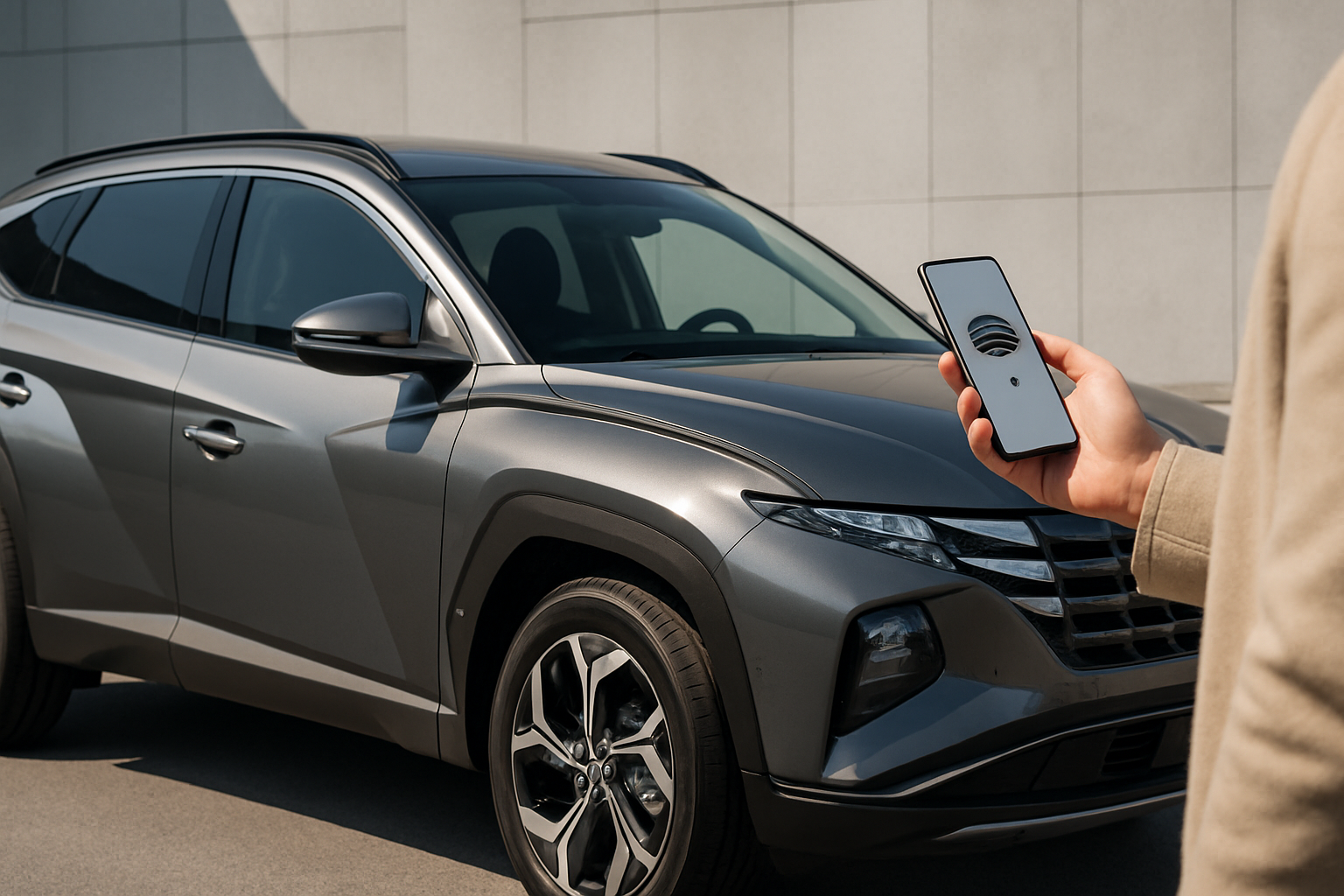
The Hyundai Tucson’s digital key feature transforms your smartphone into a sophisticated key fob, allowing you to unlock, start, and share access to your vehicle without traditional keys. This technology uses Near Field Communication (NFC) and Bluetooth connectivity through Hyundai’s Bluelink app to create a seamless ownership experience.
Understanding Hyundai’s Digital Key Technology
Hyundai’s digital key system operates on two primary technologies working together. The NFC component handles the actual unlocking and starting functions when you hold your phone near specific areas of the vehicle. Bluetooth maintains the connection for remote functions and helps the car recognize your approach.
The system differs from simple remote start apps because it completely replaces your physical key for most daily operations. You can walk up to your Tucson, touch your phone to the door handle, and unlock the vehicle. Once inside, you place your phone on the wireless charging pad or near the start button to fire up the engine.
Your Tucson comes with a backup key card that uses the same NFC technology. This credit card-sized device serves as your failsafe if your phone battery dies or you experience connectivity issues.
Compatible Phones and Requirements
Digital key functionality requires specific phone capabilities that not all devices possess. For Android users, your phone must support NFC and run Android 8.0 or newer. Popular compatible models include Samsung Galaxy S series, Google Pixel devices, and most flagship Android phones from recent years.
iPhone users need an iPhone XR or newer running iOS 13.6 or later. The system leverages Apple’s Core NFC framework, which these models support natively.
Beyond hardware compatibility, you’ll need an active Hyundai Bluelink subscription. The basic plan typically includes digital key functionality, but verify your subscription level includes this feature before beginning setup.
Your vehicle must also have the Digital Key package installed from the factory. Not all Tucson trim levels include this technology, and it cannot be retrofitted to vehicles that didn’t come equipped with the necessary hardware.
Initial Bluelink App Setup
Download the official MyHyundai app from your phone’s app store, not third-party alternatives that might compromise security. Create your Bluelink account using the same email address you used when purchasing or registering your vehicle.
The app will prompt you to enter your vehicle identification number (VIN), which you can find on your dashboard near the windshield or on your driver’s side door jamb. You’ll also need your Bluelink enrollment PIN, typically provided by your dealer during delivery.
Complete the account verification process by confirming your email address and phone number. Hyundai uses these contact methods for security notifications when digital keys are created or shared.
Navigate to the vehicle settings within the app and confirm your Tucson appears with all correct information. The app should display your exact model year, trim level, and color to verify it’s communicating with your specific vehicle.
Registering Your Primary Digital Key
Within the MyHyundai app, locate the “Digital Key” section, usually found in the main menu or vehicle controls area. Select “Add Digital Key” to begin the registration process for your primary device.
The app will guide you through enabling NFC on your phone if it’s not already active. On Android devices, this typically involves going to Settings > Connections > NFC. iPhone users running iOS 13.6 or later have NFC enabled automatically for supported apps.
Follow the on-screen prompts to approach your vehicle and touch your phone to the driver’s door handle. The exact location varies slightly, but you’ll typically hold your phone against the black plastic section of the handle where the lock sensor is located.
You’ll hear a confirmation chime from the vehicle, and the app will display a success message. The initial pairing process takes about 30-60 seconds as your phone and vehicle exchange security certificates.
Test the setup immediately by locking your vehicle with the traditional key fob, then attempting to unlock it using your phone. Place your phone against the door handle and wait for the unlock sound and flashing lights.
Setting Up Engine Start Functionality
Unlocking represents only half of the digital key’s capabilities. To enable engine starting, you’ll need to train the system to recognize your phone’s location within the cabin.
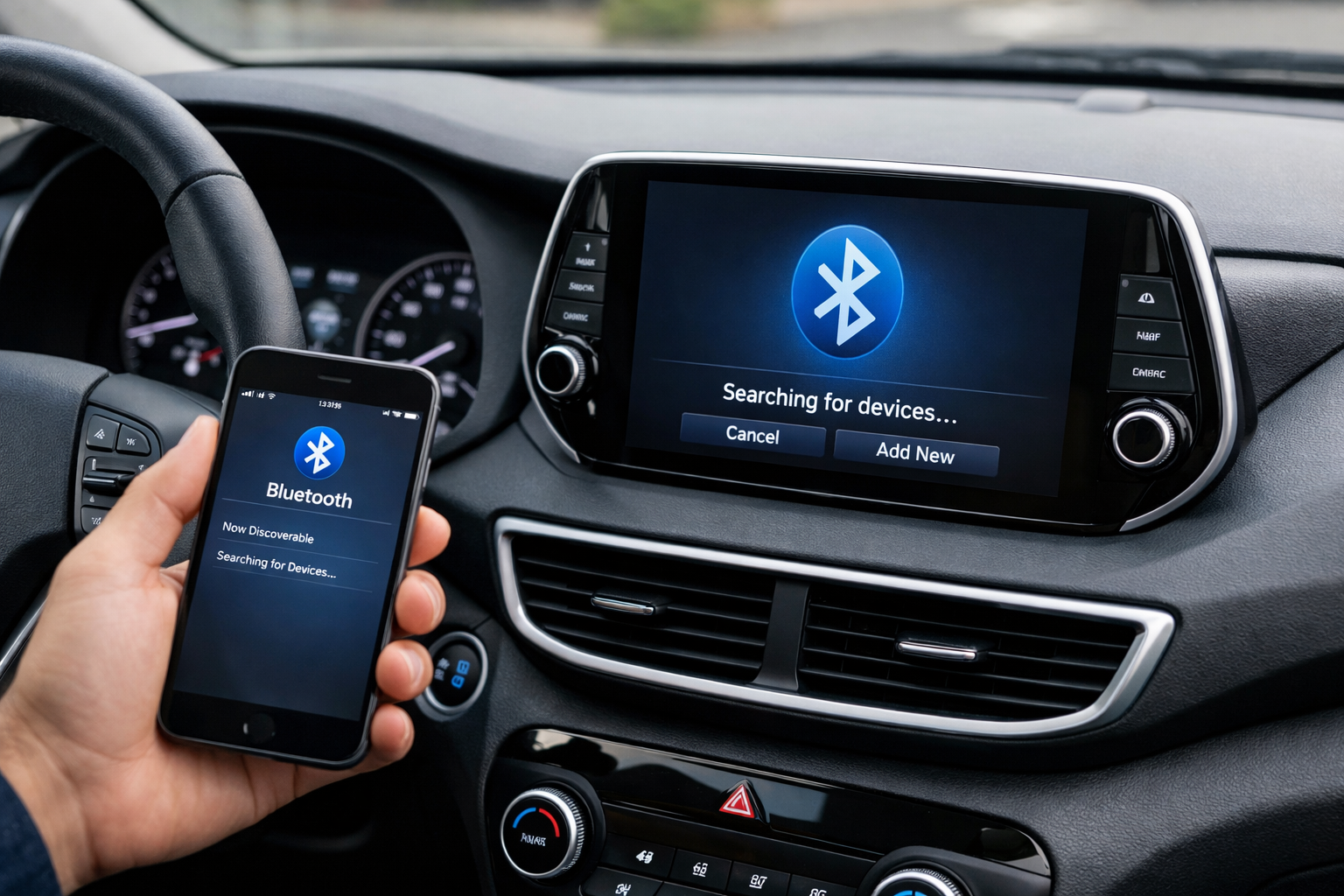
Sit in the driver’s seat with your phone and ensure Bluetooth is enabled. The vehicle’s infotainment system should display a prompt asking if you want to enable phone-based engine starting.
Place your phone on the wireless charging pad if your Tucson is equipped with this feature. For models without wireless charging, hold your phone near the engine start/stop button, typically within 2-3 inches.
Press and hold the engine start button while depressing the brake pedal. The system will register your phone’s NFC signature and associate it with engine starting privileges.
Some Tucson models require you to hold your phone against a specific area near the steering column. Check your owner’s manual for the exact location, as this varies between model years and trim levels.
Sharing Digital Keys with Family Members
The digital key system allows you to share access with up to three additional users, making it perfect for families or situations where multiple people need vehicle access.
Open the MyHyundai app and navigate to the Digital Key section. Select “Share Key” and choose whether to create a permanent shared key or a temporary one with specific time limitations.
Enter the recipient’s phone number or email address. They must have the MyHyundai app installed and create their own Bluelink account before they can accept the shared key invitation.
You can customize permissions for each shared key. Options typically include unlock only, unlock and start, or full access including remote start and climate control. You might give a teenager unlock-only access while providing your spouse with full permissions.
The recipient will receive a notification through the app and must physically approach the vehicle to complete the pairing process, similar to your initial setup. They cannot activate the shared key remotely for security reasons.
Monitor shared keys through your primary app account. You can revoke access instantly if someone loses their phone or no longer needs vehicle access. Deleted keys stop working immediately, even if the other person’s app still shows them as active.
Using Your Backup Key Card
Your Tucson includes a physical backup key card that serves as a failsafe when your phone isn’t available. This card uses the same NFC technology as your phone but doesn’t require battery power or app connectivity.
Keep the backup card in your wallet or purse, but not in your vehicle where it could be stolen along with the car. The card works by touching it to the same door handle location you use with your phone.
To start the engine with the backup card, place it on the wireless charging pad or near the start button, just like you would with your phone. The card contains the same security certificates as your primary digital key.
If you lose the backup card, contact your Hyundai dealer to order a replacement. New cards must be programmed to your specific vehicle and will require a visit to the dealership for proper setup.
Troubleshooting Common Issues
Digital key problems often stem from simple connectivity issues rather than system failures. If your phone stops unlocking the vehicle, check that NFC remains enabled and that the MyHyundai app has proper permissions.
Battery life affects NFC functionality, even when your phone appears to have sufficient charge. iPhones reserve power for NFC functions longer than Android devices, but both can experience issues when battery levels drop below 20%.
Interference from other NFC devices or cards in your phone case can disrupt communication. Remove credit cards, transit cards, or other NFC-enabled items from your phone case to test if they’re causing conflicts.
Software updates to your phone’s operating system occasionally require you to re-register your digital key. The MyHyundai app will typically notify you when this is necessary and guide you through a simplified re-pairing process.
If the system stops responding entirely, try deleting and re-adding your digital key through the app. This clears any corrupted data and establishes fresh security certificates between your phone and vehicle.
Security and Best Practices
Digital key security relies on the same encryption standards used in mobile payment systems. Your phone stores encrypted certificates that can’t be copied or transferred to other devices without proper authentication.
Enable screen lock protection on your phone to prevent unauthorized access if someone steals your device. The digital key won’t function if your phone is locked and the thief can’t access the MyHyundai app.
Regularly review shared keys in your app to ensure you haven’t forgotten about temporary access you granted to others. Revoke any keys you no longer need active, especially if you shared temporary access for specific situations.
Update the MyHyundai app promptly when new versions become available. These updates often include security improvements and bug fixes that enhance digital key reliability.
Consider the implications of phone replacement when upgrading devices. You’ll need to transfer your digital key to the new phone, which requires physical access to your vehicle and may take several minutes to complete.
FAQ Section
Can I use digital key if my phone battery is completely dead?
Most modern smartphones reserve minimal power for NFC functions even after the screen goes black from battery depletion. However, this reserve power typically lasts only a few hours. If your phone has been dead for an extended period, you’ll need to use your backup key card or traditional key fob. iPhones generally maintain NFC functionality longer than Android devices when battery levels are critically low.
What happens to my digital key when I sell or trade my Tucson?
You should manually remove all digital keys from your vehicle before transferring ownership. Open the MyHyundai app, navigate to Digital Key settings, and select “Remove All Keys.” This prevents the new owner from being locked out and protects your privacy. The dealership can also perform a complete system reset that removes all registered devices and shared keys from the vehicle’s memory.
Why does my digital key work intermittently?
Intermittent functionality usually indicates interference or positioning issues. Make sure you’re touching your phone to the correct area of the door handle and holding it there for 2-3 seconds. Phone cases, especially thick ones with card slots, can block NFC signals. Try removing your phone from its case to test if that resolves the issue. Cold weather can also affect NFC performance, requiring you to hold your phone against the sensor slightly longer than usual.
Can I add digital key functionality to an older Tucson that didn’t come with it?
Digital key requires specific hardware components installed during manufacturing, including NFC sensors in the door handles, additional wiring harnesses, and compatible infotainment system modules. These components cannot be retrofitted to vehicles that didn’t originally include the Digital Key package. However, some third-party smartphone integration systems provide similar functionality through aftermarket installation, though they won’t integrate with the official MyHyundai app.

Leave a Reply