
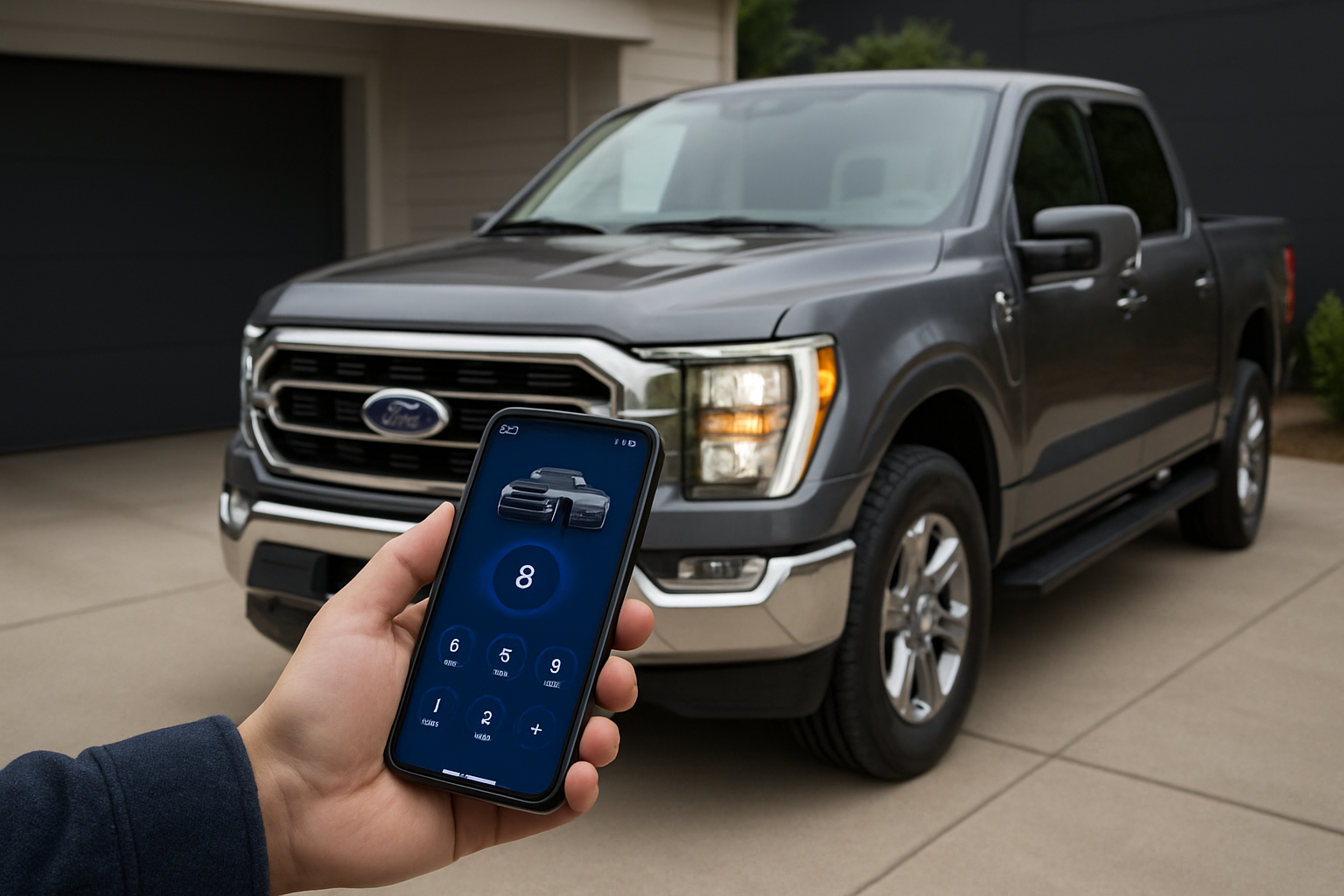
Taking control of your F-150 from your smartphone isn’t just convenient, it’s become essential for modern truck owners. Ford’s FordPass app transforms your phone into a powerful remote control for your vehicle, letting you start, lock, and monitor your truck from virtually anywhere.
Whether you’re warming up your cab on a cold morning or checking if you remembered to lock your doors, FordPass puts complete vehicle management in your pocket. The setup process takes just minutes, but knowing how to use all the features properly can save you time and help you get the most from your truck.
What Is FordPass and Why You Need It
FordPass is Ford’s official smartphone app that connects directly to your F-150’s built-in modem. Unlike aftermarket systems that require additional hardware, FordPass uses your truck’s factory-installed FordPass Connect modem to communicate with Ford’s servers.
The app works on both iOS and Android devices and requires an active data connection on your phone. Your F-150 needs its own cellular connection through the built-in modem, which comes standard on most recent model years.
Ford provides the first year of FordPass Connect service free with new vehicles. After that, you’ll need a paid subscription to continue using remote features, though pricing varies by region and plan type.
Compatible F-150 Model Years and Requirements
FordPass works with F-150s equipped with FordPass Connect, which became standard equipment starting with the 2017 model year. Some 2016 models also include the system, but it wasn’t universal across all trim levels.
Your truck needs to have the SYNC 3 infotainment system or newer to support FordPass connectivity. Older SYNC systems don’t have the necessary hardware to communicate with the app.
The 2021 and newer F-150s come with enhanced FordPass features and improved connectivity speeds. These newer trucks also support additional functions like over-the-air software updates through the FordPass system.
Step-by-Step FordPass Setup Process
Download and Create Your Account
Start by downloading the FordPass app from your phone’s app store. The app is free and available worldwide, though some features may be region-specific.
Open the app and tap “Sign Up” to create a new Ford account. You’ll need to provide a valid email address, create a password, and agree to Ford’s terms of service. Ford will send a verification email to confirm your account.
Complete your profile by adding your name, phone number, and address. This information helps Ford provide location-specific services and support.
Add Your F-150 to the App
Tap the “Add Vehicle” button on the main screen. You’ll need your truck’s VIN number, which you can find on the driver’s side dashboard near the windshield or on your registration documents.
Enter the VIN manually or use your phone’s camera to scan the barcode if your truck has one. The app will automatically identify your F-150’s year, model, and trim level.
Create a nickname for your truck if you want. This helps if you plan to add multiple vehicles to your account later.
Activate FordPass Connect in Your Truck
Get in your F-150 and make sure it’s in park with the engine running. Navigate to the Settings menu on your SYNC screen and look for “FordPass Connect” or “Connected Services.”
Select “Activate” and follow the on-screen prompts. Your truck will attempt to connect to Ford’s servers and register itself with your account. This process usually takes 2-3 minutes but can take longer in areas with poor cellular coverage.
You might see a message asking you to accept terms and conditions on the SYNC screen. Accept these to complete the activation process.
Complete the Connection
Return to the FordPass app on your phone. You should see your F-150 listed with a “Connected” status. If it shows “Pending” or “Not Connected,” wait a few minutes and pull down on the screen to refresh.
Test the connection by tapping on your vehicle and trying a simple command like checking the vehicle status. The app should display information about your truck’s fuel level, odometer reading, and door lock status.
If the connection fails, make sure your truck has good cellular signal and try the activation process again. Some areas have limited coverage that can interfere with the initial setup.
Essential FordPass Features for F-150 Owners
Remote Engine Start and Stop
The remote start feature lets you start your F-150’s engine from up to several miles away, depending on cellular coverage. Tap the engine icon in the app and hold the “Remote Start” button for about three seconds.
Your truck will run for 15 minutes before automatically shutting off. You can extend this by sending another remote start command, or stop the engine early using the “Remote Stop” button.
Remote start only works when your truck is locked, in park, and has adequate fuel. The system won’t start if any doors are open, the hood is up, or if it detects any security issues.
Lock and Unlock Controls
Use the lock and unlock buttons to control your F-150’s doors from anywhere. The app shows the current lock status with green (unlocked) or red (locked) indicators.
When you unlock remotely, your truck’s interior lights will turn on and the doors will unlock for about 30 seconds. After that, they’ll automatically lock again if you don’t open any doors.
The app also lets you unlock specific doors or compartments if your F-150 has selective unlocking features. Check your owner’s manual to see which options your trim level supports.
Vehicle Status and Health Monitoring
The status screen shows real-time information about your truck’s vital signs. You can check fuel level, oil life, tire pressures, and odometer reading without getting in the vehicle.
FordPass also monitors your maintenance schedule and will send push notifications when service is due. The app can help you find nearby Ford dealers and even schedule service appointments.
If your truck’s check engine light comes on, FordPass may provide additional details about the issue and suggest whether it’s safe to continue driving.
Tire Pressure Monitoring
Your F-150’s tire pressure monitoring system (TPMS) sends data directly to the FordPass app. You can check all four tire pressures plus your spare tire if it has a sensor.
The app displays pressures in PSI or kPa depending on your preference settings. It will also show you Ford’s recommended pressure for your specific tire size.
FordPass sends alerts if any tire loses significant pressure, helping you catch slow leaks before they become dangerous.
GPS Location Tracking
FordPass shows your F-150’s location on a map whenever you open the app. This feature helps you find your truck in large parking lots or unfamiliar areas.
The location updates automatically when you park and lock your vehicle. The accuracy depends on GPS signal strength and can be within a few feet under ideal conditions.
You can also share your truck’s location with family members through the app, which is useful for fleet management or when multiple drivers use the same vehicle.
Zone Alerts and Geofencing
Set up custom zones around important locations like your home, work, or your teenager’s school. FordPass will send notifications when your truck enters or leaves these areas.
Create a zone by tapping “Alerts” in the app menu and selecting “Add Zone.” Draw the boundary on the map and choose whether you want entry alerts, exit alerts, or both.
Zone alerts work great for fleet management, keeping track of family vehicles, or getting notified if your truck moves unexpectedly.
Scheduled Remote Start
Program your F-150 to start automatically at specific times and days. This feature is perfect for warming up your truck before your morning commute or cooling it down before you leave work.
Go to the “Remote Start” section and tap “Schedule.” Choose the days of the week, start time, and duration. You can set up multiple schedules for different routines.
Scheduled starts follow the same 15-minute runtime as manual remote starts. Your truck needs to be locked and in the programmed location for the schedule to work properly.
Troubleshooting Common FordPass Issues
Connection Problems
If FordPass won’t connect to your F-150, check that your truck has cellular signal. The built-in modem needs adequate coverage to communicate with Ford’s servers.
Try turning your truck off and on again to reset the modem connection. Wait at least 30 seconds between turning off and restarting to allow the system to fully cycle.
Make sure your FordPass Connect subscription is active. Ford will send notifications before it expires, but connectivity stops immediately when the service lapses.
App Performance Issues
Force-close the FordPass app and restart it if commands seem slow or unresponsive. On iPhones, swipe up and flick the app card away. On Android, use the recent apps button and swipe FordPass closed.
Clear the app’s cache if you’re on Android by going to Settings > Apps > FordPass > Storage > Clear Cache. iPhone users should delete and reinstall the app if problems persist.
Keep FordPass updated to the latest version. Ford regularly releases updates with bug fixes and new features that can resolve connectivity issues.
Remote Start Failures
Remote start won’t work if your F-150’s fuel level is too low, usually below 1/8 of a tank. The system also won’t start if the hood is open or any doors are unlocked.
Check that your truck is in park and the parking brake is set if you have a manual transmission. The remote start system has multiple safety checks that must pass before the engine will start.
Cold weather can affect remote start performance. Very low temperatures may prevent the system from working, and high altitude can also interfere with the cellular connection.
Maximizing FordPass Battery Life and Data Usage
FordPass uses your phone’s data connection to communicate with Ford’s servers. The app is relatively efficient, but frequent status checks and remote commands can add up over time.
Adjust notification settings to reduce background data usage. Go to the app settings and turn off alerts you don’t need, like routine maintenance reminders or non-critical vehicle status updates.
Your F-150’s 12-volt battery powers the FordPass Connect modem even when the truck is off. The system is designed to monitor battery voltage and shut down if power gets too low, but very frequent remote commands can contribute to battery drain.
If you won’t be using your truck for extended periods, consider disabling FordPass Connect through the SYNC settings to preserve battery life.
Advanced Tips for Power Users
Enable location services on your phone for the best FordPass experience. The app can use your phone’s GPS to provide more accurate directions to your truck and better zone alert functionality.
Set up multiple user accounts if family members share your F-150. Each person can have their own FordPass login while controlling the same vehicle, which helps with tracking and personalized settings.
Use the “Find My Vehicle” feature in crowded parking areas. The app can sound your horn and flash your lights to help you locate your truck, which is especially useful in large parking lots.
FordPass integrates with some smart home systems like Amazon Alexa. You can set up voice commands to start your truck, check fuel level, or lock doors without opening the app.
Privacy and Security Considerations
FordPass tracks and stores significant amounts of data about your driving habits, locations, and vehicle usage. Review Ford’s privacy policy to understand what information gets collected and how it’s used.
You can adjust some privacy settings in the app, including location sharing and data collection preferences. However, basic connectivity features require some data sharing to function properly.
If you sell your F-150, make sure to remove it from your FordPass account and reset the truck’s connected services. The new owner will need to set up their own account to use FordPass features.
Keep your FordPass login credentials secure and don’t share account access with people you don’t trust. The app provides significant control over your vehicle and should be treated like other sensitive accounts.
Frequently Asked Questions
How much does FordPass cost after the free trial?
FordPass Connect pricing varies by region and plan type. In the United States, expect to pay around $20-30 per month for full connectivity features. Ford often offers multi-year discounts and sometimes includes extended free periods with new vehicle purchases.
Can I use FordPass if my truck doesn’t have factory connectivity?
Unfortunately, FordPass requires the built-in FordPass Connect modem that comes factory-installed. You can’t add this functionality to older F-150s that weren’t originally equipped with the system.
What happens to FordPass when I’m in areas with no cellular coverage?
FordPass won’t work in areas where your truck can’t connect to cellular networks. The app will show your vehicle as “disconnected” and remote commands will fail. Once you return to coverage, connectivity should restore automatically.
Does using FordPass void my truck’s warranty?
Using FordPass features normally won’t affect your F-150’s warranty since it’s a factory-installed system. However, if you modify the connectivity hardware or disable the modem improperly, you could potentially void related warranty coverage.
This article contains affiliate links. If you purchase through these links, we may earn a small commission at no extra cost to you.
Leave a Reply