
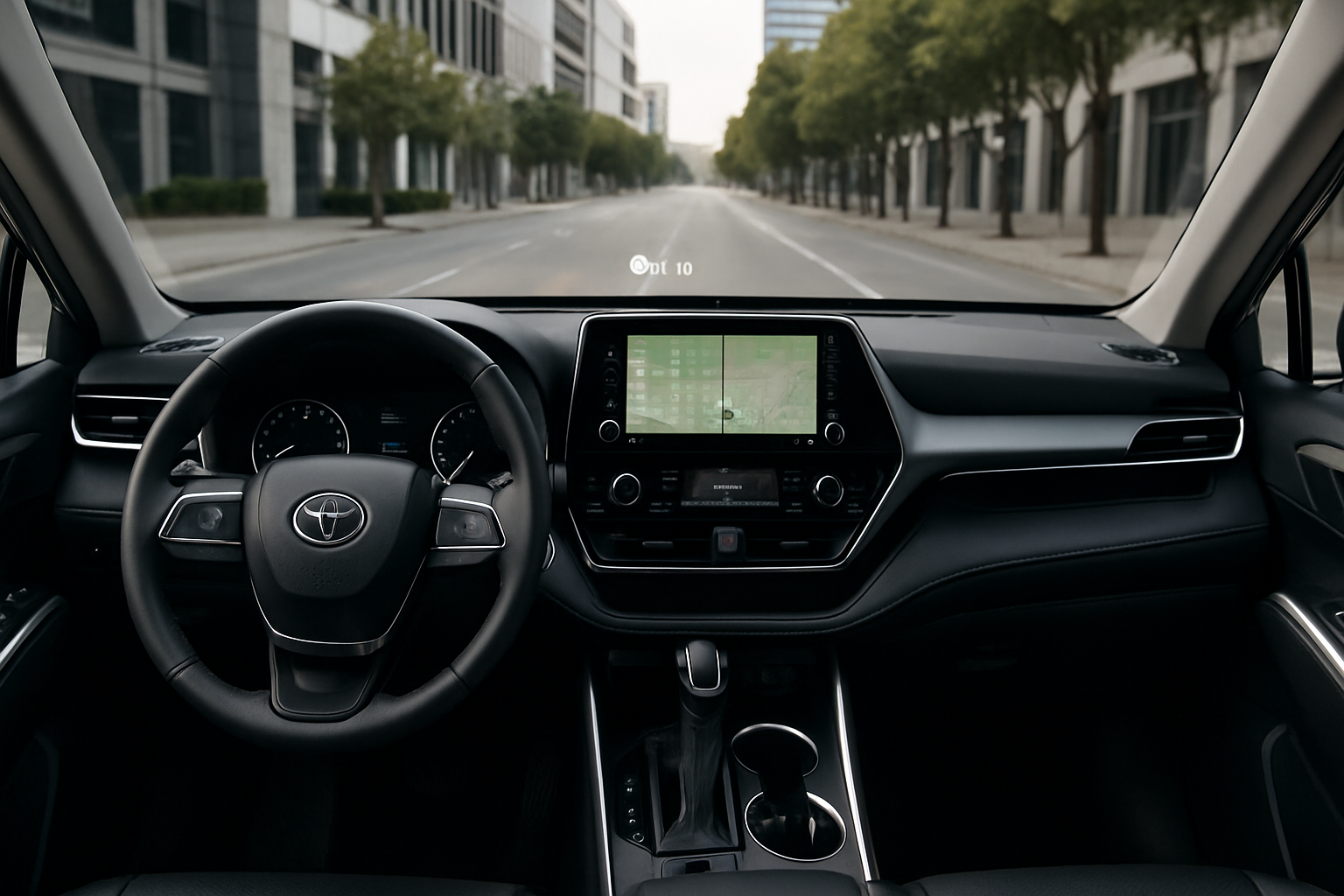
The Toyota Highlander’s head-up display puts critical driving information right in your line of sight, letting you keep your eyes on the road while staying informed. This advanced feature projects speed, navigation directions, and safety alerts onto your windshield, creating a safer and more convenient driving experience.
Many Highlander owners don’t realize their vehicle has this capability or aren’t sure how to make the most of it. Learning to properly adjust and use your HUD can transform how you interact with your vehicle’s technology.
What Information Does the Highlander HUD Display
Your Toyota Highlander’s head-up display shows several types of information simultaneously. The most prominent display is your current speed in large, easy-to-read digits that appear to float just above your hood line.
Navigation information takes center stage when you’re using the built-in GPS system. You’ll see turn-by-turn directions with arrow indicators showing exactly when and where to make your next move. Distance to the next turn appears alongside the directional arrows, helping you prepare for upcoming maneuvers.
Safety alerts pop up automatically when your Highlander’s various driver assistance systems detect potential issues. Lane departure warnings, forward collision alerts, and adaptive cruise control status all appear on the HUD when activated. These warnings use different colors and symbols to grab your attention without being overwhelming.
Speed limit information displays when the system recognizes road signs or receives data from the navigation system. This feature helps you stay aware of current speed limits, especially useful in areas where limits change frequently.
Activating Your Head-Up Display
The HUD controls live within your Highlander’s main infotainment system. Start by pressing the “Menu” button on your center console, then navigate to the “Settings” option using the touchscreen or control knob.
Look for “HUD Settings” or “Head-Up Display” in the vehicle settings menu. The exact wording varies slightly between model years, but you’ll find it under display or driver assistance settings. Toggle the system to “On” to activate the basic display function.
Once activated, information begins projecting onto your windshield immediately. Don’t worry if the positioning looks off initially, you’ll adjust that in the next steps.
Adjusting Display Position and Angle
Proper HUD positioning makes the difference between a useful tool and a distraction. The display should appear to hover just above your hood line when you’re sitting in your normal driving position.
Use the up and down arrows in the HUD settings menu to raise or lower the display vertically. Most drivers find the sweet spot about one-third of the way up from the bottom of their windshield view. The goal is keeping the information visible without blocking your view of the road ahead.
Height adjustment affects more than just comfort. If positioned too high, the display can interfere with your view of traffic lights or overhead signs. Too low, and you’ll find yourself looking down more than necessary, defeating the safety purpose.
Take time to adjust the position while parked in your driveway. Sit normally, adjust your seat and mirrors as usual, then fine-tune the HUD position. What feels right in park will work best while driving.
Brightness Control and Visibility Settings
Your Highlander automatically adjusts HUD brightness based on ambient light conditions, but manual adjustment often works better for individual preferences. Access brightness controls through the same HUD settings menu you used for positioning.
During daylight driving, you might need maximum brightness to see the display clearly against bright sky backgrounds. The system’s auto-brightness sometimes doesn’t compensate enough for very bright conditions or direct sunlight.
Night driving requires the opposite approach. Lower brightness prevents the HUD from creating glare or reducing your night vision. Many drivers prefer setting brightness manually rather than relying on the automatic system.
Test different brightness levels during various lighting conditions over your first few weeks of use. You’ll quickly develop preferences for different times of day and weather conditions.
The Polarized Sunglasses Problem
Polarized sunglasses can make your HUD display completely invisible or create strange visual effects. This happens because the HUD uses polarized light, and your sunglasses filter that same light wavelength.
When wearing polarized lenses, you might see the display flicker, appear dimmed, or disappear entirely depending on your head angle. Tilting your head slightly can sometimes restore visibility, but this isn’t a practical long-term solution.
Your best options include switching to non-polarized sunglasses while driving or adjusting the HUD brightness to maximum when wearing polarized lenses. Some drivers keep a pair of regular sunglasses specifically for driving their HUD-equipped vehicles.
This limitation affects all automotive head-up displays, not just Toyota’s system. It’s a physics issue rather than a design flaw, so there’s no software update or setting change that can fix it.
Customizing Display Content
Your Highlander lets you choose which information appears on the HUD at any given time. Speed display is usually permanent, but you can toggle other elements on and off based on your preferences.
Navigation information can be set to display only when actively navigating to a destination, or you can choose to show it continuously. Most drivers prefer the automatic setting, which shows directions only when needed.
Safety alert settings control how prominently collision warnings and lane departure notifications appear. You can adjust the sensitivity of these alerts or turn them off entirely if you find them distracting.
Audio information, including radio station and track information, can also display on the HUD. This feature works with both radio and connected smartphone audio.
Troubleshooting Common HUD Issues
If your HUD display appears blurry or out of focus, the problem is usually positioning rather than a system malfunction. Your eyes need to focus at a distance when looking at the HUD, similar to looking at objects far down the road.
Double images or ghosting effects typically indicate windshield issues rather than HUD problems. Aftermarket window tinting or windshield replacements that don’t meet Toyota’s specifications can interfere with display quality.
Complete display failure usually points to a blown fuse or loose connection. Check fuse box diagrams in your owner’s manual for HUD-related fuses before assuming you need dealer service.
Environmental factors like heavy rain or snow can temporarily affect display visibility. This is normal and doesn’t indicate a system problem.
Maintenance and Care
Keep the area of your windshield where the HUD projects as clean as possible. Regular glass cleaner works fine, but avoid using products with heavy wax or anti-fog treatments in the projection area.
The HUD projector itself requires no regular maintenance from you. It’s sealed inside your dashboard and doesn’t accumulate dust or debris under normal conditions.
If you need windshield replacement, inform your glass installer about the HUD system. Proper windshield specifications matter for display quality, and not all replacement glass works correctly with head-up displays.
Getting the Most from Your HUD
Use your head-up display consistently for several weeks before deciding whether to keep it activated. Many drivers find it distracting initially but grow to appreciate the convenience once they adapt.
Combine HUD use with voice commands for navigation and phone functions. This creates a truly hands-free driving experience where you rarely need to look away from the road.
Remember that the HUD supplements your regular instruments rather than replacing them. Continue checking your dashboard gauges regularly, especially for engine temperature and fuel level information that doesn’t appear on the head-up display.
Consider how passengers react to the HUD, particularly if they’ll be driving your Highlander. Some people find the display more distracting than helpful and prefer to turn it off when they’re behind the wheel.
Frequently Asked Questions
Can I use the HUD with aftermarket navigation apps?
The HUD only displays information from Toyota’s built-in navigation system. Third-party apps like Google Maps or Waze won’t project directions onto the display, though you can still see speed and safety alerts while using these applications on your phone.
Does the HUD work in all weather conditions?
Heavy rain, snow, or fog on your windshield can reduce HUD visibility, but the system continues working normally. Very bright sunlight or driving directly into sunrise or sunset can also make the display harder to see, regardless of brightness settings.
Will the HUD damage my windshield over time?
The HUD projector uses LED technology that generates minimal heat and won’t damage your windshield. The system is designed for continuous operation throughout your vehicle’s lifetime without causing glass stress or discoloration.
Can I adjust the HUD while driving?
Toyota disables most HUD adjustment functions while the vehicle is in motion for safety reasons. You can adjust brightness while driving, but position changes and content settings require the vehicle to be in park. Pull over safely if you need to make major adjustments to your display.
This article contains affiliate links. If you purchase through these links, we may earn a small commission at no extra cost to you.

Leave a Reply