
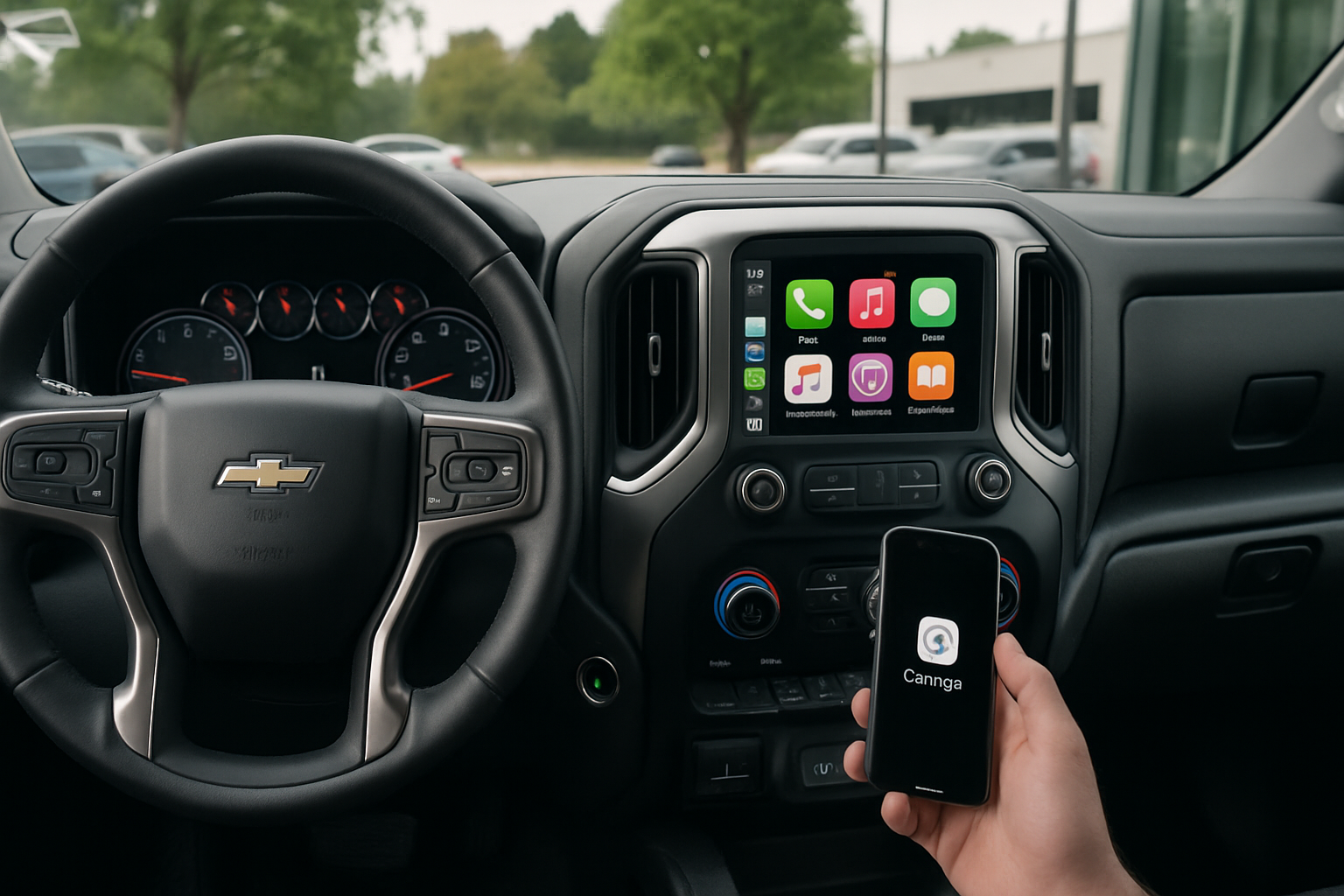
Getting wireless Apple CarPlay working in your Chevy Silverado transforms your driving experience by eliminating the need to plug in your phone every time you get behind the wheel. While newer Silverado models come equipped with this feature, the setup process can be tricky if you don’t know the specific steps.
Understanding Apple CarPlay in Chevy Silverado Models
Chevrolet began rolling out wireless Apple CarPlay across the Silverado lineup starting with the 2020 model year, though availability varies by trim level. The 2020-2024 Silverado models equipped with the 8-inch or 13.4-inch Chevrolet Infotainment 3 system support wireless connectivity, while earlier models typically require a wired connection.
Your Silverado’s infotainment system runs on Android Automotive OS with Google Built-In services alongside Apple CarPlay. This dual setup allows both iPhone and Android users to access their preferred interface, though you’ll want to understand how these systems interact to avoid conflicts.
Initial Bluetooth Pairing Requirements
Before you can use wireless CarPlay, your iPhone needs to establish a Bluetooth connection with your Silverado. This initial pairing creates the foundation for the wireless CarPlay connection.
Start by ensuring your iPhone’s Bluetooth is enabled and your truck is in park. Press the Home button on your infotainment screen, then select “Settings” followed by “Connectivity.” Choose “Bluetooth” and make sure it’s turned on.
On your iPhone, go to Settings > Bluetooth and look for your Silverado in the available devices list. The truck should appear as “Chevrolet MyLink” or “Silverado” followed by the last four digits of your VIN. Tap to connect and enter the pairing code displayed on your truck’s screen.
Once paired, your phone will sync contacts and call history. This process takes about 30-60 seconds, and you’ll see a confirmation message on both devices when complete.
Setting Up Wireless Apple CarPlay
With Bluetooth connected, you can now enable wireless CarPlay. Navigate to the infotainment home screen and look for the CarPlay icon, which resembles the familiar Apple logo with a steering wheel.
Select “Add New Vehicle” from the CarPlay menu on your iPhone by going to Settings > General > CarPlay. Your Silverado should appear in the list of available vehicles. Tap your truck’s name to establish the wireless connection.
The system will prompt you to confirm the connection on both your phone and the truck’s display. Accept both prompts, and CarPlay will launch automatically. Your familiar iPhone interface will appear on the infotainment screen, complete with your apps and Siri functionality.
Positioning Your Phone for Best Results
Wireless CarPlay requires your iPhone to maintain a stable connection with the truck’s system. Keep your phone within the cabin, ideally in the center console or a cup holder. Avoid placing it in areas with heavy metal interference, such as inside a metal phone mount or deep within a bag.
The wireless connection works best when your phone has at least 30% battery charge. Low battery levels can cause the iPhone to reduce wireless functionality to preserve power, leading to connection drops.
Wireless vs Wired CarPlay Performance
Wireless CarPlay offers obvious convenience benefits, but wired connections typically provide more stable performance. Wireless connections can experience occasional lag when loading apps or processing Siri commands, particularly in areas with heavy wireless interference.
Battery drain becomes a consideration with wireless CarPlay since your phone isn’t charging while connected. For longer trips, consider keeping a Lightning cable handy to charge your phone while maintaining the wireless CarPlay connection.
Audio quality remains excellent with wireless CarPlay, though you might notice a slight delay when adjusting volume compared to wired connections. Navigation apps like Apple Maps or Waze perform well wirelessly, with route updates appearing promptly on the truck’s display.
Troubleshooting Connection Drops
Connection drops represent the most common wireless CarPlay frustration. When your CarPlay connection fails, try these troubleshooting steps in order of likelihood to resolve the issue.
First, check your iPhone’s Wi-Fi settings. Disable Wi-Fi temporarily, then re-enable it after 10 seconds. CarPlay uses both Bluetooth and Wi-Fi protocols, and Wi-Fi conflicts can disrupt the connection.
If the connection drops persist, delete the CarPlay connection from your iPhone’s settings and re-pair the devices. Go to Settings > General > CarPlay, find your Silverado, and tap “Forget This Car.” Repeat the initial setup process from the beginning.
Software Update Considerations
Keep both your iPhone and Silverado’s infotainment system updated. Chevrolet releases periodic software updates that improve CarPlay compatibility and connection stability. These updates typically install automatically when your truck connects to Wi-Fi, though you can check manually in the system settings.
iPhone iOS updates sometimes change CarPlay behavior. After major iOS updates, you may need to re-establish your CarPlay connection or adjust settings to maintain optimal performance.
Environmental Interference Factors
Certain environments can interfere with wireless CarPlay connections. Dense urban areas with many competing wireless signals, parking garages with metal structures, or areas near radio towers can cause connection instability.
Temperature extremes also affect performance. Very cold weather can reduce your iPhone’s battery efficiency, while extremely hot conditions might cause the phone to throttle wireless functions to prevent overheating.
Setting Up Dual Phone Configuration
Your Silverado can store connections for multiple iPhones, which proves useful for families sharing the truck or couples who both want CarPlay access. The system can remember up to five different iPhone connections.
To add a second phone, complete the initial Bluetooth pairing process with the new device while the first phone is disconnected or out of range. Each phone needs its own individual setup process, and the system won’t automatically switch between connected devices.
When multiple paired phones are present, the first one to connect typically takes priority. You can manually switch between phones through the infotainment system’s Bluetooth settings, though this requires navigating through several menu screens.
Managing Multiple User Preferences
Each connected iPhone maintains its own CarPlay layout and app preferences. However, some truck settings like radio presets and climate control preferences will reflect the last user’s selections.
Consider setting up different user profiles in your Silverado’s system if multiple people regularly use wireless CarPlay. This feature, available on higher trim levels, automatically adjusts seat position, mirror settings, and radio presets based on the connected phone.
Google Built-In vs Apple CarPlay Integration
Your Silverado runs Google’s Android Automotive OS as its base operating system, with Google Built-In services running alongside Apple CarPlay. This creates some interesting interactions between the two ecosystems.
When CarPlay isn’t active, you’ll use Google Assistant for voice commands, Google Maps for navigation, and Google Play Store for downloading apps. Once you connect your iPhone and launch CarPlay, Siri takes over voice functions and Apple Maps becomes the default navigation system.
Some functions, like climate control and radio operation, work through both interfaces. You can adjust the temperature using Siri voice commands through CarPlay or Google Assistant when using the native system.
App Compatibility Differences
CarPlay supports a limited selection of third-party apps compared to the Google Built-In system. Music apps like Spotify work through both systems, but some podcast or audiobook apps might only be available through one interface.
Navigation apps present another consideration. While Apple Maps works exclusively through CarPlay, Google Maps is available both through CarPlay and as a native app in the Google Built-In system. The native Google Maps version often includes more advanced features and faster performance.
Installation Tips for Optimal Performance
Your wireless CarPlay setup should work immediately after following the pairing process, but a few additional configuration steps can improve reliability and functionality.
Enable “Allow CarPlay While Locked” in your iPhone’s Screen Time settings. This prevents CarPlay from disconnecting when your phone’s screen locks, which commonly happens during longer drives.
Adjust your iPhone’s Auto-Lock settings to “Never” while driving, or extend the time to at least 5 minutes. Short auto-lock intervals can disrupt wireless CarPlay connections, particularly during phone calls or when using navigation apps that don’t keep the screen active.
Position your iPhone with the screen facing up when possible. The device’s antennas work more effectively in this orientation, providing stronger wireless signal strength for both Wi-Fi and Bluetooth connections.
Important Considerations Before Setup
Wireless CarPlay uses more of your iPhone’s battery compared to wired connections since the phone isn’t receiving power from the truck. Plan accordingly for longer trips by keeping a charging cable available or using wireless charging pads if your Silverado is equipped with this feature.
Data usage increases with wireless CarPlay, particularly when using navigation or streaming music apps. If you have a limited cellular data plan, monitor your usage patterns after switching to wireless connectivity.
Some insurance companies offer discounts for vehicles with advanced infotainment systems, while others express concerns about driver distraction. Check with your insurance provider about how CarPlay usage might affect your rates or coverage.
Frequently Asked Questions
Does wireless CarPlay work with all iPhone models?
Wireless CarPlay requires iPhone 5 or newer with iOS 9 or later. However, optimal performance typically requires iPhone 6s or newer with more recent iOS versions. Older iPhones may experience slower connection times and reduced stability.
Can I use wireless CarPlay and charge my phone simultaneously?
Yes, you can charge your iPhone while using wireless CarPlay. Use a Lightning cable connected to one of your Silverado’s USB ports, or place your phone on a wireless charging pad if equipped. The wireless CarPlay connection will remain active during charging.
Will wireless CarPlay interfere with my truck’s other wireless features?
Wireless CarPlay uses different frequencies than your truck’s Wi-Fi hotspot, satellite radio, or other wireless systems. Interference is minimal under normal conditions, though you might experience slower performance when multiple wireless systems are active simultaneously.
How do I switch back to wired CarPlay if needed?
Simply connect your iPhone to your Silverado using a Lightning cable plugged into one of the USB ports. The system will automatically switch from wireless to wired CarPlay connection. To permanently disable wireless CarPlay, remove your truck from your iPhone’s CarPlay settings and only use wired connections.
This article contains affiliate links. If you purchase through these links, we may earn a small commission at no extra cost to you.

Leave a Reply