
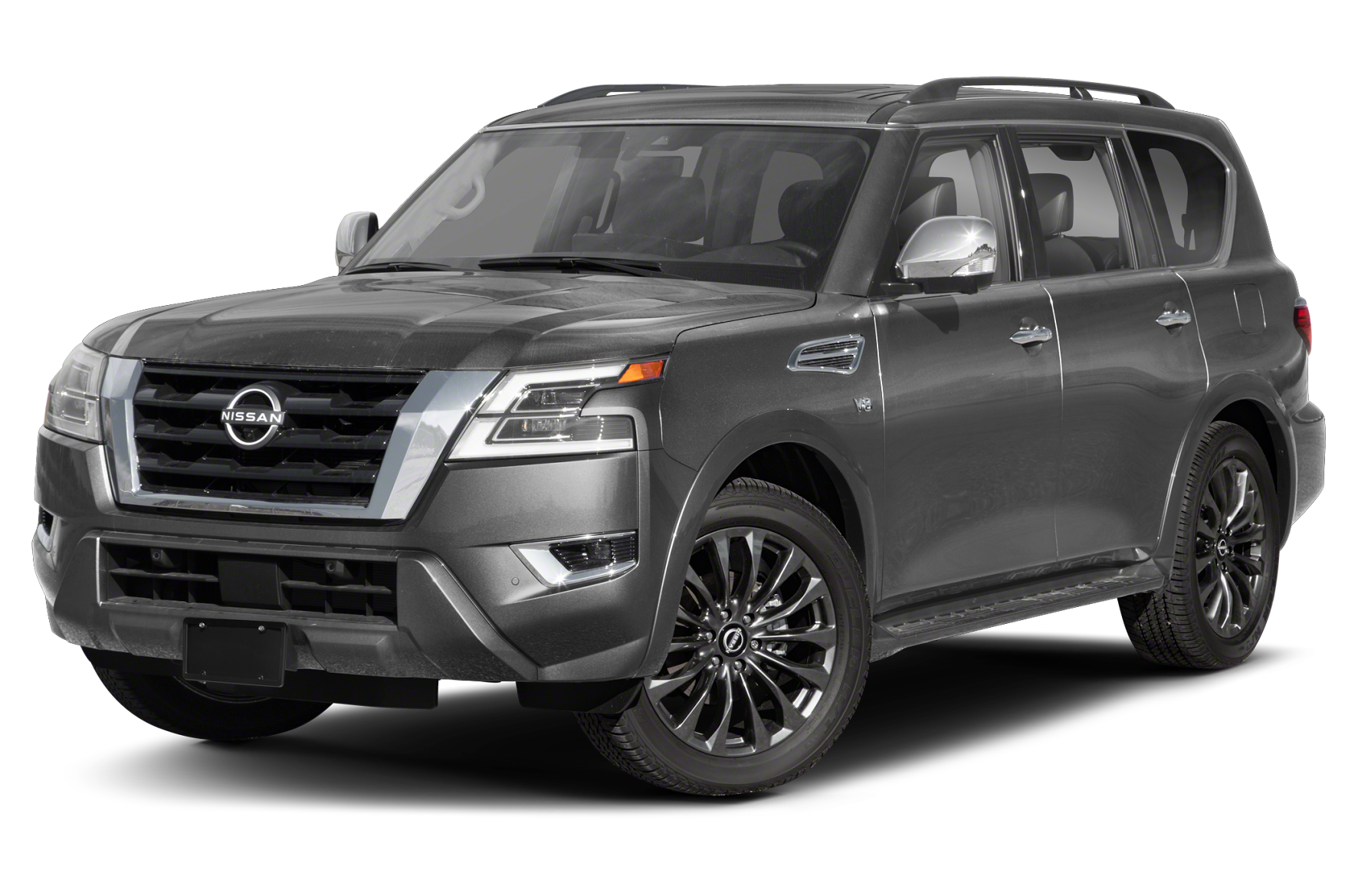
With your Nissan Armada Bluetooth streaming capabilities, you can listen to and play various audio files on your Bluetooth-enabled smartphone.
2020 – 2022 Models
- Ensure your vehicle is in park with the engine on.
- On your phone, turn on your Bluetooth.
Armada’s with Navigation:
- Press the phone button 📞 on your audio system.
- Select “Connect.”
- Select “Connect New Device.”
- On your phone, select MY-CAR.
- Confirm the PIN on your phone and the audio system display match.
- If the PINs match, select “Pair” on your phone, then select “OK.”
Armada’s without Navigation:
- Press the Enter/Setting button on your audio system.
- Select “Bluetooth.”
- Select “Add Phone.”
- On your phone, select MY-CAR.
- Confirm the PIN on your phone and the audio system display match.
- If the PINs match, select “Pair” on your phone, then select “OK.”
2012 – 2019 Models
- Ensure your vehicle is in park with the engine on.
- On your phone, turn on your Bluetooth.
- Press the vehicle’s send button on the steering wheel.
- Say “Connect Phone“
- When the system accepts the command and announces the next available set of commands, say “Add Phone.”
- The system will acknowledge the command and ask you to select the device on your phone.
- When asked for a pin code, enter 1234 in your phone (Nissan assigns this permanent pin code)
- Indicate the phone’s name when the system asks you, such as “Tom’s Phone.”
Leave a Reply