
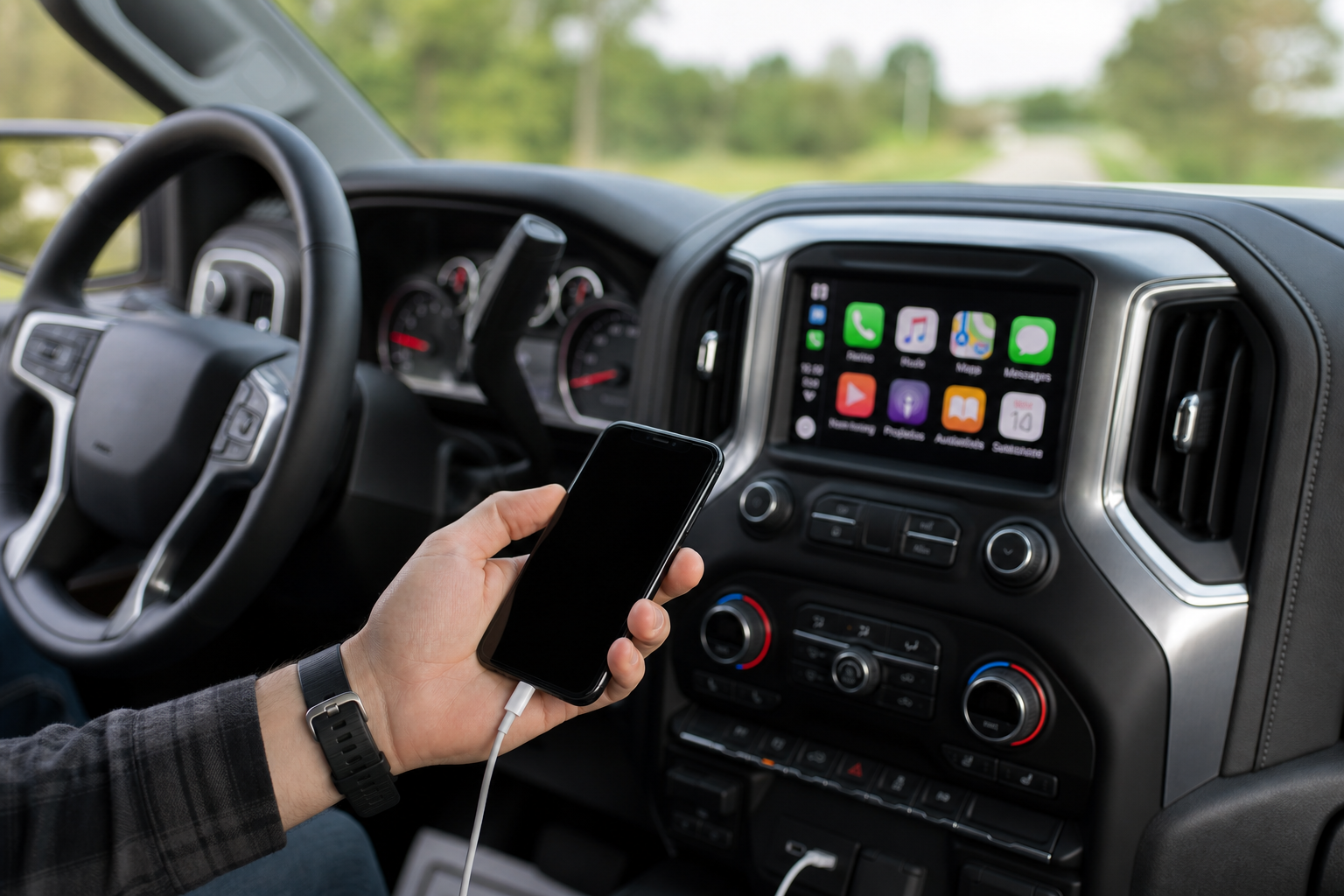
You’re halfway through a playlist or in the middle of turning directions when your Silverado’s screen kicks Apple CarPlay back to the home screen. It reconnects a minute later, maybe. Or it doesn’t, and you’re stuck fumbling with your phone at a red light. This is one of the most common complaints Silverado 1500 owners bring up, whether they’re running a wired connection through the USB port or the wireless CarPlay setup that GM added to later model years.
The good news is that CarPlay dropouts on the Silverado almost always trace back to a handful of specific causes: a bad cable, a USB port that only charges instead of transferring data, a Bluetooth pairing conflict, or an infotainment system that needs a software update. Below is a breakdown of the most effective fixes, split by wired and wireless setups, so you can skip straight to what applies to your truck.
First, Confirm Which USB Ports Actually Support CarPlay
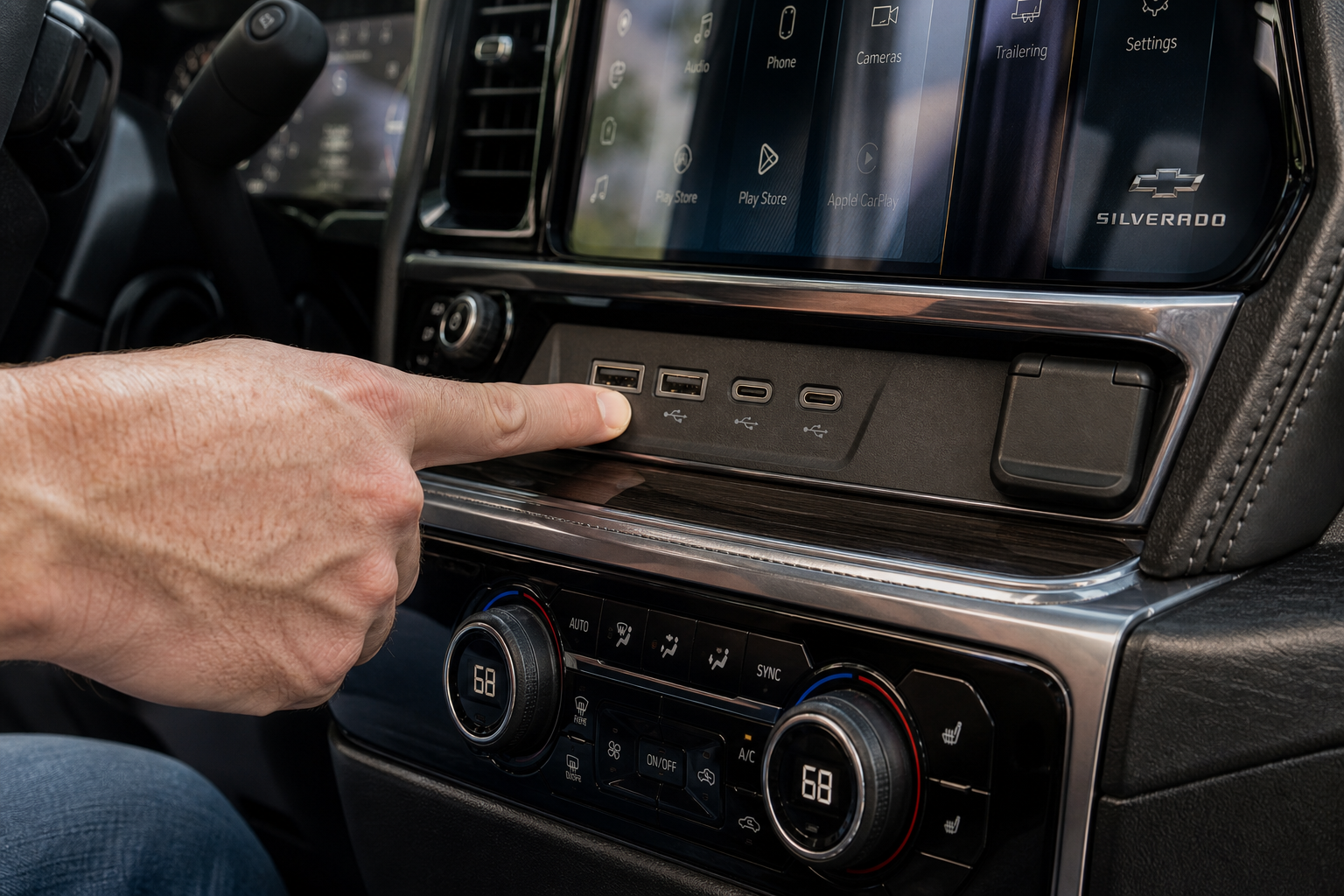
This is the single most overlooked issue on the Silverado. Not every USB port in the cabin is built for data. Some are charge-only, and plugging your phone into one of those will either fail to launch CarPlay at all or cause it to disconnect randomly as the connection drops in and out.
On most Silverado 1500 trims from 2019 and up, the front USB ports near the infotainment screen or in the center console bin are the ones wired for data. Ports located in the rear seat area or in a second-row charging pod are typically power-only. Check your owner’s manual for the exact port diagram for your trim, since GM has shuffled port locations across the RST, LT, and High Country trims over the years.
If you’re not sure, try plugging into every front port one at a time. A CarPlay icon that pops up within a few seconds means you found a data port. If nothing happens after 10 to 15 seconds, move to the next one.
Wired CarPlay: Cable and Connection Fixes
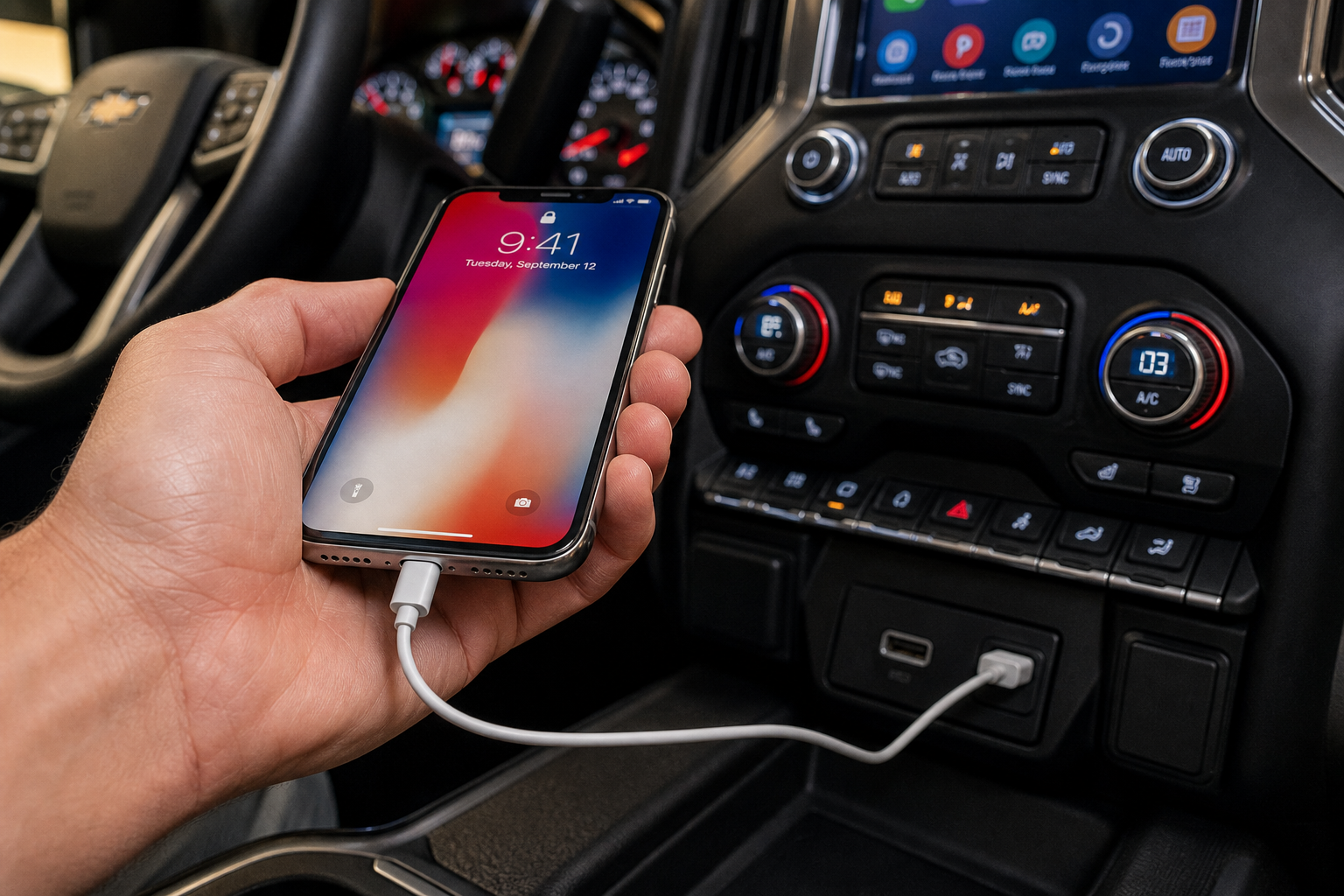
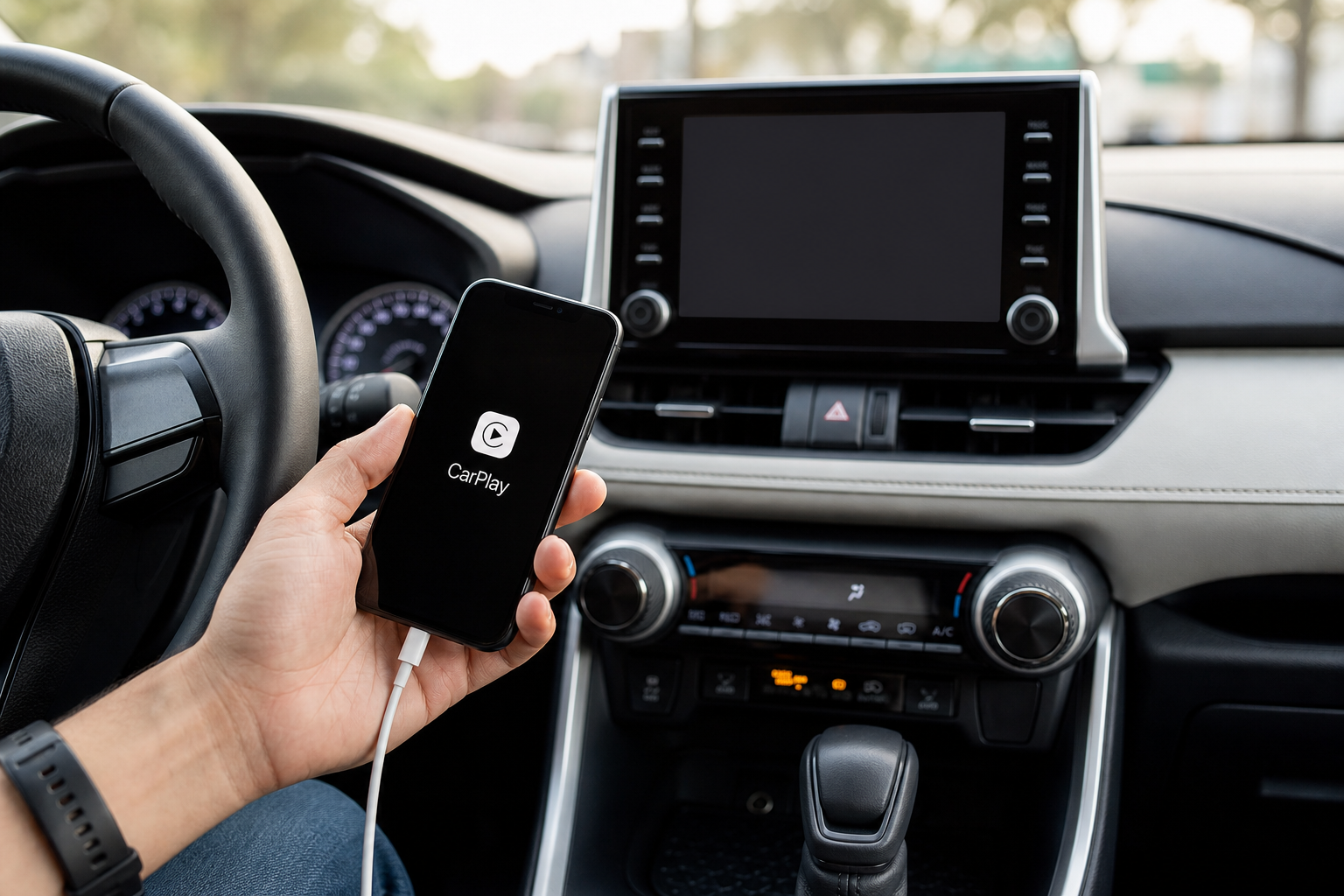
Most wired dropouts come down to the cable, not the truck. Cheap or worn cables lose their data pins over time even if they still charge your phone fine, and that’s exactly the kind of intermittent failure that looks like a software glitch.
Start with these steps in order:
- Swap in a different certified Lightning or USB-C cable, ideally one that came in the box with your phone or is MFi-certified for Apple devices.
- Wipe down the USB port in the truck with a dry, soft brush or compressed air. Lint buildup in truck cabins is common and can cause exactly this kind of loose connection.
- Try a different confirmed data port in the truck as described above.
- Restart your iPhone completely, not just a screen lock. A full power cycle clears out background app conflicts that can interrupt the CarPlay session.
If you’re regularly swapping cables or dealing with a factory cable that’s fraying, it’s worth just replacing it outright rather than troubleshooting the same failure every week.
Anker USB-C to Lightning Cable
A durable, MFi-certified cable that avoids the data-pin wear issues common with cheaper cables.
Keep the cable route short and unobstructed too. Long cables that snake under a console lid or get pinched in a cupholder tray can develop internal breaks that cause the exact intermittent disconnects you’re trying to fix.
Wireless CarPlay: Pairing and Wi-Fi Resets

Wireless CarPlay became available on the Silverado 1500 starting with the 2022 model year on trucks equipped with the larger touchscreen infotainment system. If you’re on a 2019 through 2021 model, wireless CarPlay simply isn’t supported from the factory, no matter how many settings you dig through. In that case, a wireless CarPlay adapter is your only path to going cable-free.
CarlinKit Wireless CarPlay Adapter
Plugs into your existing wired CarPlay port and converts it to wireless, a solid workaround for older Silverado model years.
For trucks with factory wireless CarPlay, disconnections usually stem from Bluetooth and Wi-Fi handshake issues rather than a bad connection. Wireless CarPlay actually uses Bluetooth to establish the initial pairing, then hands off to a direct Wi-Fi connection for the actual screen mirroring. If either link is unstable, the session drops.
To reset this connection:
- On your truck’s touchscreen, go into Settings, then Apple CarPlay, and select your phone under paired devices.
- Choose to forget or delete the device.
- On your iPhone, go to Settings, Bluetooth, tap the info icon next to your truck, and select Forget This Device.
- Also check Settings, Wi-Fi, and forget any saved network tied to your Silverado if one appears.
- Restart both the truck’s infotainment system and your phone.
- Re-pair from scratch through Settings, General, CarPlay on your iPhone.
This full delete-and-re-add process solves the majority of wireless dropout complaints because it clears out a corrupted pairing profile, which is the most common root cause once you rule out USB ports for the wired side.
Reboot the Infotainment System
GM’s infotainment software, whether it’s the older system or the newer one built on Google’s platform, can develop the same kind of memory leaks and background glitches as any other computer. A soft reset clears temporary files without touching your saved settings.
Hold down the power button on the touchscreen for about 10 seconds, or press and hold both the volume knob and the physical Home button at the same time if your trim has one. The screen will go black and restart, similar to rebooting a tablet. This takes less than a minute and is worth doing before you start deleting paired devices or resetting to factory defaults.
If a soft reset doesn’t help, check for a pending infotainment software update under Settings, then General, then Software Update, or by using the myChevrolet app. GM has pushed several updates specifically targeting CarPlay stability issues, and running outdated infotainment software is a common reason the same dropout keeps recurring after every other fix.
Check iOS Compatibility and Update Your iPhone
Apple updates iOS several times a year, and CarPlay compatibility bugs do slip through occasionally, especially right after a major iOS release. If your dropouts started right after updating your phone, that’s a strong clue the issue is on Apple’s side, not GM’s.
Go to Settings, General, Software Update on your iPhone and install anything pending. If you’re already on the latest version and the problem started with that update, it’s worth checking online forums or Apple’s support pages to see if others are reporting the same CarPlay bug, since a fix sometimes comes in the very next point release.
It’s also worth confirming your phone isn’t overheating. iPhones running CarPlay wirelessly on a hot dashboard mount, especially in direct summer sun, will throttle background processes and can drop the CarPlay session as a protective measure. A vent-mounted phone holder keeps your phone cooler than a windshield or dash mount that bakes in direct sunlight.
Frequently Asked Questions
Does every Silverado 1500 model year support wireless Apple CarPlay?
No. Wireless CarPlay is only available on Silverado 1500 trucks from the 2022 model year forward equipped with the larger infotainment touchscreen. If you own a 2019 to 2021 model, you’ll need a wired connection or a third-party wireless adapter to get a cable-free experience.
Why does CarPlay work fine at home but disconnect on longer drives?
This usually points to a cable or port issue that only shows up once the connection is jostled by road vibration, or a phone that’s overheating from being mounted in direct sunlight for extended periods. Try a different data-capable USB port and consider relocating your phone mount to a vent clip out of direct sun.
Will resetting my infotainment system delete my saved settings?
A soft reboot, holding the power button for around 10 seconds, does not erase saved presets, paired devices, or settings. A full factory reset through the Settings menu does erase everything, so only use that as a last resort after you’ve tried the steps above.
If you’re chasing down other electrical quirks in your Silverado, like a battery that seems to drain overnight, it’s worth reading up on why a car battery dies overnight even when the alternator is good, since parasitic drains can sometimes affect infotainment behavior too. And if you want to make better use of your dashboard tech beyond CarPlay, check out our guide on using the available heads-up display on the Chevy Silverado.
Most CarPlay disconnects come down to three things: a worn cable or wrong USB port, a stale Bluetooth or Wi-Fi pairing, or infotainment software that’s overdue for an update. Work through those in order before assuming something’s actually broken in the truck, because in the vast majority of cases, it isn’t.
This article contains affiliate links. We may earn a small commission at no extra cost to you.


Leave a Reply