
If your Subaru Outback keeps flashing its high beams at oncoming traffic when you’d rather control them yourself, you’re not alone. The automatic high-beam assist that comes with EyeSight is a genuinely useful feature on dark rural roads, but it can also be annoying in stop-and-go traffic, foggy conditions, or areas with a lot of streetlights where the camera gets confused. The good part is Subaru made it easy to switch off, and you don’t lose manual high-beam control when you do.
Below, we’ll walk through exactly where the controls live, how the indicator lights behave, and what changes depending on which Outback generation you’re driving.
What Automatic High-Beam Assist Actually Does
Subaru’s automatic high-beam assist is part of the EyeSight driver assist suite, which uses the twin cameras mounted near the rearview mirror to read the road ahead. When it detects oncoming headlights or the taillights of a car in front of you, it switches your beams back down to low automatically. Once the road clears, it flips them back to high without you touching anything.
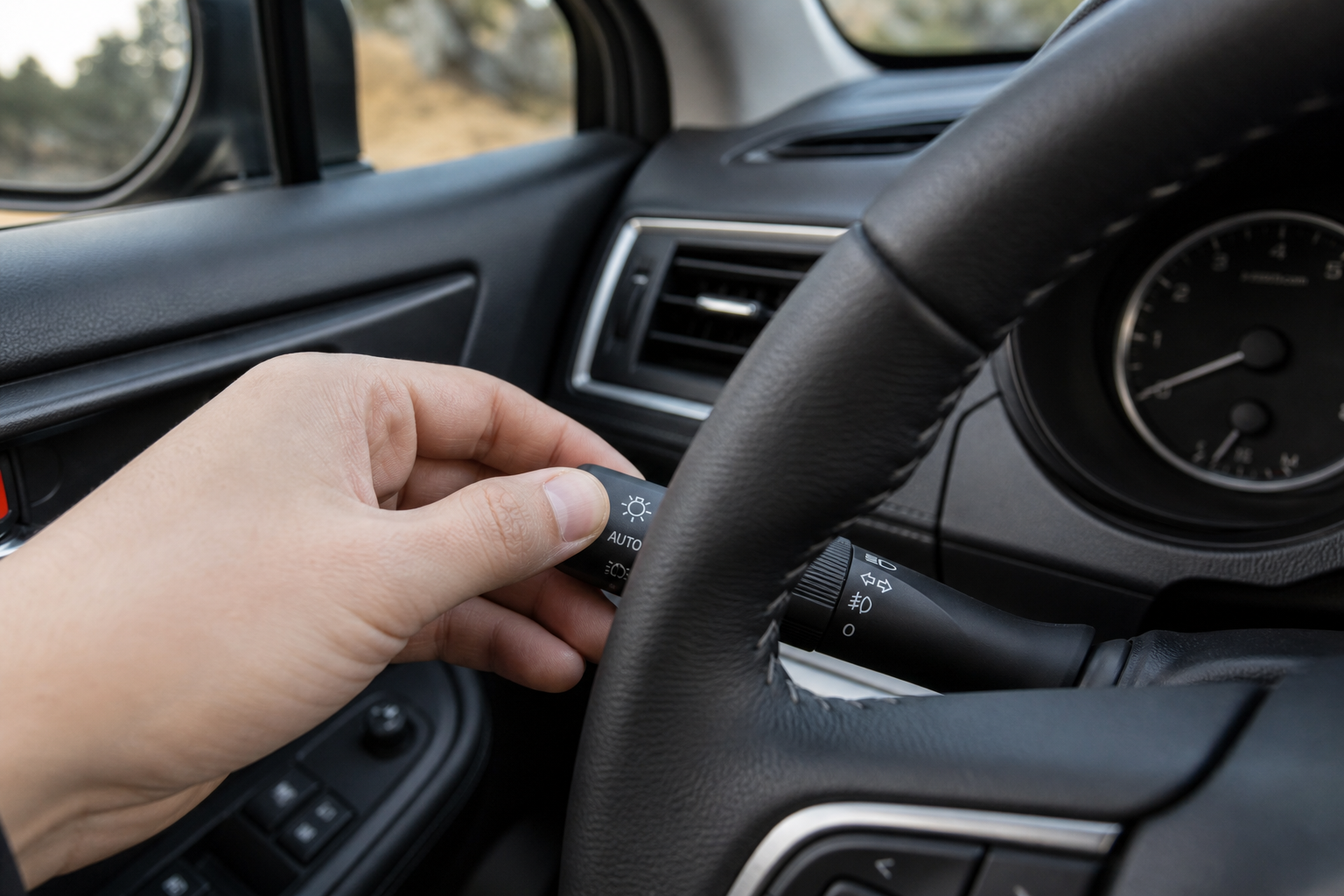
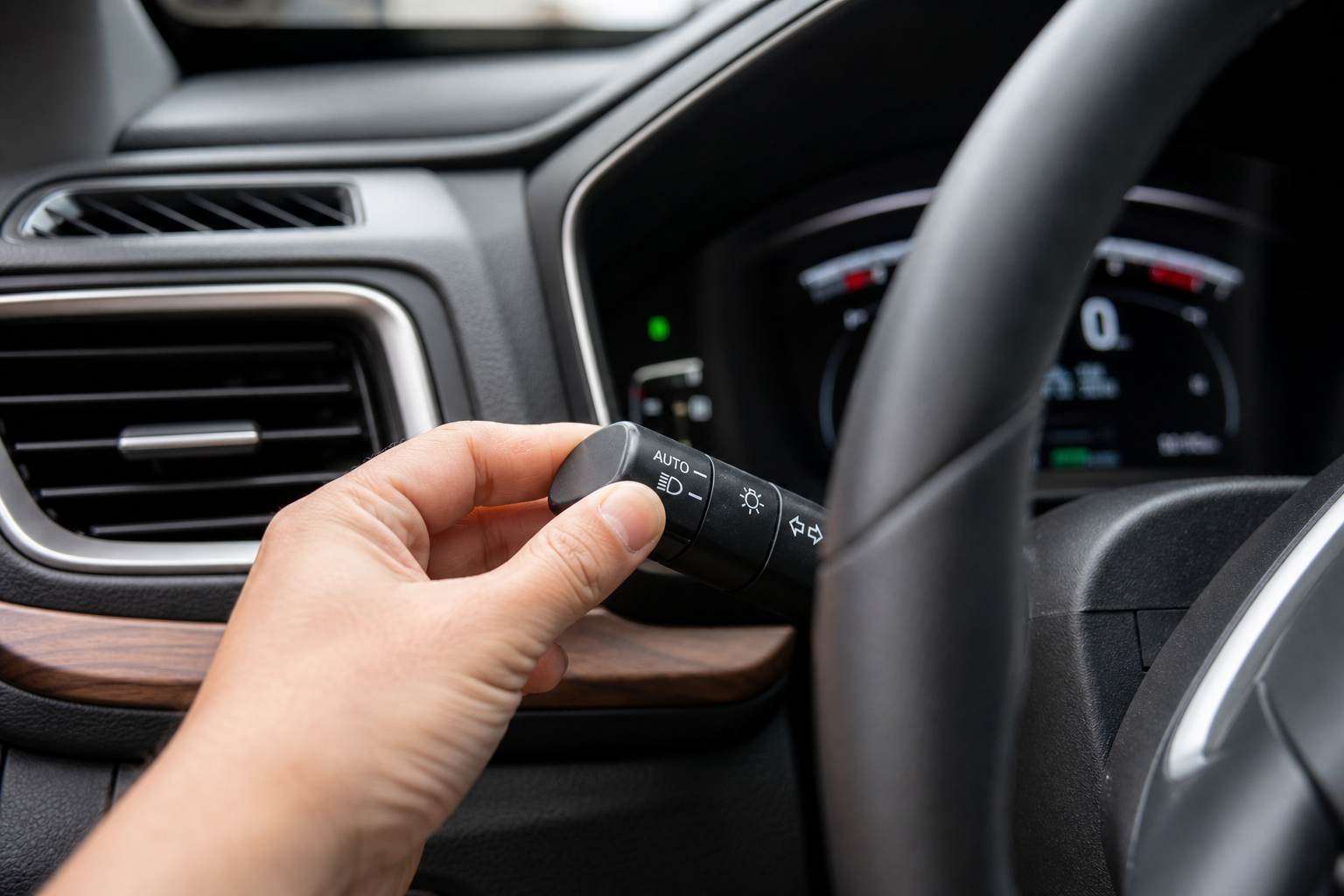
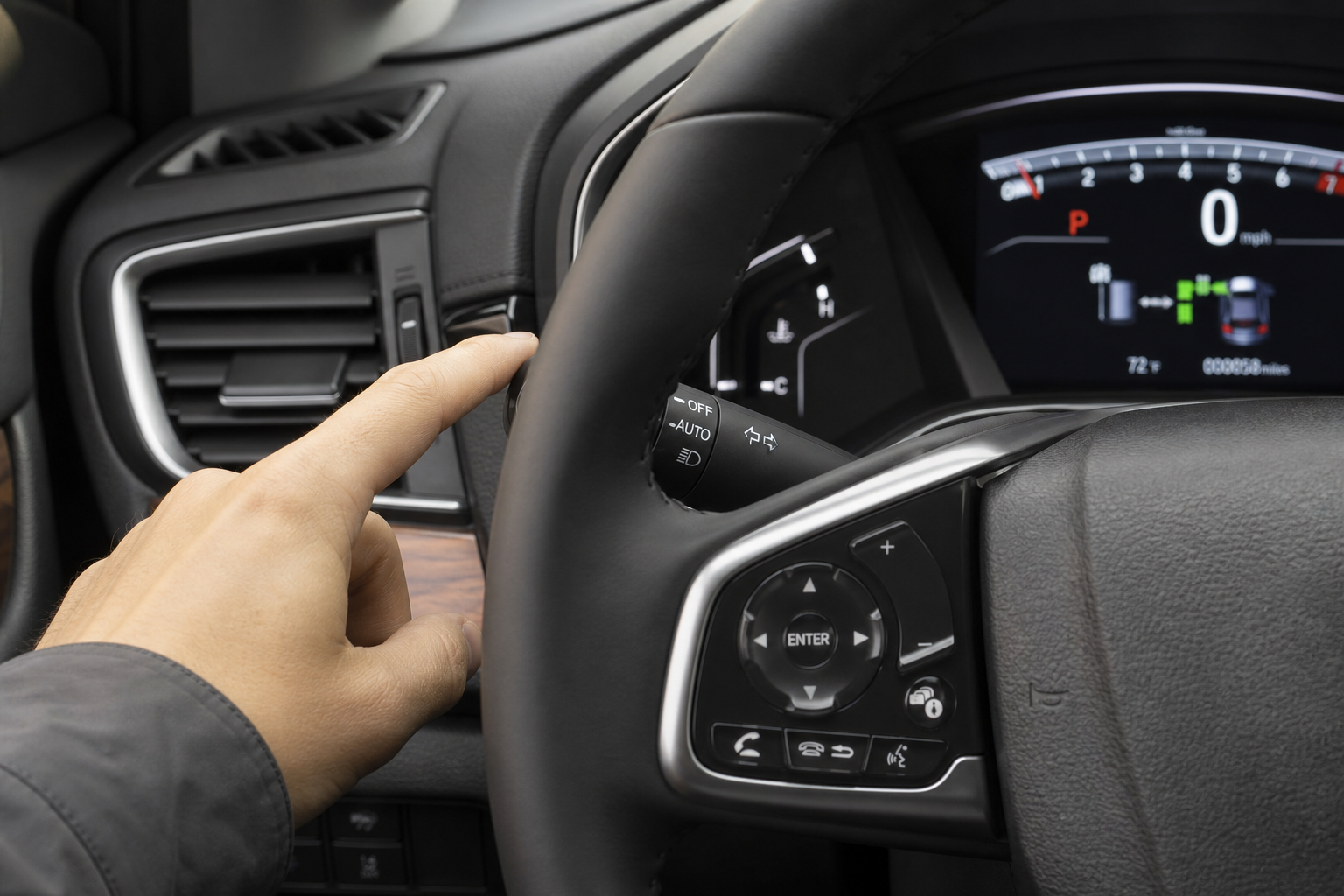
This is different from a fully automatic headlight system, which just decides when to turn your headlights on and off based on ambient light. The Outback has that feature too, controlled by the headlight dial on the left stalk when it’s set to “AUTO.” That system stays active independently of whatever you do with high-beam assist. Turning off automatic high beams does not turn off automatic headlights, and vice versa. It’s worth keeping these two systems straight because they’re controlled in completely different places on the vehicle.
Where to Find the Automatic High-Beam Controls
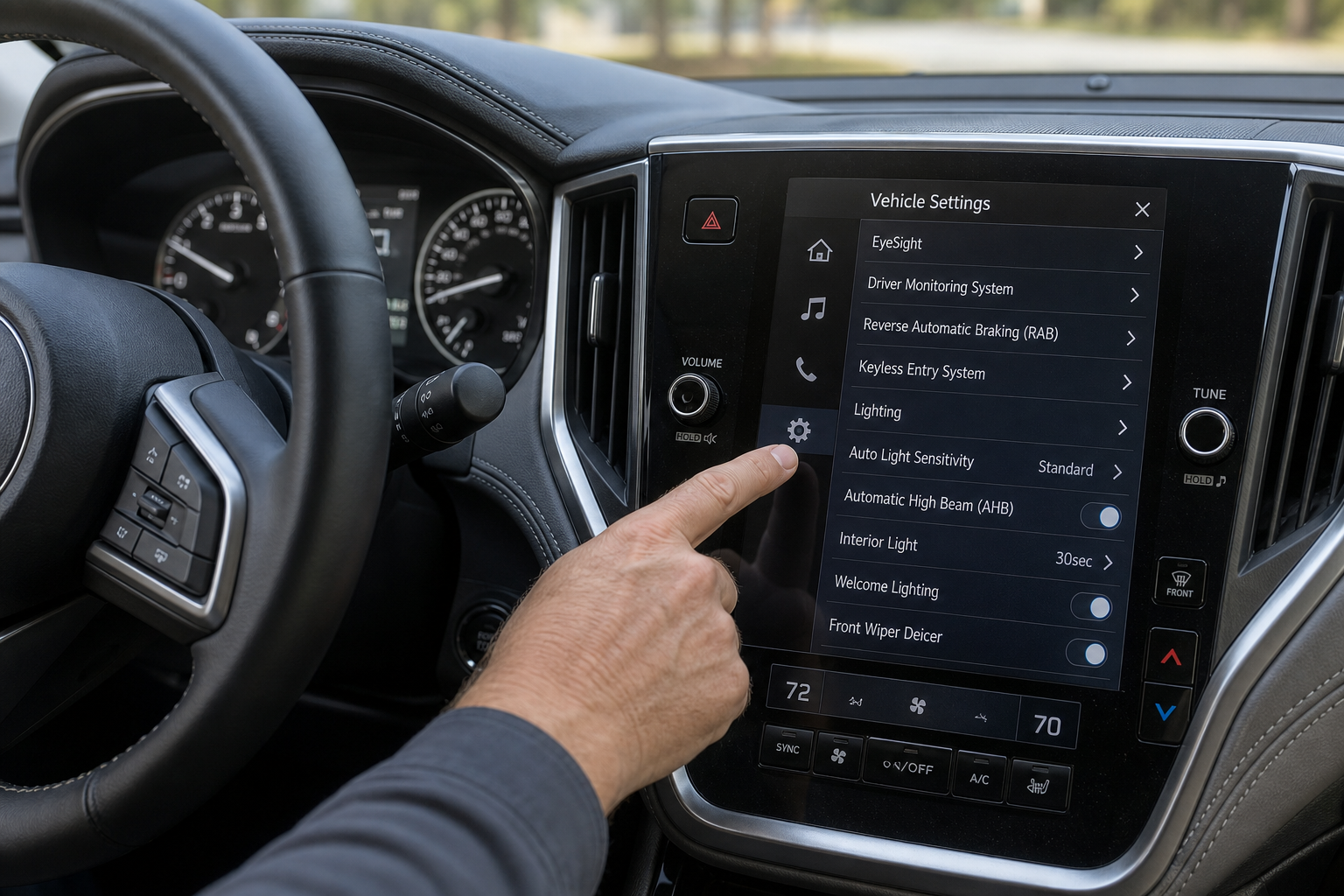
On most Outback model years, the automatic high-beam assist toggle lives in one of two places depending on the trim and model year: the multi-function display menu accessed through the steering wheel buttons, or as a dedicated setting inside the EyeSight menu on the infotainment screen.
Here’s the general process for the 2020 through 2024 Outback:
- Start the vehicle so the dashboard is fully powered on.
- Use the arrow buttons on the left side of the steering wheel to scroll through the driver information display until you reach the vehicle settings menu.
- Look for “EyeSight” or “Driving Assist” settings within that menu.
- Find “Auto High Beam” or “Automatic High Beam Assist” and toggle it off.
On some trims, particularly Limited and Touring models with the larger 11.6-inch infotainment screen, you can also access this through the touchscreen. Tap the settings icon, then EyeSight, then look for the high-beam assist toggle in that submenu.
The Stalk Control Still Works Independently
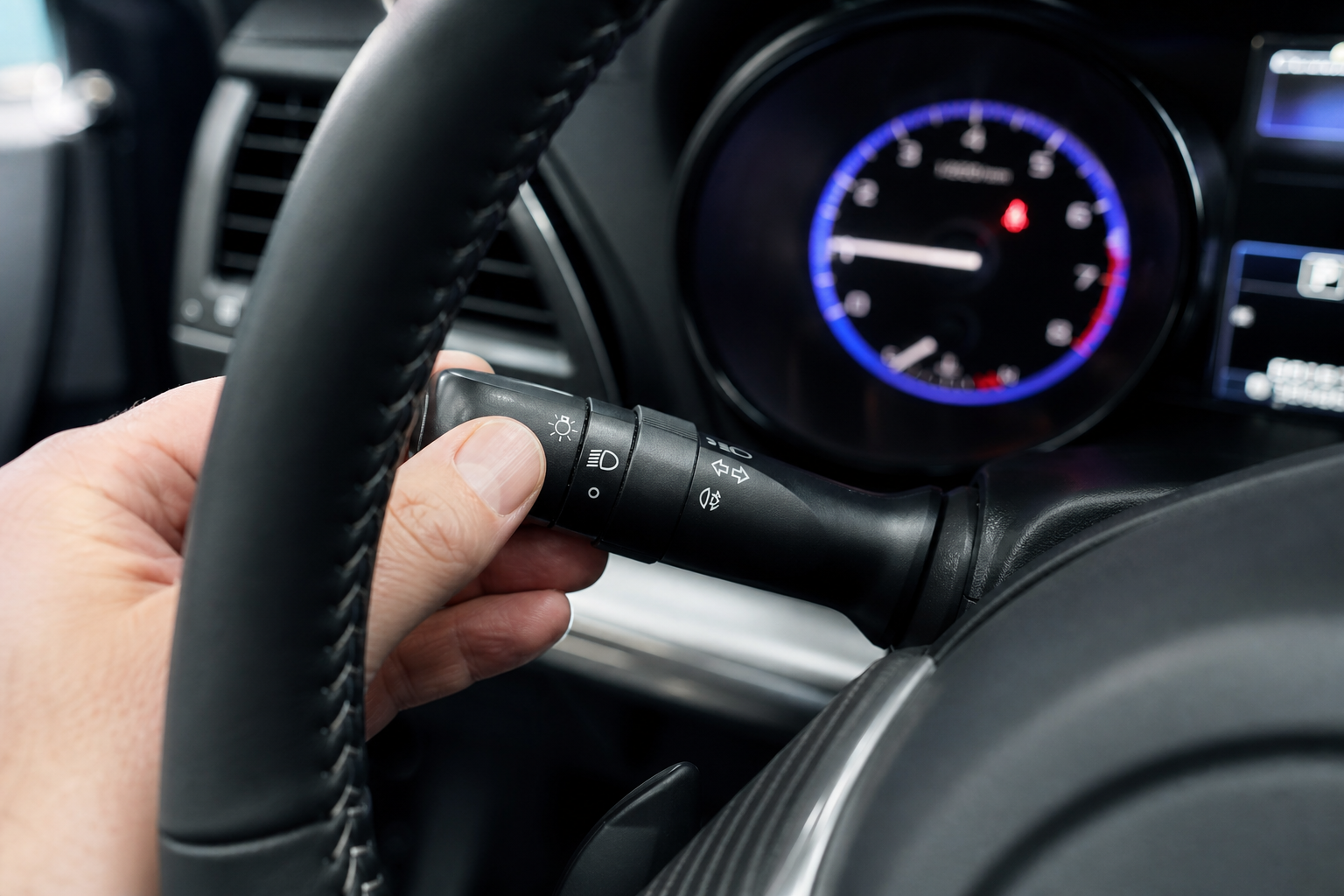
This is the part that trips people up. The left steering column stalk still handles your manual high-beam function no matter what you do in the settings menu. Pull the stalk toward you to flash the high beams momentarily, or push it forward past the detent to lock the high beams on continuously.
Once you disable the automatic system, the stalk becomes your only way to control high beams, and it works exactly like it did on older Subarus without EyeSight. There’s no separate button you need to press to “unlock” manual control. Turning off the automatic feature simply hands full control back to you through the stalk, the same way it works in a car that never had automatic high beams to begin with.
If you own an older Outback with the more basic infotainment screen, the process is similar, but the settings menu might be labeled slightly differently. On some 2015-2017 models with earlier EyeSight versions, the toggle is buried under “Vehicle Settings” rather than a dedicated EyeSight submenu.
Model-Year Differences You Should Know About
Subaru has tweaked EyeSight and its related settings several times since it became standard equipment on the Outback. Here’s what’s changed:
- 2015-2019 (fifth generation): EyeSight 3.0 introduced automatic high-beam assist as a standard feature on trims equipped with EyeSight. The toggle is found in the driver information display’s vehicle settings menu, accessed via steering wheel buttons only, since these years don’t have a touchscreen path to this setting.
- 2020-2022 (sixth generation, early): The redesigned Outback added the larger center screen options, and Subaru moved some EyeSight settings into the touchscreen interface while keeping others on the steering-wheel-controlled display. Automatic high-beam toggle placement varies slightly between the 7-inch and 11.6-inch screen configurations.
- 2023-2024 (sixth generation, updated): Subaru refined the menu structure again with updated software, generally making the EyeSight settings submenu easier to find on the touchscreen, especially on Limited and Touring trims.
If you can’t locate the exact menu path in your owner’s manual, don’t spend too long guessing. Every Outback with EyeSight has this setting somewhere in the vehicle settings, and the fastest way to confirm the exact steps for your specific model year is checking your printed manual or the digital version on Subaru’s owner resources site, since Subaru occasionally updates menu wording in running production changes.
Understanding the Dashboard Indicator Lights
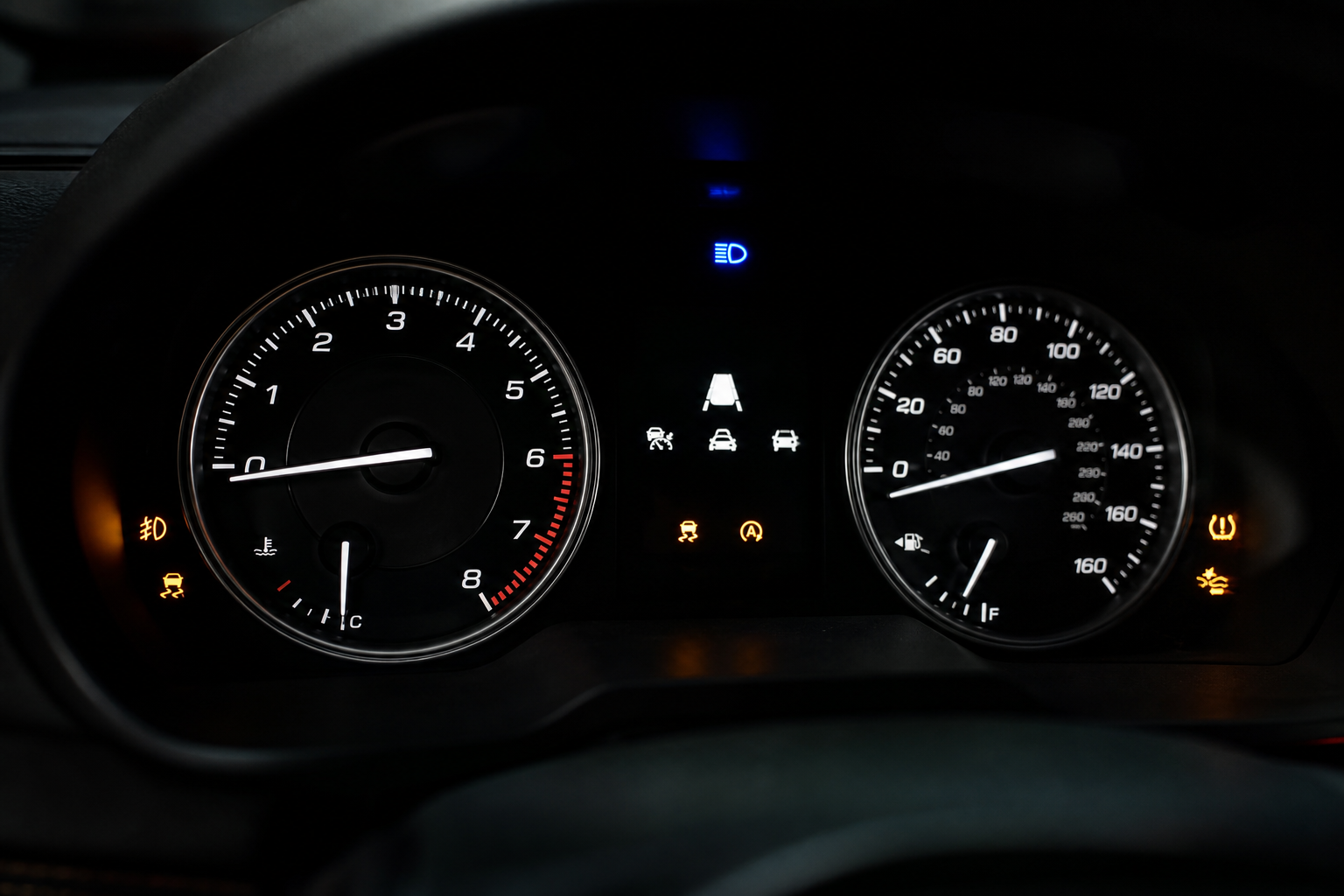
Your Outback’s instrument cluster gives you clear visual feedback about which high-beam mode is active, and learning to read these indicators takes the guesswork out of driving at night.
When automatic high-beam assist is turned on and actively managing your beams, you’ll see a blue high-beam icon appear whenever the system switches to high beams on its own. This icon looks identical to the standard high-beam indicator, but its behavior gives it away: it turns on and off by itself as traffic conditions change, without you touching the stalk.
Once you’ve disabled the automatic system, that same blue icon only appears when you manually engage high beams by pushing the stalk forward. It won’t ever activate or deactivate on its own again. This is actually the easiest way to confirm your change took effect. Turn off the automatic setting, then watch the dashboard as you drive. If the high-beam icon stays dark until you manually flick the stalk, you’ve successfully disabled the automatic function.
Some trims also show a small “Auto” text label near the high-beam icon when the automatic system is engaged. If you see that label disappear after making your change, that’s additional confirmation the automatic feature is off.
Why You Might Want to Turn It Off
Automatic high-beam assist works well most of the time, but there are specific situations where drivers prefer manual control:
- Foggy or hazy conditions: The cameras can struggle to detect oncoming vehicles through fog, sometimes leaving your high beams on when they shouldn’t be and creating a glare bounce-back effect that actually hurts your own visibility.
- Winding rural roads with dense tree lines: The system sometimes reacts to reflections or ambient light bouncing off wet pavement, causing beams to flicker between high and low more than necessary.
- Areas with inconsistent streetlight coverage: Stretches of road that alternate between well-lit and dark can confuse the camera into switching modes more often than a driver would choose to.
- Personal preference: Some drivers simply prefer full manual control and find the automatic switching distracting, even when it’s working correctly.
None of these situations mean the system is broken. It’s a camera-based feature doing its best with visual information, and like any driver-assist tech, it has limits. If you’d rather rely on your own judgment for high beams the way you do for things like manual four-wheel-drive settings on a truck, similar to how the 4WD system and locking differential on the Nissan Frontier gives drivers manual override options, turning off the automatic assist is a reasonable choice.
Other EyeSight Features Worth Understanding
Automatic high-beam assist is just one piece of the EyeSight suite, and it’s a good idea to get familiar with the rest of what your Outback offers. Features like the Intersection Turning Assist work alongside your safety systems to catch situations a driver might miss at busy intersections.
It’s also worth spending time with the auto-dimming rearview mirror and compass display, since that’s another automated visibility feature that some drivers want to adjust to their liking rather than leave on factory defaults.
And if your Outback’s tire pressure light comes on after you’ve been messing around in the settings menus, it’s unrelated to the high-beam changes, but here’s the full guide for resetting TPMS on the Subaru Outback so you’re not chasing down two separate issues at once.
Frequently Asked Questions
Will turning off automatic high beams affect my automatic headlights?
No. These are two separate systems controlled in different places. Automatic headlights are managed by the headlight dial on the turn signal stalk when set to AUTO, while automatic high-beam assist is a separate EyeSight feature controlled through the vehicle settings menu. Disabling one has no effect on the other.
Does my Outback need EyeSight to have automatic high beams?
Yes. Automatic high-beam assist is part of the EyeSight driver assist package, which uses the twin windshield-mounted cameras to read the road ahead. If your Outback trim doesn’t include EyeSight, you won’t have this feature at all, and your high beams will already work purely on manual stalk control.
Why do my high beams still flash automatically after I turned off the setting?
Double-check that you saved the change and that you’re looking at the correct menu, since some Outback model years have similarly worded settings for other EyeSight features nearby. Also confirm the vehicle was fully restarted after the change, since some settings only take effect after a power cycle.
Can a dealership or mechanic disable this permanently through the vehicle’s computer?
There’s no need for that. The setting is designed to be user-accessible and doesn’t reset itself between drives on any current Outback model year. If you’ve disabled it once through the menu, it stays off until you manually turn it back on, even after the car is powered off and restarted.

Leave a Reply