
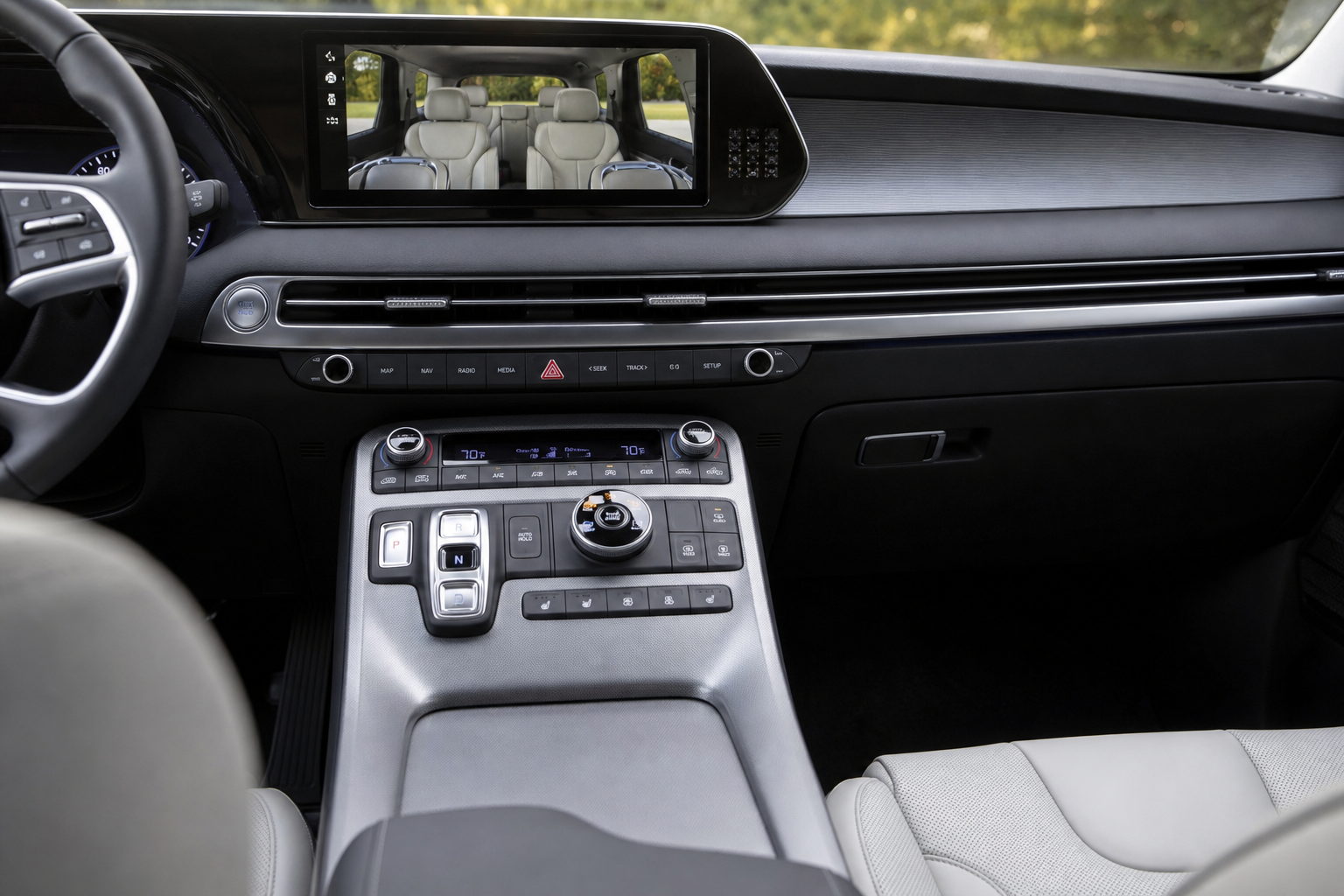
If you’ve ever climbed into your Palisade, driven a few miles, and been greeted by a chime and a message telling you to check your back seat even though you know nobody’s back there, you’re not alone. Hyundai’s Rear Occupant Alert is a well-intentioned safety feature, but it can get annoying fast if you regularly haul cargo, drop off kids at school, or just don’t need the reminder every single trip. The good news is that Hyundai does give you some control over how (and whether) it nags you.
Below, we’ll walk through exactly what triggers the alert, where to find the setting on your Palisade’s touchscreen, what the difference is between the visual and audible warnings, and why the system sometimes seems to ignore your settings entirely.
What Actually Triggers the Rear Occupant Alert
Hyundai’s Rear Occupant Alert (often shortened to ROA in the menus) isn’t just a random reminder. It’s tied directly to your rear door activity during a drive. If you open either rear door at any point before or during your trip, the system assumes there’s a chance someone or something got placed in the back seat.
When you shift into Park and shut off the engine, the Palisade checks that door history. If a rear door was opened during that ignition cycle, you’ll get a message on the cluster display telling you to check the back seat before you walk away.
On Palisades equipped with the Ultrasonic Rear Occupant Alert (standard on Limited and Calligraphy trims, and optional on some SEL packages), the system goes a step further. It uses radar-based ultrasonic sensors mounted near the dome light to actually detect motion inside the cabin after you’ve locked the doors and walked away. If it senses movement, it’ll honk the horn, flash the lights, and send a push notification through the Bluelink app. That’s a meaningfully different experience than the basic door-logic version, and it’s worth knowing which system your specific Palisade has before you go looking for settings that don’t exist on your trim.
Can You Turn Off the Rear Occupant Alert Completely?
Yes, but with some nuance. The basic ROA reminder (the dashboard message and chime) can be toggled off in the settings menu. The Ultrasonic ROA, if your Palisade has it, typically has its own separate toggle for the motion-detection and horn-honk behavior.
That means you could theoretically leave the basic door-logic reminder on for peace of mind while turning off the more aggressive ultrasonic honking, or vice versa. Most owners who disable one end up disabling both, since they serve overlapping purposes, but Hyundai does let you choose.
Where to Find the Setting on the Palisade’s Screen
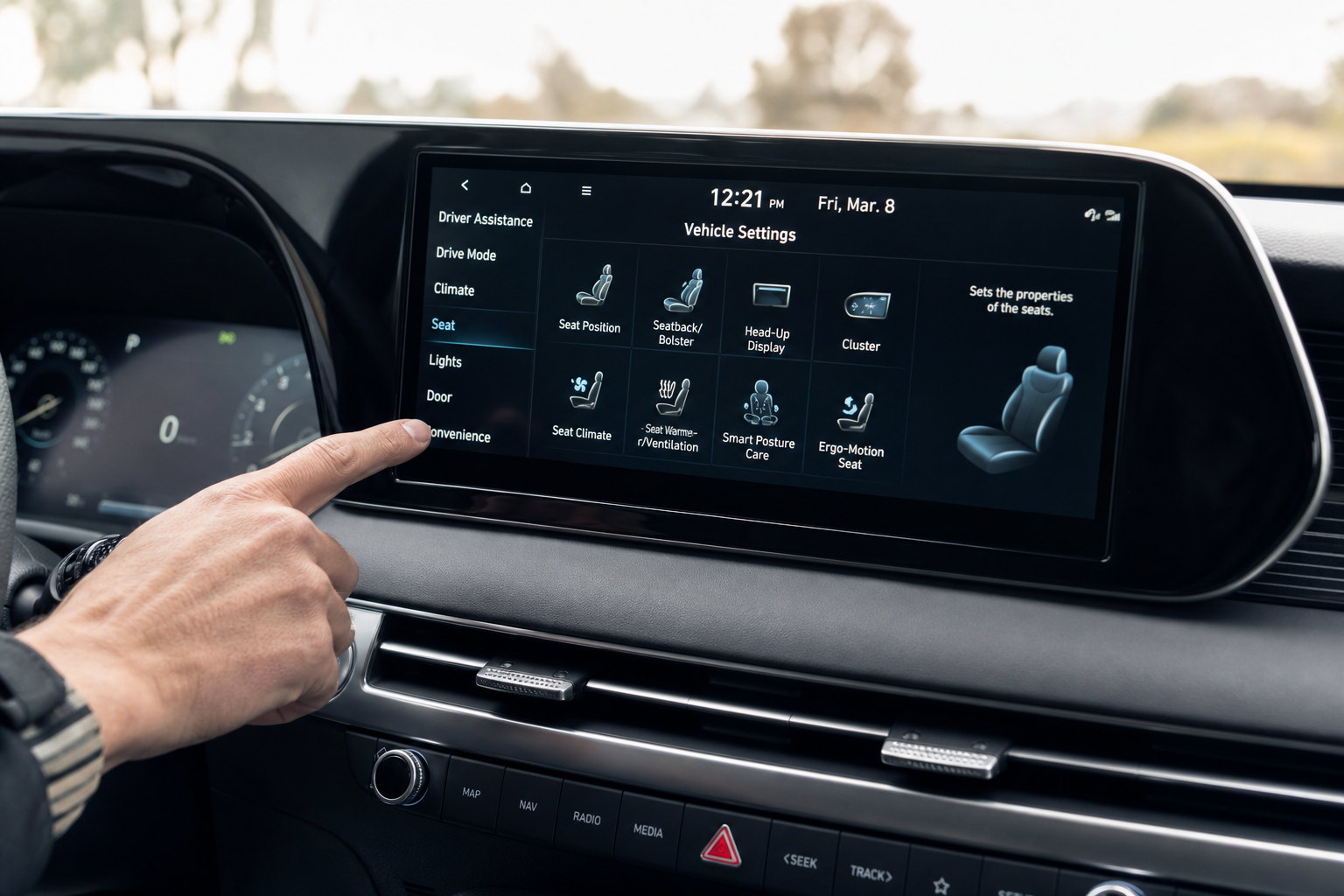
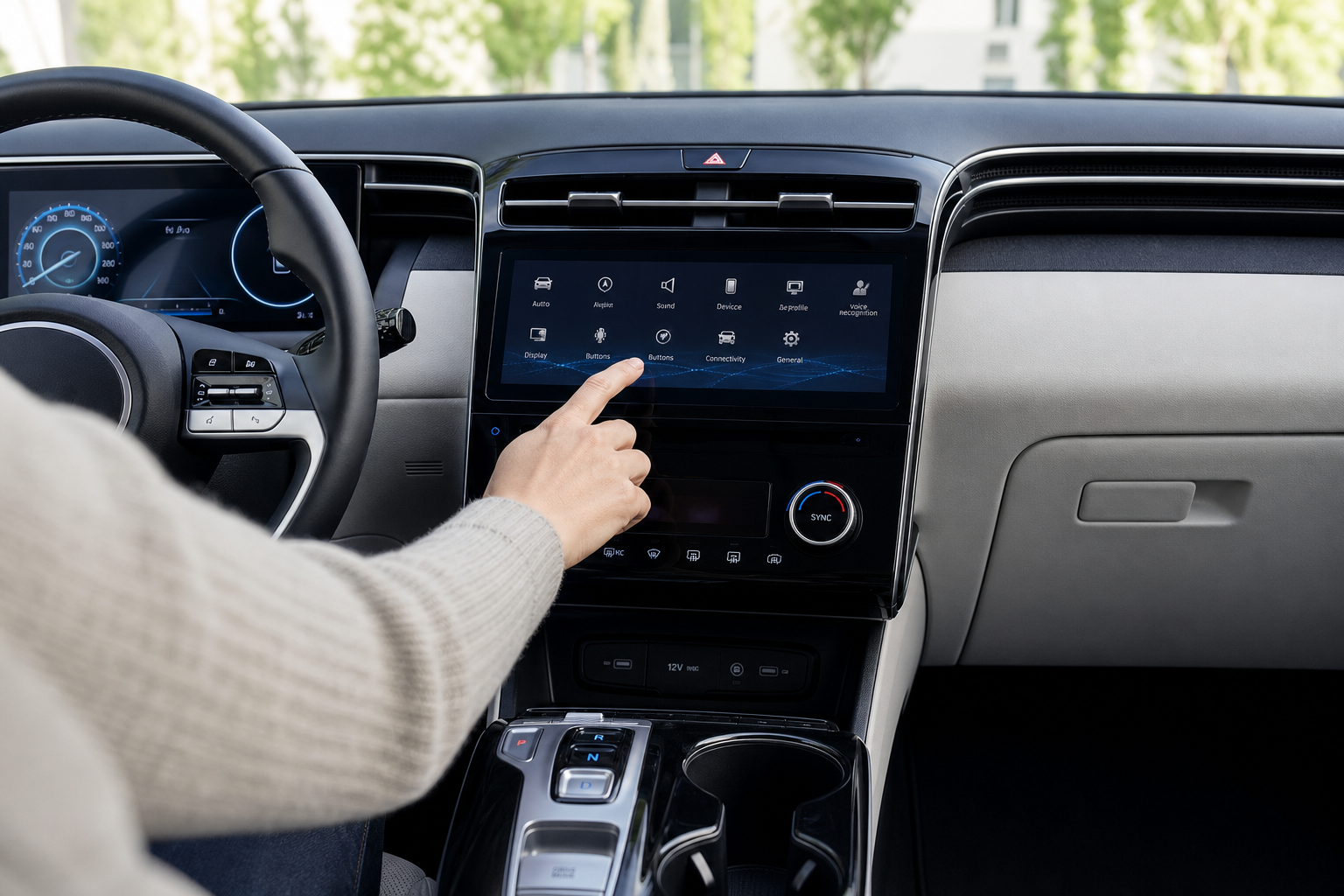
On most Palisade model years (2020 through 2025), you’ll find the toggle in this general path:
- Press the Settings icon on the home screen (the gear icon)
- Select Vehicle
- Scroll to find Rear Occupant Alert (sometimes listed under a “Convenience” or “Safety” sub-tab depending on model year)
- Toggle the feature off, or adjust the sub-options if your trim has the ultrasonic version
On newer Palisades running Hyundai’s updated infotainment software (2023 and later refresh models), the wording shifts slightly. You may see it labeled simply as “Rear Occupant Alert” with a single on/off switch, plus a separate line item for “Ultrasonic Sensor” or “Motion Detection” if your vehicle came with that hardware.
Model Year Differences Worth Knowing
Hyundai has tweaked this feature’s naming and depth of customization almost every model year since introducing it. Earlier Palisades (2020-2021) had a more basic on/off toggle with less granularity. The 2022 refresh added more detailed sub-settings, and the redesigned 2023+ Palisade (built on the updated interior and screen layout) reorganized the menu structure again.
Because of this, your exact menu path might differ by a tap or two from what’s described here. If you can’t find it right away, check your glovebox owner’s manual or search the on-screen help function by typing “occupant” into the search bar, which usually jumps you straight to the right settings page.
If your Palisade is a rental, a loaner, or new to you as a used purchase, it’s also worth confirming which version of ROA it has before assuming the feature works a certain way. Hyundai uses similar language across its lineup, and if you want a broader look at how the reminder and alert systems compare across different Hyundai models, this guide to the Rear Seat Reminder and Rear Occupant Alert on Hyundai vehicles breaks down the differences in more detail.
Visual Alert vs. Audible Alert: They’re Not the Same Thing
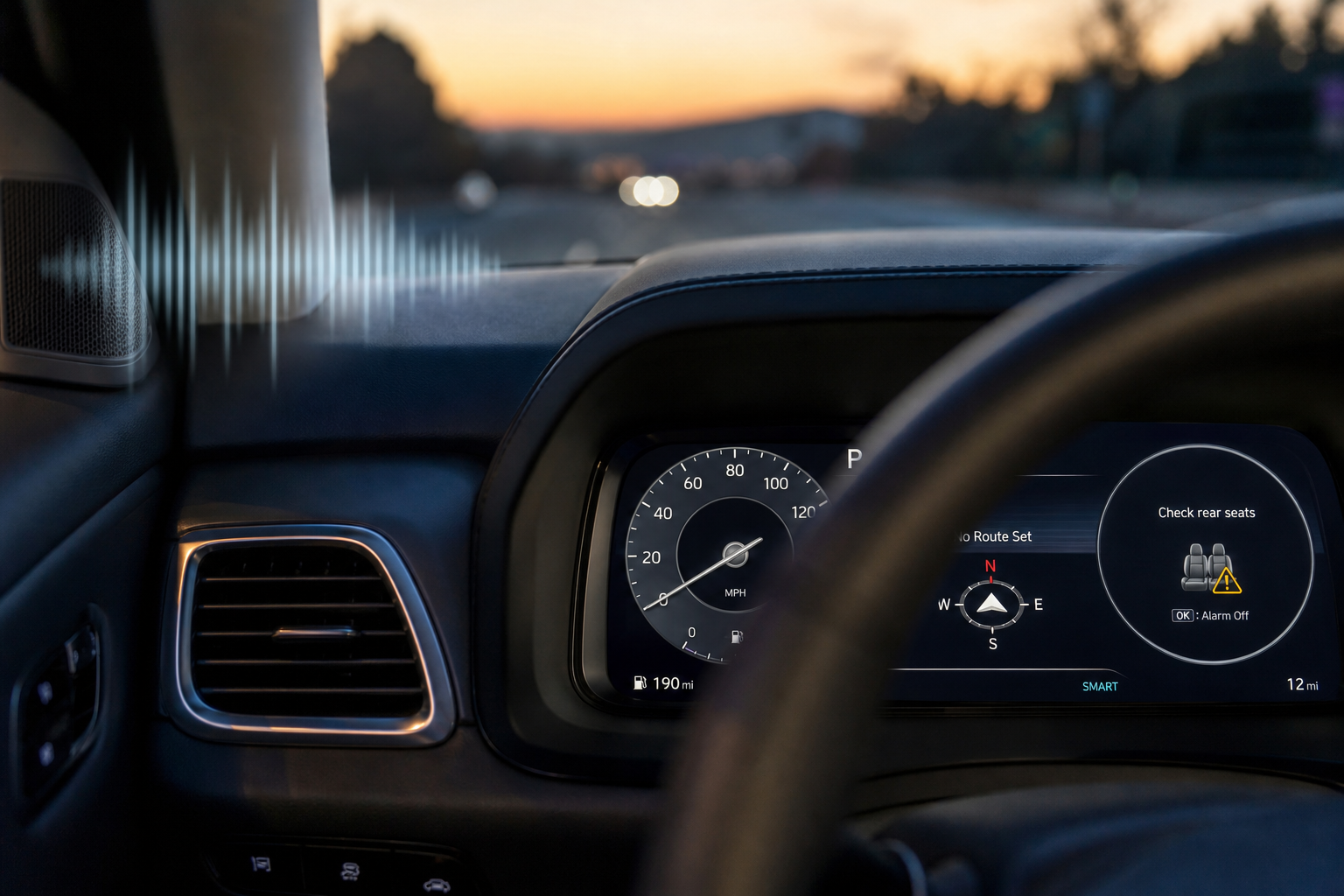
One thing that trips up a lot of Palisade owners is assuming the “alert” is a single thing. It’s actually two separate layers.
The visual alert is the message that pops up on your instrument cluster when you park and turn off the vehicle, reminding you to check the back seat. This is quiet, easy to miss if you’re in a hurry, and doesn’t involve any sound.
The audible alert is the chime that plays alongside that message, and on Ultrasonic ROA-equipped Palisades, it also includes the exterior horn honk that happens after you’ve already left the vehicle if motion is detected inside. You can generally disable the chime and the on-screen message together with one toggle, but the ultrasonic horn-honk behavior often has its own dedicated switch. If you only turn off the chime but leave ultrasonic detection active, your Palisade could still honk at you in the parking lot even though the dashboard stopped nagging you.
Does Your Setting Stay Off After You Restart the Vehicle?
This is one of the most common questions Palisade owners have, and the answer is reassuring: yes, the Rear Occupant Alert preference is saved to the vehicle’s settings profile and persists across ignition cycles. Unlike some features that reset every time you start the car (looking at you, lane-keeping assist on plenty of vehicles), ROA remembers your choice.
That said, if your Palisade supports multiple driver profiles tied to different key fobs, double check that the setting carried over correctly if a family member with their own profile drives the car. Settings tied to driver profiles don’t always sync the way you’d expect, and it’s a quick thing to verify rather than assume.
Why the Alert Might Still Go Off Even After You Disabled It
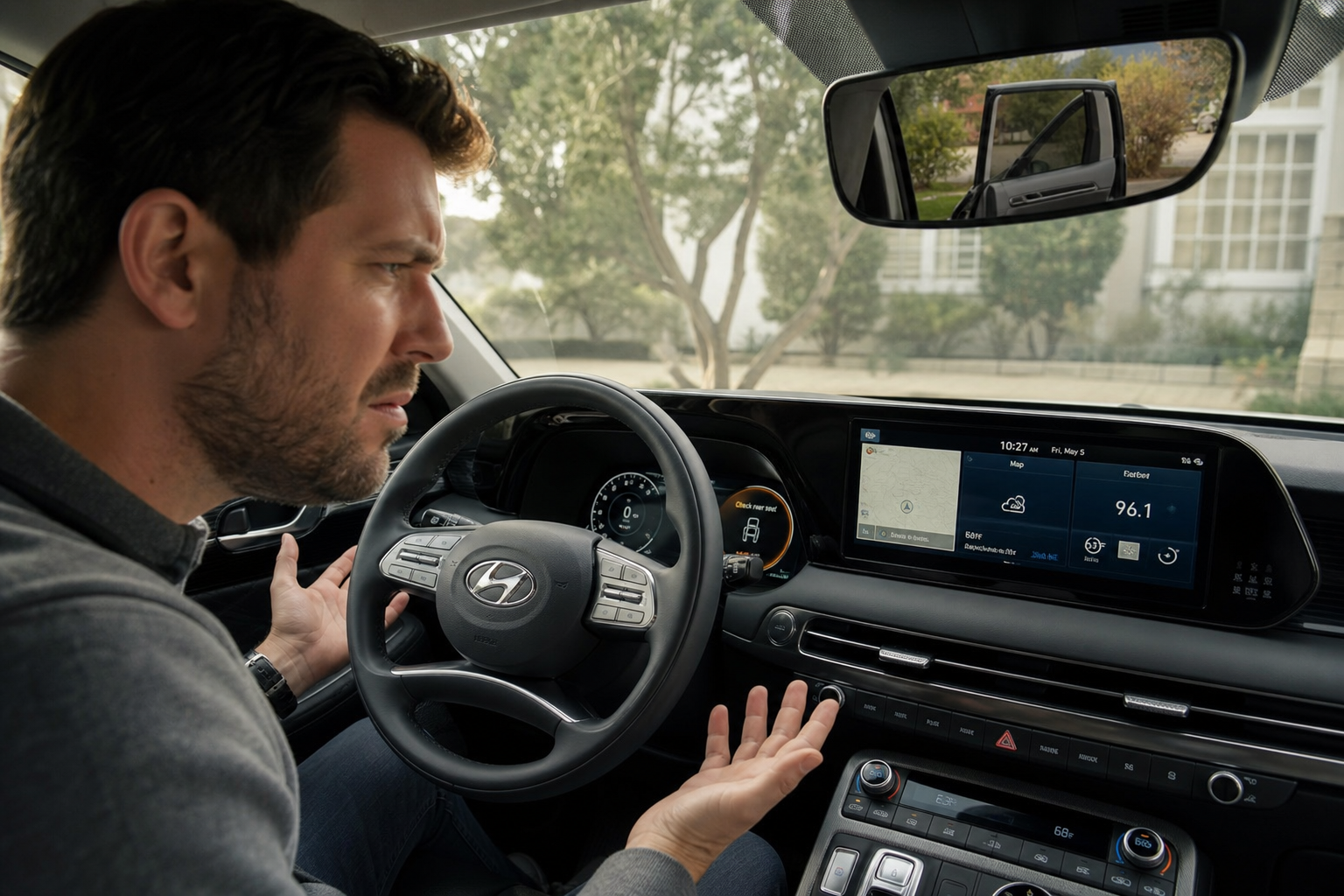
Here’s the scenario that confuses a lot of owners: you turned off ROA, but you still got the reminder message at the end of your drive. This usually isn’t a glitch. It’s because the door-logic system checks for rear door activity during the current ignition cycle, and if you disabled the setting mid-drive (say, right after dropping off a passenger), the system may have already logged that door-open event before your change took effect.
In other words, if you open a rear door early in your trip and then adjust the ROA setting later in that same drive, the vehicle might still flag it once you park, because the underlying door sensor data was already recorded. The setting change typically applies cleanly starting with your next full ignition cycle, not retroactively within the same trip.
This is also why some owners report inconsistent behavior when they disable the feature right before parking. If you want the change to stick reliably, turn it off before you start driving rather than adjusting it mid-trip.
A Few Practical Tips for Palisade Owners
If you frequently haul cargo through the rear doors (strollers, coolers, sports equipment) and get tired of false alerts, disabling the basic chime while keeping the ultrasonic motion detection active gives you a reasonable middle ground. You still get protection against accidentally leaving a child or pet in the vehicle, without the constant reminder every time you toss groceries in the back.
Families who use the third row regularly for kids should think twice before fully disabling both layers. The ultrasonic system in particular has caught real incidents where parents forgot a sleeping child, and Hyundai’s Bluelink notification can alert you even if you’ve already walked into a store. If you haven’t set up the app yet, our guide on setting up the myHyundai (Bluelink) app for remote access covers how to get those push notifications working on your phone.
And if you’re troubleshooting other Palisade warning lights or sensor quirks around the same time, it’s usually a good idea to rule out simple causes first (a stuck door sensor, low 12V battery voltage affecting sensor calibration, or a software update that’s pending) before assuming something is broken.
Frequently Asked Questions
Does turning off the Rear Occupant Alert also disable seatbelt reminders for rear passengers?
No. The Rear Occupant Alert and the rear seatbelt chime are two separate systems. Disabling ROA only affects the post-trip reminder to check the back seat. Your Palisade will still chime if a rear seatbelt is unbuckled while the vehicle is in motion, regardless of your ROA setting.
Will disabling ROA affect my Bluelink notifications?
If your Palisade has the Ultrasonic Rear Occupant Alert and you disable the motion-detection portion, you won’t receive Bluelink push notifications about detected movement after you’ve left the vehicle. The basic chime toggle doesn’t affect other Bluelink alerts like remote start confirmations or maintenance reminders.
Why did my Palisade honk at me in a parking lot after I already unloaded everyone?
This is the Ultrasonic ROA system detecting motion inside the cabin, which can sometimes be triggered by a pet, a bag shifting, or even sunlight causing a false positive. It’s designed to err on the side of caution, so occasional false alarms are a known trade-off for the added safety layer.
Is the Rear Occupant Alert the same feature across all Hyundai models, or is the Palisade different?
The core concept is the same across Hyundai’s lineup, but the hardware varies by model and trim. Some smaller Hyundai models only get the basic door-logic version, while the Palisade’s higher trims include the more advanced ultrasonic sensors. If you’re comparing how this works on other Hyundai vehicles you own or are considering, it’s worth reading through how the alert functions across the broader lineup.
Leave a Reply