
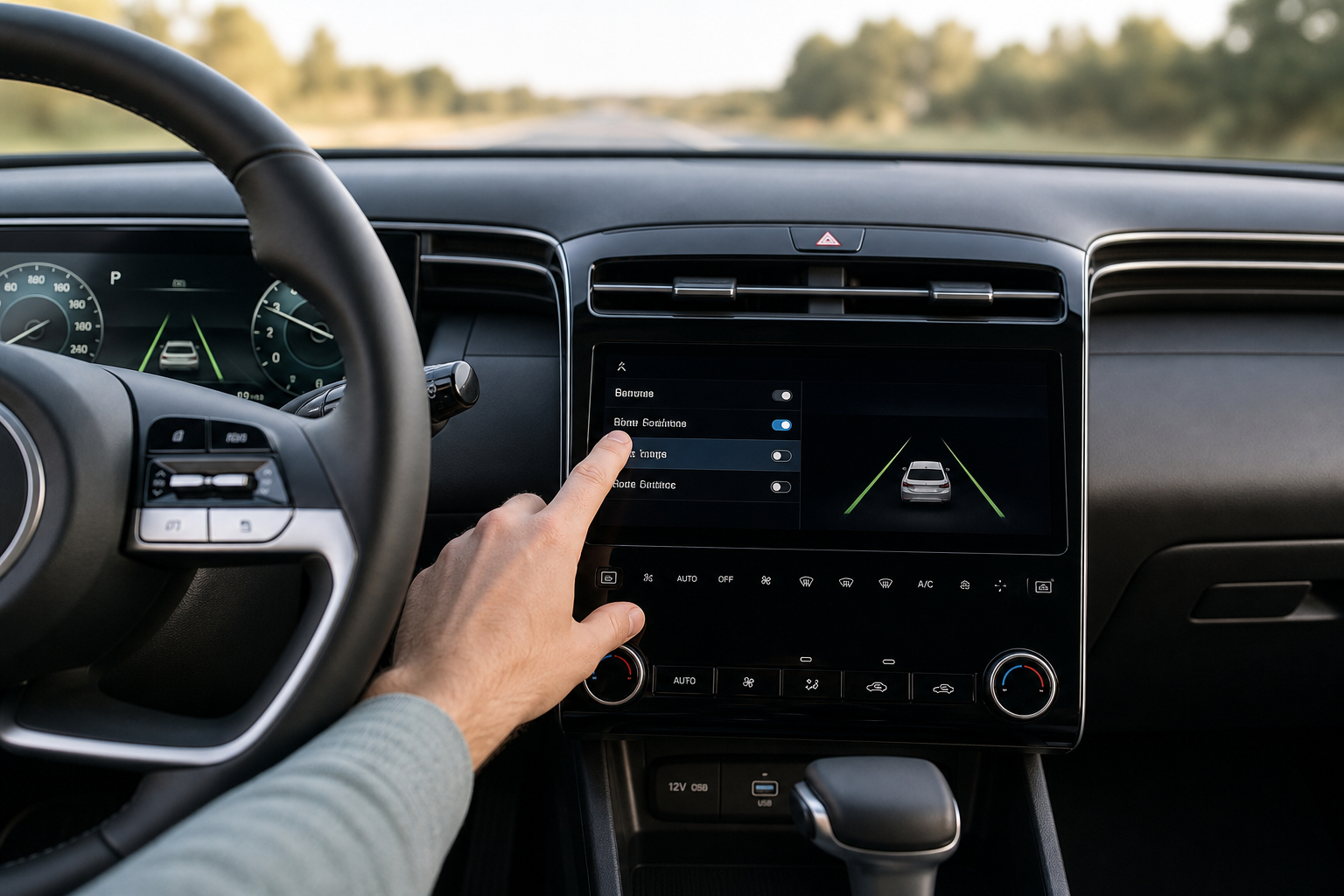
If your Hyundai Tucson keeps nudging the wheel back toward the center of the lane or beeping at you every time you drift near a line, you’re not imagining things. Hyundai builds these systems to be active by default on every start, and depending on your model year, getting them to stay off is either easy or basically impossible through the settings menu alone. Here’s exactly what to press, what each system actually does, and what really happens after you shut the car off.
What Hyundai Actually Calls These Systems
Hyundai doesn’t use one blanket name for lane tech, and that’s where a lot of confusion starts. On the Tucson, you’re dealing with two or three separate features grouped under the Hyundai SmartSense umbrella:
- Lane Departure Warning (LDW): Found mostly on 2016-2020 Tucson models. It only beeps and flashes a warning when you cross a lane line without signaling. It doesn’t touch the steering.
- Lane Keeping Assist (LKA): Replaced LDW starting around the 2021-2022 redesign. It actively applies steering torque to pull the car back toward the center of the lane.
- Lane Following Assist (LFA): A newer addition on 2022 and later Tucson models. This one is more aggressive and continuously makes small steering corrections to keep you centered, not just when you drift.
If you’re driving a Tucson from the last two or three model years, you likely have both LKA and LFA running at the same time, which is why the wheel can feel like it’s fighting you on curvy roads or narrow lanes.
Lane Departure Warning vs. Active Steering Assist: What’s the Difference?
This distinction matters because turning off one doesn’t always turn off the other, and the menu naming isn’t always intuitive.
Lane Departure Warning is passive. It watches lane markings through the front camera and gives you an audible or visual alert if you cross a line unintentionally. It never grabs the wheel. If all you want is for the beeping to stop, this is the one setting you need.
Lane Keeping Assist and Lane Following Assist are active. They use the same camera but add steering motor input, physically turning the wheel to correct your position. This is the setting that causes the “tug of war” feeling drivers complain about most, especially when passing a slower car or hugging a lane edge on purpose.
On newer Tucson trims, you’ll usually find these listed separately in the touchscreen menu, so you can leave the warning chime on for safety while switching off the active steering correction.
How to Turn Off Lane Assist Using the Steering Wheel Button
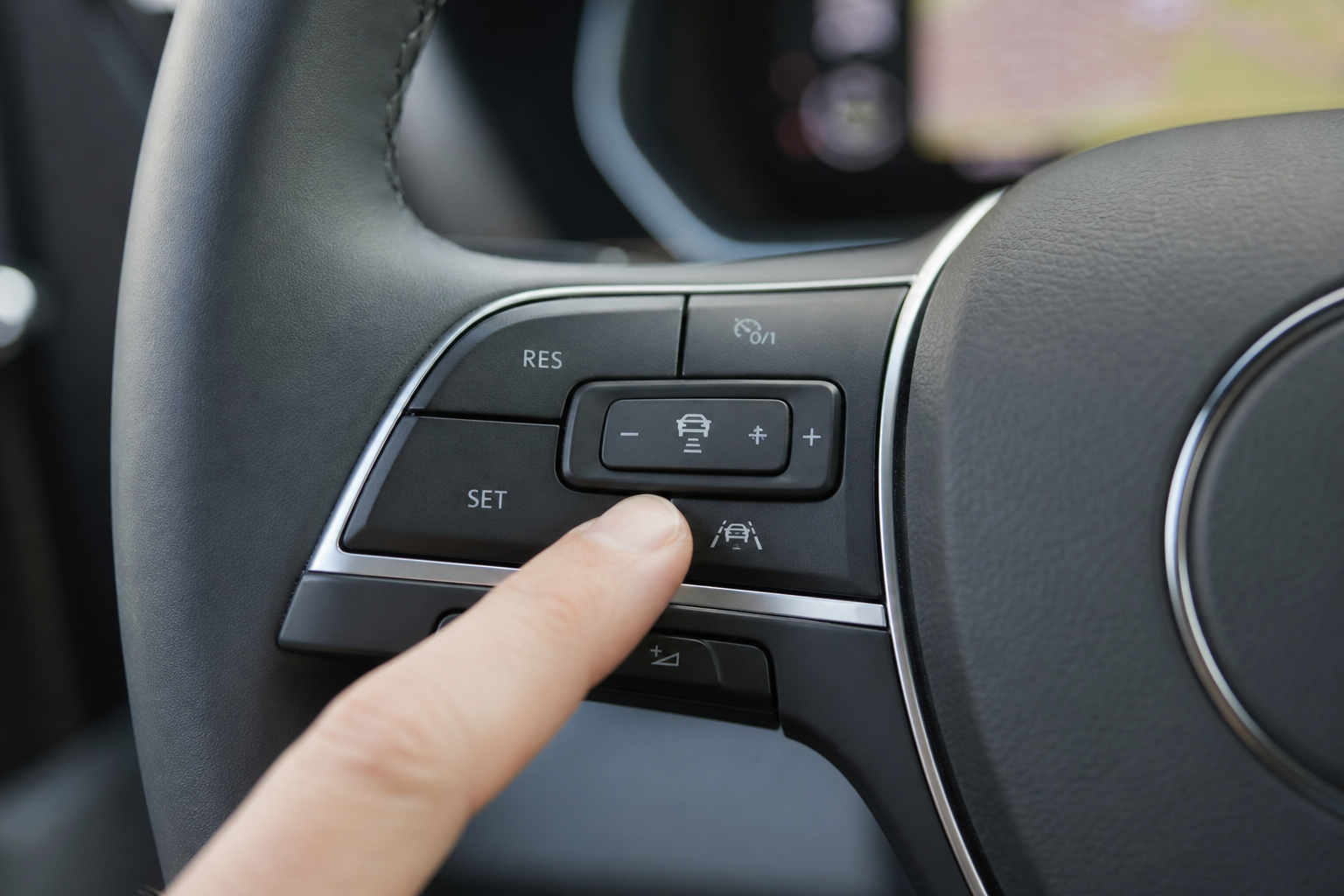
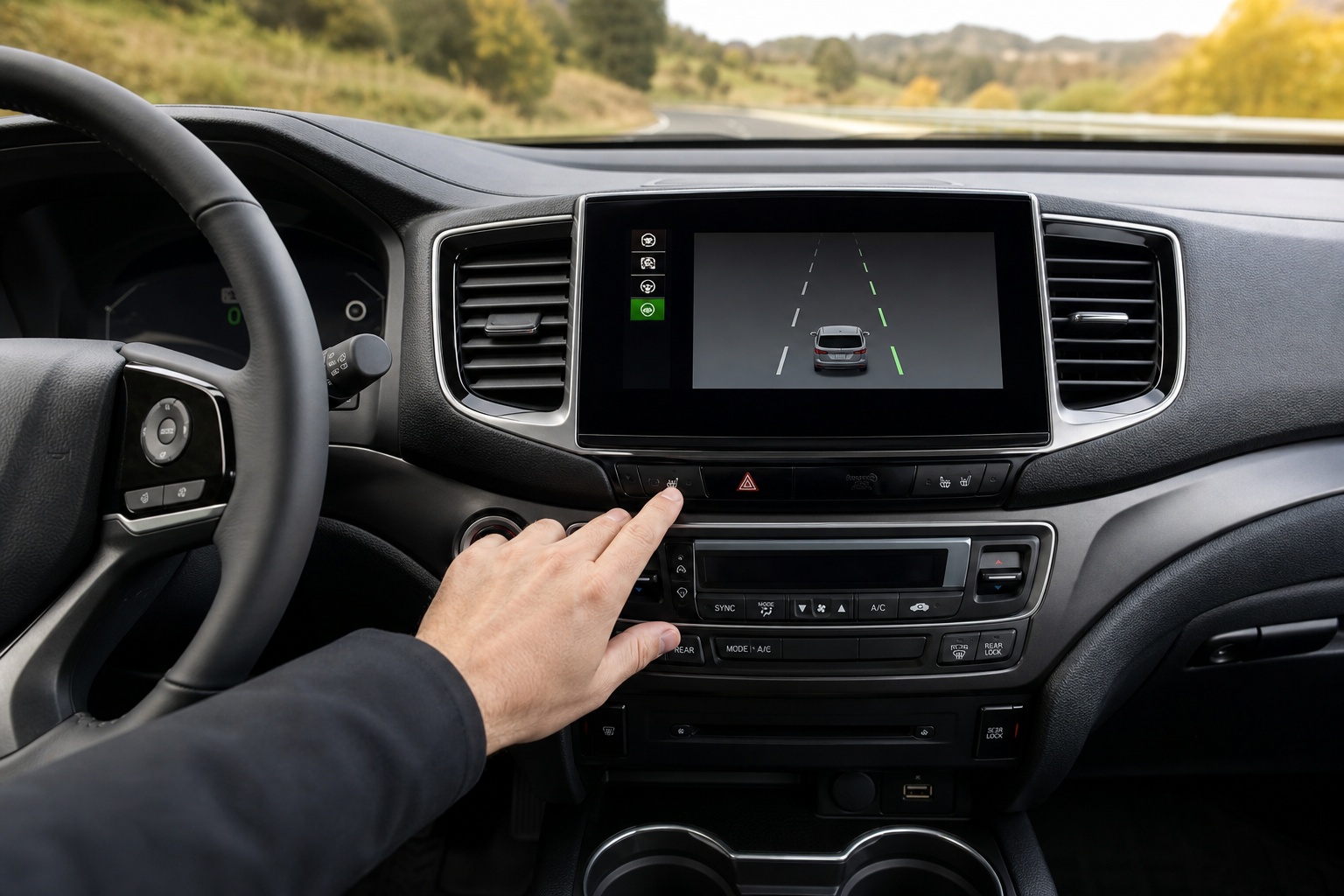
The fastest way to disable lane keeping on any Tucson model year is the dedicated button on the steering wheel, no menu diving required.
- Look for the icon that looks like a car straddling two lane lines, located on the left spoke of the steering wheel near the cruise control buttons.
- Press it once briefly. This typically cycles through the available modes (both systems on, LDW only, or everything off), and the instrument cluster will display which mode you’ve selected.
- On some 2022+ models, a single press toggles LFA off while a longer press or a second press disables LKA as well. Watch the cluster icons to confirm which system just switched off.
This button is the method most owners rely on because it takes about two seconds and doesn’t require you to touch the infotainment screen while sitting in traffic.
How to Turn Off Lane Assist Through the Settings Menu
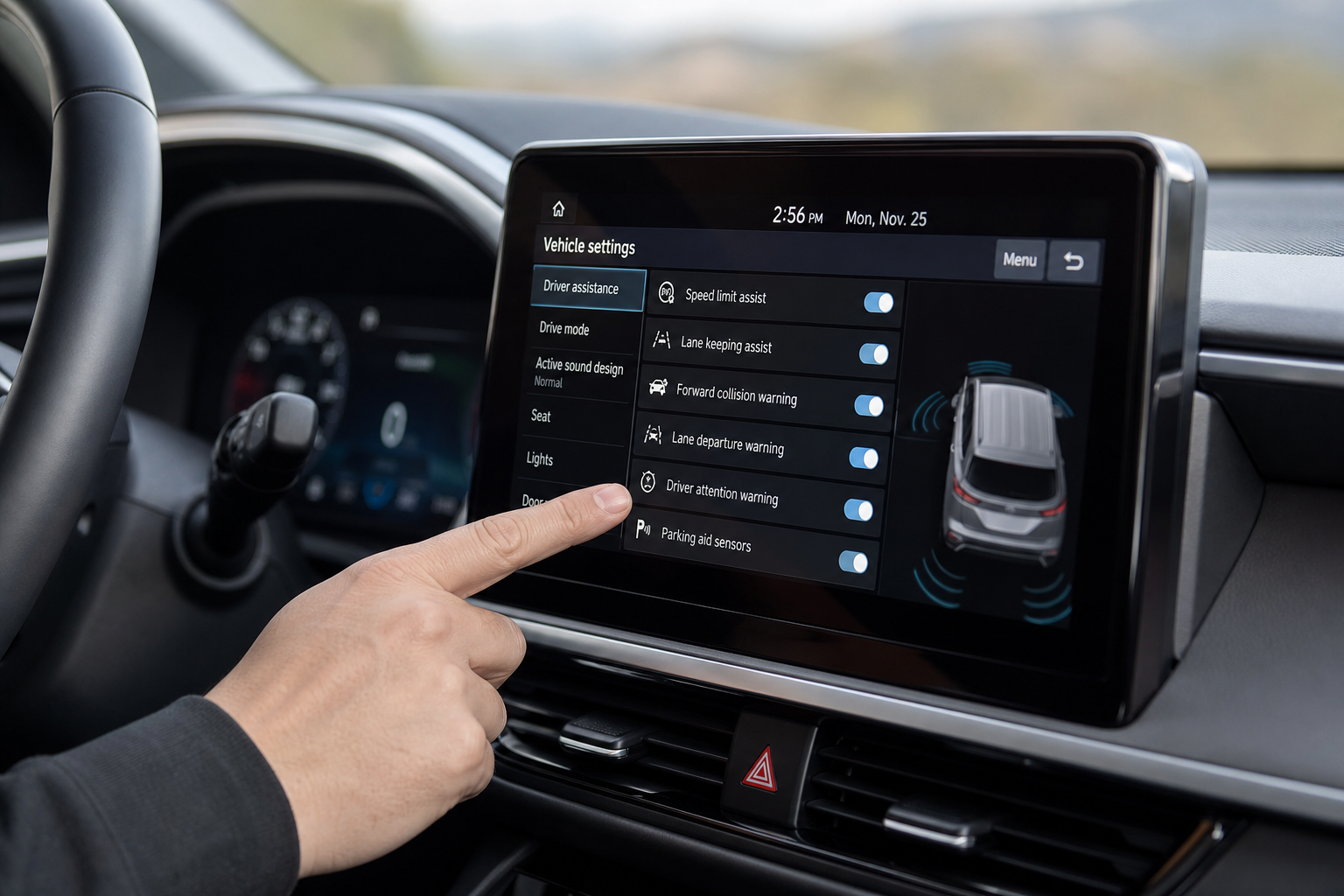
If you want more granular control, or you want to adjust sensitivity instead of fully disabling the system, the touchscreen menu is the better route.
- Tap the Settings gear icon on the home screen of the infotainment display.
- Select Vehicle, then look for Driver Assistance or Advanced Driver Assistance depending on your software version.
- Find Lane Keeping Assist and Lane Following Assist listed as separate toggles. Older Tucson models may only show a single Lane Departure Warning toggle with a sensitivity slider (Normal, Late, or Off).
- Switch off whichever features you don’t want active, or adjust the intervention timing if you want a lighter touch rather than a full shutoff.
This menu is also where you’ll find the Rear Occupant Alert and other SmartSense features bundled in, so it’s worth browsing while you’re in there. If you haven’t already, our guide on the Rear Seat Reminder and Rear Occupant Alert on Hyundai vehicles covers another setting living in that same section.
Does the Setting Stay Off After You Restart the Car?
This is the part that trips up most owners, and the honest answer depends heavily on your model year and trim.
On most 2022 and newer Tucson models (the NX4 generation), Lane Following Assist and Lane Keeping Assist reset to their default “on” state every single time you start the vehicle, regardless of what you selected during your last drive. This isn’t a Hyundai quirk specifically. It follows a broader industry pattern where manufacturers default active safety systems back on at each ignition cycle for liability and regulatory reasons.
Earlier Tucson models (2016-2021) with the simpler Lane Departure Warning system behave the same way. Turn it off, shut the car down, and it comes back on the next time you start the engine.
There is currently no confirmed factory setting on any Tucson model year that lets you permanently disable lane keeping and have it remain off after a full power cycle. If you’ve heard otherwise, check your specific trim’s owner’s manual, since Hyundai does occasionally push software updates through Bluelink that change menu behavior.
Because of this, the steering wheel button is genuinely your best tool. It’s a two-second habit you build into your start-up routine, similar to adjusting your mirrors or connecting Bluetooth. If you use the myHyundai Bluelink app to remote start your Tucson before you get in, keep in mind the lane systems will already be active by the time you’re in the driver’s seat, so you’ll still need to hit that button once you’re on the road.
A Quick Comparison: How This Stacks Up Against Other Brands
Hyundai isn’t alone in resetting these systems by default. Ford does something similar with its Intersection Assist and evasive steering features, which we cover in our breakdown of the Intersection Assist system on the Ford Explorer. If you’re cross-shopping or just curious how other manufacturers handle it, it’s a useful comparison point.
The takeaway across most modern vehicles, Hyundai included, is that active steering assistance is treated as a standard safety feature rather than an optional convenience item, which is exactly why it doesn’t offer a true “set it and forget it” off switch.
Frequently Asked Questions
Can I permanently disable Lane Keeping Assist on my Tucson without a dealer visit?
Not through any documented factory method as of current model years. Some owners report using an OBD-II programming tool to force a permanent off state, but this isn’t a Hyundai-supported feature and can affect warranty coverage or trigger dashboard warning lights. The steering wheel button remains the safest and fastest legitimate option.
Why does my Tucson’s lane assist feel more aggressive on the highway than in town?
Lane Following Assist relies on clear, well-marked lane lines and works best at higher, steady speeds. In town, faded paint, construction markings, or sharp turns can confuse the camera, causing it to either disengage automatically or make jerky corrections. This is normal behavior, not a malfunction.
Will turning off Lane Keeping Assist affect my Tucson’s other safety features?
No. LKA and LFA are independent from systems like Forward Collision-Avoidance Assist, Blind-Spot Collision Warning, or the Rear Occupant Alert. Turning off lane assistance only disables the steering correction and lane-departure alerts, and everything else in the SmartSense suite continues operating normally.

Leave a Reply