
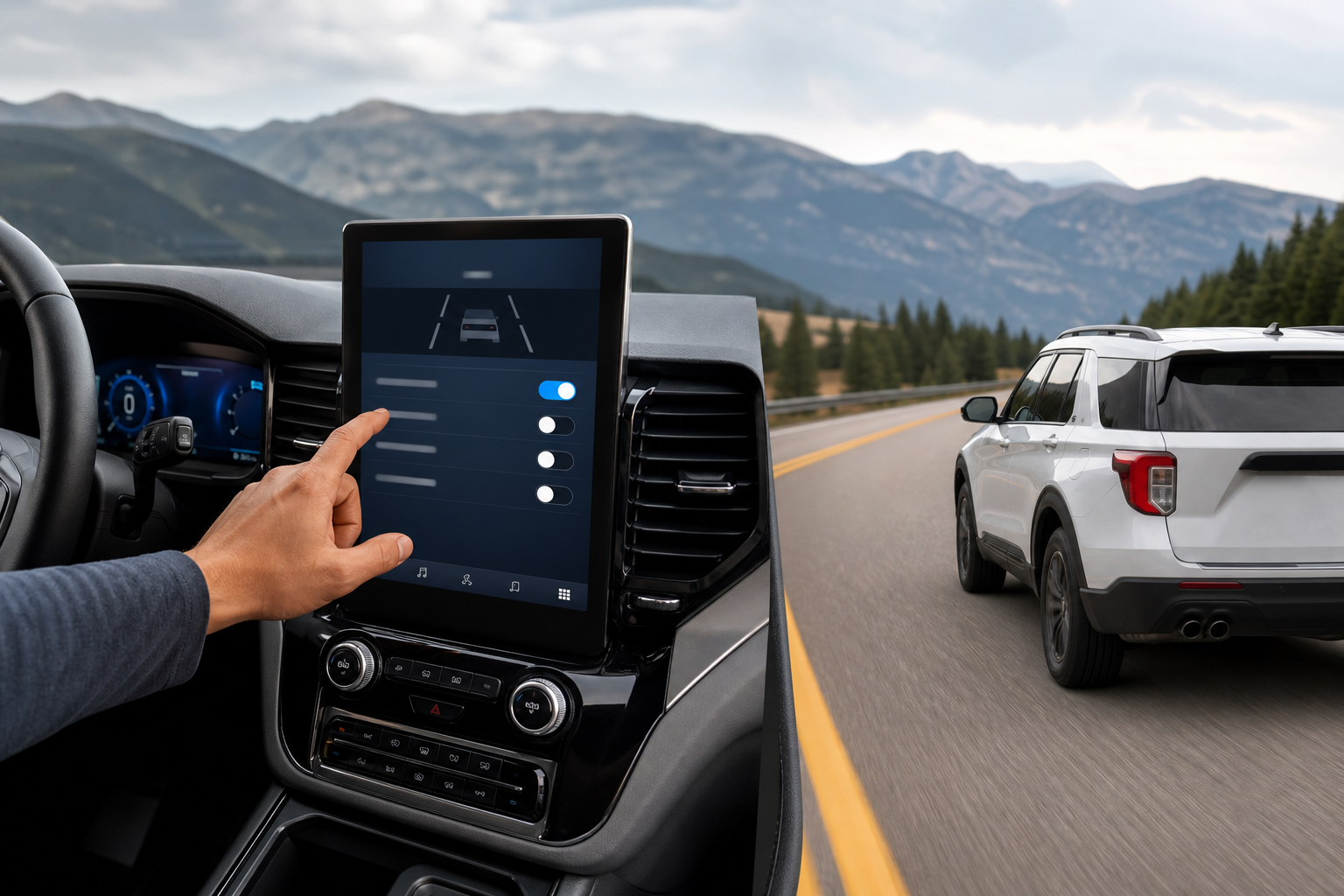
If you’ve ever felt your Explorer nudge the wheel back toward the center of the lane when you didn’t ask it to, you’re not imagining things. Ford’s lane-keeping system is designed to catch unintentional drifting, but it can feel intrusive on winding roads, in construction zones with faded lane markings, or when you’re just trying to hug one side of a lane to avoid a pothole. The good news is that Ford makes it easy to turn off, but whether it stays off is a different story.
What Ford Actually Calls This System
Ford doesn’t use the generic term “lane assist” in its owner’s manuals. The feature is officially called the Lane-Keeping System, and it’s made up of two separate pieces that work together but can often be controlled independently.
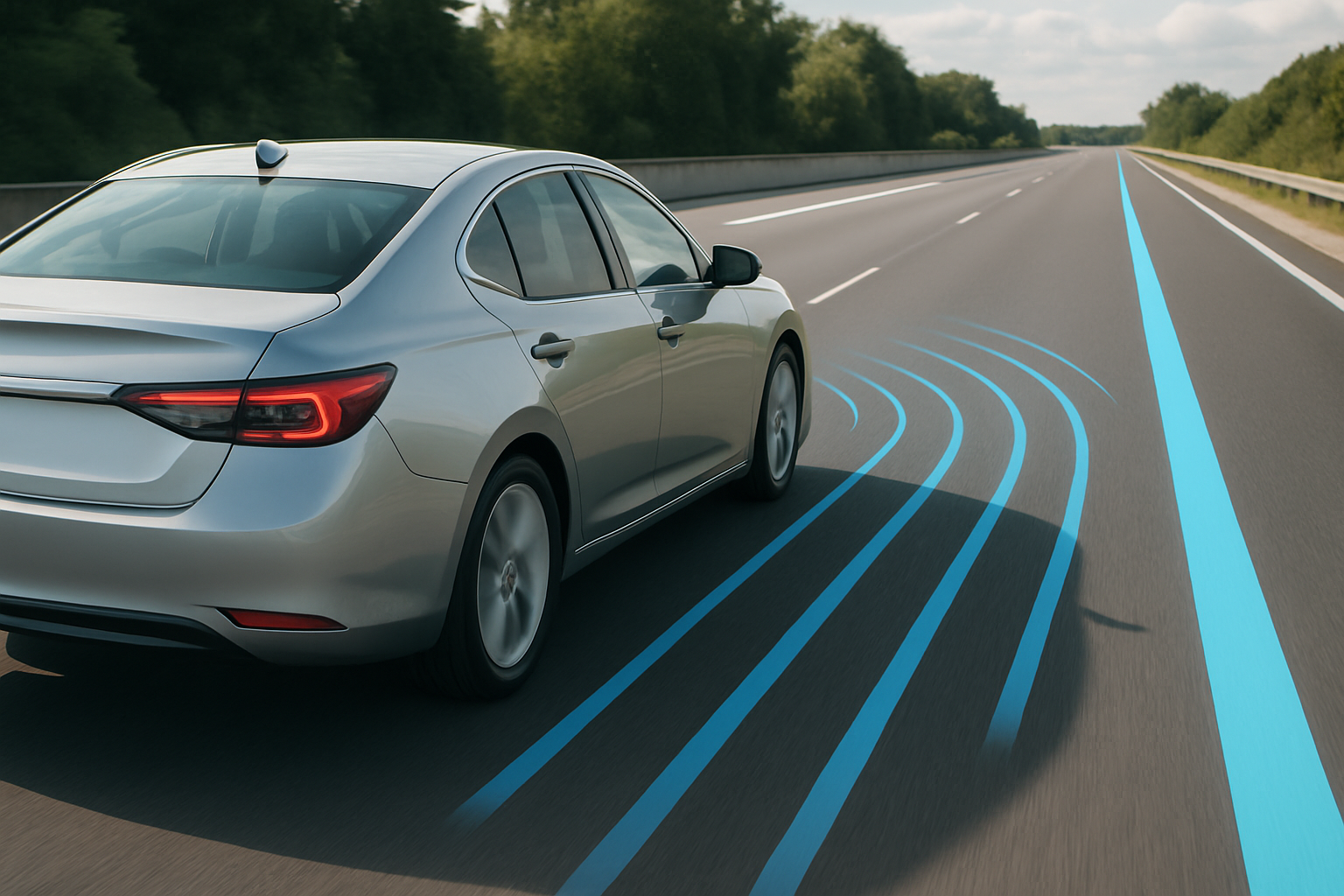
The first is Lane-Keeping Alert, which just warns you with a vibration in the steering wheel or a visual alert on the dash when the vehicle senses you’re drifting out of your lane without a turn signal. It doesn’t touch the steering at all.
The second is Lane-Keeping Aid, which is the active part. This is what actually applies gentle steering torque to nudge the vehicle back toward the center of the lane. On newer Explorers built with Ford Co-Pilot360, you’ll also see this paired with lane centering, which is a more continuous version of the same idea. Knowing the difference matters because you can turn off the steering intervention while leaving the warning chime active, or shut off both at once.
How to Turn Off Lane-Keeping on the Explorer
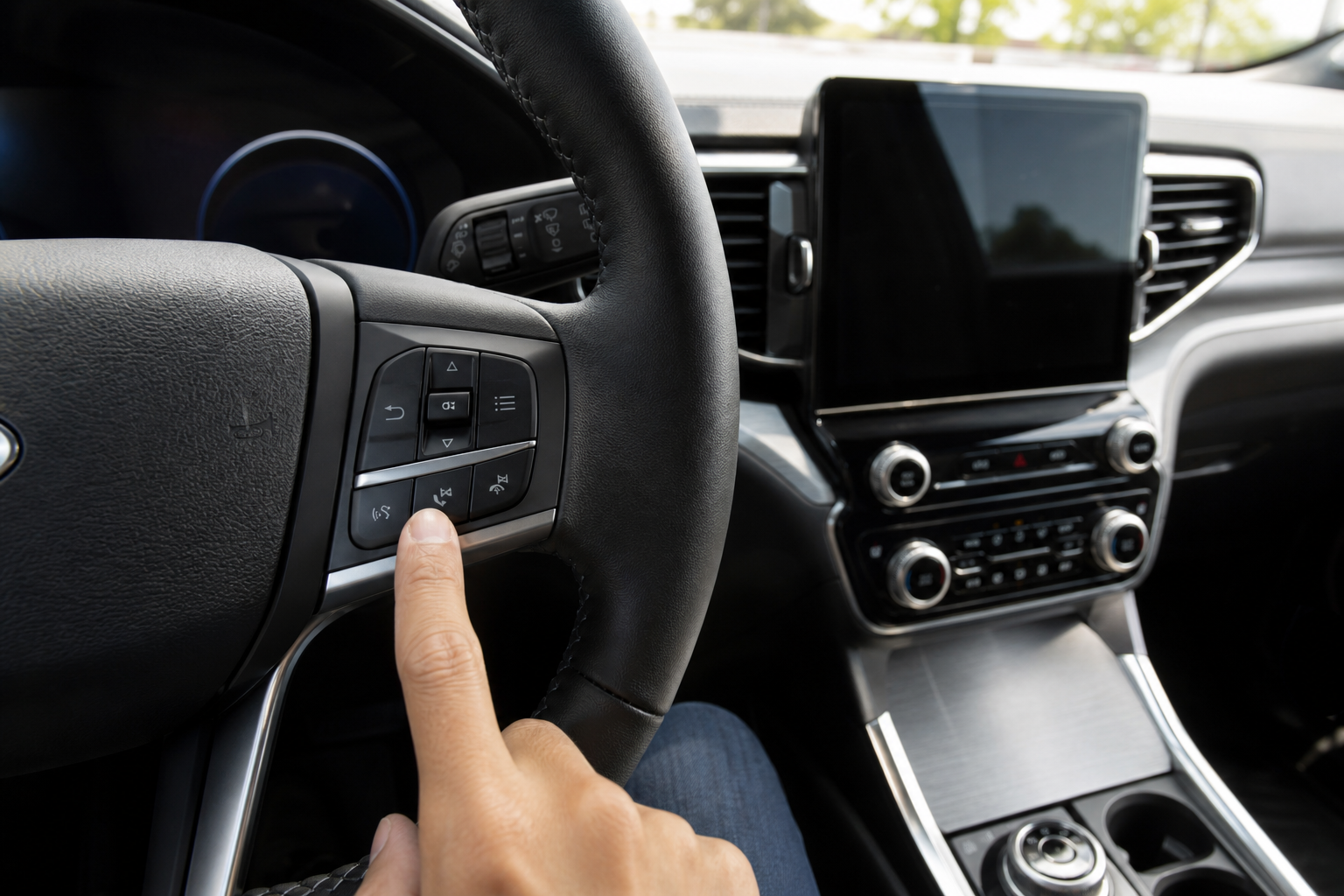
Ford gives you two ways to disable the system: a physical button on the steering wheel and a menu setting in the touchscreen.
Using the Steering Wheel Button
Most Explorer model years have a dedicated Lane-Keeping System button on the left side of the steering wheel, usually shown as a car with lane lines around it. Press it once and you’ll see a message on the instrument cluster confirming the system is off. Press it again to turn it back on.
This is the fastest method by far, and it’s the one Ford recommends for a quick disable before a drive on a road you know will trigger false alerts.
Using the Touchscreen Settings Menu
If your steering wheel doesn’t have the dedicated button, or you want more granular control over the alert versus the steering assist, go through the SYNC infotainment system instead:
- Tap Settings on the touchscreen home screen.
- Select Driver Assist Technologies.
- Find Lane-Keeping System in the list.
- Toggle off Lane-Keeping Alert and/or Lane-Keeping Aid separately, depending on which part is bothering you.
This menu path also lets you adjust the intervention timing on some model years, so if you want to keep the system active but reduce how eagerly it steers, you have that option too instead of shutting it off completely.
Does It Stay Off After You Restart the Explorer?

This is the part most owners get wrong. On the vast majority of Explorer model years, including the current sixth-generation (2020 and newer), the Lane-Keeping System resets itself to “on” every time you start the vehicle. Turn it off before you park, and it’ll be back on by default the next time you turn the key or push the start button.
This isn’t a bug. It’s a deliberate design choice tied to federal safety guidelines that push automakers toward driver-assist systems being active by default on each drive cycle. Ford has followed this pattern consistently across Explorer model years going back to the 2016 refresh, and there’s no persistent “remember my setting” toggle buried in the menus that changes this behavior.
If you’ve got an older Explorer, say a 2011 to 2015 model with the earlier version of the technology, some of those model years didn’t include lane-keeping at all, so this won’t apply. But if your Explorer has it, plan on it resetting every single time you start the truck. Always confirm the exact behavior in your owner’s manual, since Ford has made small software changes across model years and trims that can affect exactly which sub-features reset and which don’t.
The Fastest Way to Turn It Off Every Drive
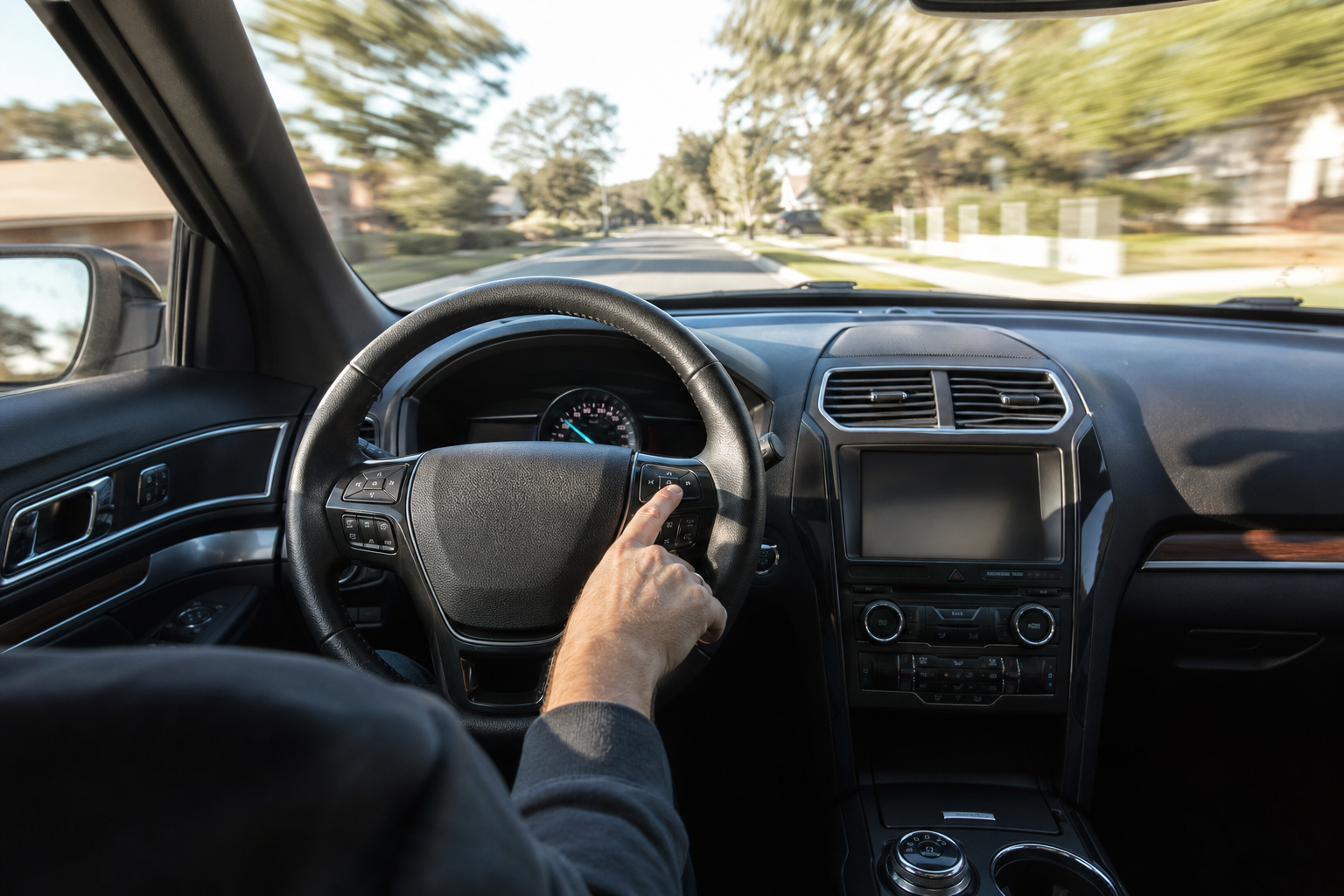
Since there’s no permanent off switch, your best move is to build a quick habit around the steering wheel button. It takes less than two seconds after you start the car, and it’s far faster than digging through touchscreen menus every time.
A lot of Explorer owners just press it as part of their startup routine, right after buckling in and before pulling out of the driveway. If you commute on the same roads daily and know the lane-keeping system tends to overreact in a specific spot, like a construction zone with poor lane markings, that quick button press becomes second nature pretty fast.
If you’re also dealing with other driver-assist features on your Explorer that you want to manage the same way, it’s worth reading up on how the Intersection Assist and Evasive Steering features work, since they’re controlled through similar menus and can also be adjusted independently of lane-keeping.
When You Might Want to Leave It On
Lane-keeping systems get a bad reputation from drivers who only experience the false alerts, but the feature genuinely helps on long highway drives when fatigue starts creeping in.

Leave a Reply