
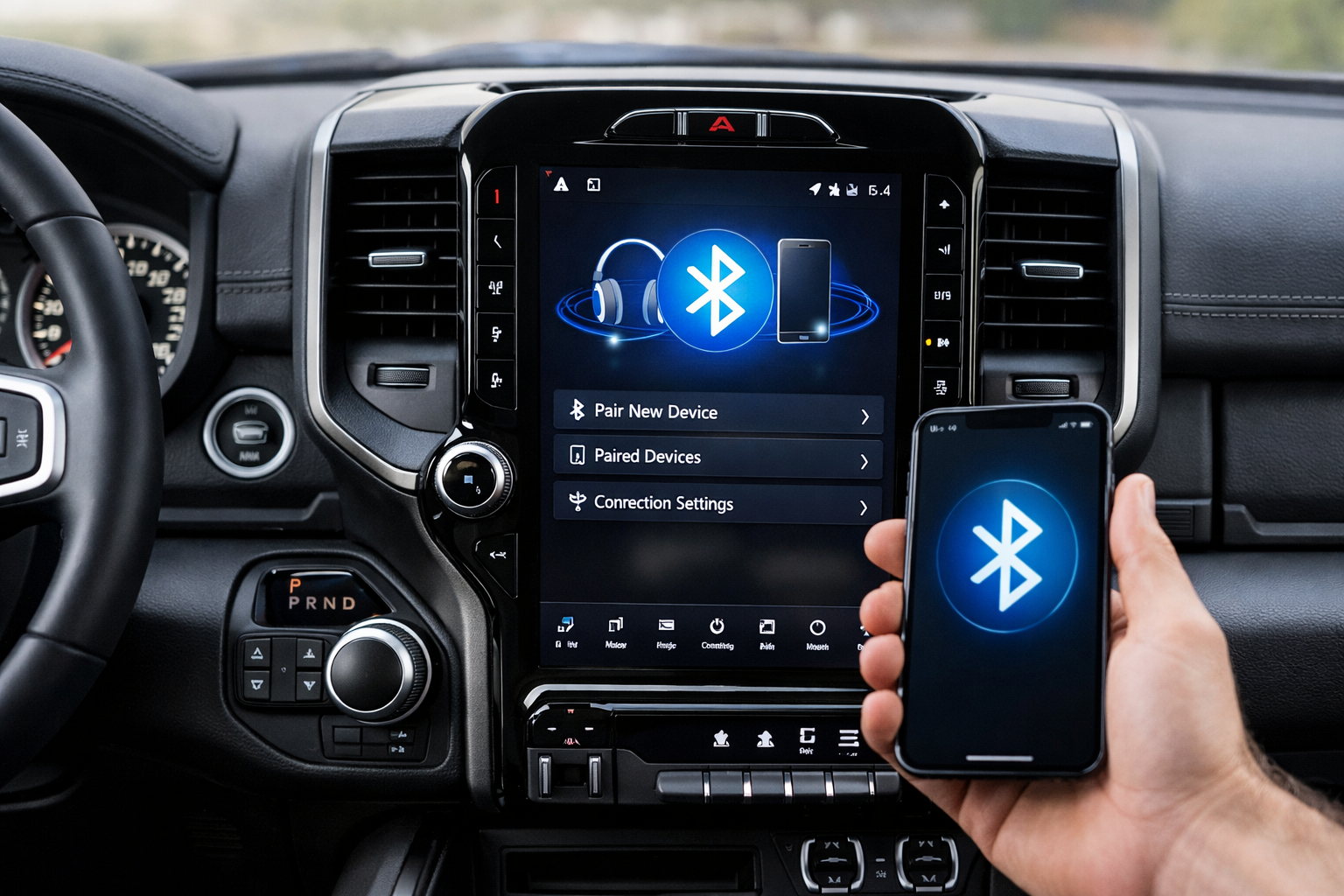
The RAM 1500 uses Uconnect for its infotainment and Bluetooth, and the system has evolved from Uconnect 3 on older 4th gen trucks to Uconnect 5 on the current 5th gen. Uconnect Bluetooth has a documented dropout issue that affects some owners, but a system reset or software update resolves it in nearly every case.
This guide covers the pairing process for both generations, the Bluetooth dropout fix, and how to set up connection priority for multiple phones.
5th Gen RAM 1500 (2019+): Uconnect 5
On the Uconnect 5 touchscreen, tap Phone > Settings > Paired Phones > Add Device. The RAM broadcasts its Bluetooth name. Find it on your phone and pair. Confirm the 6-digit code on both screens and grant contact and message permissions.
Uconnect 5 supports two simultaneous connections, letting you assign one phone for calls and another for audio streaming. This is configured in Paired Phones > [Select Phone] where you can designate each phone’s role.
4th Gen RAM 1500 (2013-2018): Uconnect 3/4
The pairing process is similar: Phone > Settings > Add Device on the touchscreen. On Uconnect 3 (the smaller non-touchscreen system), use the steering wheel phone button to initiate pairing and follow the display prompts.
The 4th gen supports one active connection at a time, though multiple phones can be stored in the paired list for quick switching.
The Uconnect Bluetooth Dropout Issue
Some RAM owners experience Bluetooth connections that drop randomly while driving, requiring manual reconnection through the phone or Uconnect menu. This is the most common Uconnect Bluetooth complaint and has been documented across both 4th and 5th gen trucks, though it’s more prevalent on early 5th gen production (2019-2020).
The most effective fixes, in order of escalation:
Update the Uconnect Software
Check Settings > System Update for available updates, or download the latest firmware from RAM’s website via USB. Software updates frequently include Bluetooth stability improvements. You’ll need a USB drive formatted for car software updates if you’re doing this manually.

USB Drive for Car Software Updates
Essential for manual Uconnect firmware updates
Delete and Re-Pair Your Phone
Remove your phone from the RAM’s paired list and forget the RAM from your phone’s Bluetooth settings, then re-pair from scratch. This clears corrupted pairing data that often causes dropouts.
Perform a Soft Reset
Press and hold the Volume and Tune knobs simultaneously for 10 to 20 seconds. The screen goes black and reboots without erasing settings. This is similar to how Apple CarPlay connectivity issues on the Toyota RAV4 can be resolved with a system reset.
Factory Reset as Last Resort
If nothing else works, perform a hard reset: Settings > Reset > Factory Default. This erases everything and requires re-pairing all devices.
Setting Up Automatic Connection Priority
If multiple family members have phones paired to the RAM, connection priority determines which phone connects automatically when the truck starts. In Paired Phones, select your phone and enable “Auto Connect” or move it to the top of the priority list.
The RAM connects to the highest-priority phone first when multiple paired devices are in range. Lower-priority phones connect only when the primary phone isn’t present.
This is particularly useful for fleet vehicles or shared family trucks where multiple people drive the vehicle throughout the week. Each person’s phone connects automatically when they’re the driver, without needing to manually select their device each time.
Phone/Media Bluetooth Profile Separation
Uconnect treats phone calls and media streaming as separate Bluetooth profiles. You can pair one phone for calls and a different device (like a tablet or a passenger’s phone) for music.
Configure this in the paired device settings by selecting each device and assigning its role. If music doesn’t stream after pairing, verify that the “Media” or “Audio” profile is enabled for the device you want to stream from.
For 4th gen RAMs with the basic Uconnect 3 system that has limited Bluetooth streaming capability, a Bluetooth FM transmitter adds better audio streaming and hands-free calling than the built-in system provides.

Bluetooth FM Transmitter for Trucks
Enhanced Bluetooth audio for RAMs with basic Uconnect systems
Frequently Asked Questions
Why does Uconnect drop Bluetooth after a software update?
Software updates can reset Bluetooth pairing data or change profile negotiation parameters. The fix is simple: delete and re-pair your phone after any Uconnect update. This resolves the connection issue in the vast majority of cases.
Can I use Bluetooth and CarPlay at the same time?
When CarPlay or Android Auto is active via USB, the USB connection handles all phone and audio functions for that device. A second phone can still connect via Bluetooth for calls on Uconnect 5, but simultaneous Bluetooth audio streaming from a different device isn’t supported while CarPlay is active.
Does the RAM support phone and media Bluetooth separately?
Yes. Uconnect 4 and 5 treat phone calls and media streaming as independent profiles. You can pair one phone exclusively for calls and a different device exclusively for music, or have one phone handle both functions.
How many phones can I pair to my RAM 1500?
Uconnect 5 stores up to 10 paired devices and supports two simultaneous active connections. Uconnect 3 and 4 on 4th gen RAMs typically store up to 7 paired devices but only maintain one active connection at a time.
Leave a Reply