
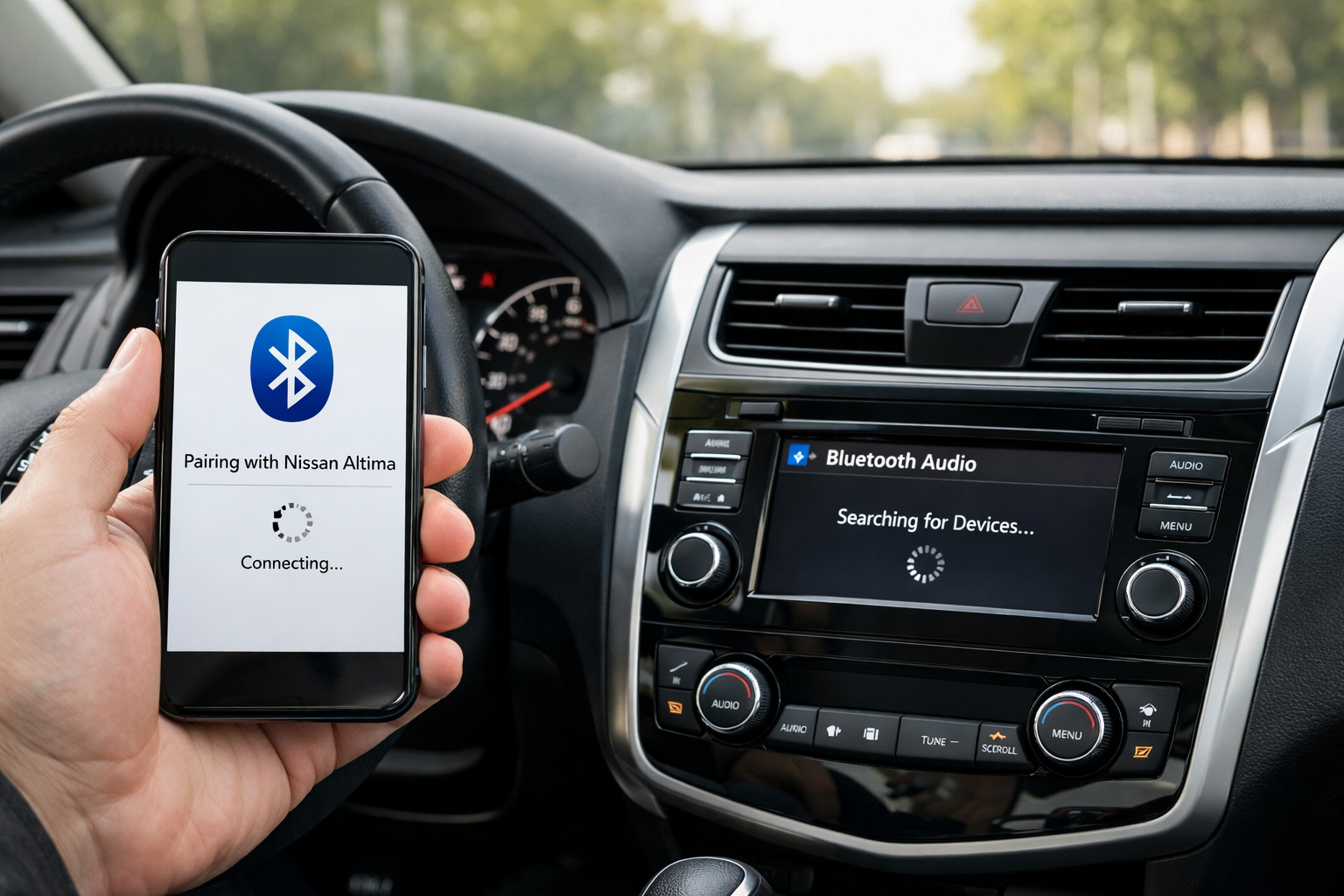
The Nissan Altima uses the NissanConnect infotainment system for Bluetooth, and the pairing process is simple on both the 5th gen (2013-2018) and 6th gen (2019+). A known quirk specific to NissanConnect is that Bluetooth connections can drop or fail to reconnect after infotainment software updates, which has a simple fix. This guide covers pairing, the steering wheel phone shortcut, and the most common NissanConnect Bluetooth troubleshooting steps.
6th Gen Altima (2019+): NissanConnect
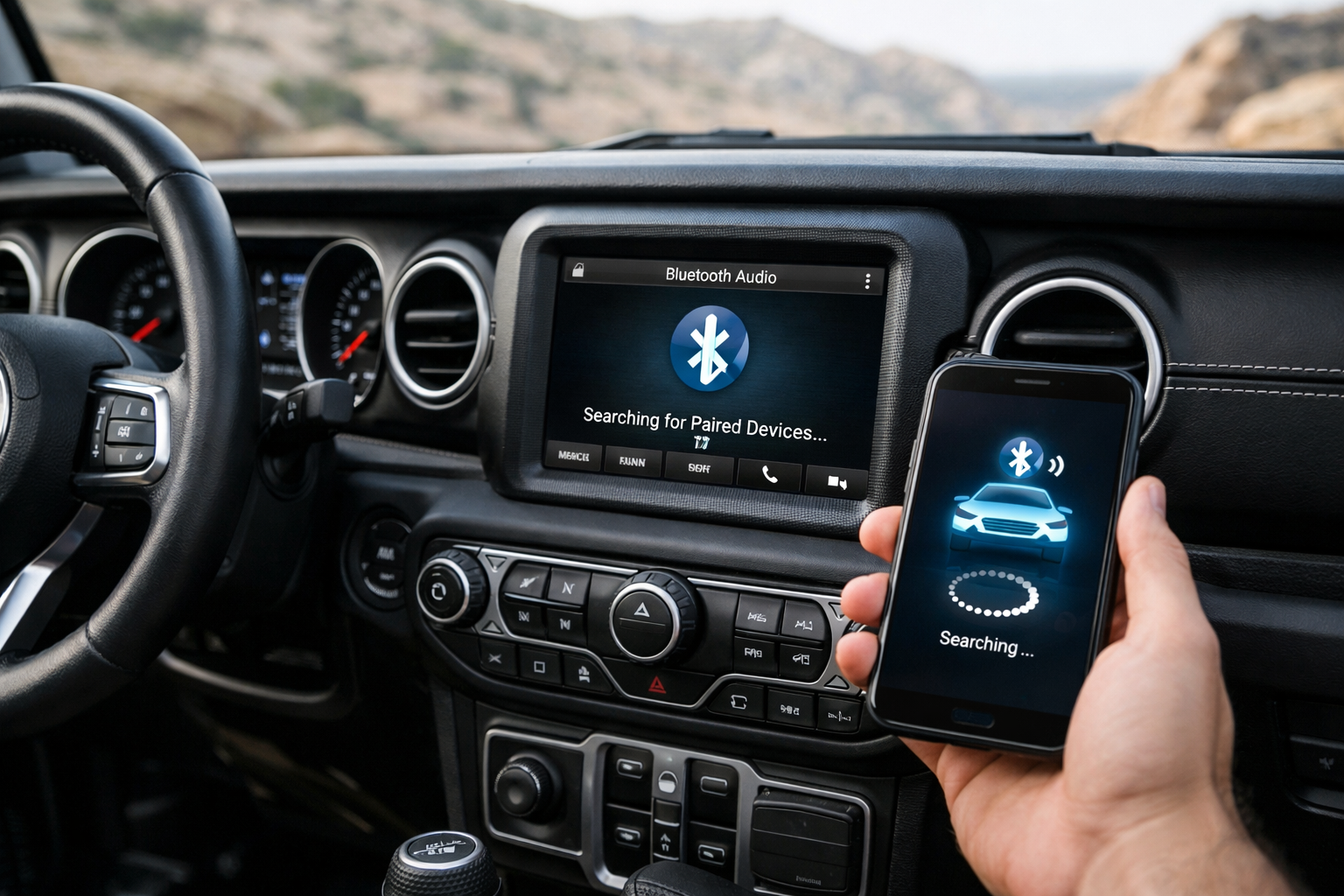
On the touchscreen, tap Settings > Connections > Bluetooth > Pair New Device. The Altima broadcasts its Bluetooth name. Find it on your phone’s Bluetooth settings and pair. Confirm the 6-digit code on both screens and grant permissions for contacts and messages.
Both phone and audio streaming profiles should enable automatically on this generation.
5th Gen Altima (2013-2018): NissanConnect
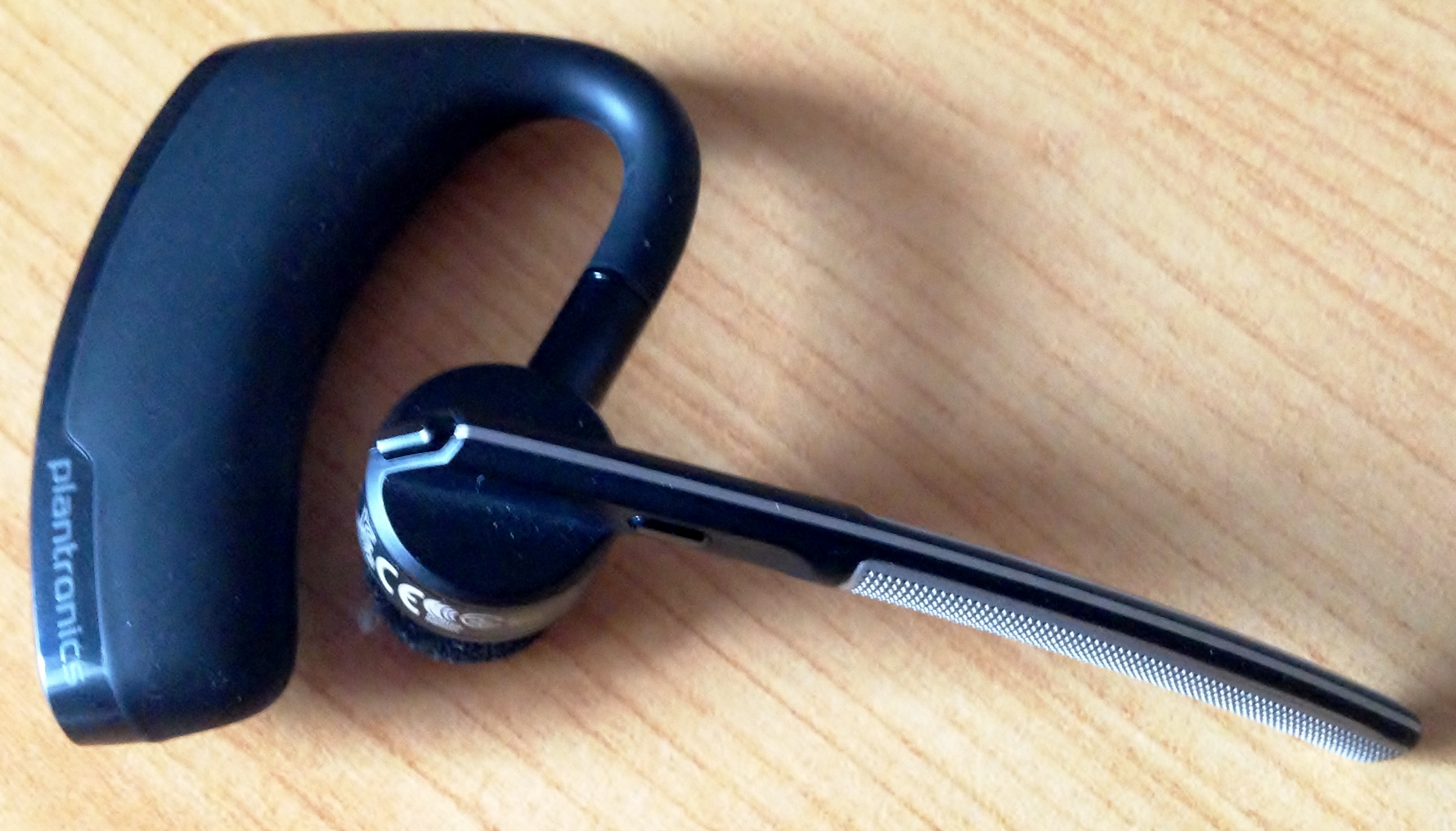
Press Settings on the touchscreen, then Bluetooth > Pair New Device. Follow the on-screen prompts to complete pairing from your phone. After pairing, verify that both call and audio streaming profiles are active in the device settings.
Steering Wheel Phone Button Shortcut
The Altima’s steering wheel has a dedicated phone button that provides quick access to Bluetooth features without touching the screen. Press and hold the button to enter Bluetooth pairing mode on some trims, bypassing the touchscreen menu entirely.
Once paired, a short press answers or ends phone calls. The voice button (separate from the phone button) activates Siri or Google Assistant through the car’s speakers and microphone, letting you send messages, start navigation, or control music hands-free.
Fixing Post-Update Bluetooth Drops
NissanConnect is known for dropping Bluetooth connections after infotainment software updates. The update can change Bluetooth protocol settings or reset pairing data, causing previously connected phones to fail to reconnect.
The fix is simple: delete your phone from the car’s paired device list (in Bluetooth > Paired Devices), and forget the car from your phone’s Bluetooth settings. Then re-pair from scratch as if it’s the first time.
If re-pairing doesn’t work and the system continues to drop connections, perform a full system reset: Settings > System > Reset to Factory Defaults. This erases all settings, paired devices, and stored data, giving you a clean slate. Re-pair all phones after the reset.
Managing Paired Devices
NissanConnect stores up to 6 paired devices on most trims. When the list is full, delete unused entries to make room. Navigate to Bluetooth > Paired Devices, select the old phone, and choose “Delete.”
Keeping the list clean (only devices that are regularly used) helps prevent connection conflicts where the system tries to connect to an absent phone before finding yours.
For Altima models with basic audio systems that don’t include Bluetooth or where the built-in Bluetooth is malfunctioning, a Bluetooth AUX adapter adds wireless audio streaming through the auxiliary input jack.

Bluetooth AUX Adapter
Wireless audio streaming for Altima trims with basic audio systems
Frequently Asked Questions
Why is there a brief pause between songs when streaming via Bluetooth?
A brief gap between tracks is a known NissanConnect Bluetooth audio quirk caused by the system’s audio buffer reloading between tracks. Ensuring both your phone’s OS and the NissanConnect software are up to date minimizes this gap. Using a USB connection instead of Bluetooth eliminates the gap entirely.
Can I use CarPlay on the Altima?
Apple CarPlay and Android Auto are available on 2019+ Altimas via USB connection. Wireless CarPlay is available on select 2022+ trims. Connecting via USB for CarPlay provides higher audio quality and charges your phone simultaneously.
If you’re having trouble with CarPlay connectivity on other Toyota models, our guide on fixing Toyota RAV4 Apple CarPlay connection issues covers similar troubleshooting steps that may help.
How many phones can the Altima store?
NissanConnect stores up to 6 paired device profiles. Delete old or unused entries when the list is full to make room for new phones and to prevent connection priority conflicts.
This article contains affiliate links. We may earn a small commission at no extra cost to you.
Leave a Reply