
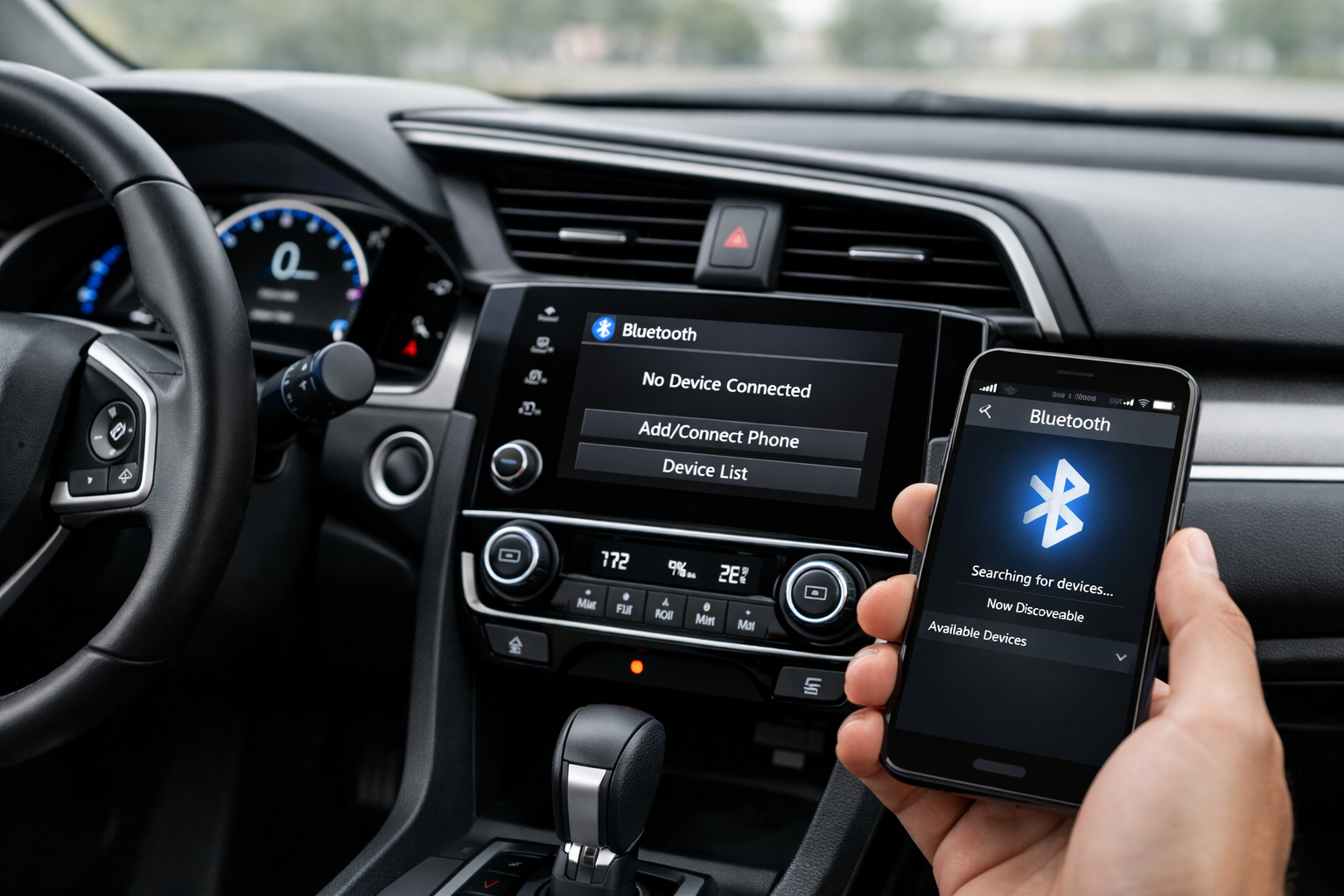
Honda’s Bluetooth system has evolved significantly across Civic generations, from the basic HandsFreeLink in the 9th gen to the streamlined setup in the 11th gen. Each version has its own pairing process and quirks, but the most common issue across all generations is the same: the phone pairs for calls but doesn’t stream music through the car speakers.
Understanding the separate phone and media profiles is the key to solving this frustration. Let’s walk through how to connect Bluetooth on each generation and fix the issues you’re likely to run into.
11th Gen Civic (2022+)
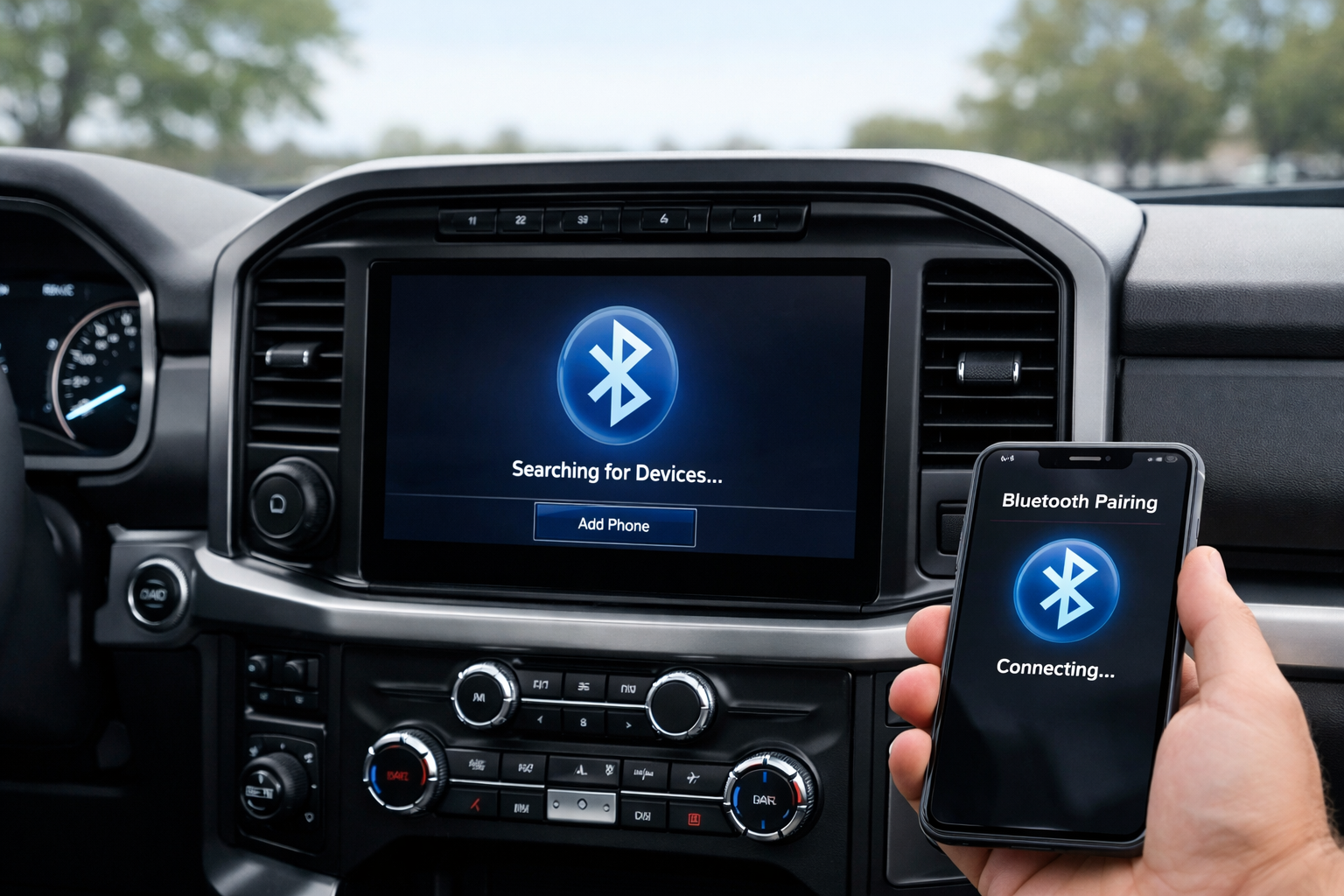
On the touchscreen, tap Settings (gear icon) > Connections > Bluetooth > Search for Devices. Your phone should appear in the list within a few seconds. Select it, confirm the 6-digit pairing code on both the phone and the car screen, and you’re connected.
The system supports simultaneous phone and audio Bluetooth profiles and should enable both automatically on this generation. This is a significant improvement over earlier models.
For Apple CarPlay (2022+ with compatible trims), connect via USB cable for the initial setup. Wireless CarPlay is available on 2024+ models after the first wired connection is established. If you’re experiencing issues with CarPlay connectivity, the troubleshooting steps are similar to fixing CarPlay problems on a Toyota RAV4.
10th Gen Civic (2016-2021)
The 10th gen had a dual-screen setup on some trims (a small LCD on top and a touchscreen below). Press Phone on the upper display, then Bluetooth Device List > Add New Device. Follow the prompts on the lower touchscreen to complete pairing.
After pairing, go to the device options and enable both “Phone” and “Audio” profiles to ensure music streams through the car speakers. This is a critical step that many people miss initially.
The dual-screen interface takes some getting used to, but once you’ve paired successfully, the system remembers your preferences. Like other Honda models from this era, you might encounter occasional connectivity hiccups similar to other electronic issues in Honda vehicles.
9th Gen Civic (2012-2015): HandsFreeLink
Press the Phone button on the steering wheel, then navigate through the voice prompts or display menu to Phone Setup > Pair Phone. The system generates a PIN code. Enter it on your phone when prompted.
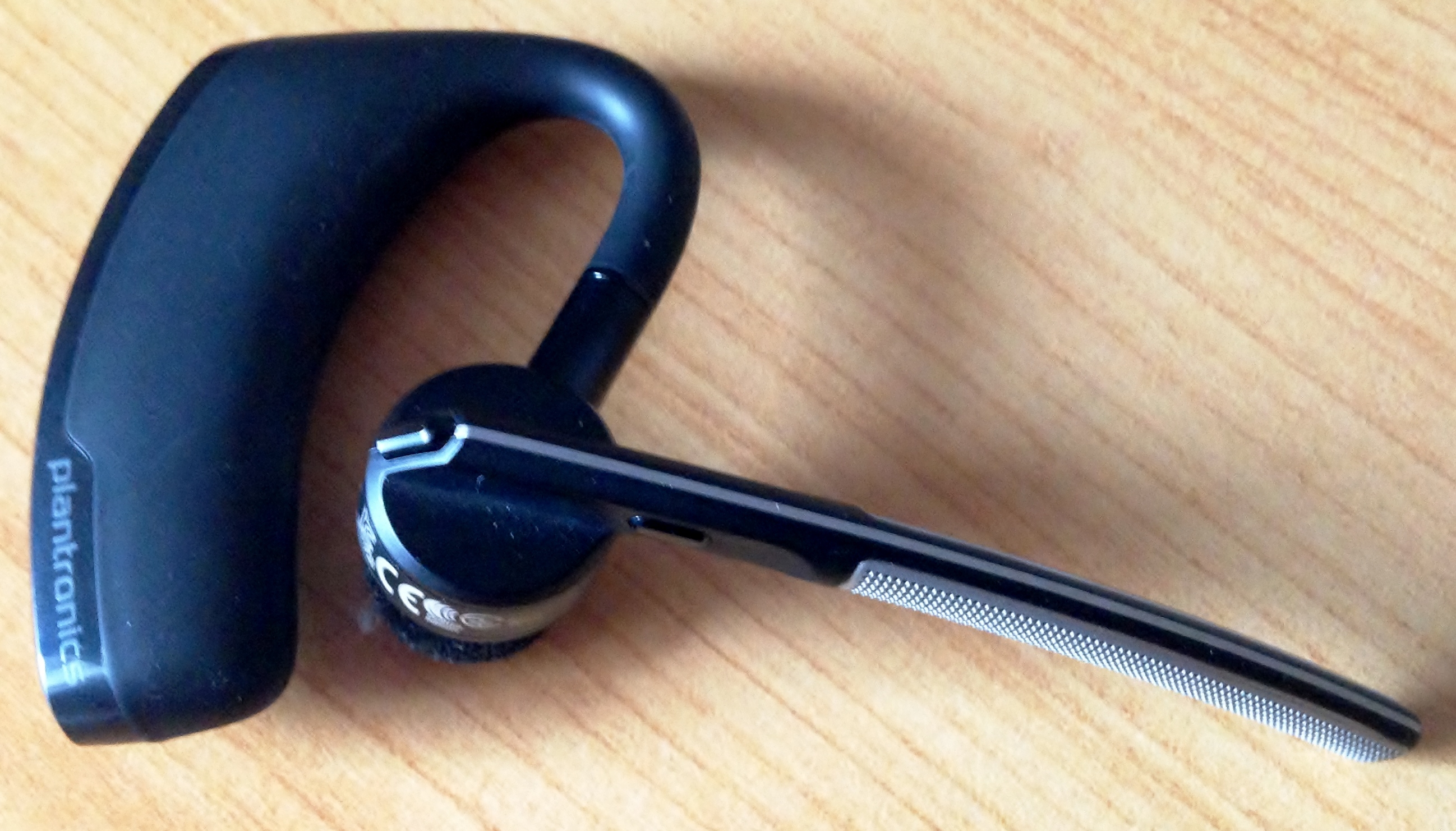
HandsFreeLink is more basic than the later systems and may not support audio streaming on all trims. If music doesn’t play through the car speakers after pairing, use the AUX input or a Bluetooth adapter plugged into the AUX jack for wireless music streaming.
This workaround is budget-friendly and gives you modern Bluetooth audio streaming even on older models that weren’t originally equipped with it.

Bluetooth AUX Adapter
Add Bluetooth audio streaming to older Civic trims without media Bluetooth support
Fixing “Paired But No Audio”
This is Honda’s most frequent Bluetooth complaint across all generations. The phone connects successfully for calls (you can make and receive calls through the car’s speakers and microphone), but music continues to play through the phone’s speaker instead of the car.
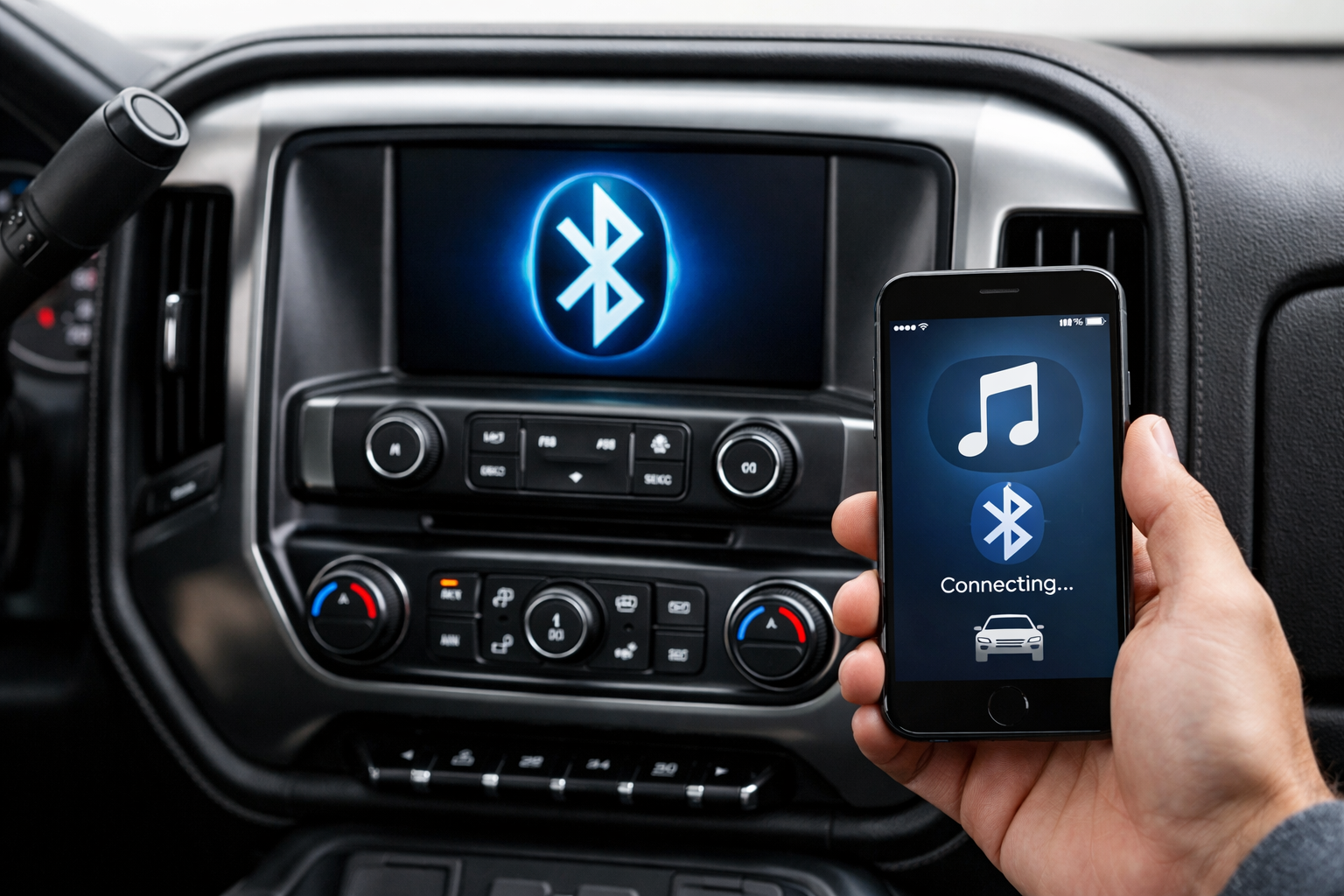
The fix involves checking both sides of the connection. On your phone, go to Bluetooth settings, find the Civic in your paired devices list, tap the gear or info icon next to it, and make sure “Media Audio” (or “Audio” on some phones) is toggled ON.
On the Civic’s side, go to the Bluetooth device settings, select your phone, and verify that the Audio profile is enabled. On the 10th gen, this is in Phone > Bluetooth Device List > [Your Phone] > Device Options.
If both profiles show as enabled but audio still doesn’t stream, delete the pairing on both devices (forget the Civic on your phone, delete the phone from the Civic’s list) and re-pair from scratch. This clears corrupted connection data that can prevent the audio profile from functioning even when it shows as “enabled.”
Managing Multiple Paired Phones
The 11th gen supports up to 8 paired devices. The 10th gen supports 5. The 9th gen HandsFreeLink supports 6. When the limit is reached, delete unused devices to make room.
On the 10th and 11th gen, navigate to the Bluetooth device list, select the old device, and choose “Delete.” This prevents connection conflicts when multiple phones are in the car at once.
Only one device can be actively connected for phone calls at a time on all generations. The 11th gen can maintain two simultaneous connections (one for calls, one for media), which is useful for families where one person’s phone handles navigation while another’s plays music.
Frequently Asked Questions
Why does the Civic keep asking for the phone PIN?
If the pairing resets repeatedly (the car and phone “forget” each other between drives), delete the car from your phone’s Bluetooth list and the phone from the car’s device list. Re-pair completely from scratch.
A persistent issue may require a system reset through Settings > System > Reset Factory Default on the infotainment system. Be aware this will erase all saved settings and paired devices.
Can I use CarPlay and Bluetooth audio at the same time?
When CarPlay is active via USB, it takes over phone and audio functions. Bluetooth for calls is routed through CarPlay. A separate Bluetooth device cannot stream audio simultaneously while CarPlay is connected.
You’ll need to disconnect CarPlay if you want to use a different phone’s Bluetooth audio connection.
Why is call audio quality poor?
Bluetooth call audio depends on the phone’s microphone quality, the car’s built-in microphone placement, and ambient noise. Make sure the car’s microphone (usually located near the overhead console or rearview mirror area) isn’t blocked by accessories or sun visors.
Reducing fan speed during calls also improves audio clarity. The HVAC system can create background noise that interferes with the microphone’s ability to pick up your voice clearly.
Will resetting the infotainment system fix Bluetooth problems?
A factory reset of the infotainment system can resolve persistent pairing issues, especially if you’ve tried deleting and re-pairing multiple times without success. Access the reset option through Settings > System > Reset Factory Default.
Keep in mind this erases all saved settings, radio presets, and paired devices. You’ll need to set everything up again from scratch, but it often clears software glitches that prevent proper Bluetooth functionality.
Leave a Reply