
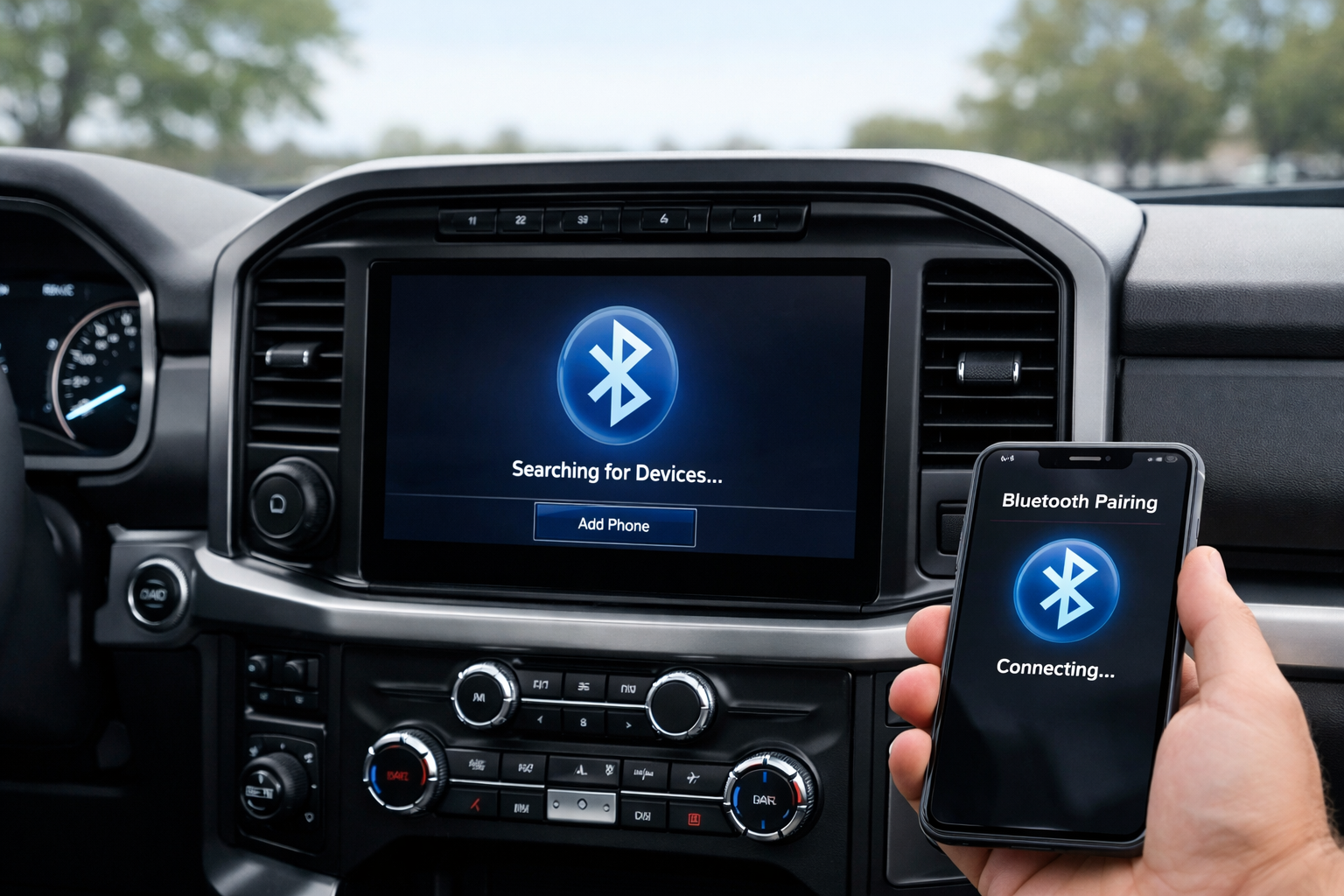
Ford’s SYNC system powers the F-150’s Bluetooth, and the pairing process differs significantly between SYNC (12th gen), SYNC 3 (13th gen), and SYNC 4 (14th gen). Ford’s Bluetooth can be unintuitive, especially on the older SYNC versions, but once properly configured it works reliably.
The key to troubleshooting most F-150 Bluetooth problems is understanding the master reset process, which clears corrupted connection data that accumulates over time.
14th Gen F-150 (2021+): SYNC 4
On the SYNC 4 touchscreen, tap Settings > Phone > Bluetooth Devices > Add Device. The truck broadcasts its Bluetooth name (usually “SYNC”) and appears in your phone’s available devices list.
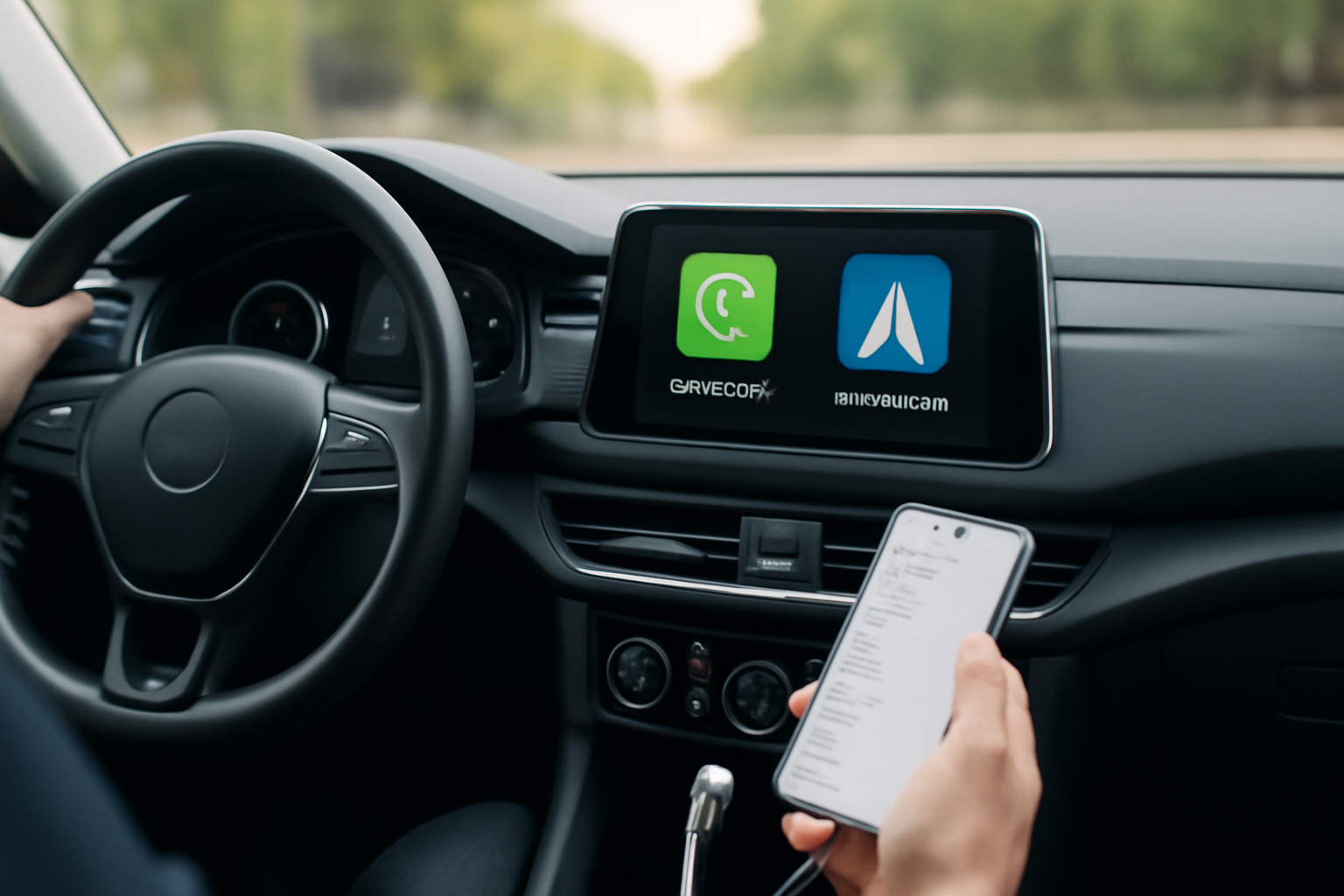
Select it, confirm the 6-digit pairing code on both screens, and grant permissions for contacts and messages when prompted. SYNC 4 supports wireless Apple CarPlay and Android Auto after initial Bluetooth pairing, so once Bluetooth is set up, wireless phone projection activates automatically on subsequent drives.
13th Gen F-150 (2015-2020): SYNC 3
Tap Settings > Bluetooth > Add a Device on the SYNC 3 screen. Search for “SYNC” on your phone and pair. Confirm the code on both screens.
You may need to enable the audio streaming profile separately if music doesn’t play through the speakers after pairing. Navigate to Bluetooth > [Your Phone] > Device Options and verify that both “Phone” and “Audio” are checked.
12th Gen F-150 (2009-2014): SYNC / MyFord Touch
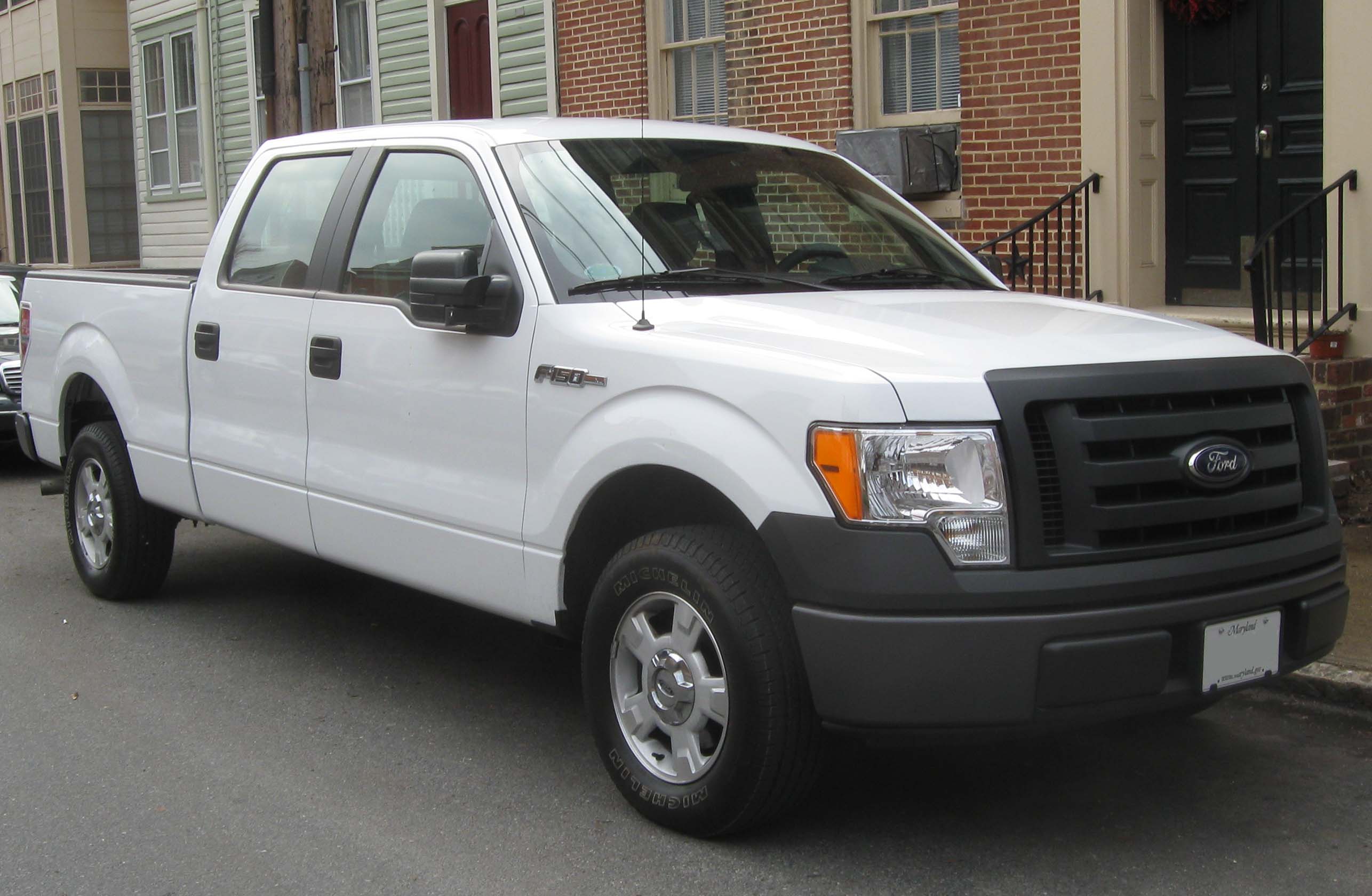
Press the Phone button on the steering wheel and follow the voice prompts, or use the small center display to navigate to Phone > Add Phone. SYNC generates a PIN code to enter on your phone.
The older SYNC system can be more finicky during pairing and may require multiple attempts. If pairing fails, ensure your phone is in discoverable mode and try again. Some older SYNC versions have compatibility issues with newer phone operating systems that a SYNC software update can resolve.
Master Reset: The Universal SYNC Bluetooth Fix
If SYNC stops connecting to any device, frequently drops connections, or becomes unresponsive, a master reset often resolves the issue. On SYNC 3 and SYNC 4, navigate to Settings > General > Master Reset and confirm.
On older SYNC systems, press and hold the power button and the right-seek button (the forward track button on the head unit) simultaneously for 10 to 15 seconds until the screen goes black and reboots.
A master reset erases all paired devices, saved radio presets, and customized settings. You’ll need to re-pair all phones and reconfigure your preferences after the reset. This is more thorough than simply deleting and re-pairing a single phone, because it clears the SYNC module’s internal cache and connection database entirely.
Setting a Default Phone and Connection Priority
If multiple family members have phones paired to the F-150, you can set a priority order to control which phone connects automatically when the truck starts. In SYNC 3 and SYNC 4, go to Bluetooth Devices, select your phone, and enable “Auto Connect” or “Favorites.”
The truck connects to the highest-priority phone first when multiple paired devices are in range. Lower-priority phones connect only if the primary phone isn’t present.
For F-150s without built-in Bluetooth (pre-2009) or with a malfunctioning SYNC module, a Bluetooth FM transmitter adds wireless audio and hands-free calling through any FM radio frequency.

Bluetooth FM Transmitter
Adds Bluetooth audio and calling to older F-150s without built-in Bluetooth
SYNC Software Updates
Ford releases periodic SYNC software updates that improve Bluetooth compatibility, add features, and fix bugs. SYNC 4 receives over-the-air (OTA) updates automatically. SYNC 3 updates can be downloaded from Ford’s website onto a USB drive and installed through the truck’s USB port.
Older SYNC versions require a dealer visit for updates in most cases. Keeping SYNC updated is one of the most effective things you can do for reliable Bluetooth performance. Each update includes compatibility improvements for the latest phone operating systems and Bluetooth protocol versions.
If you’re experiencing persistent connectivity problems with other Ford vehicles, you might find the troubleshooting approach similar to fixing CarPlay issues on the Toyota RAV4, since many connection problems share common solutions across different systems.
Related Bluetooth and Tech Issues in Ford Vehicles
Ford owners often encounter similar tech frustrations across their vehicle lineup. For example, the Ford Explorer rear window washer system can stop working due to electrical glitches that share diagnostic principles with SYNC troubleshooting.
Understanding how one system fails can help you diagnose problems in other electronic systems on your truck. Modern vehicles increasingly rely on interconnected electronic modules, so connection and communication issues can appear in multiple areas.
Frequently Asked Questions
Why does SYNC limit me to 12 paired devices?
Ford’s SYNC system stores up to 12 device profiles in its internal memory. Once the limit is reached, delete unused devices through the Bluetooth settings menu to make room for new ones.
Most households don’t exceed 12 phones, but fleet vehicles and trucks shared among multiple drivers can hit this limit.
Why does my phone keep disconnecting from SYNC?
Ensure your phone’s OS and the SYNC software are both current. Ford releases updates that improve Bluetooth stability, and phone manufacturers include Bluetooth fixes in their OS updates.
If disconnections persist after updating both sides, perform a master reset on SYNC and re-pair from scratch.
Can I use Bluetooth and USB at the same time?
When CarPlay or Android Auto is active via USB, the USB connection handles all phone and audio functions. Bluetooth for a second phone (calls only) can still work simultaneously on SYNC 4.
On SYNC 3, USB phone projection takes priority and may disable Bluetooth audio streaming from a second device.

Leave a Reply